
The shift from traditional cable television to over-the-top (OTT) streaming services has fundamentally changed how we consume media. However, one of the primary concerns for those transitioning to a cord-cutting lifestyle is the availability of local news, weather, and sports. YouTube TV has emerged as a frontrunner in the streaming wars largely because of its robust integration of local broadcast affiliates. Unlike many competitors that rely on “on-demand” versions of network shows, YouTube TV provides a live, linear feed of local stations. Understanding how to access and manage these channels is critical for maximizing the utility of the platform.
The Technology Behind Localized Streaming
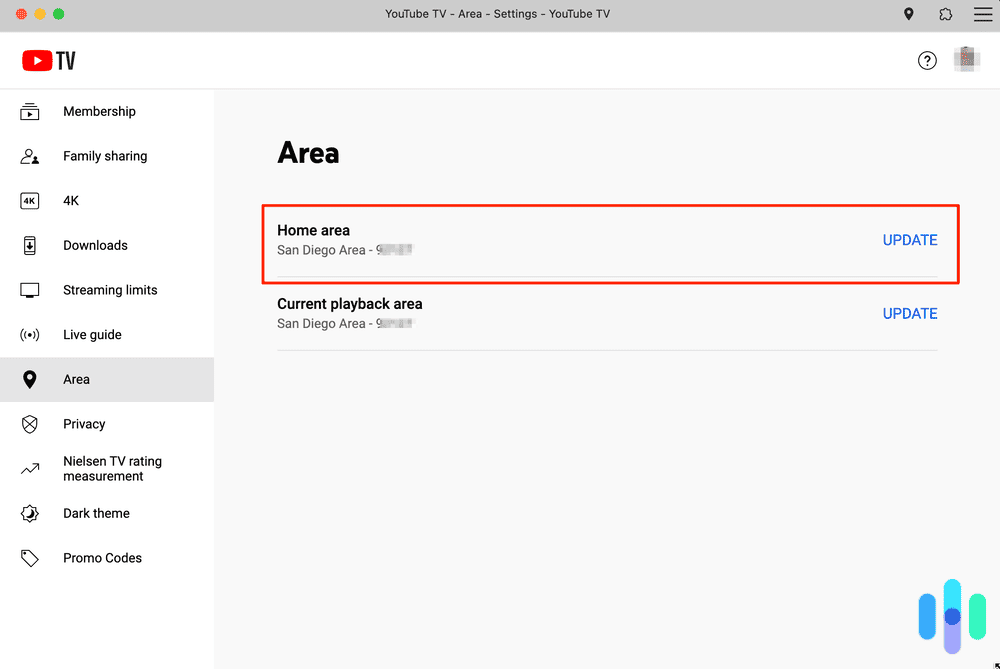
To provide local channels, YouTube TV employs sophisticated geolocation technology. When you sign up for the service, the application identifies your “Home Area” based on your ZIP code. This area determines your permanent channel lineup, including local affiliates for major networks such as ABC, CBS, NBC, FOX, and often PBS or The CW.
The platform uses a combination of IP address mapping and device-level GPS data to verify your location. This ensures that the service complies with the complex licensing agreements held by local broadcast groups. Because broadcast rights are strictly partitioned into Designated Market Areas (DMAs), the software must constantly verify that the content being served matches the physical location of the viewer.
Steps to Access and Configure Local Stations
For most users, getting local channels is an automated part of the setup process. However, navigating the software interface to ensure you are seeing the right feeds requires a basic understanding of the app’s internal logic.
Initial Setup and ZIP Code Verification
When you first install YouTube TV on a smart TV, mobile device, or streaming stick (like a Chromecast or Roku), the app will prompt you to provide your home ZIP code. It is vital to enter the code associated with your primary billing address, as this establishes your “Home Area.” The software uses this data to populate the “Live” tab with your regional affiliates.
If you are using a mobile device, the app will request permission to access your location services. Granting this permission is mandatory for local channel access; without it, the app cannot verify that you are within a licensed DMA. On a desktop browser, the service uses your ISP’s location data, though it may occasionally ask you to verify your location via your smartphone for higher precision.
Navigating the Live Guide
Once the account is active, your local channels will be integrated directly into the primary channel list.
-
Open the YouTube TV app.
-
Select the “Live” tab at the top of the interface.
-
Scroll through the list to find your local ABC, CBS, FOX, and NBC affiliates.
A key technical feature of YouTube TV is the ability to customize this guide. By accessing the “Sort” menu in the Live tab (usually represented by a filter icon), you can choose “Custom.” This allows you to move your local stations to the very top of the guide, ensuring that local news and weather are the first things you see when you launch the application.
Managing Multiple Locations (Traveling)
One of the most powerful features of YouTube TV’s software is its portability. When you travel outside of your home area, the app detects your new location. In this scenario, the software will temporarily swap your home local channels for the local affiliates of the city you are currently visiting. For example, if your home is in Chicago but you are traveling to Los Angeles, the app will show you LA-based news and sports during your stay.
However, there is a technical limitation: you cannot record local programs from a visiting area. Your DVR will continue to record shows from your home market, but you can only watch them once the broadcast has finished and moved to the “Library” section.
Troubleshooting Location and Access Issues
Despite the seamless nature of modern streaming apps, technical glitches regarding local channel availability can occur. These usually stem from location mismshatches or software permission errors.

Fixing “Area Mismatch” Errors
An “Area Mismatch” occurs when the software detects a discrepancy between your device’s reported location and your account’s Home Area. This is common when using mobile data or if you have recently moved. To resolve this:
-
Open the YouTube TV app on your mobile device.
-
Tap your profile picture and go to Settings > Area.
-
Select “Current Area” and tap “Update.”
-
This forces the app to re-sync with your device’s GPS, correcting the location data sent to the YouTube TV servers.
The Role of Digital Security and VPNs
Many tech-savvy users employ Virtual Private Networks (VPNs) for digital security and privacy. However, VPNs are often incompatible with YouTube TV’s local channel delivery. Because a VPN masks your IP address or places it in a different city, the YouTube TV software may flag your account for a terms-of-service violation or simply fail to load local content.
If you find that your local channels have disappeared or are showing a different city entirely, check if a VPN is active on your router or device. For the app to function correctly, it needs a direct, unmasked connection to your local ISP to verify your DMA.
Hardware-Specific Issues
Different hardware platforms handle location verification differently. A smart TV typically relies on the IP address provided by your home Wi-Fi. If your ISP assigns you a dynamic IP that routes through a distant server, the TV might think you are in a different state. In contrast, a smartphone uses GPS satellites, which is far more accurate. If your TV shows the wrong local channels, opening the app on your phone while connected to the same Wi-Fi often “pushes” the correct location data to the TV, resolving the conflict.
Advanced Features and the Future of Localized Content
YouTube TV does more than just stream live video; it integrates local channels into a broader ecosystem of cloud-based features that traditional cable boxes struggle to match.
Cloud DVR and Local Programming
One of the standout software features is the unlimited Cloud DVR. For local channels, this is particularly useful for news junkies. You can “follow” a specific local news program (e.g., “6:00 PM News on Channel 4”), and the software will automatically record every instance of that broadcast. Because it is stored in the cloud rather than on a local hard drive, you can access these recordings from any device, anywhere in the country.
Regional Sports Networks (RSNs)
While local “Big Four” networks (ABC, CBS, NBC, FOX) are generally included in the base package, Regional Sports Networks represent a more complex technical and licensing challenge. RSNs, such as Bally Sports or NBC Sports Regionals, are often subject to different carriage agreements.
To see which sports networks are available in your area, you can use the “Welcome” tool on the YouTube TV website. By entering your ZIP code before signing up, the web app generates a precise list of every local and regional network your specific location supports. This transparency is a hallmark of modern software-as-a-service (SaaS) platforms, providing clarity that was historically absent in the cable industry.
The Impact of NextGen TV (ATSC 3.0)
The future of local broadcasting is shifting toward ATSC 3.0, also known as NextGen TV. This new standard allows for 4K resolution, HDR, and better indoor reception for over-the-air signals. As local stations upgrade their hardware, streaming apps like YouTube TV are preparing their software infrastructure to handle these higher-bandwidth feeds.
We are seeing a convergence where the app’s interface might eventually integrate with home tuners or provide enhanced metadata (like interactive weather maps or localized emergency alerts) directly within the stream. This evolution will likely make the distinction between “streaming” and “broadcasting” even more transparent to the end-user.
Maximizing the App Experience for Local News
To get the most out of local channels, users should engage with the app’s personalization algorithms. The “Home” tab on YouTube TV uses machine learning to suggest content based on your viewing habits. If you frequently watch the local morning news, the software will eventually prioritize that live feed at the top of your home screen during those hours.

Setting Up Multiple Profiles
Because YouTube TV allows for up to six individual profiles per household, each family member can have their own localized experience. If one family member prefers a specific local affiliate for sports coverage while another prefers a different one for news, the app remembers these preferences individually. This level of software customization ensures that the “local” experience is tailored to the individual, rather than the household as a whole.
By leveraging these technical tools—location updates, custom guides, and cloud DVR—users can ensure they never miss a local broadcast. The transition to YouTube TV doesn’t mean giving up local identity; it simply means accessing it through a more sophisticated, flexible, and technologically advanced interface.
aViewFromTheCave is a participant in the Amazon Services LLC Associates Program, an affiliate advertising program designed to provide a means for sites to earn advertising fees by advertising and linking to Amazon.com. Amazon, the Amazon logo, AmazonSupply, and the AmazonSupply logo are trademarks of Amazon.com, Inc. or its affiliates. As an Amazon Associate we earn affiliate commissions from qualifying purchases.