
In an increasingly digital world, the convenience and security of mobile payments have become indispensable. Google Pay stands out as a leading digital wallet solution, seamlessly integrating with the Android ecosystem and extending its reach across various platforms. More than just a payment app, it’s a comprehensive digital hub designed to streamline transactions, manage loyalty programs, and even store digital tickets, all from the palm of your hand. For many, Google Pay represents a significant leap forward in personal financial management, offering a blend of cutting-edge technology and user-friendly design. This guide will walk you through the process of getting started with Google Pay, delving into its technological underpinnings, setup procedures, and how to harness its full potential for a more efficient and secure digital life.

Understanding Google Pay: A Digital Wallet Revolution
At its core, Google Pay is a sophisticated application that transforms your smartphone into a digital wallet, eliminating the need to carry physical cards or cash for most transactions. It leverages advanced technological frameworks to offer a robust and versatile payment solution, moving beyond simple card emulation to encompass a wide array of digital functionalities.
What is Google Pay?
Google Pay is a digital payment platform and wallet service by Google that allows users to make payments with Android phones, tablets, or watches. It’s designed to simplify the checkout process both online and in physical stores, securely storing your payment information (credit cards, debit cards, bank accounts) and enabling quick transactions. Beyond payments, it consolidates loyalty cards, boarding passes, event tickets, and even public transit passes, providing a holistic digital utility experience. The service is built upon a foundation of existing Google technologies, ensuring deep integration with Google accounts and services, enhancing user convenience and data synchronization across devices. This interconnectedness allows for a fluid user experience, whether you’re making an in-app purchase, tapping to pay at a grocery store, or sending money to a friend.
Key Technological Advantages
Google Pay’s prowess stems from several crucial technological innovations that prioritize both convenience and security:
- Near Field Communication (NFC): This short-range wireless technology is the backbone of in-store mobile payments. When you “tap to pay,” Google Pay utilizes NFC to establish a secure, encrypted connection with the payment terminal, transmitting your payment information without physical contact. This not only speeds up transactions but also reduces the risk associated with physical card readers.
- Tokenization: Perhaps the most significant security feature, tokenization replaces your actual credit or debit card number with a unique, encrypted digital token. When you make a payment, this token is transmitted to the merchant, not your real card number. Even if a data breach were to occur at the merchant’s end, your actual financial details remain protected, as the token is useless without Google’s decryption key. This provides an additional layer of security beyond what traditional physical cards offer.
- Cross-Platform Integration: While primarily associated with Android, Google Pay extends its functionality across various platforms and Google services. It’s integrated into Chrome for seamless online checkouts, available in numerous apps for in-app purchases, and supports peer-to-peer payments. This broad interoperability ensures a consistent payment experience wherever you interact with Google’s ecosystem.
- Biometric Authentication: Google Pay supports various authentication methods, including fingerprint scanning and facial recognition, alongside PINs. These biometric options offer a high level of security and convenience, ensuring that only you can authorize transactions from your device.
Step-by-Step Guide to Getting Started with Google Pay
Embarking on your Google Pay journey is straightforward, designed to be intuitive for users of all technical proficiencies. The process typically involves downloading the app, adding your payment instruments, and configuring essential security settings.
Downloading and Installing the App
For most modern Android smartphones, the Google Pay app comes pre-installed or is readily available through the Google Play Store.
- Check for Pre-installation: First, look for the “Google Pay” app icon on your device’s home screen or within your app drawer. Some newer Android devices might also display it as “Wallet” or “GPay” due to recent branding updates.
- Download from Google Play Store: If you cannot find the app, open the Google Play Store, search for “Google Pay” (or “Google Wallet” if Google Pay redirects to it), and tap “Install.” Ensure you are downloading the official app from Google LLC.
- Open the App: Once installed, tap the Google Pay icon to launch the application. You’ll typically be prompted to sign in with your Google Account. If you have multiple Google Accounts on your device, select the one you wish to associate with your Google Pay profile.
Adding Your Payment Methods
This is the crucial step that transforms your phone into a functional digital wallet. Google Pay supports a wide range of payment instruments, including credit cards, debit cards, and sometimes bank accounts or PayPal.
- Initiate Card Addition: From the Google Pay app’s home screen, look for a prominent “Add a card,” “Add payment method,” or a similar button, often represented by a “+” icon.
- Choose Card Type: Select whether you’re adding a credit or debit card.
- Scan or Enter Details Manually:
- Scan Card: Position your physical card within the frame on your screen. The app’s optical character recognition (OCR) technology will attempt to automatically detect and fill in the card number, expiration date, and cardholder name. Review these details for accuracy.
- Enter Manually: If scanning isn’t an option or is inaccurate, you can manually type in your card number, expiration date, CVV, and cardholder name.
- Agree to Terms and Conditions: Your bank or card issuer will likely have their own terms and conditions for using their card with Google Pay. Read through these and accept them to proceed.
- Verify Your Card: For security, your bank will need to verify that you are the legitimate cardholder. This usually involves:
- SMS Code: A verification code sent to the phone number associated with your bank account.
- Email Code: A code sent to your registered email address.
- Bank App/Website: Directing you to log into your bank’s app or website.
- Phone Call: A call to your bank’s automated service.
Follow the instructions provided by your bank to complete the verification. Once verified, your card is ready for use.
- Add Multiple Cards: You can repeat this process to add multiple credit or debit cards, allowing you to choose which card to use for different transactions. You can also set a default card for quicker payments.
Setting Up Security Features
Beyond card verification, Google Pay empowers you with additional security layers to protect your digital wallet.
- Screen Lock: Google Pay inherently relies on your device’s screen lock (PIN, pattern, password, fingerprint, or face unlock) for authorization. Ensure you have a strong screen lock enabled. Without it, you may be prompted to set one up or risk not being able to use Google Pay for secure transactions.
- Biometric Authentication: Within the Google Pay app settings, you can often enable specific biometric authentication (fingerprint, face unlock) for Google Pay transactions, even if your phone’s general screen lock is set to a PIN. This adds an extra layer of protection, requiring your biometrics for every tap-to-pay transaction.
- PIN for High-Value Transactions: Depending on your region and bank, Google Pay may prompt you to enter a PIN for transactions exceeding a certain amount, or occasionally for random security checks. This is a standard security measure designed to prevent unauthorized high-value purchases.
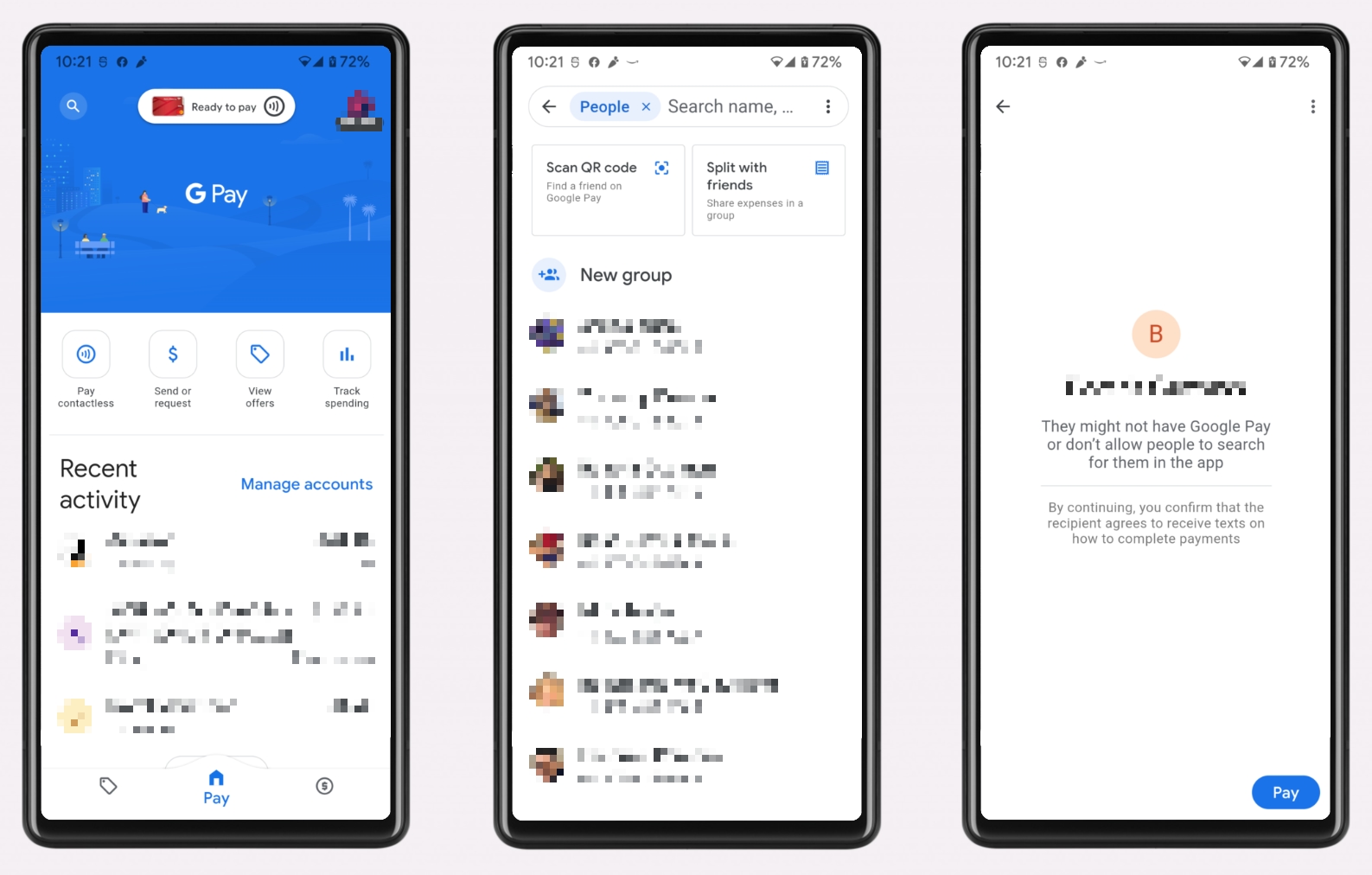
Maximizing Your Google Pay Experience
Once set up, Google Pay unlocks a world of convenience. Its utility extends far beyond just tapping your phone at a checkout counter, offering versatile ways to manage your daily transactions and digital items.
Where to Use Google Pay
The widespread adoption of contactless payment technology means Google Pay is usable in a multitude of scenarios:
- In-Store Purchases (Tap to Pay): Look for the Google Pay logo, the contactless payment symbol (four curved lines), or the NFC logo at checkout terminals. Simply wake your phone (no need to open the app), hold it near the terminal, and authenticate with your fingerprint/face/PIN if prompted. A checkmark on your screen confirms the payment.
- Online Shopping: Many e-commerce websites and apps offer Google Pay as a checkout option. When you see the Google Pay button, select it, and your stored payment and shipping information will be pre-filled, saving you time and the hassle of manual entry. This seamless integration leverages your existing Google account data for a faster purchase flow.
- In-App Purchases: Numerous Android apps integrate Google Pay for quick and secure in-app purchases, from ordering food to subscribing to services.
- Peer-to-Peer Payments: In some regions, Google Pay allows you to send and receive money directly to and from friends and family using their phone numbers or email addresses. This functionality transforms it into a versatile personal finance tool for splitting bills or sending gifts.
- Public Transit: In an increasing number of cities worldwide, Google Pay can be used to pay for public transportation, acting as a digital transit card. Just tap your phone at the turnstile or on the bus reader.
Exploring Advanced Features
Google Pay is designed to consolidate more than just your money, evolving into a central hub for various digital assets:
- Loyalty and Reward Cards: You can digitally store your loyalty cards from various retailers within Google Pay. Instead of fumbling through your physical wallet, simply select the relevant loyalty card from the app at checkout, and it can be scanned or its number applied automatically.
- Event Tickets and Boarding Passes: Many airlines, event venues, and ticketing platforms allow you to save digital boarding passes and event tickets directly to Google Pay. This eliminates the need for paper tickets and provides easy access when you need to present them.
- Gift Cards: Store digital gift cards for various merchants, ensuring you never leave them at home.
- Digital Keys (Emerging): In future iterations, Google Pay is poised to become even more integrated, with capabilities such as storing digital car keys and hotel room keys already in development or limited rollout. This demonstrates Google’s vision for a truly comprehensive digital wallet.
The Technology Behind Google Pay’s Security
Security is paramount for any financial tool, and Google Pay employs a multi-layered approach to protect your sensitive data and transactions. The technological safeguards embedded within Google Pay are designed to be robust, yet operate seamlessly in the background, providing peace of mind with every tap.
Tokenization Explained
As mentioned earlier, tokenization is the cornerstone of Google Pay’s security architecture. When you add a card, Google doesn’t store your actual 16-digit card number on your device or transmit it to merchants during a transaction. Instead, it creates a unique, encrypted token (a “virtual account number”) specific to your device and that particular card.
- During Setup: When you add a card, your bank or card network provides Google with this unique token.
- During Transaction: When you tap to pay, Google Pay sends this token to the payment terminal, along with a cryptogram that changes with each transaction. The merchant receives only this token and cryptogram, not your real card number.
- Processing: The merchant’s payment processor routes the token and cryptogram back to the card network (e.g., Visa, Mastercard), which then decrypts it, identifies your actual card details, and processes the payment with your bank.
- Benefit: Even if a malicious actor were to intercept the token from a merchant’s system, it would be useless without Google’s specific decryption keys and the dynamic cryptogram. This significantly reduces the risk of card fraud and identity theft stemming from merchant data breaches.
Encryption and Fraud Protection
Beyond tokenization, Google Pay employs standard yet powerful encryption protocols to protect your data both in transit and at rest:
- Data in Transit: All communication between your device, the Google Pay servers, and payment networks is heavily encrypted using industry-standard SSL/TLS protocols, preventing eavesdropping.
- Data at Rest: Your payment information is stored on Google’s secure servers, which are protected by multiple layers of security, including physical safeguards, advanced firewalls, and continuous monitoring. Google’s infrastructure is renowned for its security, utilized for countless sensitive services worldwide.
- Fraud Detection: Google continuously monitors transactions for suspicious activity. Leveraging its vast data analytics capabilities, it can identify unusual patterns that might indicate fraud and may flag or even block transactions to protect your account. Users also have the ability to dispute unauthorized transactions directly through their bank or card issuer.
Privacy Controls and Data Management
Google understands the importance of privacy, especially concerning financial data. Google Pay provides users with granular controls over their information:
- No Sharing with Merchants: Merchants only receive the token and necessary transaction details; your actual card number, billing address, or name are not directly shared unless required for specific online purchases where you explicitly provide consent.
- Activity Control: Within your Google Account settings, you can review and manage your Google Pay activity, including past transactions. You have the option to delete specific activities or pause the saving of future activity, giving you control over your personal data footprint.
- Device Management: If your phone is lost or stolen, you can remotely lock your device, erase its data, or remove Google Pay cards via Google’s Find My Device service, ensuring that your financial information remains secure even if your physical device is compromised.

Conclusion
Google Pay represents a powerful convergence of technology and financial convenience, simplifying transactions and enhancing security in our increasingly digital lives. From the initial download and card setup to leveraging advanced features like loyalty programs and transit passes, the platform is designed for intuitive use and robust protection. By understanding the underlying technologies like NFC, tokenization, and biometric authentication, users can appreciate the sophisticated safeguards in place that protect their financial data. Getting Google Pay is more than just installing an app; it’s adopting a smarter, more secure, and more efficient way to manage your payments and digital essentials, paving the way for a truly wallet-free future. Embrace the digital revolution and streamline your financial interactions with Google Pay today.
aViewFromTheCave is a participant in the Amazon Services LLC Associates Program, an affiliate advertising program designed to provide a means for sites to earn advertising fees by advertising and linking to Amazon.com. Amazon, the Amazon logo, AmazonSupply, and the AmazonSupply logo are trademarks of Amazon.com, Inc. or its affiliates. As an Amazon Associate we earn affiliate commissions from qualifying purchases.