
The evolution of home entertainment has transitioned from linear broadcasting to on-demand streaming ecosystems. At the center of this digital transformation is Amazon Prime Video, a service that has become a cornerstone of the modern “cord-cutter” movement. Integrating Amazon’s massive library of 4K content, original programming, and live sports into a television setup requires an understanding of both hardware compatibility and software configuration. Whether you are operating a cutting-edge OLED display or a legacy high-definition set, the technical pathways to accessing Amazon on your TV are varied and increasingly sophisticated.

Understanding the Hardware Ecosystem
The first step in accessing Amazon on a television is identifying the hardware capabilities of your current display. The methodology differs significantly between native integration on Smart TVs and the use of external peripheral devices.
Smart TVs with Native Support
Most modern televisions manufactured within the last five to seven years are classified as “Smart TVs.” These devices operate on proprietary or licensed operating systems such as Samsung’s Tizen, LG’s webOS, or Sony’s integration of Google TV (formerly Android TV). These platforms generally come with the Amazon Prime Video application pre-installed.
From a technical perspective, these native apps are optimized for the specific System-on-a-Chip (SoC) inside the television. This ensures that features like HDR10+ or Dolby Vision are handled efficiently by the TV’s internal processor. To access Amazon, users simply navigate to the home dashboard, locate the Prime Video icon, and initiate the login sequence. If the app is missing, it can usually be retrieved via the manufacturer’s specific app store (e.g., the LG Content Store or Samsung Galaxy Store).
External Streaming Media Players
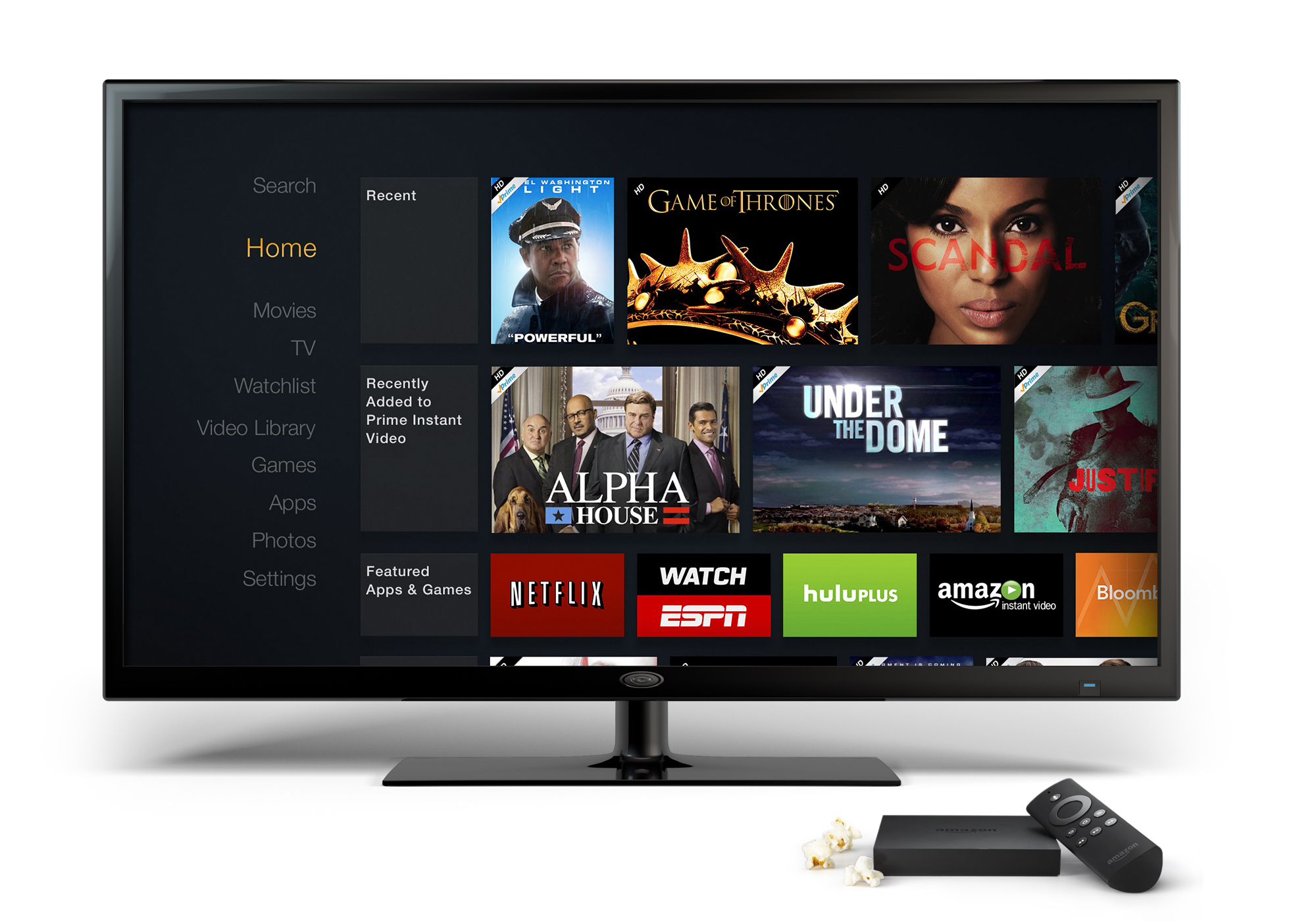
For users with older “dumb” TVs or those who prefer a more responsive user interface than what their TV’s built-in processor provides, external streaming devices are the preferred solution. Amazon’s own Fire TV Stick series—including the Lite, 4K, and 4K Max iterations—offers the most seamless integration. These devices plug directly into the HDMI port and effectively replace the TV’s native interface with Amazon’s Fire OS.
However, the tech ecosystem is inclusive. Competitors like the Roku Premiere, Apple TV 4K, and Google Chromecast also support high-fidelity Amazon Prime Video applications. These devices often provide superior RAM and faster Wi-Fi antennas (such as Wi-Fi 6E support), which can drastically reduce buffering times compared to a TV’s aging internal hardware.
Gaming Consoles as Media Hubs
The computational power of modern gaming consoles makes them excellent media centers. The PlayStation 5 and Xbox Series X/S platforms feature dedicated media galleries where the Amazon Prime Video app can be downloaded. Using a console often provides a more stable wired connection through an Ethernet port, which is crucial for maintaining the high bitrates required for 4K UHD streaming.
Software Setup and Device Activation
Once the hardware is connected, the software configuration phase begins. This involves bridging the gap between your Amazon account and the specific hardware instance of the application.
The Application Installation Process
On most devices, if the app is not pre-loaded, the installation follows a standard protocol:
-
Navigate to the “Apps” or “Store” section of the device interface.
-
Search for “Prime Video.”
-
Select “Download” or “Install.”
-
Once the installation is complete, the application will appear in your “My Apps” or “Home” ribbon.
It is vital to ensure that your device’s firmware is up to date before installation. App developers frequently release patches that require the latest OS version to function correctly, particularly when handling DRM (Digital Rights Management) protocols that protect high-definition content.
The Registration and Authentication Loop
Amazon utilizes a simplified “Register Your Device” system to bypass the frustration of typing complex passwords with a standard TV remote. When you open the app for the first time, you are usually presented with two options:
-
On-Screen Login: Manually entering your email and password.
-
Web-Based Activation: A 5-6 digit alphanumeric code appears on the TV screen. You are instructed to visit a specific URL (usually amazon.com/mytv) on a smartphone or computer. Once you enter the code on your secondary device and sign in, the TV app automatically refreshes and logs you in.
This method is not only faster but more secure, as it utilizes two-factor authentication (2FA) if enabled on your account, ensuring that unauthorized devices cannot gain access to your streaming profile.
Optimizing Technical Configurations for High-Fidelity Viewing
Simply getting the app to run is only half the battle. To truly “get Amazon on TV” in a way that justifies modern hardware investments, users must optimize their technical settings.
Bandwidth and Data Management
Streaming 4K content requires a robust internet connection. Amazon recommends a minimum of 15 Mbps for Ultra HD content. However, for a stable experience without “bitrate dropping” (where the picture quality fluctuates), a 25-50 Mbps overhead is recommended.
Within the app settings, users can often find a “Data Usage” or “Streaming Quality” menu. In a tech-forward household with data caps, selecting “Good” or “Better” instead of “Best” can save significant bandwidth. Conversely, for the best visual experience, ensuring the setting is locked to “Best” prevents the app from downscaling during minor network fluctuations.
Audio Pass-through and Visual Standards
Amazon Prime Video supports advanced AV formats like Dolby Atmos and HDR10+. To ensure these are active:
-
HDMI ARC/eARC: If you are using an external soundbar or AV receiver, ensure your streaming device is plugged into an HDMI eARC port. This allows for the high-bandwidth audio data of Dolby Atmos to pass from the TV to the sound system.
-
HDCP 2.2: For 4K streaming, every link in your hardware chain (the TV, the cable, and the streaming stick) must support HDCP 2.2, the industry standard for content protection. Using an older HDMI 1.4 cable will often result in the app limiting your resolution to 1080p, regardless of your subscription tier.
Alternative Connection Methods: Beyond the App
In scenarios where a native app is unavailable—such as when using an older projector or a display with a failed Wi-Fi card—there are alternative technical workarounds to bring Amazon content to the screen.
Hardwired Laptop Connections
One of the most reliable “fail-safe” methods involves using a computer as the source. By connecting a laptop to the TV via an HDMI cable, the TV acts as a secondary monitor. You can then navigate to the Prime Video website via a browser (Chrome or Safari).
Technically, this method can be limited by the browser’s ability to output high-definition content due to “Widevine” DRM levels. For example, some browsers may cap resolution at 720p or 1080p to prevent screen recording. Using the dedicated “Amazon Prime Video” app for Windows 10/11 or macOS usually bypasses these browser-based limitations, allowing for higher resolutions over HDMI.
Screen Mirroring and Casting
For a wireless approach, protocols like Miracast (Android/Windows) and AirPlay 2 (Apple) allow you to “cast” the Prime Video app from your phone to the TV.
-
AirPlay 2: Many modern TVs from Vizio, LG, and Samsung support AirPlay natively. When you play a video on your iPhone, you can tap the AirPlay icon and select your TV.
-
Chromecast Built-in: On TVs running Android TV or Google TV, you can use the “Google Cast” protocol.
It is important to note that “casting” and “mirroring” are technically different. Casting sends the URL of the video to the TV, which then streams it directly from the cloud, preserving quality and freeing up your phone. Mirroring simply replicates your phone’s screen, which often results in lower frame rates and higher latency.
Troubleshooting and Future-Proofing
The landscape of streaming technology is in a constant state of flux. Maintaining your access to Amazon on TV requires proactive software maintenance.
Managing App Cache and Updates
If the Amazon app becomes sluggish or fails to launch, the primary technical fix is clearing the application cache. In the “Settings” menu of a Fire TV or Android TV, you can navigate to “Applications,” select “Prime Video,” and choose “Clear Cache.” This removes temporary files that may have become corrupted during a previous session.

The Role of VPNs and Digital Security
For users traveling or those on restricted networks (such as university dorms), the use of a VPN (Virtual Private Network) can impact how you get Amazon on your TV. Amazon’s servers are highly sensitive to “proxy” detection. To maintain access, ensure that your router or streaming device is configured with a high-quality VPN protocol that offers “obfuscated servers,” which are less likely to be flagged by the service’s regional lockout systems.
By understanding the synergy between hardware, network infrastructure, and software configuration, users can ensure that their transition to Amazon’s streaming environment is both seamless and high-performing. The goal is to move beyond mere connectivity and achieve a “home cinema” experience that leverages the full breadth of modern display technology.
aViewFromTheCave is a participant in the Amazon Services LLC Associates Program, an affiliate advertising program designed to provide a means for sites to earn advertising fees by advertising and linking to Amazon.com. Amazon, the Amazon logo, AmazonSupply, and the AmazonSupply logo are trademarks of Amazon.com, Inc. or its affiliates. As an Amazon Associate we earn affiliate commissions from qualifying purchases.