
In an increasingly digitized world, where smartphones and computers dominate our computational needs, the humble calculator might seem like a relic from a bygone era. Yet, for students, engineers, scientists, and even programmers, the dedicated calculator remains an indispensable tool. Far from being limited to mere numerical operations, many modern calculators, particularly scientific and graphing models, possess a fascinating and often underutilized capability: alphanumeric input. This feature transforms a device primarily associated with numbers into a compact text processor, capable of storing variables, displaying messages, and even executing basic programs. Understanding how to leverage this functionality is not just a party trick; it’s a skill that can significantly enhance efficiency, problem-solving, and even creative expression within a technical context.
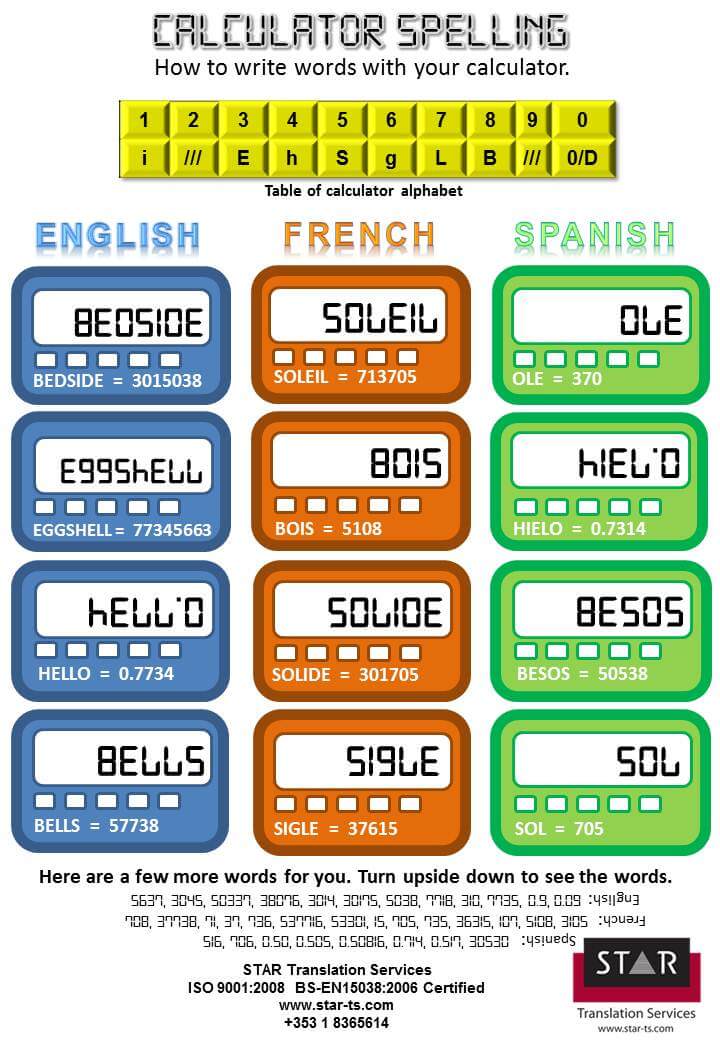
This article delves into the mechanics and applications of accessing alphabetical characters on various calculator models, illuminating the underlying technological principles and offering practical guidance for users. We’ll explore why this seemingly simple function holds profound implications for education and professional fields, moving beyond the superficial to uncover the true power embedded within these compact computing devices.
Beyond Numbers: Understanding Your Calculator’s Alphanumeric Capabilities
The ability to input and display letters on a calculator might seem counterintuitive at first glance. After all, their primary purpose is arithmetic. However, as computational demands grew more complex, particularly in scientific and engineering disciplines, the need to label variables, store formulas with descriptive names, or even write small scripts became apparent. This necessity drove manufacturers to integrate alphanumeric input, transforming calculators from mere number crunchers into miniature data management and programming platforms.
The Hidden Power of Scientific and Graphing Calculators
Basic four-function calculators are, by design, limited to numbers and fundamental operations. The true alphanumeric capabilities emerge with scientific calculators and become fully fledged on graphing calculators. Scientific calculators often allow for single-letter variable storage (e.g., A, B, C, X, Y, Z), which can be incredibly useful for complex multi-step problems where intermediate results need to be held or referred to by a distinct label. Graphing calculators, however, elevate this significantly. With larger screens and more robust memory, they support full text input, enabling users to:
- Label graphs and plots: Enhancing clarity and interpretability.
- Write and execute programs: Using command structures that often involve text.
- Store notes and formulas: Making them readily accessible during exams or fieldwork.
- Perform symbolic manipulation: In advanced models, some algebraic expressions are handled alphanumerically.
This transition from purely numerical to alphanumeric input represents a significant technological leap, blurring the lines between calculators and rudimentary computers. It underscores a design philosophy aimed at providing tools that adapt to the evolving needs of advanced STEM fields.
Why Alphanumeric Input Matters in Modern Tech
In a world increasingly reliant on data and complex algorithms, the capacity for clear labeling and structured programming is paramount. Even on a calculator, alphanumeric input mirrors fundamental principles of modern computing:
- Variable Management: Just as a programmer defines variables in a coding language, calculator users can assign meaningful labels to numerical values, making complex equations easier to track and debug.
- Human-Computer Interaction (HCI): The ability to read and input text makes the device more user-friendly and intuitive, reducing cognitive load when dealing with intricate problems. Instead of remembering that ‘memory location 1’ holds the radius, you can label it ‘R’.
- Foundational Programming Concepts: For students learning to code, writing simple programs on a graphing calculator using alphanumeric commands can be an excellent introductory step, teaching logic, sequence, and variable handling in a constrained environment.
- Data Archiving and Retrieval: The ability to store and recall named data sets or formulas on the device itself reduces reliance on external notes, providing immediate access to critical information when an internet connection isn’t available.
This functionality, therefore, isn’t just a quirky feature; it’s a testament to the calculator’s adaptability and its continued relevance as a specialized, robust computing tool in an increasingly digital landscape.
Navigating the Keypad: A Brand-Specific Guide
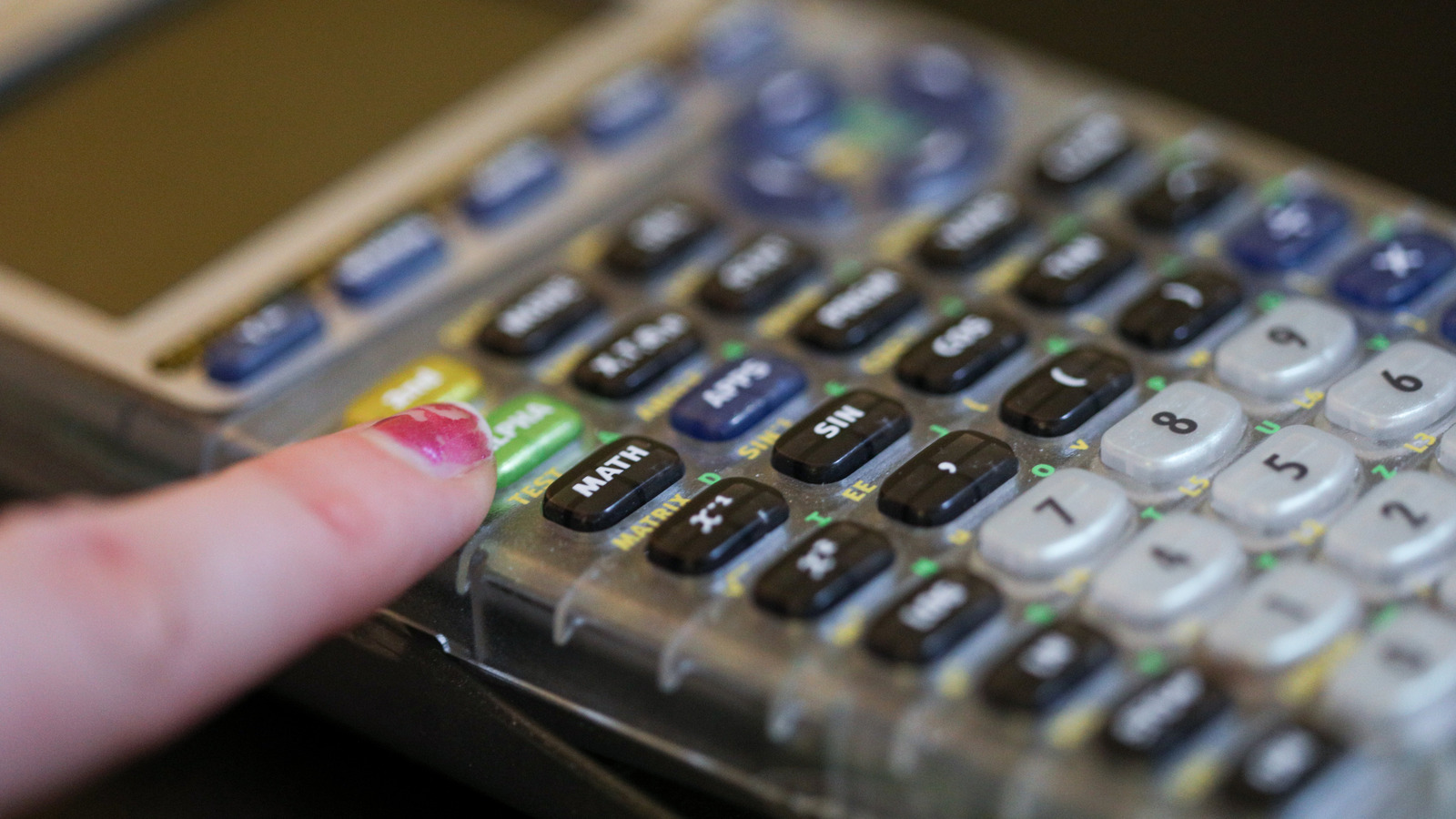
While the principle of accessing alphabetical characters is similar across different scientific and graphing calculators, the specific key combinations and operational modes can vary significantly between manufacturers. Understanding these nuances is crucial for efficient use. Most involve a ‘shift’ or ‘alpha’ key, which temporarily changes the function of other keys to display letters instead of numbers or standard operations.
Casio Calculators: Unlocking ALPHA and SHIFT Functions
Casio calculators, renowned for their user-friendliness and robust feature sets, typically employ a dedicated ALPHA key. This key often resides near the top left or right of the keypad and is usually color-coded (e.g., yellow, orange, or green) to match the color of the alphabetical characters printed above certain numerical or operational keys.
To input an alphabetical character on most Casio scientific and graphing calculators:
- Press the ALPHA key. This activates the secondary (alphabetic) function for the next key press.
- Press the desired key that has the corresponding letter printed above it. For example, to get ‘A’, you might press
ALPHAthen(-). To get ‘X’, you might pressALPHAthenSTOor a dedicatedXbutton. - For multiple letters (on graphing calculators): Some Casio graphing models (like the fx-CG50) might require
SHIFT+ALPHA(often labeledA-LOCKor similar) to toggle a permanent alpha-lock mode, allowing continuous text input without repeatedly pressingALPHA. PressingALPHAagain usually turns off the alpha-lock. - Special Characters and Symbols: Many Casio models also offer access to Greek letters (α, β, γ, etc.) and various symbols through similar
SHIFTorALPHAcombinations, often found in menus accessible via keys likeOPTNorCATALOG.
Familiarity with your specific Casio model’s manual is always recommended, as key layouts can vary.
Texas Instruments (TI): Variable Storage and Text Mode
Texas Instruments (TI) calculators, particularly their popular graphing models like the TI-83 Plus, TI-84 Plus, and TI-Nspire series, are dominant in many educational institutions. Their approach to alphanumeric input is sophisticated, offering both single-variable access and full text editing.
-
Single Variable Input (TI-83/84 series):
- To access a predefined variable (e.g., X, T, θ, N), you usually press the dedicated variable key (e.g., the
X,T,θ,nkey). - To store a value into a variable (e.g.,
5 -> A): input the number, pressSTO->(often aboveON), thenALPHAand the key corresponding to the letter (e.g.,MATHfor ‘A’). - To recall a variable: simply press
ALPHAand the corresponding key. - The
ALPHAkey (often green or blue) works similarly to Casio’s, activating the secondary alphabetic function of other keys.
- To access a predefined variable (e.g., X, T, θ, N), you usually press the dedicated variable key (e.g., the
-
Text Editing and Programming (TI-83/84 series):
- When writing programs or entering text into notes/editors, TI calculators typically enter a “text mode.” This can be activated by specific menu options (e.g.,
PRGM->NEWto create a new program, orAPPSfor a text editor). - In text mode, pressing
ALPHAthen2ND(orALPHAthenALPHAagain forALPHA-LOCK) allows continuous text entry. The cursor will change, often showing a lowercase letter ‘a’ or an uppercase ‘A’ to indicate the current case. - Lowercase letters are often accessed via a
2ND+ALPHAcombination or specific sub-menus.
- When writing programs or entering text into notes/editors, TI calculators typically enter a “text mode.” This can be activated by specific menu options (e.g.,
-
TI-Nspire Series: These calculators feature a full QWERTY keyboard (on CX CAS models) or a virtual keypad on screen, making text input much more intuitive and akin to a computer. The
ALPHAkey still exists to switch between letters and numbers, but the overall experience is significantly streamlined for text entry.
HP Calculators: RPN and Letter Input Nuances
Hewlett-Packard (HP) calculators, particularly those utilizing Reverse Polish Notation (RPN), have a distinct operational philosophy. While their user base is often smaller and more specialized, their alphanumeric capabilities are equally powerful, especially in their programmable models like the HP 48/49/50 series.
-
RPN and Variable Storage: In RPN, values are manipulated on a stack. Variables are often stored in named memory locations.
- To name or recall a variable, you typically enter a string (the name of the variable) using text input mode, then use commands like
STO(store) orRCL(recall) in conjunction with that string.
- To name or recall a variable, you typically enter a string (the name of the variable) using text input mode, then use commands like
-
Text Input Mode: On most HP graphing calculators, a dedicated
ALPHAkey (often blue or yellow) toggles text input.- Pressing
ALPHAonce activates uppercase letters. - Pressing
ALPHAtwice (orSHIFT+ALPHA) might activate lowercase letters or an alpha-lock mode for continuous entry, similar to TI. - Many HP models also feature a
CAPSlock key for sustained uppercase input. - HP calculators often provide a robust character map or
CHARmenu, accessible viaSHIFT+CHARSor similar, offering a wide array of special characters, Greek letters, and symbols not readily available on the main keypad.
- Pressing
HP’s emphasis on user programmability means their alphanumeric input is often more integrated into their programming environment, allowing for complex script development directly on the device.
Practical Applications of Alphanumeric Input
Beyond merely typing “HELLO” upside down for amusement, the ability to use letters on a calculator opens up a realm of practical applications that enhance productivity, learning, and efficiency in academic and professional settings.

Storing Formulas and Constants Efficiently
One of the most immediate benefits of alphanumeric input is the ability to store and recall complex formulas or frequently used constants with descriptive names. Instead of re-typing (2*pi*sqrt(L/g)) every time, you could store it as a program or function named PEND_T.
- Custom Functions: Graphing calculators allow users to define custom functions (e.g.,
f(x) = ax^2 + bx + c) and store them under a meaningful name (e.g.,QUADRATIC). This saves significant time and reduces errors compared to manual re-entry. - Physical Constants: Scientists and engineers frequently use constants like the speed of light (
C), Planck’s constant (H), or gravitational acceleration (G). Storing these with their standard alphabetical designators means less looking up and faster calculations. - Exam Preparation: Many educators allow students to use calculators that have “user-defined” programs or stored formulas. Strategic use of alphanumeric storage can provide a quick reference for complex equations without needing to memorize every detail.
Basic Programming and Scripting
Graphing calculators are often the first exposure many students have to programming. Their built-in programming languages (like TI-BASIC for Texas Instruments or HP-BASIC for HP) rely heavily on alphanumeric commands and variable assignment.
- Automating Repetitive Tasks: A simple program can automate a series of calculations. For example, a program to solve quadratic equations (
AX^2 + BX + C = 0) can prompt the user for A, B, and C, then output the roots using the quadratic formula, eliminating manual calculation steps. - Creating Interactive Tools: Programs can be designed to prompt users for input, perform calculations, and display results in a user-friendly way, making the calculator a powerful, customizable tool for specific tasks.
- Simulations: More advanced users can create basic simulations (e.g., projectile motion, population growth) using loops, conditional statements, and alphanumeric outputs to display results and messages.
This capability bridges the gap between simple calculation and fundamental computer programming, offering a tangible environment for learning computational logic.
Communication and Creative Expression
While not its primary function, alphanumeric input on a calculator can also serve for simple communication or creative expression. The classic “5318008” (BOOBIES upside down) is a testament to this, but more practical uses exist:
- Labeling Data Sets: When conducting experiments or collecting data, alphanumeric labels can clearly distinguish between different data sets stored in the calculator’s memory.
- Personal Notes: For quick reminders or to jot down a phone number or a short thought, the calculator’s text editor (on graphing models) can be a convenient, albeit primitive, notepad.
- Simple Messaging (e.g., for teachers to students): In controlled environments, a teacher might use calculator text features to send quick, pre-programmed messages or instructions to students.
These uses, while less “technical,” highlight the versatility and often overlooked human-centric design aspects of these devices.
Troubleshooting and Advanced Tips
Even with a clear understanding of the ‘ALPHA’ key, users might encounter issues or seek to optimize their experience. Troubleshooting common problems and leveraging advanced tips can greatly enhance the utility of your calculator’s alphanumeric features.
Common Pitfalls and Solutions
- Forgetting to Press ALPHA: The most common mistake. If you press
Xexpecting an ‘X’ but get a multiplication sign, you likely forgot to press theALPHAkey first. - Incorrect Alpha-Lock Usage: On models with alpha-lock, forgetting to toggle it off can lead to unexpected text input when you intend to input numbers. Always check the display for an ‘A’ or ‘a’ indicator.
- Case Sensitivity: Some calculators (especially older or simpler models) might only support uppercase letters. More advanced graphing calculators often have separate
SHIFTor2NDcombinations for lowercase. Be mindful of case when programming, as variable names might be case-sensitive. - Memory Full: Storing too many programs or extensive notes can fill up a calculator’s limited memory. Regularly back up important data to a computer (if supported) and delete unnecessary files.
- Firmware Glitches: Occasionally, a calculator’s firmware might act erratically. A soft reset (consult your manual for the procedure, as it often involves specific key combinations that don’t erase memory) can often resolve minor issues. A hard reset will usually wipe memory, so use with caution.
Leveraging Software Emulators for Practice
Many calculator manufacturers provide free or paid software emulators for PCs and Macs. These emulators mimic the exact functionality of physical calculators, including alphanumeric input.
- Practice Without a Physical Device: Ideal for learning key combinations and programming without needing the physical calculator.
- Larger Screen: Emulators offer a larger, clearer view of the display, making it easier to read and debug programs.
- Screenshot and Sharing: Useful for creating tutorials or sharing complex formulas and programs with others.
- Experimentation: A safe environment to try out new programming concepts or complex alphanumeric entries without fear of data loss on your actual device.
Firmware Updates and Manufacturer Resources
Calculator technology, though slower-paced than smartphone development, still sees periodic improvements.
- Firmware Updates: Manufacturers like TI and Casio occasionally release firmware updates that can fix bugs, improve performance, or even add new features. Check your manufacturer’s website to see if an update is available for your model and how to install it. These updates can sometimes enhance alphanumeric text handling or programming capabilities.
- Online Manuals and Forums: The official manuals are often exhaustive and provide precise instructions for every function, including alphanumeric input. Online forums dedicated to specific calculator brands are also invaluable resources for troubleshooting, discovering advanced techniques, and sharing programs.
The Future of Calculator Interfaces in a Digital Age
As technology continues to advance at a breakneck pace, the role of the traditional calculator, and specifically its alphanumeric capabilities, is also evolving. While dedicated calculators face stiff competition from powerful software applications, their unique advantages ensure their continued relevance.
Integration with Smart Devices and Apps
The line between a physical calculator and a smart device application is becoming increasingly blurred. Many calculator apps for smartphones and tablets offer highly sophisticated alphanumeric input, often leveraging the device’s full QWERTY keyboard for seamless text entry.
- Cloud Synchronization: Some modern calculators and their companion apps offer cloud synchronization, allowing users to save programs and notes created with alphanumeric input to the cloud, accessible from multiple devices.
- Augmented Reality (AR): Future calculator interfaces might integrate AR, allowing users to write equations or programs in the air, with the results appearing dynamically, pushing the boundaries of physical interaction.
- Hybrid Devices: We might see more hybrid devices that combine the tactile satisfaction of physical buttons with the rich, flexible display and input options of a smartphone, offering the best of both worlds for alphanumeric tasks.
The Enduring Role of Physical Calculators
Despite the rise of software, physical scientific and graphing calculators continue to hold a crucial place, particularly in education.
- Standardized Testing: Many standardized tests (SAT, ACT, AP exams) permit or even require specific physical calculator models, often disallowing internet-connected devices or software. The ability to use alphanumeric input on these approved devices becomes a vital skill.
- Durability and Reliability: Physical calculators are designed for rugged use, long battery life, and often operate without distractions from notifications, making them reliable tools in exam halls or fieldwork.
- Tactile Feedback: For many users, the tactile feedback of physical buttons is preferred for precise input, reducing errors in complex calculations or programming sequences.
Bridging Gaps Between Education and Industry
The alphanumeric features on calculators serve as an early, tangible bridge for students moving from basic arithmetic to advanced mathematics, programming, and data science. Learning to use variables, write simple programs, and store functions with descriptive names on a calculator introduces fundamental concepts that are directly applicable to higher-level programming languages and engineering tools. This foundational understanding cultivated on a calculator can demystify more complex software interfaces encountered in university and professional settings, making the transition smoother and more intuitive.
In conclusion, “how to get alphabet on calculator” is far more than a simple query; it’s an entry point into a world of expanded functionality that transforms a basic computation device into a versatile tool for learning, problem-solving, and creative expression within the tech landscape. By mastering these alphanumeric capabilities, users can unlock the full potential of their calculators, making them indispensable companions in their academic and professional journeys.
aViewFromTheCave is a participant in the Amazon Services LLC Associates Program, an affiliate advertising program designed to provide a means for sites to earn advertising fees by advertising and linking to Amazon.com. Amazon, the Amazon logo, AmazonSupply, and the AmazonSupply logo are trademarks of Amazon.com, Inc. or its affiliates. As an Amazon Associate we earn affiliate commissions from qualifying purchases.