
The motherboard is the unsung hero of your computer, the central nervous system that connects every single component, allowing them to communicate and function as a cohesive unit. From your powerful CPU and high-speed RAM to your graphics card and storage drives, everything plugs into and relies on this vital piece of hardware. Yet, despite its critical role, many PC users remain unaware of its specific make and model. This lack of knowledge can be a significant roadblock when it comes to upgrades, troubleshooting, or even simply understanding your system’s capabilities.
Understanding your motherboard’s type isn’t just for seasoned PC builders or IT professionals; it’s essential knowledge for anyone looking to maximize their computer’s performance, ensure future compatibility, or even make informed financial decisions regarding their tech investments. Whether you’re planning a significant upgrade, diagnosing a pesky problem, or just trying to squeeze a bit more life out of your existing setup, knowing your motherboard is the first step. This guide will walk you through various methods to pinpoint your motherboard’s identity, explore why this information is so crucial, and highlight how it ties into broader tech understanding, strategic brand considerations, and smart money management.
Why Knowing Your Motherboard is Crucial for Every PC User
The motherboard is more than just a circuit board; it’s the foundation upon which your entire computing experience is built. Its specifications dictate almost every aspect of your PC’s performance and upgrade potential. Ignoring this vital component is akin to buying car parts without knowing your car’s make and model – it’s a recipe for incompatibility and wasted resources.
Facilitating Seamless Upgrades and Component Compatibility
One of the primary reasons to know your motherboard type is for system upgrades. The tech world moves fast, and keeping your PC up-to-date often means replacing individual components rather than buying an entirely new system. However, the success of these upgrades hinges entirely on motherboard compatibility.
For instance, your motherboard dictates the type of CPU it can host (via the socket type like LGA 1700 for Intel or AM5 for AMD) and the generation of RAM it supports (DDR4 or DDR5). You can’t just plug any CPU into any motherboard, nor can you mix and match different RAM generations. Similarly, the number and type of PCIe slots determine your graphics card options and whether you can add other expansion cards like sound cards or network adapters. Even storage options, such as the number of SATA ports or M.2 slots for NVMe SSDs, are determined by your motherboard. Without this information, you risk purchasing expensive components that simply won’t work with your current setup, leading to costly returns or wasted money. Knowing your motherboard empowers you to make financially savvy decisions, ensuring every dollar spent on an upgrade contributes directly to improved performance.
Troubleshooting and System Stability
When your PC encounters problems—be it system crashes, peripheral recognition issues, or general instability—your motherboard is often at the heart of the diagnostic process. Manufacturer websites provide crucial support, including BIOS updates, driver packages, and troubleshooting guides, all of which are specific to your motherboard model. A BIOS update, for example, can resolve known bugs, improve hardware compatibility, or even unlock new features, but installing the wrong BIOS update for your specific motherboard can permanently “brick” it, turning it into an expensive paperweight.
Beyond updates, understanding your motherboard’s features helps in diagnosing hardware failures. For instance, knowing its diagnostic LED codes or beep patterns (if available) can quickly point to issues with RAM, CPU, or graphics cards. This knowledge transforms you from a bewildered user into a more informed troubleshooter, potentially saving you money on professional repair services and minimizing downtime, thus improving your overall productivity.
Unlocking Your System’s Full Potential and Value
For enthusiasts, knowing your motherboard allows you to delve into advanced features like overclocking, enabling you to push your CPU and RAM beyond their factory settings for extra performance. This requires specific chipsets and robust power delivery systems, all of which are features of particular motherboard models. For those not into extreme performance, simply understanding the capabilities of your motherboard helps in optimizing settings for specific workloads, whether it’s gaming, video editing, or complex computations.
Furthermore, if you ever decide to sell your PC or individual components, accurately identifying your motherboard adds transparency and value to your listing. Buyers will appreciate precise information, and you can command a fair price for well-documented hardware. Conversely, if you’re buying a used PC, knowing how to verify the motherboard’s type can prevent you from overpaying for outdated or misrepresented hardware, directly impacting your personal finance and investment in technology.
Practical Methods to Identify Your Motherboard
Finding out your motherboard type doesn’t require advanced technical skills. There are several straightforward methods, ranging from using software tools to a physical inspection of your hardware. Each approach has its merits, and depending on your comfort level and access to your PC’s internals, you can choose the one that best suits your needs.
Software-Based Solutions: Quick and Convenient
For most users, software-based methods are the easiest and safest way to identify your motherboard without even needing to open your PC case. These tools tap into your system’s hardware information and present it in an easily digestible format.
Windows Built-in Tools: No Downloads Required
Windows provides a couple of native tools that can reveal essential motherboard details:
-
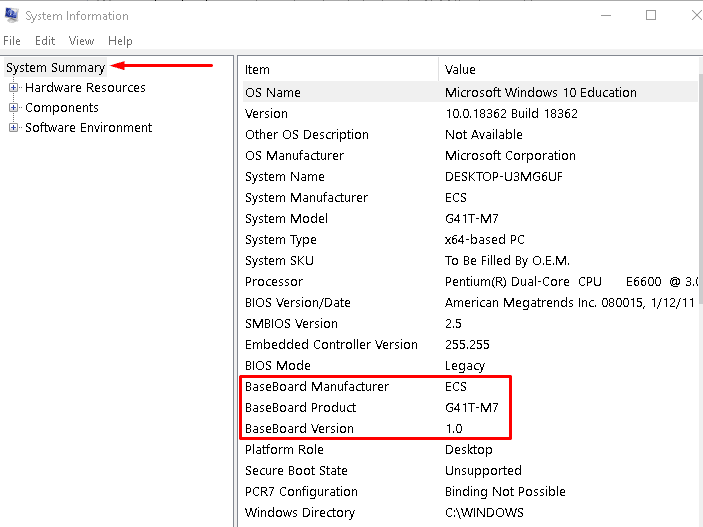
System Information (msinfo32): This utility provides a comprehensive overview of your system’s hardware and software.
- Press
Windows Key + Rto open the Run dialog. - Type
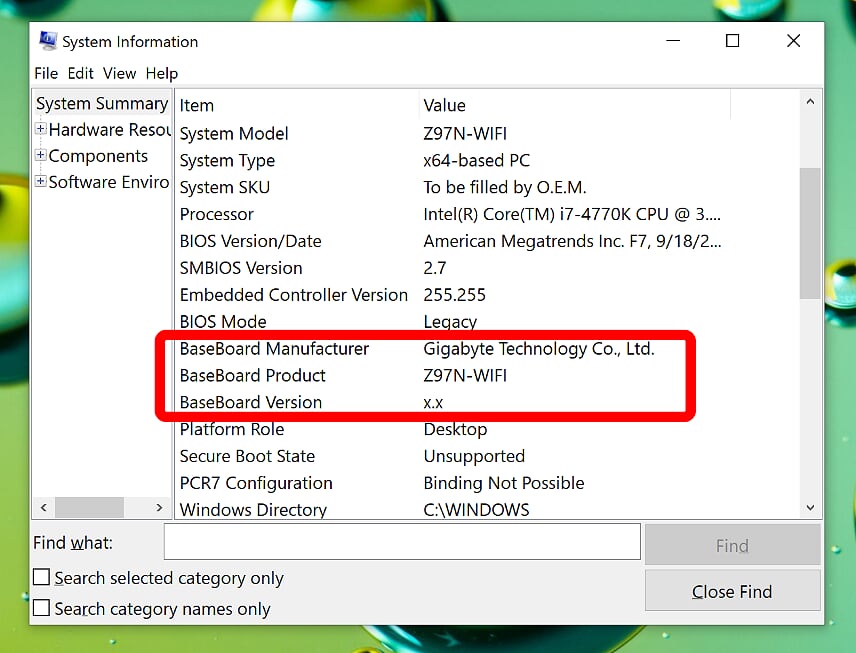
msinfo32and press Enter. - In the System Information window, look for “BaseBoard Manufacturer,” “BaseBoard Product,” and “BaseBoard Version.” These entries usually provide the brand and model of your motherboard. Sometimes, the “System Model” might also directly refer to the motherboard, especially in pre-built systems.
- Press
-
Command Prompt (WMIC – Windows Management Instrumentation Command-line): For those comfortable with command-line interfaces, WMIC offers a quick way to extract specific hardware information.
- Press
Windows Key + R, typecmd, and press Enter to open the Command Prompt. - Type the following command and press Enter:
wmic baseboard get product,Manufacturer,version,serialnumber - This command will display the manufacturer, product name (model), version, and serial number of your motherboard. This method is particularly useful for quickly grabbing the exact model number.
- Press
Third-Party Utilities: Detailed and User-Friendly
While Windows’ built-in tools are functional, third-party applications often offer more detailed information, a user-friendly graphical interface, and additional system monitoring features. These tools are often free and widely trusted within the tech community.
-
CPU-Z: This lightweight and popular utility is a go-to for many enthusiasts. It provides detailed information about your CPU, cache, mainboard, memory, and graphics.
- Download and install CPU-Z from its official website.
- Open CPU-Z, and navigate to the “Mainboard” tab. Here, you’ll find the manufacturer, model, chipset, and BIOS information for your motherboard. Its simplicity and accuracy make it a preferred choice.
-
Speccy: Developed by Piriform (creators of CCleaner), Speccy offers a comprehensive overview of your entire PC’s hardware.
- Download and install Speccy.
- Upon launching, Speccy scans your system and presents a summary. Click on “Motherboard” in the left-hand pane to expand and view detailed information including manufacturer, model, chipset, BIOS version, and even temperature sensors.
-
HWInfo: For advanced users seeking highly granular data, HWInfo is an excellent choice. It provides an exhaustive list of hardware components and their statuses.
- Download and run HWInfo (portable version available).
- It presents a system summary upon launch. You can navigate to the “Motherboard” section for in-depth details, including specific features and sensor readings.
Physical Inspection: The Hands-On Approach
If software methods don’t yield satisfactory results, or if your system isn’t booting, a physical inspection is the most definitive way to identify your motherboard. This method requires opening your PC case, so ensure you follow safety precautions.
Opening the Case: Safety First
- Power Down and Unplug: Always shut down your computer completely and disconnect it from the power outlet.
- Discharge Static: Touch a grounded metal object (like the bare metal of your PC case) before handling internal components to discharge any static electricity, which can damage sensitive electronics.
- Open the Side Panel: Most PC cases have thumbscrews or regular screws on the rear that hold the side panel in place. Remove them and slide or swing open the panel.
Locating and Identifying Markings
Once the case is open, the motherboard is the large circuit board that occupies most of the space. It’s typically mounted vertically on one side of the case, with all other components plugged into it.
-
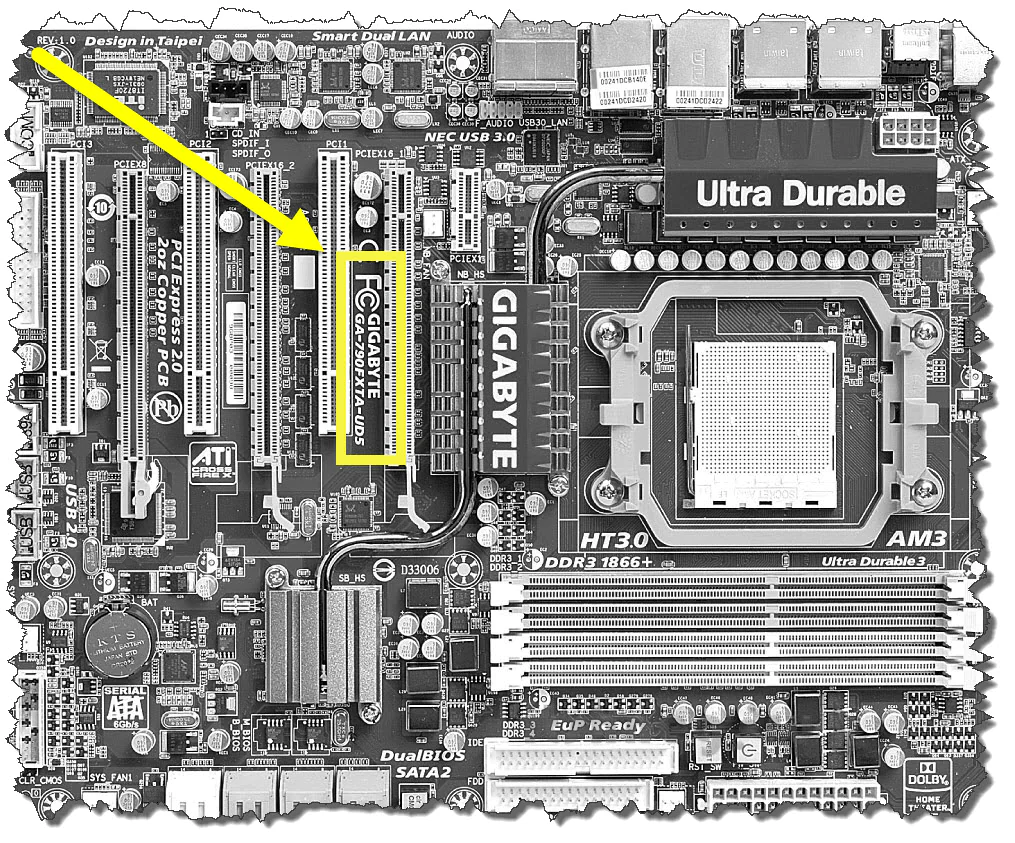
Manufacturer and Model Number: Look for prominent labels printed directly on the motherboard itself. Common locations for the brand name (e.g., ASUS, Gigabyte, MSI, ASRock, Biostar, EVGA) and the specific model number (e.g., ROG STRIX Z690-E GAMING WIFI, B550 GAMING PLUS, X570 AORUS ELITE) are:
- Near the CPU socket.
- Between the PCIe slots.
- Near the main 24-pin power connector.
- In the corner near the RAM slots.
- The model number is often a combination of letters and numbers, sometimes accompanied by a series name.
-
Using the Manual/Documentation: If you built your PC yourself or purchased a custom-built system, you might still have the motherboard’s original box or manual. This documentation will contain all the specific details you need. For pre-built systems from major brands like Dell, HP, or Lenovo, the motherboard might have an OEM-specific model number. In such cases, look for a service tag or serial number on the PC chassis itself. You can then enter this service tag on the manufacturer’s support website to find specific component details, including the motherboard type.
Decoding Motherboard Information and What It Means
Once you have identified your motherboard’s brand and model number, the real understanding begins. This information is a gateway to a wealth of knowledge about your system’s capabilities, limitations, and future potential.
Understanding Chipsets and Sockets
Two of the most critical pieces of information derived from your motherboard model are its chipset and CPU socket type. These fundamentally determine what components you can use and what features are available.
-
CPU Socket: This is arguably the most important compatibility factor. Modern CPU sockets include Intel’s LGA (Land Grid Array) series (e.g., LGA 1700, LGA 1200) and AMD’s AM (Advanced Micro-Device) series (e.g., AM5, AM4). A CPU must physically fit the socket, and the motherboard’s BIOS must support that specific CPU generation. This is the first and most critical compatibility check for any CPU upgrade, directly influencing the financial investment required.
-
Chipset: The chipset is a set of integrated circuits that manage data flow between the CPU, memory, and peripherals. It largely defines the motherboard’s feature set.
- Intel Chipsets: Typically designated by letters like H, B, and Z. Z-series chipsets (e.g., Z790, Z690) are high-end, offering overclocking support and more PCIe lanes. B-series (e.g., B760, B660) are mid-range, offering a good balance of features and price. H-series (e.g., H610) are entry-level, suitable for basic computing and often lacking overclocking or extensive connectivity.
- AMD Chipsets: Often designated by A, B, and X. X-series (e.g., X670E, X570) are high-end, with advanced features and overclocking. B-series (e.g., B650, B550) are mainstream, offering a solid feature set for most users. A-series (e.g., A620, A520) are entry-level.
Understanding your chipset provides insights into your motherboard’s capabilities, such as the number of USB ports, SATA connections, M.2 slots, and whether it supports multiple graphics cards, all of which are vital for tech enthusiasts and professional users.
Form Factors and Expansion Slots
Beyond the core chipset and socket, the physical layout and available expansion options are also defined by your motherboard’s model.
-
Form Factor: This refers to the motherboard’s physical dimensions and mounting hole layout. Common form factors include ATX (standard full-size), Micro-ATX (smaller, fewer expansion slots), and Mini-ITX (very compact, ideal for small form factor PCs). The form factor dictates what size of PC case you can use and how many expansion cards it can accommodate.
-
Expansion Slots:
- PCIe Slots: These are crucial for graphics cards (usually the largest x16 slot) and other expansion cards like network adapters, sound cards, or additional NVMe SSD cards. The number and version (PCIe 3.0, 4.0, 5.0) of these slots determine your system’s expandability and performance with peripherals.
- RAM Slots: Most motherboards have two or four RAM slots, dictating the maximum amount of memory you can install. The motherboard also specifies the supported RAM type (DDR4 or DDR5) and maximum speed (MHz).
- Storage Interfaces: The number of SATA ports (for traditional HDDs and SSDs) and M.2 slots (for NVMe SSDs) determines your system’s internal storage capacity and speed potential.
Knowing these details allows you to assess the limitations and possibilities of your current system. It helps you decide whether an upgrade is feasible on your existing board or if a new motherboard is a necessary financial investment for your desired performance gains.
The Financial and Strategic Advantages of Motherboard Knowledge
Beyond the immediate technical benefits, understanding your motherboard has profound implications for how you manage your technology assets, directly influencing your personal finance and long-term tech strategy.
Smart Upgrades and Cost Efficiency
For many users, the cost of a brand-new PC can be prohibitive. Upgrading individual components is often a more budget-friendly approach to keep pace with evolving software demands and gaming requirements. Your motherboard knowledge is the cornerstone of this strategy.
By knowing your motherboard, you can:
- Avoid Incompatible Purchases: As discussed, preventing the purchase of a CPU, RAM, or GPU that won’t work with your existing board saves significant time, hassle, and money in returns or resales.
- Maximize Existing Hardware Value: You can make informed decisions about whether a component upgrade will provide a tangible performance boost or if your motherboard is bottlenecking other parts. Sometimes, a simple RAM upgrade or a faster SSD on your current board can breathe new life into an older system without the need for a full overhaul. This extends the lifespan of your current investment.
- Budget Effectively for Future Upgrades: With a clear understanding of your motherboard’s limitations and upgrade path, you can create a more realistic budget for future enhancements. You’ll know exactly what components are compatible and can monitor prices for opportune purchase times, ensuring you get the best value for your money.
Informed Purchasing and Resale Value
Whether you’re in the market for a new PC, scouting for used components, or looking to sell your own, motherboard knowledge gives you a competitive edge.
- Buying New: When selecting a new pre-built PC or components for a custom build, understanding the impact of different motherboards (and their chipsets) allows you to make an informed choice that balances features, performance, and price. You can avoid overpaying for features you don’t need or under-specifying for your future requirements. This empowers you to engage with brands offering specific motherboard models and evaluate their value proposition.
- Buying/Selling Used: When buying a used computer, verifying the motherboard type helps you assess its true capabilities and fair market value. You can cross-reference specifications, check for BIOS update availability, and ensure the seller’s claims are accurate. When selling your own PC or components, providing accurate motherboard details enhances buyer trust and can justify a higher asking price, optimizing your online income from sales.
Enhancing Digital Security and Productivity
While less direct, your motherboard plays a role in your digital security and overall productivity.
- Security Patches: Motherboard manufacturers frequently release BIOS updates that address security vulnerabilities, improve system stability, and enhance compatibility with new hardware. Knowing your motherboard type enables you to regularly check for and apply these crucial updates, bolstering your system’s defenses against emerging threats.
- Optimized Performance: For tasks requiring specific hardware capabilities (e.g., professional video editing, 3D rendering, or AI model training), your motherboard’s support for multiple GPUs (via PCIe lanes), high-speed M.2 storage, and abundant USB ports for peripherals is paramount. Understanding these features allows you to optimize your system for maximum productivity, ensuring your hardware doesn’t bottleneck your workflow. For instance, a motherboard with robust power delivery and proper cooling can sustain demanding workloads longer without throttling.
In conclusion, understanding what type of motherboard you have is far more than a technical curiosity; it’s a fundamental aspect of smart computing. It’s the key to unlocking your PC’s full potential, making financially sound decisions regarding upgrades and purchases, and proactively managing your system for stability and security. By employing the methods outlined above, you empower yourself with the knowledge needed to navigate the ever-evolving world of technology confidently, transforming yourself from a passive user into an informed and efficient digital citizen. Don’t let the “brain” of your computer remain a mystery; take the time to identify it, and you’ll reap the benefits across performance, productivity, and your pocketbook.
aViewFromTheCave is a participant in the Amazon Services LLC Associates Program, an affiliate advertising program designed to provide a means for sites to earn advertising fees by advertising and linking to Amazon.com. Amazon, the Amazon logo, AmazonSupply, and the AmazonSupply logo are trademarks of Amazon.com, Inc. or its affiliates. As an Amazon Associate we earn affiliate commissions from qualifying purchases.