
QuickBooks Desktop remains a cornerstone accounting solution for countless businesses worldwide, offering robust features for managing finances, tracking inventory, processing payroll, and generating essential reports. While cloud-based solutions have gained traction, the Desktop version appeals to many for its offline capabilities, specific feature sets, and the preference for local data storage and control. Successfully downloading and installing QuickBooks Desktop is the crucial first step to leveraging its powerful capabilities. This guide will walk you through the technical intricacies of acquiring, setting up, and optimizing this essential software, ensuring a smooth transition into managing your business’s financial data.
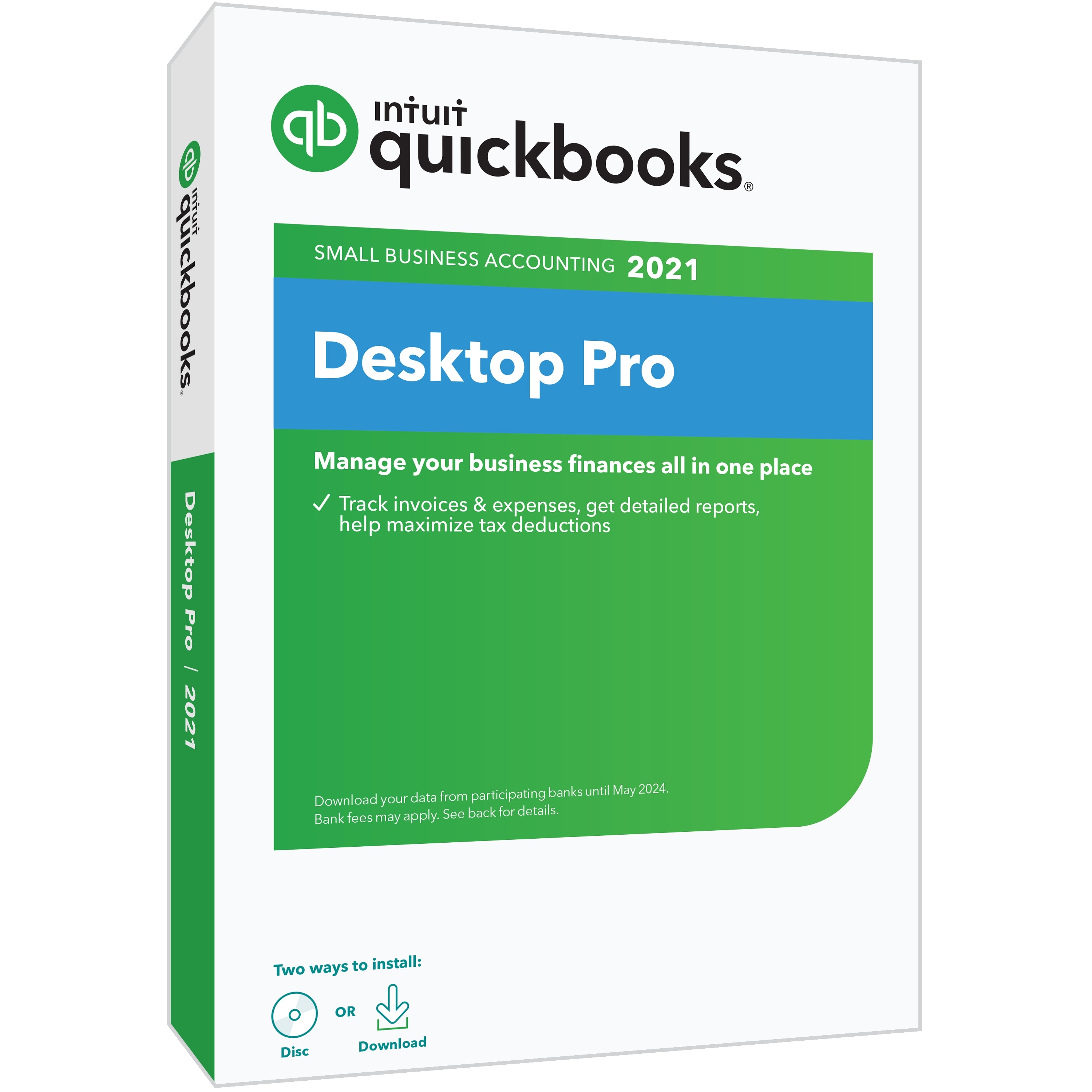
Understanding QuickBooks Desktop: A Premier Accounting Software for Local Environments
QuickBooks Desktop, unlike its online counterpart, is a locally installed application that operates directly on your computer or a designated server. This fundamental distinction underpins many of its characteristics and the technical considerations for its setup.
Why Choose Desktop Over Online? Technical Considerations
The decision between QuickBooks Desktop and QuickBooks Online often hinges on specific technical and operational requirements. Desktop versions offer distinct advantages for users who prioritize:
- Local Data Storage and Control: All financial data resides directly on your local machine or server. This can be a critical security and compliance factor for some businesses, providing a sense of direct ownership and control over proprietary information without reliance on third-party cloud infrastructure.
- Offline Accessibility: Once installed, QuickBooks Desktop does not require a constant internet connection for daily operations. This is invaluable for businesses in areas with unreliable internet access or those needing to work in remote environments. While some features like online banking or payroll updates do require internet, the core accounting functions remain available offline.
- Specific Feature Sets and Integrations: Certain advanced features, particularly in QuickBooks Enterprise Solutions, are exclusive to the desktop environment. These might include highly specialized inventory management tools, advanced reporting customization, or integrations with industry-specific applications that are designed to interface with a local database rather than a cloud API. For example, complex manufacturing or job costing modules often find their most robust implementation within the desktop ecosystem.
- Performance for Large Data Files: For businesses with extensive transaction histories or large numbers of customers, vendors, and items, a local installation can often provide superior performance and responsiveness compared to a web-based application, as data retrieval and processing occur directly on the local hardware.
Key Technical Considerations Before Downloading
Before initiating the download, a thorough pre-installation check can prevent common technical hurdles and ensure a seamless setup experience. These considerations are paramount for maintaining system stability and software functionality.
- System Compatibility: QuickBooks Desktop has specific operating system requirements. Verify that your Windows OS version (e.g., Windows 10, Windows Server 2019) is supported. MacOS users will need to run a Windows emulator or virtual machine. Always check the official Intuit system requirements for the specific QuickBooks year you intend to install.
- Hardware Specifications: Ensure your computer meets or exceeds the recommended CPU speed, RAM, and available hard drive space. Insufficient RAM can lead to slow performance, especially with large company files, while inadequate disk space will halt the installation process or prevent data storage.
- Network Environment (Multi-User Setup): If you plan to use QuickBooks Desktop in a multi-user environment, identify which machine will act as the server (hosting the company file) and ensure it has robust network connectivity and sufficient resources to support concurrent user access. Proper network configuration, including firewall rules, is critical.
- Administrative Privileges: You will need administrator rights on your computer to install software and make system-level changes. Without these, the installation will likely fail or be incomplete.
- Existing Software Conflicts: Temporarily disabling or configuring antivirus software and firewalls can prevent them from interfering with the installation process, which often involves modifying system files and registry entries. These security tools might mistakenly flag legitimate QuickBooks components as threats.
Preparing Your System for QuickBooks Desktop Installation
A well-prepared system minimizes potential installation issues and ensures optimal performance post-setup. This preparatory phase focuses on meeting technical prerequisites.
Meeting Minimum System Requirements
Intuit publishes detailed system requirements for each version of QuickBooks Desktop. Adhering to these is non-negotiable for a stable installation and user experience.
- Operating System: Typically, QuickBooks Desktop supports the most recent versions of Windows (e.g., Windows 10, Windows 11) and various Windows Server editions for network deployments. Running on unsupported operating systems can lead to instability, data corruption, or complete inoperability.
- Processor (CPU): A multi-core processor with a clock speed of at least 2.4 GHz is generally recommended for smooth operation, especially for intensive tasks or multi-user environments.
- Random Access Memory (RAM): For basic single-user use with small company files, 8 GB of RAM might suffice. However, for larger company files, multi-user access, or running other applications concurrently, 16 GB or more is highly recommended to prevent performance bottlenecks.
- Disk Space: Allocate sufficient hard drive space, typically 2.5 GB for the QuickBooks application itself, plus ample room for your company files and any associated backups. Solid-State Drives (SSDs) are highly recommended for their significant speed advantages in loading and processing data.
- Display Resolution: A display resolution of at least 1280×1024 (or 1440×900 for 16:9 monitors) is often required for the QuickBooks interface to display correctly without excessive scrolling or scaling issues.
Ensuring a Stable Internet Connection
While QuickBooks Desktop can operate offline, a stable internet connection is indispensable during the download and activation phases. The installation file can be several gigabytes, requiring reliable bandwidth to complete without corruption. Additionally, initial software activation and any immediate updates will necessitate internet access.
Disabling Temporary Security Software
Antivirus programs, firewalls, and other security suites can sometimes misinterpret the installation process of new software as a threat, leading to blocked files, corrupted downloads, or incomplete installations. Temporarily disabling these during the download and installation can mitigate such conflicts. Remember to re-enable them immediately after the installation is complete to restore your system’s protection. In some cases, you may need to add QuickBooks Desktop to your security software’s exclusion list post-installation to ensure continuous smooth operation.
The Step-by-Step Download and Installation Process
Once your system is prepared, you can proceed with the core technical steps of downloading and installing QuickBooks Desktop. Precision at each stage is key.
Accessing the Official Intuit Website
Always download QuickBooks Desktop directly from the official Intuit website. This ensures you receive a legitimate, untampered version of the software, complete with the latest security patches and updates. Avoid third-party download sites, as they may offer outdated, modified, or even malicious versions. Navigate to the QuickBooks Desktop support or download page, which typically requires logging in with your Intuit ID or providing your license information to verify your purchase.

Locating Your Product and Version
Intuit offers several editions of QuickBooks Desktop, including Pro, Premier, Enterprise Solutions, and Accountant Edition, each tailored to different business needs and with varying feature sets. Within each edition, there’s also a specific year version (e.g., 2023, 2024).
- Identify Your Purchase: Locate your proof of purchase, which should specify the exact QuickBooks Desktop product, version, and year you are entitled to download.
- Select Correct Version: On the Intuit download page, meticulously select the corresponding product, version, and year. Downloading the wrong edition will result in activation failure.
- Choose Installation Type: For multi-user environments, you’ll typically have options for “I’ll use QuickBooks on this computer” (single-user or server installation) or “I’ll use QuickBooks on this computer, AND I’ll be using it on a network” (client workstation installation). Select the appropriate option based on your network setup.
Executing the Installer and Initial Setup
After downloading the .exe installer file (which may be several hundred MB to several GB), you can begin the installation:
- Run as Administrator: Right-click the downloaded installer file and select “Run as administrator.” This ensures the installer has the necessary permissions to modify system files.
- Installation Wizard: Follow the on-screen prompts of the installation wizard.
- License Agreement: Read and accept the software license agreement.
- Installation Type: Choose between “Express Install” (recommended for most single-user setups) or “Custom and Network Install” (for server installations, multi-user setups, or if you need to specify a custom installation directory).
- Product and License Numbers: Enter your 15-digit product number and 6-digit license number when prompted. These are critical for software authentication.
- Installation Path: If you selected “Custom and Network Install,” you can specify the directory where QuickBooks will be installed. The default location is typically
C:Program Files (x86)IntuitQuickBooks [Year].
- Complete Installation: Allow the installer to complete the process. This can take several minutes depending on your system’s speed. Your computer may restart as part of the process.
Activating Your QuickBooks Desktop Software
Upon the first launch of QuickBooks Desktop, you will be prompted to activate the software. This crucial step links your installation to your Intuit account and validates your license.
- Internet Connection: Ensure your computer has an active internet connection.
- Automated Activation: QuickBooks will usually attempt an automated activation using your product and license numbers. If successful, you’ll receive a confirmation message.
- Manual Activation: In some cases, or if automated activation fails, you might be prompted for manual activation. This typically involves providing your Intuit ID credentials or contacting Intuit support with your license details.
Post-Installation: Optimizing and Securing Your QuickBooks Environment
The installation isn’t the final step. Optimizing and securing your QuickBooks Desktop environment is crucial for data integrity, system performance, and long-term reliability.
Updating QuickBooks Desktop
Software updates are vital for several reasons:
- Security Patches: Intuit regularly releases updates to address security vulnerabilities, protecting your financial data from emerging threats.
- Bug Fixes: Updates resolve software bugs and glitches that could impact performance or functionality.
- New Features and Enhancements: Updates often introduce new features, improve existing ones, and ensure compliance with the latest tax regulations.
- Automatic Updates: Configure QuickBooks Desktop to download and install updates automatically to ensure you always have the latest version. You can find this option under the “Help” menu, then “Update QuickBooks Desktop.”
Configuring Backup Solutions
Your QuickBooks company file (.QBW) is a highly sensitive and critical asset. A robust backup strategy is non-negotiable.
- Integrated Backup: QuickBooks Desktop includes an integrated backup utility (File > Save Copy or Backup > Back up Company File). Utilize this feature regularly.
- Off-site Backups: Store backups off-site using cloud storage services (e.g., Dropbox, OneDrive, Google Drive) or external hard drives that are regularly disconnected from your computer. This protects against local hardware failures, theft, or disaster.
- Automated Backups: Implement a schedule for automated backups to ensure consistency and minimize human error.
Setting Up User Permissions and Digital Security
For multi-user environments or systems with multiple users, granular control over access is a key security measure.
- User Roles: QuickBooks Desktop allows you to set up different user roles with specific permissions, limiting access to sensitive data or functions (e.g., only allowing certain users to view payroll, while others can only enter invoices).
- Strong Passwords: Enforce strong, unique passwords for all QuickBooks users and for accessing the company file itself.
- Firewall Configuration: Ensure your firewall is configured to allow QuickBooks to communicate over your network, especially for multi-user access. Intuit provides specific port numbers that QuickBooks uses, which may need to be opened in your firewall settings.
- Antivirus Exclusions: Add the QuickBooks installation directory and your company file directory to your antivirus software’s exclusion list to prevent scanning conflicts that could impact performance or data access.

Troubleshooting Common Download and Installation Issues
Despite careful preparation, technical issues can arise. Common problems and their potential solutions include:
- Download Corruption: If the installer fails to run or generates errors, try downloading the file again, ensuring a stable internet connection throughout the process. A download manager can sometimes help with large files.
- Error Codes: QuickBooks installation errors often come with specific error codes. Consult Intuit’s support website or community forums for solutions related to these codes (e.g., “Error 1603,” “Error 1904”).
- Insufficient Permissions: If you encounter errors related to file access or registry modifications, ensure you are running the installer as an administrator and that your user account has full administrative privileges.
- Antivirus/Firewall Blocking: Temporarily disable security software if you suspect it’s interfering. If the installation completes successfully, remember to re-enable them and consider adding QuickBooks to their trusted applications list.
- .NET Framework Issues: QuickBooks often relies on specific versions of the Microsoft .NET Framework. If these components are corrupted or missing, installation can fail. Running the QuickBooks Install Diagnostic Tool or repairing/reinstalling the .NET Framework might be necessary.
By diligently following these technical guidelines for downloading, installing, and configuring QuickBooks Desktop, you can establish a robust and secure foundation for managing your business’s financial operations. This proactive approach ensures data integrity, system performance, and the long-term reliability of your essential accounting software.
aViewFromTheCave is a participant in the Amazon Services LLC Associates Program, an affiliate advertising program designed to provide a means for sites to earn advertising fees by advertising and linking to Amazon.com. Amazon, the Amazon logo, AmazonSupply, and the AmazonSupply logo are trademarks of Amazon.com, Inc. or its affiliates. As an Amazon Associate we earn affiliate commissions from qualifying purchases.