
In the ever-expanding universe of digital entertainment, streaming services have become indispensable gateways to a vast array of content, from blockbuster movies and exclusive series to live sports and breaking news. Paramount Plus stands out as a formidable contender, consolidating a rich library drawn from the iconic Paramount Pictures, CBS, Comedy Central, MTV, Nickelodeon, and Smithsonian Channel, among others. For many, accessing this treasure trove of entertainment begins with a simple, yet crucial, step: downloading the Paramount Plus application.
This comprehensive guide delves into the technical aspects of acquiring and setting up Paramount Plus across various devices. We’ll navigate the diverse digital landscapes of app stores and operating systems, providing clear, actionable instructions to ensure a seamless entry into your new entertainment hub. Whether you’re a seasoned tech enthusiast or a casual user looking to enhance your viewing options, understanding the nuances of downloading and optimizing this powerful streaming platform is key to unlocking its full potential.
Understanding Paramount Plus: A Gateway to Entertainment
Before diving into the mechanics of downloading, it’s beneficial to grasp the essence of Paramount Plus and its offerings. This context not only justifies the effort of installation but also highlights the value proposition awaiting users.
What is Paramount Plus?
Paramount Plus is a premium streaming service from Paramount Global, launched in its current form in March 2021 (evolving from CBS All Access). It serves as a unified digital home for content across Paramount’s vast portfolio of brands. Subscribers gain access to thousands of hours of on-demand content, including:
-
Original Series: Exclusive shows like Star Trek: Strange New Worlds, Yellowstone spin-offs (1883, 1923), Mayor of Kingstown, and Halo.
-
Blockbuster Films: A rotating selection of movies from Paramount Pictures, often hitting the service shortly after their theatrical runs.
-
Live Sports: Access to NFL on CBS, UEFA Champions League, and various other sporting events.
-
Live News: 24/7 access to CBSN, the CBS News streaming channel.
-
Kids & Family Content: Extensive libraries from Nickelodeon and Nick Jr.
-
Reality TV & Documentaries: Shows from MTV, Comedy Central, and the Smithsonian Channel.
The service typically offers multiple subscription tiers, catering to different preferences regarding ads and access to live local CBS channels. This rich and diverse content library makes Paramount Plus a compelling addition to any digital entertainment setup.
Why Download Paramount Plus?
The act of downloading the Paramount Plus app, rather than simply accessing it via a web browser (though that’s also an option for some devices), offers several distinct advantages:
-
Optimized User Experience: Dedicated apps are designed to be intuitive, responsive, and fully integrated with the device’s operating system, providing a smoother navigation and playback experience.
-
Device Compatibility: Paramount Plus apps are available on a wide array of devices, including smartphones, tablets, smart TVs, streaming media players, and gaming consoles, ensuring you can watch content on your preferred screen.
-
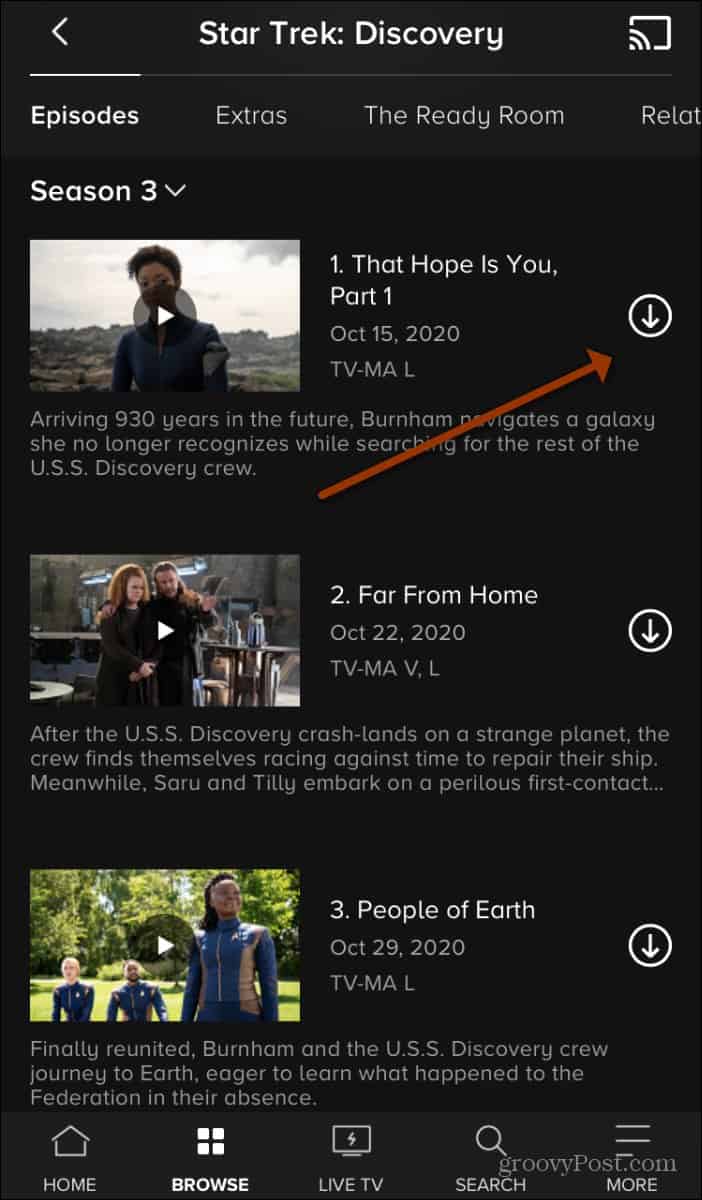
Offline Viewing: Many apps allow subscribers to download select content directly to their mobile devices for offline viewing, perfect for commutes, travel, or areas with limited internet access. This feature is a significant technological advantage over browser-based access.
-
Enhanced Features: Apps often provide better integration with device-specific features like voice commands, remote control shortcuts, and system-level notifications.
-
Performance and Stability: Native applications are generally more stable and performant than web-browser interfaces, reducing buffering and improving picture quality, especially on smart TVs and streaming sticks.
By downloading the app, users not only gain access to content but also unlock a superior and more flexible viewing experience tailored to modern digital consumption habits.
Step-by-Step Guide: Downloading Paramount Plus on Your Devices
The process for downloading Paramount Plus varies slightly depending on the device you’re using. This section provides detailed instructions for the most common platforms.
On Smartphones and Tablets (iOS/Android)
Mobile devices are often the primary means of accessing streaming content due to their portability and convenience.
-
Open Your Device’s App Store:
-
For Apple iOS devices (iPhone, iPad): Tap the “App Store” icon (a blue icon with a white ‘A’ in a circle).
-
For Android devices (Samsung, Google Pixel, etc.): Tap the “Google Play Store” icon (a multicolored triangle).
-
-
Search for Paramount Plus: Use the search bar (usually located at the bottom or top of the screen). Type “Paramount Plus” and tap the search button.
-
Locate and Select the App: The official Paramount Plus app will appear in the search results, typically with its distinctive blue and white logo. Tap on it to view the app’s details page.
-
Download and Install:
-
On iOS: Tap the “Get” button (or the cloud icon if you’ve downloaded it before). You may need to verify with Face ID, Touch ID, or your Apple ID password.
-
On Android: Tap the “Install” button. The app will begin downloading and installing automatically.
-
-
Launch and Log In: Once installed, tap “Open” from the app store, or find the new Paramount Plus icon on your device’s home screen or app drawer. Launch the app, then sign in with your existing Paramount Plus credentials or follow the prompts to create a new account.
On Smart TVs and Streaming Devices
Smart TVs and dedicated streaming devices offer the most traditional “lean-back” viewing experience.
-
Roku Devices (Roku Stick, Roku Express, Roku TV):
-
From the Roku home screen, navigate to “Streaming Channels” or “Channel Store.”
-
Select “Search Channels” and type “Paramount Plus.”
-
Select the Paramount Plus app from the results and choose “Add Channel.”
-
Once added, you can find it on your home screen or under “My Channels.”
-
-
Amazon Fire TV Devices (Fire TV Stick, Fire TV Cube, Fire TV Edition TV):
-
From the Fire TV home screen, navigate to the “Find” menu (magnifying glass icon).
-
Select “Search” and type “Paramount Plus.”
-
Select the Paramount Plus app from the results and choose “Get” or “Download.”
-
-
Apple TV (4th generation and later):
-
From the Apple TV home screen, open the “App Store.”
-
Go to the “Search” tab and type “Paramount Plus.”
-
Select the app and choose “Get” (or the cloud icon) to download.
-
-
Google Chromecast (with Google TV) / Android TV Devices (Sony, Hisense, Philips Smart TVs):
-
From the home screen, navigate to the “Apps” tab or open the Google Play Store.
-
Use the search function (magnifying glass icon) and type “Paramount Plus.”
-
Select the app and choose “Install.”
-
-
Samsung Smart TVs (2017 models and newer):
-
Press the “Smart Hub” button on your remote.
-
Navigate to “Apps.”
-
Use the search icon (magnifying glass) and type “Paramount Plus.”
-
Select the app and choose “Install.”
-
-
LG Smart TVs (WebOS 3.5 and newer):
-
Press the “Home” button on your remote.
-
Navigate to the “LG Content Store.”
-
Use the search function and type “Paramount Plus.”
-
Select the app and choose “Install.”
-
Activation for Smart TVs/Streaming Devices: After installing, open the Paramount Plus app. You will typically be presented with an activation code and a website address (e.g., paramountplus.com/activate). On a separate device (computer or smartphone), visit the provided URL, enter the activation code, and log in to your Paramount Plus account. This links your device to your subscription.
On Gaming Consoles (PlayStation, Xbox)
Gaming consoles have evolved into versatile entertainment hubs, offering robust app support.
-
PlayStation (PS4, PS5):
-
From the PlayStation home screen, navigate to the “Media” tab or open the “PlayStation Store.”
-
Go to the “Search” option and type “Paramount Plus.”
-
Select the app and choose “Download.”
-
-
Xbox (Xbox One, Xbox Series X/S):
-
From the Xbox home screen, navigate to the “Store” tab.
-
Use the search function and type “Paramount Plus.”
-
Select the app and choose “Get” or “Install.”
-
After downloading on a console, launch the app and follow the on-screen instructions, which often involve an activation code as described for smart TVs.
On Web Browsers (PC/Mac)

While not a “download” in the traditional sense of installing an application, accessing Paramount Plus via a web browser on a computer is a common method.
-
Open your preferred web browser (Chrome, Firefox, Edge, Safari).
-
Go to the official Paramount Plus website:
www.paramountplus.com. -
Log in with your credentials or sign up for a new account.
-
You can then stream content directly through the browser. For convenience, you might consider bookmarking the site or creating a desktop shortcut.
Optimizing Your Paramount Plus Experience
Beyond the initial download, several technical considerations can significantly impact your streaming quality and overall enjoyment.
Ensuring Smooth Streaming: Internet Speed and Wi-Fi Considerations
The quality of your internet connection is paramount (pun intended) for a high-definition, buffer-free streaming experience.
-
Recommended Speeds: Paramount Plus recommends a minimum of 3 Mbps for standard definition, 5 Mbps for high definition (1080p), and 25 Mbps for 4K streaming. For multiple devices streaming simultaneously, significantly higher speeds are advisable.
-
Wi-Fi Strength: Ensure your streaming device is connected to a strong Wi-Fi signal. If your router is far away, consider a Wi-Fi extender or mesh network system. For critical streaming devices like smart TVs or gaming consoles, a wired Ethernet connection is always superior for stability and speed.
-
Network Congestion: Other devices on your network consuming significant bandwidth (e.g., large downloads, online gaming, other streaming) can impact Paramount Plus performance. Prioritize your streaming device if necessary through router settings.
Managing Downloads for Offline Viewing: Storage and Permissions
The offline viewing feature is a major benefit of the mobile app, but it requires careful management.
-
Device Storage: Downloaded content consumes local storage space on your smartphone or tablet. Regularly check your device’s storage and delete older downloads to free up space. Paramount Plus usually provides an option within its app settings to manage downloads.
-
App Permissions: Ensure the Paramount Plus app has the necessary storage permissions on your device. Without it, the app won’t be able to save content for offline playback. These permissions are usually requested upon installation or first use.
-
Content Availability: Not all content on Paramount Plus is available for download due to licensing restrictions. Look for a download icon (often a down arrow) next to the content title to confirm availability.
Troubleshooting Common Download and Access Issues
Encountering technical glitches is a part of the digital landscape. Here are solutions for common problems:
-
App Not Found/Unavailable:
-
Ensure your device’s operating system is up to date. Older software versions may not support the latest app versions.
-
Verify your device is officially supported by Paramount Plus.
-
Check your region. Paramount Plus is not available in all countries, and app availability can be region-specific.
-
-
Download Stuck/App Not Installing:
-
Check your internet connection.
-
Ensure you have sufficient storage space on your device.
-
Restart your device.
-
Clear the cache for your app store (Google Play Store/App Store) in your device’s settings.
-
-
Login Problems:
-
Double-check your username and password.
-
Reset your password if you’ve forgotten it.
-
Ensure your subscription is active.
-
If using an activation code, verify you’re entering it correctly on the right website and within the given time limit.
-
-
Streaming Issues After Installation:
-
Restart the Paramount Plus app.
-
Restart your streaming device.
-
Restart your home router/modem.
-
Check for Paramount Plus service outages or known issues through their support website or social media.
-
Exploring Paramount Plus Features and Settings
Once the app is downloaded and running, familiarizing yourself with its internal features and settings can greatly enhance your viewing experience.
User Profiles and Parental Controls
Paramount Plus allows for personalized profiles, which are crucial for households with multiple viewers.
-
Creating Profiles: Within the app, usually accessible from the home screen or settings menu, you can create separate user profiles for each family member. Each profile maintains its own watch history, recommendations, and watchlist.
-
Parental Controls: Paramount Plus integrates robust parental controls, allowing adult users to restrict content access based on ratings (e.g., G, PG, PG-13, R) for specific profiles. This ensures children only view age-appropriate material. These controls are typically PIN-protected and managed through the main account holder’s profile settings.
Content Discovery and Watchlists
Navigating a vast library requires effective discovery tools.
-
Search Functionality: The app features a powerful search bar to find specific titles, actors, or genres.
-
Curated Categories and Genres: Content is organized into intuitive categories, making it easy to browse.
-
Watchlist/My List: Users can add shows and movies they intend to watch to a personalized “Watchlist” or “My List” for easy access later, acting as a digital bookmark.
-
Recommendations: Paramount Plus uses algorithms to suggest content based on your viewing history and preferences, helping you discover new shows and movies you might enjoy.
Subscription Management and Billing
While not directly about “downloading,” understanding how to access and manage your subscription within the app or website is essential for technical account upkeep.
-
Accessing Account Settings: Typically, you can find your account settings, including subscription details, within the app’s profile icon or a dedicated “Settings” or “Account” section. On the website, these are usually under “Account” or “Profile.”
-
Viewing Subscription Status: Here, you can verify your current subscription plan, next billing date, and payment method linked to your account.
-
Switching Plans: If you wish to upgrade or downgrade your Paramount Plus subscription tier (e.g., from an ad-supported plan to an ad-free one), these options are available through your account settings, either directly within the app or by redirecting you to the Paramount Plus website. This allows for flexible management of your service features.
Conclusion
Downloading Paramount Plus is the essential first step to unlocking a world of diverse and captivating entertainment. By following the platform-specific instructions, users can effortlessly install the app on their preferred devices, from smartphones and smart TVs to gaming consoles. The technological infrastructure supporting Paramount Plus ensures a rich, interactive experience, with features like offline downloads, personalized profiles, and robust parental controls enhancing usability.
Beyond the initial setup, optimizing your internet connection and being aware of common troubleshooting steps will ensure a smooth, uninterrupted streaming journey. As you delve into the app’s features, you’ll find content discovery intuitive and account management straightforward, empowering you to tailor your viewing experience precisely to your preferences. With Paramount Plus readily accessible on your chosen device, you’re now poised to explore a vast catalog of award-winning shows, blockbuster movies, live sports, and exclusive originals, all at your fingertips.
aViewFromTheCave is a participant in the Amazon Services LLC Associates Program, an affiliate advertising program designed to provide a means for sites to earn advertising fees by advertising and linking to Amazon.com. Amazon, the Amazon logo, AmazonSupply, and the AmazonSupply logo are trademarks of Amazon.com, Inc. or its affiliates. As an Amazon Associate we earn affiliate commissions from qualifying purchases.