
In an increasingly mobile and connected world, the ability to access entertainment anytime, anywhere, has become a cornerstone of digital convenience. Streaming services like Amazon Prime Video have revolutionized how we consume content, offering vast libraries of movies, TV shows, and original programming at our fingertips. However, a persistent challenge for many users is maintaining uninterrupted access when internet connectivity is unreliable, expensive, or simply unavailable. This is where the invaluable feature of downloading content for offline viewing comes into play.
Downloading movies and TV shows from Prime Video allows subscribers to enjoy their favorite titles without an active internet connection, transforming long commutes, flights, or remote getaways into personal cinemas. This functionality is not just about convenience; it’s about digital empowerment, giving users control over their entertainment consumption regardless of network limitations. This comprehensive guide will walk you through the technical process of leveraging Prime Video’s download feature, ensuring you’re always prepared with your desired content, whether you’re buffering on a train or relaxing far from the nearest Wi-Fi hotspot. We’ll delve into the prerequisites, the step-by-step process, how to manage your downloaded library, and advanced tips to optimize your offline viewing experience, all within the robust framework of technology and software utilization.
Understanding Prime Video Downloads: Why and What You Need
The ability to download content for offline viewing is a pivotal feature for modern streaming platforms, addressing a fundamental user need: uninterrupted access. For Prime Video subscribers, this means a significant enhancement to their viewing experience, offering flexibility and control that traditional linear television could never provide. Understanding the ‘why’ behind this feature and the ‘what’ you need to utilize it effectively is the first step towards mastering your offline entertainment library.
The Undeniable Convenience of Offline Viewing
The primary driver for downloading content is, without doubt, convenience. Imagine being on a long-haul flight, traversing areas with spotty mobile data, or simply wanting to save on your mobile data plan. In these scenarios, having a selection of movies and TV shows downloaded directly to your device transforms otherwise dull moments into engaging entertainment opportunities. It eliminates buffering frustrations, reduces data overages, and liberates you from the constraints of network availability. For students, commuters, or frequent travelers, this feature is not merely a luxury but a necessity, ensuring that your content library is as mobile as you are. It also caters to those who prefer an uninterrupted viewing experience free from the unpredictability of internet speeds, ensuring pristine playback quality every time.
Key Prerequisites for Downloading
Before you can embark on your journey of building an offline entertainment library, there are a few essential technical prerequisites you must meet. These are foundational to ensuring a smooth and successful download experience.
Firstly, you must be an active Amazon Prime subscriber. The download feature is exclusive to Prime members, providing them with access to the Prime Video catalog. Without an active subscription, you will not be able to download content.
Secondly, you need a compatible device running the Amazon Prime Video app. This includes:
-
iOS devices: iPhones and iPads running a recent version of iOS.
-
Android devices: Smartphones and tablets running a recent version of Android OS.
-
Fire tablets: Amazon’s own range of Fire tablets are fully integrated with the Prime Video ecosystem.
-
Select PCs/Laptops: While primarily a mobile feature, the Prime Video app for Windows 10/11 also supports downloads, offering flexibility for laptop users.
It’s crucial to ensure your app is up to date to access the latest features and optimal performance. Outdated app versions might have limitations or bugs that affect the download process.
Finally, a stable internet connection (preferably Wi-Fi) is required to initiate the download. While the purpose is offline viewing, the initial retrieval of the content from Amazon’s servers naturally necessitates connectivity. Using Wi-Fi is highly recommended to conserve mobile data and ensure faster, more reliable downloads, especially for high-definition content.
Device Compatibility and Storage Considerations
Device compatibility extends beyond just the operating system; it also encompasses the physical limitations of your hardware, primarily storage space. Video files, especially in higher resolutions like HD or UHD, can be quite large. A two-hour HD movie can easily consume 2-5 GB of storage.
Before downloading, always check your device’s available storage. If your device is running low on space, downloads might fail, or you might only be able to store a limited number of titles. Many modern smartphones and tablets come with ample storage (e.g., 64GB, 128GB, 256GB, or more), but older models or those with extensive photo and app libraries might face constraints.
Tips for managing storage:
-
Monitor storage regularly: Use your device’s settings to see how much space is available and what’s consuming it.
-
Delete unnecessary files: Clear out old photos, videos, or unused apps.
-
Consider external storage (for Android): Some Android devices support microSD cards, which can be an excellent way to expand storage for media files, though Prime Video might only allow downloads to internal storage depending on the device and app configuration.
-
Adjust download quality: Prime Video offers options to download in various qualities (e.g., Good, Better, Best), directly impacting file size. Opting for lower quality can save significant space if visual fidelity isn’t your top priority.
By understanding these foundational elements, you set yourself up for a seamless and efficient experience when downloading content from Prime Video, allowing you to build a robust offline library tailored to your travel and viewing needs.
Step-by-Step Guide to Downloading Content
Embarking on the journey to build your offline entertainment library on Prime Video is a straightforward process once you understand the navigation and options available. This section will provide a detailed, step-by-step tutorial, ensuring you can confidently download your desired movies and TV shows.
Navigating the Prime Video App
The first step is to open the Amazon Prime Video app on your compatible device (smartphone, tablet, or Windows PC). Ensure you are logged in with your Amazon Prime account credentials. The app’s interface is typically user-friendly, designed for easy browsing and content discovery. You’ll find sections for “Home,” “Movies,” “TV Shows,” “Live TV,” and “Downloads” among others, usually accessible via a bottom navigation bar on mobile or a side menu/top bar on tablets and PCs.
Identifying Downloadable Titles
Not every title available on Prime Video is eligible for download. This is typically due to licensing agreements with content providers. However, a significant portion of the Prime Video catalog, especially Prime Originals and included movies/shows, usually is.
To identify downloadable content:
-
Browse the catalog: You can simply browse through the various categories and sections within the app.
-
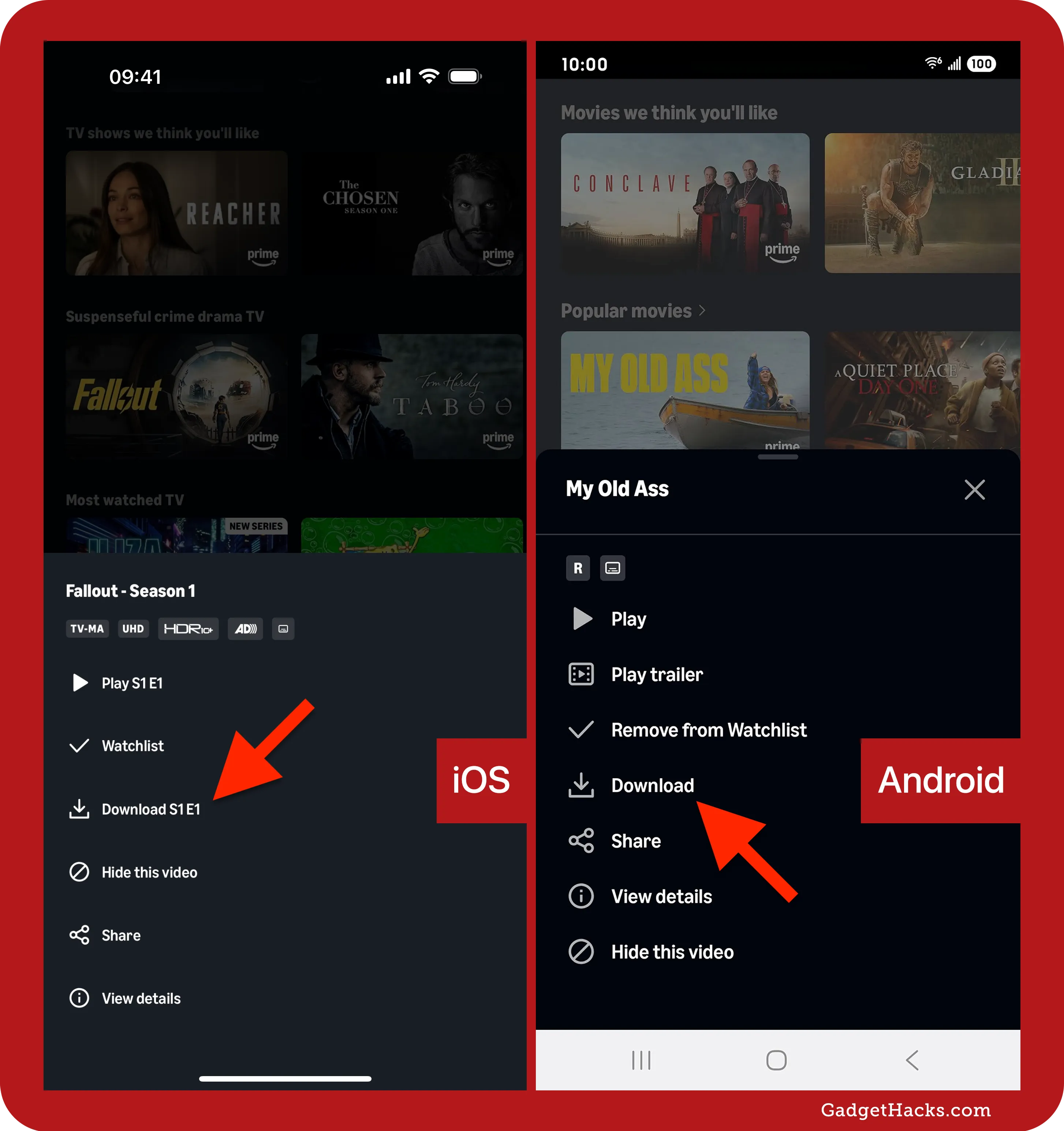
Look for the Download icon: When you select a movie or TV show, its detail page will display various options (e.g., “Play,” “Add to Watchlist”). For downloadable content, you will see a prominent “Download” button or icon (usually an arrow pointing downwards).
-
Specific Download Sections: On some devices or app versions, there might be a “Downloadable” category or filter you can apply while browsing to see only titles eligible for offline viewing.
If the download icon is absent or greyed out, it means that particular title cannot be downloaded due to licensing restrictions.
Executing the Download Process (Standard vs. SD/HD Options)
Once you’ve identified a title you wish to download, the process is simple:
-
Tap the Download button: On the movie’s detail page or next to a TV episode, tap the download icon.
-
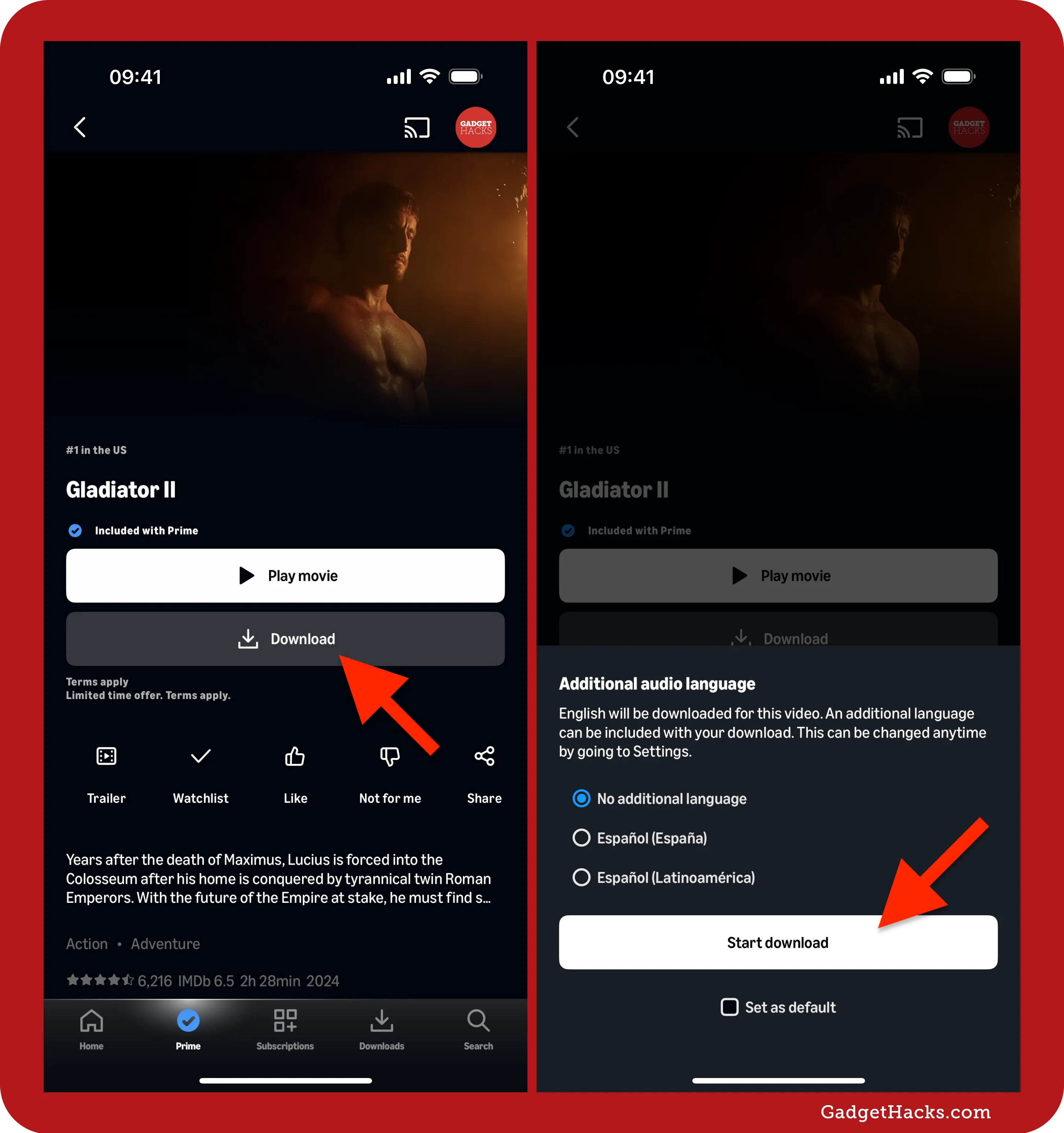
Select Download Quality (if prompted): For many titles, especially feature films and newer TV series, Prime Video will give you options for download quality. These typically include:
-
Good: The lowest quality, smallest file size, fastest download. Ideal for saving space or quick downloads.
-
Better: A balance between quality and file size.
-
Best: Highest available quality (often HD), largest file size, longest download time. Recommended for optimal viewing if storage and time permit.
-
Some content may only offer a single download quality.
Select your preferred quality. Remember, higher quality consumes more storage space and bandwidth during the download.
-
-
Initiate Download: After selecting the quality, the download will begin. A progress indicator (often a circle filling up or a percentage) will appear next to the title or within the downloads section.
For TV shows, you’ll typically see a download icon next to each individual episode, allowing you to selectively download specific episodes or entire seasons if available.
Managing Download Quality and Storage Settings
Prime Video offers global settings to manage your download preferences, which can save you time and space in the long run.
-
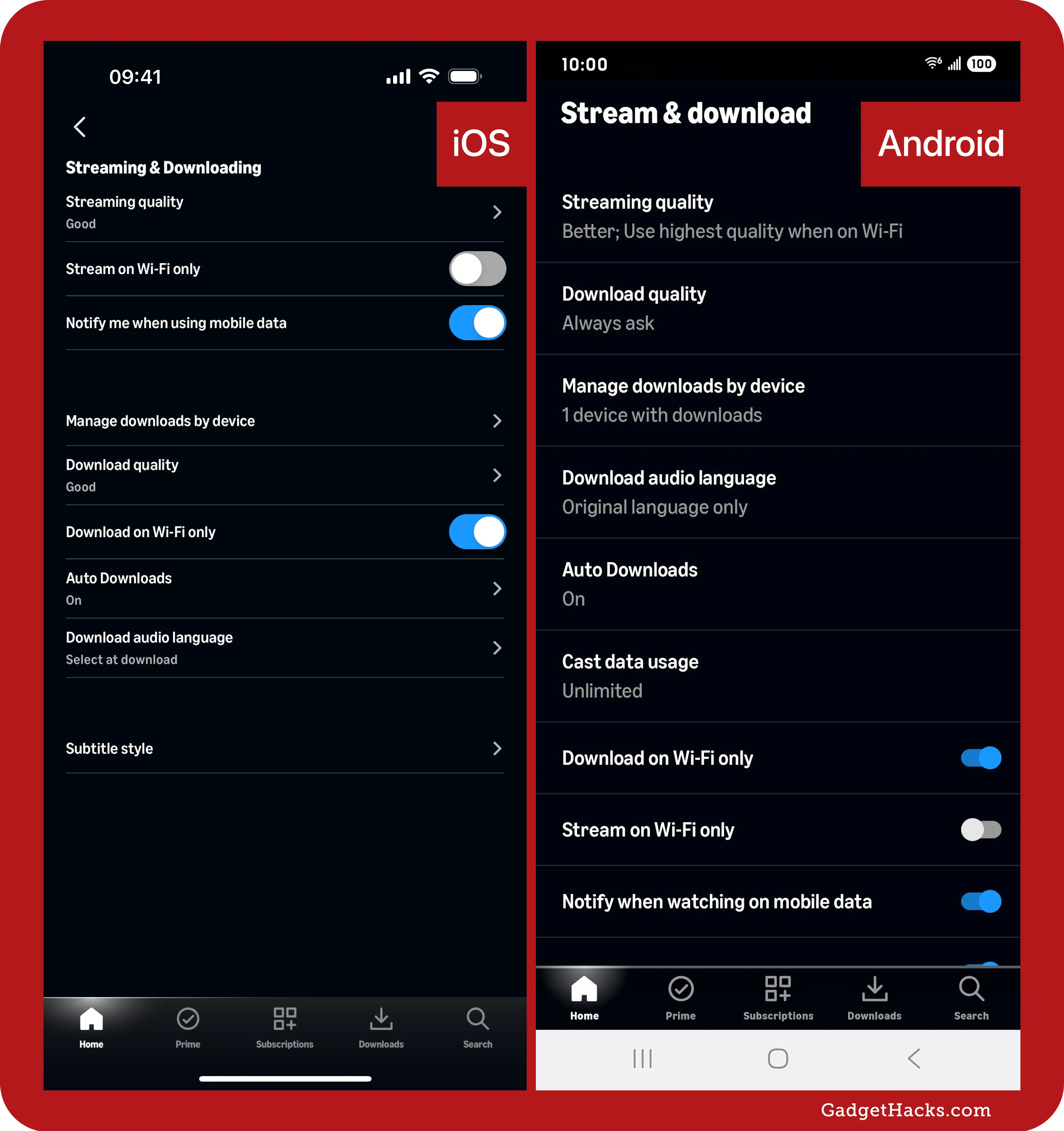
Access Settings: From the Prime Video app, navigate to “My Stuff” (or “Settings” icon, often a gear) and then select “Settings.”
-
Download Quality: Look for a “Stream & Download” or “Downloads” section. Here, you can set a default download quality (e.g., “Best,” “Better,” “Good”). This ensures that every time you tap the download button, it automatically selects your preferred quality without prompting, unless you choose to override it for a specific title.
-
Wi-Fi Only Downloads: Within the download settings, you’ll almost certainly find an option like “Download on Wi-Fi Only” or “Use Mobile Data for Downloads.” It is highly recommended to enable “Download on Wi-Fi Only” to prevent accidental and potentially costly cellular data usage, especially when downloading large files.
-
Device Storage Information: The settings might also provide a summary of your Prime Video downloads’ storage consumption and links to clear storage.
By proactively managing these settings, you streamline your download experience, ensuring you’re always downloading content in the quality you prefer and avoiding unexpected data charges. This level of granular control is a key aspect of maximizing the utility of Prime Video’s offline viewing capabilities, making it a powerful tool for media consumption on the go.
Accessing and Managing Your Downloads
Once you’ve successfully downloaded movies and TV shows, the next crucial step is knowing how to find them, keep track of them, and manage their lifecycle on your device. Effective download management ensures your device storage remains optimal and your content is always accessible when you need it.
Locating Your Downloaded Library
Finding your downloaded content is designed to be intuitive within the Prime Video app.
-
Navigate to the “Downloads” Section: On most mobile and tablet versions of the Prime Video app, there’s a dedicated “Downloads” tab or icon, usually located at the bottom navigation bar or within the main menu. On the Windows app, you’ll typically find a “Downloads” section in the left-hand navigation pane.
-
View Your Library: Tapping this section will display all the movies and TV show episodes you have downloaded. They are usually organized chronologically by download date or alphabetically by title.
-
Offline Access: The beauty of this feature is that you don’t need an internet connection to access this section once the content is downloaded. You can open the app, go to “Downloads,” and start watching immediately.
Deleting Downloads to Free Up Space
As mentioned earlier, video files consume significant storage space. To prevent your device from running out of memory, especially if you download frequently, regularly managing and deleting old downloads is essential.
-
Access “Downloads”: Go to the “Downloads” section within the app.
-
Select Items for Deletion:
-
Individual Deletion: For a single movie or episode, you’ll usually see an “…” (more options) icon or a trash can icon next to the title. Tapping this will give you the option to “Delete Download.”
-
Batch Deletion (if available): Some app versions might offer an “Edit” or “Select” option at the top of the downloads screen, allowing you to select multiple titles for deletion simultaneously.
-
-
Confirm Deletion: After selecting, confirm your action. The files will be removed from your device, freeing up storage space.
It’s good practice to delete content you’ve already watched or no longer need, particularly before downloading new, larger titles.
Understanding Download Expiration and Re-downloading
Prime Video downloads are not permanent additions to your device. Due to licensing agreements, downloaded content comes with expiration rules that can vary:
-
Watch Window: Once you start watching a downloaded movie or TV episode, you typically have a limited window (e.g., 48 hours) to finish watching it before it expires. This “watch window” can vary by title and region.
-
Storage Window: Even if you haven’t started watching, downloaded titles usually have a maximum storage window (e.g., 30 days) after which they will expire and become unplayable.
-
Prime Membership Status: If your Amazon Prime membership expires or is canceled, all downloaded content will become inaccessible.
-
Content Availability: If a specific movie or TV show leaves the Prime Video catalog (due to licensing changes), its downloaded version will also become unplayable, even if within its usual expiration window.
Re-downloading Expired Content: If a downloaded title expires, and it’s still available on Prime Video and your membership is active, you can simply re-download it. The process is the same as the initial download. The app will usually indicate expired content in your download list, prompting you to re-download if desired.
Troubleshooting Common Download Issues
While the download process is generally robust, you might occasionally encounter issues. Here are some common problems and their technical solutions:
-
“Download Failed” or “Download Pending”:
-
Check Internet Connection: Ensure you have a stable Wi-Fi connection. Downloads won’t start or complete without it (unless you’ve specifically enabled cellular downloads).
-
Insufficient Storage: Verify your device has enough free space. Go to your device’s settings (not just Prime Video’s) to check.
-
App Permissions: Ensure the Prime Video app has permission to access your device’s storage. Check this in your device’s app settings.
-
Restart App/Device: Sometimes, simply closing and reopening the Prime Video app, or even restarting your device, can resolve temporary glitches.
-
Clear App Cache: In your device’s app settings, try clearing the cache for Prime Video. This can fix corrupted data without deleting your downloads.
-
-
Content Not Downloadable:
- As discussed, some titles simply aren’t available for download due to licensing. There’s no workaround for this.
-
Slow Downloads:
-
Internet Speed: Your Wi-Fi might be slow or congested. Try moving closer to your router or reducing other network activity.
-
Server Load: Occasionally, Amazon’s servers might be experiencing high traffic. This is less common but can happen.
-
Download Quality: If you’re trying to download in “Best” quality, it will naturally take longer. Consider reducing the quality if time is a factor.
-
By understanding the lifespan of your downloads and being prepared to troubleshoot common technical issues, you can maintain a resilient and enjoyable offline viewing experience with Prime Video. This proactive approach ensures your entertainment is always ready when you are.
Optimizing Your Prime Video Download Experience
Beyond the basic steps, there are several strategies and best practices you can employ to further enhance your Prime Video download experience. These tips focus on maximizing efficiency, convenience, and ensuring a seamless transition between online and offline viewing.
Maximizing Storage Efficiency
Device storage is a finite resource, and video files are notorious for consuming it rapidly. Smart storage management is crucial for a robust offline library.
-
Strategic Quality Selection: As mentioned, Prime Video offers different download qualities (Good, Better, Best).
-
For content you’re less critical about or for devices with limited storage, opt for “Good” or “Better” quality. The visual difference might be negligible on smaller screens, and the file size reduction can be substantial.
-
Reserve “Best” quality for flagship movies or series you intend to watch on larger tablet screens where visual fidelity is more apparent.
-
Consider setting a default download quality in the app’s settings that balances your preferences with your device’s capacity.
-
-
Regular Pruning: Make it a habit to delete content immediately after watching it. This prevents accumulation of unnecessary files. Think of your downloads folder as a temporary viewing space, not a permanent archive.
-
Prioritize Shorter Content: If you have severe storage constraints, prioritize downloading shorter TV episodes over lengthy feature films. You can get more hours of entertainment from several 30-minute shows than from one 3-hour movie.
Leveraging Wi-Fi for Seamless Downloads
Your internet connection is the gateway to your offline library, and how you use it impacts the entire download process.
-
Always Use Wi-Fi (Preferably Fast Wi-Fi): This cannot be stressed enough. Downloading over cellular data can quickly exhaust your data cap and incur significant charges. Ensure the “Download on Wi-Fi Only” setting is enabled in the Prime Video app. Furthermore, a fast and stable Wi-Fi connection will dramatically reduce download times, making the process quick and painless.
-
Download in Batches During Off-Peak Hours: If you have many titles to download, consider initiating them overnight or during times when your home network is less busy. This frees up bandwidth for other activities during the day and allows large downloads to complete without interruption.
-
Pre-plan Downloads for Travel: Don’t wait until the last minute before a trip to download your content. Initiate downloads well in advance, giving you ample time to troubleshoot any issues and ensuring all your desired titles are ready before you lose internet access.
Best Practices for Travel and Offline Entertainment
Preparing your device and content specifically for travel or extended periods offline can significantly enhance your experience.
-
Fully Charge Your Device: Watching downloaded content still consumes battery. Ensure your device is fully charged before you head out, and consider bringing a portable power bank, especially for longer journeys.
-
Organize Your Downloads: If you’ve downloaded many titles, take a moment to skim through your “Downloads” section in the app. Knowing what you have available helps you quickly find something to watch.
-
Test Playback (Optional but Recommended): For critical viewing (e.g., a child’s favorite movie for a long flight), consider briefly playing a downloaded title while still online to ensure it’s functional and the quality is as expected. This verifies the download was successful.
-
Consider Different Devices: If you have multiple compatible devices (e.g., a phone and a tablet), consider which device is best suited for offline viewing based on screen size, battery life, and available storage. You might download movies to your tablet for immersive viewing and TV shows to your phone for quick watches.
-
Be Mindful of Simultaneous Downloads: While Prime Video might allow multiple downloads concurrently, attempting too many at once can slow down each individual download and potentially strain your network or device performance. Prioritize your most desired content.
By integrating these optimization strategies into your routine, you transform the act of downloading from a simple technical step into a refined process that guarantees a consistent, high-quality, and stress-free offline entertainment experience. This intelligent management of your digital content is a hallmark of tech-savvy media consumption.
Beyond Basic Downloads: Advanced Tips and Considerations
While the core functionality of downloading Prime Video content is straightforward, a deeper dive into some advanced considerations and nuances can elevate your experience, particularly regarding security, accessibility, and content availability. These points move beyond the ‘how-to’ to encompass the ‘what-if’ and ‘what else’ of offline viewing.
Parental Controls and Download Restrictions
For families, managing access to content is paramount. Prime Video offers robust parental control features that extend to downloaded content, ensuring children only access age-appropriate material.
-
Setting Up PINs: Parents can set up a Prime Video PIN to restrict purchases and limit access to content based on age ratings. This PIN can be required for playback of certain rated content, even when downloaded.
-
Account Profiles: Utilizing different profiles for family members allows for personalized watchlists and viewing histories. While downloads are typically device-specific, combining profile settings with PIN protection ensures that children attempting to watch downloaded content are still subject to the account’s content restrictions.
-
Managing Download Permissions: While Prime Video doesn’t offer granular controls to specifically block downloads of certain content types for sub-profiles, the overall content restrictions tied to a profile will prevent a child from even seeing or selecting higher-rated content in the first place, thus implicitly preventing its download. Always review your parental control settings within your Amazon account online, as well as in the app, to ensure they align with your family’s viewing policies.
Regional Availability and Licensing Implications
Content licensing is a complex aspect of streaming services, and it significantly impacts what you can download and where you can watch it.
-
Geographical Restrictions (Geo-blocking): The availability of movies and TV shows on Prime Video often varies by country or region due to licensing agreements. A title available in the US might not be in the UK, and vice-versa. This also applies to downloads. If you download content in one country, you might encounter issues playing it if you travel to another country where that content is not licensed for streaming. The app generally attempts to verify your location upon playback, even for downloaded content, which can sometimes lead to playback restrictions.
-
Traveling with Downloads: While downloads are primarily for offline access, it’s crucial to understand that your Prime Video subscription region remains tied to the country where you signed up for Prime. If you’re traveling internationally, you might find that some downloaded content (especially non-Prime Originals) becomes inaccessible if its license doesn’t extend to your current geographical location, even if already downloaded. Prime Originals, however, are generally more globally accessible.
-
Understanding “Included with Prime” vs. “Rent/Buy”: Only content “Included with Prime” (i.e., part of your subscription) is typically available for download. Titles you rent or purchase (digital rights management, or DRM) have different download and playback rules, often with more restrictive access periods and device limitations. Always confirm the download eligibility before renting or buying if offline viewing is your primary goal.
Data Usage and Cellular Downloads (Warning/Recommendation)
While the default and recommended setting for downloads is “Wi-Fi Only,” Prime Video does offer the option to download over cellular data. This is an advanced consideration that comes with significant caveats.
-
High Data Consumption: Video files are large. Downloading a single HD movie over cellular data can consume gigabytes of your mobile data allowance, potentially leading to expensive overage charges or significantly slowing down your remaining data for the month.
-
Enable with Extreme Caution: If you have an unlimited data plan or an exceptionally generous allowance, and you are in an urgent situation without Wi-Fi, you can enable “Use Cellular Data for Downloads” in the Prime Video app settings. However, it is strongly advised to do so only for smaller files or when absolutely necessary, and to disable it immediately afterward.
-
Monitoring Data Usage: If you do enable cellular downloads, regularly monitor your data usage through your device’s settings and your mobile carrier’s app. This allows you to track consumption and avoid unexpected bills.
-
Prioritize Lower Quality: If you must download over cellular, always choose the “Good” quality setting to minimize data usage.
By understanding these advanced considerations – from securing content for children to navigating the complexities of international licensing and prudently managing cellular data – users can move beyond simply downloading content to becoming savvy, informed consumers of digital media on Prime Video. These insights reinforce the importance of a comprehensive technical understanding for a truly optimized and secure streaming experience.
aViewFromTheCave is a participant in the Amazon Services LLC Associates Program, an affiliate advertising program designed to provide a means for sites to earn advertising fees by advertising and linking to Amazon.com. Amazon, the Amazon logo, AmazonSupply, and the AmazonSupply logo are trademarks of Amazon.com, Inc. or its affiliates. As an Amazon Associate we earn affiliate commissions from qualifying purchases.