
In an increasingly mobile and connected world, the ability to access your favorite entertainment anytime, anywhere, is paramount. Amazon Prime Video, a leading streaming service, understands this need perfectly, offering a robust feature that allows subscribers to download a vast selection of content for offline viewing. Whether you’re embarking on a long flight, commuting through areas with spotty internet, or simply wish to conserve mobile data, downloading movies and TV shows from Amazon Prime Video can transform your viewing experience. This guide delves deep into the technicalities and practical steps required to leverage this invaluable feature, ensuring you’re never without your preferred entertainment, even when connectivity is a luxury.
Understanding Amazon Prime Video Downloads: The Technical Foundation
Before diving into the “how-to,” it’s crucial to grasp the underlying mechanisms and parameters governing Amazon Prime Video’s download functionality. This foundational knowledge will empower users to make informed decisions and troubleshoot potential issues effectively.
Why Download? The Benefits of Offline Access
The primary allure of downloading content is the liberation from internet dependency. For travelers, this means uninterrupted entertainment on planes, trains, or in remote locations without Wi-Fi. For daily commuters, it eliminates concerns about cellular data limits or dead zones. Furthermore, downloading in high quality over a stable home Wi-Fi network ensures a buffer-free, pristine viewing experience, even if your real-time streaming speeds are inconsistent. It’s a strategic move for data management and guaranteeing entertainment on your terms.
Device Compatibility for Downloads
Amazon Prime Video’s download feature is not universally available across all platforms. Primarily, it is designed for mobile devices and specific desktop applications.
- Smartphones and Tablets: Both iOS (iPhone, iPad) and Android devices fully support downloading content via the Amazon Prime Video app. This is the most common and accessible method for offline viewing.
- Windows PCs and Macs: Amazon offers dedicated Prime Video apps for Windows 10/11 and macOS. These desktop applications are essential for downloading on computers, as the web browser version of Prime Video does not support offline downloads due to DRM (Digital Rights Management) and caching complexities.
- Other Devices: Streaming sticks (Fire TV Stick, Roku, Apple TV), smart TVs, and gaming consoles generally do not support downloading content from Prime Video, as their primary function is real-time streaming.
Content Availability for Download
While a significant portion of Amazon Prime Video’s library is available for download, it’s not exhaustive. Several factors dictate whether a title can be saved offline:
- Licensing Agreements: Amazon’s contracts with studios and distributors often include specific terms regarding offline access. Some titles may only be available for streaming, while others explicitly permit downloads.
- Prime Included vs. Rent/Buy: Generally, content included with your Prime subscription is more likely to be downloadable. Titles rented or purchased from Amazon are almost always available for download, reflecting your ownership or temporary access rights.
- Geographical Restrictions: Download availability can also vary by region due due to licensing agreements.
- Identifying Downloadable Content: Look for a prominent download icon (usually an arrow pointing downwards) next to the movie or TV show title. If it’s absent, the content cannot be downloaded.
Step-by-Step Guide: Downloading on Mobile Devices (iOS & Android)
Mobile devices are the quintessential platform for offline entertainment. The Amazon Prime Video app is designed to make downloading intuitive and straightforward.
Ensuring Your App is Up-to-Date
Before you begin, ensure your Amazon Prime Video app is running the latest version. Updates often include performance enhancements, bug fixes, and new features.
- iOS: Go to the App Store, tap your profile icon, and check for pending updates.
- Android: Go to the Google Play Store, tap your profile icon, then “Manage apps & device,” and check for updates.
Navigating the Prime Video App
Open the app and browse for the movie or TV show you wish to download. You can use the search bar, browse by genre, or explore personalized recommendations. Once you find your desired title, tap on it to open its detail page.
The Download Process
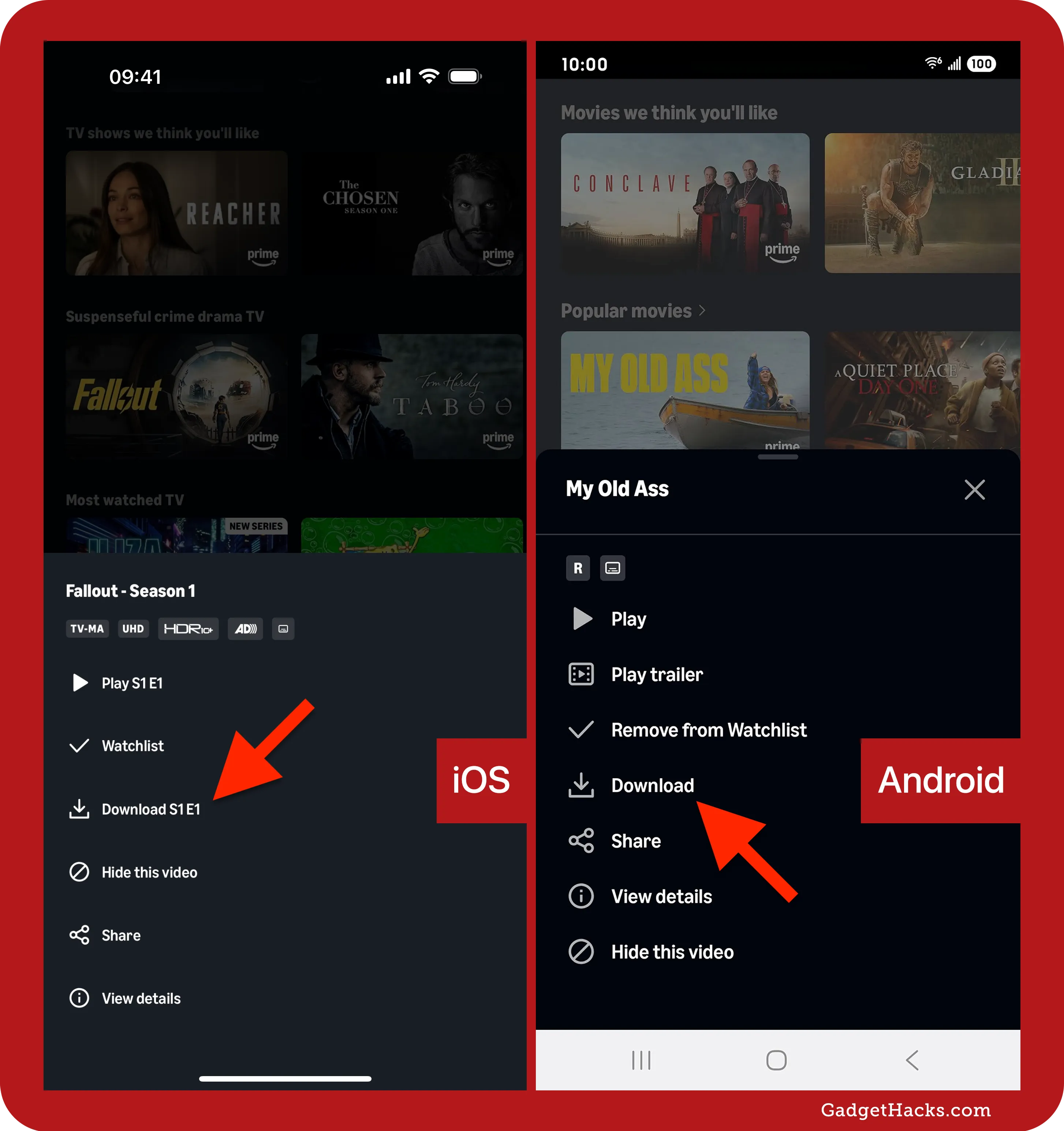
On the title’s detail page, you’ll see various options: “Watch Now,” “Add to Watchlist,” and crucially, the download icon.
- For Movies: Tap the download icon next to the “Watch Now” button.
- For TV Shows: You’ll typically see a download icon next to each episode. You might also find an option to “Download Season” for convenience.
- Quality Settings: Before the download commences, the app will usually prompt you to select your desired download quality (e.g., Good, Better, Best). Higher quality means a larger file size and longer download time, so choose based on your device’s storage and internet speed.
- Initiating Download: After selecting the quality, the download will begin. You can monitor its progress from the “Downloads” section of the app.
Managing Downloads
To access your downloaded content, navigate to the “Downloads” section within the Prime Video app (usually found in the bottom navigation bar or the main menu).
- Viewing: Tap on a downloaded title to start watching it offline.
- Deleting: To free up space, tap the “Edit” or “Manage” option within the Downloads section, select the titles you wish to remove, and then delete them.
- Storage Settings: Within the app settings, you can often configure where downloads are stored (internal storage or SD card if available on Android) and set preferences for download quality for future downloads.
Pro Tips for Mobile Downloads
- Prioritize Wi-Fi: Always download over a stable Wi-Fi connection to save mobile data and ensure faster, more reliable downloads, especially for large files.
- Monitor Storage: Keep an eye on your device’s available storage. High-quality downloads can quickly consume significant space.
- Charge Your Device: Downloads, especially lengthy ones, can drain battery life. Ensure your device is sufficiently charged or plugged in.
Downloading on Computers: The Prime Video Desktop App
Downloading on a desktop computer requires a specific approach, distinct from the mobile experience. Web browsers are not supported for offline downloads; you must use the dedicated Amazon Prime Video application.
The Shift from Browser to App
Many users are accustomed to watching Prime Video directly in their web browser. However, due to complex digital rights management (DRM) requirements and the need for a persistent, secure storage solution for downloaded content, Amazon, like many other streaming services, restricts downloads to its native applications. The desktop app provides a controlled environment necessary for these functions.

Installing the Prime Video App for Windows/macOS
The process for installing the app is straightforward:
- For Windows: Open the Microsoft Store, search for “Amazon Prime Video,” and click “Get” or “Install.”
- For macOS: Open the App Store, search for “Amazon Prime Video,” and click “Get” or “Install.”
- Login: After installation, launch the app and sign in with your Amazon Prime account credentials.
The Download Interface on Desktop
The desktop app’s interface largely mirrors the mobile experience, making the transition seamless.
- Finding Content: Navigate or search for your desired movie or TV show within the app.
- Download Button: On the title’s detail page, look for the familiar download icon (downward arrow). For TV shows, you’ll find it next to individual episodes or sometimes an option to download an entire season.
- Quality Selection: Similar to mobile, you’ll be prompted to choose your preferred download quality.
- Initiating Download: Click the download button, and the process will begin.
Storage and Playback on PC/Mac
- Locating Downloads: All downloaded content will be stored within the “Downloads” section of the Prime Video desktop app. You cannot access these files directly through your computer’s file explorer, as they are encrypted and tied to the app for DRM purposes.
- Offline Playback: To watch, simply open the Prime Video app (no internet connection required), go to “Downloads,” and select your desired title.
Troubleshooting Common Desktop Download Issues
- App Not Working/Crashing: Ensure your operating system is up to date and try reinstalling the app.
- Download Stuck: Check your internet connection. Pause and resume the download. Clear the app’s cache (if the option is available in settings, otherwise reinstall).
- Insufficient Storage: Make sure your primary drive (where the app stores data) has enough free space. You generally can’t choose a different drive for downloads within the app.
Optimizing Your Download Experience and Troubleshooting
To ensure a smooth and enjoyable offline viewing experience, proactive optimization and knowledge of common troubleshooting steps are key.
Selecting Download Quality
Amazon Prime Video typically offers several quality options:
- Good: Smallest file size, standard definition. Ideal for limited storage or slower connections.
- Better: Medium file size, improved definition. A good balance.
- Best: Largest file size, highest definition (often HD). Requires more storage and a faster connection but offers the best visual fidelity.
Choosing the right quality depends on your device’s screen size, available storage, and download speed tolerance.
Understanding Download Limits and Expiration
Prime Video downloads come with certain restrictions:
- Device Limits: There’s typically a limit on the number of devices you can have active downloads on simultaneously (often two).
- Total Downloads: You might have a cap on the total number of unique titles downloaded at any given time across all devices.
- Expiration: Downloaded content is not permanent. Most titles have an expiration period, usually 30 days once downloaded, or 48 hours once you start watching. After expiration, you’ll need to re-download the title if it’s still available.
Freeing Up Device Storage
Downloads can be significant data hogs. Regularly managing your stored content is crucial.
- Delete Unwatched/Finished Content: As described in the management sections, routinely remove titles you’ve finished or no longer plan to watch.
- Check System Storage: Periodically review your device’s overall storage in its system settings to identify other large files or apps consuming space.
Common Download Errors and Solutions
- “Insufficient Storage”: Delete old downloads or other files on your device.
- “Network Error”: Check your Wi-Fi or cellular connection. Try restarting your router or switching networks.
- “Licensing Issue”: The title might no longer be available for download, or its license has expired. Try streaming it if possible, or search for an alternative. Ensure your Prime subscription is active.
- “Download Failed”: Pause and resume the download. Restart the app or your device.
Best Practices for Seamless Downloads
- Stable Internet Connection: Always use a strong, reliable Wi-Fi connection for downloading.
- Ample Storage: Ensure your device has plenty of free space before starting downloads.
- Regular App Updates: Keep your Prime Video app updated to benefit from the latest features and bug fixes.
- Plan Ahead: Download content in advance, especially before traveling or entering areas with poor connectivity.
Beyond Basic Downloads: Advanced Considerations
While the core functionality is straightforward, a deeper understanding of how downloads interact with your account and device ecosystem can further enhance your experience.
Data Usage and Wi-Fi Recommendations
Downloading over cellular data can incur significant costs and quickly deplete your data allowance, especially for high-quality content. A typical 90-minute movie in “Best” quality can be several gigabytes. Always prioritize Wi-Fi for downloads to conserve data and ensure a faster, more cost-effective experience. Many apps have a setting to restrict downloads to Wi-Fi only, which is highly recommended.
Device Synchronization and Multiple Devices
Amazon Prime Video accounts typically allow multiple profiles and simultaneous streams. While you can download on multiple compatible devices logged into the same account, remember the device limit for active downloads. Your watch progress generally syncs across devices, so you can start watching a downloaded title on one device and pick up where you left off on another (though you might need an internet connection for the sync to occur initially). Downloads themselves are device-specific and not synced.

Parental Controls and Downloads
If you utilize parental controls on your Amazon Prime Video account, these restrictions apply to downloaded content as well. Ensure that the profiles used for downloading have the appropriate viewing permissions. Content rated beyond a profile’s allowable rating will not be accessible, even if downloaded. This is a critical security feature for families.
By thoroughly understanding these technical and practical aspects, Amazon Prime Video users can fully leverage the power of offline viewing. It transforms the service from a mere streaming platform into a truly flexible and ubiquitous entertainment solution, perfectly suited for the demands of modern life. With your favorite movies and shows securely stored on your device, you’re always just a tap away from premium entertainment, no matter where your adventures take you.
aViewFromTheCave is a participant in the Amazon Services LLC Associates Program, an affiliate advertising program designed to provide a means for sites to earn advertising fees by advertising and linking to Amazon.com. Amazon, the Amazon logo, AmazonSupply, and the AmazonSupply logo are trademarks of Amazon.com, Inc. or its affiliates. As an Amazon Associate we earn affiliate commissions from qualifying purchases.