
In an increasingly digital world, managing money has evolved far beyond traditional banking. Mobile payment applications have become indispensable tools for countless individuals, offering unparalleled convenience for sending, receiving, and managing funds. Among these, Cash App stands out as a prominent player, renowned for its user-friendly interface and comprehensive suite of features, including peer-to-peer payments, investing in stocks and Bitcoin, and even tax filing services. However, before diving into the myriad functionalities it offers, the first crucial step for any prospective user is downloading and installing the application correctly and securely.
This comprehensive guide will walk you through the entire process of acquiring Cash App on your device, ensuring a smooth, secure, and successful installation. We’ll cover everything from preliminary checks and step-by-step instructions for both iOS and Android platforms, to essential post-installation setup procedures and vital security considerations. Whether you’re a seasoned tech enthusiast or new to mobile finance applications, understanding the nuances of downloading Cash App is fundamental to leveraging its full potential while safeguarding your digital financial journey.
Understanding Cash App: Your Gateway to Seamless Digital Transactions
Before embarking on the download journey, it’s beneficial to grasp what Cash App is and why it has garnered such widespread adoption. This context will not only motivate your setup but also highlight the secure practices necessary for any digital financial tool.
What is Cash App?
Cash App is a mobile payment service developed by Block, Inc. (formerly Square, Inc.), designed to simplify financial transactions for individuals. Launched in 2013, it quickly distinguished itself by offering a straightforward platform for sending and receiving money, akin to a digital wallet. Beyond its core peer-to-peer payment functionality, Cash App has significantly expanded its offerings over the years. Users can now directly deposit their paychecks, obtain a customizable debit card (the Cash Card) linked to their account, and even delve into investment opportunities like buying and selling stocks and Bitcoin directly from the app. Its versatility extends to facilitating direct deposits, allowing users to receive their salaries or government benefits up to two days earlier than traditional banks. This fusion of banking, investing, and payment services within a single, intuitive application is a significant part of its appeal.
Why Choose Cash App?
The decision to download Cash App often stems from its compelling advantages. Primarily, its ease of use is a major draw. The interface is clean, uncluttered, and designed for quick navigation, making sending money as simple as a few taps. For users seeking flexibility, the Cash Card provides a convenient way to spend funds directly from their Cash App balance, anywhere Visa debit cards are accepted, often coming with unique boost rewards for various purchases.
Furthermore, Cash App democratizes access to financial services. Its investment features allow individuals to start investing with as little as $1, breaking down traditional barriers to entry in the stock market and cryptocurrency space. The ability to receive direct deposits, especially for those who might prefer not to use traditional banking institutions or want to consolidate their financial tools, adds another layer of utility. Essentially, Cash App bundles several essential financial services into one accessible mobile application, making it an attractive choice for modern digital financial management.
Preparing for a Smooth Download and Installation
A successful and secure download of Cash App begins with proper preparation. Ensuring your device meets the necessary technical specifications and that your environment is secure will prevent potential issues and safeguard your data.
Essential Device Requirements
Cash App is designed to run on most modern smartphones, but specific operating system versions are required for optimal performance and security. For iOS devices (iPhones and iPads), you’ll typically need iOS 12.0 or later. For Android devices, the requirement is usually Android 5.0 (Lollipop) or later. Before attempting to download, navigate to your device’s settings to check your current operating system version. If your device runs an older version, you may need to update its software first. Additionally, ensure your device has sufficient free storage space. While the app itself isn’t exceptionally large, allowing for future updates and data storage is crucial. A minimum of 200-500 MB of free space is a good benchmark.
Ensuring a Secure Internet Connection
The internet connection you use for downloading any financial application is paramount for security. Always opt for a private, secure Wi-Fi network (like your home network) or your mobile data connection. Avoid using public Wi-Fi networks (e.g., at cafes, airports, or libraries) for downloading or setting up financial apps. Public networks are often unsecured and susceptible to eavesdropping by malicious actors, potentially exposing your personal and financial information during the download and initial setup phase. A stable connection also prevents download interruptions or corrupted files, ensuring the app installs correctly.
App Store Account Verification
Whether you use an Apple device or an Android device, you’ll be downloading Cash App from its respective official app store. This requires an active and verified account: an Apple ID for iOS devices and a Google Account for Android devices. Ensure you remember your login credentials for these accounts, as you’ll need them to authenticate the download. If you haven’t set up an account or have forgotten your password, resolve these issues before proceeding. These accounts are also linked to your payment methods for app purchases (though Cash App is free), and critically, they help manage app permissions and updates. Using your official app store account ensures you’re downloading the legitimate application and not a malicious imitation.
Step-by-Step Guide: Downloading Cash App on Your Device
With preparations complete, you’re ready to download Cash App. The process is straightforward, but it differs slightly between iOS and Android platforms.
For iOS Users (Apple App Store)
- Open the App Store: Locate and tap the blue App Store icon on your iPhone or iPad’s home screen.
- Search for Cash App: Tap the “Search” tab (magnifying glass icon) at the bottom right of the screen. In the search bar at the top, type “Cash App” and tap search.
- Identify the Official App: Look for the official Cash App by Square, Inc. (or Block, Inc.). It usually has a distinct green icon with a dollar sign. Verify the developer name to avoid fake applications.
- Initiate Download: Tap the “Get” button next to the Cash App icon. If prompted, authenticate the download using Face ID, Touch ID, or your Apple ID password.
- Installation and Launch: The app will begin downloading and installing automatically. Once complete, the “Get” button will change to “Open.” Tap “Open” to launch Cash App.
For Android Users (Google Play Store)
- Open the Google Play Store: Locate and tap the colorful triangular Play Store icon on your Android device’s home screen or app drawer.
- Search for Cash App: Tap the search bar at the top of the screen. Type “Cash App” and tap the search icon (magnifying glass).
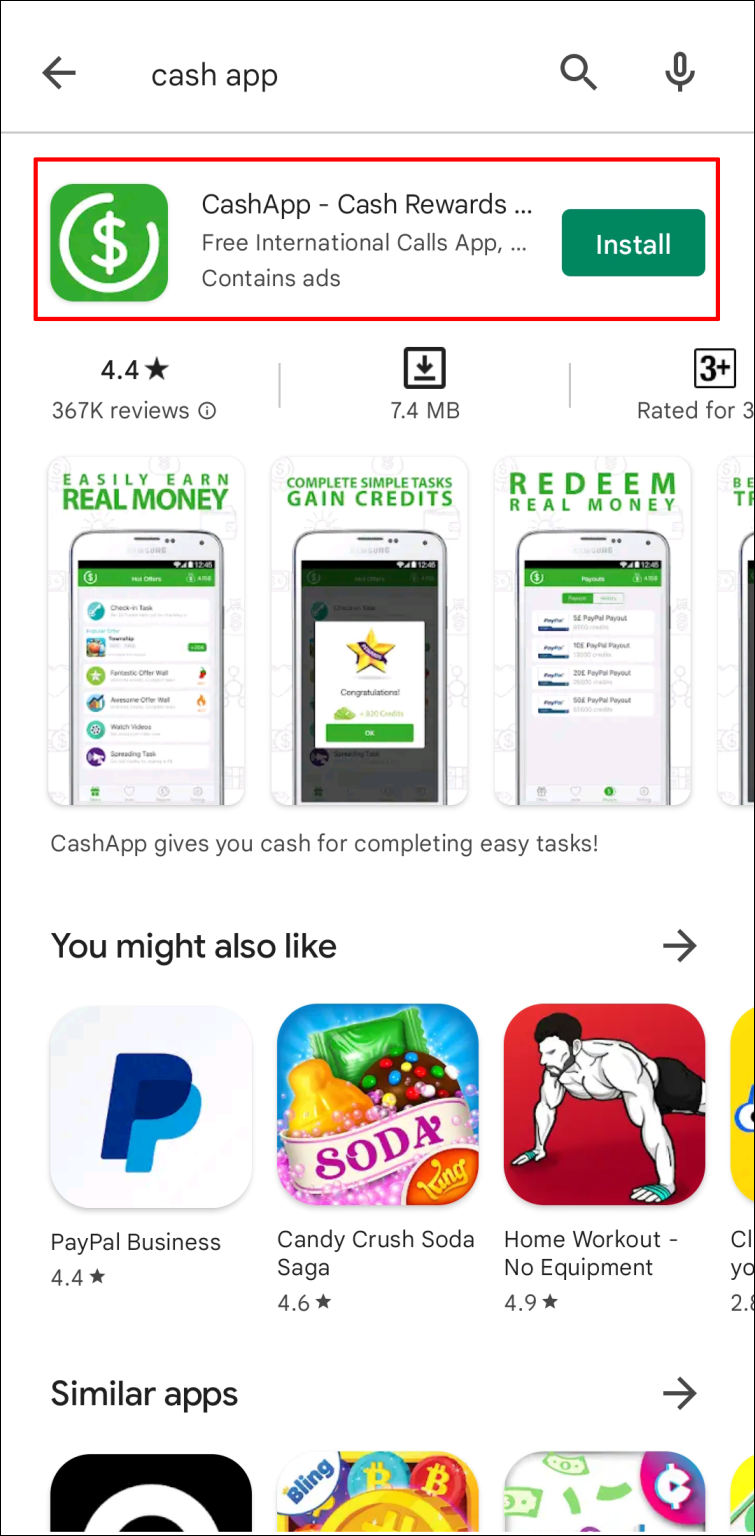
- Identify the Official App: Find the official Cash App developed by Block, Inc. (or Square, Inc.). It will have the familiar green dollar sign icon. Double-check the developer name to confirm authenticity.
- Initiate Download: Tap the “Install” button.
- Installation and Launch: The app will download and install automatically. Once finished, the “Install” button will change to “Open.” Tap “Open” to launch Cash App.
Verifying the Download and Installation
After the download completes, take a moment to ensure the app is properly installed. Launch the app and confirm it opens without errors. You should see the Cash App welcome screen, prompting you to enter your phone number or email to get started. If the app crashes, exhibits strange behavior, or fails to launch, you might need to troubleshoot the installation, which we’ll cover in a later section. A successful launch confirms the technical download and installation phase is complete, and you’re ready for the initial setup.
Post-Installation: Initial Setup and Account Creation

Downloading the app is just the first step. To begin using Cash App’s features, you’ll need to set up your account. This involves providing some basic information and linking a funding source.
Launching the App and Entering Basic Information
Upon first launching Cash App, you’ll be prompted to enter your phone number or email address. This will be used to create your unique Cash App account. After entering your chosen contact method, Cash App will send a verification code (either via text message or email). Enter this code into the app to confirm your identity. Following this, you’ll be asked to create a unique Cashtag, which is your personalized identifier for receiving payments. This is often a combination of letters and numbers preceded by a dollar sign (e.g., $YourName). While you can skip this step initially, it’s highly recommended for ease of use.
Securing Your Account with a PIN or Touch ID/Face ID
Security is paramount for any financial application. Cash App will prompt you to set up a security feature for accessing your account. This can be a custom PIN, or if your device supports it, Touch ID (fingerprint scan) or Face ID (facial recognition). It’s crucial to set up one of these immediately. A strong PIN that isn’t easily guessable (avoid birthdates, simple sequences) provides a basic layer of defense against unauthorized access. Utilizing biometric security like Touch ID or Face ID offers an even more seamless and robust protection mechanism, ensuring only you can access your funds and transaction history.
Linking a Bank Account or Debit Card
To send money, receive direct deposits, or transfer funds to your bank, you’ll need to link a funding source. Cash App allows you to link a debit card directly or connect your bank account.
- Linking a Debit Card: Tap the profile icon (top right corner), then select “Linked Banks.” Choose “Link Debit Card” and enter your debit card number, expiration date, CVV, and zip code. This allows you to instantly send money from your linked card.
- Linking a Bank Account: For more advanced features like direct deposit or larger transfers, linking your bank account is necessary. You’ll typically do this through a secure third-party service like Plaid, which connects to your bank’s online portal to verify your account details. This process involves logging into your bank through Cash App’s secure browser window. Ensure your bank details are accurate to avoid delays or issues with transactions.
Troubleshooting Common Download and Installation Issues
While the download process is generally smooth, you might occasionally encounter technical glitches. Here are some common problems and their solutions.
“App Not Downloading” Errors
If the app fails to download or the download pauses indefinitely, first check your internet connection. Switch between Wi-Fi and mobile data to see if one works better. If the problem persists, try restarting your device. Sometimes, a simple reboot can clear temporary software conflicts. Ensure you have enough storage space (as mentioned earlier); lack of space is a frequent culprit. Lastly, check the app store for any service outages or reported issues, although these are rare.
Insufficient Storage Space
This is a very common issue. If your device alerts you to insufficient storage, you’ll need to free up space. Go to your device’s settings and navigate to “Storage.” You can typically see what is consuming the most space (photos, videos, other apps). Delete unnecessary files, clear app caches, or uninstall apps you no longer use. Once sufficient space is cleared, retry the Cash App download.
Network Connectivity Problems
Sporadic internet connection can lead to failed downloads or corrupted installations. If your Wi-Fi is unreliable, try moving closer to the router or resetting it. If using mobile data, ensure you have strong signal reception. Switching to a different network, if available and secure, can also help. For persistent network issues, contacting your internet service provider may be necessary.
Outdated Operating System
As mentioned in the prerequisites, Cash App requires a relatively modern operating system. If your device is running an older version of iOS or Android, the app may not download or function correctly. Navigate to your device’s settings (General > Software Update on iOS; System > System update on Android) and check for available updates. Update your OS to the latest compatible version for your device, then attempt to download Cash App again. Be aware that older devices might not support the newest OS versions, potentially limiting their compatibility with modern apps.
Maximizing Security During and After Installation
Downloading a financial application necessitates an ongoing commitment to security. Beyond the initial download, proactive measures are crucial to protect your funds and personal information.
Recognizing Official Sources
Always download Cash App only from the official Apple App Store for iOS devices or the Google Play Store for Android devices. Never download APK files from third-party websites or click on suspicious links claiming to offer the app. Unofficial sources are breeding grounds for malware and phishing attempts designed to steal your credentials or infect your device. The official stores provide a layer of vetting and security that unauthorized sources simply cannot match.
Strong Passwords and Two-Factor Authentication
Beyond the initial PIN or biometric security for app access, ensure your associated email and bank accounts also have strong, unique passwords. Enable two-factor authentication (2FA) wherever possible – not just for Cash App, but for your email and bank accounts too. While Cash App itself has robust security features, the overall security of your digital financial ecosystem relies on protecting all interconnected accounts. 2FA adds an extra layer of security, requiring a second verification step (like a code sent to your phone) even if your password is compromised.
Keeping Your Device Software Updated
Regularly updating your device’s operating system and all installed apps, including Cash App, is a critical security practice. Software updates often include vital security patches that fix vulnerabilities exploited by hackers. Outdated software can create security gaps that put your financial data at risk. Enable automatic updates for both your OS and apps to ensure you’re always running the most secure versions available. This proactive approach to software maintenance is a cornerstone of digital security, protecting not just Cash App but all your sensitive data.
In conclusion, downloading Cash App is a straightforward technical process that opens the door to a world of convenient digital finance. By following these detailed steps and adhering to best practices for security and device maintenance, you can ensure a seamless experience from installation to daily usage. Embrace the future of financial management with confidence, knowing you’ve set up your Cash App account both effectively and securely.
aViewFromTheCave is a participant in the Amazon Services LLC Associates Program, an affiliate advertising program designed to provide a means for sites to earn advertising fees by advertising and linking to Amazon.com. Amazon, the Amazon logo, AmazonSupply, and the AmazonSupply logo are trademarks of Amazon.com, Inc. or its affiliates. As an Amazon Associate we earn affiliate commissions from qualifying purchases.