
In an increasingly digital world, managing our online presence and the platforms we interact with is paramount. PayPal, as a ubiquitous financial technology service, allows millions to send and receive money, shop online, and manage transactions. However, there come times when users might decide it’s time to part ways with the service. Whether driven by concerns over data privacy, a shift to alternative payment platforms, a desire to minimize one’s digital footprint, or simply no longer having a need for the account, understanding the technical process of deactivating your PayPal account is crucial. This guide provides an in-depth, professional walkthrough, focusing on the technical steps and implications involved in closing your account securely and effectively.
Preparing for Deactivation: Essential Pre-Steps
Before you initiate the final closure of your PayPal account, a series of crucial technical and logistical steps must be undertaken. Neglecting these preparatory actions can lead to complications, such as inaccessible funds, lingering subscriptions, or even security vulnerabilities. A methodical approach ensures a clean break and safeguards your financial and personal data.
Withdrawing or Transferring Remaining Funds
The most immediate technical pre-requisite is to ensure your PayPal balance is zero. Any funds remaining in your account upon deactivation will effectively become inaccessible. PayPal offers several methods for withdrawing funds, each with its own technical pathways and potential processing times:
-
Linking a Bank Account: This is the most common and often free method. You’ll need to link and confirm a bank account to your PayPal profile if you haven’t already. This typically involves PayPal making small deposits that you then verify, a technical step to confirm ownership. Once linked, you can initiate a standard transfer, which usually takes 1-3 business days to process due to banking system protocols.
-
Instant Transfer (Debit Card): For faster access, PayPal allows instant transfers to eligible debit cards, often for a small fee. This leverages real-time payment networks but requires your debit card to be technically compatible with PayPal’s instant transfer API.
-
Requesting a Check: In some regions, PayPal may offer the option to receive a physical check for your balance, though this is less common and involves longer processing times. This is more of a legacy option for users without direct bank access or who prefer physical mail.
It is imperative to complete this step and confirm the funds have successfully cleared into your chosen external account before proceeding with deactivation.
Removing Linked Financial Instruments
Once your balance is clear, the next critical technical step is to unlink all financial instruments associated with your PayPal account. This includes bank accounts, credit cards, and debit cards. Leaving these linked, even to a deactivated account, can present an unnecessary security risk, particularly if there’s any potential for unauthorized access to your account prior to closure.
-
Navigate to your PayPal Wallet or Payment Methods section.
-
For each linked bank account, credit card, or debit card, select the option to “Remove” or “Delete.”
-
This action severs the digital connection between your PayPal profile and these external financial resources, enhancing your digital security posture.
Canceling Subscriptions and Recurring Payments
Many online services, from streaming platforms to software subscriptions, utilize PayPal for recurring payments. Deactivating your PayPal account without first canceling these subscriptions can lead to service interruptions, failed payments, and potential issues with the service providers.
-
Review PayPal’s Automatic Payments Section: PayPal provides a dedicated section in your account settings where you can view and manage all active automatic payments or subscriptions. This often involves navigating to “Settings” -> “Payments” -> “Manage Automatic Payments.” Here, you can individually cancel recurring agreements.
-
Verify with Service Providers: For an exhaustive check, it’s also advisable to log into the respective third-party service accounts (e.g., Netflix, Spotify, cloud storage providers) and ensure that their payment method is no longer set to PayPal. In some cases, canceling directly with the merchant provides a more definitive break. This dual verification ensures no lingering digital ties remain.
Resolving Outstanding Issues
Before PayPal allows you to close your account, all outstanding issues must be resolved. This includes:
-
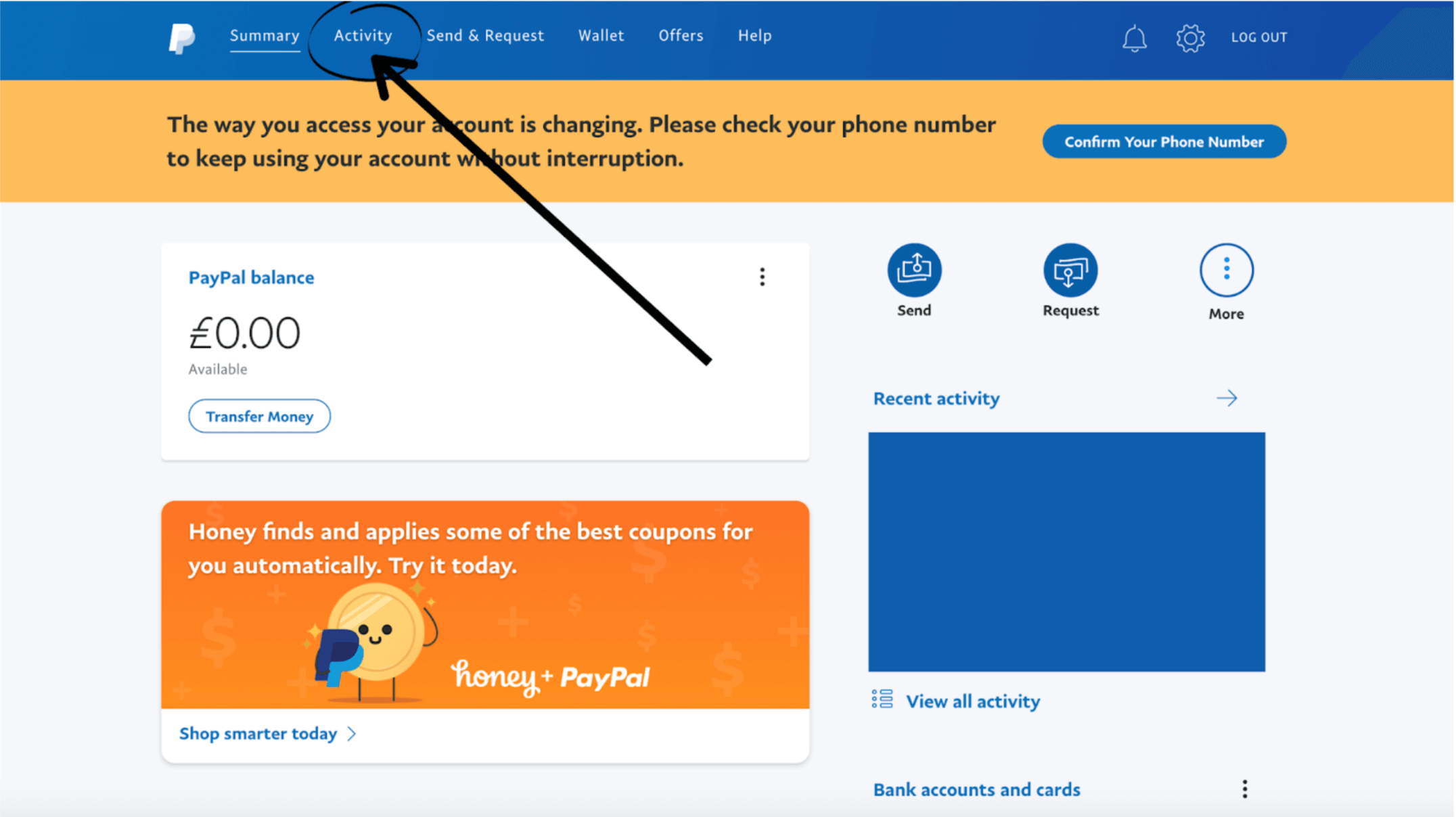
Pending Transactions: Ensure all sent or received payments have fully cleared and are no longer marked as “pending.”
-
Disputes or Claims: Any open buyer or seller disputes must be resolved. PayPal’s system will prevent closure until these cases are technically closed.
-
Account Limitations: If your account has any limitations (e.g., due to suspicious activity, verification issues), these must be addressed and lifted by PayPal’s compliance team before deactivation is permitted. These limitations are technical flags that prevent certain account actions.
Addressing these issues pre-emptively streamlines the deactivation process and prevents unforeseen roadblocks.
The Step-by-Step Deactivation Process
Once all preparatory steps are complete, you are ready to technically initiate the account closure. The process is straightforward but requires careful attention to the prompts and warnings provided by PayPal’s system.
Accessing Account Settings
The first step is to log into your PayPal account via a web browser, as the full deactivation functionality may not always be available or as comprehensive through the mobile application.
-
Login: Navigate to the official PayPal website (paypal.com) and log in with your credentials.
-
Navigate to Settings: Once logged in, locate the “Settings” icon (often a gear symbol) usually found in the top-right corner of the dashboard. Click on it to access your account preferences.
-
Account Settings Tab: Within the settings menu, look for an “Account Settings” or similar tab. This section contains various options related to your profile, security, and account management.
Locating the Close Account Option
The option to close your account is typically nested within the more general account settings to prevent accidental closures.
-
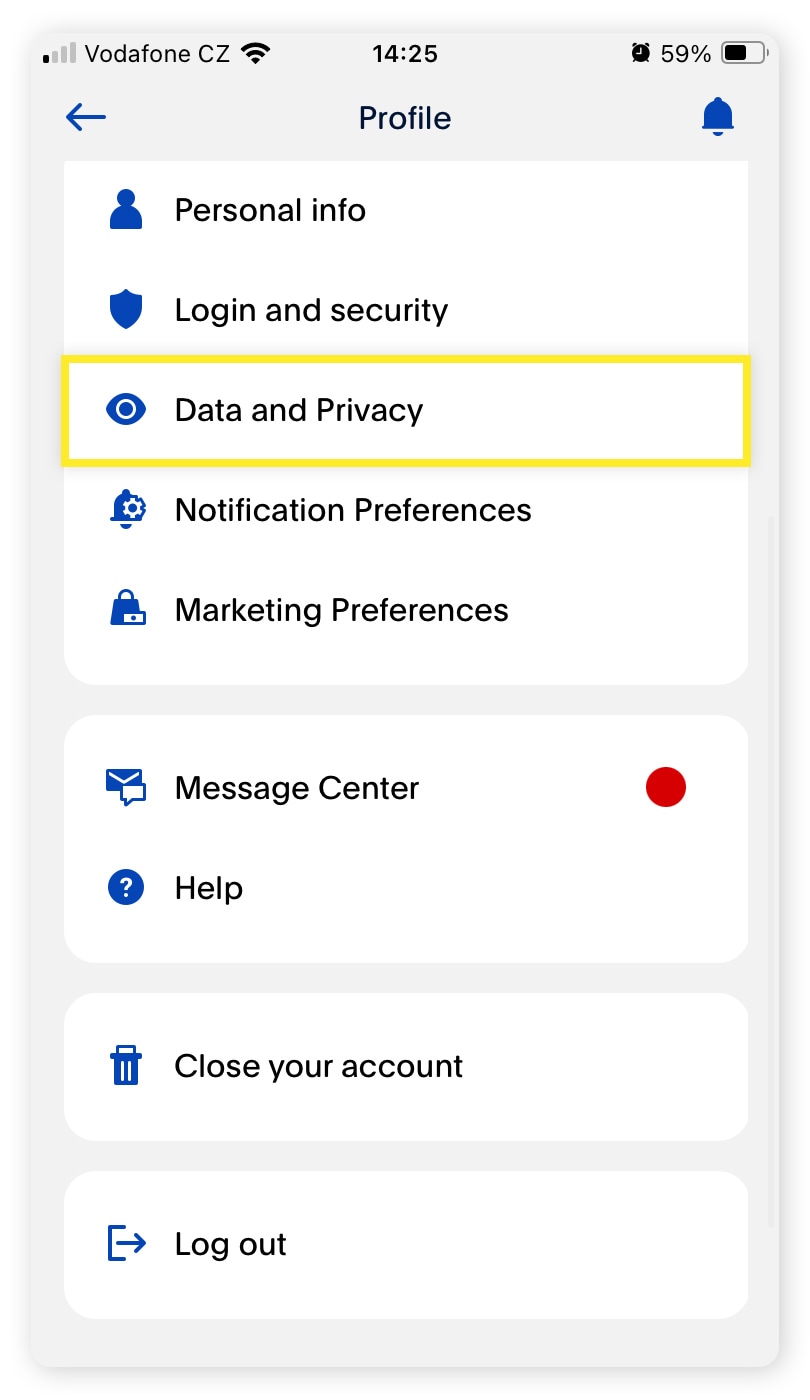
Find “Close your account”: Scroll down or look for a specific section or link explicitly titled “Close your account,” “Close this account,” or “Account Closure.” It’s often found under “Account preferences” or “Data and Privacy.”
-
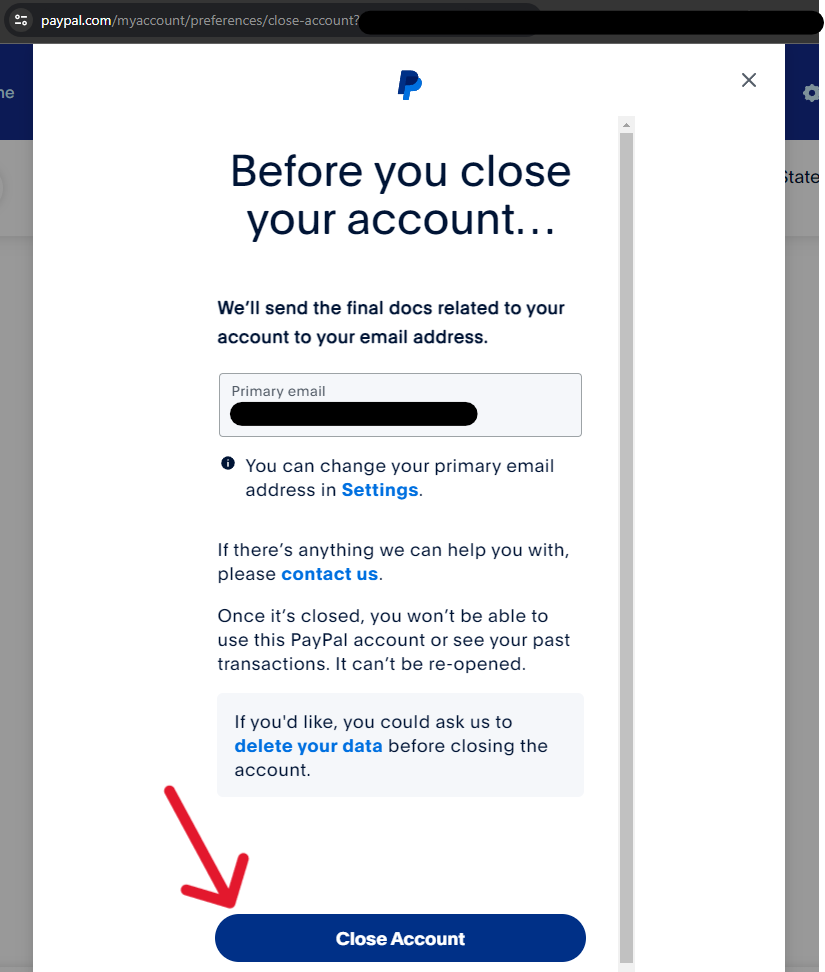
Confirmation Prompt: Clicking this link will typically bring up an initial confirmation page, often reiterating the implications of closing the account and providing a final opportunity to review pending issues.
Confirming Deactivation
This is the final stage where PayPal ensures you understand the permanence of your decision.
-
Reason for Closure: PayPal may ask you to select a reason for closing your account. This data is collected for their internal analytics and does not affect the technical process of closure.
-
Final Warnings: You will receive explicit warnings about losing access to transaction history, the inability to use the same email for a new PayPal account (for a certain period), and the irreversible nature of the closure. Read these carefully.
-
Final Confirmation: After reviewing the warnings, you will likely be prompted to click a final “Close Account” or “Confirm” button. This action triggers the backend process for account deactivation.
-
Email Confirmation: Upon successful deactivation, PayPal usually sends an email confirmation to your registered email address. This email serves as your digital receipt of the account closure. Retain this email for your records.
What Happens After Deactivation?
Once your account is technically closed, several things occur:
-
Loss of Access: You will immediately lose access to your PayPal account dashboard, transaction history, and any associated features.
-
Data Retention: While the account is closed, PayPal, like many financial institutions, is legally obligated to retain certain transactional and personal data for a specific period (e.g., 5-10 years, depending on regional regulations) for compliance and auditing purposes. This data is no longer actively linked to an “open” account but exists in their secure, archived systems.
-
Email Reuse Restrictions: PayPal typically prevents the immediate reuse of the same email address for creating a new account for a certain period to prevent potential fraud or abuse.
Understanding the Technical Implications of Account Closure
Deactivating a digital account like PayPal carries significant technical implications that extend beyond simply not being able to log in. These implications touch upon data privacy, digital security, and the overall management of one’s online identity.
Data Privacy and Retention
From a technical and privacy standpoint, deactivating your PayPal account does not equate to the immediate deletion of all your associated data. Financial services are subject to stringent regulatory requirements (e.g., GDPR, CCPA, AML laws) that mandate the retention of customer data, including transaction records, identity verification documents, and communication logs, for specified periods.
-
Archived Data: Your data transitions from an active user profile to an archived status within PayPal’s secure data storage systems. It’s no longer actively processed for services but remains accessible to PayPal for legal, compliance, and fraud prevention purposes.
-
Data Minimization: While data is retained, PayPal is generally expected to adhere to principles of data minimization, meaning they only keep data that is strictly necessary for their legal obligations.
-
Requesting Data Deletion (Post-Retention Period): After the mandated retention period expires, you might have the right, depending on your jurisdiction, to formally request the complete deletion of your data. However, the exact technical process and feasibility of this can vary.
Security Post-Closure
Closing unused accounts significantly enhances your digital security posture. Every active online account represents a potential “attack surface” for cybercriminals.
-
Reduced Risk of Compromise: An unused, forgotten account is a prime target for credential stuffing attacks or phishing attempts. By deactivating it, you eliminate this specific vulnerability.
-
Enhanced Digital Hygiene: Regularly auditing and closing unneeded accounts is a best practice for maintaining robust digital hygiene. It reduces the number of places where your personal and financial information resides online.
-
Phishing Prevention: Even after closure, remain vigilant. Phishing attempts targeting “PayPal users” might still occur. Knowing your account is closed provides a clear indication that such communications are fraudulent.
Preventing Identity Theft and Fraud
Deactivating accounts that hold sensitive financial data directly contributes to preventing identity theft and fraud.
-
Limiting Data Exposure: The less data that exists online, the less vulnerable you are to data breaches that could expose your information.
-
Disconnected Financial Links: By removing bank accounts and credit cards, you sever direct financial connections that could be exploited if an old, dormant account were compromised.
-
Consolidating Digital Footprint: In an era where identity theft is a significant concern, consolidating and managing your digital footprint by closing unused accounts is a proactive and technically sound security measure.
Alternatives to Full Deactivation: When Less is More
Sometimes, a full deactivation isn’t necessary, or a user might wish to retain some future flexibility. PayPal offers alternative technical measures that can address security concerns or reduce usage without entirely closing the account.
Removing Financial Information Only
If your primary concern is about linked bank accounts or credit cards, but you envision potentially using PayPal again in the future (e.g., for occasional payments), you can simply remove all financial instruments.
-
Process: Go to your Wallet, remove all linked bank accounts, debit cards, and credit cards.
-
Outcome: Your PayPal account remains active, but it will have no funding sources. You can still log in, view past transactions, and potentially receive money, but you cannot send payments without re-linking a funding source. This is a robust partial security measure.
Adjusting Privacy and Security Settings
Instead of full deactivation, users can significantly enhance the security and privacy of an active PayPal account.
-
Two-Factor Authentication (2FA): Enable 2FA immediately if you haven’t already. This is a critical security layer that requires a second form of verification (e.g., a code from your phone) in addition to your password.
-
Notification Settings: Customize email and SMS notifications to be alerted of all significant account activities, helping you spot unauthorized transactions quickly.
-
Linked App Permissions: Review and revoke permissions for any third-party apps or services that are linked to your PayPal account that you no longer use. This prevents old integrations from potentially accessing your account data.
-
Password Strength: Ensure your PayPal password is strong, unique, and frequently updated.
These technical adjustments can significantly mitigate risks without the irreversible step of full account closure, offering a balance between security and convenience.
Troubleshooting and Support for Deactivation Issues
While PayPal strives to make the deactivation process smooth, technical glitches or specific account circumstances can sometimes present roadblocks. Knowing how to troubleshoot and access support is vital.
Common Deactivation Roadblocks
-
Unresolved Issues: As mentioned, pending transactions, open disputes, or account limitations are the most common technical blockers. Ensure all are cleared.
-
Negative Balance: If your account somehow has a negative balance, you must resolve it by adding funds before deactivation is possible.
-
Technical Errors: Occasionally, system errors might prevent the closure. This is rare but can occur, often due to server-side issues.
-
Forgotten Passwords/Access Issues: You must be able to log in to deactivate. If you’ve forgotten your password, use the recovery process first.
Contacting PayPal Support
If you encounter persistent issues, direct contact with PayPal’s technical support team is the next step.
-
Live Chat: Often the fastest method for immediate assistance, available through the PayPal website.
-
Phone Support: For more complex issues, speaking directly with a representative can be beneficial. Phone numbers are typically found in the “Contact Us” section.
-
Community Forums: PayPal’s community forums can sometimes provide answers to common technical questions or share experiences from other users facing similar issues.
When contacting support, be prepared to provide account details for verification and clearly articulate the issue you are facing.
Documenting the Process
Throughout the deactivation process, especially if you encounter issues or for peace of mind, it’s a good technical practice to document your steps:
-
Screenshots: Take screenshots of critical pages, such as the confirmation that your balance is zero, the removal of linked financial instruments, and the final account closure confirmation screen.
-
Confirmation Emails: Save all confirmation emails from PayPal, especially the one confirming account closure. These serve as verifiable proof of your actions.
This documentation can be invaluable if future disputes arise or if you need to prove your account was indeed closed at a specific time.
Conclusion
Deactivating your PayPal account is a significant step in managing your digital life, offering enhanced privacy, security, and a cleaner online footprint. By diligently following the technical pre-steps—clearing funds, unlinking financial instruments, canceling subscriptions, and resolving any outstanding issues—you ensure a smooth and secure closure process. Understanding the technical implications, from data retention policies to the benefits for preventing identity theft, empowers you to make informed decisions. While full deactivation is a powerful tool, alternatives like simply removing financial information or bolstering security settings provide flexible options for different user needs. Ultimately, a methodical approach, combined with awareness of PayPal’s technical processes and available support, ensures that your exit from the platform is as secure and seamless as possible.
aViewFromTheCave is a participant in the Amazon Services LLC Associates Program, an affiliate advertising program designed to provide a means for sites to earn advertising fees by advertising and linking to Amazon.com. Amazon, the Amazon logo, AmazonSupply, and the AmazonSupply logo are trademarks of Amazon.com, Inc. or its affiliates. As an Amazon Associate we earn affiliate commissions from qualifying purchases.