
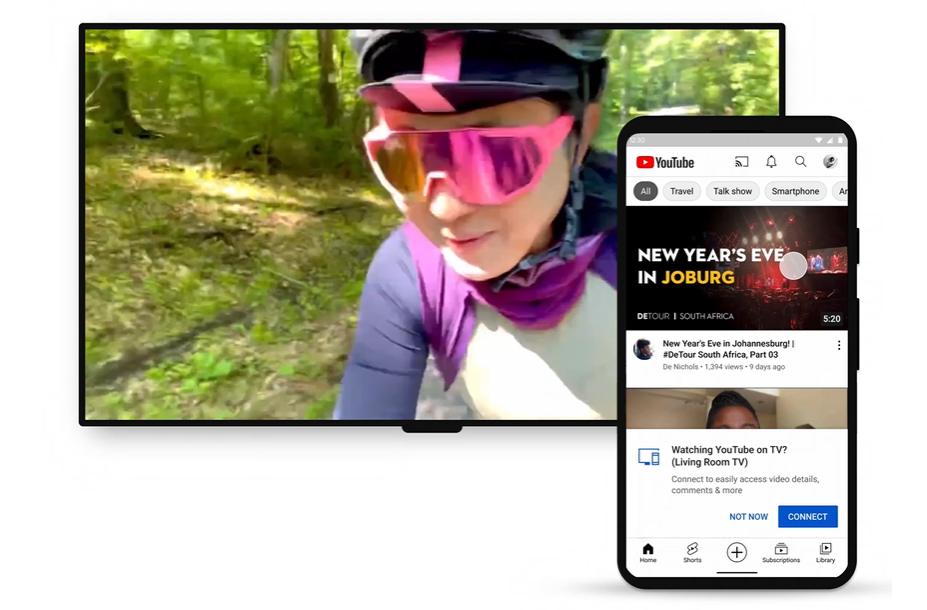
In an age where digital content reigns supreme, the desire to transition from the small screen of a smartphone to the expansive canvas of a television is universal. Whether it’s to share a viral video with friends, enjoy a concert in cinematic glory, or simply immerse oneself in a documentary without squinting, connecting your phone’s YouTube experience to your TV is a fundamental tech skill. This guide delves into the various methods, technologies, and considerations involved, empowering you to choose the best solution for your setup and enjoy seamless streaming.
The Ubiquitous Desire for the Big Screen Experience
The smartphone has become our primary portal to digital content, offering unparalleled convenience and access to an endless stream of videos, music, and information. However, for many viewing scenarios, the inherent limitations of a small display become apparent. The move to a television screen transforms a solitary viewing experience into a communal one, enhances visual and audio fidelity, and simply makes content more enjoyable.
Why Cast YouTube from Your Phone?
The appeal of casting YouTube from your phone to a TV is multifaceted. Firstly, it offers convenience. Your phone is often already in your hand, pre-loaded with your watch history, subscriptions, and playlists. Initiating playback from your familiar mobile interface and then effortlessly transferring it to the TV streamlines the entertainment process. Secondly, it provides a significantly larger view, enhancing readability, detail, and overall immersion, especially for visually rich content or educational videos. Lastly, it facilitates sharing. Gathering around a TV with family and friends to watch a funny clip, a travel vlog, or a music video is a far more engaging and inclusive experience than huddling around a phone screen. Moreover, your phone often acts as a sophisticated remote control, allowing you to browse, queue, and control playback without interrupting the main viewing experience.
Understanding the Underlying Technologies
At its core, connecting your phone to your TV for YouTube involves transferring video and audio data from one device to another. This can happen through various technological pathways, primarily leveraging wireless networks (Wi-Fi) or physical cables (HDMI). Wireless methods rely on protocols like Google Cast (Chromecast), Apple AirPlay, or Miracast, which enable devices to discover each other and stream content over a shared network. Wired connections, conversely, bypass network complexities entirely, offering a direct, often more robust, signal transfer. Understanding these foundational technologies is crucial for effective troubleshooting and selecting the most appropriate connection method for your specific setup. Each method has its own set of prerequisites, ranging from compatible hardware to a stable Wi-Fi network, and understanding these will ensure a smooth setup process.
Direct Wireless Casting: The Simplest Methods
For most users, wireless casting offers the most convenient and cable-free experience. These methods rely on your Wi-Fi network to send content from your phone to a compatible TV or streaming device.
Using Google Cast (Chromecast Built-in / Google TV)
Google Cast is arguably the most prevalent and user-friendly wireless casting technology, widely supported across Android devices, iPhones, and various smart TVs. It’s often referred to as “Chromecast Built-in” on smart TVs or is the core technology behind Google’s standalone Chromecast dongles and Google TV devices.
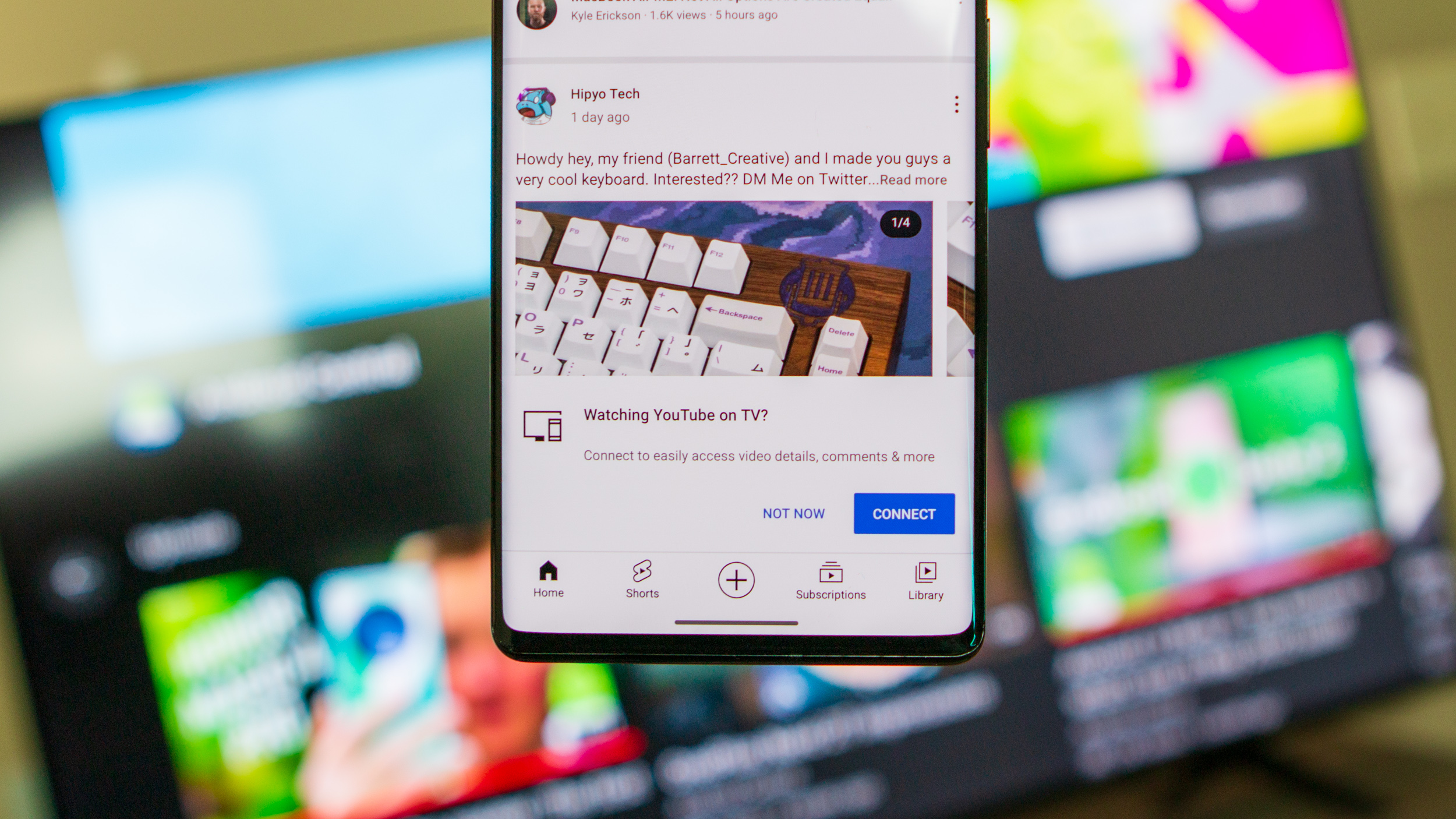
- How it works: Both your phone and the Google Cast-enabled TV/device must be connected to the same Wi-Fi network. When you open the YouTube app on your phone, a “Cast” icon (a rectangle with a Wi-Fi signal in the corner) will appear at the top of the video player or main screen. Tapping this icon will display a list of available Google Cast devices on your network. Selecting your TV/device initiates the connection, and the YouTube content immediately begins playing on the television. Your phone then acts as a remote, allowing you to control playback, volume, and even queue additional videos while continuing to use your phone for other tasks. The actual video stream is often pulled directly by the TV from YouTube’s servers, meaning your phone acts more as a remote control once casting begins, saving phone battery.
- Prerequisites: A Wi-Fi network, a smartphone (Android or iOS), and a Google Cast-compatible TV (either with Chromecast Built-in or connected to a Chromecast/Google TV dongle).
Apple AirPlay for iOS Users
For users within the Apple ecosystem, AirPlay provides a seamless way to cast content from iPhones and iPads to Apple TVs or AirPlay 2-compatible smart TVs.
- How it works: Similar to Google Cast, both your iOS device and the AirPlay receiver (Apple TV or compatible smart TV) need to be on the same Wi-Fi network. In the YouTube app on your iPhone, you’ll see an AirPlay icon (a rectangle with an upward-pointing triangle) within the video player. Tapping this icon allows you to select your AirPlay device. Additionally, iOS offers “Screen Mirroring” via the Control Center, which duplicates your entire phone screen onto the TV, though this is generally less efficient for dedicated video playback compared to direct AirPlay from within the app. AirPlay 2 significantly improved buffering, multi-room audio, and overall reliability.
- Prerequisites: A Wi-Fi network, an iOS device (iPhone, iPad), and an Apple TV or an AirPlay 2-compatible smart TV.
Smart TV Manufacturer’s Built-in Casting Solutions
Many smart TV manufacturers (e.g., Samsung, LG, Sony, Vizio) integrate their own proprietary casting or screen sharing technologies. While some of these might leverage Google Cast or AirPlay under the hood, others offer distinct functionalities.
- How they work: These often involve specific apps on your phone (e.g., Samsung Smart View, LG ThinQ) that communicate directly with their brand’s smart TVs. Sometimes, the YouTube app on your phone will automatically detect and allow direct casting to these TVs if they are on the same network, without needing a separate app or explicit Google Cast/AirPlay support. The specific steps can vary significantly by manufacturer and TV model.
- Prerequisites: A smart TV from a specific brand, often requiring the manufacturer’s companion app on your phone, and a shared Wi-Fi network.
Alternative Wireless Connections for Broader Compatibility
While Google Cast and AirPlay cover a large segment of the market, other wireless standards and third-party solutions exist to cater to different devices or specific needs.
Miracast and Wi-Fi Direct
Miracast is an older standard that allows for direct wireless connection between devices without needing a router or a Wi-Fi network infrastructure. It essentially creates a direct peer-to-peer Wi-Fi connection, enabling screen mirroring.

- How it works: Both devices (phone and TV/adapter) establish a direct Wi-Fi Direct connection. Your phone’s screen is then mirrored in real-time onto the TV. While this can be useful for showing presentations or photos, for high-definition video like YouTube, it can sometimes suffer from higher latency and compression artifacts compared to dedicated casting protocols. Many older smart TVs and some Windows devices support Miracast, though it’s less commonly found on newer dedicated streaming dongles.
- Limitations: Compatibility can be inconsistent across devices, and performance for video streaming may not be as smooth as dedicated casting solutions. It’s often used for full screen mirroring rather than just casting an app’s content.
Using Third-Party Casting Apps
For older TVs, non-standard smart TVs, or specific scenarios where direct casting isn’t possible, a range of third-party casting apps can bridge the gap. Apps like AllCast, Web Video Caster, or LocalCast are designed to stream local media files, web videos, and sometimes even content from specific apps like YouTube to various devices, including older smart TVs, game consoles, and media renderers.
- How they work: These apps often act as a universal media server or a web browser that can cast content to DLNA-enabled devices (an older networking standard) or use their own proprietary protocols. You typically open the YouTube video within the third-party app’s built-in browser or share the YouTube link to the app, which then attempts to cast it to your chosen device.
- Benefits: Versatility and broader compatibility with a wider array of older or less common streaming devices, offering a solution when native casting options are absent.
- Considerations: Setup can be more complex, and performance can vary. Some features might be locked behind a premium version of the app.
Wired Connections: The Reliable Fallback
While wireless is convenient, wired connections offer unparalleled reliability, zero latency, and often superior video quality, making them an excellent fallback or primary choice for critical viewing or setups with unstable Wi-Fi.
HDMI Adapters (USB-C to HDMI, Lightning to HDMI)
The most straightforward wired method involves physically connecting your phone to your TV using a cable that converts your phone’s output to an HDMI signal.
- How it works: You’ll need an adapter specific to your phone’s port (e.g., a USB-C to HDMI adapter for most modern Android phones, or a Lightning Digital AV Adapter for iPhones) and a standard HDMI cable. Connect the adapter to your phone, then connect the HDMI cable from the adapter to an available HDMI input on your TV. Select the corresponding HDMI input on your TV using its remote. Your phone’s screen will then be mirrored directly onto the TV. This means whatever is displayed on your phone, including the YouTube app, will appear on your television.
- Benefits: No Wi-Fi required, completely eliminates lag and buffering issues related to network stability, and provides the highest possible video and audio quality that your phone and TV can support. It’s incredibly reliable.
- Considerations: You need to purchase the correct adapter, and your phone will be tethered to the TV, limiting its use as a handheld device. Many adapters also have a pass-through port for charging your phone simultaneously, which is highly recommended for extended viewing.
MHL (Mobile High-Definition Link)
While largely superseded by USB-C with DisplayPort Alternate Mode, MHL was an earlier standard for connecting Android phones to TVs via a micro-USB port that also carried an HDMI signal.
- How it works: An MHL-compatible micro-USB to HDMI cable connects directly from your phone to your TV’s HDMI port (sometimes requiring an MHL-compatible HDMI port on the TV itself). The key advantage of MHL was that it could also charge your phone simultaneously while transmitting video.
- Limitations: MHL compatibility was inconsistent across Android devices and required specific MHL cables. It’s a fading standard, rarely found on newer phones which have predominantly adopted USB-C. Most users today will find USB-C to HDMI adapters a more relevant solution.
Troubleshooting Common Connection Issues
Even with the most advanced technology, issues can arise. Knowing how to diagnose and resolve common problems can save you frustration.
Network Problems
A stable and correctly configured Wi-Fi network is paramount for wireless casting.
- Check Wi-Fi connection: Ensure both your phone and TV/streaming device are connected to the same Wi-Fi network. Mismatched networks are a very common cause of casting failures.
- Signal strength: A weak Wi-Fi signal can lead to buffering, stuttering, or dropped connections. Try moving devices closer to your router or consider a Wi-Fi extender.
- Router restart: Sometimes, simply restarting your Wi-Fi router (unplugging it for 30 seconds and plugging it back in) can resolve transient network glitches.
- Network isolation: Some routers have “guest network” features or client isolation settings that prevent devices on the same network from communicating with each other. Ensure these are disabled for your primary network.
Device Compatibility and Updates
Technology evolves, and outdated software can create compatibility conflicts.
- App updates: Ensure your YouTube app on your phone, your TV’s firmware, and any casting device’s software (e.g., Chromecast firmware) are all up to date. Developers frequently release updates to fix bugs and improve compatibility.
- Hardware compatibility: Double-check that your devices actually support the casting method you’re attempting (e.g., does your TV have Chromecast Built-in or AirPlay 2?).
- Phone OS update: Ensure your phone’s operating system (iOS or Android) is running a recent version.
Power Cycling and Reconnection
A simple restart can often clear temporary software glitches.
- Restart devices: Power cycle your phone, your TV, and any streaming dongles (Chromecast, Apple TV) by unplugging them from power for a minute and then plugging them back in. This often resolves minor software hang-ups.
- Re-establish connection: If casting fails, try disconnecting the cast from your phone and then initiating it again. For wired connections, unplug and replug the HDMI cable and adapter.
Permissions and Settings
Modern operating systems and smart TVs require explicit permissions for certain functions.
- Local network access: On iOS, apps require permission to access your local network. If you denied this for YouTube, casting won’t work. Check Settings > YouTube > Local Network.
- Screen mirroring permissions: Some smart TVs require you to explicitly allow screen mirroring or casting from an unknown device in their settings, especially for the first connection.
- Input selection: For wired connections, ensure your TV is set to the correct HDMI input where your phone is connected. For wireless casting, confirm the TV is powered on and set to an appropriate input (some smart TVs automatically switch to the casting input).
By systematically going through these troubleshooting steps, you can often quickly identify and rectify the cause of most connection problems, getting you back to enjoying your YouTube content on the big screen.
Conclusion
Connecting your phone’s YouTube experience to your television is a testament to the seamless integration of modern technology in our daily lives. From the effortless convenience of wireless casting via Google Cast or Apple AirPlay to the steadfast reliability of a direct HDMI connection, there’s a method tailored for every setup and preference. Understanding the nuances of each approach, from the prerequisites of a stable Wi-Fi network to the specific adapters for wired connections, empowers you to choose the most efficient and enjoyable way to bring your favorite YouTube content to the big screen. By following the guidance in this comprehensive article and familiarizing yourself with potential troubleshooting steps, you’ll be well-equipped to unlock a richer, more immersive, and shared viewing experience right from the palm of your hand.
aViewFromTheCave is a participant in the Amazon Services LLC Associates Program, an affiliate advertising program designed to provide a means for sites to earn advertising fees by advertising and linking to Amazon.com. Amazon, the Amazon logo, AmazonSupply, and the AmazonSupply logo are trademarks of Amazon.com, Inc. or its affiliates. As an Amazon Associate we earn affiliate commissions from qualifying purchases.