
Connecting the SiriusXM app to your car seamlessly integrates a vast library of audio content, including live channels, on-demand shows, podcasts, and personalized stations, directly into your vehicle’s infotainment system. This transformation extends the traditional satellite radio experience beyond the equipped vehicle, allowing subscribers to leverage their mobile devices for in-car entertainment, often with enhanced features and flexible access. Understanding the various technological pathways to achieve this connection is crucial for an optimal and uninterrupted listening experience.
The SiriusXM App: A Comprehensive Digital Audio Hub
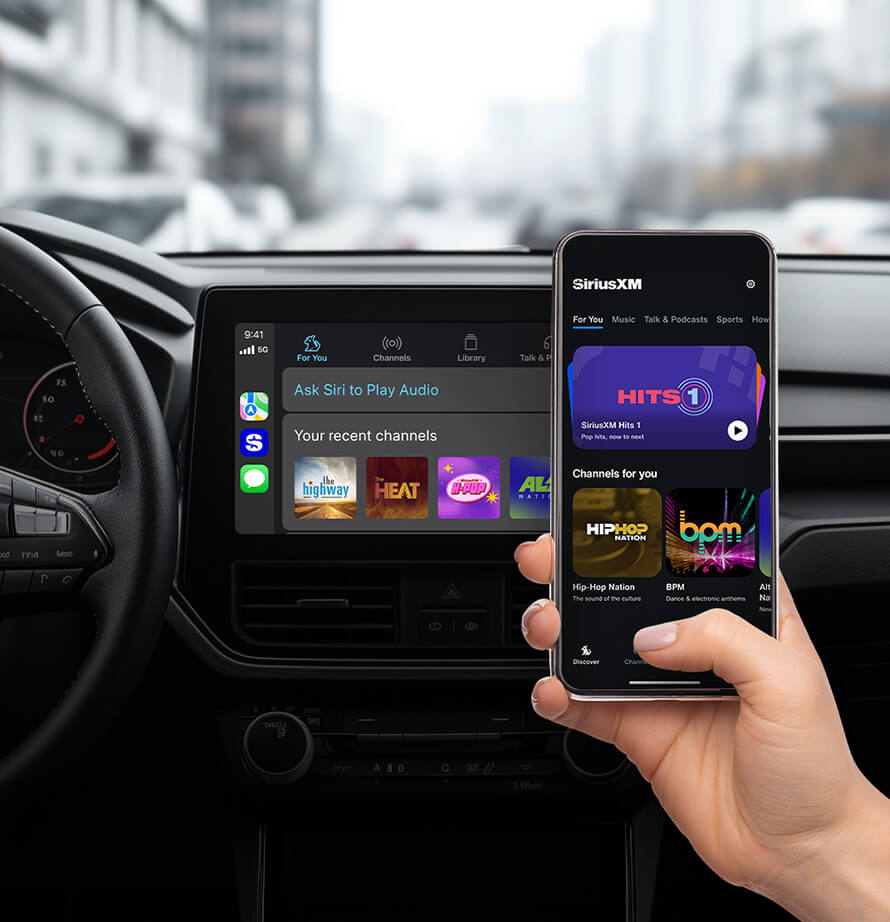
The SiriusXM app goes beyond merely replicating the satellite radio signal; it functions as a robust digital audio platform. Unlike the satellite radio tuner, which requires a direct line of sight to a satellite, the app streams content over an internet connection, typically via Wi-Fi or cellular data. This fundamental difference unlocks a host of features not available through traditional satellite tuners, such as the ability to restart shows, access a deeper on-demand library, create personalized “Xtra” channels, and download content for offline listening.
Beyond the Traditional Satellite Radio Paradigm
For years, SiriusXM was synonymous with a dedicated receiver installed in a car. While that remains a core offering, the app paradigm shifts the user experience significantly. It decouples the service from specific hardware, enabling subscribers to access their content on smartphones, tablets, smart speakers, and ultimately, within any vehicle capable of interfacing with these devices. This flexibility is a cornerstone of modern digital media consumption, where content is expected to be accessible anywhere, anytime. The app also often features higher-quality audio streaming options, depending on your internet connection, providing a richer auditory experience than the compressed satellite signal.
Key Features and Benefits of the Mobile App
The SiriusXM app is engineered to provide a feature-rich experience. Users can browse content by channel, genre, or artist, and quickly access favorites. The “Start Over” feature allows users to jump to the beginning of a live show, preventing missed moments. The “On Demand” library offers a massive collection of past broadcasts, interviews, and exclusive podcasts, available at the listener’s convenience. Furthermore, the app supports multiple user profiles, allowing different family members to customize their listening preferences. When connected to a car, these features are often accessible through the vehicle’s controls, mirroring the convenience of a built-in system.
Primary Technological Avenues for In-Car Integration
Connecting the SiriusXM app to your car typically involves leveraging existing automotive connectivity standards. The method chosen largely depends on the vintage and technological sophistication of your vehicle and mobile device. Each method offers a distinct level of integration, control, and audio fidelity.
Bluetooth Audio Streaming: The Universal Foundation
Bluetooth remains one of the most ubiquitous and straightforward methods for wirelessly connecting a mobile device to a car’s audio system. Nearly every modern vehicle, and even many older ones equipped with aftermarket head units, supports Bluetooth audio streaming. This method transmits audio wirelessly from your smartphone to the car’s speakers, effectively turning your phone into the audio source and the car into the output device. While it offers basic play/pause and track skipping controls via the car’s steering wheel or head unit, it doesn’t typically provide deeper app integration, meaning you’ll still primarily interact with the SiriusXM app directly on your phone for browsing and selection.
Apple CarPlay and Android Auto: Intelligent Seamless Integration
For vehicles equipped with Apple CarPlay or Android Auto, the integration level elevates significantly. These platforms project a simplified, car-optimized version of your smartphone’s interface onto the vehicle’s infotainment screen. The SiriusXM app is fully compatible with both CarPlay and Android Auto, allowing you to navigate channels, browse content, access favorites, and control playback directly through the car’s touchscreen, rotary dials, or voice commands. This method offers the most fluid and safe user experience, minimizing the need to touch your phone while driving.
Auxiliary Input (AUX) and USB Connections: Reliable Wired Solutions
For older vehicles or those without advanced wireless capabilities, wired connections like the auxiliary (AUX) input or USB port provide reliable alternatives. An AUX cable transmits audio directly from your phone’s headphone jack (or a dongle for phones without one) to the car’s audio system. A USB connection, primarily for charging and sometimes data transfer, can also be used in some cars to play audio, acting as a digital audio input, especially if the vehicle supports USB audio or acts as a media reader. While these methods offer excellent audio quality, they lack the convenience of wireless control and require physical cable management.
Built-in Infotainment Systems: Direct App Integration
A growing number of newer vehicles are offering direct integration of apps like SiriusXM within their native infotainment systems, sometimes requiring a subscription to the car manufacturer’s connected services and/or the SiriusXM app. In these cases, the app is pre-installed or downloadable directly to the car, eliminating the need to connect a separate mobile device for streaming. This offers the most polished and integrated experience, often leveraging the vehicle’s built-in internet connection.
Step-by-Step Connection Guides
Executing the connection correctly ensures a hassle-free experience. While the exact steps can vary slightly by vehicle model and phone OS, the general principles remain consistent.
Connecting via Bluetooth
- Enable Bluetooth on your phone: Go to your phone’s settings and ensure Bluetooth is turned on.
- Activate Bluetooth pairing mode on your car: Consult your car’s manual. This usually involves navigating to the “Bluetooth” or “Phone” section in the infotainment system and selecting “Pair Device” or “Add New Device.”
- Select your car on your phone: Once your car’s Bluetooth name appears in the list of available devices on your phone, tap it to connect. You may be prompted to confirm a pairing code on both devices.
- Open the SiriusXM app: Launch the app on your phone.
- Select Bluetooth as the audio source on your car: Change your car’s audio input to “Bluetooth Audio” or “Media.” The audio from the SiriusXM app should now play through your car’s speakers.
Utilizing Apple CarPlay
- Ensure CarPlay is enabled on your iPhone: Go to Settings > General > CarPlay.
- Connect your iPhone to your car:
- Wired CarPlay: Use a high-quality USB-to-Lightning cable to connect your iPhone to the car’s dedicated CarPlay USB port.
- Wireless CarPlay: If your car supports it, ensure Wi-Fi and Bluetooth are enabled on your iPhone. Your car will prompt you to connect wirelessly after an initial setup.
- Launch CarPlay: CarPlay should automatically launch on your car’s display. If not, tap the CarPlay icon on your car’s screen.
- Access the SiriusXM app: The SiriusXM app icon should appear on the CarPlay home screen. Tap it to open and control the app through your car’s interface.
Setting Up Android Auto
- Install Android Auto on your phone (if not pre-installed): Download it from the Google Play Store.
- Connect your Android phone to your car:
- Wired Android Auto: Use a high-quality USB cable to connect your Android phone to the car’s dedicated Android Auto USB port.
- Wireless Android Auto: If your car and phone support it, ensure Bluetooth and Wi-Fi are enabled. Follow the on-screen prompts for initial wireless pairing.
- Launch Android Auto: Android Auto should automatically launch on your car’s display. If not, tap the Android Auto icon.
- Access the SiriusXM app: The SiriusXM app icon should be visible on the Android Auto interface. Tap it to control SiriusXM directly from your car’s screen.
Using AUX/USB Cables
- Locate the AUX or USB port: These are typically found in the center console, dashboard, or glove compartment.
- Connect the cable:
- AUX: Plug one end of a 3.5mm audio cable into your phone’s headphone jack (or adapter) and the other end into the car’s AUX port.
- USB: Connect a USB cable from your phone to the car’s USB port.
- Select the input on your car: Change your car’s audio source to “AUX” or “USB” accordingly.
- Open the SiriusXM app: Launch the app on your phone and begin playback. The audio will now be routed through the car’s speakers.
Troubleshooting Common Connectivity Issues
Even with clear instructions, technological connections can sometimes encounter glitches. Addressing common problems efficiently ensures minimal disruption to your listening.
App Not Launching or Crashing
If the SiriusXM app itself is misbehaving, it’s often a device-specific issue.
- Restart the app: Force close the app and reopen it.
- Restart your phone: A full device restart can resolve many software conflicts.
- Check for app updates: Ensure you have the latest version of the SiriusXM app installed. Outdated apps can have compatibility issues.
- Clear app cache: In your phone’s settings, find the SiriusXM app and clear its cache. This can resolve issues related to corrupted temporary data.
No Audio or Intermittent Playback
When the connection seems established but no sound comes out, or it cuts in and out, several factors could be at play.
- Volume levels: Ensure both your phone’s volume and your car’s volume are turned up.
- Correct input selected: Double-check that your car’s audio source is set to the correct input (Bluetooth, CarPlay/Android Auto, AUX, USB).
- Test with other audio: Try playing music from a different app (e.g., Spotify, Apple Music) to verify that the general audio connection to your car is working.
- Check cables: If using AUX or USB, inspect the cables for damage and ensure they are fully seated in their ports. Try a different cable if available.
- Data connection: Ensure your phone has a strong and stable cellular or Wi-Fi data connection. SiriusXM streaming requires active internet access.
Connectivity Drops or Disconnects
Frequent disconnections can be particularly frustrating.
- Interference: Other electronic devices in the car (e.g., chargers, dash cams) can sometimes interfere with Bluetooth signals.
- Bluetooth/Wi-Fi reset: On your phone, toggle Bluetooth and/or Wi-Fi off and on. Sometimes, deleting the car from your phone’s paired devices list and re-pairing can help.
- Firmware updates: Check if your car’s infotainment system or head unit has any available firmware updates. Manufacturers often release updates to improve connectivity stability.
- Proximity: For wireless connections, ensure your phone is relatively close to the head unit and not buried in a console where the signal might be obstructed.
Optimizing Your In-Car SiriusXM Experience
Beyond just getting connected, optimizing your setup can significantly enhance the quality and reliability of your in-car SiriusXM listening.
Data Usage Considerations
Streaming high-quality audio consumes mobile data. The SiriusXM app provides options to adjust streaming quality, allowing you to balance fidelity with data consumption. If you have a limited data plan, consider downloading content for offline listening before you start driving, especially for longer trips. Monitoring your data usage through your phone’s settings can help prevent unexpected overage charges. Ensure your data plan is robust enough to support regular streaming.
Power Management for Mobile Devices
Continuous streaming, especially when using CarPlay or Android Auto, can drain your phone’s battery rapidly. Always use a reliable car charger to keep your phone powered, especially for extended listening sessions. Many modern cars offer high-power USB ports, but if yours doesn’t, consider a dedicated fast-charging car adapter. Keeping your phone adequately charged prevents unexpected interruptions.
Safety and Convenience Features
Prioritize safety. While CarPlay and Android Auto are designed for minimal distraction, it’s always best to make channel selections and adjustments before driving or when safely pulled over. Utilize voice commands offered by CarPlay/Android Auto (e.g., “Hey Siri, open SiriusXM” or “Ok Google, play channel X on SiriusXM”) for hands-free control. Configure your favorite channels within the SiriusXM app to quickly access preferred content, reducing the need to scroll while driving.
By understanding the available connection methods, following the setup guides, and proactively troubleshooting common issues, you can unlock the full potential of the SiriusXM app, transforming your daily commute or road trip into an immersive and personalized audio journey.
aViewFromTheCave is a participant in the Amazon Services LLC Associates Program, an affiliate advertising program designed to provide a means for sites to earn advertising fees by advertising and linking to Amazon.com. Amazon, the Amazon logo, AmazonSupply, and the AmazonSupply logo are trademarks of Amazon.com, Inc. or its affiliates. As an Amazon Associate we earn affiliate commissions from qualifying purchases.