
Amazon Prime has become an ubiquitous subscription service, offering a vast array of benefits from expedited shipping to extensive digital media libraries. However, with multiple household accounts, gift subscriptions, or simply the passage of time, it’s not uncommon for users to find themselves unsure about their current Prime membership status. Verifying your Prime subscription is a straightforward process, primarily managed through your Amazon account settings, whether accessed via a web browser or the Amazon shopping application. Understanding how to check your status, interpret the indicators, and manage your subscription is key to leveraging all the platform’s technical advantages.
The Primary Method: Checking Your Amazon Account Status
The most reliable way to determine your Amazon Prime membership status is by directly accessing your account information on the Amazon platform. This process is designed to be intuitive, guiding users to their subscription details with minimal navigation.
Step-by-Step Guide via Web Browser
- Navigate to Amazon.com: Open your preferred web browser and go to the official Amazon website.
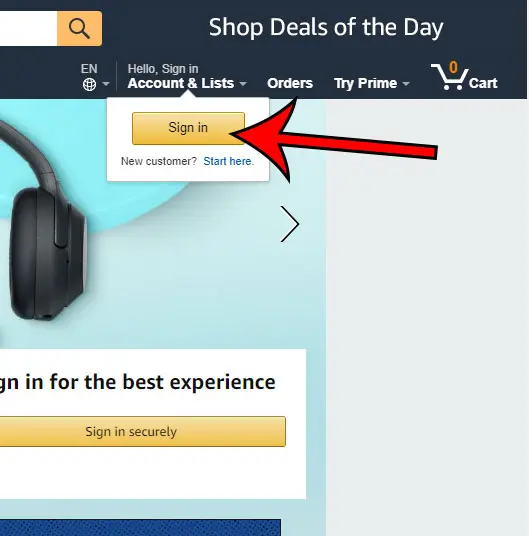
- Log In to Your Account: In the top right corner of the homepage, locate “Hello, Sign in” or your account name if already logged in. Click on “Accounts & Lists” or “Sign in” and enter your Amazon credentials (email or mobile number and password). Ensure you are logging into the correct account, especially if you manage multiple Amazon profiles.
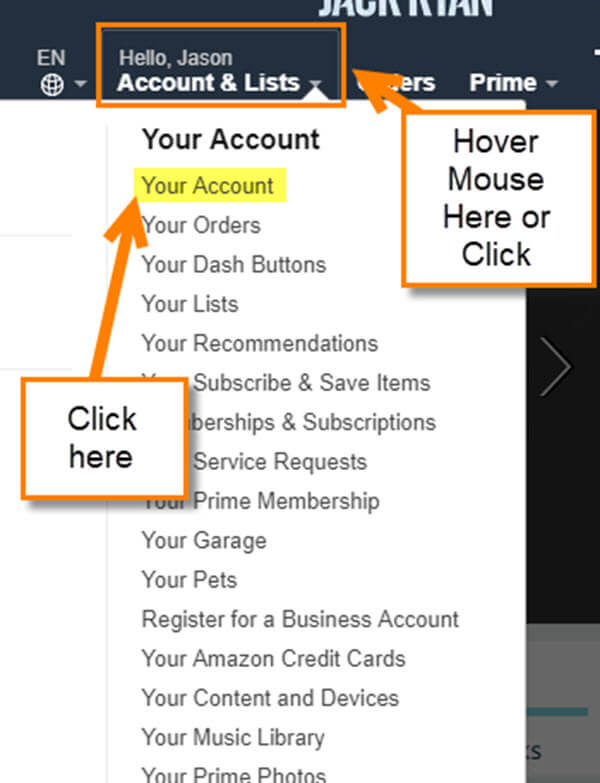
- Access Your Prime Membership: Once logged in, hover over “Accounts & Lists” again. From the dropdown menu, select “Prime Membership” or “Your Prime Membership” which typically appears prominently. Alternatively, you can click on “Account” and then look for “Prime” related options within your account management dashboard.
- Review Membership Details: This page is your central hub for all things Prime. It will clearly display your current membership status. You will see information such as:
- “Welcome to Amazon Prime” or “Your Prime membership is active” if you are a current member.
- The renewal date for your current billing cycle.
- The type of Prime membership (e.g., monthly, annual, Prime Student, Prime Video, or if you’re part of an Amazon Household).
- Options to “Manage Membership,” “Update Payment,” or “End Membership.”
- If you are not a Prime member, this page will instead prompt you to “Join Prime” or “Start your free trial.”
Using the Amazon Shopping App
For those who primarily interact with Amazon via their mobile devices, the Amazon Shopping app provides an equally convenient method to check Prime status.
- Open the Amazon Shopping App: Launch the Amazon app on your smartphone or tablet. Ensure you are running the latest version for optimal functionality.
- Access Account Settings: Tap the menu icon (usually three horizontal lines or “hamburger” icon) typically located in the bottom right or top left corner of the app screen.
- Navigate to Your Account: From the menu, tap “Account” or “Your Account.”
- Find Prime Membership: Within the “Account” section, scroll down and look for an option like “Manage Prime Membership,” “Prime Membership,” or “Prime.” Tap on this option.
- Verify Status: Similar to the web browser experience, this section will display your current Prime status, renewal date, membership type, and options for managing the subscription. If you are not a member, the app will offer prompts to join.
What to Look For: Prime Badges and Membership Details
Beyond the dedicated Prime membership page, several visual cues and features across the Amazon platform indicate active Prime status:
- Prime Badge on Products: When browsing products, you will consistently see a small “Prime” badge next to eligible items, usually accompanied by free or expedited shipping options (e.g., “FREE One-Day Delivery”). If you don’t see this badge on items typically eligible for Prime, it might be an indicator that your membership is inactive.
- “Your Prime Membership” Banner: Upon logging into the Amazon website, a banner or notification at the top of the page might confirm your Prime status or remind you of an upcoming renewal.
- Prime Video/Music Access: Attempting to stream a “Prime Video” title or listen to “Prime Music” content. If you have active Prime, these services should function seamlessly without prompting you to subscribe. If you are asked to subscribe or rent titles labeled “Prime,” your membership may be inactive or expired.
- Digital Content Libraries: Checking your access to services like Prime Reading (e-books), Amazon Photos (unlimited photo storage), or Prime Gaming (free games and in-game content). Active Prime status grants access to these specific digital libraries and features within their respective apps or sections of the Amazon website.
Understanding Prime Status Indicators and Benefits
Recognizing the subtle and overt indicators of an active Prime membership goes beyond simply checking a status page. It involves understanding how the various technological facets of Prime integrate into the overall Amazon ecosystem.
Recognizing Prime Eligibility on Product Pages
The most immediate technical benefit and indicator of Prime status often appears directly on product listing pages. The presence of the “Prime” badge with shipping benefits like “FREE Same-Day,” “FREE One-Day,” or “FREE Two-Day Delivery” is a definitive sign of an active membership. This isn’t merely a marketing graphic; it’s a dynamic system element that changes based on your logged-in account’s status, inventory in your region, and the seller’s Prime eligibility. If these options are missing or replaced with standard shipping costs for eligible items, your Prime status should be investigated.
Accessing Prime Video and Music Through Specific Apps
Prime Video and Amazon Music Prime are cornerstone benefits that function as distinct applications or dedicated sections within the Amazon ecosystem.
- Prime Video: An active Prime subscription grants access to a vast library of movies and TV shows at no additional cost beyond your membership fee. If you open the Prime Video app on a smart TV, streaming device, or mobile, and you can seamlessly stream “Included with Prime” titles, your membership is active. If you are prompted to sign up, rent, or buy content that should be free with Prime, then your membership may be lapsed or you are logged into a non-Prime account. The app’s user interface is designed to highlight Prime-included content, a crucial indicator.
- Amazon Music Prime: This service offers ad-free access to a selection of millions of songs and thousands of stations and playlists. Similar to Prime Video, if you can access and stream this content through the Amazon Music app without an additional subscription prompt for Music Unlimited, your Prime membership is likely active. The app’s backend verifies your Prime status upon login to determine content accessibility.
Prime Reading and Gaming: Digital Content Access
Prime extends its digital reach into reading and gaming, providing further technical indicators of membership.
- Prime Reading: This feature provides access to a rotating selection of thousands of books, magazines, and comics for free. If you can browse and “borrow” titles marked “Prime Reading” via the Kindle app or through the Amazon website’s Kindle Store, your membership is active. The system dynamically updates your borrowing privileges based on your Prime status.
- Prime Gaming (formerly Twitch Prime): An active Prime subscription includes a free monthly Twitch channel subscription, free games, and in-game content. To check this, link your Amazon Prime account to your Twitch account. If you can claim free games and content within the Prime Gaming section of Twitch or Amazon’s website, your Prime is active. This integration relies on account linking and real-time verification of your subscription status across platforms.
Common Scenarios and Troubleshooting
Sometimes, checking your Prime status isn’t as simple as a single click. Various factors can complicate the process, requiring a deeper dive into your account settings and potential troubleshooting.
Multiple Amazon Accounts or Household Sharing
A common issue arises when users have multiple Amazon accounts. Perhaps one for personal use and another for business, or an old account that was previously used for a Prime trial. Always ensure you are logged into the specific account you believe holds the Prime membership.
Furthermore, Amazon Household allows two adults to share Prime benefits. If you’re part of an Amazon Household, the Prime benefits may be coming from the primary adult’s account, not necessarily directly from your own. To check this, navigate to “Accounts & Lists” > “Amazon Household” on the website. This page will display who is part of your household and which adult shares Prime benefits.
Expired Trials or Paused Memberships
If you previously started a free Prime trial, it might have automatically expired and not converted into a paid membership if you didn’t provide payment details or opted out. Similarly, Amazon offers options to pause or delay billing for Prime in certain circumstances. The Prime Membership page within your account will explicitly state if your trial has ended or if your membership is currently paused, along with options to restart it. The system manages these states automatically based on the parameters set during the trial or pause initiation.
Checking Billing Information and Payment Methods
An active Prime membership requires a valid payment method on file. If your Prime membership unexpectedly appears inactive, or if you received an email notification about an issue, check your payment information.
- Go to Your Prime Membership page (as described in the first H2).
- Look for “Manage Membership” or “Update Payment.”
- Review your current payment method. Ensure the card hasn’t expired, been canceled, or encountered a payment processing issue. Amazon’s system will attempt to renew your subscription on the billing date using the primary payment method. If this fails, your membership may temporarily lapse until the issue is resolved. Update the payment method if necessary. This is a crucial technical component of subscription management.
Contacting Amazon Support for Technical Account Issues
If, after following all the above steps, you’re still unable to verify your Prime status or believe there’s an error, contacting Amazon Customer Service is the next logical step. They have access to advanced account tools and can directly investigate subscription discrepancies.
- Navigate to Amazon.com’s “Help” section. This is usually found at the bottom of any Amazon page.
- Select “Something else” or “Contact Us.”
- Choose your preferred contact method: Chat, Phone, or Email. Be prepared to provide your account details and explain the issue clearly. Amazon support staff can cross-reference your login credentials with their database to determine the exact status of any Prime subscriptions linked to your information, including those on different accounts you might own.
Managing Your Prime Membership
Understanding how to check your Prime status also inherently ties into the ability to manage it effectively. These technical management options give you control over your subscription.
Updating Payment Methods
As mentioned, a valid payment method is essential. Regularly checking and updating your payment details ensures uninterrupted service. On your “Prime Membership” page, there will be a clear option to “Change payment method.” This interface allows you to add new credit/debit cards, update expiry dates, or select a different default payment option. This system is designed for secure, real-time updates to your billing information.
Cancelling or Pausing Your Subscription
If you decide to end your Prime membership, or simply pause it for a period, the “Prime Membership” page is where you initiate this.
- On the “Prime Membership” page, select “Manage Membership” > “End Membership” or “Update, Cancel, and More.”
- Follow the prompts. Amazon often presents options to pause your membership, receive a refund for unused time (if applicable, based on terms of service), or simply confirm cancellation at the end of your current billing cycle. The system guides you through the process, clearly outlining the implications of your choice, ensuring you understand whether benefits will cease immediately or at the next renewal date.

Exploring Prime Student or EBT Discounts
If you discover you’re not a Prime member, or if your current membership is standard, you might be eligible for discounted Prime options.
- Prime Student: Students enrolled in higher education institutions can typically qualify for a six-month free trial followed by a discounted annual Prime membership. The sign-up process requires verification of your student status, often through a .edu email address or other documentation.
- Prime EBT/Medicaid: Individuals receiving qualifying government assistance benefits (like EBT or Medicaid) may also be eligible for a discounted monthly Prime membership. This also requires an online verification process.
These specialized Prime programs integrate with external verification systems to confirm eligibility, demonstrating Amazon’s use of technology to tailor service access to specific user demographics. Always check the eligibility requirements on Amazon’s official pages, as these programs represent a significant technical feature of their subscription service model.
By mastering these methods and understanding the underlying technical indicators, you can confidently check and manage your Amazon Prime membership, ensuring you always know whether you’re fully leveraging its extensive suite of benefits.
aViewFromTheCave is a participant in the Amazon Services LLC Associates Program, an affiliate advertising program designed to provide a means for sites to earn advertising fees by advertising and linking to Amazon.com. Amazon, the Amazon logo, AmazonSupply, and the AmazonSupply logo are trademarks of Amazon.com, Inc. or its affiliates. As an Amazon Associate we earn affiliate commissions from qualifying purchases.