
In the modern digital landscape, the security of our financial software is no longer a luxury—it is a technical necessity. PayPal, as one of the world’s leading digital payment platforms, sits at the intersection of fintech and cybersecurity. Because PayPal acts as a bridge between your bank accounts, credit cards, and thousands of online merchants, the credentials used to access this hub are high-value targets for malicious actors. Changing your PayPal password is not merely a routine administrative task; it is a critical update to your digital defense architecture.
This guide provides a deep dive into the technical steps required to update your credentials across various platforms, the underlying security protocols that protect your data, and the best practices for maintaining a robust digital identity in an era of increasing cyber threats.
1. Technical Walkthrough: Updating Credentials Across Platforms
PayPal’s ecosystem is accessible through multiple digital touchpoints, primarily its web-based interface and its dedicated mobile application. While the backend database remains synchronized, the user interface (UI) pathways to modify security settings differ significantly between devices.
Changing Your Password via Desktop Web Browser
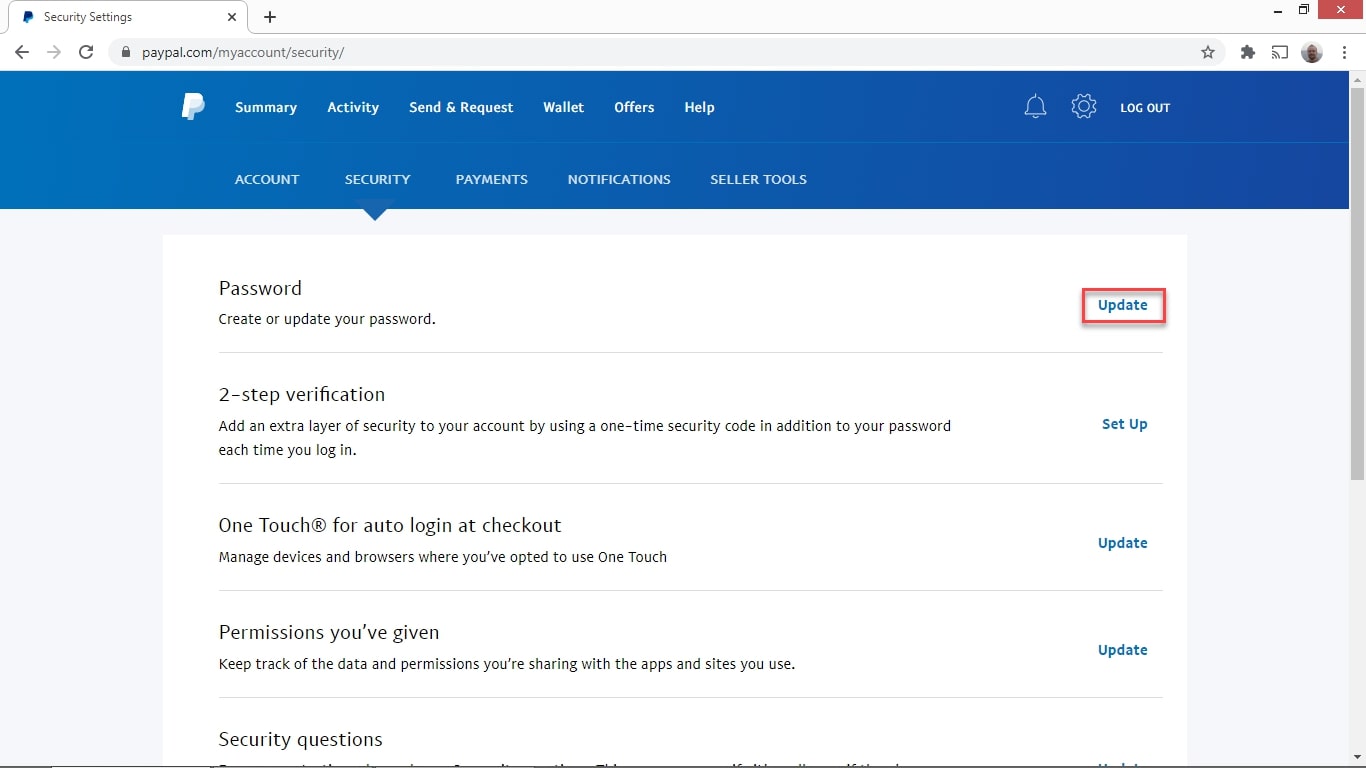
The desktop interface offers the most comprehensive view of your account’s security settings. To initiate a password change, navigate to the official PayPal website and authenticate your session. Once logged in, locate the gear icon (Settings) in the top right corner of the dashboard.
Within the Settings menu, you must select the “Security” tab. This section serves as the control center for your account’s defensive configurations. Locate the “Password” row and click “Update.” The system will prompt you to enter your current password to verify your identity—a standard “proof of knowledge” protocol—before allowing you to input a new, complex string of characters. Once you confirm the change, PayPal’s servers update your encrypted hash, effectively de-authenticating any previous sessions that relied on the old credentials.
Updating Credentials on the PayPal Mobile App
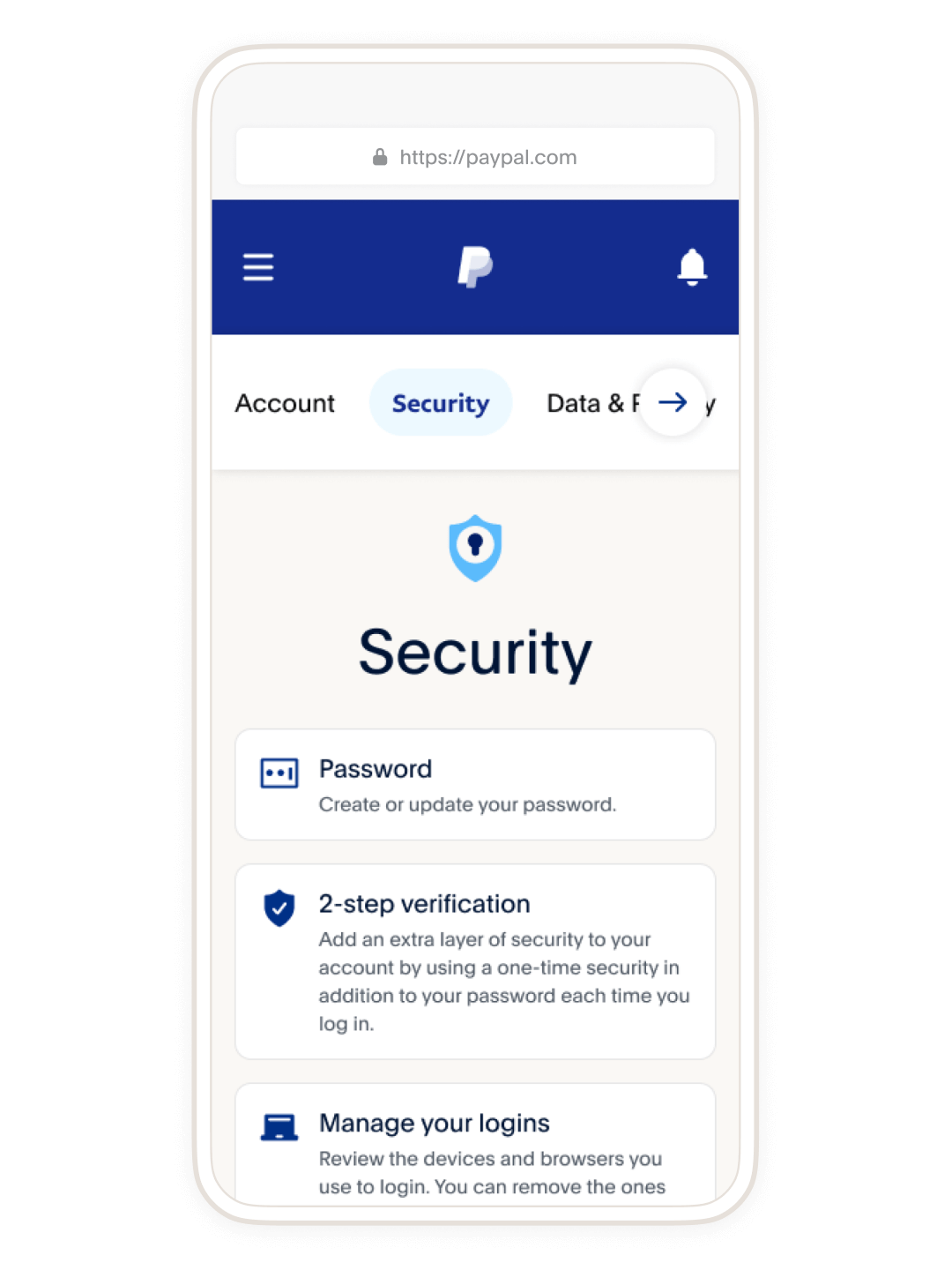
For users on iOS or Android, the process is optimized for mobile UI/UX. Open the PayPal app and tap the “Profile” icon or the “Settings” gear, depending on your current version of the app. Navigate to the “Security” or “Login and Security” sub-menu.
The mobile workflow often integrates biometric authentication (FaceID or Fingerprint) as an initial layer of verification before allowing access to password settings. Select “Password,” and follow the prompts to input your new credentials. It is important to note that changing your password on the app will often trigger a global sign-out, requiring you to re-log into any desktop browsers or third-party integrations currently using your PayPal account.
2. Strengthening the Perimeter: Advanced Security Protocols
A password is only the first line of defense. In the realm of digital security, a “layered defense” or “defense-in-depth” strategy is required to protect sensitive financial data from sophisticated attacks like phishing, credential stuffing, and session hijacking.
Implementing Two-Factor Authentication (2FA)
While changing your password is vital, the most significant upgrade you can make to your PayPal security is the activation of Two-Factor Authentication (2FA). This adds a “proof of possession” layer to the “proof of knowledge” layer (your password).
PayPal supports multiple 2FA methods. The most common is the SMS-based One-Time Password (OTP), though this is increasingly viewed as vulnerable to SIM-swapping attacks. For a more technical and secure approach, users should opt for an Authenticator App (such as Google Authenticator or Authy). These apps use Time-based One-Time Password (TOTP) algorithms that generate a new 6-digit code every 30 seconds locally on your device, ensuring that even if a hacker steals your password, they cannot access your account without physical access to your mobile device.
Managing Third-Party API Permissions and Logged-in Devices
Often overlooked in security audits are the “Permissions” granted to third-party applications. Over time, you may have linked your PayPal account to various e-commerce sites, subscription services, or budgeting apps via API integrations.
Within the Security tab, navigate to “Permissions you’ve given” or “Manage Shared Information.” Periodically revoking access to services you no longer use minimizes your “attack surface.” Additionally, check the “Logged-in devices” section. This allows you to review the technical metadata—such as IP addresses, browser types, and geographic locations—of every device currently maintaining an active session with your account. If you see an unfamiliar device, you can remotely terminate that session immediately.
3. Best Practices for Password Hygiene and Digital Integrity
The efficacy of a password change depends entirely on the technical strength of the new string. “Password hygiene” refers to the habits and methodologies used to create and store credentials that are resistant to brute-force attacks and cryptographic analysis.
The Anatomy of a Secure Password
From a technical standpoint, the strength of a password is measured by its “entropy”—the randomness and complexity that make it unpredictable for a computer to guess. A secure PayPal password should eschew common words and predictable patterns (like “123” or “!”) in favor of long, complex strings.
The current industry standard recommends at least 12 to 16 characters, incorporating a mix of uppercase letters, lowercase letters, numbers, and special symbols. However, many security experts now advocate for “passphrases”—long strings of random, unrelated words (e.g., Obsidian-Magnet-Tulip-77-Orbit). These are easier for humans to remember but exponentially harder for brute-force algorithms to crack due to the sheer length of the character string.
Utilizing Password Managers for Seamless Integration
In an era where the average user manages dozens of digital accounts, remembering complex, unique passwords for each is computationally impossible for the human brain. This leads to “password fatigue,” causing users to reuse passwords across platforms—a critical security flaw.
The technical solution is the adoption of a dedicated Password Manager (such as Bitwarden, 1Password, or LastPass). These tools use AES-256 bit encryption to store your credentials in a secure “vault.” By using a password manager, you can generate truly random, high-entropy passwords for PayPal without needing to memorize them. The manager can also auto-fill credentials, which provides a secondary benefit: it protects against “homograph” phishing attacks, as the software will not auto-fill credentials on a fake website with a slightly misspelled URL.
4. Troubleshooting Technical Hurdles and Account Recovery
Technical issues can often arise during the password change process, ranging from forgotten old credentials to system-wide lockouts triggered by security algorithms.
Resolving Forgotten Credentials
If you are unable to change your password because you cannot recall the current one, you must engage the “Forgot Password?” recovery workflow. This process initiates a series of identity verification challenges. Depending on your account settings, PayPal may send a code to your registered email or mobile number, or ask you to answer pre-set security questions.
From a security perspective, it is best to treat security questions as “secondary passwords.” Providing factual answers (like your mother’s maiden name) is risky, as that information is often discoverable via public records or social engineering. Technical experts suggest using random strings for security answers and storing them in your password manager.
Dealing with Account Lockouts and Security Challenges
PayPal’s security AI monitors login attempts for anomalous behavior. If you attempt to change your password from an unrecognized IP address or a new device, the system may trigger a temporary lockout or demand additional verification.
If you find yourself locked out, avoid repeated failed attempts, as this can lead to a “hard lock” that requires manual intervention from PayPal’s technical support team. Instead, ensure your browser’s cache and cookies are cleared, or attempt the change from a “trusted” device that has successfully logged in previously. This hardware-level recognition helps PayPal’s security algorithms confirm that the request is legitimate.
Conclusion: The Evolution Toward Passwordless Authentication
While changing and managing passwords remains a cornerstone of digital security today, the tech industry is rapidly moving toward a “passwordless” future. Technologies such as Passkeys, based on the FIDO2 and WebAuthn standards, allow users to authenticate using the secure enclaves of their hardware (like a phone’s biometric sensor) rather than a typed string.
Until these technologies become the universal standard, the technical maintenance of your PayPal password remains your primary defense against financial cybercrime. By combining high-entropy passwords with two-factor authentication and proactive session management, you create a robust security posture that protects both your data and your digital assets in an increasingly interconnected world. Periodic updates to these credentials are not just a chore—they are the routine maintenance required to keep your digital life secure.
aViewFromTheCave is a participant in the Amazon Services LLC Associates Program, an affiliate advertising program designed to provide a means for sites to earn advertising fees by advertising and linking to Amazon.com. Amazon, the Amazon logo, AmazonSupply, and the AmazonSupply logo are trademarks of Amazon.com, Inc. or its affiliates. As an Amazon Associate we earn affiliate commissions from qualifying purchases.