
In an increasingly digital world, streaming services have become indispensable for entertainment, news, and live sports. Among the plethora of options, YouTube TV stands out as a comprehensive live TV streaming service, offering a robust alternative to traditional cable. However, like any subscription-based service, maintaining continuous access relies heavily on accurate and up-to-date payment information. Whether your credit card has expired, you’ve switched banks, or simply wish to use a different payment method for better budget management, knowing how to update your details on YouTube TV is a fundamental aspect of managing your digital subscriptions.
This guide will walk you through the precise steps to modify your payment information for YouTube TV, ensuring uninterrupted access to your favorite shows and channels. We’ll delve into the underlying infrastructure that governs YouTube TV payments, provide a detailed, step-by-step tutorial, offer solutions for common troubleshooting scenarios, and share best practices for managing your digital subscriptions securely and efficiently. By the end of this article, you’ll be fully equipped to handle any payment-related adjustments with confidence, maintaining seamless access to your YouTube TV experience.
Understanding YouTube TV Subscriptions and Payments
Before diving into the mechanics of changing your payment method, it’s essential to grasp how YouTube TV’s subscription model operates and why payment updates are not just a convenience, but a necessity for uninterrupted service.
The Subscription Model: A Gateway to Entertainment
YouTube TV operates on a monthly subscription model, providing access to live TV from major broadcast networks, popular cable channels, and a vast library of on-demand content. Unlike traditional cable, there are no long-term contracts, offering users flexibility to cancel or pause their subscriptions at any time. The simplicity of this model is a significant draw, but it inherently means that continuous access is contingent upon successful monthly payments. Each billing cycle, YouTube TV attempts to charge the primary payment method linked to your account.
Why Payment Updates are Crucial for Continuous Service
Imagine settling down for a highly anticipated sports event or the latest episode of your favorite series, only to find your YouTube TV service suspended. This frustrating scenario is often a direct consequence of outdated or invalid payment information. When your registered credit card expires, reaches its limit, or is flagged for suspicious activity, YouTube TV’s automated billing system will fail to process your monthly payment. This typically leads to a temporary suspension of service until the issue is resolved.
Beyond mere service continuity, keeping your payment details current is vital for:
- Preventing Service Interruptions: The most obvious benefit is uninterrupted access to your entertainment.
- Avoiding Delays and Hassle: Proactively updating details prevents the last-minute scramble to restore service.
- Maintaining Financial Security: Removing old or compromised cards reduces potential security risks.
- Budgeting and Financial Management: Switching to a preferred card can help consolidate spending or leverage specific card benefits (e.g., rewards points).
Supported Payment Methods for YouTube TV
YouTube TV primarily accepts major credit and debit cards, including Visa, MasterCard, American Express, and Discover. Given its integration with Google’s ecosystem, payment methods stored within your Google Account (such as Google Pay) are also seamlessly supported. It’s always advisable to ensure your chosen payment method is widely accepted and has sufficient funds or credit available to cover the monthly subscription fee. While other payment options like PayPal may be available in some regions or via Google Play, credit and debit cards remain the most common and universally accepted methods for direct billing.
Step-by-Step Guide to Updating Payment Information
Changing your payment method for YouTube TV is a straightforward process, primarily managed through your Google Account, as all Google services, including YouTube TV, are intertwined with your central Google payment profile. Follow these steps meticulously to ensure a smooth update.
Accessing Your Google Account: The Central Hub
The first and most critical step is to log into the Google Account that is linked to your YouTube TV subscription.
- Open your web browser and navigate to myaccount.google.com.
- Sign in with the Google email address and password associated with your YouTube TV subscription. If you have multiple Google accounts, ensure you’re logging into the correct one.
- Once signed in, you’ll be on your Google Account dashboard.
Navigating to Subscriptions & Services
From your Google Account dashboard, you need to locate the section dedicated to payments and subscriptions.
- On the left-hand navigation panel, click on “Payments & subscriptions.”
- This page provides an overview of all your ongoing subscriptions, payment methods, and purchase history across Google services.
Locating Your YouTube TV Subscription
Within the “Payments & subscriptions” section, you’ll find a clear listing of your active services.
- Under the “Purchases & Reservations” or “Subscriptions” section, look for “YouTube TV.”
- Click on “Manage settings” or “Manage subscription” next to the YouTube TV entry. This action will redirect you to the YouTube TV specific management page, often within a new tab or window, where you can modify your payment details.
Adding a New Payment Method
This is where you’ll introduce your new credit card, debit card, or other preferred payment method.
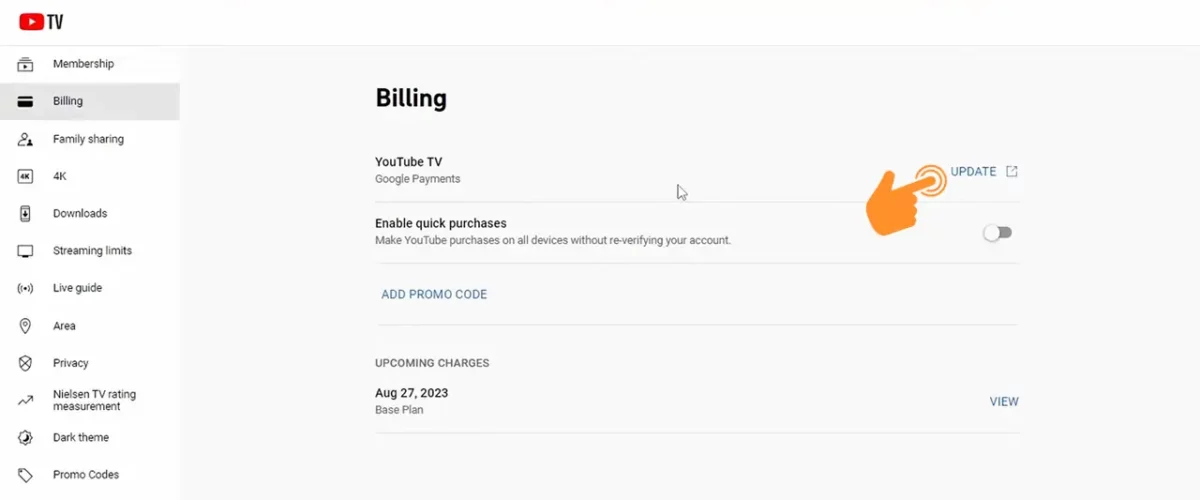
- On the YouTube TV management page, you should see your current payment method listed.
- Look for an option like “Add payment method,” “Update payment,” or “Change payment method.”
- Select this option, and a form will appear requesting new card details.
- Carefully enter the new card number, expiration date, CVV (security code), and the billing address associated with the card. Double-check all entries for accuracy to prevent future transaction failures.
- Click “Save” or “Update” to confirm the addition of the new payment method.
Removing an Old Payment Method (Optional but Recommended)
Once your new payment method is successfully added and set as primary, it’s good practice to remove any outdated or expired cards.
- On the same payment management page, you’ll see a list of all payment methods linked to your Google Account.
- Locate the expired or unused card you wish to remove.
- Click on “Remove” or a similar option next to that card.
- Confirm the removal when prompted. This enhances your account security and keeps your financial information tidy.
Setting a Primary Payment Method
Even if you’ve added a new card, you need to ensure it’s designated as the primary method for YouTube TV billing.
- After adding the new card, it might automatically become the primary, or you might need to select it.
- Look for an option to “Set as primary” or drag and drop the new card to the top of the list, if applicable.
- Confirm that the new payment method is clearly indicated as the default for your YouTube TV subscription.
Congratulations! Your payment information for YouTube TV has now been successfully updated. You should receive an email confirmation from Google or YouTube TV detailing the change.
Troubleshooting Common Payment Issues
Even with careful execution, payment issues can occasionally arise. Understanding the common pitfalls and their solutions can save you time and frustration.
Declined Transactions: Unraveling the Mystery
A declined transaction is the most common payment hiccup. Several factors can lead to this:
- Incorrect Card Details: A single wrong digit in the card number, an incorrect expiration date, or a misentered CVV can cause a decline. Always double-check.
- Insufficient Funds/Credit Limit: Ensure the chosen card has enough available credit or funds to cover the monthly subscription.
- Bank/Issuer Restrictions: Some banks may flag recurring online transactions as potentially fraudulent, especially if they’re new or unusually large. Contact your bank to authorize the transaction.
- Expired Card: Though you’re trying to update it, sometimes an automated retry might hit an expired card if not fully removed.
- Billing Address Mismatch: The billing address entered must exactly match the address on file with your card issuer.
- Geographic Restrictions: Some cards may have limitations on international transactions if YouTube TV’s billing system operates from a different country than your card issuer.
Payment Method Not Accepted: Specific Scenarios
While major credit and debit cards are generally accepted, niche payment methods or certain card types might encounter issues:
- Prepaid Cards: Some prepaid cards, especially those not tied to a specific billing address, might not be accepted for recurring subscriptions.
- Gift Cards: Similarly, most gift cards are not designed for recurring payments.
- Unsupported Card Networks: While rare for major networks, very localized or niche card networks might not be integrated.
Billing Cycle Confusion: When Changes Take Effect
Understanding your billing cycle is crucial when making payment changes.
- Immediate Update: Changes to your payment method typically take effect immediately for future charges.
- Current Cycle: If your payment failed for the current billing cycle, updating your card will prompt YouTube TV to re-attempt the charge almost immediately to restore service.
- Future Charges: If your current payment is up to date, the new method will simply be used for the next billing date. Your billing date remains the same regardless of when you update your payment information.
Contacting YouTube TV Support: When to Seek Help
If you’ve exhausted all troubleshooting steps and are still facing issues, it’s time to contact support.
- YouTube TV Help Center: Start by visiting the official YouTube TV Help Center (support.google.com/youtubetv). It has extensive FAQs and guides.
- Chat or Email Support: Look for options to contact support directly via live chat or email, usually available within the help center during business hours.
- Provide Details: When contacting support, have your Google Account email, the details of the payment method you’re trying to use, and a clear description of the problem ready. This will expedite the resolution process.
Best Practices for Managing Your Digital Subscriptions
In an era of numerous streaming services and digital subscriptions, proactive management of your payment methods is paramount for security, convenience, and financial wellness.
Regular Review of Payment Methods
It’s a smart habit to periodically review all payment methods linked to your Google Account and other online services. Set a reminder, perhaps quarterly, to:
- Check Expiration Dates: Update cards before they expire.
- Remove Old Cards: Delete any cards that are no longer valid, used, or that you no longer feel secure keeping on file.
- Verify Active Subscriptions: Ensure you’re only paying for services you actively use.
Leveraging Digital Wallets and Google Pay
For enhanced security and convenience, consider centralizing your payment information through digital wallets like Google Pay.
- Tokenization: Google Pay uses tokenization, meaning your actual card number is never shared with merchants. Instead, a unique encrypted number (a token) is used for each transaction, significantly reducing the risk of your card details being compromised.
- Centralized Management: Update your card once in Google Pay, and that change can propagate to all services that use Google Pay for billing, simplifying management.
- Quick Access: For services that support it, Google Pay offers a faster checkout experience.
Data Security and Privacy Tips
Your financial data is sensitive. Adhere to these best practices for online security:
- Strong, Unique Passwords: Use complex passwords for your Google Account and other financial sites. Consider a password manager.
- Two-Factor Authentication (2FA): Always enable 2FA on your Google Account. This adds an extra layer of security, requiring a second verification step beyond your password.
- Be Wary of Phishing: Never click on suspicious links in emails or texts purporting to be from Google or YouTube TV asking for payment information. Always navigate directly to the official website.
- Monitor Bank Statements: Regularly check your bank and credit card statements for any unauthorized charges.
Keeping Track of Multiple Subscriptions
With the proliferation of streaming services, it’s easy to lose track of what you’re paying for.
- Spreadsheets or Apps: Maintain a simple spreadsheet or use dedicated subscription management apps to list all your recurring charges, their billing dates, and associated payment methods.
- Calendar Reminders: Set calendar reminders a few days before each subscription’s renewal date to give yourself time to review or make changes.
- Consolidate Where Possible: If you have multiple cards, consider using one primary card for all your recurring subscriptions to simplify tracking.
Conclusion
Managing your payment information for YouTube TV, or any digital subscription, doesn’t have to be a daunting task. By understanding the service’s payment architecture, meticulously following the step-by-step instructions, and employing smart troubleshooting techniques, you can ensure your entertainment remains uninterrupted. Furthermore, adopting best practices for digital payment management—such as regular reviews, leveraging secure digital wallets, and prioritizing data security—not only facilitates a smoother streaming experience but also contributes to your overall financial well-being and online safety. Keep your details current, stay secure, and continue enjoying the vast world of entertainment that YouTube TV offers, without a single hiccup.
aViewFromTheCave is a participant in the Amazon Services LLC Associates Program, an affiliate advertising program designed to provide a means for sites to earn advertising fees by advertising and linking to Amazon.com. Amazon, the Amazon logo, AmazonSupply, and the AmazonSupply logo are trademarks of Amazon.com, Inc. or its affiliates. As an Amazon Associate we earn affiliate commissions from qualifying purchases.