
YouTube TV has revolutionized the way modern consumers interact with live television, providing a cloud-based alternative to traditional cable that prioritizes flexibility and high-definition streaming. However, because the service relies on local affiliate broadcasting rights—such as those for NBC, ABC, CBS, and FOX—it uses a sophisticated geofencing system to determine which channels a user is eligible to view. Your “Home Area” is the cornerstone of this digital architecture. It determines your local lineup, your regional sports networks, and the specific DVR recordings you can access.
Navigating the technicalities of changing your home area is essential for users who have moved permanently, as well as for those trying to understand the limitations of the platform’s geographic locks. This guide provides a deep dive into the mechanics of YouTube TV’s location settings, the step-by-step process for updating your profile, and the technical hurdles you might encounter along the way.
Understanding the Mechanics of YouTube TV Geofencing
To appreciate why changing your home area requires specific steps, one must first understand how YouTube TV verifies your location. Unlike traditional satellite TV, which uses hardware-based physical addresses, YouTube TV employs a hybrid of IP geolocation and GPS data to pin your location.
The Difference Between Home Area and Current Playback Area
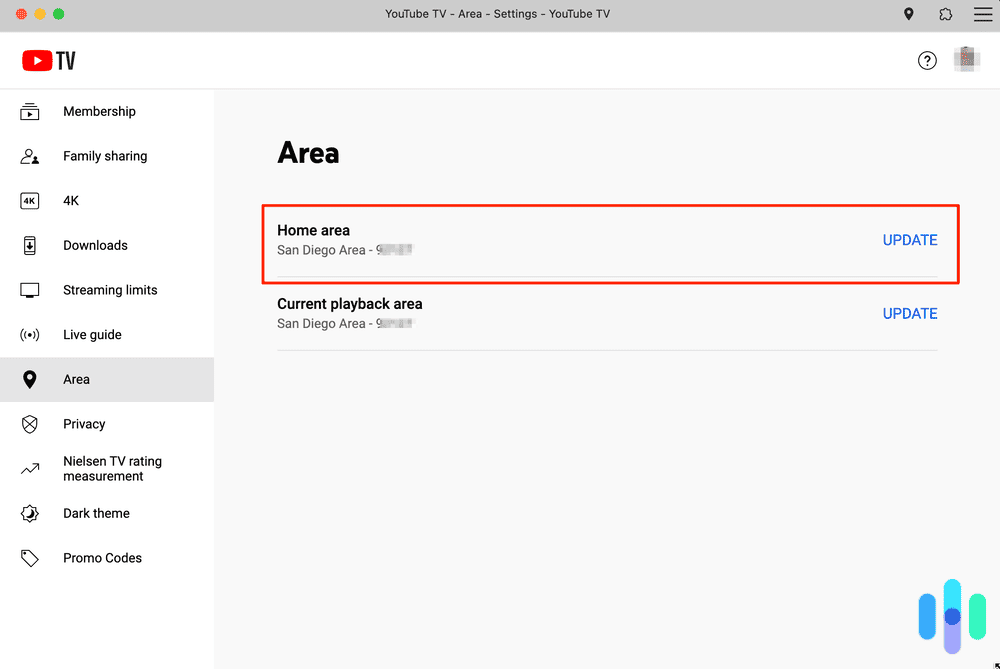
YouTube TV distinguishes between two primary location types: the Home Area and the Current Playback Area. Your Home Area is the ZIP code where you permanently reside. This setting dictates your billing and the specific local network affiliates you receive. The Current Playback Area is where you are physically located at any given moment.
If you are traveling, the service allows you to view local programs in your current city, but you cannot record them. Furthermore, you will lose access to your Home Area’s local stations until you return. If your permanent residence changes, simply being in a new city isn’t enough; you must manually update the Home Area in the software settings to ensure long-term service stability.
The Technical Constraints of Location Updates
Google enforces a strict policy regarding Home Area changes to comply with broadcasting contracts. Users are permitted to change their Home Area only twice per year. This limitation is a technical safeguard against “account sharing” across different states and ensures that the service remains compliant with the localized nature of television advertising and licensing. If you attempt to change it a third time within a 12-month period, the system will typically lock the setting, requiring a manual override from customer support.
Step-by-Step Instructions to Update Your Home Area
Updating your Home Area is a process that requires a device with location-sensing capabilities. While you can initiate the process on a smart TV or a desktop, the final verification almost always requires a mobile device with a GPS chip (smartphone or tablet) to provide an accurate coordinate ping.
Updating via a Mobile Device (Recommended Method)
The most reliable way to change your location is through the YouTube TV app on Android or iOS. Because these devices use the Global Positioning System (GPS) rather than just IP-based location, they provide the “proof of presence” the service requires.
-
Launch the App: Open the YouTube TV app on your smartphone or tablet.
-
Access Profile Settings: Tap your profile picture in the top-right corner of the interface.
-
Navigate to Location: Select the “Settings” gear icon, then tap on “Area.”
-
Update Home Area: Locate the “Home Area” section. You will see your current ZIP code listed. Click on “Update” next to it.
-
Location Verification: The app will prompt you to allow location permissions. Ensure that your device’s “Precise Location” toggle is turned on in your system settings. Once the app confirms your GPS coordinates match the new area, the update will be finalized.
Updating on a Web Browser
If you prefer using a laptop or desktop, the process is similar but relies on the browser’s ability to geolocate your IP address.
-
Go to
tv.youtube.comand sign in. -
Click on your profile icon and select “Settings.”
-
Click “Area” and then “Home Area.”
-
Select “Update.”
-
The browser may show a pop-up asking for permission to access your location. If the browser cannot accurately determine your location (often due to wired Ethernet connections or strict privacy settings), it may prompt you to open the app on your phone to complete the verification.
Updating on Living Room Devices (Roku, Apple TV, Fire Stick)
While you can view your location settings on a smart TV or streaming stick, these devices often lack the GPS hardware necessary to “prove” a move to the system. If you try to update your Home Area on a Roku or Apple TV, the interface will usually display a mobile web URL or a QR code. You will need to scan this with your phone to verify your physical presence in the new ZIP code.
Troubleshooting Location Errors and Technical Conflicts
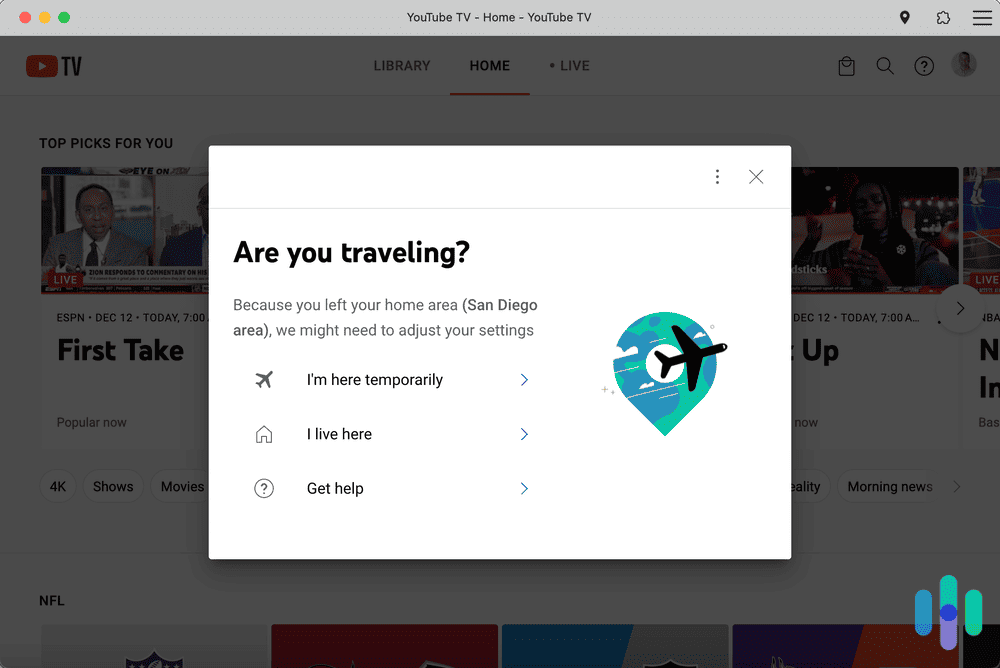
Even with the correct steps, technical friction is common when dealing with geofencing. YouTube TV’s detection algorithms are sensitive, and several factors can interfere with a successful Home Area update.
VPN and Proxy Interference
The most common cause of location errors is the use of a Virtual Private Network (VPN). YouTube TV’s security protocols are designed to detect and block known VPN IP ranges to prevent users from circumventing regional blackouts (common in professional sports). If you are attempting to change your Home Area while a VPN is active, the service will likely return an “Area Improvement” error or fail to recognize your coordinates. To resolve this, disable all VPNs and proxy servers at the router or device level before attempting an update.
IP Address Mismatches
Sometimes, your Internet Service Provider (ISP) may assign you an IP address that resolves to a different city than where you actually live. This is common with satellite internet or certain fiber-optic providers that route traffic through central hubs. If YouTube TV insists you are in a different city, you may need to rely exclusively on your mobile device’s cellular data (turning off Wi-Fi temporarily) to perform the Home Area update, as cellular GPS is more accurate than ISP-based geolocation.
Permission and Cache Issues
On mobile devices, the YouTube TV app requires specific permissions to function correctly. If the app is denied access to “Location Services,” the update button will remain greyed out.
-
For iOS: Go to Settings > Privacy > Location Services and ensure YouTube TV is set to “While Using the App.”
-
For Android: Go to Settings > Apps > YouTube TV > Permissions > Location and select “Allow only while using the app” and toggle on “Use precise location.”
Clearing the app cache can also resolve “stuck” location data that prevents the new ZIP code from registering in the system’s database.
The Impact of Travel and Family Sharing on Location Settings
The technical structure of YouTube TV becomes more complex when factoring in travel and the “Family Link” feature. Understanding these nuances is vital for maintaining uninterrupted service.
The 90-Day Check-In Rule
YouTube TV is designed for a single household. While you can use the service while traveling, there is a technical “tethering” requirement. You must connect to your “Home Area” network at least once every 90 days. If the system does not see a login from your designated Home Area within this window, it may restrict your access to live channels or prompt you to change your Home Area permanently. For users who maintain two residences (such as “snowbirds”), this requires a strategic rotation of the Home Area setting, keeping in mind the twice-per-year limit.
Family Group Requirements
YouTube TV allows for up to six profiles per household. However, a significant technical caveat is that all family members must primarily live in the same household. Each family member’s individual “Current Area” is tracked. If a family member is consistently identified as being outside the Home Area, they may be prompted to verify their location or risk being locked out of the family group. When the primary account holder (the “Family Manager”) changes the Home Area, it updates the requirement for all members associated with that account.
DVR and Regional Restrictions
It is important to note that when you change your Home Area, your DVR library undergoes a transition. Recordings of local programs (like the local evening news) made in your old Home Area will no longer be accessible. However, recordings of national cable programs (like those on ESPN or AMC) will remain in your library. New recordings will follow the affiliate rules of your new ZIP code.
Optimizing Your Streaming Setup Post-Transition
Once you have successfully updated your Home Area, there are a few technical housekeeping tasks to ensure your streaming quality remains high and your channel lineup is optimized.
Refreshing the Channel Guide
Sometimes, the local channel guide does not update immediately after a Home Area change. To force a refresh, sign out of YouTube TV on all devices and sign back in. This forces the application to pull a new “manifest” file from the server, which contains the updated stream URLs for your new local affiliates.
Checking Connection Stability
Different regions may have different peering arrangements between Google’s servers and local ISPs. After moving and updating your area, run an internal “Stats for Nerds” check on your YouTube TV playback. This tool, accessible via the “three-dot” menu during a live stream, shows your “Connection Speed” and “Buffer Health.” If you notice a drop in performance in your new area, it may be necessary to adjust your router’s DNS settings to Google Public DNS (8.8.8.8) to improve the resolution of YouTube TV’s content delivery network (CDN) nodes.

Ensuring Device Sync
Finally, ensure that all peripheral devices—such as Nest Hubs or smart speakers—are updated to reflect your new address in the Google Home app. Since YouTube TV is deeply integrated into the Google ecosystem, mismatched address data in your Google Account profile can sometimes cause “Assistant” to pull the wrong local news or weather, creating a fragmented user experience.
By understanding the technical underpinnings of YouTube TV’s location services and following the structured update path, you can ensure a seamless transition between geographic regions, maintaining the full value of your streaming subscription without the frustration of “out-of-area” errors.
aViewFromTheCave is a participant in the Amazon Services LLC Associates Program, an affiliate advertising program designed to provide a means for sites to earn advertising fees by advertising and linking to Amazon.com. Amazon, the Amazon logo, AmazonSupply, and the AmazonSupply logo are trademarks of Amazon.com, Inc. or its affiliates. As an Amazon Associate we earn affiliate commissions from qualifying purchases.