
In the ever-evolving landscape of digital entertainment, subscription services have become an integral part of how we consume media. YouTube TV, a live TV streaming service, offers a compelling alternative to traditional cable, bringing a vast array of channels and on-demand content directly to your devices. However, user needs and preferences are dynamic. Whether you’re looking to cut down on monthly expenses, explore alternative streaming platforms, or simply find yourself not utilizing the service as much as anticipated, knowing how to efficiently manage and, if necessary, cancel your subscriptions is a fundamental skill in today’s digital age. This comprehensive guide will walk you through the technical process of canceling your YouTube TV membership, ensuring a smooth and hassle-free experience, all while emphasizing the broader context of digital subscription management.

Understanding Your YouTube TV Subscription
Before diving into the mechanics of cancellation, it’s beneficial to have a clear understanding of what your YouTube TV subscription entails. This insight not only contextualizes the service you’re choosing to leave but also helps in making informed decisions about your digital entertainment ecosystem. From a technological standpoint, subscription services like YouTube TV are sophisticated platforms designed for continuous engagement, making their management a key aspect of digital literacy.
Key Features and Benefits
YouTube TV offers a robust package, typically including over 100 live channels from major broadcast networks, popular cable channels, and local sports networks. Its cloud DVR feature, often with unlimited storage, allows users to record shows and movies and keep them for extended periods, a significant technological advantage over older DVR systems. The service supports multiple user profiles within a single household, allowing personalized recommendations and watch histories, and is accessible across a wide range of devices, from smart TVs and streaming sticks to mobile phones and web browsers. These features represent a considerable investment in streaming technology and user experience, which is important to acknowledge even when contemplating departure.
Billing Cycles and Cancellation Policies
A crucial aspect of any digital subscription is understanding its billing structure. YouTube TV operates on a monthly billing cycle, automatically renewing your subscription at the end of each period unless you actively choose to cancel. Their cancellation policy is generally user-friendly: you can cancel at any time, and your membership will remain active until the end of the current billing cycle. This means you won’t be charged for the following month, but you also won’t receive a pro-rata refund for the unused portion of your current month. From a technical perspective, this ‘end-of-cycle’ cancellation is standard practice across many recurring digital services, designed to simplify billing and provide users with continued access for the period they’ve already paid for, without complex refund calculations. Understanding this policy prevents surprises and ensures you time your cancellation appropriately.
Identifying Your Primary Account
Managing digital subscriptions often hinges on correctly identifying and accessing the primary account associated with the service. For YouTube TV, this is typically the Google account used to sign up for the service. Many users have multiple Google accounts for various purposes (personal, work, secondary projects), and sometimes, the YouTube TV subscription might be linked to one that isn’t their most frequently used. Before attempting to cancel, ensure you are logged into the correct Google account. This is a common point of friction in digital service management and highlights the importance of good account hygiene and clear association between your digital identity and your active subscriptions. If you’re unsure, checking your bank statements for the specific Google account charged for YouTube TV can often provide the necessary clue.
Step-by-Step Guide to Canceling YouTube TV
The process of canceling YouTube TV is designed to be straightforward, leveraging the intuitive interfaces of Google’s ecosystem. Following these steps ensures you can successfully terminate your subscription without encountering unnecessary hurdles. This section details the technical interaction required to manage your digital service.
Accessing Your Account Settings
The first and most critical step is to access your YouTube TV account settings. This is best done via a web browser on a computer, as mobile apps sometimes offer a more streamlined, but less comprehensive, settings interface that might direct you to a browser anyway.
- Open your web browser: Navigate to tv.youtube.com.
- Sign in: Ensure you are logged in with the exact Google account that is currently subscribed to YouTube TV. This is paramount. If you’re logged into a different Google account, you won’t see your subscription details. You can verify your current account by looking at the profile icon in the top right corner of the page.
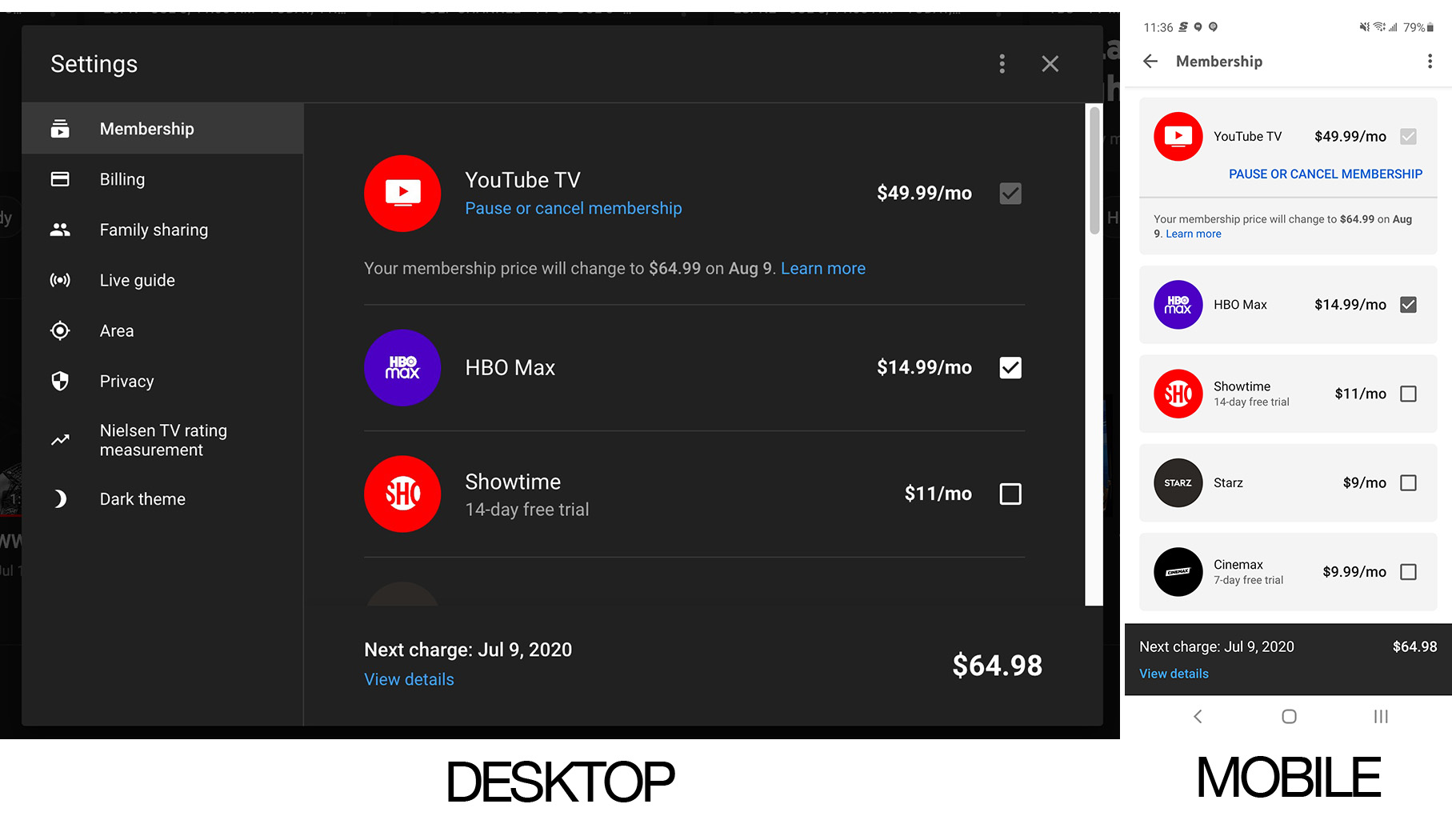
- Navigate to Settings: Once logged in, click on your profile picture or initial in the top-right corner of the screen. From the dropdown menu, select “Settings” (often represented by a gear icon).
Navigating to Membership & Billing
Within the settings menu, various options pertaining to your account, preferences, and privacy are available. Your objective is to locate the section dedicated to your subscription and billing information.
- Locate “Membership”: In the “Settings” menu, you will typically find a tab or section labeled “Membership” or “Membership & Billing.” Click on this section.
- View Membership Details: This page will display your current YouTube TV plan, your next billing date, and other relevant subscription details. It serves as a central hub for managing your paid service.
Initiating the Cancellation Process
Once you are on the “Membership” page, the actual cancellation process is just a few clicks away. YouTube’s interface is designed to make this clear, though it may include prompts aimed at retaining your subscription.
- Find “Cancel Membership” or “Manage Membership”: On the Membership page, look for an option that explicitly states “Cancel Membership” or “Manage Membership.” If it’s “Manage Membership,” clicking it will usually reveal further options, including the “Cancel” choice.
- Confirm Cancellation: Clicking “Cancel Membership” will typically lead you through a series of screens. YouTube TV might ask for your reason for canceling (optional feedback that helps them improve their service) and present options like “Pause Membership” (discussed below) as an alternative to full cancellation.
- Final Confirmation: Continue through the prompts until you reach a screen that unequivocally confirms your cancellation. You should receive an email confirmation to the Google account associated with your YouTube TV subscription, verifying that your membership has been canceled and stating the date until which you will still have access to the service. Retain this email for your records.
What to Expect After Cancellation
Upon successfully canceling, your access to YouTube TV will continue until the end of your current billing cycle. For instance, if your billing cycle ends on the 15th of the month and you cancel on the 5th, you’ll still be able to watch YouTube TV until the 15th. After this date, your subscription will officially end, and you will no longer be charged. From a data management perspective, YouTube TV typically retains your profile information, watch history, and preferences for a period, allowing for a seamless re-subscription experience should you decide to return in the future. This data retention is a common practice in digital services, balancing user convenience with data privacy considerations.
Pausing vs. Canceling: A Tech User’s Dilemma
When considering ending your YouTube TV subscription, the platform offers a “Pause” feature as an alternative to outright cancellation. From a tech user’s perspective, understanding the nuances of pausing versus canceling is crucial for optimizing your digital service management strategy and maintaining flexibility without losing all your accumulated data and preferences.
The Benefits of Pausing
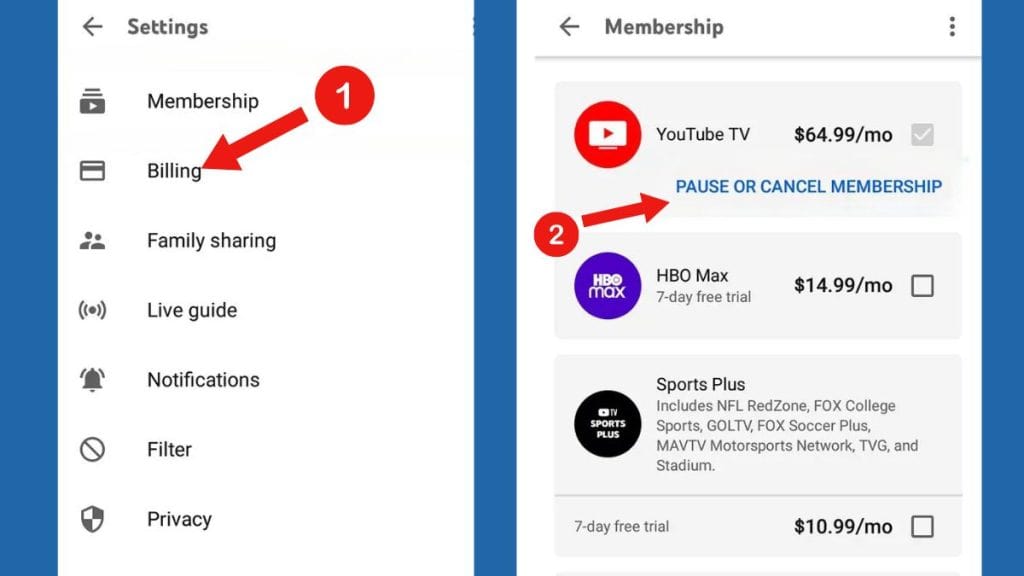
Pausing your YouTube TV membership is an excellent option for those who anticipate a temporary break from the service, such as during a vacation, a busy period, or when you’re temporarily focused on another streaming platform. The primary benefits of pausing from a technical standpoint are:
- Data Retention: Your watch history, library recordings (cloud DVR content), and personalized recommendations are preserved. This means when you return, your profile is exactly as you left it, offering a seamless user experience.
- Flexibility: You can typically pause your membership for a duration ranging from 4 weeks up to 6 months. This provides significant control over your subscription schedule.
- Ease of Resumption: Reactivating a paused membership is generally simpler and quicker than starting a brand-new subscription, as all your account details are already in place.
How to Pause Your Membership
The technical steps to pause your membership are very similar to those for canceling, making it an accessible option within the same user interface:
- Access Settings: Log in to tv.youtube.com with your subscribed Google account and navigate to “Settings” > “Membership.”
- Select “Pause Membership”: On the “Membership” page, instead of choosing “Cancel,” you will find an option to “Pause Membership.”
- Choose Duration: Select the desired pause duration (e.g., 4 weeks, 8 weeks, etc.).
- Confirm Pause: Confirm your selection. Your service will pause at the end of your current billing cycle, and billing will resume automatically at the end of your chosen pause period. You will receive an email confirmation for the pause.
Deciding Between Pause and Cancel
The decision between pausing and canceling hinges on your long-term intentions.
- Choose Pause if: You know you’ll want to return to YouTube TV within a few months, value the retention of your DVR recordings and watch history, or anticipate seasonal use of the service. It’s a low-friction way to temporarily disengage.
- Choose Cancel if: You are certain you will not be returning to the service in the foreseeable future, wish to explore other entertainment options without the commitment, or need to permanently reduce your recurring expenses. While your data might be retained for a while, a full cancellation severs the billing tie completely. From a technical resource perspective, pausing temporarily releases system resources while keeping your profile warm, whereas cancellation signifies a more definitive release.
Rejoining YouTube TV: The Seamless Re-Entry
Life changes, and so do entertainment preferences. What might seem like a permanent departure from YouTube TV today could easily become a temporary hiatus tomorrow. Recognizing this common user behavior, streaming services like YouTube TV are designed to facilitate an easy return, ensuring that the process of rejoining is as seamless as possible. This commitment to user retention through technical convenience is a hallmark of modern digital platforms.
Simple Reactivation Process
One of the significant advantages of the underlying architecture of YouTube TV is the ease with which former subscribers can reactivate their accounts. Unlike setting up a brand-new service from scratch, rejoining typically involves minimal steps:
- Log In: Simply log back into tv.youtube.com using the same Google account you previously used.
- Prompt to Restart: The platform will likely recognize your previous subscription status and offer a clear prompt to “Restart Membership” or “Reactivate.”
- Confirm Payment: You may need to confirm your payment method, but often, the previously used details are already stored for convenience.
- Instant Access: Upon confirmation, your access to YouTube TV is usually restored instantly, allowing you to pick up exactly where you left off. This technical efficiency reduces user friction and encourages re-engagement.
Data and Preferences Retention
A major draw for rejoining is the retention of your personalized data. When you cancel YouTube TV, your profile information, watch history, and, critically, your Cloud DVR recordings are often retained for a significant period after cancellation. While Google doesn’t specify an exact duration, it’s generally long enough to accommodate users who might return after a few months or even a year.
- Cloud DVR: Your recorded shows and movies remain accessible if you reactivate within this retention window. This is a substantial technical benefit, preventing the need to re-record everything.
- Watch History & Recommendations: Your viewing habits and preferences are also saved, meaning the personalized recommendations and “Continue Watching” lists will likely still be intact, making the transition back feel natural and tailored. This persistent data across subscription states demonstrates the robust backend systems supporting user profiles.
Promotional Offers for Returning Subscribers
In some instances, YouTube TV, like many competitive streaming services, may extend promotional offers to incentivize returning subscribers. These offers can range from discounted introductory rates to bundles with other Google services.
- Email Communication: Keep an eye on the email address associated with your Google account. Companies often send targeted promotions to former subscribers, attempting to win them back with attractive deals.
- On-Platform Prompts: When you log back in to reactivate, the platform itself might display current re-subscription offers.
- Timing: While not guaranteed, sometimes these offers appear during periods of high competition or new content releases.
From a business and technology standpoint, these re-entry mechanisms and retention strategies highlight the platform’s understanding of user churn and its efforts to create a “sticky” ecosystem. The technical design makes it easy to leave, but equally easy and appealing to return, optimizing for long-term customer value.
Troubleshooting Common Cancellation Issues
While the process to cancel YouTube TV is generally straightforward, users can occasionally encounter technical glitches or account-related issues. Understanding these common problems and their solutions is key to a smooth digital subscription management experience. This section focuses on the practical troubleshooting steps from a technology user’s perspective.
Account Access Problems
One of the most frequent hurdles when trying to manage any digital service is simply gaining access to the correct account.
- Forgotten Password: If you can’t log in to your Google account, use Google’s account recovery tools. Visit account.google.com/recovery and follow the prompts. This process is secure but can take some time if multiple verification steps are required.
- Incorrect Google Account: As mentioned earlier, YouTube TV is tied to a specific Google account. If you have multiple Google accounts, ensure you are signed into the one that is actively subscribed. Check recent bank statements for the specific Google account that is being charged for YouTube TV; the charge description often includes the associated email.
- Browser Issues: Sometimes, browser cache or cookies can cause login issues. Try clearing your browser’s cache and cookies, or attempt to log in using an incognito/private browsing window, which bypasses cached data.
Billing Discrepancies
After initiating a cancellation, it’s crucial to monitor your financial statements to ensure the billing has indeed ceased.
- Unexpected Charges: If you see a charge for YouTube TV after your confirmed cancellation date, there might be an issue. First, double-check your cancellation confirmation email for the exact date your service was supposed to end.
- Subscription Confusion: Confirm that the charge is indeed for YouTube TV and not another Google service or a different streaming platform. Sometimes, similar-looking charges can be mistaken.
- Contact Support: If you’re certain of an erroneous charge, gather all your cancellation confirmation emails and bank statements, then contact YouTube TV’s support team directly. They can investigate billing issues and clarify any discrepancies. This typically involves navigating to the “Help” or “Contact Us” section within your YouTube TV settings or Google Support pages.
Device-Specific Considerations
While cancellation is managed via a web browser, sometimes device interactions can cause confusion, particularly if you manage subscriptions directly through third-party app stores.
- App Store Subscriptions (Rare for YouTube TV Directly): Some subscriptions are managed through Apple App Store or Google Play Store if you initially subscribed via an app on iOS or Android. While YouTube TV primarily directs users to manage through their website, if you think you subscribed via an app store, you might need to check your subscriptions within those respective app store settings (e.g., “Subscriptions” in iOS Settings or Google Play Store menu). However, the recommended and most common method for YouTube TV is always via the tv.youtube.com website.
- Smart TV/Streaming Device Confusion: Canceling on a smart TV or streaming device (like Roku, Apple TV, Fire TV) is not usually possible. These devices are merely access points. All subscription management actions, including cancellation, must be performed via the web browser interface linked to your primary Google account. Attempting to “delete the app” from your TV will not cancel the underlying subscription.
By understanding these potential pitfalls and knowing how to navigate them, users can maintain complete control over their digital subscriptions, ensuring that services are only paid for when actively used and desired.
In the rapidly evolving digital landscape, managing your subscriptions efficiently is a testament to digital literacy. Canceling YouTube TV, while a specific task, serves as an excellent case study for understanding the broader principles of interacting with online services. From accurately identifying your account and navigating intuitive user interfaces to comprehending billing cycles and troubleshooting common issues, the technical steps are designed to empower users. Whether you choose to cancel, pause, or eventually rejoin, having the knowledge and confidence to control your digital entertainment subscriptions ensures you maintain financial prudence and an optimized viewing experience.
aViewFromTheCave is a participant in the Amazon Services LLC Associates Program, an affiliate advertising program designed to provide a means for sites to earn advertising fees by advertising and linking to Amazon.com. Amazon, the Amazon logo, AmazonSupply, and the AmazonSupply logo are trademarks of Amazon.com, Inc. or its affiliates. As an Amazon Associate we earn affiliate commissions from qualifying purchases.