
In the current era of the “streaming wars,” the average consumer manages a complex web of digital subscriptions. YouTube TV has emerged as a leader in the Over-the-Top (OTT) streaming space, offering a robust cloud-based DVR and an expansive lineup of network channels. However, as software ecosystems evolve and hardware requirements shift, users often find themselves needing to prune their digital overhead. Whether you are transitioning to a different service protocol or simply reducing your software-as-a-service (SaaS) expenses, understanding the technical nuances of canceling a high-level service like YouTube TV is essential.
This guide provides a deep dive into the technical workflow of terminating or pausing your YouTube TV subscription across various operating systems and interface environments.
Navigating the Google Ecosystem: Preparing for Cancellation
Before initiating the cancellation protocol, it is vital to understand how YouTube TV integrates with the broader Google infrastructure. Unlike standalone streaming apps, YouTube TV is tethered directly to your Google Identity (your Gmail/Google Account). This integration means that your subscription status, viewing history, and DVR data are stored within Google’s centralized data centers.
Understanding the Billing Cycle and Data Persistence
When you decide to cancel, the system does not immediately revoke your access to the stream. Instead, the software is programmed to allow access until the end of your current billing window. From a technical standpoint, your “entitlement token” remains active until the timestamp marking the end of your prepaid period.
It is also important to note that Google maintains your library data—including your “Library” (DVR) preferences—for a limited time. If you cancel, your recordings are typically held for 21 days before being purged from the cloud servers. Understanding this retention policy is crucial if you plan on a temporary hiatus rather than a permanent exit.
Managing Family Sharing Permissions
YouTube TV utilizes a “Family Group” architecture, allowing up to five additional users to share a single subscription. If you are the “Family Manager,” canceling your subscription will trigger a recursive termination of access for all sub-accounts. Before proceeding, it is a best practice to notify these users, as their individual cloud-DVR data and personalized recommendation algorithms will also be deactivated upon the expiration of the primary account’s billing cycle.
Step-by-Step Tutorial: Canceling YouTube TV Across Different Devices
The user interface (UI) for YouTube TV varies significantly depending on whether you are accessing the service via a web browser, an Android environment, or an iOS ecosystem. Each platform utilizes different API calls and billing bridges.
Desktop and Web Browser Method
The most reliable way to manage your subscription is through a desktop browser (Chrome, Firefox, or Safari), as this provides the most direct access to Google’s subscription management dashboard without the abstraction layers found in mobile apps.
- Authentication: Navigate to
tv.youtube.comand ensure you are logged into the primary administrator account. - Accessing Settings: Click on your profile avatar in the top-right corner. This opens the primary navigation menu.
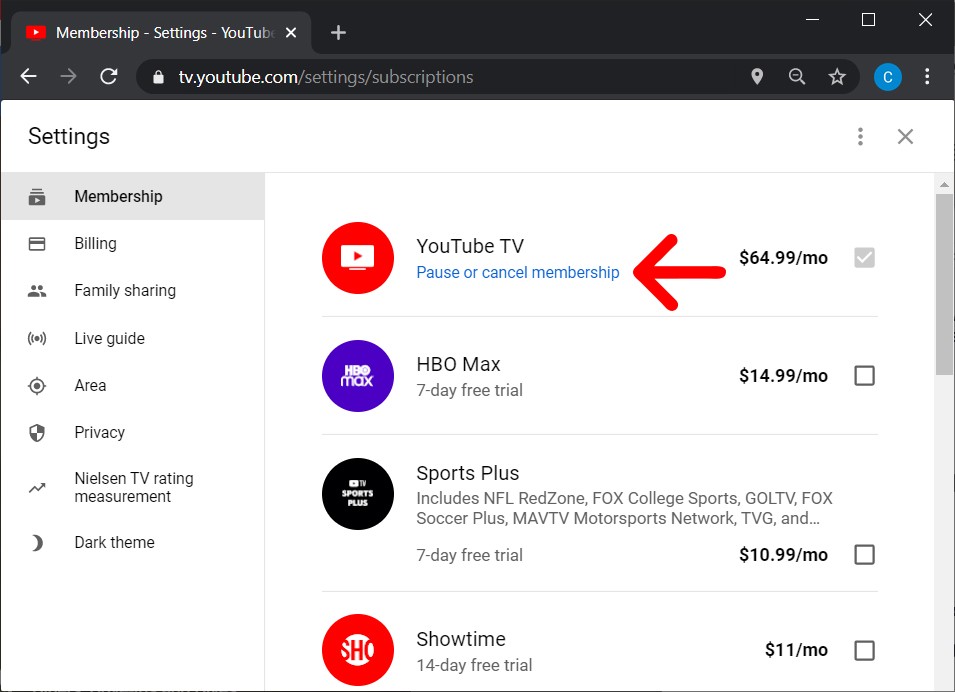
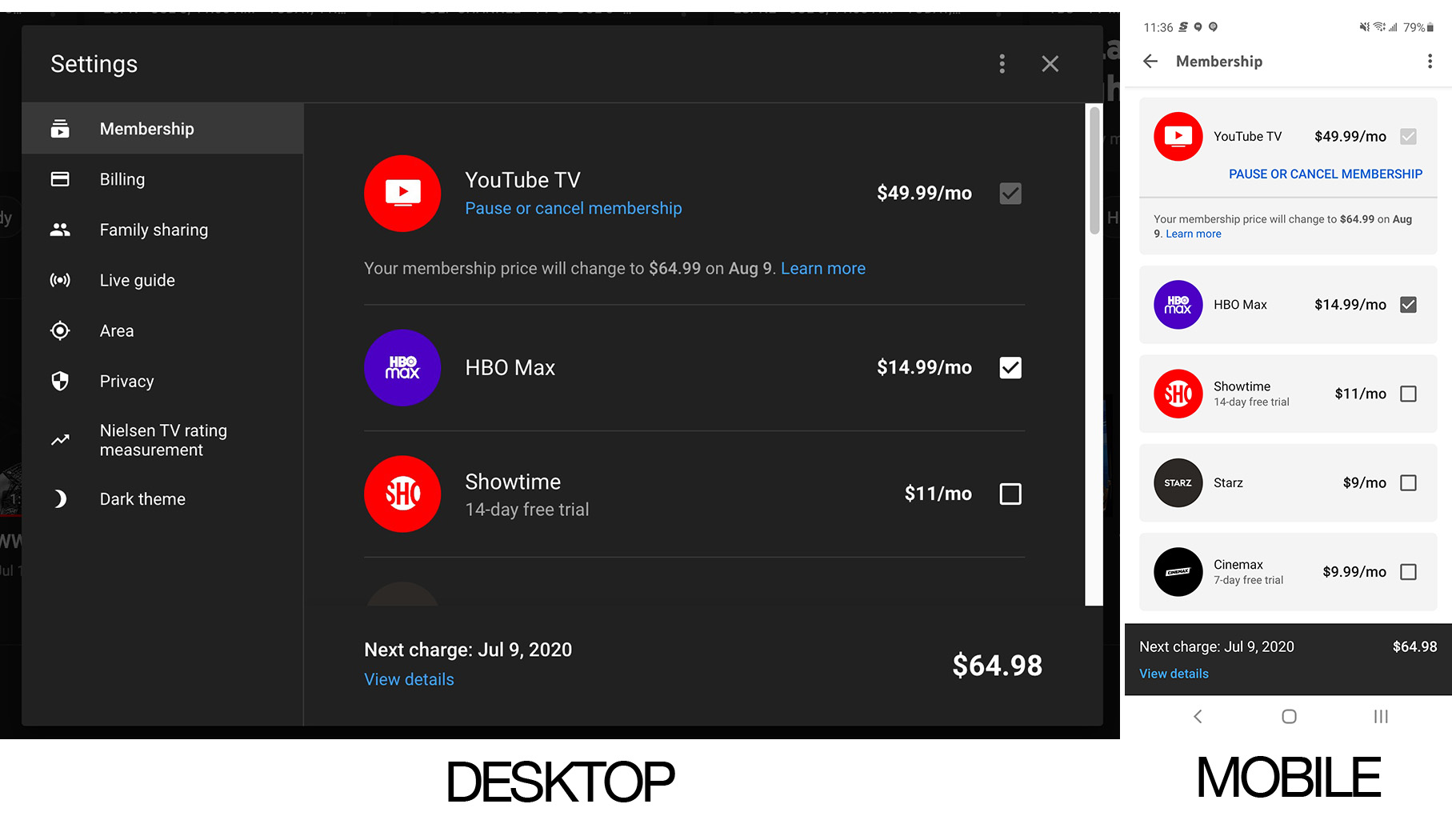
- Subscription Management: Select “Settings” and then “Membership.” Here, the UI displays your current base plan and any “Add-on” networks (like HBO Max or Sports Plus).
- The Termination Sequence: Click the “Manage” button next to your base plan. You will be presented with the option to either “Pause” or “Cancel membership.”
- Feedback Loop: Google utilizes a standard retention UI, asking for the reason for cancellation. Once you select a reason and confirm, the system sends a POST request to Google’s billing servers, and you will receive an automated confirmation email.
Android App Navigation
On Android devices, the YouTube TV app is deeply integrated with the Google Play Store’s billing API.
- Open the YouTube TV app on your Android device.
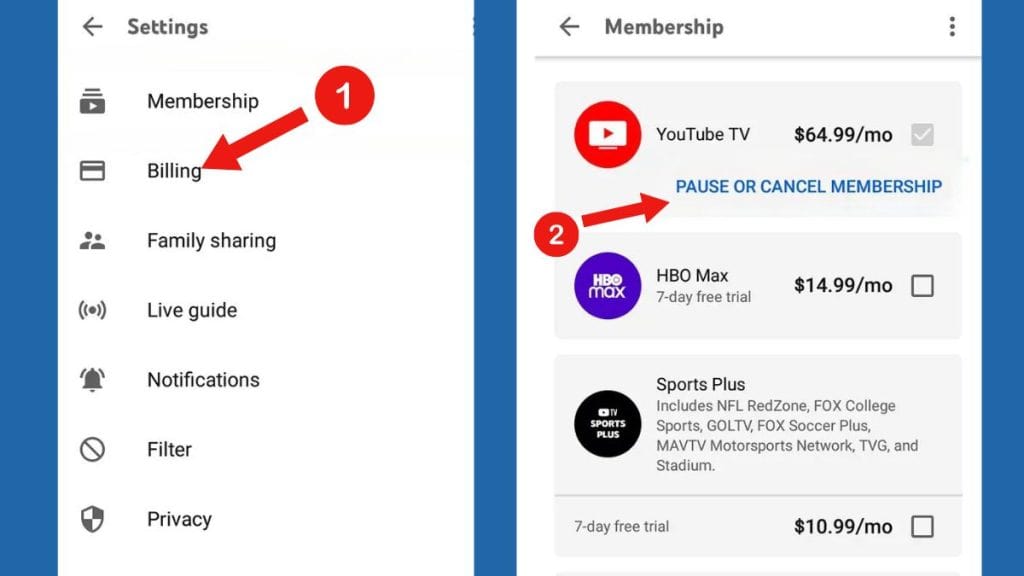
- Tap your profile icon and navigate to “Settings” > “Membership.”
- The app will likely redirect you to the Google Play Subscriptions interface. This is a security protocol designed to centralize all software expenditures on the Android OS.
- Locate YouTube TV in the list of active subscriptions and select “Cancel Subscription.”
The iOS and Apple Workaround
The technical relationship between Google and Apple often complicates subscription management. Due to the “Apple Tax” (in-app purchase commissions), many users who signed up directly through the YouTube TV website cannot cancel via the iOS app.
If you do not see a “Membership” option in your iOS app settings, it is because your billing is handled directly by Google, not the Apple App Store. In this case, you must use the web browser method described above. However, if you originally subscribed via an In-App Purchase on an iPhone, you must go to your iOS “Settings,” tap your Name/Apple ID, and manage the cancellation through the “Subscriptions” menu of the iOS operating system.
Pausing vs. Canceling: Optimizing Your Viewing Strategy
One of the most innovative technical features of YouTube TV is the ability to “Pause” a membership. This is distinct from a hard cancellation and is designed for users who may be traveling or who only watch seasonal content (such as NFL or NBA packages).
How the Pause Feature Works
When you choose to pause, you can set a duration ranging from 4 weeks to 6 months. Technically, this puts a “hold” on your billing state without de-provisioning your account.
- State Retention: Unlike a cancellation where your DVR data is deleted after 21 days, a paused account preserves your library and custom settings for the entire duration of the pause.
- Automated Resumption: The system is set to automatically resume billing at the end of the selected period. This is handled by a scheduled task on Google’s backend servers. Users should set a manual reminder, as the transition from “Paused” to “Active” is seamless and will trigger an automatic charge to your saved payment method.
Retention of DVR Recordings
YouTube TV’s “unlimited” DVR is actually a cloud-storage allocation that indexes broadcast metadata. When you cancel, the pointers to these recordings are flagged for deletion. If you are a heavy user of the DVR feature, the “Pause” function is technically superior to cancellation because it maintains the integrity of your recorded library across the cloud infrastructure.
Post-Cancellation: Managing Data Privacy and Third-Party Access
Canceling the service stops the billing, but it does not immediately scrub your data from the Google ecosystem. For tech-savvy users, there are additional steps to ensure digital privacy and system optimization.
Revoking Account Permissions
Over time, you may have granted third-party apps (such as remote controls, smart home hubs, or stats-tracking apps) access to your YouTube TV data. After canceling, it is a sound security practice to visit your Google Account Security settings and audit “Third-party apps with account access.” Revoking these permissions ensures that no background processes are attempting to ping a defunct service, which can occasionally cause API errors or minor battery drain on mobile devices.
Transitioning to Alternative Streaming Protocols
If your reason for canceling was technical—such as buffering issues or UI lag—you might be looking into alternatives like FuboTV, Hulu + Live TV, or Sling TV. When moving to a new service, remember that your hardware (Roku, Apple TV, or Chromecast) may still have cached data from the YouTube TV app.
To ensure your streaming device operates at peak performance, it is recommended to “Clear Cache” for the YouTube TV app before uninstalling it. On many Android-based TV systems, this frees up valuable onboard flash storage that can be reallocated to your new streaming software.
Troubleshooting Common Technical Hurdles
Even with a streamlined UI, technical glitches can occur during the cancellation process. Understanding how to troubleshoot these issues can prevent unwanted charges.
Resolving Billing Disputes and Refund Requests
If you intended to cancel but were charged due to a sync error between your device and the server, you must engage with the Google Support API. YouTube TV does not typically offer prorated refunds for partial months, but if you can demonstrate a technical failure (e.g., the “Cancel” button failed to trigger a confirmation), their support engineers can often issue a manual override.
Dealing with “Ghost” Subscriptions
A “ghost” subscription occurs when a user has multiple Google accounts and is inadvertently paying for YouTube TV on an account they no longer monitor. If you see a charge on your bank statement but the YouTube TV “Membership” tab shows no active subscription, you are likely logged into the wrong identity.
From a technical perspective, each Google Account is a siloed data environment. You must perform a “Discovery” by logging into each of your Google identities to find the one associated with the active billing token.
Conclusion
Terminating a YouTube TV subscription is more than just clicking a button; it is an exercise in managing your digital footprint within a complex cloud ecosystem. By understanding the differences between OS-level billing, the technical benefits of pausing vs. canceling, and the importance of post-cancellation data hygiene, you can maintain full control over your software suite and digital expenses. As the tech landscape continues to shift toward subscription models, mastering these administrative workflows is as essential as understanding the hardware itself.
aViewFromTheCave is a participant in the Amazon Services LLC Associates Program, an affiliate advertising program designed to provide a means for sites to earn advertising fees by advertising and linking to Amazon.com. Amazon, the Amazon logo, AmazonSupply, and the AmazonSupply logo are trademarks of Amazon.com, Inc. or its affiliates. As an Amazon Associate we earn affiliate commissions from qualifying purchases.