
The landscape of modern television has undergone a radical transformation over the last decade. The shift from traditional linear cable to Over-the-Top (OTT) streaming services has empowered consumers with unprecedented flexibility. Among these services, YouTube TV has emerged as a powerhouse, offering a sophisticated interface, cloud-based DVR capabilities, and a robust selection of live channels. However, the digital ecosystem is dynamic. Whether you are streamlining your digital footprint, pivoting to a different software platform, or simply taking a break from live television, knowing how to navigate the deactivation process is an essential skill in the age of subscription-based software.
Canceling a service like YouTube TV is not merely about clicking a button; it involves understanding the underlying platform architecture, managing third-party billing integrations, and knowing the difference between a total service termination and a temporary pause. This guide provides a technical walkthrough of the cancellation process across various devices and explores the implications for your digital data.
Navigating the Cancellation Process Across Different Platforms
YouTube TV is built on a cross-platform architecture, meaning your subscription management may vary depending on whether you are accessing the service via a web browser, a mobile application, or a third-party billing intermediary. Understanding these technical pathways is the first step toward a successful deactivation.
Canceling via a Desktop Web Browser
The web interface remains the most reliable and direct way to manage Google-based subscriptions. Because the desktop site provides the most comprehensive view of your account settings, it is the recommended method for ensuring all changes are saved to the server in real-time.
-
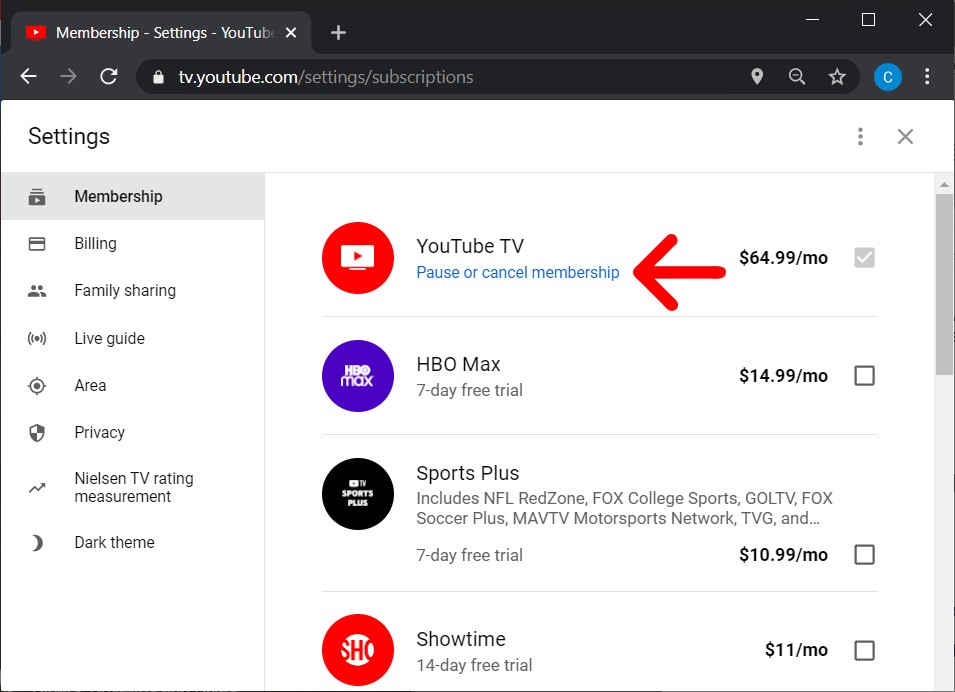
Access the Settings Menu: Open your preferred web browser and navigate to the YouTube TV website. Ensure you are logged into the specific Google Account associated with the subscription. Click on your profile avatar in the upper right-hand corner and select “Settings.”
-
Membership Management: Within the settings sidebar, the “Membership” tab is the primary hub for subscription control. Here, you will see your current base plan and any individual network add-ons.
-
Initiating the Break: Click the “Manage” button next to your base membership. You will be presented with two primary options: “Pause” or “Cancel.”
-
Finalizing the Deactivation: Upon selecting “Cancel,” the system will likely prompt you for feedback regarding your departure. This data is used by the platform’s UX researchers to improve the service. Once you navigate through these prompts, you must confirm the cancellation to update the status of your account.
Managing Subscriptions on Mobile Devices
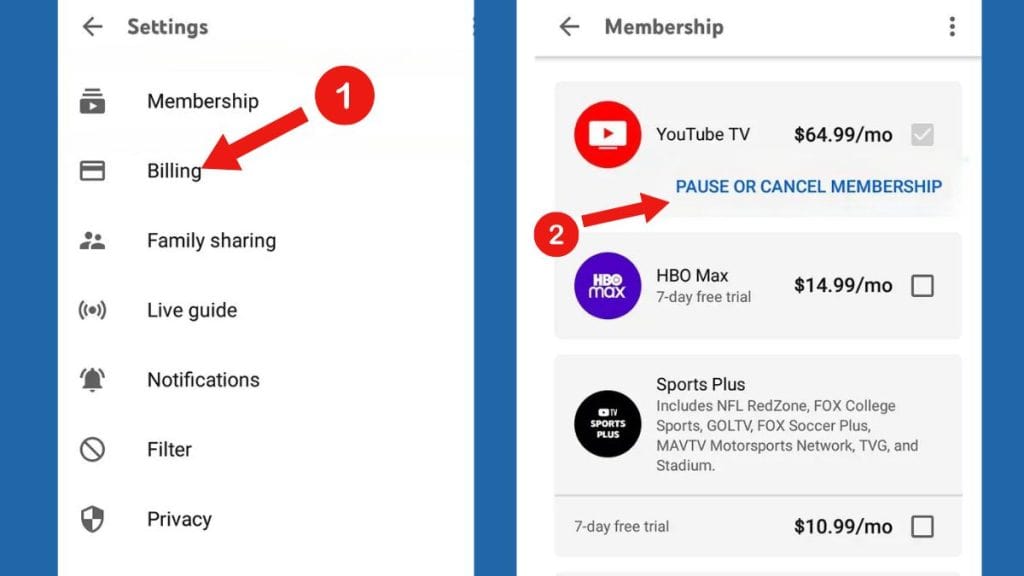
For Android users, the process is integrated deeply into the Google ecosystem. You can often manage the subscription directly through the YouTube TV app or the Google Play Store’s subscription management interface. However, for iOS users, the situation is more complex due to Apple’s proprietary billing systems. If you signed up for YouTube TV through the Apple App Store, the “Cancel” button may not appear within the YouTube TV app itself. Instead, you must navigate to the iOS Settings, tap your Name, and manage “Subscriptions” through the Apple ID interface. This distinction is critical for users who utilize cross-platform hardware.
The Technical Distinction: Canceling vs. Pausing
One of the more innovative features of the YouTube TV software suite is the ability to “Pause” a membership. This is a technical middle ground that offers a different utility compared to a complete cancellation. Understanding the backend behavior of both options allows you to make an informed decision based on your digital needs.
The Mechanics of Pausing
When you choose to pause your membership, you essentially put a “hold” on your billing cycle. You can set a duration—ranging from four weeks to six months—during which you will not be charged and will not have access to live content.
The primary technical advantage of pausing is the preservation of your Cloud DVR data. YouTube TV’s servers will keep your recorded programs intact for the duration of the pause. If you cancel entirely, your recordings are typically purged after 21 days. For power users who have curated a massive library of sports, films, and series, the “Pause” feature is a vital tool for data retention.
The Impact of Full Cancellation
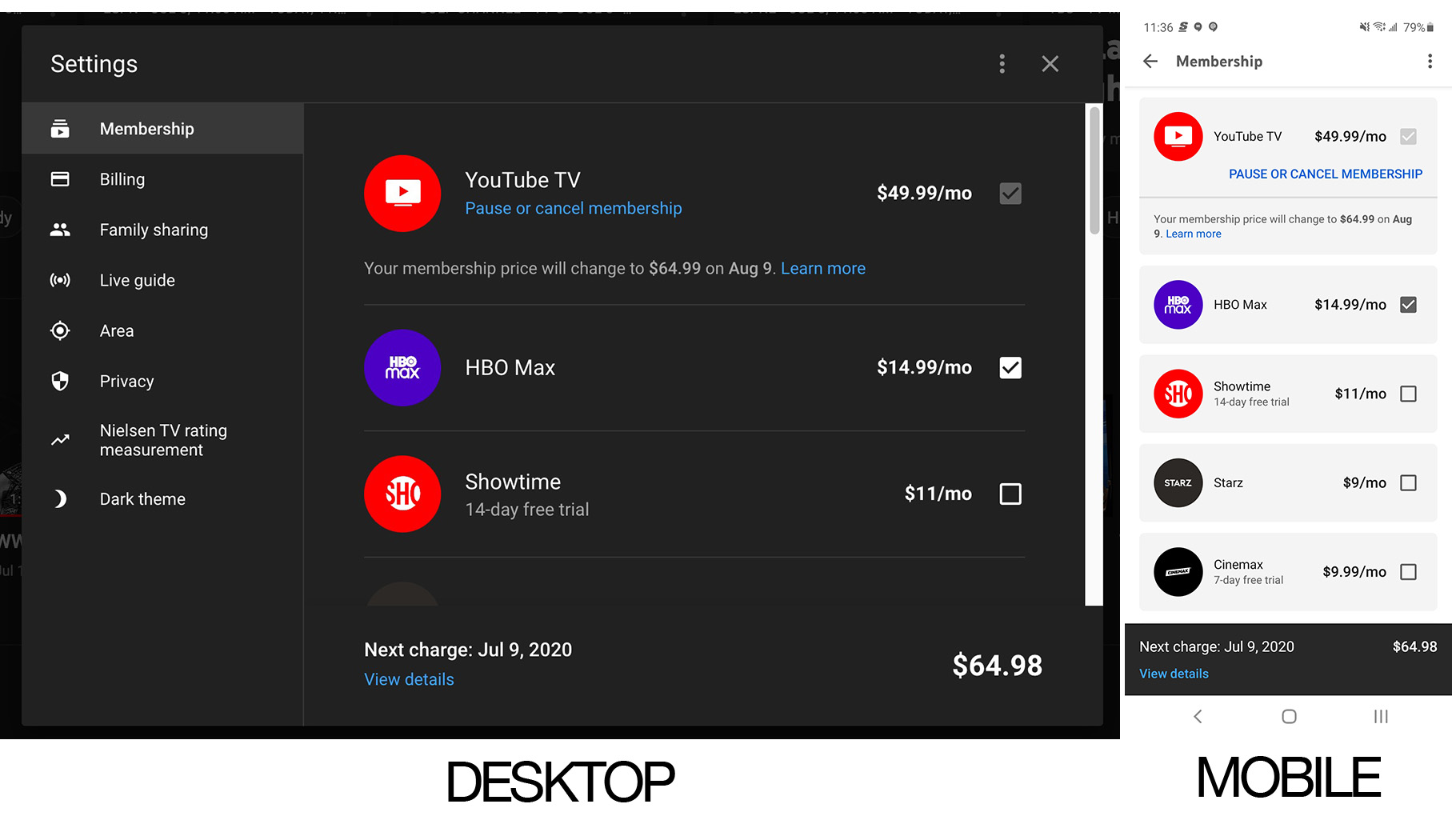
A full cancellation terminates the billing agreement at the end of your current billing cycle. Unlike many traditional cable contracts, YouTube TV does not offer pro-rated refunds for partial months. Instead, the software allows you to retain access to the service until the final day of your paid period.
From a data perspective, your preferences, “Mark as Watched” history, and library settings are stored within your Google Account for a limited window. If you reactivate within a few weeks, the UI will likely look exactly as you left it. However, after an extended period, the algorithm may reset, treating you as a new user upon your return.
Troubleshooting Common Deactivation Hurdles
Even in a streamlined digital environment, technical glitches can occur during the cancellation process. Being aware of these potential roadblocks ensures that you aren’t surprised by an unexpected charge on your next bank statement.
The “Ghost Account” Issue
One of the most frequent issues users encounter is the “Ghost Account.” This happens when a user has multiple Google Accounts (e.g., one for work and one for personal use) and inadvertently subscribes using an account they don’t check regularly. If you attempt to cancel but see no active subscription in your settings, verify the email address in the top-right corner of the interface. Ensure the “Family Manager” status is correct, as only the account holder who initiated the family group has the administrative privileges to cancel the base plan.
Third-Party Billing Complications
If your YouTube TV subscription is bundled with an internet service provider or a mobile carrier (such as T-Mobile or Verizon), the “Cancel” button in the Google interface may be grayed out or replaced with a link to the provider’s portal. In these instances, the software handshake between the two companies means that Google does not have the authority to stop the billing; the request must originate from the partner’s billing API.
Verification of Success
Always look for the automated confirmation email. YouTube TV’s system triggers an immediate notification to your Gmail account once a membership status changes. If you do not receive this email within minutes, it is a technical indicator that the session may have timed out before the server received the final confirmation command.
Evaluating the Post-Cancellation Landscape
Once you have successfully navigated the deactivation of YouTube TV, you remain within a broader digital ecosystem that offers various alternatives. The decision to cancel often leads to a re-evaluation of one’s “streaming stack.”
Transitioning to Niche Apps
Many users find that they no longer need a “skinny bundle” that mimics traditional cable. Instead, they may opt for standalone SVOD (Subscription Video on Demand) platforms like Netflix, Disney+, or Max. These apps operate on different technical frameworks, focusing on asynchronous viewing rather than live-streamed data.
Exploring Competitor Architectures
If the cancellation was driven by a desire for a different user experience (UX) or specific features like 4K streaming or multi-view capabilities, competitors like Hulu + Live TV or FuboTV offer distinct software environments. Hulu, for example, integrates its live TV service directly with its vast on-demand library, providing a unified search index that some users prefer over Google’s interface. FuboTV, conversely, focuses heavily on sports metadata and high-bitrate streams for live events.
The Role of Smart TV Integration
When you move away from a primary live TV app, your Smart TV’s operating system (such as Roku OS, webOS, or Tizen) becomes the primary interface for content discovery. Modern television hardware now utilizes “Universal Search” APIs that can scan across all your remaining apps to find content, effectively replacing the need for a single, centralized live TV provider.
Data Privacy and Security Considerations
In the modern tech era, canceling a service is also an act of data management. When you stop using YouTube TV, you are reducing the amount of active telemetry being sent to Google regarding your viewing habits, location, and device usage.
Managing Permissions
After canceling, it is a sound digital hygiene practice to review the permissions granted to the YouTube TV app on your mobile devices and Smart TVs. You may choose to revoke location access or remove the app entirely to free up local storage and reduce background data processing.
The Long-term Google Profile
It is important to remember that while the YouTube TV subscription is gone, the data generated during your tenure remains a part of your broader Google “My Activity” profile. For users who are particularly concerned with their digital footprint, navigating to the Google Account Privacy settings allows for the manual deletion of YouTube TV search and watch history. This ensures that the algorithm does not continue to suggest content based on a service you no longer use.
By understanding the technical nuances of subscription management, from the specific steps of deactivation to the long-term implications for your data, you can navigate the streaming world with confidence. Whether you are switching platforms or simply narrowing your digital focus, mastering these tools ensures that your technology serves your needs, rather than the other way around.
aViewFromTheCave is a participant in the Amazon Services LLC Associates Program, an affiliate advertising program designed to provide a means for sites to earn advertising fees by advertising and linking to Amazon.com. Amazon, the Amazon logo, AmazonSupply, and the AmazonSupply logo are trademarks of Amazon.com, Inc. or its affiliates. As an Amazon Associate we earn affiliate commissions from qualifying purchases.