
In the rapidly evolving landscape of digital entertainment, streaming services have become integral to how we consume media. Amazon Prime Video, a titan in this arena, offers a vast library of movies, TV shows, and exclusive content, often bundled with an Amazon Prime membership or available as standalone channels. However, as our entertainment preferences shift, our financial priorities change, or content libraries grow saturated, the need to manage and, at times, discontinue these digital subscriptions becomes a critical skill for any tech-savvy consumer. This guide provides a detailed, step-by-step walkthrough on how to cancel your Amazon Prime Video subscription, ensuring a smooth and hassle-free process across various platforms, while also offering insights into post-cancellation considerations and best practices for digital subscription management.
The Digital Landscape of Subscriptions: Why Cancellation Matters
The advent of streaming ushered in an era of unparalleled on-demand content, transforming how we access movies, series, and live events. Services like Prime Video have solidified their positions by offering compelling content and integrating deeply into broader digital ecosystems. Yet, with great choice comes the responsibility of management. For many users, navigating their digital subscriptions effectively is not just about saving money, but also about controlling their digital footprint and optimizing their entertainment experience.
The Ubiquity of Streaming Services
The modern entertainment palette is rich with choices: Netflix, Hulu, Disney+, Max, Apple TV+, and a plethora of niche services. Amazon Prime Video stands out, not just for its extensive original programming and licensed content, but also for its integration with the broader Amazon Prime ecosystem, offering benefits ranging from expedited shipping to music streaming. Beyond the core Prime Video service, users can also subscribe to various “Prime Video Channels,” which are add-on subscriptions from third-party providers (like HBO, Showtime, Starz) billed directly through Amazon. Understanding this layered structure is the first step in effective digital management. The sheer volume of these options often leads to what’s termed “subscription fatigue,” where users find themselves paying for multiple services they barely use. This proliferation makes periodic audits and strategic cancellations crucial for maintaining financial health and digital hygiene.
Common Motivations for Cancellation
Users choose to cancel their Prime Video subscriptions for a variety of reasons, reflecting shifts in their consumption patterns and economic priorities. Cost is a primary driver; even seemingly small monthly fees can accumulate into a significant annual expense when multiplied across several services. Content saturation is another common factor; having access to too much content can paradoxically lead to analysis paralysis, or users simply find they are not utilizing the service to its full potential after exhausting a particular show or movie. Shifting preferences, a temporary need to reduce screen time, or even a desire to explore competitor platforms can all prompt a cancellation. For many, it’s about regaining control over their expenditures and curating a more intentional, high-value entertainment diet. From a tech perspective, it’s about optimizing resource allocation and data flow—ensuring that the digital services you engage with genuinely serve your current needs and interests.
Navigating the Cancellation Process: A Multi-Platform Tutorial
Canceling your Amazon Prime Video subscription, while designed to be straightforward, can vary slightly depending on whether you’re managing it through a web browser, a mobile app, or if it’s a third-party channel. This section provides detailed instructions for each common scenario, ensuring you can confidently navigate the process.
Canceling via the Amazon Website (Desktop/Browser)
This is typically the most comprehensive method for managing all your Amazon-related subscriptions.
-
Access Your Amazon Account: Open your preferred web browser and go to Amazon.com. Log in to the Amazon account associated with your Prime Video subscription.
-
Navigate to Account Settings: Once logged in, hover over “Accounts & Lists” in the top right corner. From the dropdown menu, select “Account.”
-
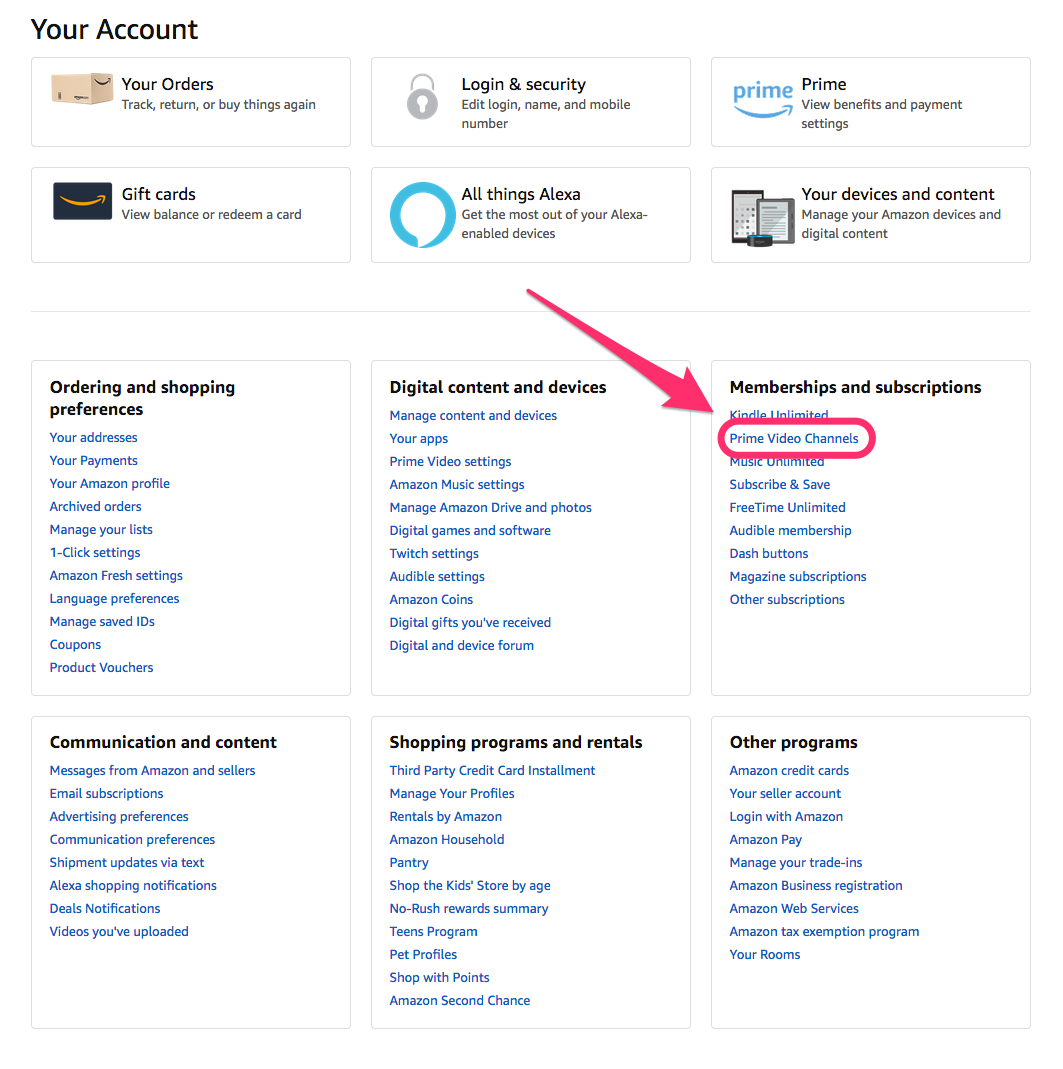
Locate Memberships & Subscriptions: On your Account page, look for the “Memberships & Subscriptions” section. Click on it. This page consolidates all your active digital subscriptions billed through Amazon.
-
Manage Prime Membership (if applicable): If your Prime Video access is part of an overall Amazon Prime membership, you will see a “Prime Membership” entry. Click on “Manage Membership” or “Update, Cancel, and More.”
-
On the Prime membership page, you’ll see options related to your membership benefits. Look for “End Membership” or “Cancel Membership” usually found under the “Manage Membership” dropdown.
-
Amazon will often present options to “Remind me later,” “Keep my benefits,” or “End Membership.” You may be prompted with a page showcasing the benefits you’d lose. Persist by clicking “Continue to Cancel” or a similar option until you reach a final confirmation.
-
Confirm your cancellation. You’ll typically lose access at the end of your current billing cycle, and a refund may be offered if you haven’t used many Prime benefits since your last renewal.
-
-
Manage Prime Video Channels: If you’re only looking to cancel a specific Prime Video Channel (e.g., Showtime on Prime Video), stay on the “Memberships & Subscriptions” page. Scroll down to the “Prime Video Channels” section.
-
Find the channel you wish to cancel and click the “Cancel Channel” option next to it.
-
Follow the on-screen prompts to confirm the cancellation. Similar to Prime membership, you’ll usually retain access until the end of your current billing period.
-
Canceling via the Prime Video Mobile App
While convenient for watching, the Prime Video app itself has limited subscription management capabilities. However, you can often initiate the process which redirects you to a browser.
-
Open the Prime Video App: Launch the Prime Video app on your iOS or Android device.
-
Access Settings: Tap on the “My Stuff” icon (usually a profile icon or silhouette) at the bottom right. Then, tap the “Settings” gear icon in the top right corner.
-
Navigate to My Account: Within Settings, tap on “My Account” or “Manage your Prime membership.”
-
Redirect to Browser: For most subscription management tasks, including cancellation, the app will typically redirect you to a web browser page within the app or open your device’s default browser to log in to Amazon.com.
-
Follow Website Instructions: Once redirected, follow the same steps outlined in the “Canceling via the Amazon Website” section above to complete your cancellation.
Addressing Subscriptions Billed Through Third Parties
It’s crucial to distinguish between subscriptions billed directly by Amazon and those managed through third-party platforms, even if accessed through Prime Video. For example, if you subscribed to a service like Max or Paramount+ directly through the Apple App Store, Google Play Store, or a Smart TV app, you will need to cancel it through that respective platform’s subscription management interface.
-
Apple App Store: Go to “Settings” on your iOS device, tap your name, then “Subscriptions.” Find the relevant subscription and cancel it there.
-
Google Play Store: Open the Play Store app, tap your profile icon, then “Payments & subscriptions,” and “Subscriptions.” Select the service and cancel.
-
Other Platforms: For smart TVs or other devices, navigate to the app store or subscription management section within that device’s settings to cancel.
Understanding the billing origin is key to a successful and frustration-free cancellation, preventing persistent charges from an overlooked source.
Post-Cancellation: What to Expect and How to Manage Your Digital Footprint
Successfully canceling your Prime Video subscription is a significant step, but understanding what happens next is equally important. This includes knowing when your access will end, how refunds are processed, and the broader implications for your Amazon account and other digital services.
Understanding Refund Policies and Access Period
When you cancel an Amazon Prime Video subscription (whether the full Prime membership or a specific channel), your access typically doesn’t cease immediately. Instead, it usually continues until the end of your current billing cycle. For instance, if you pay monthly and cancel halfway through the month, you’ll likely still be able to watch content until the end of that billing month.

Regarding refunds, Amazon’s policy for an annual Prime membership often allows for a full refund if no Prime benefits (including Prime Video) have been used since the last renewal. Partial refunds may be issued depending on usage. For monthly subscriptions or Prime Video Channels, refunds are less common, with access simply expiring at the end of the paid period. Always check the specific terms presented during the cancellation process, as these policies can vary and are clearly articulated by Amazon before final confirmation. Any downloaded content associated with a Prime Video subscription or channel will become inaccessible once your subscription officially ends.
Managing Other Amazon Services
It’s vital to clarify the distinction between canceling a Prime Video Channel and canceling your overarching Amazon Prime membership.
-
Canceling a Prime Video Channel: This action only removes your access to that specific third-party content (e.g., Starz, AMC+). Your Amazon Prime membership (which includes Prime Video, free shipping, Prime Music, etc.) remains active and unaffected.
-
Canceling an Amazon Prime Membership: This is a broader action. While it will discontinue your access to Prime Video, it will also remove all other Prime benefits, such as expedited shipping, Prime Music, Prime Reading, and any other perks included with your Prime subscription. This is a comprehensive digital footprint reduction that impacts a wider array of services. Users should weigh these broader implications carefully before proceeding.
Data Retention and Account Status
Upon cancellation, your Amazon account itself remains active. Your purchase history, payment methods, and personal information associated with your core Amazon account are retained, allowing you to continue shopping or accessing non-subscription Amazon services. Your Prime Video watch history and profiles may also be retained for a period, which can be useful if you decide to resubscribe later, allowing for a seamless return to your preferences. However, specific content libraries or access to personalized recommendations based on your viewing habits will naturally cease. From a data management perspective, while the subscription ends, your underlying user profile within Amazon’s ecosystem persists, demonstrating the enduring nature of digital identity even after service disengagement.
Troubleshooting and Advanced Subscription Management
While the cancellation process is generally smooth, users may occasionally encounter technical glitches or require further assistance. Knowing how to troubleshoot common issues and adopting proactive management strategies are key aspects of modern digital literacy.
Common Hurdles and Error Messages
Users might occasionally face scenarios where a subscription appears difficult to cancel. This could manifest as:
-
“Subscription not found” errors: This often means the subscription isn’t billed directly through Amazon but via a third-party (as discussed earlier). Double-check your billing statements to confirm the source.
-
Difficulty finding the cancel button: Amazon sometimes makes users click through several screens outlining lost benefits before presenting the final cancellation option. Persistence and careful reading of each prompt are necessary.
-
Billing discrepancies: If you believe you’re being charged unfairly after cancellation, gather evidence (cancellation confirmation emails, bank statements) before contacting support.
-
Account access issues: Ensure you’re logged into the correct Amazon account that holds the subscription. Many users have multiple accounts for different family members or regions.
Contacting Amazon Customer Support
If you encounter persistent issues, Amazon’s customer support is your next port of call.
-
Access Amazon Help: Go to Amazon.com/help.
-
Contact Us: Look for the “Contact Us” or “Need more help?” option.
-
Choose Support Method: Amazon offers various support channels, including:
-
Live Chat: Often the quickest way to get real-time assistance for account-specific issues.
-
Phone Call: You can request a callback from an Amazon representative.
-
Email: For less urgent inquiries, email support can be effective.
-
When contacting support, be prepared with your account details, a clear description of the issue, and any relevant screenshots or error messages. Be specific about whether you’re trying to cancel a Prime membership or a Prime Video Channel.
-
Proactive Subscription Management Strategies
Beyond reactive cancellation, adopting proactive strategies can prevent future subscription fatigue and unwanted charges.
-
Regular Audits: Periodically review all your digital subscriptions. Set a reminder in your calendar (e.g., quarterly) to check your bank statements and the “Memberships & Subscriptions” sections of your main digital accounts (Amazon, Apple, Google).
-
Utilize Reminders: Set calendar reminders a few days before a free trial ends or an annual subscription is due for renewal.
-
Dedicated Payment Method: Consider using a virtual card or a specific credit card for subscriptions, making it easier to track and potentially pause payments if needed.
-
Subscription Management Apps: Third-party apps are available to help track and manage all your subscriptions in one place, providing a consolidated view of your digital spending and helping identify dormant services. These tools act as personal digital assistants for financial oversight.
Rejoining and Future Considerations for the Savvy Streamer
The decision to cancel a subscription isn’t always permanent. Life circumstances change, and sometimes, the content or features of a service become appealing again. Understanding how to reactivate and consider future streaming trends enhances your overall tech proficiency.
How to Reactivate Your Prime Video Subscription
Should you decide to return to Amazon Prime Video, the process is generally straightforward.
-
For Amazon Prime Membership: Simply go to Amazon.com and sign up for Prime again. You can choose a monthly or annual plan, and your previous account settings and watch history will often be retained.
-
For Prime Video Channels: Navigate back to the Prime Video website or app, browse to the desired channel, and initiate a new subscription.
Amazon makes it easy for returning customers, recognizing that user needs are fluid and often cyclical. Your user profile and data are typically preserved, allowing for a seamless re-entry into the service.
Exploring Alternatives and Bundles
The streaming market is dynamic. Canceling one service opens the door to exploring others that might better align with your current interests or offer a better value proposition.
-
Competitor Analysis: Research other streaming services based on their exclusive content, user interface, device compatibility, and pricing models. Many offer free trials, allowing you to test the waters before committing.
-
Bundling Opportunities: Keep an eye out for service bundles, which are becoming increasingly common. Telecom providers, mobile carriers, or even other streaming platforms might offer discounted rates when you subscribe to multiple services. This strategy leverages the tech ecosystem to provide greater value.

The Future of Digital Subscriptions
The landscape of digital subscriptions is continuously evolving. We’re seeing trends towards ad-supported tiers, hybrid models that blend linear TV with on-demand content, and even more personalized content recommendations driven by advanced AI. Managing your Prime Video subscription, or any digital service, is more than just a transactional task; it’s an exercise in mastering your digital ecosystem. By understanding the mechanics of cancellation, anticipating post-cancellation implications, and staying informed about market trends, users can remain agile and ensure their entertainment consumption aligns perfectly with their evolving needs and preferences. This proactive approach not only optimizes cost but also empowers individuals to be in full control of their digital lives.
aViewFromTheCave is a participant in the Amazon Services LLC Associates Program, an affiliate advertising program designed to provide a means for sites to earn advertising fees by advertising and linking to Amazon.com. Amazon, the Amazon logo, AmazonSupply, and the AmazonSupply logo are trademarks of Amazon.com, Inc. or its affiliates. As an Amazon Associate we earn affiliate commissions from qualifying purchases.