
In an era saturated with streaming services and digital subscriptions, managing your entertainment portfolio can feel like a labyrinth. Paramount Plus, with its robust catalog of movies, TV shows, and live sports, has certainly carved out a significant niche. However, personal preferences change, content libraries evolve, or perhaps you’re simply looking to streamline your monthly expenditures. If you subscribed to Paramount Plus through Amazon, the cancellation process isn’t as straightforward as going directly to the Paramount Plus website. This guide delves into the technical intricacies of managing third-party subscriptions via Amazon, providing a clear, step-by-step tutorial to ensure a smooth cancellation. Understanding Amazon’s role as a digital intermediary is key to regaining control over your streaming subscriptions and preventing unwanted recurring charges.
Understanding Amazon’s Ecosystem as a Subscription Hub
Amazon, a global e-commerce and technology giant, extends far beyond physical retail. It has built a vast digital ecosystem that encompasses everything from cloud computing (AWS) to digital entertainment and, critically, a platform for managing various third-party subscriptions. For many users, subscribing to services like Paramount Plus through Amazon offers convenience, leveraging existing payment methods and account credentials. However, this convenience also means that the management of these subscriptions, including cancellation, must be done through Amazon’s portal, not the service provider’s directly.
The Convenience and Complexity of Third-Party Subscriptions on Amazon
When you subscribe to a service like Paramount Plus via Amazon, you’re essentially adding it as an Amazon-managed subscription. This differs from subscribing directly on the Paramount Plus website. Amazon acts as the billing intermediary, processing your payments and often providing customer support for subscription-related issues. This integration is particularly prevalent with Amazon Fire TV devices, where users can easily sign up for streaming channels and apps directly from their smart TV interface, linking them to their Amazon account.
The convenience lies in centralizing billing and potentially simplifying sign-up processes, especially if you’re already an active Amazon customer. However, this also introduces a layer of complexity: you must remember where you initiated the subscription. Many users find themselves bewildered when they try to cancel Paramount Plus on its dedicated website, only to discover their subscription isn’t listed there because Amazon is handling the billing. This common tech support scenario underscores the importance of understanding the digital pathways of your subscriptions.
Why You Might Have Subscribed to Paramount Plus Through Amazon
There are several common scenarios that lead users to subscribe to Paramount Plus via Amazon:
- Amazon Prime Video Channels: Amazon offers “channels” directly within its Prime Video service, allowing users to add subscriptions like Paramount Plus, Starz, Showtime, and more, all managed under one Amazon umbrella. This is a very common method.
- Fire TV Devices: When setting up a new Fire TV Stick or Fire TV Cube, users are often prompted to add or subscribe to various streaming apps. Opting to subscribe through Amazon’s integrated billing system at this stage is a common convenience.
- Existing Amazon Payment Methods: For many, the path of least resistance is to use an existing Amazon account with stored payment information, making the subscription process quick and seamless.
- Promotional Offers: Amazon often runs promotions or bundles where subscribing to a service like Paramount Plus through their platform offers a discount or a free trial period, enticing users to opt for the Amazon-managed route.
Recognizing the origination point of your subscription is the critical first step in successfully managing or canceling it.
Step-by-Step Guide to Canceling Paramount Plus via Amazon
Canceling your Paramount Plus subscription managed by Amazon is a straightforward process once you know where to look. It requires navigating through Amazon’s account settings on a web browser or through the Amazon app.
Accessing Your Amazon Subscriptions and Services
The primary hub for managing all your Amazon-related digital content and subscriptions is within your Amazon account settings.
- Log in to Your Amazon Account: Open a web browser (desktop or mobile) and go to Amazon.com. Ensure you are logged into the exact Amazon account that was used to subscribe to Paramount Plus. This is crucial, as subscriptions are tied to specific accounts.
- Navigate to “Accounts & Lists”: On the Amazon homepage, hover over (or tap on mobile) “Accounts & Lists” in the top right corner. From the dropdown menu that appears, select “Your Memberships & Subscriptions.” If you’re using the Amazon mobile app, you’ll typically find this by tapping the three-line menu icon (☰), then navigating to “Account,” and then “Memberships & Subscriptions.”
- Identify Your Subscription Management Page: This page lists all your active and past subscriptions managed through Amazon, including Prime Video Channels, Audible, Amazon Music, and any third-party app subscriptions like Paramount Plus.
Locating and Managing the Paramount Plus Subscription
Once you’re on the “Your Memberships & Subscriptions” page, the next steps involve finding Paramount Plus and initiating the cancellation.
- Find Paramount Plus: Scroll through the list of your active subscriptions. Look for “Paramount Plus” among the entries. They are usually listed alphabetically or by category.
- Select “Manage Subscription”: Next to the Paramount Plus entry, you will see an option labeled “Manage Subscription” or a similar button. Click or tap on this button.
- Initiate Cancellation: On the next screen, you should see details about your Paramount Plus subscription, including your renewal date, billing cycle, and a prominent option to “Cancel Subscription.” Click this option.
- Follow On-Screen Prompts: Amazon will typically ask for a reason for cancellation (this is usually for internal analytics and does not affect the cancellation itself). You might also be presented with an offer to pause your subscription, receive a discount to stay, or extend your current billing period. Carefully review these options. To proceed with cancellation, look for a button like “Continue to Cancel,” “End My Subscription,” or “Don’t Remind Me.”
Confirmation and What to Expect After Cancellation
After you’ve completed the prompts, Amazon will provide a confirmation.
- Cancellation Confirmation: You should receive an on-screen confirmation that your Paramount Plus subscription has been canceled. Additionally, Amazon typically sends an email confirmation to the email address associated with your Amazon account. Keep this email for your records.
- Access Until End of Billing Cycle: Your access to Paramount Plus content will usually continue until the end of your current paid billing period. For example, if you cancel halfway through a monthly cycle, you’ll still have access for the remaining two weeks, and you won’t be charged for the next cycle.
- No Further Charges: Once canceled, you will not be billed for Paramount Plus in any subsequent billing cycles through your Amazon account.
Verifying Your Cancellation and Avoiding Future Charges
After going through the cancellation steps, it’s prudent to take a few extra measures to ensure the cancellation was successful and to prevent any potential future charges. This due diligence is a vital part of effective digital subscription management.
Checking Your Amazon Order History and Subscription Status
The most direct way to verify that your subscription is truly canceled is to check your Amazon account settings.
- Revisit “Your Memberships & Subscriptions”: Go back to Amazon.com, log in, and navigate to “Accounts & Lists” > “Your Memberships & Subscriptions.”
- Confirm Status: The Paramount Plus entry should now reflect its canceled status, often stating “Cancelled” or showing a specific end date for your access. It may also move to a “Past Subscriptions” or “Inactive Subscriptions” section. If you still see it listed as active or showing a future billing date without a “Cancel” option, re-attempt the cancellation process or contact Amazon customer support immediately.
- Review Amazon Order History: For absolute certainty, check your “Order History” or “Digital Orders” within your Amazon account. This will show past transactions. Ensure no new charges for Paramount Plus appear after your intended cancellation date.
Cross-Referencing with Paramount Plus (Optional but Recommended)
While Amazon is the authoritative source for subscriptions managed through its platform, it can sometimes provide additional peace of mind to check the service provider’s end.
- Log in to Paramount Plus (if possible): Attempt to log in to the Paramount Plus website or app directly using the credentials you might have set up.
- Check Account Status: Navigate to their account or profile settings. If the cancellation was successful through Amazon, Paramount Plus’s system should reflect that your subscription is either inactive or will become inactive at the end of your current billing period. If it still shows an active subscription with a future billing date and you canceled through Amazon, this indicates a potential synchronization issue, and you should contact Amazon support.
Troubleshooting Common Cancellation Issues
Despite the clear steps, technical glitches or user errors can occur.
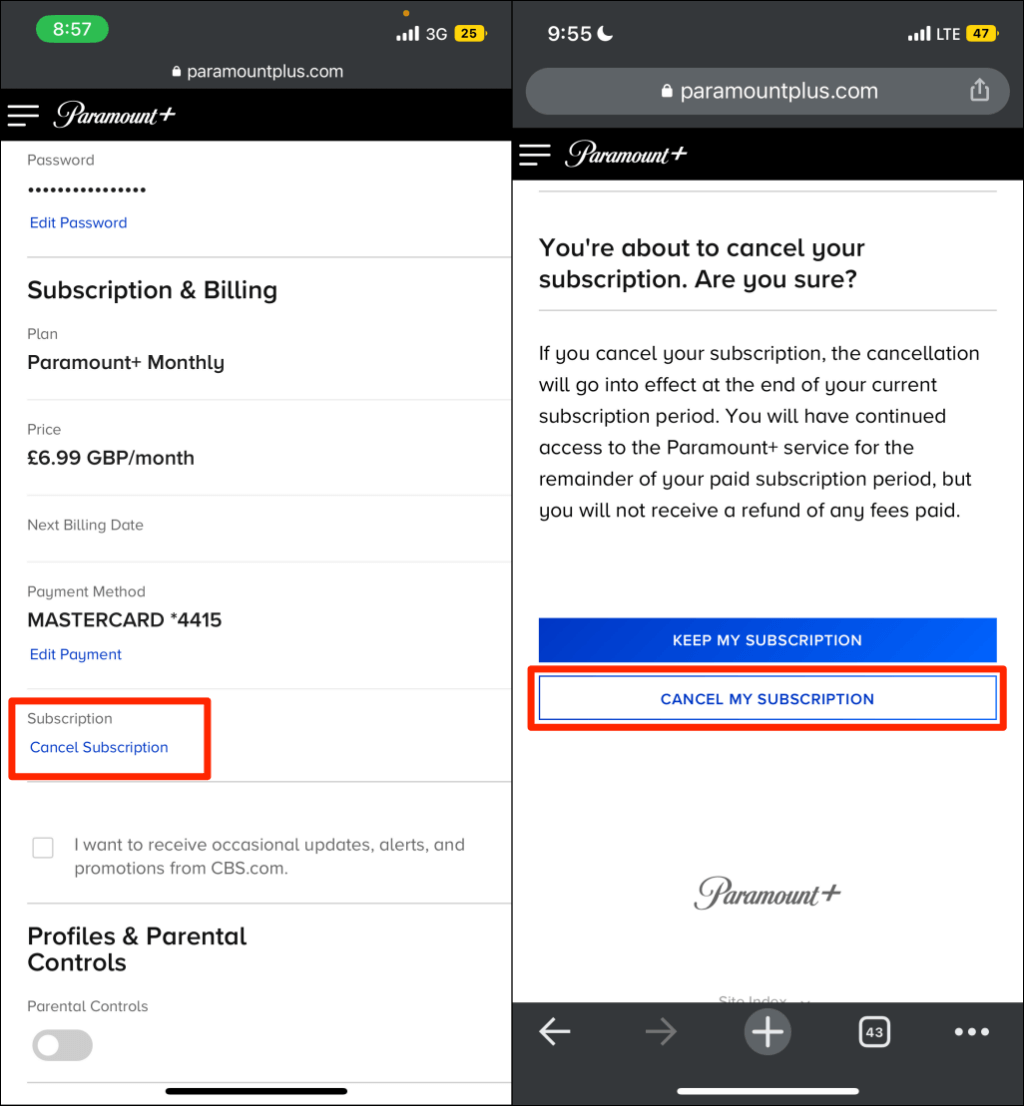
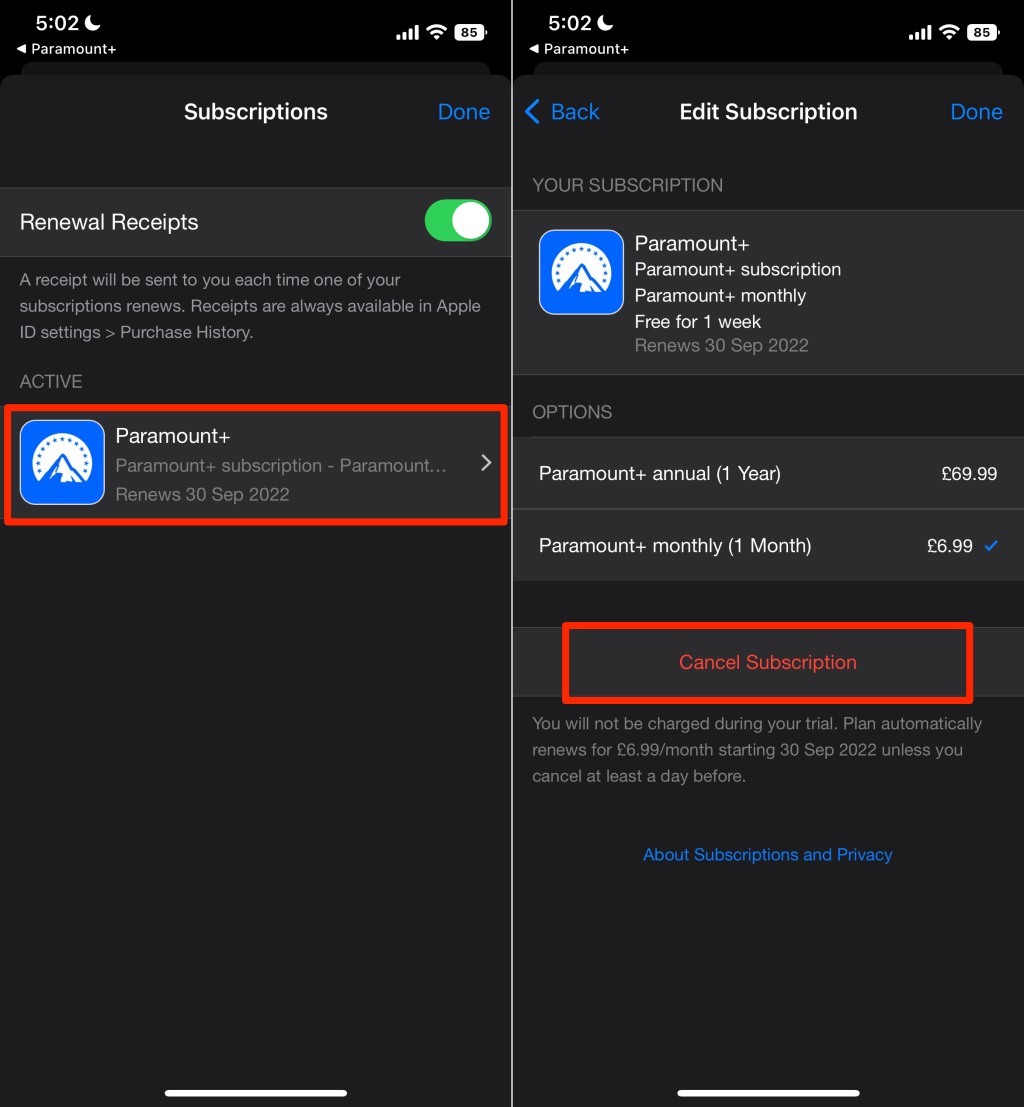
- “Cancel” Option Not Visible: If you don’t see a “Cancel Subscription” option next to Paramount Plus in your Amazon account, it’s highly likely that you did not subscribe to it through Amazon. In this case, you will need to log directly into the Paramount Plus website or app (or whichever platform you originally used, e.g., Apple App Store, Google Play Store) to manage and cancel the subscription.
- Still Being Charged After Cancellation: If you are certain you canceled via Amazon but still see charges, immediately contact Amazon Customer Service. Provide them with your Amazon order IDs for the Paramount Plus subscription and the date you attempted to cancel. They can investigate billing discrepancies and issue refunds if appropriate.
- Lost Login Information: If you’ve forgotten your Amazon login details, you’ll need to go through Amazon’s account recovery process before you can access your subscriptions.
The Broader Implications of Subscription Management in the Digital Age
The process of canceling Paramount Plus on Amazon is a microcosm of a larger trend in the digital world: the proliferation and management of numerous online subscriptions. This experience highlights critical aspects of digital literacy and financial responsibility in the modern tech landscape.
The Rise of Subscription Fatigue and the Need for Active Management
In recent years, the “subscription economy” has exploded. From streaming services and software tools to news outlets and even physical goods, consumers are inundated with recurring charges. This phenomenon, often dubbed “subscription fatigue,” can lead to users unwittingly paying for services they no longer use or need. Each cancellation, even for a single service, contributes to a healthier approach to digital consumption. Actively managing these subscriptions is not just about saving money; it’s about reducing digital clutter, reclaiming control over your online life, and ensuring that your tech budget aligns with your actual usage and priorities.
Best Practices for Digital Subscription Management
To avoid future “how-to-cancel” dilemmas, adopting best practices for digital subscription management is essential:
- Centralized Tracking: Keep a running list or use a dedicated app to track all your active subscriptions, their monthly costs, and their renewal dates. Many budgeting apps now include subscription trackers.
- Regular Audits: Schedule quarterly or bi-annual reviews of all your subscriptions. Ask yourself: Am I still using this? Is it worth the cost? Does the content still appeal to me?
- Know Your Subscription Origin: Always remember where you subscribed (e.g., directly from the service, via Amazon, Apple App Store, Google Play Store, Roku, etc.). This knowledge is the single most important factor for smooth cancellation.
- Utilize Free Trials Wisely: Be cautious with free trials. Always set a reminder to cancel before the trial period ends if you don’t intend to continue the service. Ensure you understand the terms and conditions.
- Review Bank Statements: Periodically review your bank and credit card statements for unfamiliar or recurring charges. This can often reveal forgotten subscriptions.
The Tech Industry’s Design Choices for Subscriptions
It’s also worth noting that the tech industry, while making sign-up processes incredibly seamless, sometimes designs cancellation pathways that are less intuitive. This can range from requiring multiple clicks to burying cancellation options deep within menus or presenting numerous “save” offers. This isn’t necessarily malicious, but it highlights the economic incentive for companies to retain subscribers. As a consumer, being aware of these design patterns empowers you to navigate them more effectively and advocate for clearer, more transparent subscription management tools across platforms. Educating oneself on these technical navigation processes is a crucial skill in today’s digital world.
Conclusion
Canceling Paramount Plus on Amazon, while requiring specific steps, is a manageable technical task once you understand Amazon’s role as a subscription intermediary. By navigating to “Your Memberships & Subscriptions” within your Amazon account, you can efficiently locate and terminate the service, preventing further charges. This process not only resolves an immediate billing concern but also serves as a valuable reminder of the broader importance of proactive digital subscription management. In an ever-expanding subscription economy, mastering the technicalities of signing up and, crucially, signing off from services is a fundamental skill for maintaining financial clarity and control over your digital life. Regular audits and a clear understanding of how and where your subscriptions are managed will ensure a streamlined and cost-effective entertainment experience.
aViewFromTheCave is a participant in the Amazon Services LLC Associates Program, an affiliate advertising program designed to provide a means for sites to earn advertising fees by advertising and linking to Amazon.com. Amazon, the Amazon logo, AmazonSupply, and the AmazonSupply logo are trademarks of Amazon.com, Inc. or its affiliates. As an Amazon Associate we earn affiliate commissions from qualifying purchases.