
The modern digital landscape is defined by the “Streaming Wars,” a high-stakes competition for consumer attention and recurring revenue. Paramount+ has emerged as a significant player in this arena, leveraging a deep library of intellectual property from CBS, MTV, Nickelodeon, and Paramount Pictures. However, as the number of available Software-as-a-Service (SaaS) entertainment platforms grows, consumers frequently find themselves needing to audit their digital portfolios. Whether you are transitioning to a different service, reducing digital clutter, or simply moving through a temporary subscription cycle, understanding the technical nuances of cancelling Paramount+ is essential.
Cancelling a subscription in the current tech ecosystem is rarely as simple as clicking a single button. Because Paramount+ integrates with various third-party billing systems—including Apple’s App Store, Google Play, Amazon Prime Video, and Roku—the method of termination depends entirely on the “entry point” of your subscription. This guide provides a comprehensive technical breakdown of how to navigate these various interfaces and ensure your recurring billing is successfully severed.
Understanding the Paramount+ Integration Landscape
Before initiating a cancellation, it is critical to identify where your billing resides. In the tech world, this is known as the “billing authority.” Paramount+ utilizes a multi-channel distribution model. If you signed up directly via the Paramount+ website, the company’s internal billing system manages your data. However, if you signed up through a mobile app or a smart TV interface, your financial transaction is likely handled by a third-party intermediary via an API handshake.
This fragmentation is a byproduct of the platform economy. Companies like Apple and Google provide the infrastructure (the OS and the App Store), and in exchange, they often take a percentage of subscription revenue. From a technical standpoint, this means Paramount+ does not always have the administrative permission to cancel a subscription on your behalf if that subscription was initiated through a third-party gateway. You must go to the source of the “entitlement”—the digital record that confirms you have paid for the service.
Identifying Your Billing Source
To find your billing source, log into the Paramount+ account dashboard on a desktop browser. Navigate to the “Account” section. Under the “Subscription & Billing” tab, the system will typically display a message such as “Billed through Apple” or “Managed via Amazon.” If no such message exists and you see your credit card information directly on the page, you are billed directly by Paramount.
Step-by-Step Technical Instructions for Primary Platforms
Once you have identified your billing authority, follow the specific technical path required to terminate the service. Each platform has its own UI (User Interface) logic and retention strategies designed to keep users subscribed.
Direct Web Cancellations
If you are billed directly by Paramount+, the process is handled through their primary web servers.
- Authentication: Visit the Paramount+ website and log in with your credentials.
- Dashboard Navigation: Click on your user profile icon in the top-right corner and select “Account.”
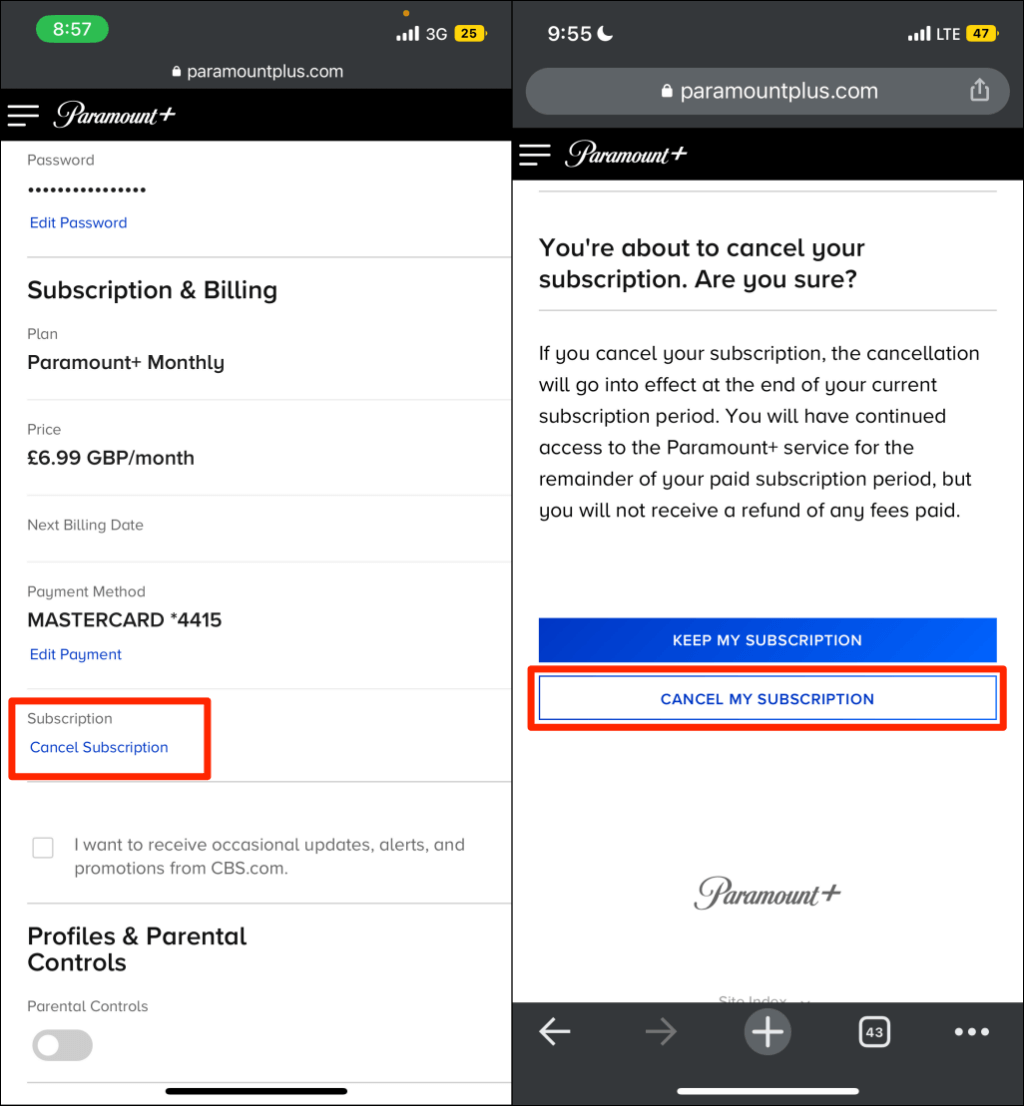
- Subscription Management: Scroll down to the “Subscription & Billing” section.
- The Termination Sequence: Click on “Cancel Subscription.”
- Retention Prompts: The system will likely trigger a series of “save offers,” such as a discounted rate or a free month. To complete the cancellation, you must bypass these prompts and click through to the final confirmation page.
- Verification: Ensure you receive a confirmation email. From a data perspective, this email serves as your receipt of the “state change” in your account status.
iOS and iPadOS (Apple App Store)
For subscriptions managed by Apple, the cancellation occurs within the Apple ID ecosystem, not the Paramount+ app.
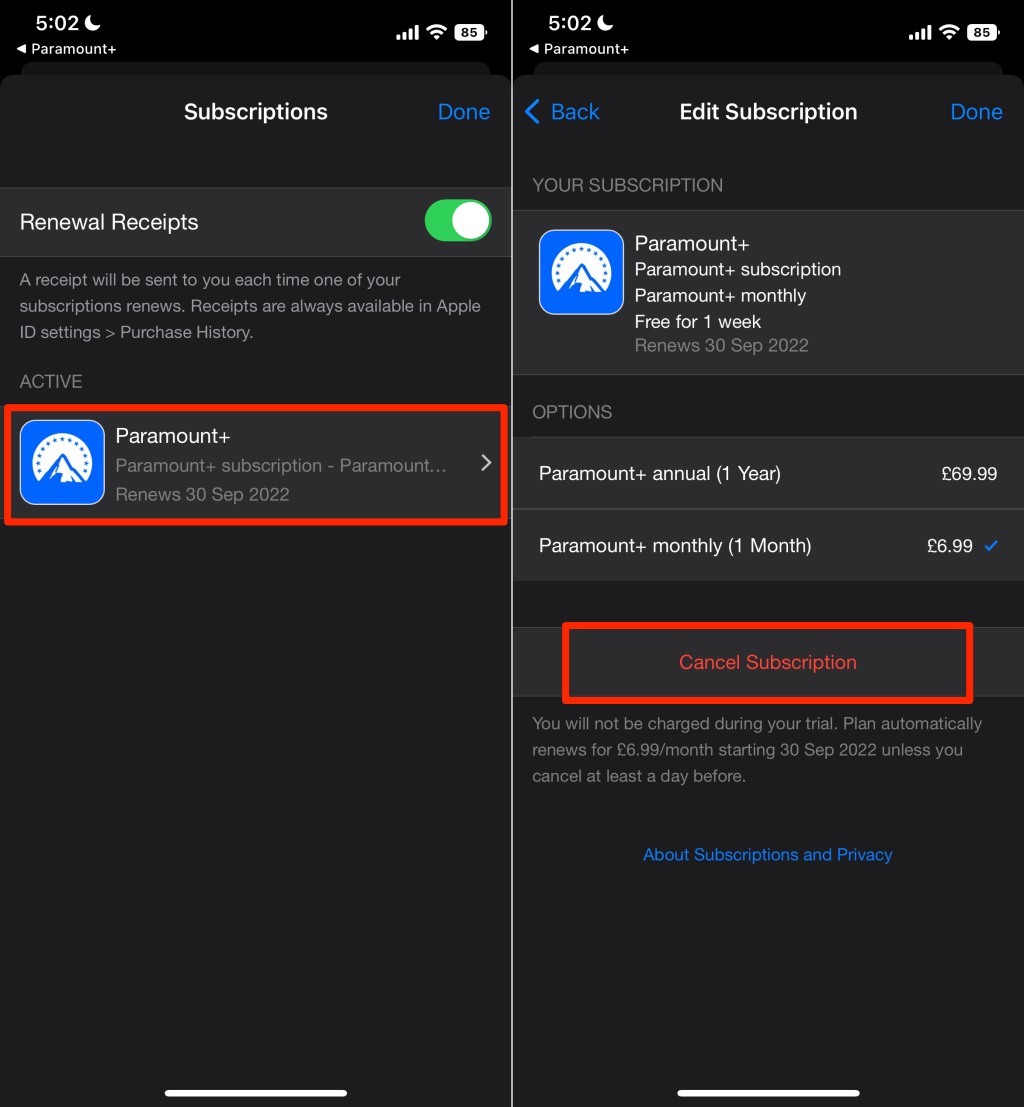
- Settings API: Open the “Settings” app on your iPhone or iPad.
- Apple ID Management: Tap your name at the very top of the menu to access your Apple ID settings.
- Subscriptions Interface: Tap “Subscriptions.” This menu queries Apple’s servers to list all active recurring charges linked to your biometric or password-protected account.
- Parameter Adjustment: Locate “Paramount+” in the list, tap it, and select “Cancel Subscription.”
- Access Duration: Apple’s system technically keeps your “entitlement” active until the end of the current billing cycle, at which point the subscription status will switch from “Active” to “Expired.”
Android and Google Play
The process for Android users mirrors the Apple ecosystem but utilizes the Google Play Store’s billing API.
- Play Store Interface: Open the Google Play Store app.
- Profile Logic: Tap your profile icon at the top right.
- Payments & Subscriptions: Select “Payments & subscriptions” and then “Subscriptions.”
- State Termination: Find Paramount+ and select “Cancel subscription.” Google may ask for a reason for cancellation; this data is used for developer analytics to improve churn rates.
Managing External Channels: Amazon, Roku, and Apple TV
A significant portion of Paramount+ users do not use a standalone app but instead subscribe through “Channels” or “Add-ons” within other streaming aggregators. This creates a secondary layer of software abstraction.
Amazon Prime Video Channels
If you added Paramount+ as a channel within the Prime Video interface, Amazon serves as the billing agent.
- Account Settings: Log into your Amazon account via a web browser.
- Digital Content Management: Navigate to “Account & Lists” and select “Memberships & Subscriptions.”
- Prime Video Channels: Click on “Prime Video Channels.”
- Cancellation: Locate Paramount+ under your “Channels” list and select “Cancel Channel.” You will typically be given the option to be reminded three days before the renewal or to turn off auto-renew immediately.
Roku Subscriptions
Roku operates its own ecosystem for managing digital goods. If you signed up through a Roku device:
- Home Screen Interaction: Highlight the Paramount+ channel on your Roku home screen.
- Options Menu: Press the asterisk (*) button on your remote.
- Subscription Management: Select “Manage subscription.”
- Removal: Choose “Cancel subscription.”
Alternatively, this can be done through the Roku website under “My Account” and “Manage Your Subscriptions.”
Technical Troubleshooting and Common Subscription Errors
Even with the correct steps, technical hurdles can arise. These issues often stem from “account de-synchronization,” where the billing server and the content delivery server fail to communicate accurately.
The “Ghost Subscription” Phenomenon
Sometimes, a user may cancel their subscription, yet the app continues to function, or worse, the user continues to be charged. This often happens when a user has multiple accounts associated with different email addresses. From a technical standpoint, it is vital to verify the “Unique Identifier” (the email) associated with the billing statement against the one logged into the device.
Cache and App Data Issues
On smart TVs and streaming sticks, the app may not immediately reflect a cancelled status due to cached data. If you have cancelled your subscription but the UI still prompts you to manage your account, clearing the app’s cache or performing a “hard reboot” of the hardware will force the app to ping the server for an updated entitlement status.
Dealing with Third-Party Delays
When cancelling through a third party like a cable provider (e.g., Xfinity or Cox), there is often a latency period between the cancellation request and the service termination. These systems utilize batch processing for billing, meaning the change might not appear on your statement until the next billing cycle. It is advisable to document the timestamp of your cancellation request in case of a billing dispute.
The Ethics of UI Design: Dark Patterns in Subscription Management
In the tech industry, “Dark Patterns” refer to user interface designs intentionally crafted to trick or frustrate users—such as making the “Cancel” button difficult to find or hidden behind multiple layers of sub-menus. While Paramount+ generally follows standard industry practices, the multi-step “save” process (where users are offered incentives to stay) is a classic example of “friction” introduced into the UX (User Experience) to reduce churn.
Understanding these design choices empowers the user. When you recognize that a platform is purposely complicating the cancellation path, you can navigate it more effectively. From a digital security and personal finance perspective, the most robust way to manage these subscriptions is to use a centralized subscription tracker or a virtual credit card service that allows you to “kill” a payment method at the source, bypassing the software UI entirely.
Conclusion: Mastering Your Digital Footprint
The ability to manage, scale, and terminate digital subscriptions is a vital skill in the modern tech-centric world. Paramount+ offers a wealth of content, but as consumer needs evolve, the technical processes for exiting the service must be understood as clearly as the processes for joining.
By identifying the billing authority—be it direct, mobile, or through a third-party aggregator—you can execute a clean break from the service without fear of “zombie charges” or data inconsistencies. As the streaming industry continues to consolidate and evolve, staying informed about these technical workflows ensures that you remain the administrator of your own digital and financial life. Always remember to verify cancellations through official email confirmations and monitor your digital statements to ensure that the software handshake has been successfully terminated.
aViewFromTheCave is a participant in the Amazon Services LLC Associates Program, an affiliate advertising program designed to provide a means for sites to earn advertising fees by advertising and linking to Amazon.com. Amazon, the Amazon logo, AmazonSupply, and the AmazonSupply logo are trademarks of Amazon.com, Inc. or its affiliates. As an Amazon Associate we earn affiliate commissions from qualifying purchases.