
In the modern digital landscape, the shift from traditional linear cable to virtual Multichannel Video Programming Distributors (vMVPD) has redefined how we consume media. YouTube TV stands at the forefront of this revolution, offering a sophisticated, cloud-based interface that integrates seamlessly with the broader Google ecosystem. However, as the “subscription fatigue” phenomenon grows and software alternatives evolve, users often find themselves needing to offboard from these platforms.
Navigating the technical architecture of a Google-backed service requires more than just finding a “delete” button. It involves understanding account synchronization, device-specific limitations, and the data retention policies that govern your cloud DVR and viewing history. This guide provides an exhaustive technical walkthrough on how to cancel your YouTube TV subscription while managing your digital footprint effectively.

1. Understanding the YouTube TV Ecosystem and Account Integration
Before initiating the cancellation process, it is critical to understand how YouTube TV operates within your Google identity. Unlike standalone streaming apps, YouTube TV is deeply tethered to your Google Account’s billing infrastructure. This interconnectivity allows for seamless switching between YouTube, Google Workspace, and the Google Play Store, but it also means that your subscription management is centralized in a way that can be complex to untangle if you have multiple profiles or family groups.
The Role of the Family Manager
If you are part of a YouTube TV Family Group, the ability to cancel the subscription rests solely with the Family Manager. From a technical standpoint, the Family Manager is the account holder whose payment method is on file. If you are a family member and wish to leave the service, you can remove yourself from the group, but this will not terminate the billing cycle for the rest of the household. Understanding your administrative permissions is the first step in successful software management.
Data Retention and Cloud DVR Synchronization
One of the most significant technical advantages of YouTube TV is its unlimited Cloud DVR. When you cancel your subscription, Google does not immediately purge your recorded data. Technically, your recordings are stored for 21 days following the end of your billing cycle. If you decide to resume the service within this window, your library remains intact. Understanding this “grace period” in the software backend allows users to make informed decisions about seasonal cancellations—such as pausing during the sports off-season—without losing customized metadata and viewing history.
2. Step-by-Step Technical Instructions for Cancellation
The process of canceling YouTube TV varies significantly depending on the device and the original gateway used for signup. Because of the “App Store Tax” and different API integrations, the steps you take on a desktop browser differ from those on an iOS or Android device.
Executing Cancellation via Web Browser
The most stable and direct way to manage your subscription is through a desktop web browser. This method bypasses the limitations of mobile app interfaces.
- Authentication: Navigate to
tv.youtube.comand ensure you are logged into the primary administrative account. - Accessing Settings: Click on your profile avatar in the top-right corner and select “Settings.”
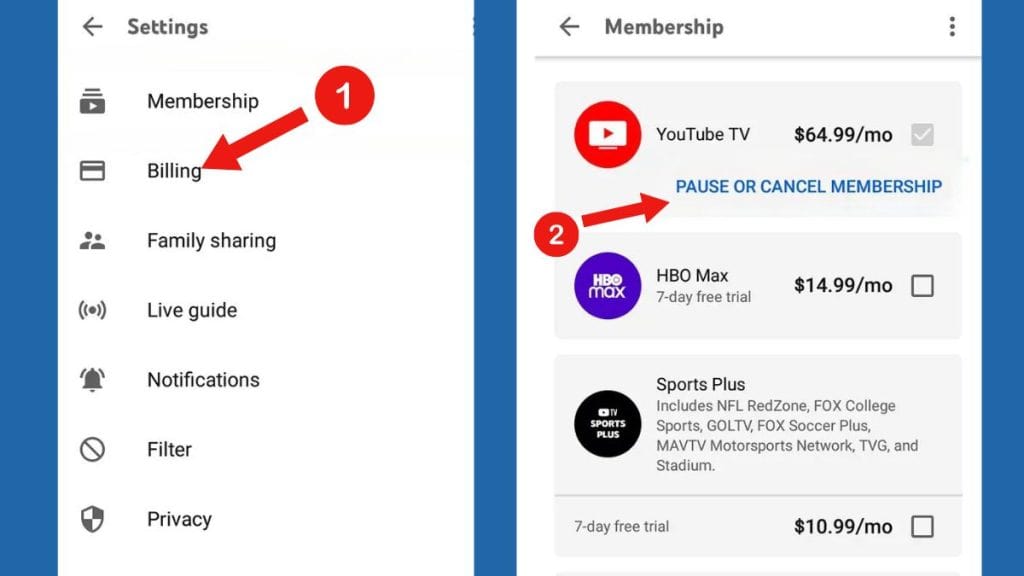
- Membership Management: Under the “Membership” tab, you will see your current base plan and any premium add-ons (like 4K Plus or Sports Plus).
- The Offboarding Flow: Click “Manage.” Here, YouTube TV may offer you the option to “Pause” your membership. To proceed with a full cancellation, click “Cancel Membership.”
- Feedback and Confirmation: You will be prompted to provide a reason for leaving—a standard data-collection practice for Google’s UX research teams. Once you confirm, you will receive a confirmation email. Ensure you archive this, as it contains the technical timestamp of your service termination.
Navigating Third-Party Billing (Apple and Frontier)
A common technical hurdle occurs when users sign up for YouTube TV through a third-party provider like Apple (via In-App Purchases) or an ISP like Frontier. In these instances, the “Cancel” button will not appear in the YouTube TV interface. Instead, the billing logic is handled by the third party’s API. For Apple users, you must navigate to your Apple ID settings on an iPhone or Mac to terminate the subscription. For those billed through an ISP, the cancellation must be handled through the provider’s customer portal. This separation of the “Service Layer” from the “Billing Layer” is a crucial distinction in modern software-as-a-service (SaaS) architecture.
3. The Technical Nuance: Pausing vs. Canceling
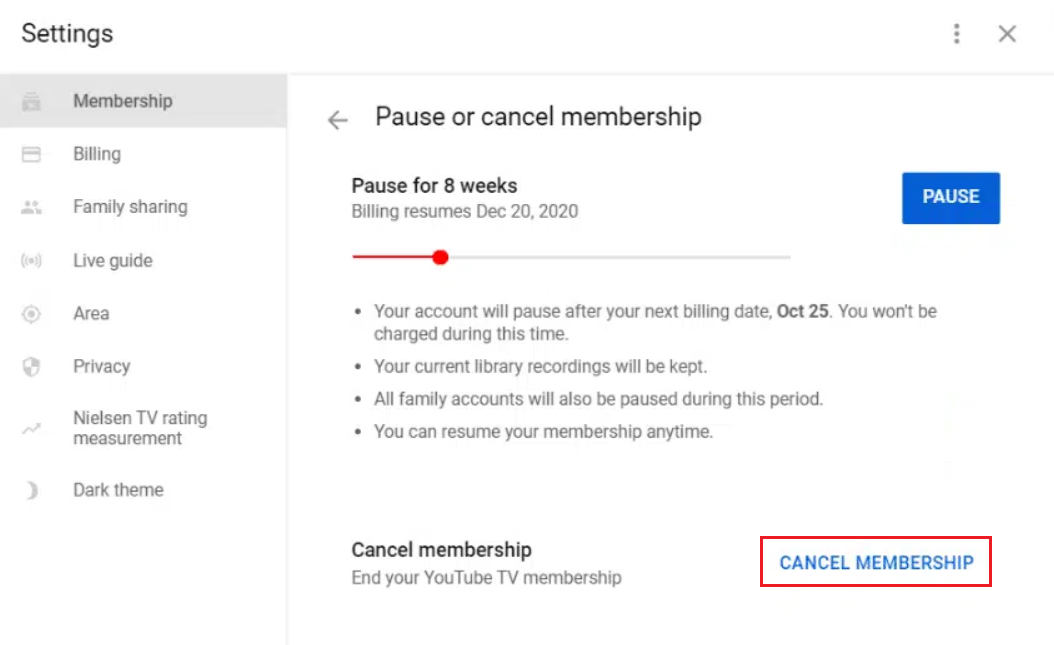
Google has implemented a sophisticated “Pause” feature that serves as a middle ground between an active subscription and a total account termination. From a digital management perspective, this is often the superior choice for users who plan to return.
The Hibernation State
When you pause your membership, you can choose a duration ranging from 4 weeks to 6 months. Technically, your account enters a “hibernation” state. At the end of your current billing cycle, the system stops charging your payment method, and your access to live content is revoked. However, unlike a full cancellation, your settings, library, and personalized recommendations are “frozen” in the database.
Automatic Resumption Logic
It is vital to note the automated nature of the pause feature. Once the selected time frame elapses, the Google billing engine will automatically resume the service at the then-current monthly rate. From a technical security standpoint, users should set calendar reminders for this resumption, as it is a programmatic trigger that does not always require a secondary manual confirmation from the user.
4. Post-Cancellation: Managing Digital Artifacts and Access
Once the cancellation request is processed, the system does not immediately “go dark.” Understanding the transition period is essential for maximizing the value of your final paid month.
Access Until the End of the Billing Cycle
YouTube TV operates on a prepaid model. When you cancel, the technical permission to access the stream remains active until the final day of your current billing period. For example, if your cycle ends on the 15th of the month and you cancel on the 2nd, the software will show your status as “Canceled” but will allow full functionality for the remaining 13 days. This is a standard protocol in cloud service provisioning to ensure the user receives the full utility of the paid-for period.
Security and Permission Cleanup
After canceling a high-bandwidth service like YouTube TV, it is a professional best practice to perform a “Digital Hygiene” check.
- Third-Party App Access: Review which devices (Smart TVs, Roku sticks, consoles) still have “Logged In” status. While the subscription is inactive, removing these permissions from your Google Account security settings prevents unauthorized access to your broader Google profile if those devices are ever sold or shared.
- Email Notifications: You may continue to receive marketing metadata. To stop this, you must navigate to the “Notifications” tab in settings to opt out of the “Product updates” and “Special offers” mailing lists, which are managed by a separate communication API.
5. Troubleshooting Common Technical Hurdles in the Cancellation Process
Even with a streamlined UI, technical glitches can occur during the offboarding process. Understanding how to troubleshoot these ensures you aren’t charged for an unwanted month.
The Infinite Loop or Greying Out of Buttons
Occasionally, users report that the “Cancel” button is greyed out or leads to a redirect loop. This is often caused by cached data or conflicting browser extensions (such as ad-blockers) that interfere with the JavaScript responsible for the cancellation modal.
- Technical Fix: Open an “Incognito” or “Private” window. This disables extensions and provides a clean slate for the session cookies, allowing the billing script to run without interference.
Discrepancies in Refund Policies
In the tech world, “Cancellation” is not synonymous with “Refund.” YouTube TV generally does not offer prorated refunds for partial months. However, if the cancellation is due to a technical failure of the service (e.g., persistent buffering or authentication errors), you can escalate the issue to Google’s technical support. You will need to provide “Console Logs” or specific error codes (like the “Playback ID”) to prove that the service level agreement (SLA) was not met.
Final Thoughts on Subscription Management
Canceling a YouTube TV subscription is a straightforward technical task, yet it highlights the complexities of our interconnected digital lives. By understanding the underlying architecture—from the Family Manager hierarchy to the distinction between service and billing layers—you can navigate the process with professional precision. Effective management of these digital services not only optimizes your technological environment but also ensures that your data and privacy remain secure as you transition between different software platforms in the ever-evolving streaming landscape.
aViewFromTheCave is a participant in the Amazon Services LLC Associates Program, an affiliate advertising program designed to provide a means for sites to earn advertising fees by advertising and linking to Amazon.com. Amazon, the Amazon logo, AmazonSupply, and the AmazonSupply logo are trademarks of Amazon.com, Inc. or its affiliates. As an Amazon Associate we earn affiliate commissions from qualifying purchases.