
Understanding Your AMC+ Subscription and Billing Cycles
Navigating the landscape of digital subscriptions requires a clear understanding of where and how you initially subscribed. For a service like AMC+, which is available across a multitude of platforms, the cancellation process is intrinsically linked to the point of purchase. This is a fundamental aspect of managing any digital service and is crucial for a smooth termination of your subscription.
Identifying Your Subscription Origin
AMC+ can be subscribed to directly through its official website (amcplus.com), or via various third-party platforms that act as distribution channels. These include major digital storefronts and cable/satellite providers. Common origins include:
- Direct via AMC+ Website: Subscribed directly using a web browser.
- Apple App Store: For iPhones, iPads, and Apple TV.
- Google Play Store: For Android smartphones and tablets.
- Roku Channel Store: On Roku streaming devices.
- Amazon Prime Video Channels: As an add-on channel within Amazon Prime Video.
- Amazon Fire TV: Via the Amazon Appstore on Fire TV devices.
- Other Third-Party Services: Such as Xfinity, Sling TV, YouTube TV, Dish, or DirecTV, where AMC+ is offered as an add-on package or premium channel.

The platform you used for the initial sign-up dictates where you must go to manage and cancel your subscription. Attempting to cancel through a different platform will typically be unsuccessful, as the billing relationship resides with the original service provider. For instance, an AMC+ subscription initiated through Apple’s App Store must be cancelled through Apple’s subscription management system, not directly on the AMC+ website. This principle underscores the fragmented nature of digital subscription management, a common challenge in the modern app ecosystem.
Automatic Renewal and Billing Dates
Like most subscription services, AMC+ operates on an automatic renewal model. Whether you’re on a monthly or annual plan, your subscription will automatically renew at the end of each billing cycle unless explicitly cancelled. Understanding your next billing date is critical. Cancelling typically prevents future charges but allows you to continue accessing content until the end of your current paid-for period. This means there’s no immediate loss of service upon cancellation; rather, the service simply won’t renew for the subsequent period. Always check your account details or the billing section of the platform through which you subscribed to confirm your next billing date and avoid unexpected charges. This foresight is a key component of effective personal digital finance and subscription management.
Step-by-Step Cancellation Guides by Platform
The procedure for cancelling AMC+ varies significantly depending on the platform used for the initial subscription. Below are detailed, platform-specific instructions designed to guide users through the process efficiently.
Cancelling via the AMC+ Website
If you subscribed directly through the AMC+ website:
- Access AMC+: Open a web browser and navigate to amcplus.com.
- Log In: Sign in to your AMC+ account using your registered email address and password.
- Navigate to Account Settings: Once logged in, locate your profile icon or name, usually in the top right corner, and click on it. From the dropdown menu, select “Settings” or “Account.”
- Manage Subscription: Within the account settings, look for a section titled “Subscription,” “Billing,” or “Manage Plan.”
- Initiate Cancellation: You should see an option to “Cancel Subscription,” “Change Plan,” or similar. Click on the cancellation option.
- Confirm Cancellation: Follow any on-screen prompts, which may include a brief survey asking for your reason for cancelling. Confirm your decision to terminate the subscription.
- Email Confirmation: You should receive an email confirming that your AMC+ subscription has been cancelled. Retain this email for your records.
Managing Subscriptions on Apple Devices (iOS/tvOS)
For subscriptions made through the Apple App Store on an iPhone, iPad, or Apple TV:
- Open Settings: On your iOS device, tap the “Settings” app. On Apple TV, navigate to “Settings.”
- Access Apple ID: Tap on your name/Apple ID at the very top of the Settings menu.
- Subscriptions: Tap “Subscriptions.” You may need to authenticate with Face ID, Touch ID, or your Apple ID password.
- Find AMC+: Scroll through your list of active and inactive subscriptions to locate “AMC+.”
- Cancel Subscription: Tap on “AMC+” then tap “Cancel Subscription.”
- Confirm: Confirm your decision when prompted.
Your subscription will show an expiration date, indicating it will not renew after the current billing cycle.
Android Devices (Google Play Store)
If you subscribed via the Google Play Store on an Android phone or tablet:
- Open Google Play Store: Launch the “Google Play Store” app on your Android device.
- Access Menu: Tap on your profile icon (usually in the top right corner).
- Payments & Subscriptions: From the menu, tap “Payments & subscriptions,” then “Subscriptions.”
- Locate AMC+: Find “AMC+” in your list of active subscriptions.
- Cancel Subscription: Tap on “AMC+” and then tap “Cancel subscription.”
- Follow Prompts: Choose a reason for cancellation if prompted, and confirm your action.
Google Play will display the date your subscription will expire.
Roku Devices
For subscriptions made directly through the Roku Channel Store:
- Visit Roku Website: Go to my.roku.com on a web browser.
- Log In: Sign in to your Roku account. This is essential as subscriptions are tied to your Roku account, not necessarily the device itself.
- Manage Subscriptions: Under the “Manage account” section, click on “Manage your subscriptions.”
- Find AMC+: Locate “AMC+” in the list of your active subscriptions.
- Cancel Subscription: Click “Cancel subscription.”
- Follow Instructions: Confirm the cancellation when prompted.
Alternatively, on your Roku device: - Highlight AMC+: From the Roku home screen, highlight the AMC+ channel icon.
- Press Star Button: Press the
*(star) button on your Roku remote. - Manage Subscription: Select “Manage subscription.”
- Cancel Subscription: Select “Cancel subscription” and follow the on-screen prompts.
Amazon Fire TV & Prime Video Channels
The cancellation method depends on whether you subscribed via the Amazon Appstore on a Fire TV device or as an AMC+ Prime Video Channel add-on.
For Amazon Appstore (Fire TV devices):
- Visit Amazon Website: Go to amazon.com on a web browser.
- Log In: Sign in to your Amazon account.
- Your Account: Hover over “Account & Lists” and click on “Your Account.”
- Digital Content and Devices: Find the “Digital content and devices” section and click “Apps & Games” or “Your Apps & Subscriptions.”
- Manage Subscriptions: Locate AMC+ and select “Cancel subscription.”
For AMC+ as a Prime Video Channel:
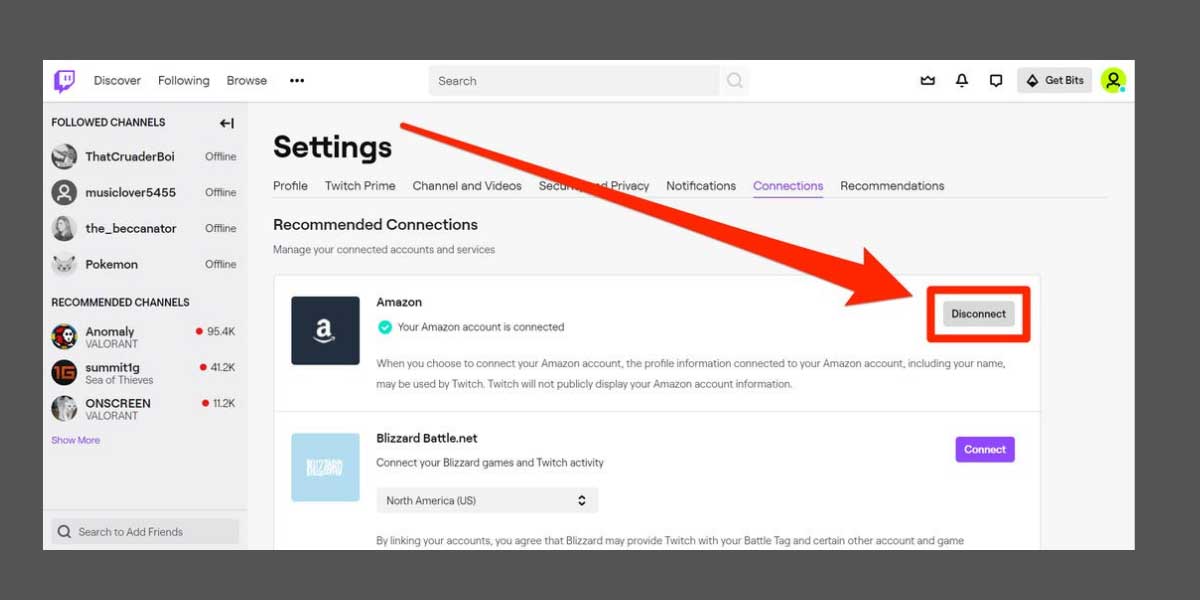
- Visit Amazon Prime Video: Go to amazon.com/primevideo/subscriptions on a web browser.
- Log In: Sign in to your Amazon account.
- Your Channels: Find the “Your Channels” section.
- Locate AMC+: Find “AMC+” in the list.
- Cancel Channel: Click on “Cancel Channel” next to AMC+.
- Confirm: Confirm your cancellation.
Other Third-Party Providers (e.g., Xfinity, Sling TV, YouTube TV)
If you subscribed to AMC+ as part of a larger package or add-on through a cable provider or another streaming service, the cancellation process must be handled directly through that provider.
- Log In to Provider Account: Access your account on the respective provider’s website or app (e.g., xfinity.com, sling.com, tv.youtube.com).
- Navigate to Subscriptions/Add-ons: Look for a section related to your services, subscriptions, or channel add-ons.
- Locate AMC+: Find the AMC+ add-on or channel within your current services.
- Remove/Cancel: Select the option to remove or cancel the AMC+ add-on.
- Follow Prompts: Complete any necessary confirmation steps.
If you encounter difficulty, contacting the customer support of your specific provider directly is the most reliable method for cancellation.
Verifying Your Cancellation and Post-Cancellation Access
Confirming a successful cancellation is a critical step to ensure no further charges are incurred. Moreover, understanding your continued access to content post-cancellation helps manage expectations.
Confirmation Emails and Account Status
Upon successful cancellation, regardless of the platform, you should receive a confirmation email. This email serves as proof of cancellation and typically specifies the date your subscription will officially expire. It is advisable to save this email for your records. Additionally, you can log back into your account on the respective platform (AMC+ website, Apple Subscriptions, Google Play, Roku, Amazon, or your third-party provider) and navigate to the subscription management section. A properly cancelled subscription will usually indicate an expiration date rather than a renewal date, or explicitly state that it has been cancelled. This double-check reinforces the success of the technical procedure.
Accessing Content Until the End of Your Billing Period
A common misconception is that cancelling a subscription immediately revokes access to the service. For most digital services, including AMC+, cancelling simply prevents the next billing cycle from occurring. You will typically retain full access to AMC+ content until the end of your current paid-for billing period. For example, if you are on a monthly plan that renews on the 15th and you cancel on the 5th, you will still have access until the 14th of that month. This policy allows users to maximize their paid subscription time, offering a consumer-friendly approach to service termination.
Troubleshooting Common Cancellation Issues
Despite clear instructions, users may occasionally encounter issues when attempting to cancel a digital subscription. Understanding common problems and their solutions can streamline the troubleshooting process.
Subscription Not Appearing
One of the most frequent issues is a user being unable to find their AMC+ subscription listed in the expected place (e.g., Apple Subscriptions, Google Play, or AMC+ website). This almost always points to an incorrect subscription origin.
- Check All Possible Platforms: Review your bank or credit card statements for charges from “AMC+,” “Apple,” “Google,” “Amazon,” “Roku,” or your cable provider. The description of the charge often indicates the billing entity.
- Alternative Email Accounts: If you have multiple email addresses, ensure you are checking the correct account associated with the subscription. It’s common for users to forget which email was used for initial sign-up.
- Direct AMC+ Support: If you’ve exhausted all options and cannot locate the subscription, contact AMC+ customer support directly. They can trace your account using billing information and guide you to the correct cancellation portal.
Billing Issues After Cancellation
Occasionally, a user might be charged for AMC+ even after believing they have successfully cancelled.
- Confirmation Email Check: Refer to your cancellation confirmation email. Did you receive one? Does it specify an effective cancellation date that occurs before the disputed charge?
- Billing Cycle Timing: Remember that access typically continues until the end of the current billing cycle. A charge may appear if cancellation occurred just after a new billing cycle began but before the charge processed fully.
- Screenshot Proof: If you performed the cancellation but did not receive an email, or if you were charged post-cancellation, take screenshots of your account status (if it shows cancelled) and your bank statement.
- Contact Support Immediately: Reach out to the billing entity (AMC+, Apple, Google, Amazon, etc.) with your proof. Most providers have processes to investigate and refund erroneous charges.
Contacting AMC+ Support
If self-service options fail, or for complex issues, direct contact with AMC+ customer support or the support of the platform through which you subscribed is the next step.
- AMC+ Support: The official AMC+ website usually provides a “Help” or “Contact Us” section with options for email support, live chat, or a FAQ database.
- Platform-Specific Support: For subscriptions via Apple, Google, Amazon, or Roku, their respective support channels are best equipped to handle billing and subscription management queries related to their ecosystems. Having your account details and any relevant transaction IDs or confirmation numbers ready will expedite the process.
Alternatives to Full Cancellation and Re-subscription Options
Before proceeding with a full cancellation, users might consider alternative options that offer flexibility or provide a pathway for future engagement with AMC+. Understanding these can help users make more informed decisions about their digital subscriptions.
Pausing or Downgrading
While AMC+ generally does not offer a direct “pause” feature for its standalone service, some third-party providers (like certain cable companies or streaming bundles) might offer temporary suspension options for add-on channels. It is important to check with your specific billing provider if such an option exists within your overall package. Downgrading is typically not applicable to AMC+ as it offers a single tier of service. However, if subscribed through a larger bundle, users might be able to downgrade the entire bundle to save costs, which would then affect the AMC+ component. These options are less common for standalone streaming services, whose business model relies on continuous engagement or direct subscription termination.

Considerations Before Re-subscribing
Cancelling AMC+ does not permanently bar you from the service. You can typically re-subscribe at any time. However, there are a few considerations:
- Promotional Offers: Keep an eye out for future promotional offers for new or returning subscribers. Sometimes, cancelling and waiting for a good deal can be more cost-effective if you plan to return.
- Billing Cycle Start: When you re-subscribe, a new billing cycle will commence immediately.
- Account History: Generally, your watch history and preferences are saved for a period, so re-subscribing often means picking up where you left off, enhancing the user experience upon return.
The decision to cancel, pause, or consider re-subscription often hinges on individual viewing habits, financial planning, and the availability of alternative content. By understanding the mechanics of cancellation and post-cancellation access, users can manage their digital subscriptions effectively and ensure alignment with their personal needs and financial goals.