
Navigating the digital landscape of subscriptions can sometimes feel like a maze, especially when it comes to cancelling a service before incurring charges. Amazon Prime, with its vast array of benefits from expedited shipping to streaming entertainment, often tempts users with a free trial. While these trials offer an excellent opportunity to experience the service firsthand, understanding the precise steps to cancel it is crucial for those who decide it’s not the right fit or simply wish to avoid automatic renewal. This guide delves into the technical process of ending your Amazon Prime trial, ensuring a smooth exit from the service without unintended costs, focusing purely on the digital mechanics and user interface interactions involved.
Understanding the Amazon Prime Trial Ecosystem
Before diving into the cancellation process, it’s helpful to understand the nature of the Amazon Prime trial and why precise timing and execution matter. Amazon Prime is more than just a delivery service; it’s a comprehensive digital ecosystem offering a multitude of interconnected services.
What is Amazon Prime?
Amazon Prime is a subscription service provided by Amazon that grants users access to various exclusive benefits. Key features typically include:
- Expedited Shipping: Free two-day, one-day, and same-day delivery options on eligible items.
- Prime Video: Access to a vast library of movies, TV shows, and Amazon Originals.
- Prime Music: Ad-free access to millions of songs and thousands of stations and playlists.
- Prime Reading: Unlimited access to a rotating selection of ebooks, magazines, comics, and more.
- Amazon Photos: Unlimited full-resolution photo storage.
- Early Access Deals: 30-minute early access to Lightning Deals.
- Whole Foods Market Discounts: Exclusive savings and benefits at Whole Foods Market.
The trial period is designed to allow potential subscribers to explore these benefits without immediate financial commitment, typically lasting for 30 days, though special promotions might offer extended periods.
The Mechanism of Trial Periods and Automatic Renewal
Amazon’s Prime trial, like many other digital subscription services, operates on an opt-out model for continued service. This means that once the trial period concludes, the subscription automatically transitions into a paid membership unless explicitly cancelled by the user. This automatic renewal feature is designed for user convenience, assuming continued interest, but it can catch unaware users off guard, leading to unexpected charges if not managed proactively. The system is programmed to charge the primary payment method on file precisely at the end of the trial period. Understanding this automatic trigger is the first step in effective trial management.
Common Reasons for Trial Cancellation
Users opt to cancel their Amazon Prime trial for a variety of reasons, often relating to their specific usage patterns or financial planning:
- Infrequent Usage: Some users find that the benefits, particularly expedited shipping, are not utilized enough to justify the recurring cost.
- Cost-Benefit Analysis: After experiencing the full suite of Prime services, individuals may conclude that the annual or monthly fee outweighs the perceived value for their specific needs.
- Single-Use Intent: A common scenario involves signing up for a trial to take advantage of a specific limited-time offer, such as Prime Day deals, and then cancelling before the paid membership begins.
- Budgeting: For others, it might simply be a matter of personal finance decisions, where trimming non-essential subscriptions is a priority.
- Service Redundancy: Users might already be subscribed to other streaming services or have access to similar benefits through other channels, making Prime redundant.
Regardless of the reason, the technical process for cancellation remains consistent, requiring direct interaction with Amazon’s account management interface.
Step-by-Step Guide to Cancelling Your Prime Trial on Desktop
The most straightforward method for managing your Amazon Prime trial is typically through a desktop web browser, offering a comprehensive view of account settings.
Navigating to Your Account
- Open your web browser: Launch your preferred web browser (Chrome, Firefox, Edge, Safari, etc.) and navigate to the Amazon homepage (
amazon.comor your regional equivalent). - Sign in to your account: Locate the “Account & Lists” dropdown menu, usually in the top right corner of the page. Hover over it and click on “Sign in.” Enter your Amazon email address or mobile number and password when prompted.
- Access “Your Prime Membership”: Once signed in, hover over “Account & Lists” again. From the dropdown menu, click on “Your Prime Membership.” This dedicated section centralizes all settings and information related to your Prime subscription.
Locating Membership Settings
Upon entering “Your Prime Membership” page, you will see details about your current Prime status, including the end date of your trial or the next billing date for a paid membership.
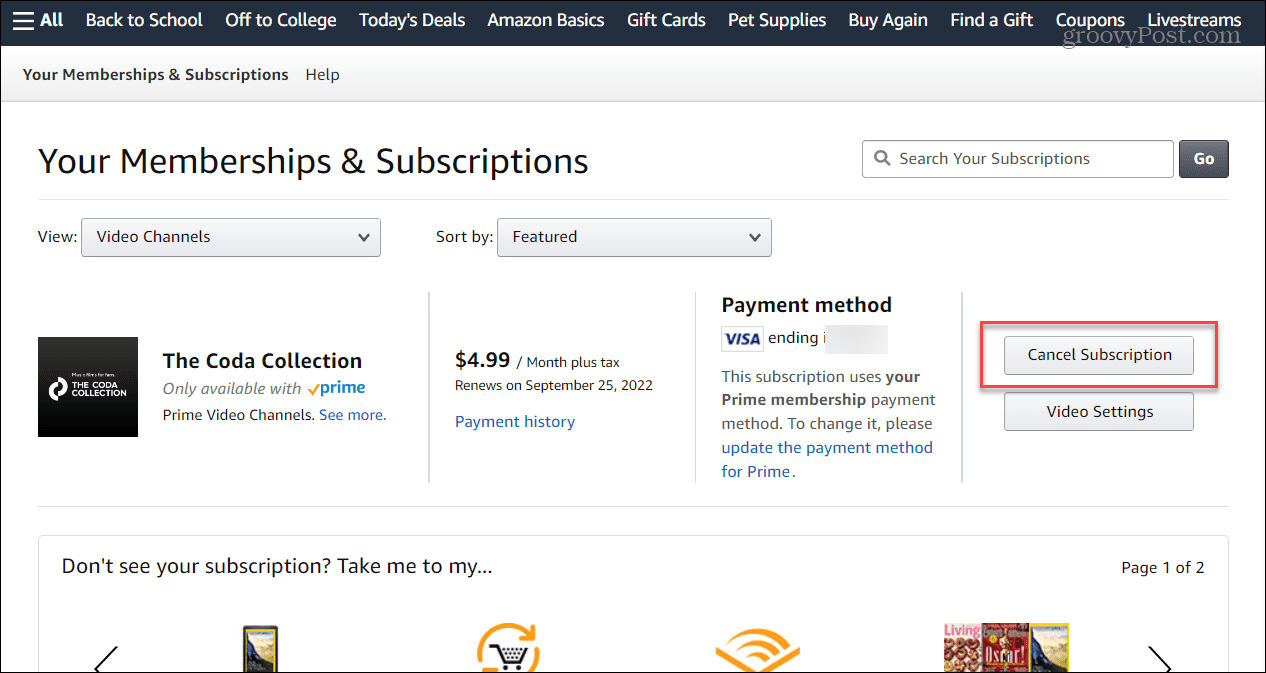
- Identify the “Manage Membership” option: Look for a link or button that says “Manage Membership,” “End Membership,” or “Update, Cancel, and More.” It’s often positioned on the right-hand side of the page, below your membership details.
- Click “End Membership and Benefits”: Clicking “Manage Membership” will typically reveal a dropdown or a new set of options. Select “End Membership and Benefits” or a similar phrasing. This is the critical juncture where the cancellation process begins. Amazon’s interface is designed to ensure you are fully aware of what you are doing, so expect some prompts.
Executing the Cancellation
Amazon employs a series of prompts to confirm your intent to cancel, often highlighting the benefits you will lose. This is a standard user experience design to reduce accidental cancellations.
- Review the benefits reminder: Amazon will display a page reminding you of the various Prime benefits you will forgo upon cancellation (e.g., free shipping, Prime Video, Prime Music). Take a moment to review this.
- Proceed with cancellation: Scroll down the page. You will typically find options like “Keep My Benefits,” “Remind Me Later,” and “End My Benefits” or “Cancel My Trial.” To proceed with cancellation, select the “End My Benefits” or “Cancel My Trial” option. Be attentive to the wording; Amazon sometimes strategically places the “Keep My Benefits” button prominently.
- Final confirmation: You might be presented with one more confirmation screen. Confirm your decision to cancel the trial. The system is designed to provide multiple opportunities to reconsider, emphasizing the value of the service.
Confirmation and Verification
After successfully navigating the prompts, Amazon will provide confirmation of your cancellation.
- Look for confirmation message: A confirmation message will appear on your screen, indicating that your Prime trial has been cancelled. This message usually specifies the date until which you can still enjoy Prime benefits (the original end date of your trial) before your membership officially ceases.
- Email confirmation: Amazon typically sends a confirmation email to the email address associated with your account. It’s good practice to check your inbox (and spam folder) for this email. This serves as official documentation of your cancellation. Keep this email for your records.
- Verify on “Your Prime Membership” page: For absolute peace of mind, revisit the “Your Prime Membership” page by following the initial navigation steps. The page should now clearly state that your membership is cancelled or will end on a specific date, and that you will not be charged.
Cancelling Your Prime Trial on Mobile Devices
For users who primarily manage their digital services on the go, Amazon also offers a streamlined cancellation process via its mobile app and mobile browser interface. While the steps are largely similar to the desktop version, there might be slight variations in button placement or menu navigation.
Via the Amazon App
- Open the Amazon Shopping App: Launch the Amazon app on your smartphone or tablet. Ensure you are signed into the correct account.
- Access “Your Account”: Tap the three horizontal lines (menu icon) usually located in the bottom right or top left corner of the app screen. Scroll down and tap on “Account” or “Your Account.”
- Navigate to “Prime Membership”: Within the “Account” section, look for “Prime Membership” or “Manage Prime Membership” and tap on it.
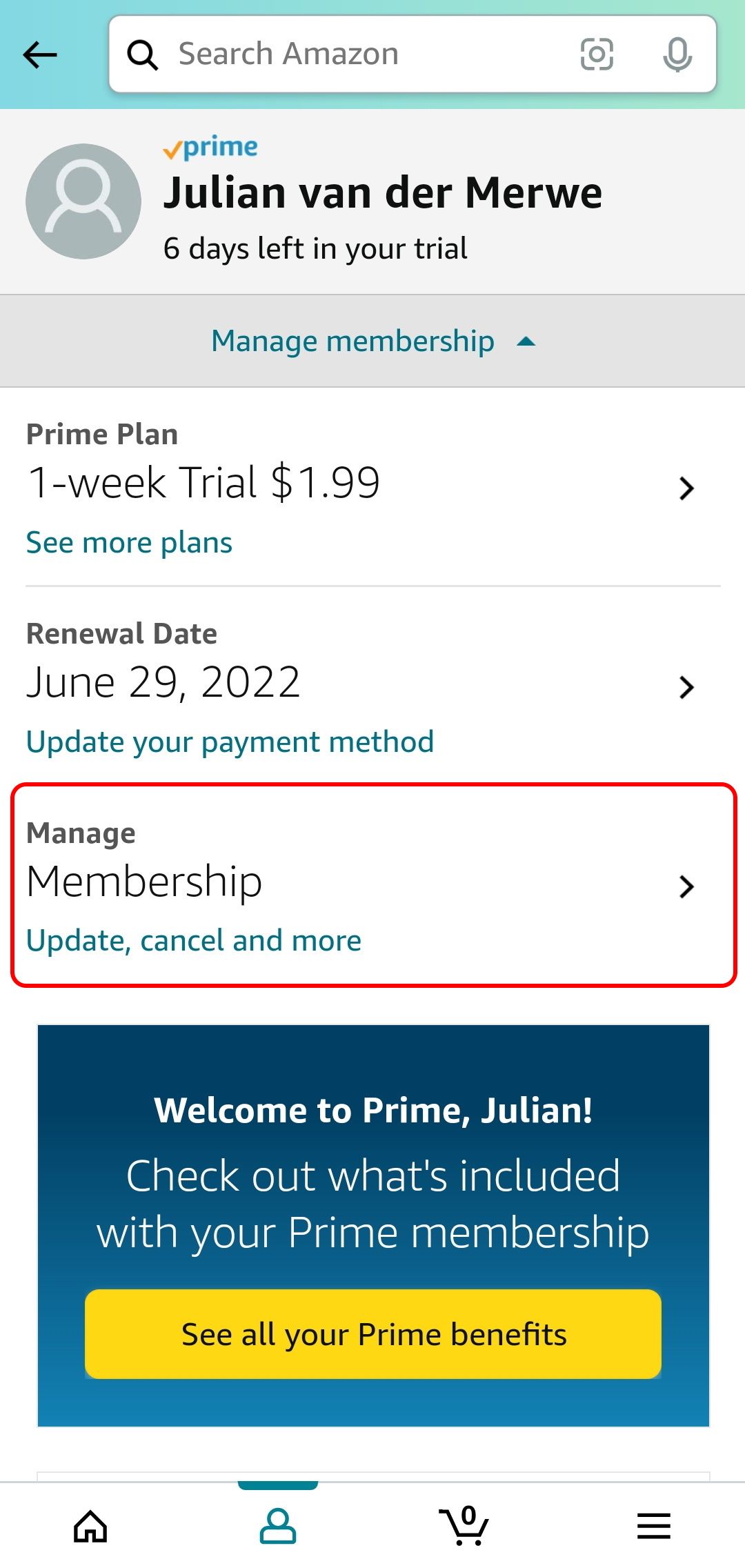
- Manage Membership Settings: On the Prime Membership screen, you will see your membership details. Look for an option like “Manage Prime Membership” or “End Membership and Benefits.” Tap on it.
- Follow cancellation prompts: Similar to the desktop experience, you will be guided through a series of screens reminding you of benefits and asking for confirmation. Tap “End My Benefits” or “Cancel My Trial” as appropriate to proceed with the cancellation.
- Confirmation: You’ll receive an in-app confirmation and typically an email confirming the cancellation.
Using a Mobile Browser
If you prefer not to use the app or encounter issues, using a mobile web browser is a viable alternative.
- Open your mobile browser: Launch your mobile browser (e.g., Chrome, Safari, Firefox for mobile) and go to
amazon.com. - Sign in: Sign in to your Amazon account if you haven’t already.
- Request Desktop Site (Optional but Recommended): Sometimes, mobile interfaces can condense options. If you find navigation difficult, you might consider requesting the “Desktop Site” option from your browser’s settings menu (often found by tapping the three dots or lines in the browser’s URL bar). This will load the full desktop version of the site, making the previous desktop instructions directly applicable.
- Navigate as per desktop instructions: Follow the “Step-by-Step Guide to Cancelling Your Prime Trial on Desktop” from the “Account & Lists” dropdown. The visual layout will be adjusted for mobile, but the menu names and options should remain consistent.
- Confirm cancellation: Complete the cancellation steps and look for both on-screen and email confirmations.
Important Considerations Before and After Cancellation
Cancelling a digital subscription, even a trial, involves more than just clicking a button. Thoughtful timing and understanding the implications are key.
When to Cancel for Maximum Benefit
Amazon’s policy for trial cancellations is generally user-friendly: you can cancel your trial at any point before the end date, and you will retain access to Prime benefits until that original end date.
- Cancel Early, Enjoy Fully: The optimal strategy is often to cancel your trial shortly after you sign up, or at least a few days before the trial end date, if you are certain you don’t want to continue. By doing this, you prevent the automatic charge and still get to use Prime for the remainder of your trial period. For example, if your trial starts on January 1st and ends on January 31st, you can cancel on January 5th and still enjoy Prime benefits until January 31st without being charged.
- Set Reminders: Given the automatic renewal mechanism, setting a digital reminder on your calendar (e.g., Google Calendar, Outlook Calendar) a few days before your trial is due to end is a prudent technical safeguard. This gives you ample time to evaluate the service and execute the cancellation if desired.
What Happens to Your Benefits After Cancellation?
Upon cancellation of your Prime trial (or paid membership), access to all Prime-exclusive benefits will cease on the effective end date of your trial period.
- Shipping Benefits: You will no longer qualify for free expedited shipping. Orders will revert to standard shipping rates and speeds.
- Digital Content: Access to Prime Video, Prime Music, Prime Reading, and any other included digital content libraries will be revoked. Any movies or shows you were watching will become unavailable unless purchased individually.
- Other Perks: Benefits like Prime Gaming (formerly Twitch Prime), unlimited photo storage, and Whole Foods Market discounts will also be discontinued.
- Purchases: Any digital content or items you purchased (not just streamed or borrowed through Prime) will remain accessible in your account. Your Amazon account itself will remain active for regular shopping.
Potential Issues and Troubleshooting
While the cancellation process is usually smooth, technical glitches or user errors can occur.
- No “Cancel” Option: If you don’t see the “End Membership” or “Cancel Trial” option, it’s possible you are not logged into the correct account, or your trial has already ended and converted to a paid membership. In the latter case, you would be cancelling a paid membership, which might offer a prorated refund depending on usage.
- Payment Already Processed: If you cancel but see a charge for Prime, it usually means the cancellation was initiated after the trial period officially ended. Contacting Amazon Customer Service is the next step.
- Confirmation Email Not Received: Check your spam or junk folder. If still not found, revisit “Your Prime Membership” page to confirm the status directly.
- Account Access Issues: If you’re unable to log into your account, use Amazon’s password recovery tools or contact customer support directly. They can verify your identity and assist with account access and cancellation.

Rejoining Prime in the Future
Should your needs change, rejoining Amazon Prime is a straightforward process. You can simply sign up for a paid membership at any time through the “Your Prime Membership” section. Amazon often offers promotional periods or discounts to returning members, so keep an eye out for these. Your previous Amazon purchase history and account details will remain intact.
By understanding the digital pathways and system interactions involved, cancelling your Amazon Prime trial becomes a simple, controlled process, allowing you to manage your online subscriptions efficiently and avoid unwanted charges.
aViewFromTheCave is a participant in the Amazon Services LLC Associates Program, an affiliate advertising program designed to provide a means for sites to earn advertising fees by advertising and linking to Amazon.com. Amazon, the Amazon logo, AmazonSupply, and the AmazonSupply logo are trademarks of Amazon.com, Inc. or its affiliates. As an Amazon Associate we earn affiliate commissions from qualifying purchases.