
One of the cornerstones of macOS’s robust security architecture is its user account system, which carefully delineates privileges between different types of users. While this design is paramount for maintaining system stability and thwarting malicious software, it often introduces a common challenge for standard users: the inability to install new applications without administrative intervention. Whether it’s a family computer, a shared device in an educational setting, or a workplace Mac, the friction between security and convenience is a frequent point of frustration.
This comprehensive guide delves into the intricacies of macOS user accounts and explores various strategies to empower standard users to install programs, all while maintaining a strong emphasis on digital security and best practices. We’ll navigate the “how-to” of granting installation privileges, discuss the underlying security implications, and offer solutions ranging from simple, one-time allowances to sophisticated organizational deployment methods. For anyone managing a Mac with multiple users, understanding these dynamics is crucial for fostering both productivity and peace of mind.
Understanding macOS User Accounts: The Foundation of Security
Before we dive into solutions, it’s essential to grasp the fundamental differences between the types of user accounts on macOS and why Apple designed them this way. This understanding is the bedrock upon which all subsequent strategies are built, highlighting the critical balance between accessibility and system integrity.
Administrator Accounts: The Keys to the Kingdom
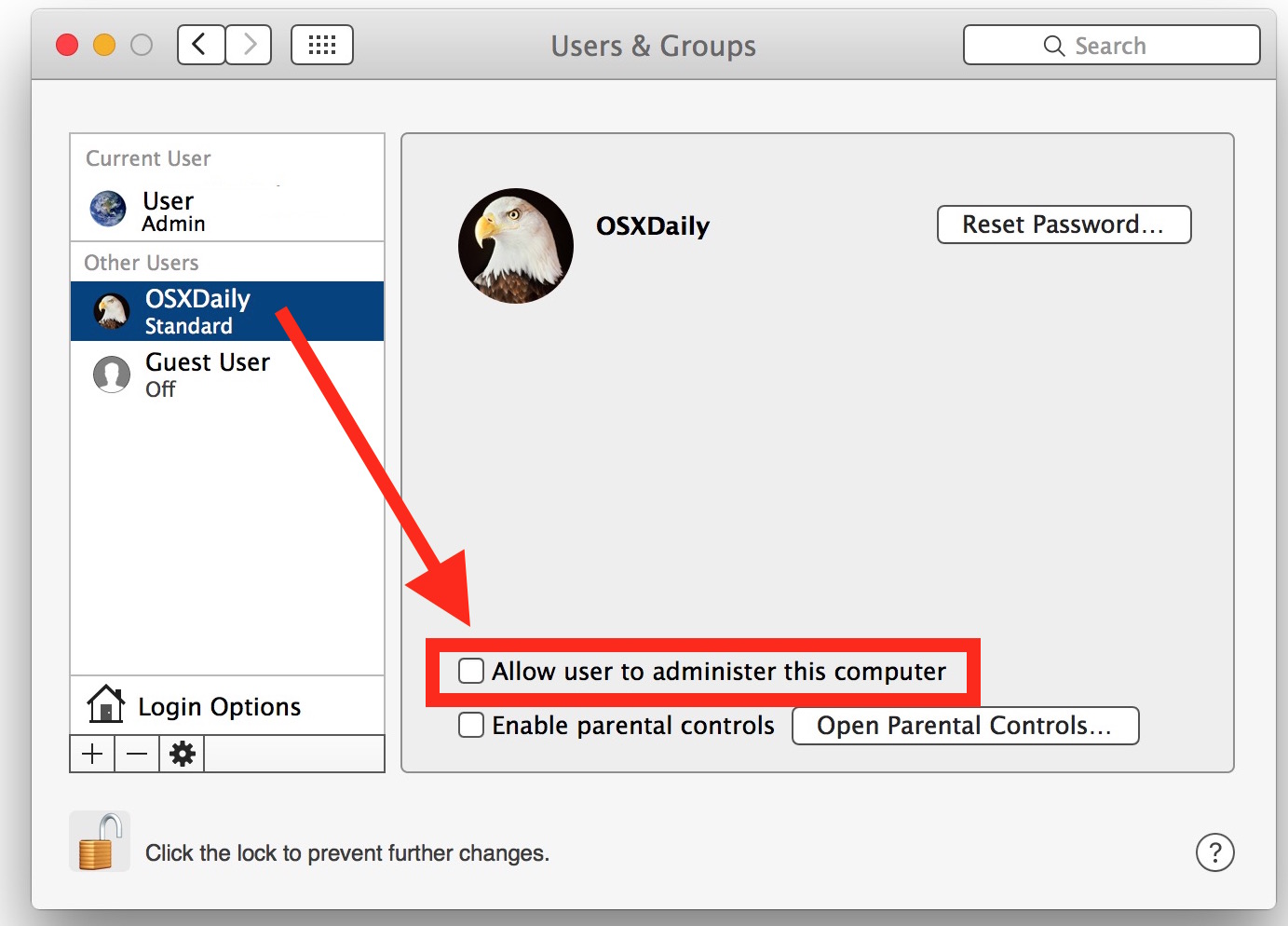
An Administrator account on a Mac holds the highest level of system privileges. Users with admin accounts can:
- Install and remove software for all users on the computer.
- Change system-wide settings, including network configurations and security preferences.
- Create, modify, and delete other user accounts.
- Access and modify core system files and directories.
- Use commands requiring elevated privileges (e.g.,
sudoin Terminal).
Essentially, an administrator has full control over the entire operating system. While indispensable for setting up and maintaining a Mac, continuous use of an administrator account for daily tasks can expose the system to unnecessary risks, as any malicious software executed would also inherit these elevated privileges.
Standard Accounts: The Secure Daily Driver
Standard accounts, by contrast, operate with limited privileges. Designed for day-to-day computing, a standard user can:
- Run applications already installed on the system.
- Create and manage their own files and documents within their home directory.
- Change personal settings that do not affect other users or the overall system (e.g., desktop background, Safari preferences).
- Connect to networks and printers that have been configured by an administrator.
What a standard user cannot do, crucially, is install software that requires system-wide access, modify global system settings, or make changes that would impact other users or the operating system’s core functionality. This restriction is a primary security feature, preventing unauthorized installations, accidental system modifications, and limiting the potential damage if a standard user account is compromised by malware. It acts as a robust barrier against many common threats, underpinning the “digital security” aspect of a healthy tech environment.
The Dilemma: Convenience vs. Control
The dilemma is clear: standard accounts offer superior security by isolating user activities and preventing unauthorized system changes. However, this security comes at the cost of convenience when a standard user legitimately needs to install a new application for work, education, or personal use. The default macOS behavior, which requires an administrator password for most software installations, necessitates an administrator’s presence or intervention.
This tension is especially pronounced in environments where tech literacy varies, or where administrators wish to provide a controlled but functional computing experience. The goal is to find methods that allow standard users the necessary flexibility without undermining the inherent security advantages of macOS’s account structure. This isn’t just about functionality; it’s about optimizing productivity within a secure framework – a classic intersection of “Tech” and “Productivity” principles.
Methods for Empowering Standard Users to Install Software
Bridging the gap between security and convenience requires a nuanced approach. Depending on the specific context, user’s technical proficiency, and the level of trust involved, several methods can be employed to enable standard users to install programs on a Mac. Each method carries its own set of advantages and considerations, allowing administrators to tailor the solution to their unique needs.
Method 1: Temporary Administrator Privileges (The “Just-in-Time” Approach)
This is arguably the most common and straightforward method, often referred to as “admin elevation.” When a standard user attempts to install an application that requires system-wide access, macOS will present an authentication dialog. At this point, an administrator can simply enter their username and password to authorize the installation.
How it Works:
- The standard user downloads or attempts to install a program.
- During the installation process, a macOS security dialog appears, stating that “Installer wants to make changes” and asking for an administrator username and password.
- An administrator (who knows the password) types their credentials into this dialog.
- The installation proceeds with temporary elevated privileges, affecting only the current task.
Pros:
- Highly Secure: No permanent changes are made to the standard user’s account privileges. The admin password is only used for the specific installation event.
- Simple and Direct: Requires minimal technical expertise from the administrator beyond knowing their password.
- Control: The administrator maintains ultimate control over what software is installed.
Cons:
- Requires Administrator Presence: An administrator must be physically present or remotely accessible each time software needs to be installed, which can be inconvenient in busy environments.
- Not Scalable: Impractical for managing a large number of standard users or frequent software installations.
This method is ideal for family Macs or single-user environments where an admin is readily available. It’s a pragmatic balance, ensuring critical “digital security” while allowing necessary software installations.
Method 2: Leveraging the App Store and Approved Sources
Apple’s App Store is a curated marketplace designed for ease of use and, crucially, enhanced security. Applications downloaded from the App Store typically do not require an administrator password for installation or updates by a standard user, provided the initial setup of the user account and the Mac itself was done by an administrator.
How it Works:
- A standard user opens the Mac App Store application.
- They browse and download desired applications.
- The app installs directly into the
/Applicationsfolder (or their user-specific Applications folder) without prompting for an administrator password.
Furthermore, apps downloaded directly from an identified developer’s website (outside the App Store) are also subject to Apple’s Gatekeeper technology. If the app is properly signed and notarized by Apple, a standard user can generally open it the first time with a right-click and “Open” (bypassing Gatekeeper’s initial block), and in many cases, install it if it’s designed to install within their user directory or if it only requires temporary elevation that an admin can authorize once.
Pros:
- Highest Security: Apps are vetted by Apple, reducing the risk of malware.
- Automatic Updates: App Store apps often update automatically, ensuring users have the latest, most secure versions.
- Convenience for Standard Users: No admin intervention needed for App Store installations.
- Trust and Brand: Relies on the trusted “Brand” of Apple and identified developers for software reliability.
Cons:
- Limited Selection: Not all software is available on the Mac App Store. Many professional applications and open-source tools are distributed directly by developers.
- Gatekeeper Prompts: While generally allowing identified developer apps, occasional Gatekeeper prompts for the first launch might require an admin’s initial bypass.
Encouraging standard users to rely on the App Store is a foundational best practice for secure software management on macOS.
Method 3: Adjusting Gatekeeper Settings (With Caution)
Gatekeeper is a macOS security feature that helps protect your Mac from malicious applications by ensuring that only trusted software runs on your system. By default, it allows apps downloaded from the App Store and “identified developers.” While loosening these settings for a standard user is generally discouraged, understanding how to manage it can be helpful for legitimate, obscure applications.
How it Works (for Administrators to adjust):
- An administrator navigates to System Settings > Privacy & Security.
- Scroll down to the “Security” section.
- Under “Allow applications downloaded from:”, the options are typically:
- App Store: Most restrictive, only allows apps from Apple’s App Store.
- App Store and identified developers: The default and recommended setting, allowing apps from the App Store and developers who have registered with Apple and digitally signed their applications.
- Historically, there was an “Anywhere” option, but this has been removed for security reasons. For unsigned apps, the method is to right-click and “Open” once, which only an admin can typically do the first time.
Pros (of “App Store and identified developers”):
- Balanced Security: Allows for a broader range of legitimate software while still blocking unknown, potentially malicious sources.
- User Empowerment: Standard users can generally run and sometimes install notarized applications from identified developers without constant admin intervention (though an admin might need to bypass Gatekeeper’s first-launch prompt initially).
Cons (of trying to circumvent Gatekeeper):
- Significant Security Risk: Attempting to force macOS to run unsigned or unknown applications drastically lowers the security posture of the system, potentially exposing it to malware, ransomware, and other vulnerabilities. This directly conflicts with good “digital security” practices.
- Requires Admin Privilege: Changing these system-wide settings always requires an administrator password.
Important Note: For a standard user to run an app from an unidentified developer, an administrator must typically right-click the application, choose “Open,” and confirm the action, providing their password if prompted. This action often “whitelists” that specific application, allowing the standard user to launch it subsequently. Administrators should exercise extreme caution and verify the legitimacy of any application before performing this action.
Method 4: Utilizing Managed Accounts and Parental Controls
For environments with specific users, such as children or students, macOS’s Parental Controls (now integrated into Screen Time in System Settings) offer a more granular way to manage application access and installation. While not designed for general software installation, it allows an administrator to pre-approve specific applications.

How it Works (for Administrators):
- An administrator navigates to System Settings > Screen Time.
- Select the standard user’s account you wish to manage.
- Go to Content & Privacy.
- Under the “Apps” section, you can define which applications the managed user is allowed to run.
- Administrators can also whitelist applications or categories of applications that a child can install or use. This isn’t for general installation but for allowing specific, pre-approved software.
Pros:
- Granular Control: Excellent for highly controlled environments, ensuring users only access sanctioned software.
- Safety for Children: Prevents unauthorized or inappropriate software installations.
Cons:
- Restrictive: Not suitable for empowering users with general installation capabilities. It’s more about limitation than enablement.
- Maintenance: Requires active management by an administrator to update allowed applications.
This method aligns well with ensuring “digital security” and “productivity” in a controlled family or educational context, safeguarding users while providing necessary tools.
Navigating Security and Best Practices for Software Installation
Empowering standard users to install software, even with the best intentions, inherently introduces potential security risks. Therefore, it’s paramount to couple any enablement strategy with robust security measures and educational initiatives. These best practices are not just for administrators but for all users who interact with the system.
The Importance of Source Verification
The vast majority of malware and unwanted software infiltrates systems through untrusted or compromised download sources. Always, without exception, advise users to:
- Download from Official Websites: Direct downloads from the software vendor’s official site are generally the safest.
- Avoid Third-Party Download Sites: Websites that aggregate software downloads often bundle legitimate programs with adware, spyware, or other unwanted applications.
- Beware of Pirated Software: Illegally obtained software from torrent sites or cracked software repositories are notorious vectors for malware. The temporary savings are never worth the long-term security headache and potential data loss. This also touches upon the “Brand” aspect, as legitimate software houses rely on ethical distribution.
Regular Software Updates: A Non-Negotiable
Software vulnerabilities are discovered constantly. Developers release updates and patches to address these weaknesses, and failing to install them leaves your system exposed.
- macOS Updates: Ensure the operating system is kept up to date. Enable automatic updates where appropriate, or schedule regular checks.
- Application Updates: Most modern applications have built-in update mechanisms. Encourage users to allow or perform these updates promptly. Outdated software is a prime target for exploits.
Antivirus and Malware Protection
While macOS boasts strong built-in security features like XProtect and Gatekeeper, adding a reputable third-party antivirus/anti-malware solution provides an extra layer of defense, especially in environments where users might occasionally download from less-than-ideal sources.
- Choose a trusted “Brand” of antivirus software.
- Ensure it’s kept up to date and performs regular scans.
Educating Users: The Human Firewall
Technology provides tools, but human behavior is often the weakest link in any security chain. Educating standard users about digital hygiene and threat awareness is arguably the most effective defense.
- Phishing Awareness: Teach users how to recognize suspicious emails, links, and pop-ups.
- Password Hygiene: Emphasize strong, unique passwords and the benefits of a password manager.
- Consequences of Risky Behavior: Explain the potential impact of downloading unauthorized software or visiting malicious websites, not just on their own data but on the entire system.
- “When in Doubt, Ask”: Encourage users to consult an administrator if they are unsure about the legitimacy of a download or installation prompt.
Beyond the Basics: Advanced Solutions and Enterprise Context
For tech-savvy users, developers, or larger organizations, standard methods might not be efficient or scalable enough. Fortunately, macOS, with its UNIX-based core, offers more advanced tools and frameworks for software management.
Package Managers: Homebrew and MacPorts (For the Tech-Savvy)
Package managers like Homebrew and MacPorts are command-line tools that simplify the installation, updating, and removal of open-source software, developer tools, and utilities.
How they Work:
- Initial Setup: Installing Homebrew or MacPorts itself typically requires administrator privileges as it involves installing system-wide components into directories like
/usr/local. - Subsequent Installations: Once the package manager is set up, standard users can sometimes install packages without an admin password, provided the packages are designed to install into user-writable locations (like their home directory) or if the initial setup correctly configured permissions for common installation directories. However, many packages still require elevated privileges for system-wide installation, often handled by the package manager prompting for the admin password when needed.
Pros:
- Efficiency: Automates dependency resolution and installation, saving time and effort.
- Vast Repositories: Access to thousands of open-source projects not available in the App Store.
- Version Control: Easier to manage different versions of software.
Cons:
- Technical Barrier: Requires comfort with the command line, making it unsuitable for average users.
- Initial Admin Requirement: The package manager itself needs an admin to install.
- Potential for Conflict: Can sometimes lead to conflicts with other installed software if not managed carefully.
These tools are invaluable for specific “Tech” audiences, especially developers and system administrators.
Scripting and Automation (For IT Administrators)
For administrators managing multiple Macs, manual installation or individual admin elevation is impractical. Shell scripting, often combined with tools like osascript or defaults write, allows for automated software deployment.
How it Works:
- Administrators write scripts (e.g., shell scripts) that can:
- Download installer packages (e.g.,
.pkgfiles). - Use the
sudo installer -pkgcommand to install software silently. - Modify system preferences or application settings.
- Download installer packages (e.g.,
- These scripts can be executed remotely or locally by an administrator.
Pros:
- Scalability: Deploy software to many machines efficiently and consistently.
- Consistency: Ensures all installations follow the same process, reducing errors.
- Customization: Scripts can be tailored to specific installation requirements.
Cons:
- High Technical Expertise: Requires strong scripting and macOS administration knowledge.
- Risk of Error: A poorly written script can cause system instability or security vulnerabilities.
This method ties directly into “Productivity” and “Digital Security” for larger organizations, streamlining IT operations.
Mobile Device Management (MDM) Solutions (For Organizations)
For businesses, schools, or any large organization managing numerous Apple devices, a Mobile Device Management (MDM) solution is the ultimate tool for centralized control and deployment.
How it Works:
- Devices are enrolled into the MDM system.
- Administrators can push applications (from the App Store or custom-built enterprise apps) directly to devices, often silently and without requiring user interaction or an admin password on the device.
- MDM allows for granular policy enforcement, security configuration, remote wiping, and inventory management.
- Users can sometimes access an “App Catalog” or “Self Service” portal to install approved applications without needing admin rights, as the MDM solution handles the privilege elevation in the background.
Pros:
- Enterprise-Grade Security and Control: Centralized management, policy enforcement, asset tracking.
- Effortless Deployment: Mass installation and updating of software.
- Scalability: Manages hundreds or thousands of devices with ease.
- User Empowerment (Controlled): Provides an approved list of apps for standard users to install on demand.
- Cost Efficiency: Reduces IT support overhead, contributing to “Business Finance” benefits.
Cons:
- Cost and Complexity: Significant investment in software and expertise, not suitable for individual users or small families.
- Requires Infrastructure: Needs server-side components (either cloud-based or on-premises).
MDM solutions represent the pinnacle of “Digital Security” and “Productivity” in enterprise “Tech” environments, demonstrating how strategic planning can lead to both robust security and seamless user experience.
Conclusion
Empowering standard users to install programs on a Mac is a nuanced endeavor that requires a careful balancing act between user convenience and system security. macOS’s inherent design prioritizes security, a smart move in an age of constant cyber threats. However, by understanding the different account types and leveraging the various methods available – from temporary administrator elevation and the trusted App Store to advanced package managers and comprehensive MDM solutions – administrators can effectively tailor an approach that meets their specific needs.
The ultimate goal is not to bypass security, but to integrate intelligent, controlled access that enhances productivity without compromising the integrity of the system. Whether managing a single family Mac or a vast corporate fleet, the principles remain the same: verify your sources, keep software updated, use additional layers of protection, and most importantly, educate your users. By applying these strategies thoughtfully, you can create a secure, efficient, and user-friendly macOS environment, fostering digital confidence and operational excellence for all.
aViewFromTheCave is a participant in the Amazon Services LLC Associates Program, an affiliate advertising program designed to provide a means for sites to earn advertising fees by advertising and linking to Amazon.com. Amazon, the Amazon logo, AmazonSupply, and the AmazonSupply logo are trademarks of Amazon.com, Inc. or its affiliates. As an Amazon Associate we earn affiliate commissions from qualifying purchases.