
The advent of smartwatches has revolutionized how we interact with our digital lives, offering unparalleled convenience right from our wrists. For Tesla owners, this integration extends to their vehicles, transforming the Apple Watch into a sophisticated remote control and monitoring device. Imagine locking your car, checking its charge status, or even pre-conditioning the cabin with a few taps or a voice command – all without pulling out your phone. This guide will walk you through the seamless process of adding and optimizing the Tesla experience on your Apple Watch, ensuring you harness the full potential of this powerful combination.
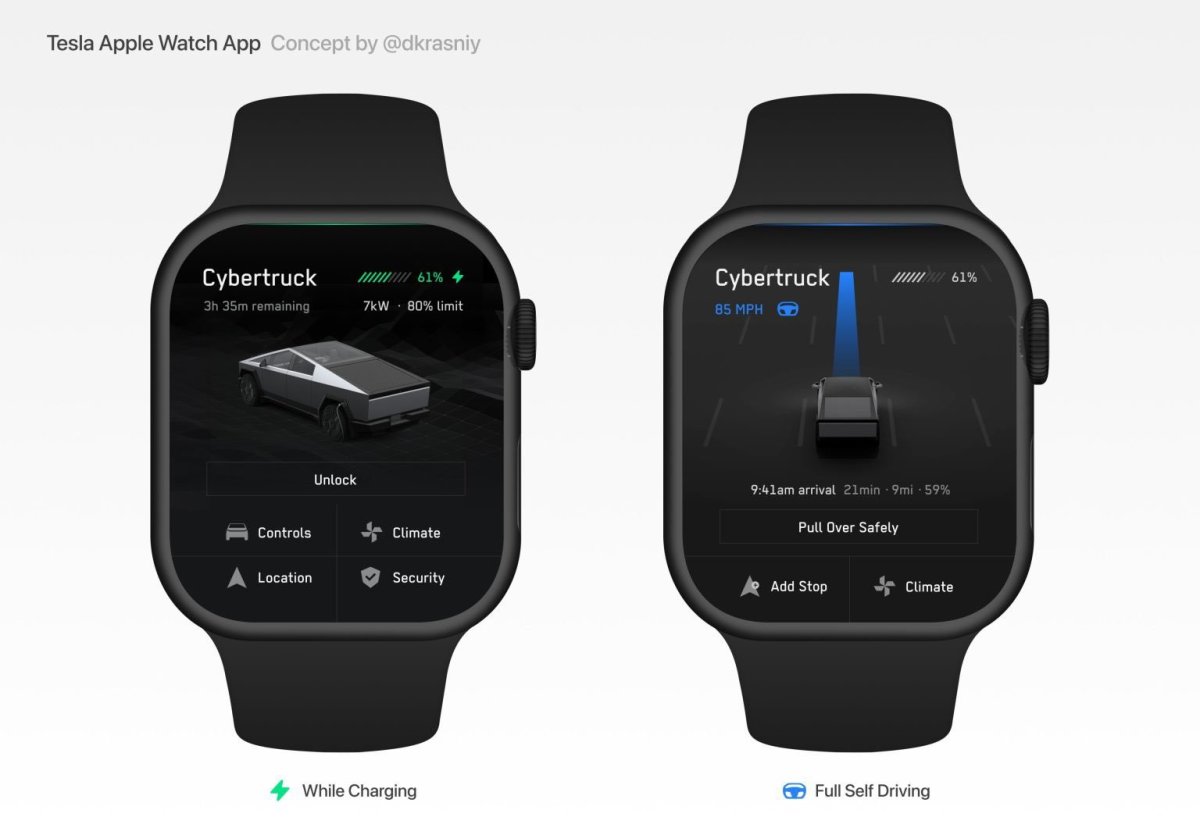
The ability to control a high-tech vehicle like a Tesla from a device as ubiquitous as the Apple Watch is a testament to the ongoing convergence of automotive and wearable technology. It elevates the user experience from merely driving to a more integrated, hands-free interaction with one’s vehicle. This tutorial delves into the technicalities, best practices, and the underlying technology that makes this futuristic control a daily reality for millions.
Understanding the Tesla App Ecosystem on Apple Watch
Before diving into the setup, it’s crucial to understand how the Tesla app integrates with watchOS. Unlike some applications that exist as fully standalone watch apps, the official Tesla app for Apple Watch operates primarily as an extension of its iPhone counterpart. This means that for the watch functionality to work, the Tesla app must first be installed and configured on your iPhone. The Apple Watch then mirrors and displays specific, optimized controls and data derived from the phone app. This architecture ensures a streamlined experience, leveraging the iPhone’s processing power and connectivity while providing quick-access functions on your wrist.
Official Tesla App Integration vs. Third-Party Solutions
For many years, the official Tesla app on iOS has included a companion app for the Apple Watch, offering essential controls. This integration is designed by Tesla itself, ensuring reliability and direct access to core vehicle functions. When you install the Tesla app on your iPhone, its watchOS component is typically installed automatically on your paired Apple Watch. This is the recommended and most secure method for controlling your Tesla from your wrist.
However, the watchOS ecosystem also features a variety of third-party applications designed to enhance or expand upon the official Tesla experience. These apps often provide different user interfaces, unique data visualizations, or specific functionalities that might not be present in the official app’s watch component. While some Tesla owners explore these alternatives for added features or aesthetic preferences, it’s vital to exercise caution. Third-party apps require you to grant them access to your Tesla account, which involves sharing your credentials. Always research and choose reputable apps with strong security practices if you decide to go this route. For the purpose of this guide, our primary focus will be on leveraging the official Tesla app for its inherent security and straightforward integration.
Prerequisites for Seamless Integration
To ensure a smooth setup and optimal performance of the Tesla app on your Apple Watch, several prerequisites must be met. These foundational steps establish the necessary technical environment for the two devices to communicate effectively and for the app to function as intended.
First and foremost, you must own a Tesla vehicle and have an active Tesla account. This account is essential for logging into the Tesla app on your iPhone and subsequently granting access to your car’s controls. Secondly, you need a compatible iPhone running a recent version of iOS, and a paired Apple Watch running a recent version of watchOS. Keeping both devices updated ensures compatibility, access to the latest features, and critical security patches. Typically, an iPhone 6s or newer (or SE 1st gen and later) running iOS 15 or later, paired with an Apple Watch Series 3 or newer running watchOS 8 or later, will provide the best experience. Finally, a stable internet connection (Wi-Fi or cellular) on your iPhone is crucial for the initial setup and for the Tesla app to communicate with your vehicle, especially when outside of Bluetooth range. Ensuring these basic requirements are in place will significantly reduce the likelihood of encountering issues during the installation and configuration process.
Step-by-Step Guide to Installing and Configuring the Tesla App on Your Apple Watch
The process of getting the Tesla app up and running on your Apple Watch is straightforward, primarily managed through your iPhone. By following these steps, you’ll soon be able to command your Tesla directly from your wrist.
Ensuring Your Devices Are Ready
Before beginning the installation, take a moment to ensure both your iPhone and Apple Watch are optimally prepared. Start by checking for and installing any available software updates for both devices. On your iPhone, go to Settings > General > Software Update. On your Apple Watch, open the Watch app on your iPhone, then navigate to General > Software Update. Keeping your devices updated is paramount for compatibility and to access the latest features and bug fixes. Next, ensure Bluetooth is enabled on your iPhone, as this is the primary means of communication between your iPhone and Apple Watch. While not strictly required for the watch app to function after installation, a stable Wi-Fi connection on your iPhone can speed up downloads and ensure reliable communication with Tesla’s servers. Finally, confirm that your iPhone is logged into your Tesla account within the Tesla app. Without this, the watch app will have no vehicle data to display or commands to send.
Installing the Tesla App on Your iPhone
The journey begins with your iPhone. If you haven’t already, download the official Tesla app from the Apple App Store. Simply open the App Store, search for “Tesla,” and tap “Get.” Once downloaded, open the app and log in using your Tesla account credentials. This step is critical, as the Apple Watch app functions as an extension of this iPhone application. Ensure you grant all necessary permissions, such as location services, which are often required for features like Sentry Mode or for the app to accurately display your vehicle’s location. A successful login and initial sync with your Tesla vehicle on the iPhone app confirms that the foundational software is correctly configured.
Enabling Apple Watch Integration
With the Tesla app successfully installed and logged in on your iPhone, the Apple Watch integration typically happens automatically.
- Automatic Installation: In most cases, if the Apple Watch is paired with your iPhone, the watchOS component of the Tesla app will automatically install in the background. After the iPhone app is set up, check your Apple Watch’s app list by pressing the Digital Crown. If you see the Tesla icon, it’s already installed.
- Manual Installation via Watch App: If the Tesla app doesn’t appear on your Apple Watch automatically, you can manually install it:
- Open the Watch app on your iPhone.
- Scroll down to the “Available Apps” section.
- Locate “Tesla” in the list and tap the “Install” button next to it.
- The app icon should then appear on your Apple Watch’s home screen.
- Checking and Adding to Dock/Complications: Once installed, you might want to customize its accessibility:
- Add to Dock: In the iPhone’s Watch app, go to “Dock,” tap “Edit,” and add Tesla to your favorite apps for quick access by pressing the side button on your Watch.
- Add Complications: For even quicker access to specific data (like charge status) or to launch the app, you can add Tesla complications to your watch face. On your iPhone, open the Watch app, go to “Face Gallery” or “My Faces,” select your desired watch face, and choose Tesla for one of the complication slots.
Initial Setup and Permissions
Upon opening the Tesla app on your Apple Watch for the first time, it will likely prompt you to ensure your iPhone app is active and logged in. The watch app draws its data directly from the iPhone app, so a successful login on the phone is paramount. While most permissions are handled on the iPhone, ensure that the Watch app has permission to access location data if you want to use features like “Summon” or locate your car from your wrist. In some instances, depending on your Apple Watch security settings, you might be asked for your Watch passcode upon first access or for certain secure actions. This is a standard security measure to prevent unauthorized control of your vehicle.
Exploring Key Features and Functionality on Your Wrist
Once the Tesla app is successfully installed and configured on your Apple Watch, a suite of powerful features becomes accessible, transforming your wearable into a direct command center for your vehicle.
Core Controls: Lock/Unlock, Climate, Charging Status
The most frequently used functions are designed for quick access. From the main screen of the Tesla Watch app, you can typically perform the following:
- Lock/Unlock: A prominent button usually allows you to remotely lock or unlock your Tesla. This is incredibly convenient if you’ve walked away from your car and forgotten to secure it, or if you need to let someone into the vehicle remotely.
- Climate Control: Adjusting your car’s cabin temperature, turning on or off the air conditioning or heating, and even activating defrost can be done with a few taps. This is particularly useful for pre-conditioning your car on a hot day or warming it up in the winter before you even step inside.
- Charging Status: Glance at your watch to see your current battery percentage, estimated range, and whether the vehicle is actively charging. This feature eliminates the need to open your phone app just to get a quick update on your car’s readiness.
The interface is intentionally minimalist and intuitive, designed for quick interactions rather than deep dives into settings, reflecting the Apple Watch’s “glanceable” design philosophy.
Monitoring Vehicle Status
Beyond immediate controls, the Tesla app on your Apple Watch also provides crucial monitoring capabilities that keep you informed about your vehicle’s state:
- Battery and Range: Always know your battery level and the corresponding estimated range, allowing you to plan your trips or charging stops efficiently.
- Vehicle Location: For those moments when you forget where you parked in a vast lot, the app can display your car’s last known location on a miniature map, often with an arrow guiding you toward it.
- Sentry Mode Status: Quickly verify if Sentry Mode is active, providing peace of mind that your vehicle is being monitored.
- Door/Window Status: Some versions or third-party apps might offer a quick check to see if doors are ajar or windows are down, helping you avoid security oversights.
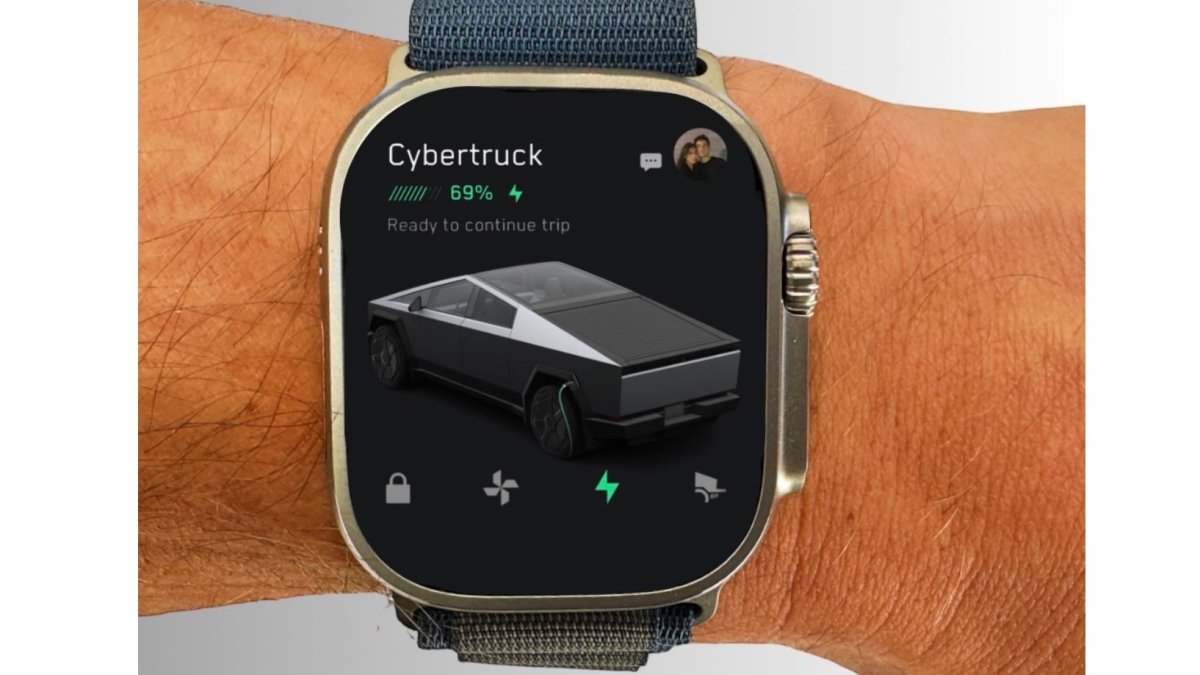
These monitoring features empower you with constant awareness of your vehicle’s status, enhancing security and convenience without interrupting your other activities.
Customizing Your Watch Face with Tesla Complications
For the ultimate in quick access, Tesla complications are invaluable. These small information displays on your watch face can show real-time data or act as shortcuts to specific app functions.
- Information Complications: You can often set a complication to display your car’s battery percentage or estimated range directly on your watch face. This way, a simple glance at your wrist provides essential information without even needing to open the app.
- App Launch Complications: A complication can also be configured to directly launch the Tesla app with a single tap, bypassing the app list. This is perfect for when you need to quickly execute a command like unlocking the car.
To add complications, long-press your Apple Watch face, tap “Edit,” swipe to “Complications,” and select “Tesla” for one of the available slots. This level of customization ensures that the most important Tesla functions are always just a glance or a tap away.
Using Siri with Your Tesla on Apple Watch
Leveraging Siri integration adds another layer of hands-free convenience. While direct Siri commands for specific Tesla functions through the official watch app might be limited compared to the iPhone, you can still use Siri to launch the Tesla app or, more importantly, to trigger Siri Shortcuts configured on your iPhone.
- Launching the App: Simply raise your wrist and say, “Hey Siri, open Tesla.”
- Siri Shortcuts: For more advanced voice commands, you can create custom Siri Shortcuts on your iPhone (e.g., “Good morning Tesla” to warm up the car and unlock doors) and then trigger these shortcuts directly from your Apple Watch by saying, “Hey Siri, [your shortcut phrase].” This extends the voice control capabilities significantly, allowing for complex multi-step actions with a simple vocal prompt. This feature truly embodies the futuristic interaction that a Tesla-Apple Watch pairing promises.
Troubleshooting Common Issues and Optimizing Performance
While the integration between the Tesla app and Apple Watch is generally robust, users may occasionally encounter issues. Understanding how to troubleshoot these problems and optimize performance ensures a consistently smooth experience.
Connectivity Problems
The most common issues stem from connectivity. The Apple Watch relies on its paired iPhone for most of its data and communication with the internet and your Tesla.
- Bluetooth and Wi-Fi: Ensure Bluetooth is active on your iPhone and that it’s properly paired with your Apple Watch. If your iPhone is connected to Wi-Fi, ensure it’s a stable connection. For controlling your Tesla when your iPhone is out of Bluetooth range, both your iPhone and Apple Watch need active cellular or Wi-Fi connections to reach Tesla’s servers. If commands fail, first check your iPhone’s network connectivity.
- App Refresh: Sometimes, the watch app just needs a refresh. Try force-quitting the Tesla app on your Apple Watch (press the side button until the power options appear, then long-press the Digital Crown to force quit, then reopen). You can also try quitting and restarting the Tesla app on your iPhone.
- Tesla Servers: Occasionally, the issue might be on Tesla’s end with their servers. If multiple users report problems, it’s likely a temporary outage. Check Tesla owner forums or status pages.
App Not Appearing on Watch or Not Syncing
If the Tesla app isn’t showing up on your Apple Watch or seems stuck:
- Re-sync: Open the Watch app on your iPhone and navigate to “My Watch.” If the Tesla app is under “Available Apps,” tap “Install.” If it’s under “Installed on Apple Watch,” try toggling it off and then back on to force a re-sync.
- Reinstall: As a last resort, uninstall the Tesla app from both your iPhone and Apple Watch. Then, reinstall the iPhone app from the App Store and follow the steps to install it on your Apple Watch. This often resolves corrupted installations.
- Check iPhone App Status: Ensure the Tesla app on your iPhone is open, logged in, and successfully communicating with your vehicle. The watch app cannot function independently without the iPhone app.
Performance Lag and Battery Drain
Using any app on your Apple Watch can consume battery, and if the Tesla app is constantly refreshing or experiencing connectivity issues, it might contribute to faster battery drain.
- Background App Refresh: In the iPhone’s Watch app, go to General > Background App Refresh and consider turning it off for apps you don’t need to update constantly, or for the Tesla app if you only use it occasionally. This can conserve both iPhone and Watch battery.
- Reduce Complications: While convenient, having too many complications that constantly update can affect battery life. Limit Tesla complications to only the most essential ones.
- Update Software: Ensure both watchOS and iOS are updated. Apple frequently releases optimizations that improve battery performance.
- Connectivity Stability: A constant struggle to connect (e.g., weak Wi-Fi or Bluetooth signal) will consume more power. Ensure a stable connection between your devices and to the internet.
When to Consider Third-Party Alternatives
While this guide focuses on the official Tesla app, some users turn to third-party apps for specific reasons:
- Enhanced Features: Some third-party apps offer unique features not found in the official watch app, such as more detailed driving metrics, advanced remote functions (e.g., summoning specific actions not available on the official watch app), or custom widgets.
- Customizable UI: Users might prefer a different visual interface or more customization options for their watch app experience.
- More Robust Complications: Some third-party apps may offer a wider array of complications or more reliable data updates for complications.
However, as mentioned previously, always prioritize security. Only download third-party apps from reputable developers, read reviews, and understand the permissions you are granting. While they can offer a richer experience, the official Tesla app remains the most secure and straightforward option for core functionalities.
The Future of Tesla and Apple Watch Integration
The synergy between Tesla vehicles and the Apple Watch is a constantly evolving landscape. As both technologies advance, we can anticipate even deeper and more intuitive integrations that will further streamline vehicle management and enhance the user experience.
Potential Enhancements and Updates
Future updates from both Tesla and Apple are likely to bring a host of improvements. We might see more native watchOS features leveraging the Apple Watch’s advanced sensors. Imagine proximity-based actions where your car prepares for your arrival as your watch detects you’re within a certain range, or even more nuanced health integration, perhaps using heart rate data to adjust cabin comfort based on driver stress levels. Tesla could also expand the official app’s capabilities to include more granular controls currently only available on the phone app, such as detailed charging schedules or personalized climate profiles. The ongoing development of watchOS is likely to offer developers more powerful APIs, which in turn could unlock richer, more responsive, and more secure interactions with Tesla vehicles. For instance, enhanced offline capabilities or more efficient data transfer protocols could make the watch app even more reliable in areas with spotty network coverage.
The Role of Wearable Technology in Vehicle Management
The trend towards wearable technology in automotive management is undeniable. Smartwatches are becoming an integral part of the connected car ecosystem, moving beyond mere remote controls to offer predictive insights and personalized experiences. This extends to security, with biometrics on the watch potentially offering advanced authentication for vehicle access, making car keys a relic of the past. Moreover, the integration could pave the way for more autonomous interactions, where the watch acts as a central hub for various vehicle-related data streams and commands, seamlessly bridging the gap between personal technology and the driving experience. As vehicles become increasingly software-defined, wearables like the Apple Watch will play a pivotal role in delivering a truly intelligent, intuitive, and integrated ownership experience.

Conclusion
Adding the Tesla app to your Apple Watch is a definitive step into the future of vehicle management. It transforms a powerful wearable into an indispensable tool for Tesla owners, offering unparalleled convenience, real-time insights, and sophisticated remote controls directly from your wrist. From locking your car and adjusting the climate to monitoring charge status and leveraging Siri commands, the integration streamlines your daily interactions with your Tesla, making ownership more intuitive and enjoyable.
While the core functionality relies on the official Tesla app and its iPhone counterpart, understanding the ecosystem, following the installation steps, and knowing how to troubleshoot common issues will ensure a smooth and reliable experience. As technology continues to evolve, the synergy between Tesla and Apple Watch promises even greater innovation, further embedding our vehicles into our connected lives. Embrace the convenience, master the controls, and enjoy the seamless fusion of cutting-edge automotive engineering and personal technology. Your Tesla, truly at your fingertips, and now, on your wrist.
aViewFromTheCave is a participant in the Amazon Services LLC Associates Program, an affiliate advertising program designed to provide a means for sites to earn advertising fees by advertising and linking to Amazon.com. Amazon, the Amazon logo, AmazonSupply, and the AmazonSupply logo are trademarks of Amazon.com, Inc. or its affiliates. As an Amazon Associate we earn affiliate commissions from qualifying purchases.