
QuickBooks, developed by Intuit, stands as a cornerstone in financial management software for small and medium-sized businesses worldwide. For many entrepreneurs, freelancers, and growing companies, the phrase “how do I use QuickBooks?” is not just a question about accounting; it’s an inquiry into mastering a powerful digital tool that streamlines operations, enhances data accuracy, and provides crucial insights into a business’s health. This guide dives deep into the technological aspects of QuickBooks, offering a tutorial-centric approach to understanding its architecture, core functionalities, and advanced features, all through the lens of effective software utilization. Far beyond mere number-crunching, using QuickBooks effectively is about leveraging sophisticated software design to automate, track, and report financial data with precision and ease.
Navigating the QuickBooks Ecosystem: Versions and Initial Setup
Before diving into specific features, understanding the different QuickBooks offerings and setting up your company file correctly is paramount. QuickBooks is not a monolithic application; it exists in several distinct versions, each tailored to different business needs and technical environments.
Understanding QuickBooks Editions: Online, Desktop, and Self-Employed
The first step in using QuickBooks is selecting the right platform. Each edition represents a different technological approach to financial management:
- QuickBooks Online (QBO): This is the cloud-based, subscription-service version. It offers unparalleled accessibility, allowing users to manage finances from any internet-connected device, be it a desktop, laptop, tablet, or smartphone. Its primary technological advantage lies in its constant updates, automatic backups, and seamless integration with a vast ecosystem of third-party cloud applications. The user interface is web-based, designed for intuitive navigation and real-time collaboration. This version is ideal for businesses requiring remote access, multi-user collaboration, and minimal IT overhead.
- QuickBooks Desktop (Pro, Premier, Enterprise): A locally installed software solution, QuickBooks Desktop stores all data on your local computer or a network server. While it offers robust features and a mature interface that many long-time users prefer, it requires manual updates and local backups. Its strength lies in its comprehensive feature set for more complex inventory, job costing, or industry-specific needs, particularly for those who prefer absolute control over their data’s physical location and do not require constant cloud access.
- QuickBooks Self-Employed: Specifically designed for freelancers, independent contractors, and sole proprietors, this stripped-down version focuses on separating business and personal expenses, tracking mileage, and simplifying tax estimations (Schedule C). Its interface is highly streamlined, prioritizing ease of use for individuals who don’t need full-fledged double-entry accounting but require a robust digital tool for income and expense categorization.
Choosing the right version is a critical technical decision that dictates your workflow, accessibility, and the range of features available.
Initial Setup: Configuring Your Company File
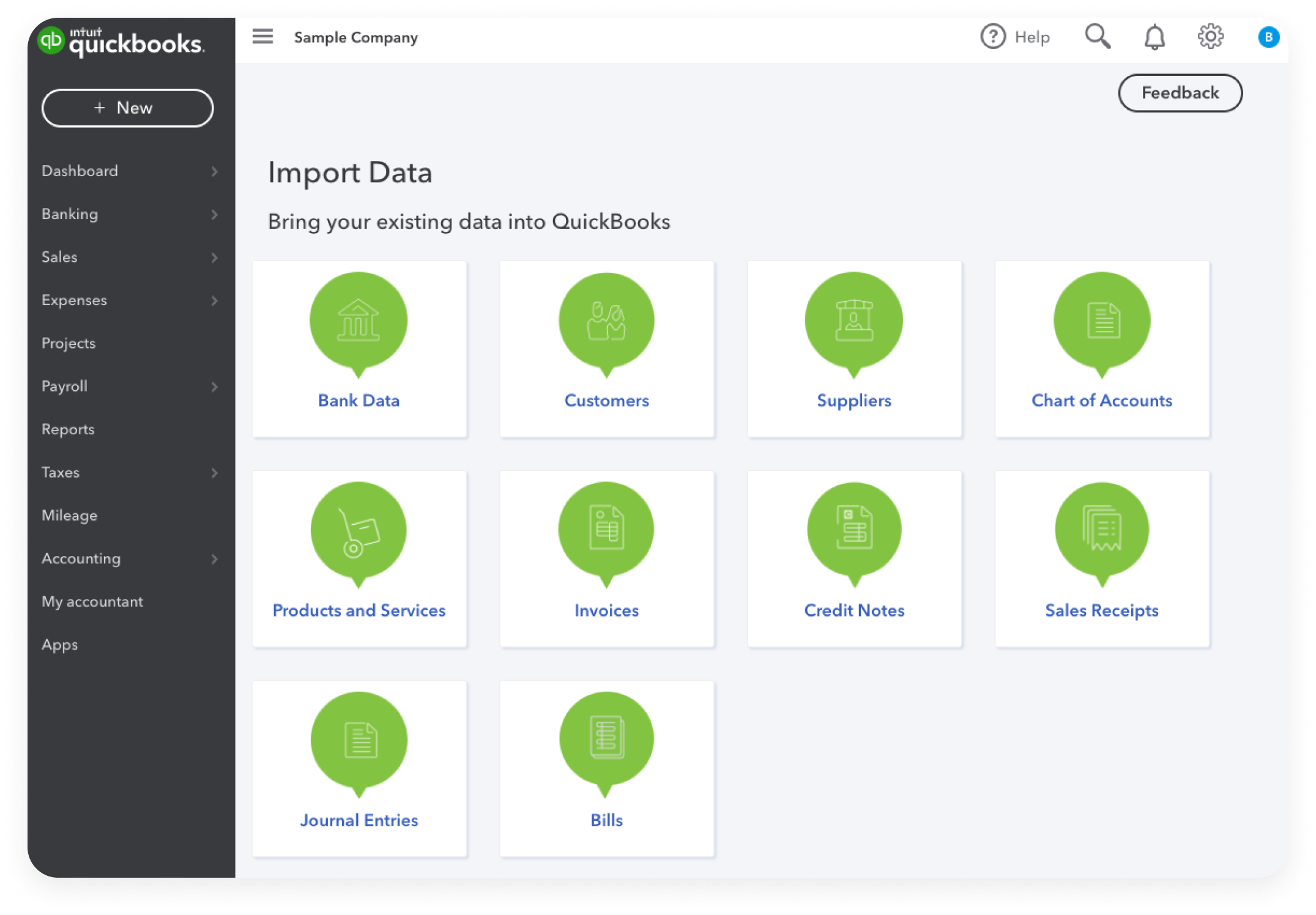
Once an edition is chosen, the initial setup process is crucial for establishing the digital framework of your business’s financial data. This involves:
- Company Information Input: Accurately entering legal business names, addresses, and contact details. This data forms the foundation for all invoices, reports, and tax documents generated by the software.
- Chart of Accounts Configuration: This is the backbone of your accounting system. QuickBooks provides a default chart of accounts, but customizing it to reflect your specific revenue streams, expense categories, assets, liabilities, and equity accounts is vital. A well-structured chart of accounts ensures that financial transactions are correctly categorized, enabling accurate reporting.
- Connecting Bank and Credit Card Accounts: For QuickBooks Online, this is a powerful automation feature. Linking financial accounts allows the software to securely download transactions directly, eliminating manual data entry and significantly reducing the risk of errors. Desktop versions offer similar capabilities but may require more manual initiation. This integration leverages secure APIs to pull data, providing real-time visibility into cash flow.
- Setting Up Sales Tax and Payment Methods: Configuring sales tax rates and integrating with payment processors (like QuickBooks Payments, Stripe, or PayPal) enables seamless transaction processing and compliance.
User Interface Overview: Dashboard and Navigation
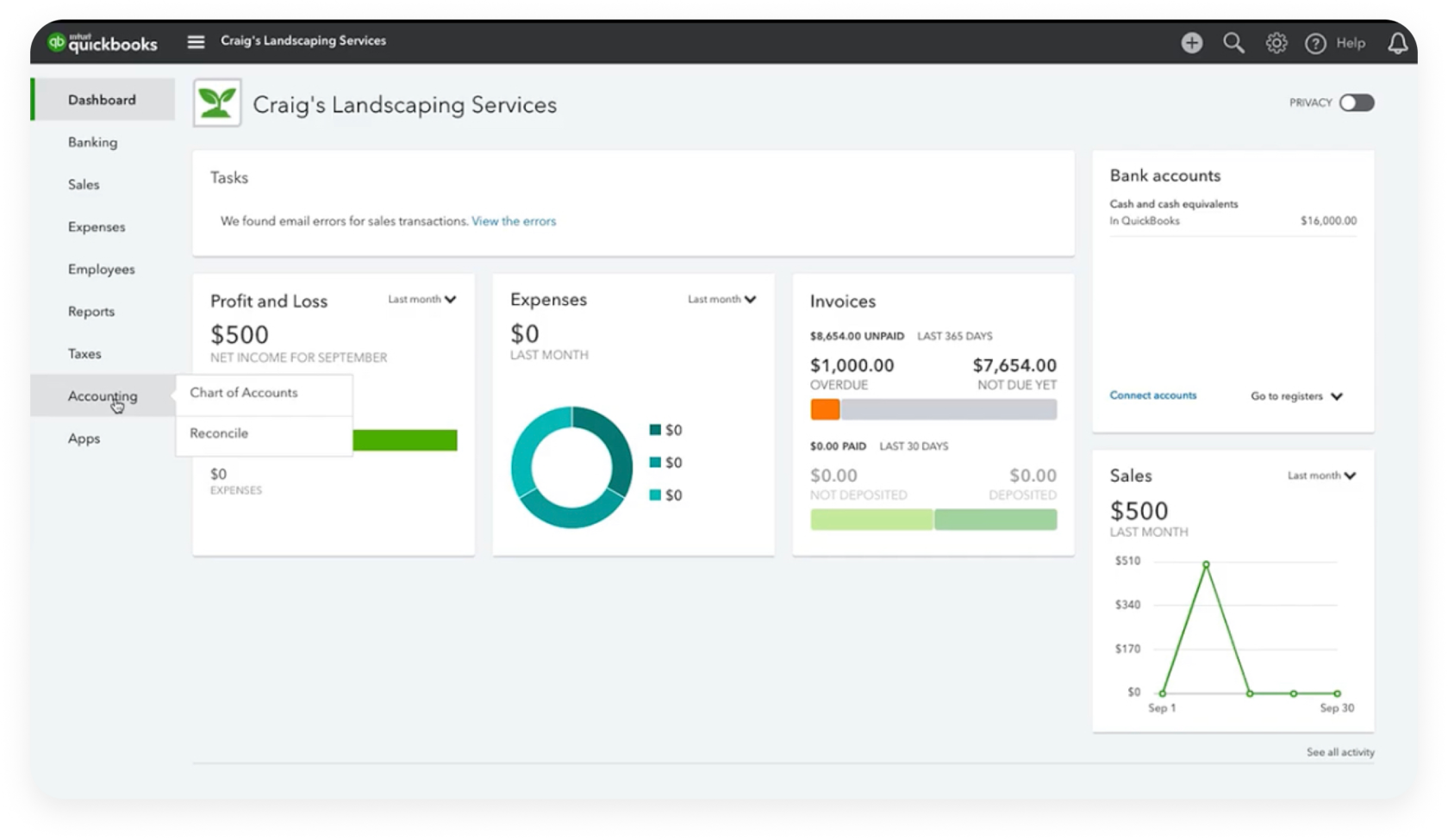
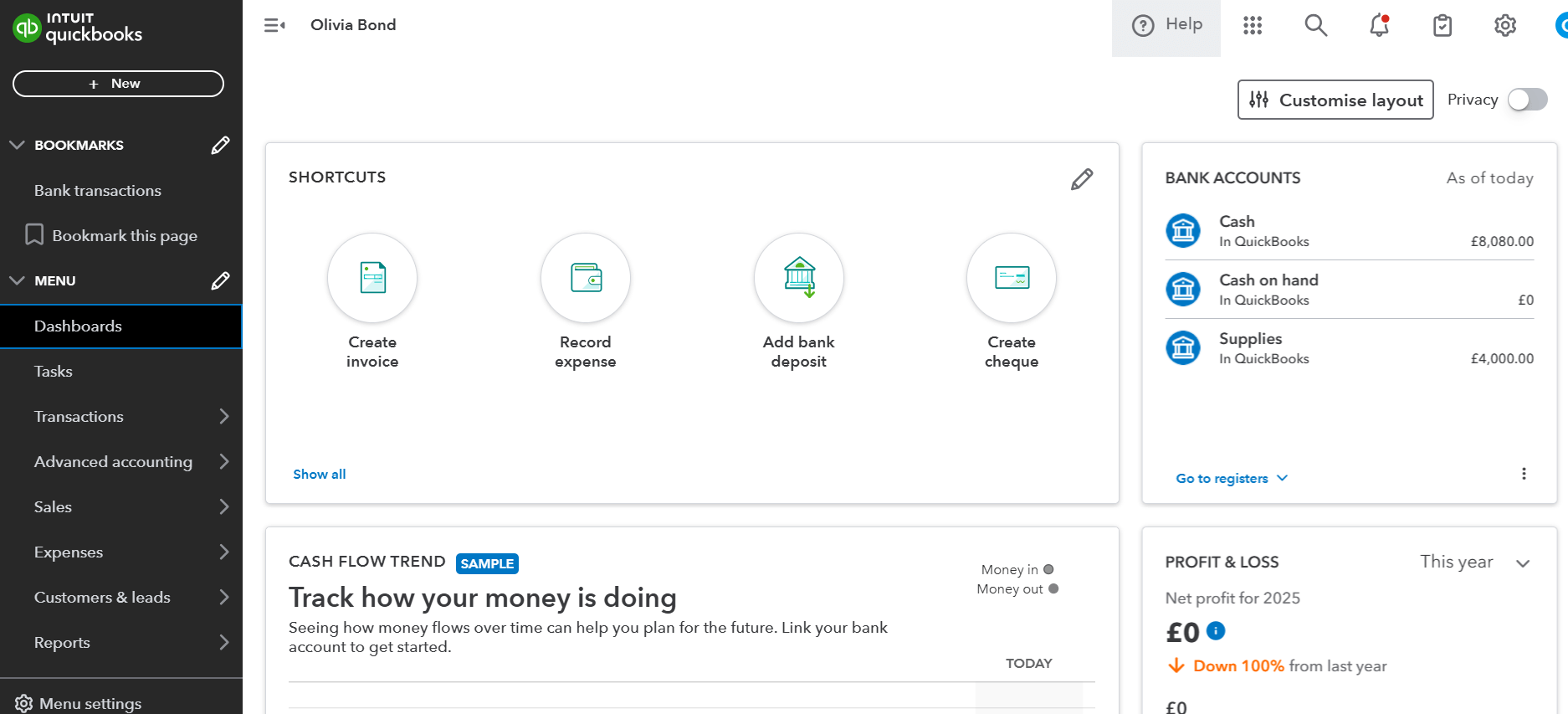
Across all versions, QuickBooks provides a dashboard or homepage that acts as your central command center. This interface is designed to offer a quick snapshot of your business’s financial health, often displaying key metrics like income, expenses, profit and loss, and bank balances. Navigating QuickBooks typically involves a menu bar or side panel providing access to different modules: Customers (Sales), Vendors (Expenses), Banking, Employees (Payroll), Reports, and Apps. Understanding this hierarchical structure is key to efficiently moving through the software and accessing its various functionalities.
Core Functionalities: Mastering Data Input and Management
The true power of QuickBooks lies in its robust set of core functionalities designed for efficient data input, categorization, and management. These modules represent the digital tools for managing the daily financial pulse of your business.
Streamlining Income Management: Invoicing and Sales Receipts
QuickBooks digitizes and automates the entire sales cycle:
- Creating and Sending Invoices: The software allows for the creation of professional, customizable invoices. Users can input customer details, itemize products or services, apply discounts, and calculate sales tax automatically. Digital invoices can be sent directly from the software via email, offering tracking capabilities and improving cash flow by prompting faster payments.
- Recording Sales Receipts: For immediate transactions (e.g., retail sales), sales receipts provide a quick way to record income without creating an invoice.
- Managing Customer Payments: QuickBooks tracks outstanding invoices and allows users to record payments received, linking them to specific invoices to close out transactions. Integration with online payment processing further automates this, reconciling payments directly with invoices.
Tracking Expenses and Purchases: Bills, Vendors, and Receipts
Managing the outflow of money is as crucial as tracking income:
- Entering and Paying Bills: QuickBooks allows users to enter vendor bills, track due dates, and schedule payments. This digital system helps avoid late fees, improves vendor relationships, and provides a clear audit trail.
- Vendor Management: Keeping a digital database of vendors, including contact information and payment terms, simplifies future transactions and reporting.
- Receipt Capture and Categorization: For QuickBooks Online and Self-Employed, mobile apps offer receipt capture technology. Users can snap photos of receipts, and the software uses OCR (Optical Character Recognition) to extract key data, automatically categorizing expenses. This significantly reduces manual data entry and ensures accurate expense tracking for tax purposes.
Banking Integration and Reconciliation: Automating Financial Data
Perhaps one of the most significant technological advantages of modern QuickBooks versions is its banking integration:
- Automatic Transaction Download: Connecting bank and credit card accounts allows QuickBooks to automatically download transactions. This eliminates manual entry for hundreds or thousands of transactions, saving immense time and reducing human error.
- Transaction Categorization Rules: Users can set up rules to automatically categorize common transactions (e.g., “Starbucks” always goes to “Meals & Entertainment”). This machine-learning aspect further streamlines the process.
- Bank Reconciliation: This critical process involves matching the transactions in QuickBooks with the statements from your bank or credit card company. QuickBooks provides a dedicated interface to facilitate this, helping users identify discrepancies, track down missing transactions, and ensure the accuracy of their financial records. This digital check-and-balance system is fundamental for maintaining data integrity.
Managing Inventory and Services: Tracking Goods and Offerings
For businesses that sell products or offer services, QuickBooks provides tools for managing these core offerings:
- Inventory Tracking (Desktop & QBO Advanced): For product-based businesses, QuickBooks can track inventory levels, cost of goods sold, and generate purchase orders when stock runs low. This feature integrates inventory management directly into the accounting system, providing real-time stock levels and valuation.
- Service Item Setup: For service-based businesses, defining service items with associated rates allows for easy inclusion in invoices and accurate revenue tracking.
Leveraging QuickBooks for Insightful Reporting and Compliance
Beyond transaction processing, QuickBooks’s reporting capabilities are where its true analytical power as a software shines. It transforms raw financial data into actionable insights, crucial for strategic decision-making and regulatory compliance.
Generating Essential Financial Reports
QuickBooks comes equipped with a suite of standard financial reports that can be generated at the click of a button:
- Profit & Loss (Income Statement): This report summarizes revenues, costs, and expenses over a period, showing your business’s net profit or loss. It’s a key indicator of performance.
- Balance Sheet: A snapshot of your business’s financial health at a specific point in time, detailing assets, liabilities, and owner’s equity.
- Cash Flow Statement: Shows how cash is generated and spent over a period, providing insights into liquidity.
- Accounts Receivable/Payable Aging Reports: These reports help manage cash flow by showing who owes you money and who you owe, and for how long.
Customizing Reports for Specific Business Needs
One of QuickBooks’s powerful features is its flexibility in report customization. Users can modify existing reports or create new ones to focus on specific data points, date ranges, or categories. This allows businesses to tailor financial analysis to their unique operational metrics, extracting precisely the information needed for performance evaluation or strategic planning. The ability to filter, sort, and display data in various formats is a testament to its robust data presentation capabilities.
Understanding Tax Preparation Features and Data Export
QuickBooks significantly simplifies tax preparation by consolidating all financial data. It can generate reports like the General Ledger, Profit & Loss, and Balance Sheet, which are essential for tax filings. For self-employed individuals, QuickBooks Self-Employed can even estimate quarterly taxes. Furthermore, data can often be exported in formats compatible with tax preparation software or easily shared with accountants, streamlining the year-end process and ensuring compliance. This integration reduces the administrative burden of tax season considerably.
Advanced Features and Optimizing Your Workflow
To truly maximize your investment in QuickBooks, exploring its advanced features and workflow optimizations is essential. These capabilities extend its utility beyond basic bookkeeping, transforming it into a comprehensive business management tool.
Integrating with Third-Party Applications
QuickBooks’s open API architecture (especially QuickBooks Online) allows it to integrate with hundreds of other business applications. This ecosystem of integrations is a massive technological advantage, enabling seamless data flow between QuickBooks and CRM systems, e-commerce platforms, time-tracking software, project management tools, and more. This interconnectedness creates a holistic operational environment, eliminating duplicate data entry and providing a centralized view of your business. Examples include connecting to Shopify for sales data, Salesforce for customer information, or Gusto for payroll.
Automating Tasks with Rules and Templates
Beyond bank feed rules, QuickBooks offers various automation features:
- Recurring Transactions: Set up recurring invoices, expenses, or journal entries for regular charges. This saves time and ensures consistency.
- Customizable Templates: Design professional invoice, sales receipt, and estimate templates that align with your brand identity. This reflects a commitment to detail and professionalism in every digital touchpoint.
- Automated Reminders: Schedule automatic reminders for overdue invoices, helping to improve cash flow without manual intervention.
Utilizing Cloud Capabilities and Mobile Access
For QuickBooks Online users, the cloud is a game-changer. It means:
- Anytime, Anywhere Access: Manage your books from home, the office, or on the go using a web browser or the dedicated mobile app. This flexibility is invaluable for modern business owners.
- Real-time Collaboration: Multiple users (e.g., business owner, bookkeeper, accountant) can access the same company file simultaneously, ensuring everyone is working with the most current data.
- Automatic Backups and Security: Intuit handles all data backups and employs robust security protocols, safeguarding your financial information against loss and cyber threats. This offloads significant IT responsibility from the user.
Data Security and Backup Best Practices
While QuickBooks Online provides robust cloud security, users, particularly of Desktop versions, must adhere to best practices:
- Strong Passwords: Implement complex, unique passwords and consider two-factor authentication where available.
- Regular Backups: For Desktop users, schedule frequent local and offsite backups of your company file to protect against data loss from hardware failure or other incidents.
- User Permissions: Assign appropriate access levels to different users to control who can view, enter, or modify sensitive financial data.
Troubleshooting and Continuous Learning
Even with the most intuitive software, questions and challenges can arise. Knowing how to navigate these and continuously enhance your QuickBooks proficiency is key to long-term success.
Common Issues and Solutions
Typical issues users might encounter include incorrect transaction categorization, reconciliation discrepancies, or difficulties generating specific reports. Most of these can be resolved by:
- Reviewing Transaction Details: Double-checking the source of the transaction and its assigned category.
- Utilizing the Audit Log: QuickBooks keeps a detailed audit trail of all changes, which can help pinpoint when and by whom an error was introduced.
- Consulting In-Software Help: QuickBooks often provides contextual help bubbles and built-in search functions for immediate answers.
Accessing QuickBooks Support and Resources
Intuit provides an extensive knowledge base, community forums, and direct customer support channels (phone, chat) to assist users. These resources are invaluable for troubleshooting, learning about new features, and clarifying complex accounting scenarios within the software. Additionally, certified QuickBooks ProAdvisors are available to offer personalized setup, training, and ongoing support, acting as expert guides for the software’s capabilities.
Staying Updated with Software Enhancements
QuickBooks, especially the online version, is continuously evolving. New features are rolled out regularly, and existing ones are refined. Staying informed through Intuit’s official blogs, newsletters, and in-app notifications ensures you leverage the latest technological advancements and maintain peak operational efficiency within the software. Regular review of new functionalities can reveal tools that further streamline your financial management processes.
In conclusion, using QuickBooks effectively goes beyond simply entering data; it’s about understanding and harnessing a sophisticated piece of technology designed to empower businesses with financial clarity and control. By mastering its various editions, core functionalities, advanced integrations, and remaining committed to continuous learning, users can transform QuickBooks from a mere accounting tool into an indispensable strategic asset for their business’s growth and stability.
aViewFromTheCave is a participant in the Amazon Services LLC Associates Program, an affiliate advertising program designed to provide a means for sites to earn advertising fees by advertising and linking to Amazon.com. Amazon, the Amazon logo, AmazonSupply, and the AmazonSupply logo are trademarks of Amazon.com, Inc. or its affiliates. As an Amazon Associate we earn affiliate commissions from qualifying purchases.