
Fractions, those seemingly simple representations of parts of a whole, often become a significant hurdle for students and professionals alike. While the fundamental concepts are straightforward, performing operations like addition, subtraction, multiplication, and division, especially with different denominators, can quickly become cumbersome. Enter the calculator – a marvel of technological engineering designed to streamline complex computations. Far from being a mere crutch, mastering the art of using a calculator for fractions is a critical skill in today’s digital age, enhancing both speed and accuracy in academic, scientific, and even everyday financial contexts.

This guide will demystify the process of adding fractions on various types of calculators, exploring the underlying technology and offering practical, step-by-step instructions. We’ll delve into the specific functionalities that make fraction operations surprisingly intuitive on modern devices, from basic scientific calculators to advanced graphing models and convenient online tools. By the end of this exploration, you’ll not only be adept at adding fractions with a calculator but also appreciate the technological ingenuity that has transformed mathematical problem-solving.
The Indispensable Role of Calculators in Modern Mathematics
The evolution of calculating devices mirrors humanity’s relentless pursuit of efficiency and precision in computation. From rudimentary counting boards to sophisticated microprocessors, the journey has been one of continuous innovation, fundamentally altering how we approach numerical tasks.
From Abacus to Advanced Algorithms: A Brief History
For millennia, humans relied on manual methods, from tally marks to the abacus, to perform calculations. The advent of mechanical calculators in the 17th century, pioneered by figures like Pascal and Leibniz, marked a significant leap, automating arithmetic operations. The 20th century witnessed the birth of electronic calculators, rapidly shrinking in size and increasing in power. Early electronic models were limited, often requiring fractions to be converted to decimals before input. However, as semiconductor technology advanced, calculators evolved to handle more complex mathematical expressions directly, including symbolic representations like fractions.
Modern scientific and graphing calculators are miniature computers, equipped with powerful processors and specialized algorithms designed to interpret mathematical syntax and perform operations with incredible speed and accuracy. Their ability to manage fractions natively, without requiring manual decimal conversion, represents a significant technological achievement, simplifying what was once a laborious process.
Why Fraction Capabilities Matter
The direct manipulation of fractions on a calculator is more than just a convenience; it’s a pedagogical and practical necessity.
-
Preservation of Precision: Converting fractions to decimals often introduces rounding errors, especially with repeating decimals. Calculating directly with fractions maintains exact precision, which is crucial in fields like engineering, physics, and advanced mathematics.
-
Conceptual Understanding: While calculators automate the process, understanding how to add fractions manually (finding common denominators, etc.) remains vital. However, the calculator allows students to verify their manual work, explore patterns, and focus on higher-level problem-solving without getting bogged down by arithmetic minutiae.
-
Efficiency in Complex Problems: In multi-step problems or those involving numerous fractional values, manual calculation becomes time-consuming and error-prone. Calculators dramatically reduce the time spent on computation, allowing for greater focus on analytical thinking.
-
Real-World Applications: Fractions are ubiquitous – from recipes and carpentry measurements to financial ratios and probability. Being able to quickly and accurately manipulate them, often under time constraints, is a valuable life skill.
Navigating Fraction Input Across Different Calculator Types
While the core principle of fraction input remains similar, the specific buttons and menu navigation can vary significantly between different calculator brands and models. Understanding these nuances is key to leveraging your device effectively.
Basic and Scientific Calculators: The Dedicated Fraction Button
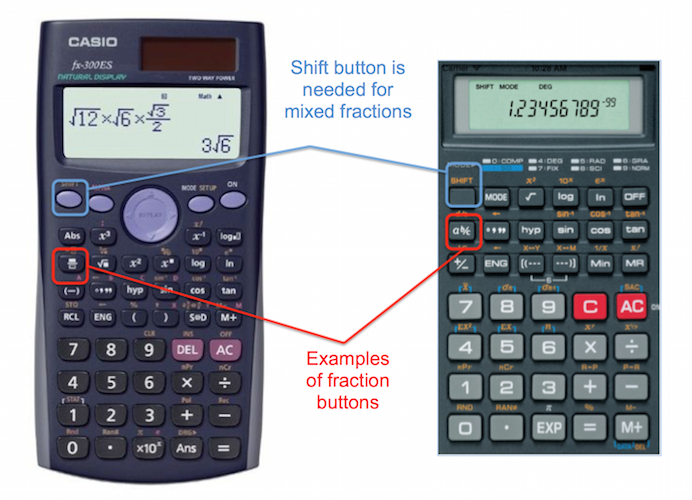
Most modern scientific calculators, such as those from Casio (e.g., fx-991EX) and Texas Instruments (e.g., TI-30XS Multiview), feature a dedicated fraction button. This button typically looks like a b/c, x/y, or ⎼/⎼.
General Steps:
-
Input the first fraction:
-
Enter the numerator.
-
Press the fraction button (e.g., a b/c).
-
Enter the denominator.
-
Example: To enter 1/2, press 1 ⇨ a b/c ⇨ 2.
-
-
Enter the addition operator: Press the + button.
-
Input the second fraction:
-
Enter the numerator.
-
Press the fraction button.
-
Enter the denominator.
-
Example: To enter 3/4, press 3 ⇨ a b/c ⇨ 4.
-
-
Get the result: Press the = button.
The calculator will usually display the result as a fraction, often simplifying it automatically or converting improper fractions to mixed numbers. Many calculators also have a button (often labeled S⇔D or F⇔D) to toggle between fraction and decimal representations of the answer.
Graphing Calculators: Advanced Fraction Management
Graphing calculators (e.g., TI-83, TI-84, Casio fx-CG series) offer more sophisticated interfaces and menu-driven approaches for fraction operations. While they may still have a dedicated fraction button, their more advanced operating systems allow for visual input and manipulation.
General Steps (TI-84 Plus Example):
-
Access Fraction Template: Press the ALPHA key followed by the Y= key (which activates the F1 menu, often labeled FRACTION).
-
Select Fraction Template: Choose the first option, n/d (numerator over denominator), and press ENTER.
-
Input the first fraction: A template with two empty boxes (one for numerator, one for denominator) will appear. Use the arrow keys to navigate and enter the numbers.
- Example: For 1/2, enter 1 in the top box, then arrow down and enter 2 in the bottom box.
-
Exit Template and Add: Use the right arrow key to move out of the fraction template, then press the + button.
-
Input the second fraction: Repeat steps 1-4 for the second fraction.
- Example: For 3/4, access the n/d template again, enter 3, arrow down, enter 4.
-
Get the result: Press ENTER.
Graphing calculators often display the fractions in a visually intuitive “stacked” format as you enter them, mimicking how fractions appear in textbooks. They also provide various options for simplifying fractions, converting between mixed numbers and improper fractions, and changing output format from fraction to decimal.
Online Calculators and Apps: Digital Convenience
The digital age has brought forth a plethora of online fraction calculators and mobile apps that offer unparalleled ease of use, often with intuitive touch interfaces or simple web forms. Websites like Symbolab, WolframAlpha, and dedicated fraction calculators provide powerful tools.
General Steps (Online Example):
-
Navigate to the calculator: Open your web browser or app.
-
Locate input fields: Most online calculators will have clear input boxes for numerators and denominators, often side-by-side with a separator. Some even offer a visual fraction builder.
-
Input fractions:
-
Enter the numerator of the first fraction in its designated box.
-
Enter the denominator of the first fraction in its designated box.
-
Select the + operation from a dropdown menu or click the + button.
-
Repeat for the second fraction.
-
-
Calculate: Click the “Calculate,” “Solve,” or “=” button.
Online tools often provide not just the answer but also step-by-step solutions, which can be incredibly valuable for learning and understanding the underlying mathematical processes. Many apps also feature handwriting recognition, allowing users to write fractions directly onto the screen.
Step-by-Step Guide: Adding Fractions with Confidence
Let’s walk through concrete examples, covering various scenarios you might encounter when adding fractions.
Adding Proper and Improper Fractions
Example 1: Adding two proper fractions (1/3 + 1/4)
-
On a Scientific Calculator (e.g., Casio fx-991EX):
-
Press
1a b/c3 -
Press
+ -
Press
1a b/c4 -
Press
= -
Result: 7/12
-
-
On a Graphing Calculator (e.g., TI-84 Plus):
-
Press
ALPHAY=(forF1) and selectn/d. -
Enter
1(top), arrow down, enter3(bottom). -
Arrow right to exit the fraction.
-
Press
+. -
Press
ALPHAY=(forF1) and selectn/d. -
Enter
1(top), arrow down, enter4(bottom). -
Press
ENTER. -
Result: 7/12
-
Example 2: Adding an improper fraction and a proper fraction (5/2 + 2/3)
-
On a Scientific Calculator:
-
Press
5a b/c2 -
Press
+ -
Press
2a b/c3 -
Press
= -
Result: 19/6 (or 3 1/6 if the calculator automatically converts to a mixed number)
-
-
On a Graphing Calculator:
-
Input
5/2using then/dtemplate. -
Press
+. -
Input
2/3using then/dtemplate. -
Press
ENTER. -
Result: 19/6
-
Handling Mixed Numbers
Mixed numbers (e.g., 2 1/3) combine a whole number and a proper fraction. Calculators often have specific ways to input these.
Example: Adding two mixed numbers (1 1/2 + 2 3/4)
-
On a Scientific Calculator (using
a b/cfor mixed numbers):-
Press
1(whole number)a b/c1(numerator)a b/c2(denominator). This sequence tells the calculator it’s a mixed number. -
Press
+ -
Press
2(whole number)a b/c3(numerator)a b/c4(denominator). -
Press
= -
Result: 4 1/4 (or 17/4 as an improper fraction)
-
-
On a Graphing Calculator (using a specific mixed number template):
-
Press
ALPHAY=(forF1) and select the mixed number template (often_ n/dor similar). -
Enter
1(whole number), arrow over, enter1(numerator), arrow down, enter2(denominator). -
Arrow right to exit.
-
Press
+. -
Repeat for
2 3/4using the mixed number template. -
Press
ENTER. -
Result: 17/4 (You might need to use
MATH>Fracto convert to a mixed number if desired, or select_n/dfromMATHNUMoptions for Casio).
-
Simplifying and Converting Results
After performing an addition, the calculator typically presents the answer in its simplest fractional form or as a mixed number.
-
Simplification: Calculators automatically reduce fractions to their lowest terms (e.g., 2/4 becomes 1/2).
-
Improper vs. Mixed: Many calculators have a function to convert between improper fractions (e.g., 5/2) and mixed numbers (e.g., 2 1/2). On Casio, this is often
SHIFTa b/c. On TI graphing calculators, you might useMATH>Fracafter getting a decimal answer, or ensure yourMODEsettings output fractions. -
Fraction to Decimal: Nearly all scientific and graphing calculators have a dedicated button (e.g.,
S⇔D,F⇔D) to convert the current fraction display to its decimal equivalent and vice-versa. This is particularly useful for quickly comparing fractional values or for applications where decimal representation is preferred.
Common Pitfalls and Pro Tips for Fraction Calculations
While calculators simplify fraction addition, certain common mistakes can still lead to incorrect results. Awareness of these pitfalls, combined with some expert tips, will ensure accuracy and efficiency.
Understanding Calculator Syntax
-
Order of Operations (PEMDAS/BODMAS): Always be mindful of how your calculator interprets complex expressions. Use parentheses
()judiciously to group terms, especially when fractions are part of a larger equation. For example,1/2 + 1/3is different from1 / (2 + 1) / 3. The dedicated fraction button often handles this implicitly for a single fraction, but combining multiple operations requires care. -
Implied Multiplication: Some calculators use implied multiplication (e.g.,
2(1/3)). If unsure, always insert an explicit multiplication operator (*). -
Negative Fractions: When entering negative fractions, ensure the negative sign applies to the entire fraction (either numerator or denominator, not both), or place it before the fraction template/button. Example:
-1/2should be(-1)a b/c 2or-(1 a b/c 2).
Verifying Your Answers: Manual Checks and Estimation
Even with the most advanced calculator, errors can occur due to incorrect input or a misunderstanding of the operation.
-
Estimation: Before calculating, quickly estimate the answer. For example, 1/2 + 1/3 should be slightly less than 1. If your calculator gives you 5 or 0.1, you know something is wrong.
-
Manual Verification (for simpler cases): Occasionally perform the addition manually to reinforce your understanding and cross-check the calculator’s output. This is especially useful for fractions with common denominators.
-
Recalculate: If the result seems off, clear the calculator and re-enter the problem carefully. Sometimes, a forgotten parenthesis or a missed button press is the culprit.
Beyond Addition: Other Fraction Operations
The techniques learned for adding fractions on a calculator generally apply to other operations as well:
-
Subtraction: Simply use the
-button instead of+. -
Multiplication: Use the
*orxbutton. Multiplication of fractions on a calculator is often the simplest. -
Division: Use the
/or÷button. Remember that dividing by a fraction is equivalent to multiplying by its reciprocal. -
Simplification: Most calculators simplify automatically. If not, look for a dedicated “simplify” function or manually divide the numerator and denominator by their greatest common divisor.
The Future of Fraction Computation: AI and Beyond
The trajectory of calculator technology shows no signs of slowing down. As artificial intelligence and augmented reality become more integrated into our daily lives, how we interact with mathematical problems, including fractions, is set to evolve further.
AI-Powered Math Solvers
Today, apps like Photomath and Google Lens can solve handwritten or typed math problems by simply taking a picture. These tools leverage AI to recognize the problem, solve it, and often provide step-by-step explanations. For fractions, this means an instant solution, complete with the methodology, bridging the gap between direct computation and conceptual understanding. Future iterations will likely offer more interactive tutoring, adapting to individual learning styles and common error patterns.
Augmented Reality and Interactive Tools
Imagine pointing your phone at a physical measurement (e.g., a recipe ingredient requiring 1/3 cup, and another 1/2 cup), and an AR overlay instantly calculates the total fraction, perhaps even visually demonstrating the combined volume. Such interactive tools could revolutionize how we learn and apply fractions in real-world scenarios, making abstract concepts tangible and engaging. Education will increasingly benefit from these immersive experiences, turning complex arithmetic into intuitive visual problems.

Conclusion
The calculator, in its various forms, stands as a testament to technological progress aimed at empowering individuals with complex computational abilities. Mastering its fraction functions transforms what can be a daunting mathematical task into a straightforward process, preserving precision and significantly enhancing efficiency. Whether you’re a student grappling with algebra, a carpenter measuring dimensions, or anyone in need of quick, accurate fractional arithmetic, the ability to leverage your calculator effectively is an invaluable skill.
As technology continues to advance, integrating AI and immersive interfaces, the tools for understanding and manipulating fractions will only become more sophisticated and accessible. Embracing these innovations not only makes our mathematical journey smoother but also frees up cognitive resources, allowing us to focus on the deeper, analytical aspects of problem-solving. So, next time you face a fraction addition challenge, remember that your calculator is a powerful ally, ready to provide the precision and speed you need to succeed.
aViewFromTheCave is a participant in the Amazon Services LLC Associates Program, an affiliate advertising program designed to provide a means for sites to earn advertising fees by advertising and linking to Amazon.com. Amazon, the Amazon logo, AmazonSupply, and the AmazonSupply logo are trademarks of Amazon.com, Inc. or its affiliates. As an Amazon Associate we earn affiliate commissions from qualifying purchases.