
YouTube TV has revolutionized how many households consume live television, blending the familiarity of traditional cable with the flexibility and convenience of streaming. A cornerstone of its appeal, particularly for families, is the robust family sharing feature. This functionality allows multiple individuals within the same household to access a single YouTube TV subscription, each with their personalized experience, DVR recordings, and recommendations. Understanding how to correctly set up and manage these family accounts is crucial for maximizing the value and enjoyment of your YouTube TV service. This guide delves deep into the technical process, ensuring a seamless integration of all your family members into the YouTube TV ecosystem.
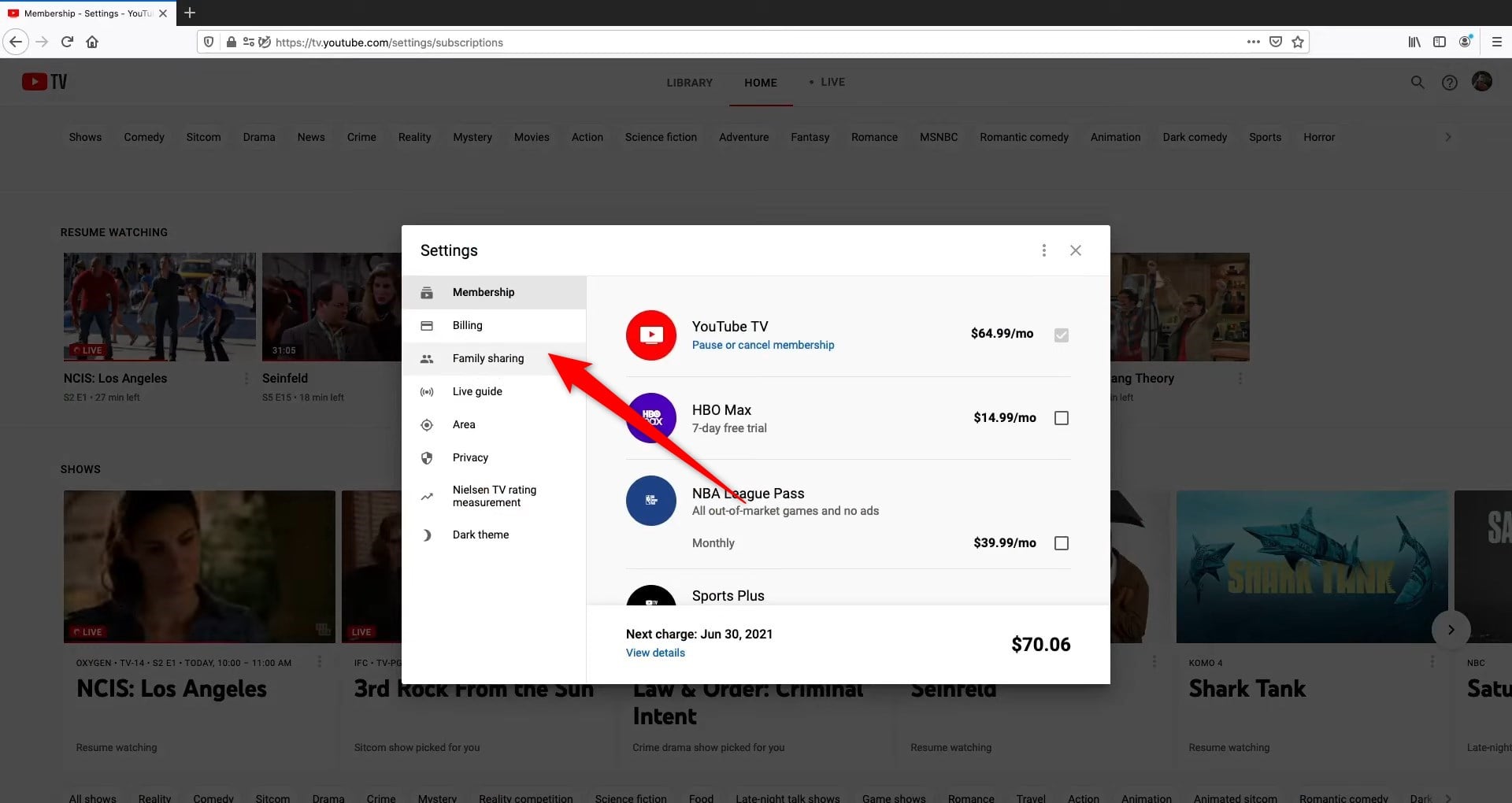
Understanding YouTube TV Family Sharing Mechanics
Before diving into the practical steps, it’s essential to grasp the underlying technical framework that powers YouTube TV’s family sharing. Unlike some other streaming services that might simply allow multiple profiles on one account, YouTube TV leverages Google’s broader “Family Group” system. This integration is key to its functionality and offers a centralized way to manage various Google services, including YouTube TV, YouTube Premium, Google Play purchases, and more.
What is a Google Family Group?
A Google Family Group is a centralized hub managed by an adult (the family manager) that allows up to five other family members to share eligible Google services. For YouTube TV, this means that once you’ve subscribed, you can invite up to five additional individuals to join your Google Family Group, and subsequently, grant them access to your YouTube TV subscription. Each member needs their own Google account, which then becomes part of the family group. This structure ensures individual profiles, watch histories, and DVRs, while consolidating the billing under the family manager. It’s a system designed for convenience and personalization, preventing one person’s viewing habits from dictating another’s experience.
Key Benefits of Family Sharing on YouTube TV
The advantages of utilizing YouTube TV’s family sharing are manifold, extending beyond mere cost-sharing. From a technical and user experience standpoint, these benefits significantly enhance the platform’s value:
- Individualized Experience: Each family member gets their own personalized library, watch history, and recommendations. No more compromising on what to watch or having your queue cluttered with someone else’s preferences.
- Separate DVRs: A massive perk is the unlimited cloud DVR storage. With family sharing, each member can record their favorite shows independently, without affecting others’ recordings. This eliminates conflicts over storage space or accidentally deleting someone else’s saved content.
- Simultaneous Streams: YouTube TV typically allows up to three simultaneous streams. With family sharing, you can have multiple family members watching different content on different devices at the same time, without interruption. This is a critical feature for busy households.
- Centralized Billing: The family manager pays for the single YouTube TV subscription, simplifying financial management. Other eligible Google services can also be shared, streamlining family digital expenses.
- Parental Controls: The family manager can implement content restrictions and parental controls for younger family members through Google Family Link, ensuring age-appropriate viewing experiences.
- Seamless Integration with Google Services: Because it’s built on Google Family Groups, the sharing extends naturally to other Google services, creating a cohesive digital ecosystem for the family.
Eligibility Requirements and Limitations
While powerful, YouTube TV family sharing comes with specific technical and geographical requirements:
- Google Account: Every family member, including the family manager, must have a valid Google account.
- Age Requirements: The family manager must be 18 years or older. Children under 13 typically require parental consent and are managed via Google Family Link.
- Location: All members of the Google Family Group must reside in the same physical household (primary residence). YouTube TV uses IP address monitoring to enforce this. If a family member is detected regularly accessing the service from a different location, their access might be revoked, or the family manager might be prompted to verify the household location.
- Family Group Size: A Google Family Group can have a maximum of six members (the family manager + five invitees).
- Frequency of Changes: You can only switch Google Family Groups once every 12 months. This restriction is in place to prevent abuse of family sharing features.
- Payment Method: Only the family manager can manage the payment method for the YouTube TV subscription.
Understanding these parameters is crucial to ensure a smooth setup and continued access for all family members without encountering technical hurdles or policy violations.
Step-by-Step Guide: Setting Up Your Family Group
The foundation for YouTube TV family sharing is the Google Family Group. If you already have one set up for other Google services, you can skip to the “Integrating Family Members with YouTube TV” section. Otherwise, follow these steps to establish your family’s digital hub.
Initiating a Google Family Group (if you don’t have one)
The family manager is responsible for creating and overseeing the Google Family Group. This process is straightforward and typically done through Google’s dedicated Family Link app or the web interface.
- Access Google Family Settings: Open a web browser and go to families.google.com, or open the Google Family Link app on your mobile device.
- Start a New Group: If you don’t have an existing group, you’ll be prompted to “Create Family Group” or “Get Started.”
- Confirm Role: Google will confirm that you wish to be the family manager. Confirm your decision.
- Review Information: You’ll see information about what a family group entails and the responsibilities of a family manager. Read through this carefully.
- Payment Method (Optional but Recommended): While not strictly required for just YouTube TV sharing initially, Google will ask you to set up a family payment method. This is useful for shared purchases on Google Play or other services. You can set this up now or later.
Once these steps are completed, your Google Family Group is established, and you are ready to invite others.
Inviting Family Members to Your Google Family Group
With your family group ready, the next step is to send invitations to the individuals you wish to share your YouTube TV subscription with.
- Navigate to Family Members: From the families.google.com dashboard or the Family Link app, locate the section for “Family members” or “Invite family members.”
- Click “Invite Member”: You’ll see an option to add new members.
- Enter Email Addresses: You’ll be asked to enter the email address associated with the Google account of each family member you want to invite.
- Send Invitations: Once you’ve entered the email addresses, send the invitations. Each invitee will receive an email with a link to join your family group.
- Review & Confirm: Ensure you’ve sent invitations to the correct Google accounts.
Accepting the Invitation and Joining the Group
For each invited family member, the process of joining the group is equally simple:
- Check Email: The invited family member needs to check the email address to which the invitation was sent. The email will come from Google Family Group.
- Open Invitation Link: They should open the email and click on the “Accept Invitation” or “Join Family Group” link.
- Confirm Membership: They will be directed to a Google page where they’ll be asked to confirm their desire to join the family group. They should review the details and click “Join.”
- Confirm Identity: In some cases, Google might ask them to verify their identity by entering their Google account password.
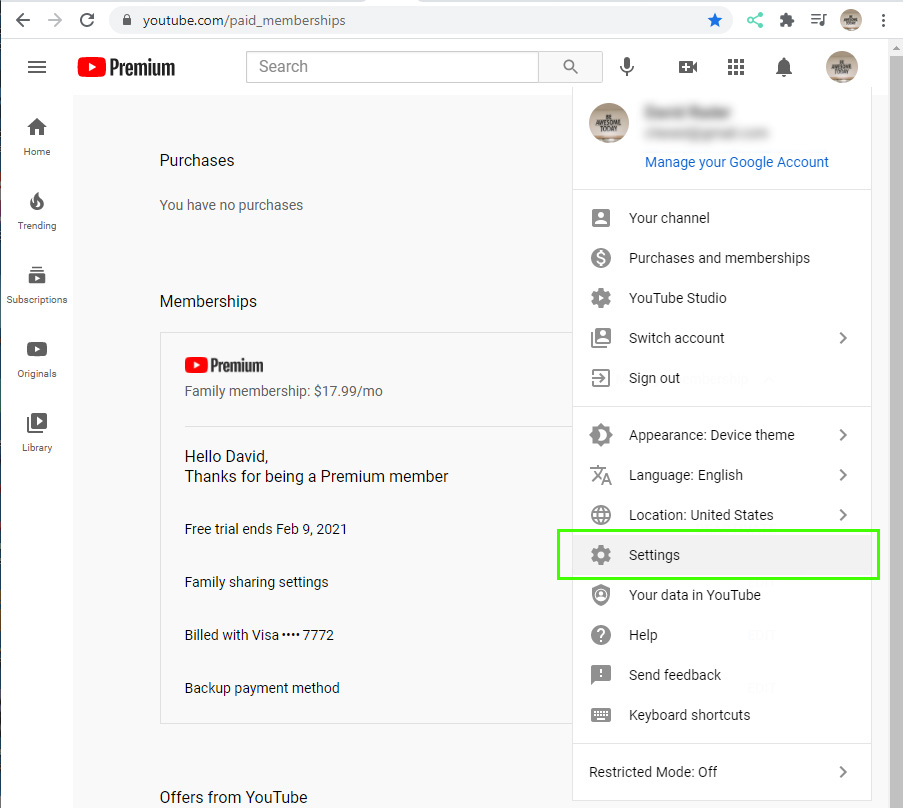
Once they accept, their Google account will be officially added to your Google Family Group, making them eligible for shared services like YouTube TV. The family manager will receive a notification that a new member has joined.
Integrating Family Members with YouTube TV
After successfully forming your Google Family Group, the final step is to grant those members access to your YouTube TV subscription. This is typically an automatic process once they are in the family group, but it’s good to know how to verify and manage it.
Assigning YouTube TV Access to Family Group Members
For family members to access YouTube TV, they must simply log in to YouTube TV using their own Google account that is part of the family group.
- Log In to YouTube TV: Each family member should go to tv.youtube.com or open the YouTube TV app on their device (smart TV, streaming stick, mobile phone, etc.).
- Select Their Google Account: When prompted to log in, they should select or enter their own Google account credentials.
- Access YouTube TV: Since their Google account is part of the family group that subscribes to YouTube TV, the service should recognize their eligibility and grant them immediate access. They will not be asked to start a new subscription or pay.
The family manager does not need to explicitly “assign” YouTube TV access in a separate step once the family group is established. Membership in the group automatically confers access to the shared subscription.
Managing Individual Profiles and DVRs
One of the greatest advantages is the autonomy each family member retains over their viewing experience.
- Profiles: Each member logs in with their unique Google account, meaning their YouTube TV profile is distinct. This includes their watch history, recommendations, and preferences.
- DVR Management: The unlimited cloud DVR is also personalized. When a family member records a show, it’s stored in their individual library. Other family members cannot see or delete these recordings unless they explicitly log into that specific person’s Google account. This provides privacy and control over personal content.
- Switching Accounts: On shared devices like smart TVs, it’s easy to switch between family member profiles. On the YouTube TV interface, there’s usually a profile icon (often in the top right corner). Clicking or selecting this allows users to switch to another Google account that is part of the family group. This ensures everyone can access their own content on a single device.
Troubleshooting Common Family Sharing Issues
Despite the streamlined process, occasional issues can arise. Here are some common problems and their solutions:
- “Not in the Same Household” Error: This is the most frequent issue. YouTube TV periodically verifies that all family members are accessing the service from the same physical household. If a family member consistently accesses YouTube TV from a different IP address (e.g., a college dorm, a friend’s house), they might lose access.
- Solution: The family manager will usually receive an email prompting them to verify the home location. They need to do this from their primary residence. If a family member truly lives elsewhere, they technically aren’t eligible for family sharing.
- Invitation Not Received/Accepted:
- Solution: Check spam folders. Ensure the email address used for the invitation is the correct one associated with the family member’s Google account. Re-send the invitation if necessary.
- Already Part of Another Family Group: A Google account can only be part of one family group at a time, and switching groups is limited to once every 12 months.
- Solution: The family member needs to leave their current family group (if applicable) and wait out the 12-month period before they can join a new one. This can be a significant limitation if not planned for.
- Can’t Access YouTube TV After Joining Group:
- Solution: Ensure the family member is logging in with the exact Google account that accepted the invitation to the family group. Sometimes users have multiple Google accounts. Also, try logging out of YouTube TV and logging back in, or clearing the app cache/browser cookies.
Addressing these common pitfalls proactively will help maintain a smooth and uninterrupted YouTube TV experience for your entire family.
Maximizing Your YouTube TV Family Experience
Beyond the technical setup, there are several strategies and features you can leverage to ensure every family member gets the most out of their YouTube TV subscription. These focus on personalization, understanding limitations, and ensuring content safety.
Personalizing Recommendations and Libraries
Each family member’s distinct profile is the gateway to a truly personalized viewing experience. YouTube TV learns from individual watch habits to tailor recommendations, making it easier for everyone to discover content they’ll love.
- Active Engagement: Encourage family members to actively use their profiles. The more they watch, like, dislike, or add content to their library, the smarter YouTube TV’s algorithm becomes for them.
- Curate “Library” Content: Teach family members how to use the “Add to Library” feature for shows, movies, and sports teams. This ensures future airings and new episodes are automatically recorded to their individual DVRs.
- Explore & Discover: Remind family members to regularly browse the “Home” and “Live” guides from their own profiles to find new channels or shows aligned with their interests.
Understanding Simultaneous Streams
YouTube TV typically allows three simultaneous streams per household. This is an important number to remember, especially in larger families.
- Monitor Usage: While there isn’t a direct “stream counter” visible to users, if your family frequently experiences “too many streams” errors, it’s a sign that more than three devices are actively watching content at the same time.
- Coordinate Viewing: In such cases, families might need to coordinate, perhaps having younger children watch on a single device, or setting a policy for priority viewing during peak times.
- “Extra” Streams (Optional Add-on): YouTube TV used to offer an “Enhanced Features” add-on that allowed for unlimited streams at home and three on the go. This add-on has since been discontinued for new subscribers, but if you had it previously, you might still benefit from it. For most, the standard three simultaneous streams apply.

Parental Controls and Content Restrictions
For families with children, robust parental controls are paramount. YouTube TV integrates with Google Family Link to provide comprehensive content management.
- Set Up Family Link: If you haven’t already, ensure your children’s Google accounts are managed through Google Family Link. This tool allows the family manager to set digital ground rules.
- Content Filters: Within Family Link, you can set content restrictions for apps, games, and specific content categories based on ratings (e.g., G, PG, TV-Y, TV-PG). This helps ensure that children only see age-appropriate content within the YouTube TV app.
- Blocking Content: You can also block specific apps or websites entirely through Family Link, though this is less about YouTube TV content and more about overall device usage.
- YouTube Kids: For very young children, consider directing them to the YouTube Kids app (separate from YouTube TV) which is designed specifically for children with curated content and stronger parental controls. While YouTube TV offers parental control, YouTube Kids is a dedicated, safer environment.
By actively managing these aspects, families can ensure that YouTube TV remains a harmonious and enjoyable streaming service for every member, tailored to their individual needs and preferences while maintaining crucial digital safety measures.
aViewFromTheCave is a participant in the Amazon Services LLC Associates Program, an affiliate advertising program designed to provide a means for sites to earn advertising fees by advertising and linking to Amazon.com. Amazon, the Amazon logo, AmazonSupply, and the AmazonSupply logo are trademarks of Amazon.com, Inc. or its affiliates. As an Amazon Associate we earn affiliate commissions from qualifying purchases.