
In the evolving landscape of digital content creation, the technical architecture of YouTube has shifted from a one-user-one-channel model to a sophisticated multi-entity ecosystem. Whether you are a developer testing different content algorithms, a technical project manager overseeing corporate assets, or a power user segmenting various niches, understanding how to add and manage multiple channels under a single Google identity is a fundamental skill. This guide explores the technical nuances of YouTube Brand Accounts, the step-by-step process of channel expansion, and the administrative protocols required to maintain a secure multi-channel environment.
The Technical Framework: Personal Accounts vs. Brand Accounts
Before initiating the creation of a new channel, it is vital to understand the underlying data structure of the Google and YouTube ecosystem. YouTube operates using two distinct types of account identities: Personal Accounts and Brand Accounts.
Understanding the Personal Account Limitation
By default, every Google Account comes with one personal YouTube channel. This channel is hard-coded to the name and profile picture of the primary Google Account. From a technical standpoint, this is a 1-to-1 mapping. While you can upload videos and interact with the platform, this personal channel lacks the flexibility required for professional scaling or collaborative management.
The Power of the Brand Account
To add multiple channels, YouTube utilizes a “Brand Account” layer. A Brand Account is a secondary identity that resides under your primary Google login but functions as an independent technical entity.
Key technical advantages of Brand Accounts include:
-
Multiple Ownership: Unlike personal channels, Brand Accounts allow multiple Google users to have administrative access without sharing login credentials.
-
Naming Flexibility: The channel name can be entirely different from your legal Google Account name.
-
Asset Isolation: Data, comments, and watch history remain isolated between channels, ensuring that your personal viewing habits do not interfere with the algorithmic profile of your professional channels.
Step-by-Step Walkthrough: Adding a New YouTube Channel
The process of adding a channel is handled through the YouTube account settings interface. While the mobile application offers basic management features, the technical deployment of a new channel is best performed via a desktop browser to ensure all configuration options are visible.
Initializing the Creation Process
-
Authentication: Sign in to your primary Google Account on YouTube. Ensure this is the account you wish to serve as the “Owner” of the new entity.
-
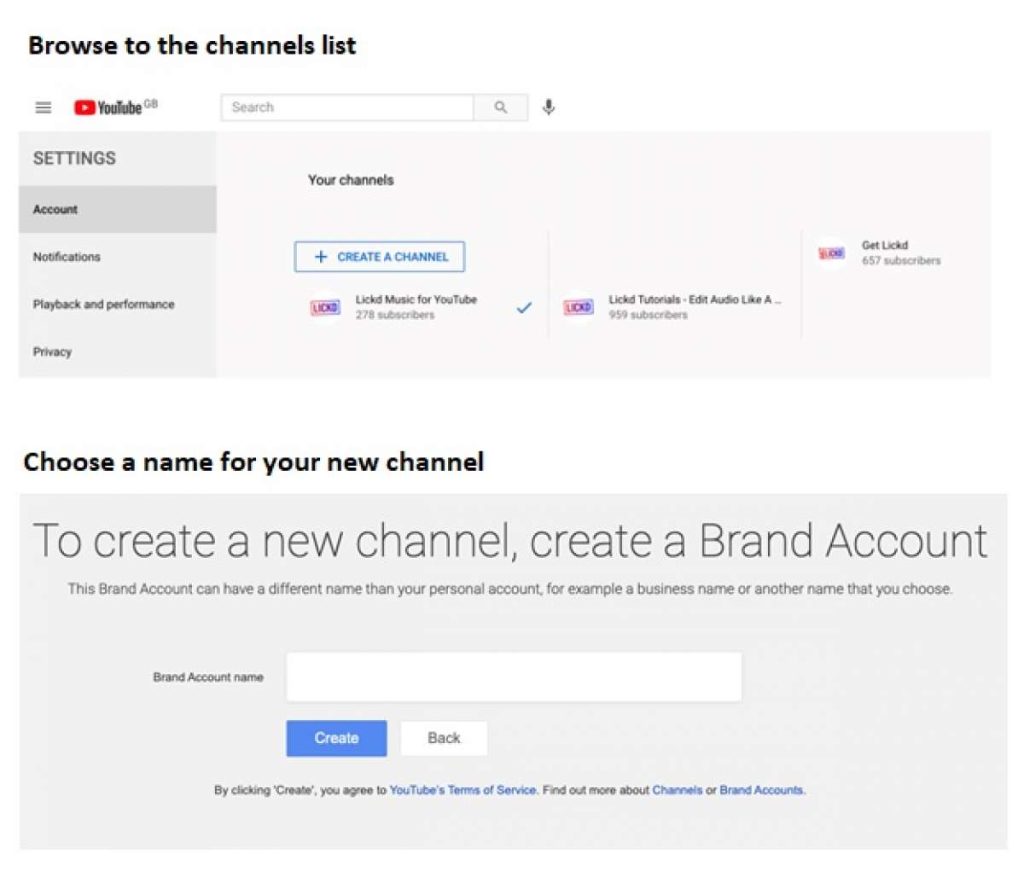
Accessing the Channel Switcher: Navigate to your profile icon in the top right corner and select “Settings.” From the account overview page, locate the link titled “Add or manage your channel(s).”
-
Creating the Entity: Click the “Create a Channel” button. This initiates the creation of a Brand Account.
-
Naming and Configuration: Enter the desired name for your new channel. Technically, this name can be changed later, but the initial name creates the unique internal ID for the channel within YouTube’s database.
Mobile Deployment Considerations
While the YouTube app on iOS and Android allows you to switch between existing channels, creating a brand new channel is often restricted within the native app environment. If you are on a mobile device, you must use a mobile browser (Chrome or Safari) and request the “Desktop Site” version of the YouTube settings page to access the channel creation utility.
Troubleshooting Common Errors
During the addition of a new channel, users may encounter “The feature is currently unavailable” or “Error 500” messages. This is often due to browser cache conflicts or active VPN configurations that trigger YouTube’s anti-spam protocols. Clearing cookies for youtube.com and google.com or attempting the process in an incognito window usually resolves these technical bottlenecks.
Advanced Channel Management: Permissions and Collaborative Access
Once you have added secondary channels, the focus shifts to technical administration. One of the primary reasons for utilizing the Brand Account structure is the ability to delegate tasks without compromising account security.
Managing User Roles and Permissions
Within the YouTube Studio interface, you can assign specific technical roles to other Google users. This is handled under “Settings” > “Permissions.”
-
Owner: Has full control over the channel, including the ability to delete the channel and add or remove other owners.
-
Manager: Can upload, edit, and delete content, view analytics, and manage other users (excluding the owner).
-
Editor: Can upload and edit content but cannot manage users or delete the channel.
-
Editor (Limited): The same as Editor but cannot view revenue or financial data.
-
Viewer/Viewer (Limited): Can view all data but cannot make any changes.
Implementing Multi-Channel Switching
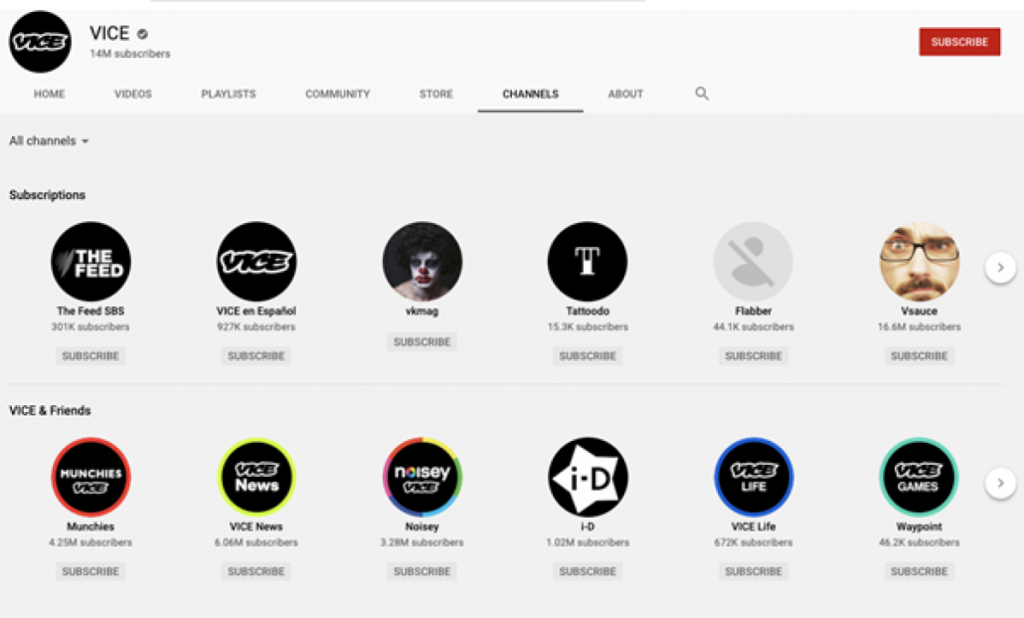
Technically, YouTube handles multi-channel access through a “session switcher.” When you are logged into your primary Google Account, the platform creates a session for every associated Brand Account. By clicking your profile picture and selecting “Switch Account,” you can toggle between your personal channel and your various Brand Accounts. Each switch refreshes the YouTube Studio dashboard, populating it with the specific metadata, analytics, and content library of the selected channel.
Security Protocols for Multi-Channel Environments
Adding multiple channels increases the complexity of your digital footprint. From a security perspective, every secondary channel represents a potential entry point for unauthorized access if the primary account is compromised.
Two-Factor Authentication (2FA) and Security Keys
Since all added channels are tethered to a single Google Account, securing that root account is paramount. Implementing hardware security keys (like YubiKeys) or app-based 2FA is the most effective way to protect a multi-channel network. If an attacker gains access to the root account, they gain administrative control over every sub-channel added to that identity.
Audit Logs and Access Reviews
For organizations with multiple managers, it is essential to perform regular technical audits. YouTube Studio provides a basic history of actions, but the “Permissions” tab should be reviewed monthly. Revoking access for former employees or contractors is a critical step in maintaining the integrity of the channel network.
Moving a Channel Between Accounts
There may be technical scenarios where you need to move a channel from one Google Account to another (e.g., selling a channel or corporate restructuring). This is possible by inviting the new Google Account as an “Owner” of the Brand Account. After a 7-day security waiting period, the new account can be promoted to “Primary Owner,” and the original account can be removed. This process preserves all video IDs, view counts, and subscribers while completely transferring the technical ownership.
Optimizing the Multi-Channel Workflow with Third-Party Tools
Managing five or ten channels manually via the YouTube Studio interface can be inefficient. As your network of channels grows, integrating third-party software and API-based tools becomes necessary for technical efficiency.
Unified Dashboards and Analytics
Software solutions like TubeBuddy or VidIQ offer “multi-channel” tiers that allow you to apply bulk metadata changes across different channels. From a technical standpoint, these tools use the YouTube Data API (v3) to push updates to your video library without requiring you to switch accounts manually for every edit.
Cross-Platform Integration and Automation
For technical users, leveraging automation platforms like Zapier or Make (formerly Integromat) can streamline the multi-channel experience. For instance, you can create a workflow where a video uploaded to “Channel A” automatically triggers a notification or a formatted post to a specific technical repository or social media platform. This requires generating an API key within the Google Cloud Console and granting the automation platform scoped access to your YouTube Brand Accounts.

Browser Profiles for Seamless Management
A high-level technical tip for managing multiple channels is the use of distinct browser profiles (Chrome, Brave, or Firefox). By assigning one browser profile to each major YouTube identity, you eliminate the need to use the “Switch Account” button. This keeps cookies, extensions, and logged-in sessions separate, reducing the risk of accidental uploads to the wrong channel—a common mistake in multi-channel management.
By mastering the technical framework of Brand Accounts, implementing rigorous security measures, and utilizing administrative tools, you can transform a single Google login into a powerful hub for digital content. Whether you are managing two channels or twenty, the ability to architect and govern these entities correctly is the foundation of a professional presence on the world’s largest video platform.
aViewFromTheCave is a participant in the Amazon Services LLC Associates Program, an affiliate advertising program designed to provide a means for sites to earn advertising fees by advertising and linking to Amazon.com. Amazon, the Amazon logo, AmazonSupply, and the AmazonSupply logo are trademarks of Amazon.com, Inc. or its affiliates. As an Amazon Associate we earn affiliate commissions from qualifying purchases.