
In the modern digital landscape, the ability to centralize information is the hallmark of a productive workflow. For the frequent traveler, whether for business or leisure, managing itineraries across multiple confirmation emails, airline apps, and boarding passes can lead to significant friction. Google Calendar has evolved from a simple scheduling tool into a sophisticated hub for logistical management, capable of aggregating travel data with minimal manual input.
Streamlining your travel schedule within the Google ecosystem not only ensures you never miss a departure but also allows for advanced features like real-time traffic alerts to the airport, automated time zone adjustments, and easy sharing with colleagues or family members. This guide provides a comprehensive technical walkthrough of every method available to add a flight to Google Calendar, from automated Gmail parsing to manual entry and third-party integrations.
Leveraging Automation: The “Events from Gmail” Feature
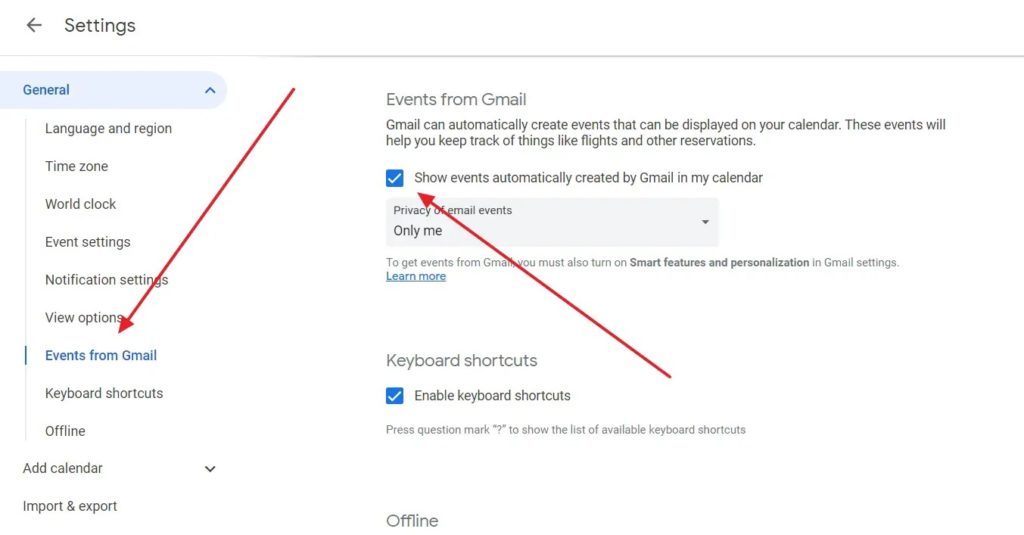
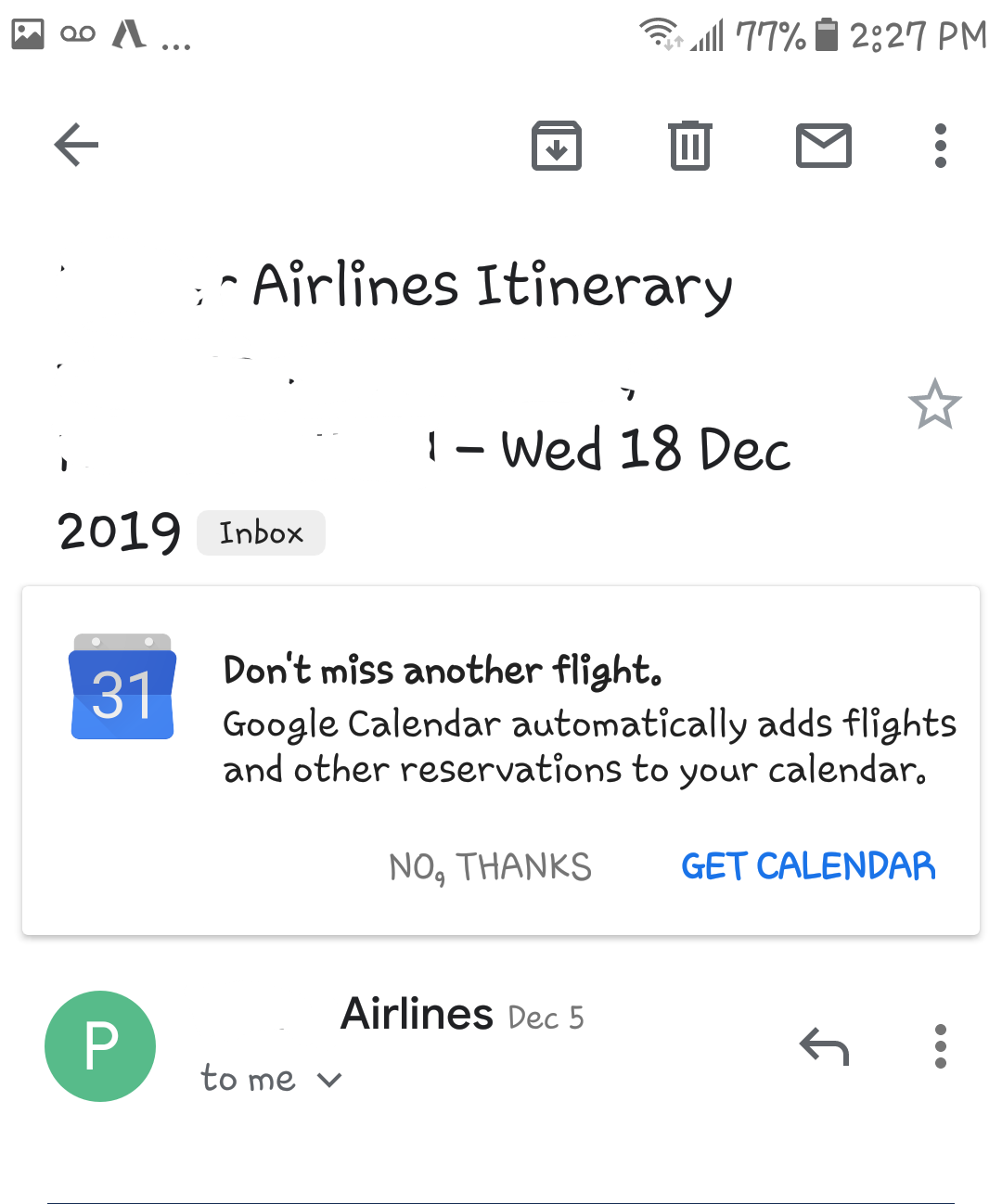
The most efficient way to manage travel in the Google ecosystem is through the “Events from Gmail” automation. Google’s machine learning algorithms are designed to parse incoming emails from airlines, hotels, and car rental services to extract relevant data points—such as flight numbers, confirmation codes, and departure times—and automatically populate your calendar.
Enabling Automated Syncing
To ensure this feature is active, you must verify your settings within the Google Calendar interface. On a desktop browser, navigate to the gear icon to open “Settings.” Under the “General” tab, locate the “Events from Gmail” section. Here, you must ensure the checkbox for “Automatically add events from Gmail to my calendar” is selected.
This feature relies on specific metadata within the confirmation emails. Most major carriers (such as Delta, United, and Lufthansa) use standardized formats that Google identifies instantly. When a confirmation hits your inbox, you will typically see a calendar invitation appear within minutes, complete with the flight number and a link back to the original email for quick reference.
Troubleshooting Missing Events
If a flight does not appear automatically, several factors could be at play. First, ensure the email is a formal confirmation and not just an itinerary hold or a receipt. Second, check your privacy settings. If your Google Workspace account is managed by an organization, your IT administrator may have restricted the “Events from Gmail” functionality for security reasons.
Furthermore, if you manually move a confirmation email to the “Trash” or mark it as “Spam,” the corresponding calendar event will often be deleted. To maintain the integrity of your schedule, keep confirmation emails in your primary inbox or a dedicated “Travel” folder until the trip is concluded.
Manual Entry and Technical Precision
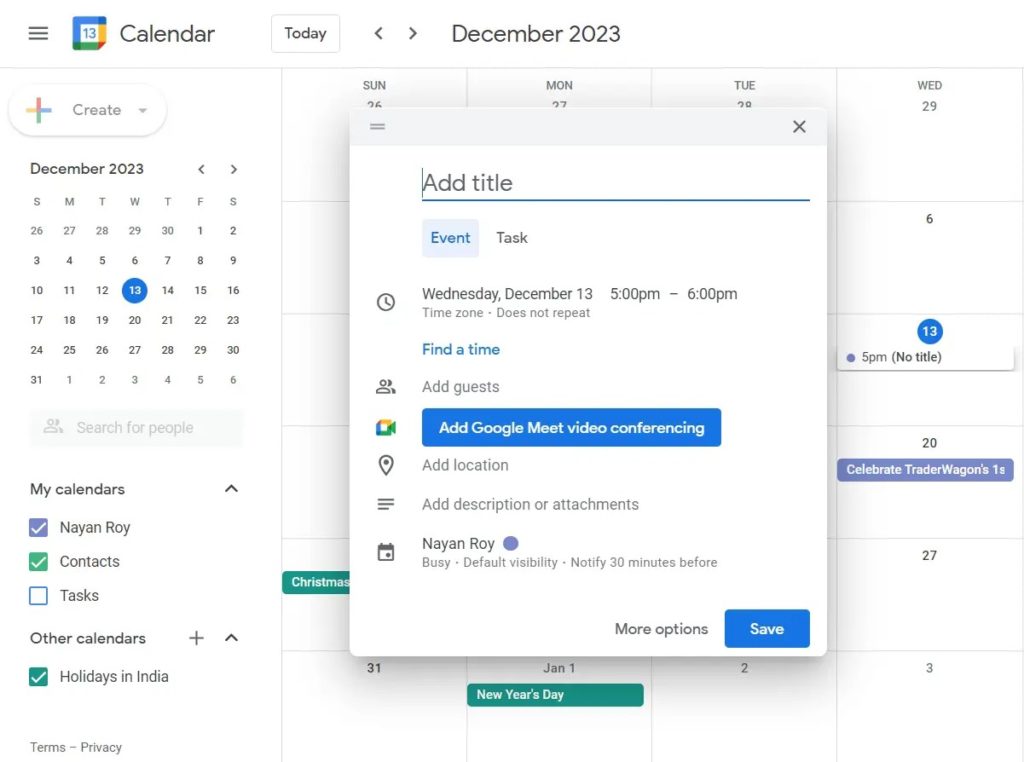
Automated systems are powerful, but they are not infallible. Occasionally, boutique airlines or charter services use email formats that Google’s parser cannot read. In these instances, manual entry is required. To maintain a professional and useful calendar, you should go beyond simply typing “Flight to London” and instead utilize the technical fields provided by the platform.
Time Zone Management
One of the most common errors in travel scheduling is the failure to account for time zone shifts. When manually adding a flight, click on the “Time zone” button next to the start and end times. Google Calendar allows you to set a “Start time zone” (the departure city) and an “End time zone” (the arrival city).
By setting these correctly, Google Calendar will automatically adjust the visual block of the flight based on your current location. If you are currently in New York but booking a flight from London to Paris, setting the specific time zones ensures that when you land in Europe, your calendar remains accurate to the local time without you having to manually shift every entry.
Detailed Data Mapping
A high-functioning calendar entry should serve as a single source of truth. When adding a flight manually, utilize the “Description” and “Location” fields effectively:
-
Location: Enter the airport code (e.g., JFK, LHR, SIN). This allows Google Maps to integrate with the event, providing you with “Time to Leave” notifications based on live traffic data.
-
Description: Paste the confirmation number, seat assignment, and a link to the airline’s check-in page.
-
Attachments: Use the “Add attachment” feature to upload a PDF of your boarding pass or visa documents. This ensures that even if you lose internet connectivity, your vital documents are cached within the calendar app on your mobile device.
Third-Party Integrations and API Syncing
For power users who manage dozens of flights per year, manual entry is a bottleneck. Fortunately, the tech ecosystem offers several third-party tools that act as a bridge between your travel data and Google Calendar.
Using Itinerary Management Apps
Apps like TripIt or Kayak specialize in consolidating travel plans. These platforms work by receiving your forwarded confirmation emails and building a master itinerary. Most of these services provide a “Calendar Feed” (usually in the form of an .ics URL).
To integrate this into Google Calendar:
-
Copy the iCal/ICS link from the travel app.
-
Open Google Calendar on a desktop.
-
On the left-hand sidebar, click the “+” next to “Other calendars.”
-
Select “From URL.”
-
Paste the link and click “Add calendar.”
The advantage of this method is that any changes made in the travel app (like a gate change or a delay updated by the app’s flight tracker) will automatically sync to your Google Calendar, providing a dynamic schedule that stays current without manual intervention.
Airline Web Portals and .ics Downloads
Many airlines provide a “Add to Calendar” button on their “Manage Booking” pages. When you click this, the site generates a small file with a .ics extension. You can import this file directly into Google Calendar by going to Settings > Import & Export. This is often the most reliable way to get the exact data the airline intended for your calendar, including specific terminal information and flight durations that might be missed by Gmail’s automated parser.
Optimizing the Travel Workflow
Adding the flight is only the first step. To truly master travel tech, you must optimize how that data interacts with your daily life.
Setting Intelligent Notifications
Default notifications (like a 10-minute alert) are useless for air travel. For flight events, customize your notifications to trigger 24 hours before (to remind you to check in) and 3 hours before (to prompt your departure for the airport). On the mobile app, these notifications can be configured as “Email” or “Push” alerts, ensuring you are reached on whatever device you are currently using.
Collaborative Calendars and Sharing
In a corporate environment or for family coordination, transparency is key. Instead of sending screenshots of your itinerary, use the “Sharing” features of Google Calendar. You can create a dedicated “Travel” calendar and share it with your team or spouse. By adding your flights to this specific calendar, stakeholders can see your availability and location in real-time.
For privacy, Google allows you to change the visibility of specific events. If you are on a high-profile business trip, you can set the flight event to “Private” so that while others see you are “Busy,” they cannot see the specific flight numbers or hotel locations.
Offline Accessibility and Syncing
Travel often involves “dead zones” where data connectivity is non-existent. The Google Calendar mobile app (iOS and Android) caches your schedule for offline use. Before you leave for the airport, ensure your app has synced while on a stable Wi-Fi connection. This guarantees that your terminal numbers, confirmation codes, and flight times are accessible even when you are in “Airplane Mode” or in a foreign country without a local SIM card.
The Future of Travel Integration
As Google continues to integrate Artificial Intelligence through Gemini and advanced Workspace features, the process of adding flights to calendars will become even more predictive. We are already seeing the beginnings of this with “Smart Features and Personalization,” where Google can suggest travel times or detect conflicts between your flight and existing meetings.
By mastering the current tools—from Gmail automation to technical manual entry and iCal syncing—you position yourself to take full advantage of this evolving tech stack. Digital organization is not just about keeping a tidy schedule; it is about reducing the cognitive load of travel, allowing you to focus on the destination rather than the logistics of the journey. Whether you are a casual traveler or a digital nomad, these technical strategies ensure that your Google Calendar remains your most valuable travel companion.
aViewFromTheCave is a participant in the Amazon Services LLC Associates Program, an affiliate advertising program designed to provide a means for sites to earn advertising fees by advertising and linking to Amazon.com. Amazon, the Amazon logo, AmazonSupply, and the AmazonSupply logo are trademarks of Amazon.com, Inc. or its affiliates. As an Amazon Associate we earn affiliate commissions from qualifying purchases.