
The shift from traditional linear broadcasting to over-the-top (OTT) streaming services has fundamentally altered the media landscape. At the forefront of this digital transformation is YouTube TV, a premium subscription service that integrates the familiarity of live television with the advanced functionality of the YouTube ecosystem. Accessing YouTube TV is not merely about clicking a link; it involves a series of technical configurations, device synchronizations, and network optimizations designed to provide a high-definition, low-latency viewing experience. For users looking to cut the cord, understanding the technical nuances of the platform is essential for maximizing the utility of the service.
Understanding the Infrastructure: Device Compatibility and Hardware Requirements
The versatility of YouTube TV lies in its hardware-agnostic design. Unlike traditional cable providers that require proprietary set-top boxes, YouTube TV operates as a sophisticated software application compatible with a vast array of consumer electronics. Accessing the service begins with identifying the right hardware gateway.
Smart TVs and Dedicated Streaming Media Players
The most common point of entry is through Smart TVs. Modern displays from manufacturers such as Samsung, LG, Vizio, and Sony come pre-loaded with the YouTube TV application or offer it through their respective app stores (Tizen, webOS, and Android TV). For users with legacy displays, dedicated streaming sticks—including the Google Chromecast, Roku, Amazon Fire TV, and Apple TV 4K—act as the primary interface. These devices are preferred by power users because they often feature more powerful processors than built-in TV software, leading to snappier UI navigation and faster channel switching.
Mobile Ecosystems and Portability
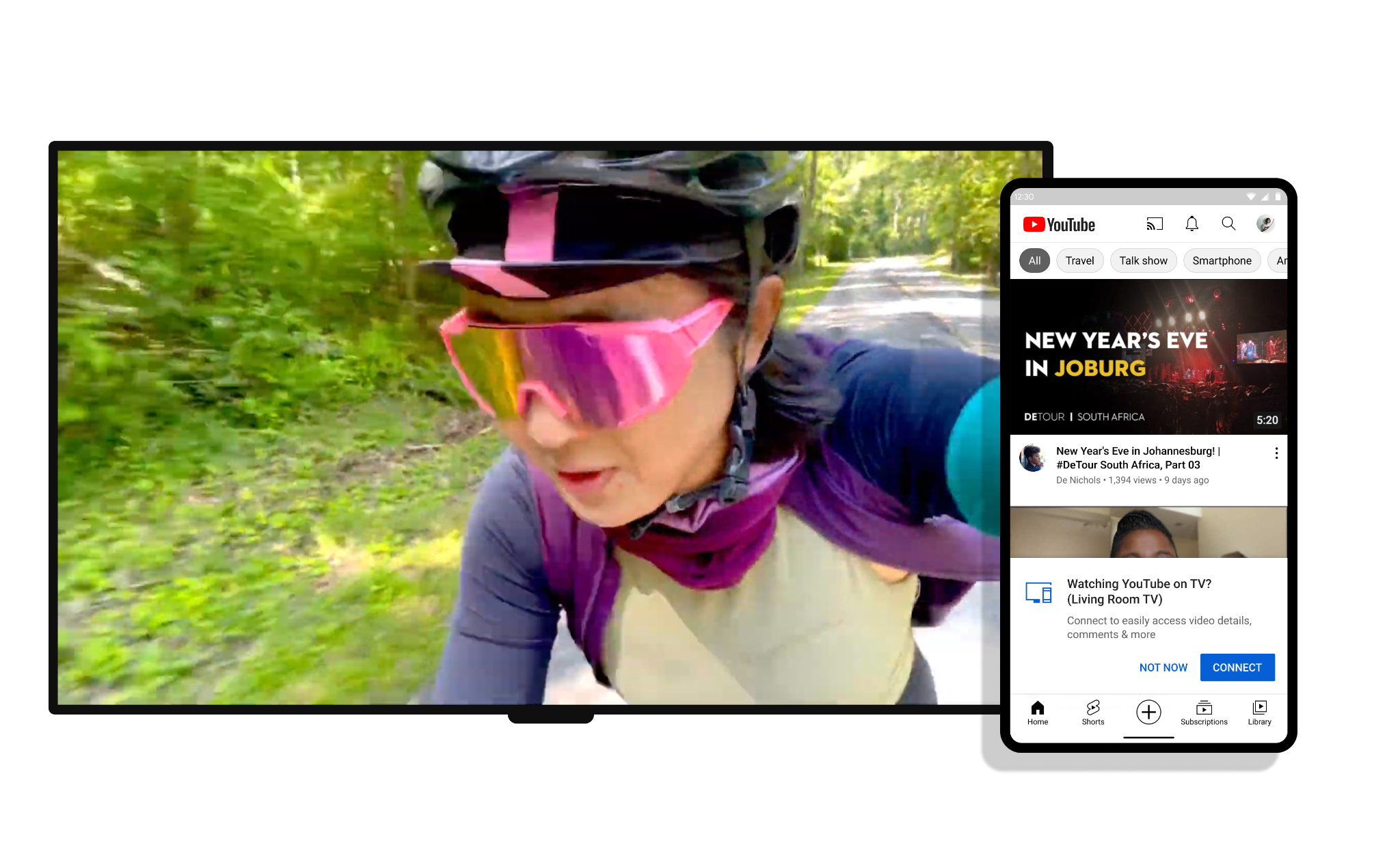
The mobility of YouTube TV is one of its most significant technical advantages. The app is available on both iOS and Android, allowing for seamless transitions from a living room environment to a mobile one. Accessing the service on mobile requires a stable data connection, typically 4G LTE or 5G, though Wi-Fi is recommended for high-bitrate streaming. The mobile app also serves as a remote control for Chromecast-enabled devices, creating a synergistic hardware loop that simplifies the user experience.
Computing and Web-Based Access
For those accessing the service via a desktop or laptop, the process is as simple as navigating to the YouTube TV web portal. Because it is a web-based application, it requires a modern browser with HTML5 support. Chrome, Firefox, Safari, and Edge are all optimized for this experience. This method is particularly useful for multitasking or for users who lack a secondary television monitor but wish to monitor live news or sports while working.
Setting Up the Service: From Account Creation to Network Verification
Accessing YouTube TV requires a systematic setup process that leans heavily on the Google identity ecosystem. Because the service is tied to a Google Account, the initial configuration involves more than just a username and password; it requires geographical and financial verification.
Google Account Integration and Billing
To begin, a user must sign in using their primary Google credentials. This integration allows for a unified billing cycle through the Google Play Store or direct credit card links. One of the most important technical aspects of the setup is the “Family Group” configuration. YouTube TV allows for up to six individual profiles per household. Each profile maintains its own unique DVR library and personalized recommendations, but all are managed under a single administrator account. This architecture ensures that data privacy is maintained between family members while sharing a single subscription.
The Critical Role of Geofencing and Location Services
A unique technical challenge of accessing live TV over the internet is the delivery of local affiliate programming. YouTube TV utilizes geofencing technology to determine which local news and sports networks a user should receive. During the initial setup on a mobile device, the app will request permission to access GPS data. This location “handshake” is mandatory. For users on desktop computers, the service relies on IP address geolocating. If there is a mismatch between the detected IP location and the “Home Area” designated in the settings, access to certain local channels may be restricted until the user re-verifies their location.

Network Configuration and Bandwidth Allocation
For a stable experience, the technical environment must meet specific bandwidth thresholds. While the service can technically run on 3 Mbps, a consistent 25 Mbps is required for 4K streaming. For households with multiple simultaneous streams, a high-performance router with Quality of Service (QoS) settings is recommended. Prioritizing video traffic at the router level ensures that a YouTube TV stream remains stable even if other devices on the network are performing data-heavy tasks like downloading large files or gaming.
Navigating the Interface and Optimizing Feature Sets
Once the hardware and accounts are configured, the next phase of access involves mastering the software interface. The YouTube TV UI is designed to be intuitive but contains several deep-layer features that enhance the technical experience.
The Library: Leveraging Cloud DVR
The hallmark of YouTube TV’s technical superiority is its unlimited Cloud DVR. Unlike physical DVRs that are limited by hard drive capacity, YouTube TV records content to Google’s servers. Accessing these recordings is instantaneous across all synced devices. To optimize this, users should utilize the “Add to Library” feature, which triggers the system to record every airing of a specific show, movie, or sports team. These recordings are kept for nine months, and because they reside in the cloud, they do not consume any local device storage.
The Live Guide and Customization
The “Live” tab provides a traditional grid-style guide. However, unlike cable, this guide is fully customizable. Through the mobile app or web browser settings, users can reorder channels, hiding those they do not watch and placing favorites at the top. This digital customization reduces the friction of channel surfing and allows for a more personalized “lean-back” experience.
Multiview and Interactive Overlays
For sports enthusiasts, YouTube TV has introduced “Multiview,” a feature that allows users to watch up to four predetermined streams simultaneously on a single screen. This is a significant technical feat, as the stitching of the four video feeds happens on the server side before the data reaches the user’s device. This prevents the user’s hardware from becoming overloaded by trying to decode four separate video signals at once. Furthermore, interactive overlays such as “Key Plays” and “Real-Time Stats” use data-scraping algorithms to provide live context during games, adding a layer of depth that traditional TV cannot match.
Troubleshooting Security and Connectivity Protocols
Like any cloud-based software, accessing YouTube TV can occasionally involve technical hurdles related to security protocols and connectivity errors.
Managing Concurrent Streams and IP Restrictions
YouTube TV typically allows for three concurrent streams. If a fourth device attempts to access the service, a playback error will occur. For users requiring more flexibility, the “4K Plus” add-on removes these restrictions on the home Wi-Fi network. From a security standpoint, the service monitors the IP addresses used to access the account. Frequent access from vastly different geographic locations may trigger a security alert or a prompt to update the “Home Area.” This is a digital rights management (DRM) measure designed to prevent unauthorized password sharing outside of a single household.
Resolving Latency and Buffer Bloat
Latency is the enemy of live sports. To minimize the delay between the live action and the digital broadcast, YouTube TV offers a “Decrease Latency” setting in the playback menu. While this may slightly increase the risk of buffering if the internet connection is unstable, it brings the broadcast closer to real-time. If buffering persists, users should check their DNS settings. Using a fast, reliable DNS like Google DNS (8.8.8.8) or Cloudflare (1.1.1.1) can often improve the initial “handshake” time when a channel is first selected.

Privacy and Data Management
Accessing YouTube TV also means managing the data Google collects about viewing habits. Within the privacy settings, users can pause or clear their watch and search history. This is not just about privacy; it also resets the recommendation engine. If the “Home” tab becomes cluttered with irrelevant suggestions, clearing the technical cache of the watch history allows the algorithm to start fresh, improving the discoverability of new content.
The architecture of YouTube TV represents the pinnacle of modern streaming technology. By combining robust hardware compatibility with sophisticated cloud-based features and a deep integration into the Google ecosystem, it provides a powerful alternative to traditional media delivery. Mastering the access points—from the initial hardware selection to the fine-tuning of network settings—ensures that the user remains at the cutting edge of the digital entertainment revolution.
aViewFromTheCave is a participant in the Amazon Services LLC Associates Program, an affiliate advertising program designed to provide a means for sites to earn advertising fees by advertising and linking to Amazon.com. Amazon, the Amazon logo, AmazonSupply, and the AmazonSupply logo are trademarks of Amazon.com, Inc. or its affiliates. As an Amazon Associate we earn affiliate commissions from qualifying purchases.