
In the ever-evolving landscape of digital entertainment, streaming services have become the cornerstone of how millions consume television. Among the frontrunners, YouTube TV has carved out a significant niche, offering a comprehensive package of live TV channels, on-demand content, and cloud DVR functionality. A fundamental question for any household considering or currently subscribed to YouTube TV, particularly those with multiple occupants or diverse viewing habits, revolves around its simultaneous streaming capabilities: how many YouTube TV streams can you watch at once? Understanding this limit is crucial for optimizing your subscription, preventing frustrating interruptions, and ensuring seamless entertainment for everyone under your roof.

This guide delves deep into YouTube TV’s streaming architecture, explaining the default allowances, the revolutionary “4K Plus” add-on, practical tips for managing your streams, and how YouTube TV stacks up against its competitors. By the end, you’ll have a clear understanding of how to maximize your YouTube TV experience, ensuring everyone can watch their preferred content without hitting a digital roadblock.
Understanding YouTube TV’s Standard Streaming Capabilities
At its core, YouTube TV is designed with flexibility in mind, aiming to cater to the diverse needs of modern households. However, like all streaming services, it operates within certain technical and licensing parameters that dictate how many active streams can run concurrently on a single account.
The Default Stream Limit: 3 Simultaneous Views
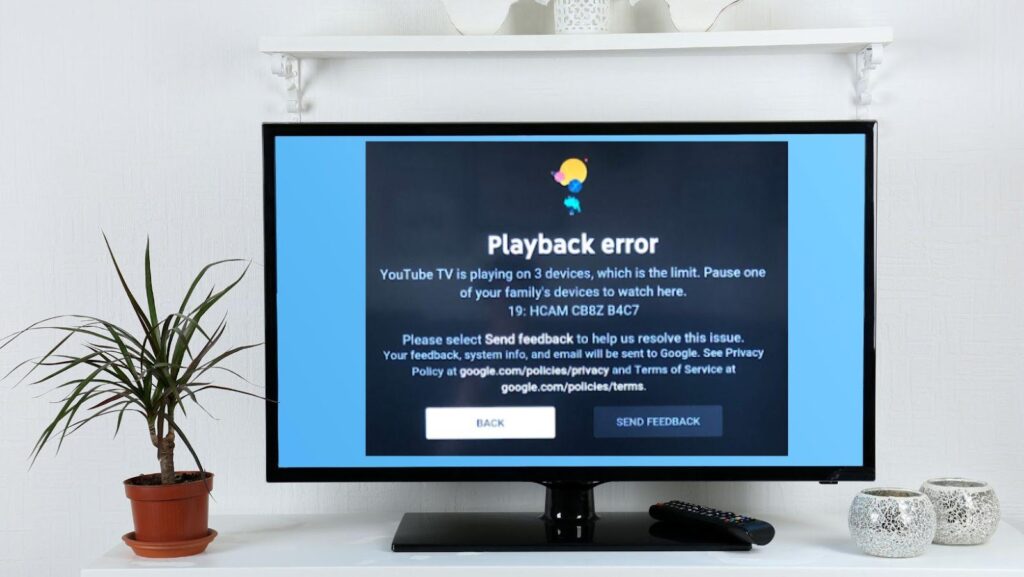
For the vast majority of its subscribers, YouTube TV offers a standard allowance of three simultaneous streams. This means that at any given moment, three different devices, whether it be a smart TV, a smartphone, a tablet, or a computer, can be actively playing distinct or even the same YouTube TV content under one subscription. This limit is generally considered generous for many single-person households or smaller families, enabling one person to watch a football game on the living room TV, another to catch up on a drama series on a bedroom TV, and a third to watch news on their tablet.
The “three streams” policy strikes a balance between providing sufficient access for typical family usage and managing the complexities of content licensing agreements with broadcasters. Each stream consumes bandwidth and data, and limiting simultaneous access helps maintain service quality while adhering to the contractual obligations YouTube TV has with the networks whose content it distributes.
Why Stream Limits Exist: Balancing User Experience and Network Load
Stream limits aren’t arbitrary; they serve several critical purposes that benefit both the service provider and the end-user. From a technical standpoint, managing the number of concurrent streams helps YouTube TV distribute its server load more efficiently, ensuring stable performance and high-quality video delivery. Unrestricted streaming could lead to system overloads, buffering issues, and a degraded user experience for everyone.
Economically, these limits are intertwined with content licensing. Broadcasters and content creators typically license their material to streaming platforms with specific terms regarding subscriber access and usage. These terms often include limitations on simultaneous streams to protect their content’s value and prevent unauthorized widespread sharing beyond a single household. Without these limits, one YouTube TV subscription could theoretically be shared among dozens of unrelated individuals across different locations, undermining the economic model of both the streaming service and the content owners.
Furthermore, stream limits encourage the purchase of additional subscriptions or add-ons for households with higher demands, providing a scalable revenue model for YouTube TV. It’s a strategic move to segment the market and offer premium options for users who require more extensive access.
What Counts as a Stream? Device Identification
It’s important to clarify what exactly constitutes a “stream” in YouTube TV’s system. Essentially, any device that is actively playing video content from YouTube TV is counted as one stream. This includes:
- Televisions: Smart TVs, streaming devices like Roku, Apple TV, Amazon Fire TV, Chromecast, gaming consoles (Xbox, PlayStation).
- Mobile Devices: Smartphones and tablets (iOS and Android).
- Computers: Desktops and laptops accessing YouTube TV via a web browser.
Crucially, simply having the YouTube TV app open or being logged in on a device does not count as an active stream. A stream is only initiated when video playback begins. If you pause a program, it generally still counts as an active stream for a period, as the system anticipates you’ll resume playback. To free up a stream, you typically need to exit the content or the app entirely, or actively stop playback. Understanding this distinction is vital for troubleshooting if you unexpectedly hit your stream limit.
Elevating Your Viewing with the 4K Plus Add-on: Unlimited Home Streams
While the standard three-stream limit serves many, modern large households or those with particularly intense viewing habits often find themselves bumping against this ceiling. Recognizing this demand, YouTube TV introduced a premium solution: the 4K Plus add-on.
Beyond the Basics: What the 4K Plus Add-on Offers
The 4K Plus add-on is YouTube TV’s answer to the need for greater flexibility and enhanced viewing experiences. For an additional monthly fee, this premium package offers a trifecta of significant upgrades, with the most pertinent being unlimited simultaneous streams at home. This is a game-changer for bustling households where multiple family members might want to watch different programs on various devices without conflict.
Beyond the expanded stream capacity, the 4K Plus add-on also includes:
- 4K Resolution Content: Access to select live and on-demand content in stunning 4K Ultra High Definition (UHD), provided your device and internet connection support it. This includes specific sporting events and a growing library of movies and shows.
- Offline Downloads: The ability to download DVR recordings to mobile devices for offline viewing. This is incredibly useful for commutes, travel, or areas with unreliable internet access, transforming your mobile device into a portable DVR.
The introduction of unlimited home streams directly addresses one of the most common pain points for large families or shared living situations. It means that everyone, from kids watching cartoons to parents catching up on their favorite dramas and teenagers streaming sports, can do so simultaneously without anyone being locked out.
The “Home Network” Rule: Defining Your Primary Household
A crucial distinction for the “unlimited streams” feature of the 4K Plus add-on is the “home network” rule. While the add-on provides unlimited streams, this benefit primarily applies to devices connected to your designated home Wi-Fi network.
YouTube TV requires you to set a “home area” for your account, which is typically tied to the physical location where you primarily use the service. When you enable the 4K Plus add-on, any device connected to this home network can stream YouTube TV without counting towards a specific limit.
However, outside of your designated home network, the standard three-stream limit still applies. This means if one family member is traveling and using YouTube TV on their mobile device or laptop in a different location, they will use one of the three “away” streams. If two more family members are also watching from different remote locations, the fourth remote user would hit the limit. This structure is designed to facilitate sharing within a single household while preventing widespread sharing across multiple distinct households, aligning with content licensing agreements.
Understanding and correctly setting your home area is vital for maximizing the 4K Plus add-on’s benefits. YouTube TV uses your IP address to identify your home network, and you may occasionally need to update your home area if you move or if your internet provider changes your IP address.
Maximizing Family Entertainment: Who Benefits Most?
The 4K Plus add-on, particularly its unlimited home streams feature, is ideal for specific user profiles:
- Large Families: Households with many members, especially those with diverse viewing tastes and multiple TVs or personal devices.
- Multi-Generational Homes: Where grandparents, parents, and children all have different viewing preferences and schedules.
- Roommates/Shared Living Spaces: While YouTube TV’s terms of service are generally geared towards single-family households, shared living situations with clear agreement on account usage can benefit from the expanded streams.
- Entertainment Enthusiasts: Those who frequently host gatherings or have multiple screens in use for sports or events.
- Tech-Forward Households: Those who have invested in 4K televisions and want to experience content in the highest possible resolution.
For these users, the additional cost of the 4K Plus add-on is often justified by the unparalleled convenience and elimination of “stream wars,” transforming potential conflict into harmonious multi-device entertainment.
Managing Your Active Streams and Devices
Even with unlimited home streams, or especially when adhering to the standard three-stream limit, knowing how to manage your active streams and associated devices is essential for a smooth YouTube TV experience.
Monitoring Current Usage: Keeping Track of Your Streams
Unfortunately, YouTube TV does not provide a readily accessible, real-time dashboard that explicitly lists all currently active streams and the devices using them. This can sometimes make troubleshooting stream limits a bit of a guessing game.
However, you can generally infer stream usage by:
- Communicating within your household: A simple “who’s watching YouTube TV?” can often resolve conflicts.
- Device History: While not real-time, you can review the devices logged into your Google account associated with YouTube TV. This helps identify unauthorized access or devices you forgot to log out of. Go to your Google Account security settings and check “Your devices.”
- Observing prompts: If you try to start a fourth stream (without the 4K Plus add-on) or a fourth away stream (even with the 4K Plus add-on), YouTube TV will explicitly notify you that you’ve reached your limit and prompt you to stop a stream on another device.
Troubleshooting Stream Limits: When You Hit the Wall
Encountering a “too many streams” message can be frustrating, but there are straightforward steps to resolve it:
- Identify Active Streams: The first step is to figure out which devices are currently consuming your streams. Politely ask others in your household to pause or stop watching.
- Exit Apps/Browsers: On devices that might be using a stream unintentionally, ensure the YouTube TV app is completely closed or the browser tab is shut. Simply minimizing an app might not release the stream immediately.
- Sign Out of Devices: If you suspect a device is hogging a stream or an old device is still logged in, you can remotely sign out of devices linked to your Google account. Navigate to your Google Account security settings, find “Your devices,” select a device, and choose “Sign out.” This is particularly useful for lost devices or if you’ve logged in on a public computer.
- Restart Devices: Sometimes, a quick restart of the device experiencing the issue can clear up a lingering stream session.
- Check Home Network Status (for 4K Plus users): If you have the 4K Plus add-on and are hitting limits at home, ensure your device is correctly connected to your designated home Wi-Fi network. If you’ve recently moved or changed internet providers, you might need to update your home location in YouTube TV settings.
Device Management: Adding and Removing Access
Managing the devices that have access to your YouTube TV account is key to security and stream optimization.
- Logging In: To add a new device, simply download the YouTube TV app and log in with your Google account credentials.
- Logging Out: You can log out of devices directly through the app on that device. For remote management, as mentioned above, use your Google Account security settings to view “Your devices” and sign out of any device you no longer wish to have access. It’s good practice to periodically review this list, especially after selling or gifting old electronics.
- Family Sharing with Google Family Group: YouTube TV allows you to share your subscription with up to five other members of your Google Family Group. Each family member gets their own personalized library and recommendations, but they all share the same stream limits. This means if you have the standard three-stream limit, those three streams are shared among all six family members. The 4K Plus add-on’s unlimited home streams are also shared, but remember the “away from home” limit still applies per individual.
Stream Limits Across the Live TV Streaming Landscape
YouTube TV’s streaming policy exists within a competitive ecosystem. Understanding how it compares to other live TV streaming services can further inform your decision-making.
YouTube TV vs. Competitors: A Comparative Overview
Most live TV streaming services offer a default number of simultaneous streams, with options for upgrades. Here’s a brief comparison:
- Hulu + Live TV: Typically offers two simultaneous streams, with an “Unlimited Screens” add-on available for an extra monthly fee, allowing unlimited home streams and three away streams.
- Sling TV: Offers varying stream limits depending on the package. Sling Orange (ESPN channels) is limited to one stream, while Sling Blue (Fox, NBC channels) allows three streams. A combined Orange + Blue package typically allows four streams across specific channels, but still limits Orange-exclusive channels to one. There’s no “unlimited streams” add-on.
- FuboTV: Usually starts with 10 simultaneous streams at home and two outside the home, which is quite generous, especially for sports enthusiasts. Some higher-tier plans might offer even more.
- DirecTV Stream: Generally offers an impressive 20 simultaneous streams at home and three away streams, making it highly competitive for large households.
Compared to these, YouTube TV’s default three streams are somewhat standard, but its 4K Plus add-on with unlimited home streams positions it competitively against Hulu + Live TV’s equivalent and offers a more robust solution than Sling TV. FuboTV and DirecTV Stream often lead in sheer number of default streams, but YouTube TV’s overall package, user interface, and DVR are often cited as strong advantages.
Internet Bandwidth Considerations for Multiple Streams
Regardless of how many streams your YouTube TV subscription allows, your internet connection plays a critical role in the quality of your viewing experience. Each stream, especially high-definition or 4K streams, consumes a significant amount of bandwidth.
- Standard Definition (SD): ~1-3 Mbps per stream
- High Definition (HD 720p/1080p): ~5-8 Mbps per stream
- 4K UHD: ~15-25 Mbps per stream
If you have multiple devices streaming simultaneously, particularly in HD or 4K, alongside other internet activities like gaming, video calls, or large downloads, you’ll need a robust internet plan. For a household regularly using three HD streams, a minimum connection of 25-50 Mbps is advisable. For unlimited 4K streams with the add-on, you should ideally have a connection of 100 Mbps or higher, depending on other network demands. Slow or inconsistent internet will lead to buffering, lower video quality, and a frustrating experience, even if you have plenty of available streams.
The Evolving Model of Streaming Services
The streaming industry is dynamic, with services constantly adjusting their offerings, pricing, and features in response to market demands, technological advancements, and licensing changes. Stream limits, pricing tiers, and add-ons like YouTube TV’s 4K Plus are direct reflections of this evolution. As internet infrastructure improves and 4K content becomes more prevalent, we may see default stream allowances increase across the board, or more flexible, customizable packages emerge. The goal remains to provide value to subscribers while maintaining a sustainable business model for content providers and distributors.
Optimizing Your YouTube TV Experience
To truly make the most of your YouTube TV subscription, especially concerning streaming capacity, consider these final tips.
Strategies for Multi-User Households
- Communicate and Coordinate: The simplest solution for managing stream limits is open communication. A shared calendar or even a quick text can prevent conflicts.
- Designate Primary Viewers: Identify who uses YouTube TV most frequently and ensure their critical viewing times are protected.
- Leverage DVR and On-Demand: If a live show conflicts with a stream limit, use the unlimited cloud DVR to record it for later viewing. YouTube TV’s extensive on-demand library also offers flexibility.
- Consider the 4K Plus Add-on: For larger families or those consistently hitting the three-stream limit at home, the investment in the 4K Plus add-on is often well worth it for the peace of mind and enhanced viewing capabilities.
- Educate Users: Ensure everyone in the household understands how streams work and the importance of closing apps when finished.

Future-Proofing Your Streaming Setup
As technology advances, so too will streaming expectations. Investing in a high-speed, reliable internet connection is paramount. Upgrading to Wi-Fi 6 or even Wi-Fi 7 routers can provide better performance for multiple devices simultaneously. Regularly updating your streaming devices (Smart TVs, Rokus, Fire Sticks) ensures they run the latest app versions and can handle higher resolutions. By understanding your current usage, anticipating future needs, and strategically leveraging YouTube TV’s features and add-ons, you can ensure your household always has access to the entertainment it craves.
In conclusion, YouTube TV offers a standard three simultaneous streams, a robust allowance for many. However, for those requiring greater flexibility, the 4K Plus add-on provides an exceptional solution with unlimited home streams, addressing the demands of modern, multi-device households. By understanding these options and managing your devices effectively, you can unlock the full potential of your YouTube TV subscription and ensure a seamless, enjoyable viewing experience for everyone.
aViewFromTheCave is a participant in the Amazon Services LLC Associates Program, an affiliate advertising program designed to provide a means for sites to earn advertising fees by advertising and linking to Amazon.com. Amazon, the Amazon logo, AmazonSupply, and the AmazonSupply logo are trademarks of Amazon.com, Inc. or its affiliates. As an Amazon Associate we earn affiliate commissions from qualifying purchases.