
In the increasingly complex ecosystem of digital entertainment, streaming services have become the cornerstone of media consumption for millions worldwide. Among the titans of this industry, YouTube TV stands out as a robust live TV streaming service, offering a comprehensive alternative to traditional cable. As households grow and the number of internet-connected devices proliferates, a frequently asked question among current and prospective subscribers pertains to the service’s fundamental capabilities: specifically, how many TVs, or rather, how many concurrent streams, can one YouTube TV account support? Understanding these technical limitations and features is crucial for optimizing your viewing experience, especially in multi-user environments. This article delves into the intricacies of YouTube TV’s simultaneous streaming policies, add-ons that expand capacity, and best practices for managing your digital household.
Understanding YouTube TV’s Simultaneous Stream Limits
At its core, YouTube TV is designed to be flexible, but like all streaming services, it operates under specific technical constraints and licensing agreements that dictate how its content can be accessed. The most significant of these is the limit on simultaneous streams, which directly impacts how many devices can be actively watching content at any given moment.
The Standard Simultaneous Stream Allowance
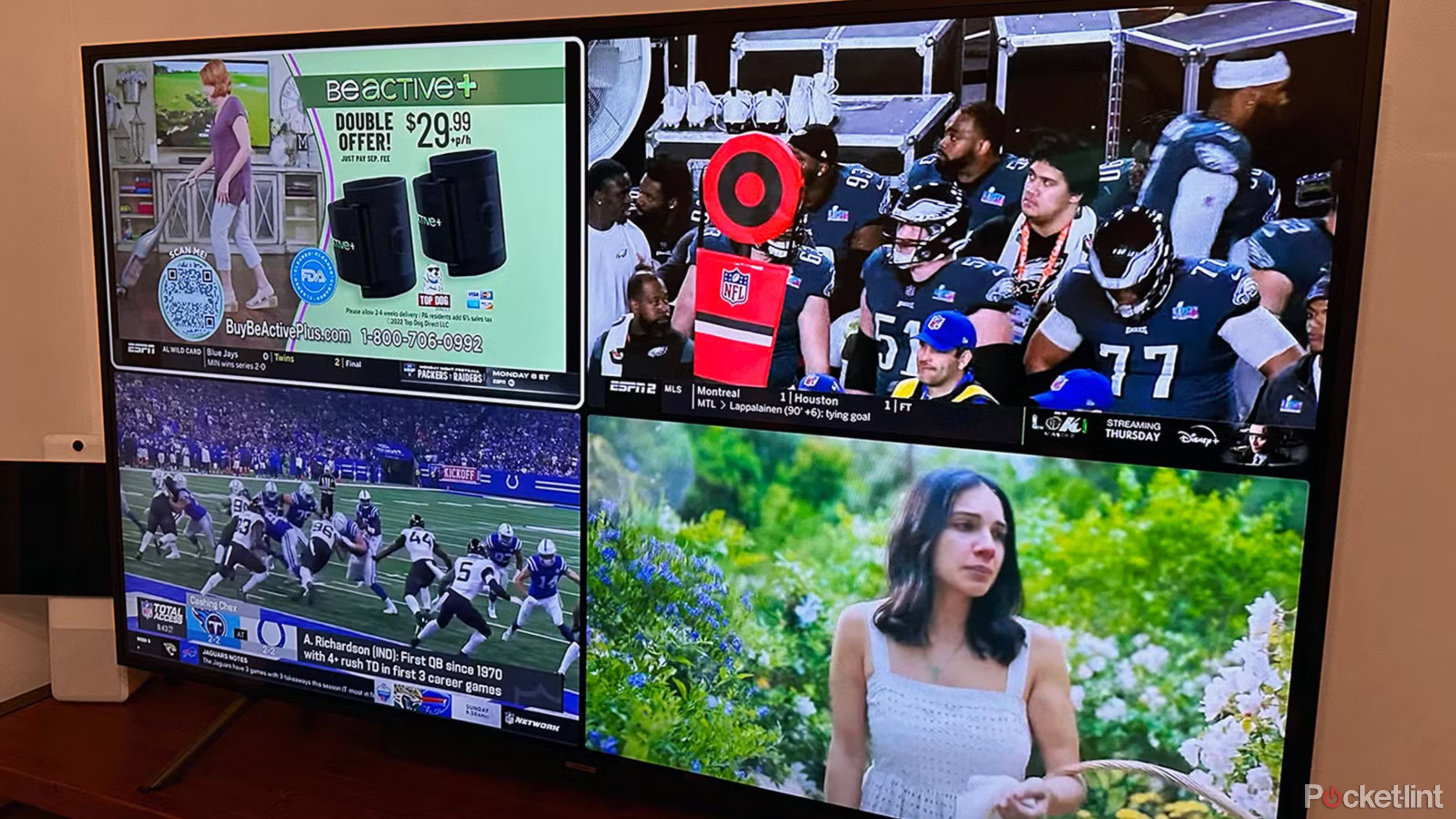
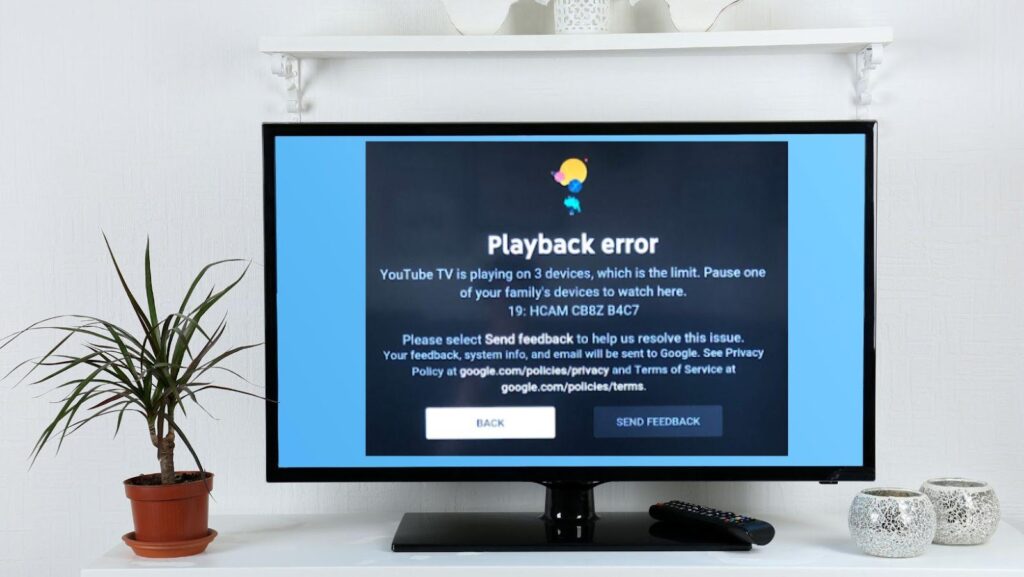
For the vast majority of its subscribers, YouTube TV offers a standard allowance of three simultaneous streams. This means that at any given time, up to three different devices—be they smart TVs, streaming sticks, tablets, smartphones, or computers—can be actively playing distinct content from your YouTube TV subscription. This baseline is usually sufficient for smaller families or individuals, allowing for a primary viewer and two others to enjoy different programs without interruption. However, in larger households with diverse viewing habits, this limit can quickly be reached, leading to frustrating “too many streams” error messages. It’s important to clarify that this limit applies to active streams, not simply devices logged into the account. You can be logged into YouTube TV on dozens of devices, but only three can be streaming simultaneously on the base plan.
Distinguishing Between In-Home and Out-of-Home Streams
YouTube TV introduces a critical nuance to its simultaneous stream policy: the distinction between in-home and out-of-home viewing. This distinction is vital for understanding how the service manages access, especially when considering the 4K Plus add-on.
The service primarily identifies a “home network” or “home location,” which is typically determined by the IP address of your primary internet connection. When all three of your simultaneous streams are occurring within this identified home network, there are generally no issues.
However, if a stream is initiated outside of this home network—for instance, by a family member watching on their phone while at work, or a child streaming from a friend’s house—it counts towards the same three-stream limit. The critical point is that all three streams can occur anywhere, as long as they adhere to the geographical home location requirements, which we will discuss further. YouTube TV is designed for families on the go, allowing access from various locations, but always within the three-stream constraint on the base plan. The “home network” concept becomes more restrictive when discussing unlimited streams provided by add-ons.
Device vs. Stream: Clarifying the Mechanics
It’s common for users to confuse the number of devices on which YouTube TV is installed or logged in with the number of active streams. To reiterate, the limit is strictly on active streams. You could have YouTube TV installed on five smart TVs, two tablets, and three smartphones, but if only one person is watching on their smart TV, and another on a tablet, you are only using two out of your three allotted streams. The problem arises only when a fourth device attempts to initiate playback while three are already active, triggering the “too many streams” notification. This distinction is crucial for troubleshooting and for understanding why an error might occur even if you “only have two TVs.”
Expanding Your Streaming Capacity: The 4K Plus Add-on
For households that routinely hit the three-stream limit or desire advanced viewing features, YouTube TV offers a premium add-on called “4K Plus.” This optional subscription significantly enhances the viewing experience and, crucially, expands streaming capabilities.
What is 4K Plus?
The 4K Plus add-on is a premium subscription tier designed to cater to users seeking higher fidelity content and greater flexibility. Beyond its primary benefit of unlocking 4K resolution content where available, it bundles several other valuable features, with enhanced streaming capacity being a major draw. It typically comes with an additional monthly fee on top of the base YouTube TV subscription.
Increased Simultaneous Streams (Unlimited In-Home)
One of the most compelling reasons to subscribe to 4K Plus is its transformative impact on simultaneous stream limits. With the 4K Plus add-on, YouTube TV allows for unlimited simultaneous streams within your home network. This means that within the confines of your identified home IP address, every device in your household can be streaming YouTube TV content simultaneously without hitting any artificial limits. This is a game-changer for large families, multi-generational households, or even roommates with diverse viewing interests.
While in-home streams become unlimited, the out-of-home stream limit remains at three simultaneous streams. So, if you’re streaming from your home network, and three family members are streaming from three different external locations (e.g., at work, a friend’s house, or traveling), the system will still function. However, if a fourth person tries to stream from outside the home network, they would be blocked. This hybrid approach ensures flexibility for remote viewers while providing unparalleled access within the primary residence.
Other Benefits of 4K Plus
Beyond expanded streaming, 4K Plus offers several other enhancements:
- 4K Resolution Content: As the name suggests, this add-on provides access to available content in stunning 4K resolution. This includes live sports, on-demand programs, and events from select networks, provided your display and internet connection can support it.
- Offline Downloads: Subscribers can download recorded content from their unlimited Cloud DVR to mobile devices for offline viewing. This is particularly useful for commutes, travel, or situations with unreliable internet access.
- Dolby 5.1 Audio: For an immersive audio experience, 4K Plus also supports Dolby 5.1 surround sound on compatible content and devices.
Cost-Benefit Analysis of the Add-on
Deciding whether the 4K Plus add-on is “worth it” largely depends on your household’s specific needs and viewing habits. For individuals or small families who rarely hit the three-stream limit, the additional cost might not justify the benefits. However, for larger households where concurrent viewing is common, or for videophiles who prioritize 4K content and immersive audio, the 4K Plus add-on can significantly enhance the value proposition of YouTube TV, transforming it into an even more robust entertainment hub. The peace of mind that comes with never having to coordinate streaming schedules can be a substantial benefit in itself.
Navigating Stream Limits and Troubleshooting
Even with an understanding of YouTube TV’s policies, users may occasionally encounter issues related to stream limits. Knowing how to troubleshoot and manage your account effectively can prevent interruptions to your viewing.
Identifying Active Streams
Unfortunately, YouTube TV does not provide a direct, real-time dashboard that explicitly lists all currently active streams and the devices they are on. This can make troubleshooting challenging. However, you can infer which devices might be active by:
- Checking Your Watch History: While not real-time, your watch history can give you an idea of recent activity on different devices.
- Reviewing Signed-In Devices: Go to your Google account security settings to see which devices are signed into your Google account, which is linked to YouTube TV. While this doesn’t show active streams, it can help identify dormant devices that might be logged in.
- Direct Communication: The most straightforward method in a multi-user household is often simply communicating with other family members to see who is currently watching.
Resolving “Too Many Streams” Errors
When you encounter the dreaded “Too Many Streams” error, follow these steps:
- Identify and Stop an Existing Stream: The primary solution is for one of the active users to stop watching YouTube TV. This frees up a slot.
- Close the YouTube TV App: Simply backing out of the app might not always stop the stream immediately. Ensure the app is fully closed on the device.
- Sign Out (if necessary): If you suspect an old device or a forgotten session is consuming a stream, you can sign out of YouTube TV from that specific device, or, as a last resort, manage your Google account security to sign out all devices.
- Wait a Few Minutes: Sometimes, there’s a slight delay for the system to register that a stream has ended. Give it a minute or two before trying again.
Best Practices for Large Households
For households with many viewers, proactive management is key:
- Communicate Stream Usage: Encourage family members to notify others if they are about to start watching, especially during peak times.
- Consider the 4K Plus Add-on: As discussed, this is the most effective solution for eliminating in-home stream limits.
- Utilize Other Entertainment Options: If two people want to watch the same show, consider watching it together on one TV. For different shows, leverage other streaming services you might subscribe to if YouTube TV’s limits are frequently an issue.
- Educate Users on App Closure: Ensure everyone knows to properly close the YouTube TV app when they are finished watching, rather than just switching inputs or turning off the TV.
Understanding the “Home Network” Rule
The concept of the “home network” is fundamental to YouTube TV’s operation and how it enforces simultaneous stream limits, particularly with the 4K Plus add-on. YouTube TV identifies your home location primarily through the IP address of your internet service provider. This IP address signals to the service where your primary residence is.
- IP Address Detection: When you first set up YouTube TV on a TV or streaming device at your main residence, the service registers that IP address as your “home network.”
- Geographical Enforcement: This “home network” is crucial for licensing agreements, which often dictate what content can be shown in specific geographical areas. It also prevents account sharing across multiple distinct households.
- Changing Your Home Location: YouTube TV allows you to change your home location, but with restrictions. Typically, you can only change it a few times per year. This is to prevent abuse of the service by users who might try to circumvent regional blackouts or share accounts across distant locations. If you move, you will need to update your home location in the settings to ensure continued service without interruptions.
YouTube TV’s Multi-Device Ecosystem
While the focus is often on TVs, YouTube TV’s strength lies in its expansive support for a wide array of devices, enabling a truly flexible viewing experience that extends beyond the living room.
Supported Devices Beyond TVs
YouTube TV is not exclusive to smart TVs. Its application is designed to run seamlessly on a vast ecosystem of internet-connected devices, including:
- Streaming Media Players: Roku, Amazon Fire TV, Apple TV, Google Chromecast (with Google TV), NVIDIA Shield TV.
- Smart TVs: Built-in apps on Samsung, LG, Vizio, Hisense, TCL, and other Android TV-powered smart TVs.
- Mobile Devices: Smartphones and tablets running iOS (Apple) and Android operating systems.
- Gaming Consoles: Xbox (One, Series X|S) and PlayStation (4, 5).
- Web Browsers: Google Chrome, Firefox, Safari, Edge on desktop and laptop computers.
This broad compatibility means that a “stream” can originate from virtually any screen in your life, emphasizing the need to manage concurrent usage across all these potential access points.
The Concept of a “Home Location” Revisited
The “Home Location” is more than just a technical identifier; it’s a foundational element of YouTube TV’s licensing and service delivery model. It ensures that content is delivered according to geographical rights agreements with broadcasters and content owners. Your home location must be physically located within an area where YouTube TV is officially offered and supported. If you travel outside your registered home area for an extended period, you might find certain local channels unavailable, although national channels and your Cloud DVR should still be accessible. The system periodically checks your location to verify compliance.
How Often Can You Change Your Home Location?
YouTube TV implements a policy that allows users to change their home location a limited number of times per year, typically two to four times. This restriction is crucial for maintaining the integrity of content licensing. If you move to a new permanent address, you will need to update your home location in your settings. YouTube TV will then use the IP address from your new internet connection to verify and set the new home location. Users who travel frequently or attempt to share their accounts across different states will quickly run into this limitation. It’s designed to ensure that each account primarily serves a single household.
Conclusion: Maximizing Your YouTube TV Experience
YouTube TV offers a compelling and comprehensive live TV streaming experience, and understanding its technical parameters, particularly regarding simultaneous streams, is key to an uninterrupted and satisfying service. While the base subscription provides a robust three-stream limit, the 4K Plus add-on presents an invaluable option for larger households, effectively eliminating in-home stream constraints and adding premium features like 4K content and offline downloads.
By grasping the distinction between in-home and out-of-home streams, leveraging the power of add-ons, and implementing simple best practices for managing device usage, subscribers can fully harness the flexibility and breadth of content YouTube TV offers. In an era where personalized viewing is paramount, managing your streaming capacity ensures that every screen in your household can be a window to endless entertainment, making “how many TVs can watch YouTube TV” a question with clear, manageable answers. The service continues to evolve, but its core principles of accessibility and flexible viewing remain at the forefront, adapting to the diverse needs of modern tech-savvy consumers.
aViewFromTheCave is a participant in the Amazon Services LLC Associates Program, an affiliate advertising program designed to provide a means for sites to earn advertising fees by advertising and linking to Amazon.com. Amazon, the Amazon logo, AmazonSupply, and the AmazonSupply logo are trademarks of Amazon.com, Inc. or its affiliates. As an Amazon Associate we earn affiliate commissions from qualifying purchases.