
The shift from traditional cable to over-the-top (OTT) streaming services has redefined how households consume media. YouTube TV has emerged as a frontrunner in this digital revolution, offering a sophisticated interface and a robust channel lineup that mimics the cable experience without the restrictive hardware of the past. However, as households transition to all-digital setups, a primary technical question arises: how many TVs can actually run YouTube TV simultaneously? Understanding the limitations of concurrent streams, account management, and hardware integration is essential for optimizing a modern home theater ecosystem.
Understanding YouTube TV’s Standard Stream Limits
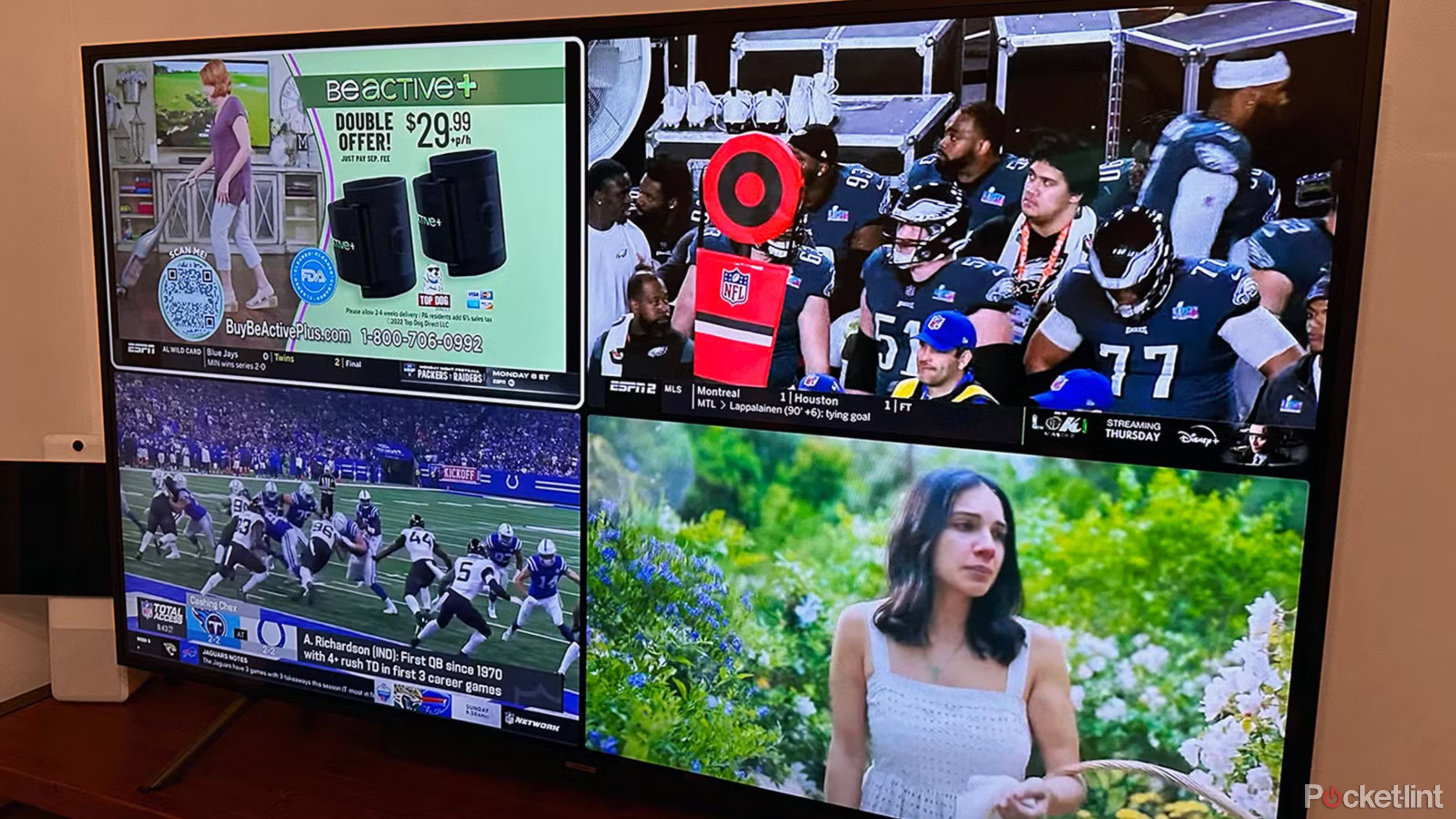
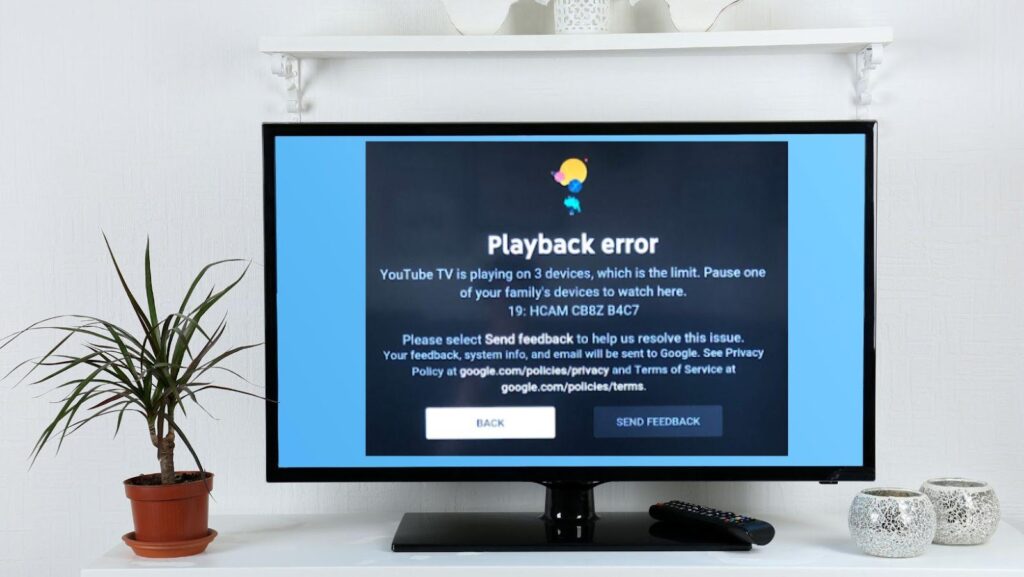
At its core, YouTube TV is designed to be a flexible software solution for the modern family. Under the standard subscription plan, YouTube TV allows for three concurrent streams. This means that at any given moment, three different devices—whether they are smart TVs, tablets, smartphones, or computers—can be actively streaming content using the same membership.
It is important to distinguish between “logged-in devices” and “active streams.” You can install the YouTube TV app and log into your account on an unlimited number of devices. You could have a television in every bedroom, the kitchen, and the living room all signed in. However, the software triggers a restriction the moment a fourth device attempts to initiate a live stream or play back a DVR recording.
The Dynamics of the Family Group
To facilitate multi-user households, YouTube TV utilizes a “Family Group” architecture. A single subscription allows the account manager to invite up to five additional family members (for a total of six profiles). Each profile receives its own personalized recommendations and its own unlimited cloud DVR storage.
Technically, while there are six profiles available, they must still share the pool of three concurrent streams. If three family members are watching YouTube TV on three separate televisions, a fourth family member attempting to watch on their phone will receive a “limit reached” notification. This technical barrier is enforced server-side, meaning the software tracks active sessions linked to the primary billing account in real-time.
Device Management and Session Persistence
YouTube TV’s backend manages sessions based on active playback. If a user leaves the app open on a smart TV but the TV is turned off or the app is paused for an extended period, the stream session eventually times out, freeing up a “slot” for another device. However, for households with several active viewers, these three slots can fill up quickly, necessitating a more robust technical solution or better management of the home network’s active sessions.
Expanding Capabilities with the 4K Plus Add-on
For tech-heavy households or large families where three streams are insufficient, Google offers a significant software upgrade known as the “4K Plus” add-on. While the name suggests its primary benefit is ultra-high-definition resolution, its most impactful technical feature is the removal of streaming caps within the home network.
The “Unlimited Streams” Feature
With the 4K Plus add-on, the three-stream limit is waived for devices connected to your “Home Area” network. In this configuration, you can theoretically have dozens of TVs streaming different channels simultaneously, provided your home internet infrastructure can handle the bandwidth. This is a massive leap forward for users who have wired their homes with Cat6 ethernet or high-capacity Wi-Fi 6 mesh systems.
The software identifies the “Home Area” through a combination of IP address tracking and location data. When you set up the 4K Plus feature, the app designates your current Wi-Fi/Ethernet network as the primary location. Any device connected to that specific network router is treated as part of the unlimited pool.
Limitations Outside the Home
It is vital to note that the “unlimited” aspect does not extend globally. When you are away from your home network—for instance, streaming on a laptop at a coffee shop or using a smart TV in a vacation home—the standard rules apply. Even with 4K Plus, you are limited to three concurrent streams outside of the home. Furthermore, if you are using your “away” streams, those count toward your total usage. The software intelligently prioritizes the home network, ensuring that the household remains connected while mobile users share the remaining remote slots.
Hardware Integration and Technical Requirements
The number of TVs you can run also depends heavily on the hardware you choose and the stability of your local network. YouTube TV is not just a website; it is a high-performance application that requires specific hardware capabilities to decode high-bitrate video streams efficiently.
Smart TVs vs. Dedicated Streaming Sticks
Most modern smart TVs (post-2016 models) from manufacturers like Samsung, LG, and Vizio have native YouTube TV apps. However, the performance can vary based on the TV’s internal processor. For a seamless multi-TV setup, many power users prefer dedicated streaming hardware such as the Apple TV 4K, Chromecast with Google TV, or the Roku Ultra.
These devices often feature superior network chips and more RAM, allowing the YouTube TV app to load channels faster and maintain more stable streams. When managing multiple TVs, using consistent hardware across all rooms can reduce troubleshooting complexity and provide a uniform user interface for everyone in the family.
Network Bandwidth: The Invisible Ceiling
While the software might allow unlimited streams with the right add-on, the physical hardware of your internet connection acts as the ultimate gatekeeper. YouTube TV recommends a sustained speed of at least 7 Mbps for a single HD stream and 25 Mbps for a 4K stream.
If you intend to run five TVs simultaneously in HD, your network must be able to allocate a consistent 35 Mbps just for YouTube TV, on top of other household activities like gaming or video conferencing. In a 4K scenario with multiple TVs, a gigabit internet plan and a robust mesh Wi-Fi system (like Google Nest WiFi or Eero) become technical necessities rather than luxuries. Without adequate throughput, users will experience buffering, resolution drops, and “network error” prompts, regardless of how many streams their plan allows.
Profile Security and Account Integrity
Because YouTube TV allows for multiple TVs and profiles, the platform has implemented strict digital security measures to prevent unauthorized account sharing outside of a legitimate household.
Location Tracking and Geo-Fencing
YouTube TV requires users to check in from their “Home Area” periodically. The service uses your device’s GPS (on mobile) or IP-based location (on smart TVs) to verify that the account is being used in the correct broadcast region. If a TV is moved to a different city and attempts to stream, it may be blocked or prompted to update its home location. Users are typically allowed to change their home area only a limited number of times per year, preventing people from sharing a single “unlimited” account across different households in different cities.
Account Protection
Each of the six profiles is tied to a unique Google Account. This integration allows for robust security features, such as Two-Factor Authentication (2FA). When setting up YouTube TV on a new television, the software usually requires a secondary authentication step—either scanning a QR code with a logged-in smartphone or entering a code on a web browser. This ensures that even if someone discovers your login credentials, they cannot hijack one of your valuable streaming slots without your permission.
Troubleshooting the “Too Many Streams” Error
Even with a clear understanding of the rules, technical glitches can occur. The “Too Many Streams” error is the most common hurdle in multi-TV households. Resolving this requires a methodical approach to digital session management.
Identifying “Ghost” Sessions
Sometimes, a device may “hang” on a session even after the TV is turned off. If you encounter a limit error despite having fewer than three TVs active, the first technical step is to check for background apps. Mobile devices are often the culprit; if the YouTube TV app is running in the background on an iPad or smartphone, the server may still count it as an active stream. Force-closing the app on mobile devices can instantly refresh the session count.
The Role of Third-Party Integrations
For those using specialized home automation systems or third-party media aggregators, it’s important to ensure that these tools aren’t pinging the YouTube TV servers unnecessarily. Every time a software interface fetches “Live Preview” data for a channel, there is a potential for the system to register a brief active session.
Optimizing for Reliability
To ensure the maximum number of TVs can run without interruption, consider the following technical checklist:
-
Hardwire where possible: Use Ethernet cables for the main living room TVs to reduce Wi-Fi congestion.
-
Update App Software: Ensure the YouTube TV app is updated to the latest version on all devices to benefit from the most efficient stream-handling code.
-
Audit Family Members: Periodically review who has access to your family group. If a family member who no longer lives in the house is using a stream, it reduces the availability for those inside the home.
In conclusion, while the standard YouTube TV plan provides a generous three-stream limit suitable for the average household, the platform’s technical scalability allows for much more. Through the 4K Plus add-on and a well-configured home network, YouTube TV can support an almost unlimited number of televisions, making it a powerful solution for high-end home theaters and large, tech-integrated residences. Success in managing these streams lies in the balance between understanding software limitations and maintaining a robust physical network infrastructure.
aViewFromTheCave is a participant in the Amazon Services LLC Associates Program, an affiliate advertising program designed to provide a means for sites to earn advertising fees by advertising and linking to Amazon.com. Amazon, the Amazon logo, AmazonSupply, and the AmazonSupply logo are trademarks of Amazon.com, Inc. or its affiliates. As an Amazon Associate we earn affiliate commissions from qualifying purchases.