
In the ever-evolving landscape of digital technology, managing software efficiently is a cornerstone of productivity and system stability. For users and administrators of Linux distributions, particularly those based on Red Hat Enterprise Linux (RHEL) like CentOS, Fedora, and openSUSE, the RPM Package Manager stands as a powerful, albeit sometimes misunderstood, tool. Mastering RPM installation isn’t just about running a command; it’s about understanding your system, ensuring software integrity, and maintaining a robust computing environment. This comprehensive guide delves into the intricacies of installing RPM packages on Linux, equipping you with the knowledge to navigate package management with confidence, streamline your workflows, and bolster your digital security.
Understanding the RPM Package Manager
At the heart of many enterprise-grade and community-driven Linux distributions lies the RPM Package Manager. Its design allows for the systematic installation, uninstallation, verification, and upgrading of software packages, moving beyond simple file copying to a structured system that tracks dependencies and metadata.
What is RPM?
RPM, which originally stood for Red Hat Package Manager, is an open-source command-line utility for managing software packages in Linux. More accurately, “RPM” refers to both the .rpm file format (a compressed archive containing program files, data, and metadata) and the program itself (rpm) used to manage these packages. An RPM file is essentially a container that bundles all the necessary files for a piece of software, along with instructions on where to put them, what permissions to set, and what other software components (dependencies) are required for it to function correctly. This structured approach simplifies software deployment and maintenance, making it a critical component for system administrators and developers alike.
Why is RPM Important for Linux Users?
The significance of RPM extends beyond mere convenience; it’s fundamental to system integrity and operational efficiency. Without a robust package manager, installing software would often involve manually compiling source code, resolving countless library dependencies, and placing files in specific directories – a time-consuming and error-prone process. RPM automates this, ensuring that software is installed correctly, dependencies are tracked, and upgrades can be performed seamlessly. For businesses and individual users, this translates directly into reduced downtime, improved security through verified packages, and the ability to maintain consistent software environments across multiple machines. In an era where “Tech” advancements demand rapid deployment and reliable performance, understanding RPM is indispensable for any serious Linux user or professional.
RPM-Based Distributions
A significant portion of the Linux ecosystem relies on RPM for package management. Notable examples include:
- Red Hat Enterprise Linux (RHEL): A commercial Linux distribution, widely used in enterprise environments for servers and workstations, known for its stability and long-term support.
- CentOS Stream: A community-driven, upstream development platform for RHEL, offering a rolling release model that closely tracks RHEL development. Previously, CentOS Linux was a recompiled version of RHEL without Red Hat’s branding.
- Fedora: The community-driven project sponsored by Red Hat, serving as the upstream source for RHEL. Fedora is known for incorporating the latest open-source technologies and rapid release cycles.
- openSUSE: A community-supported distribution with two main versions: Leap (stable, based on SUSE Linux Enterprise) and Tumbleweed (a rolling release). It offers excellent tools and a user-friendly experience.
- AlmaLinux and Rocky Linux: Free, open-source, community-supported alternatives that are binary compatible with RHEL, designed to fill the void left by CentOS Linux’s shift to Stream.
These distributions leverage RPM to provide a consistent and reliable software management experience, making knowledge of RPM invaluable across a broad spectrum of Linux environments.
Essential Tools for Managing RPM Packages
While the rpm command is the foundational tool, higher-level package managers have emerged to simplify the process, especially when dealing with dependencies. Understanding all three – rpm, yum, and dnf – provides a complete picture of RPM package management.
The rpm Command: The Foundation
The rpm command is the low-level utility for interacting directly with RPM packages. It’s powerful but does not handle dependencies automatically. This means if a package requires other packages to be installed first, you must identify and install them manually.
-
Basic Installation (
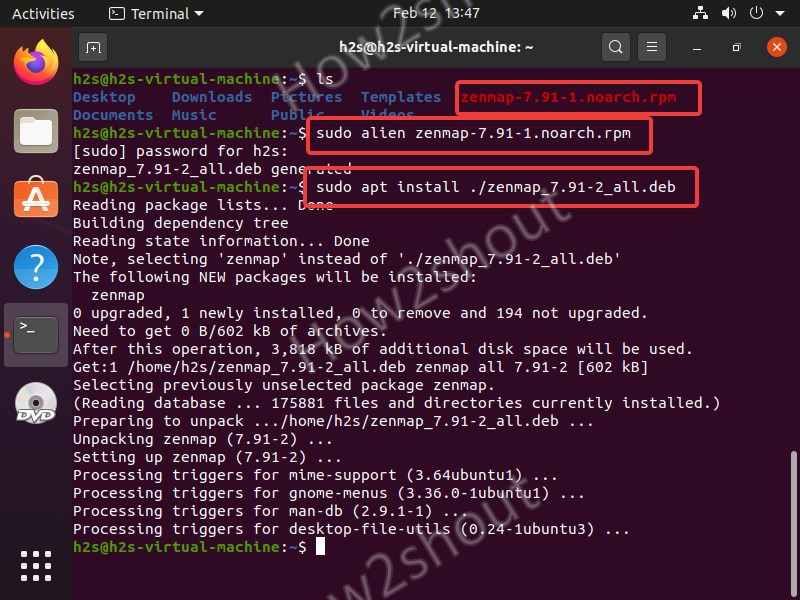
rpm -ior--install): This command installs a local.rpmfile onto your system.sudo rpm -i package_name.rpmFor example, to install a package called
my_application-1.0-1.x86_64.rpm:sudo rpm -i my_application-1.0-1.x86_64.rpmIf dependencies are missing,
rpmwill throw an error, requiring you to resolve them manually. The-v(verbose) and-h(hash marks for progress) options are commonly used:sudo rpm -ivh package_name.rpm. -
Upgrade (
rpm -Uor--upgrade): This command installs a new package or upgrades an existing one. If the package is already installed,rpm -Uwill upgrade it; if not, it will install it.sudo rpm -Uvh new_version_package.rpm -
Query (
rpm -qor--query): Used to query information about installed packages or.rpmfiles.- To check if a package is installed:
rpm -q package_name(e.g.,rpm -q httpd) - To list all files in an installed package:
rpm -ql package_name - To find which package owns a specific file:
rpm -qf /path/to/file - To get information about a
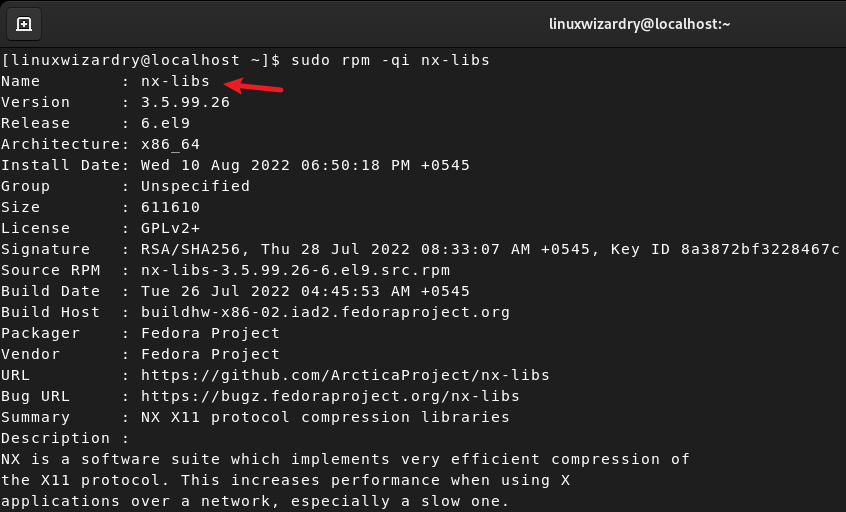
.rpmfile before installing:rpm -qpi package_name.rpm
- To check if a package is installed:
-
Verify (
rpm -Vor--verify): Verifies the integrity of an installed package by comparing files on the system with metadata in the RPM database. It checks file size, MD5 checksum, permissions, type, owner, and group.rpm -V package_nameThis is useful for security checks or troubleshooting corrupted installations.
-
Remove (
rpm -eor--erase): Uninstalls an installed package.
bash

sudo rpm -e package_name
Be cautious:rpm -ewill fail if other installed packages depend on the one you’re trying to remove.
YUM (Yellowdog Updater, Modified): Simplifying Package Management
YUM was developed to overcome the dependency hell faced with the raw rpm command. It’s a high-level package manager that works with repositories, automatically fetching and installing packages and their dependencies. YUM was the default package manager for RHEL/CentOS 6 and 7.
-
Installation (
yum install): This is the most common command. YUM searches configured repositories for the specified package, resolves all dependencies, and installs them.sudo yum install package_nameYou will be prompted to confirm the installation.
-
Update (
yum update): Updates all installed packages to their latest versions available in the repositories.sudo yum updateTo update a specific package:
sudo yum update package_name. -
Search (
yum search): Searches package names and descriptions for a specified keyword.yum search keywordThis is incredibly useful when you don’t know the exact name of a package.
-
Remove (
yum remove): Uninstalls a package and its unused dependencies.sudo yum remove package_name -
Dependency Resolution: This is YUM’s key strength. It automatically calculates and pulls in all required packages, significantly simplifying software management. YUM maintains a local cache of repository metadata to speed up operations.
DNF (Dandified YUM): The Next Generation Package Manager
DNF is the successor to YUM and is the default package manager for Fedora (since version 18) and RHEL/CentOS 8 and newer. It aims to improve YUM’s performance, memory footprint, and dependency resolution, while also providing a cleaner, well-documented API for integrations. Many DNF commands are very similar to YUM, making the transition relatively smooth.
-
Installation (
dnf install): Similar to YUM, DNF handles all dependencies.sudo dnf install package_nameYou can also install local
.rpmfiles with dependency resolution:sudo dnf install ./package_name.rpm -
Update (
dnf update): Updates all installed packages.sudo dnf updateTo update a specific package:
sudo dnf update package_name. -
Search (
dnf search): Searches for packages.dnf search keyword -
Remove (
dnf remove): Removes a package and its dependencies no longer needed by other installed software.
bash

sudo dnf remove package_name
- Why DNF Replaced YUM: DNF offers faster operations, more robust dependency resolution logic (based on libsolv from openSUSE), and better API stability for programmatic use. While YUM largely relied on Python 2, DNF is written in Python 3, aligning with modern development practices. Its enhanced performance is particularly noticeable on systems with many packages and repositories.
Step-by-Step Guide to Installing RPM Packages
Successfully installing RPM packages involves more than just typing a command; it requires preparation, understanding sources, and sometimes troubleshooting.
Prerequisites and Best Practices
Before you begin installing new software, it’s prudent to follow a few best practices:
- Update Your System: Always start by ensuring your system’s package index and all currently installed packages are up to date. This prevents conflicts with newer software and ensures you have the latest security patches.
bash

sudo dnf update # for RHEL 8+, Fedora

sudo yum update # for RHEL 7, CentOS 7
- Backup Important Data: While package installation is generally safe, unexpected issues can occur. Ensure critical data is backed up.
- Identify the Package Source: Trustworthy sources are paramount for digital security. Always download RPMs from official repositories, reputable vendors, or well-known community projects. Avoid arbitrary websites.
- Check for Existing Packages: Before installing, quickly check if the software or an older version is already installed using
rpm -q package_nameordnf list installed package_name.
Installing Local RPM Files
Sometimes you’ll have an .rpm file downloaded from a website (e.g., a proprietary driver, a specific version of software not in standard repositories).
-
Using
rpm -i(without dependency resolution):
First, navigate to the directory where you downloaded the.rpmfile.cd /path/to/downloaded/rpms sudo rpm -i package_name.rpmIf it complains about missing dependencies, you’ll either need to find and install those
.rpmfiles manually, or use YUM/DNF. -
Using
yum localinstallordnf install ./(with dependency resolution):
These commands are preferred for local.rpmfiles as they will automatically attempt to resolve and install any missing dependencies from your configured repositories.# For YUM-based systems sudo yum localinstall package_name.rpm # For DNF-based systems (note the './' indicating a local file) sudo dnf install ./package_name.rpmThese commands leverage the power of the higher-level package managers to simplify what would otherwise be a tedious manual process.
Installing from Official Repositories
This is the most common and recommended method for installing software on RPM-based systems, as it ensures dependencies are met and packages are from trusted sources.
- Search for the package: If you don’t know the exact package name, use
yum searchordnf search.
bash

dnf search web server # Will show packages related to web servers
- Install the package: Once you’ve identified the correct package name.
bash

sudo dnf install package_name

# Example: sudo dnf install nginx
The package manager will then list the package, its version, size, and any dependencies it needs to install. After your confirmation, it will download and install everything.
Handling Dependencies
Dependencies are other software components that a program needs to function.
- With
rpm: Manual resolution. Ifrpm -ifails due to missing dependencies, you’d have to find the.rpmfiles for each missing dependency and install them first, then try again. This can quickly become a “dependency hell.” - With
yumordnf: Automatic resolution. This is their primary advantage. When you runyum installordnf install, the package manager queries its configured repositories, identifies all required dependencies, and presents them to you for installation. This significantly reduces the complexity and potential for errors.
Working with Third-Party Repositories
While official repositories offer a wealth of software, sometimes you need packages from external sources for newer software versions or specialized tools. Adding third-party repositories expands the range of software available via yum or dnf.
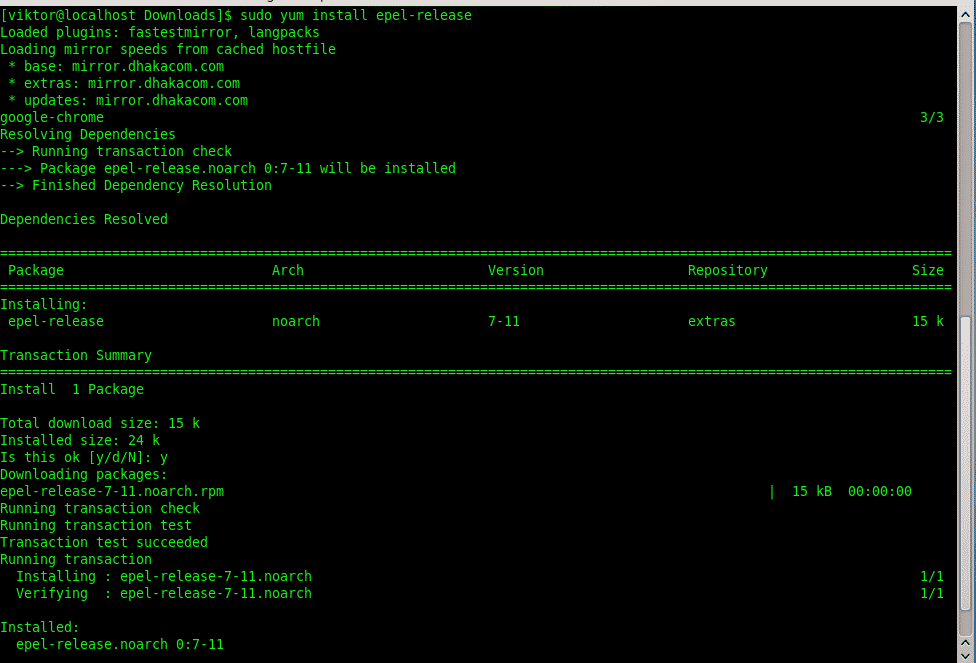
- EPEL (Extra Packages for Enterprise Linux): A popular repository providing high-quality add-on packages for RHEL, CentOS, and their derivatives.
bash

sudo dnf install epel-release # For RHEL 8+, Fedora

sudo yum install epel-release # For RHEL 7, CentOS 7
- RPM Fusion: Provides additional packages not shipped with Fedora or RHEL/CentOS due to patent or legal restrictions (e.g., multimedia codecs, proprietary drivers).
bash

sudo dnf install https://download1.rpmfusion.org/free/fedora/rpmfusion-free-release-$(rpm -E %fedora).noarch.rpm https://download1.rpmfusion.org/nonfree/fedora/rpmfusion-nonfree-release-$(rpm -E %fedora).noarch.rpm

# Replace $(rpm -E %fedora) with the actual Fedora version if needed for older systems
Always ensure third-party repositories are reputable, as adding untrusted sources can introduce security vulnerabilities.
Advanced RPM Management and Troubleshooting
Beyond basic installation, effective system administration requires knowledge of package verification, managing different versions, and resolving common issues.
Verifying Package Integrity
Ensuring that packages haven’t been tampered with is critical for security.
- GPG Keys: Most official and reputable third-party repositories sign their packages with GPG (GNU Privacy Guard) keys. When you add a repository, its GPG key is imported into your system.
yumanddnfautomatically check these signatures during installation to verify the package’s authenticity and integrity. If a package’s signature doesn’t match, the installation will be aborted. rpm -V: As mentioned earlier,rpm -V package_namecan verify the files installed by a package against the RPM database. It’s useful for detecting if files have been modified unexpectedly, which could indicate a compromise or a misconfiguration.
Downgrading and Reinstalling Packages
- Downgrading: Sometimes a new package update causes issues, and you might need to revert to an older version.
bash

sudo dnf downgrade package_name

# Or for a specific version:

sudo dnf downgrade package_name-version
YUM has a similardowngradecommand. Therpmcommand doesn’t directly support downgrading but can be forced with--oldpackage(not recommended due to dependency issues). - Reinstalling: If a package becomes corrupted or misconfigured, reinstalling it can often fix the problem.
bash

sudo dnf reinstall package_name
This command downloads and reinstalls the package, overwriting its files.
Common Issues and Solutions
- Dependency Hell: This occurs when you try to install a package, and it requires another package, which requires another, and so on, often with conflicting versions. Using
yumordnflargely mitigates this by automatically resolving dependencies. If it still occurs, it often means repository configuration issues or trying to install incompatible software. - Broken Packages: A package is considered “broken” if its dependencies are not met or its installation was incomplete.
dnf check: Can help identify broken packages.sudo dnf clean all: Clears the package manager’s cache, which can resolve issues with corrupted metadata.sudo dnf autoremove: Removes orphaned dependencies no longer needed by any installed software.
- Repository Errors: Problems reaching repositories (network issues, incorrect URLs, GPG key expiry) will prevent package manager operations.
- Check network connectivity.
- Verify repository configuration files (typically in
/etc/yum.repos.d/or/etc/dnf/repos.d/). - Ensure GPG keys are correctly imported and not expired.
Security Considerations
The convenience of package managers comes with the responsibility of ensuring security.
- Only Install from Trusted Sources: This cannot be overstressed. Malicious actors can distribute compromised RPM packages designed to infect your system. Stick to official distribution repositories, verified third-party repositories like EPEL, or vendor-provided packages with clear integrity checks.
- Keep Your System Updated: Regular updates not only bring new features but, more importantly, patch security vulnerabilities. Running
sudo dnf updateorsudo yum updateregularly is a fundamental security practice. - Understand What You Install: Before confirming an installation, review the list of packages and dependencies
yumordnfpresents. If something looks suspicious or unexpectedly large, investigate further.
By adhering to these practices, you can leverage the power of RPM package management while maintaining a secure and stable Linux environment.
Conclusion
Mastering the installation of RPM packages on Linux is a critical skill for anyone engaging with RPM-based distributions. From the foundational rpm command to the sophisticated dependency resolution of YUM and DNF, understanding these tools empowers you to manage software efficiently, maintain system integrity, and ensure digital security.
In a rapidly advancing technological landscape, where “Tech” trends constantly introduce new applications and tools, the ability to seamlessly integrate and manage software is a significant advantage. It enhances productivity, minimizes potential vulnerabilities, and contributes to a more reliable computing experience. By following the best practices outlined in this guide—from careful source selection and regular system updates to diligent troubleshooting—you not only install software but also build a robust, secure, and well-managed Linux environment. Embrace the power of RPM, and unlock the full potential of your Linux systems.
aViewFromTheCave is a participant in the Amazon Services LLC Associates Program, an affiliate advertising program designed to provide a means for sites to earn advertising fees by advertising and linking to Amazon.com. Amazon, the Amazon logo, AmazonSupply, and the AmazonSupply logo are trademarks of Amazon.com, Inc. or its affiliates. As an Amazon Associate we earn affiliate commissions from qualifying purchases.