
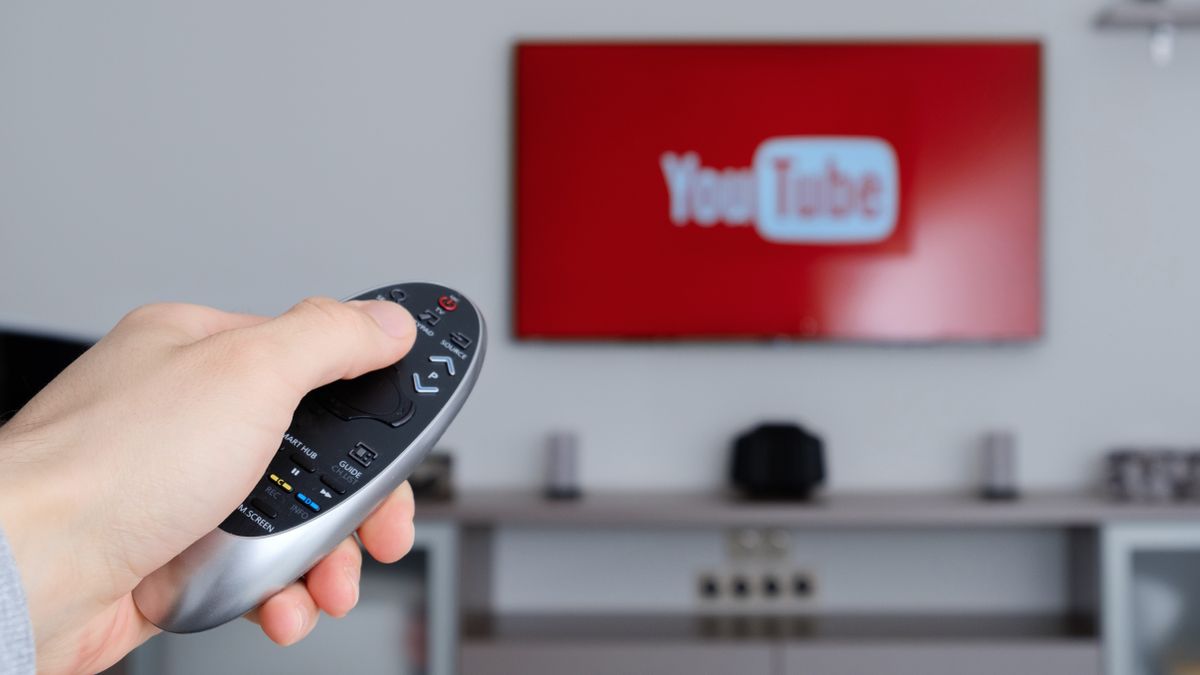
The transition from linear broadcasting to on-demand streaming has fundamentally altered the architecture of modern home entertainment. At the center of this revolution is YouTube, a platform that has evolved from a simple video-sharing site into a global media powerhouse. For the modern consumer, the Smart TV serves as the primary gateway to this content, offering a cinematic experience that mobile devices and laptops cannot replicate. Understanding how to watch YouTube on a Smart TV involves more than just opening an app; it requires an understanding of network optimization, software ecosystems, and hardware interoperability.
Initial Setup and Connectivity Requirements
Before diving into the software interface, the physical and digital infrastructure of your home theater must be optimized. A Smart TV is essentially a specialized computer designed for media consumption, and like any computer, its performance is dictated by its connection to the internet and its internal processing power.
Ensuring a Stable Network Connection
To watch YouTube in high definition (1080p) or Ultra High Definition (4K), your network stability is paramount. While most Smart TVs offer Wi-Fi connectivity, the 2.4GHz band is often crowded with interference from other household devices. If your router supports it, connecting via the 5GHz band offers higher data throughput and lower latency.
However, for the most reliable experience—especially when streaming 4K HDR content—a hardwired Ethernet connection is recommended. Most Smart TVs include an RJ45 port. By bypassing the fluctuations of wireless signals, you ensure a consistent bitrate, which prevents the frustrating “buffering” wheel and ensures that YouTube’s adaptive bitrate streaming stays at the highest possible quality.
Hardware Compatibility and Software Updates
The “Smart” in Smart TV refers to the operating system (OS) powering the device. Whether you are using Samsung’s Tizen, LG’s webOS, or Google TV (formerly Android TV), the YouTube app is a piece of software that requires regular updates. Before launching the app, navigate to your TV’s settings menu to check for system firmware updates. Manufacturers often release patches that improve the hardware acceleration for video decoding, which directly impacts how smoothly the YouTube app runs.
If you have an older “dumb” TV or a Smart TV that no longer receives app updates, the hardware may struggle with modern video codecs like VP9 or AV1. In these instances, hardware expansion via a dedicated streaming stick (such as a Chromecast, Roku, or Amazon Fire Stick) is the most efficient technical solution to bring modern YouTube functionality to an older display.
Navigating the YouTube App Interface
Once your hardware is optimized and connected, the next step is interacting with the software. The YouTube interface on a Smart TV is designed for “10-foot UI” interaction, meaning it is optimized for visibility and navigation from across a room using a standard remote control.
Finding and Installing the App
Most modern Smart TVs come with YouTube pre-installed as a core application. It is often found in the “Home” or “Apps” ribbon of the TV’s interface. If it is missing, you must navigate to the device’s specific app store—such as the Google Play Store, the LG Content Store, or the Samsung Galaxy Store. Searching for “YouTube” will allow you to download and pin the application to your quick-access bar.
Signing In and Syncing Accounts
Watching YouTube as a guest is possible, but signing into your Google account unlocks a personalized ecosystem. To avoid the tedious process of typing an email and password using an on-screen keyboard and a remote, YouTube utilizes a “Leanback” sign-in method.
When you select “Sign In,” the TV will typically display a code. You can then open the YouTube app on your smartphone or visit youtube.com/activate on a computer. By entering the code, your TV securely authenticates your account via your secondary device. This syncs your subscriptions, watch history, and “Watch Later” playlists, allowing for a seamless transition from mobile viewing to the big screen.
Optimizing the Viewing Experience
Watching YouTube on a Smart TV is a significantly different technical experience than watching on a browser. To get the most out of your hardware, you should explore the advanced settings hidden within the app.

Adjusting Resolution and Playback Quality
YouTube employs adaptive bitrate streaming, which automatically adjusts video quality based on your current internet speed. However, this system can sometimes be conservative, defaulting to 1080p even on a 4K-capable set. To override this, click the “Settings” (gear icon) on the video player overlay. Here, you can manually select the maximum resolution.
If your TV supports High Dynamic Range (HDR), look for the “HDR” tag next to the resolution options. This technology expands the contrast ratio and color palette, providing deeper blacks and more vibrant highlights. Note that enabling 4K HDR requires a steady download speed of at least 25 Mbps.
Utilizing Voice Commands and Remote Shortcuts
Many modern Smart TV remotes feature dedicated YouTube buttons or integrated microphones for voice search. Technical integration with virtual assistants like Alexa, Google Assistant, or Siri (via HomeKit) allows you to bypass manual typing entirely. Saying “Play 4K nature documentaries on YouTube” will trigger the app to search and begin playback automatically. Understanding these shortcuts can drastically reduce the friction of navigating the massive YouTube library.
Advanced Casting and Mirroring Techniques
There are times when the Smart TV’s native app may not be the most efficient way to find content. In these scenarios, “casting” provides a bridge between your mobile ecosystem and your television hardware.
Casting from Mobile Devices
Casting is not the same as screen mirroring. When you “cast” a video from your phone to your TV, the phone acts as a remote, sending a URL to the TV. The TV’s native YouTube app then takes over the heavy lifting of downloading and decoding the video data. This preserves your phone’s battery and allows you to use your phone for other tasks while the video plays.
To do this, ensure both your phone and TV are on the same Wi-Fi network. Tap the “Cast” icon (a rectangle with a Wi-Fi signal in the corner) in the mobile YouTube app. Select your TV from the list. This method is particularly useful for building “TV Queues,” where multiple people in the room can add videos to a collaborative playlist in real-time.
Troubleshooting Connection Drops
If your TV does not appear in the casting list, it is often a “handshake” issue within the Network Discovery protocol (mDNS). Restarting the router or toggling the “Simple Device Discovery” settings in your TV’s network menu usually resolves the issue. Furthermore, ensure that “YouTube on TV” is enabled in your mobile app settings, which allows for manual pairing via a “Link with TV Code” if automatic discovery fails.
Privacy and Security Settings on Smart TVs
Because a Smart TV is often a shared household device, managing privacy and security within the YouTube app is a critical final step in the setup process.
Managing Watch History and Privacy
If you do not want your TV viewing habits to influence your personal YouTube recommendations, you can utilize “Incognito Mode” within the TV app settings. Alternatively, you can pause watch and search history directly from the TV interface. This is especially useful in shared living spaces where different family members might use the same account, preventing your “Recommended” feed from becoming a mix of conflicting interests.
Parental Controls and Restricted Mode
For households with children, the standard YouTube app can be filtered using “Restricted Mode.” This uses automated signals—such as video titles, descriptions, and community guidelines reviews—to identify and hide potentially mature content. For a more controlled environment, many Smart TVs also offer the “YouTube Kids” app, which provides a completely separate, curated interface designed specifically for younger audiences with robust parental locks and time-limit features.

Hardware Evolution and the Future of TV Streaming
As display technology moves toward 8K resolution and even more complex color spaces, the way we watch YouTube on Smart TVs will continue to evolve. Modern televisions are now integrating more powerful Image Signals Processors (ISPs) that use AI upscaling to make older, lower-resolution YouTube videos look crisp on large screens.
Furthermore, the integration of the AV1 codec is becoming standard in newer chipsets. AV1 provides 30% better compression than previous standards, meaning you can watch higher-quality video while using less bandwidth. Keeping your Smart TV’s software updated ensures you are taking advantage of these efficiency gains.
In conclusion, watching YouTube on a Smart TV is a synthesis of hardware capability and software optimization. By ensuring a high-bandwidth connection, keeping firmware updated, and utilizing casting features for ease of use, you can transform a standard television into a powerful window into the world’s largest library of digital content. Whether you are seeking educational tutorials, cinematic 4K experiences, or simple entertainment, the technical synergy between the YouTube app and Smart TV hardware provides a premium viewing experience that remains the gold standard of the digital age.
aViewFromTheCave is a participant in the Amazon Services LLC Associates Program, an affiliate advertising program designed to provide a means for sites to earn advertising fees by advertising and linking to Amazon.com. Amazon, the Amazon logo, AmazonSupply, and the AmazonSupply logo are trademarks of Amazon.com, Inc. or its affiliates. As an Amazon Associate we earn affiliate commissions from qualifying purchases.