
In the modern digital landscape, the shift toward mobile-first consumption has transformed how we interact with premium video-on-demand (VOD) services. Amazon Prime Video, as one of the pillars of the streaming industry, offers a sophisticated mobile application designed to bridge the gap between high-fidelity cinematic experiences and the portability of a smartphone. Whether you are using a high-end Android flagship with an OLED display or an iPhone leveraging the latest iOS ecosystem, understanding the technical nuances of the Prime Video app is essential for optimizing your viewing experience.

Getting Started: App Installation and Ecosystem Compatibility
The foundation of watching Amazon Prime on a mobile device lies in the installation of the dedicated Prime Video application. While many users may attempt to access the service via a mobile web browser, the app is engineered specifically to handle Digital Rights Management (RM) protocols and hardware acceleration that browsers often struggle to implement efficiently on mobile hardware.
System Requirements and Hardware Compatibility
To ensure a seamless experience, your device must meet certain technical thresholds. For iOS users, the application typically requires a relatively recent version of iOS to support the latest security patches and video codecs. For Android users, the requirements are broader, but optimal performance is found on devices running Android 5.0 (Lollipop) or higher.
Beyond the operating system, the hardware’s display capabilities dictate the visual ceiling of your content. Devices with Widevine L1 certification—a digital rights management component—are capable of streaming content in High Definition (HD) and Ultra High Definition (UHD). If a device only supports Widevine L3, the resolution may be capped at Standard Definition (SD), regardless of the user’s subscription tier or internet speed.
The Installation Process
The process begins at the respective digital storefronts: the Apple App Store or the Google Play Store.
-
Search and Identification: Locate “Amazon Prime Video.” It is crucial to download the official app published by Amazon Mobile LLC to ensure data security and feature parity.
-
Authentication: Upon launching the app, you are required to sign in with your Amazon credentials. This step synchronizes your “Watchlist,” rental history, and personalized recommendations across the entire Amazon ecosystem.
-
Regional Configurations: The app automatically detects your geographical location to provide the correct content library. However, if you are traveling, the “Watch While Abroad” section highlights titles available internationally without geo-blocking restrictions.
Optimizing the Streaming Experience for Mobile Hardware
Once the application is installed, the next step involves fine-tuning the software settings to match your hardware capabilities and data constraints. Mobile streaming is a balancing act between visual fidelity and resource management.
Managing Video Quality and Data Consumption
Amazon Prime Video provides granular control over bitrate and resolution. This is particularly important for users who frequently stream over cellular networks with data caps. Within the “Stream & Download” settings, users can select from four primary tiers:
-
Data Saver: Prioritizes low bandwidth, consuming approximately 0.12 GB per hour.
-
Good: A balance of efficiency and clarity, using about 0.18 GB per hour.
-
Better: Increases the bitrate for a sharper image, using roughly 0.46 GB per hour.
-
Best: The highest possible quality allowed by the device and connection, which can exceed 1 GB per hour for HD content.
For those with unlimited data or high-speed Wi-Fi, enabling the “Highest Quality” setting ensures that the app utilizes the device’s maximum pixel density and color depth, including High Dynamic Range (HDR) if the phone’s screen supports it.
Leveraging X-Ray Technology
One of the most technically impressive features of the Prime Video app is “X-Ray,” powered by IMDb. While watching a title, a simple tap on the screen reveals a layer of metadata that identifies actors on screen, the names of background tracks, and trivia regarding the specific scene. This feature utilizes synchronized time-stamping technology to pull real-time data from Amazon’s servers, enhancing the educational and engagement value of the viewing experience without requiring the user to leave the app to search for information.
Audio Enhancements and External Connectivity
Streaming on a phone doesn’t mean sacrificing audio quality. The app supports Dolby Digital and Dolby Atmos on compatible devices and high-end Bluetooth headphones. Furthermore, the mobile app acts as a controller for larger ecosystems. Through the “Cast” icon (for Chromecast) or the AirPlay protocol (for Apple TV), users can initiate a stream on their phone and hand off the technical heavy lifting to a smart TV or streaming stick, effectively using the phone as a sophisticated remote interface.

Managing Downloads and Offline Viewing Capabilities
The ability to watch content without an active internet connection is perhaps the most significant advantage of the mobile app over its desktop counterpart. This functionality is vital for commuters, travelers, and those in areas with intermittent connectivity.
The Mechanics of Mobile Downloads
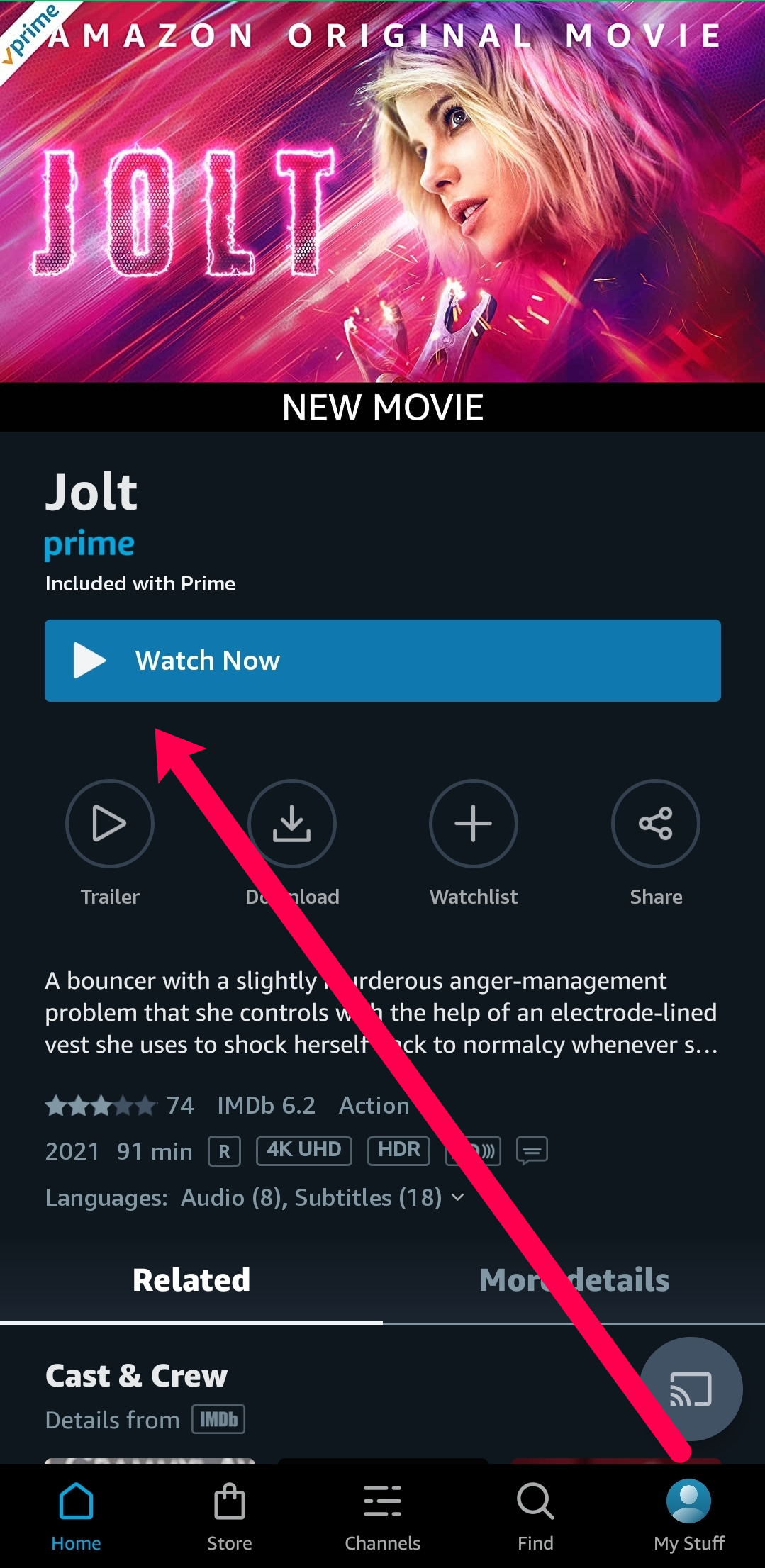
Downloading a title involves more than just saving a file; it involves the temporary storage of encrypted video packets. To download a movie or episode:
-
Navigate to the detail page of the desired content.
-
Select the “Download” icon.
-
Choose the download quality. Much like streaming quality, higher quality downloads occupy more internal storage.
It is important to note that not all titles are available for download due to licensing agreements with content creators. However, the vast majority of Amazon Originals and licensed library content support this feature.
Smart Downloads and Storage Management
To prevent the app from monopolizing the phone’s storage, Amazon implemented “Smart Downloads.” When enabled, the app automatically deletes a downloaded episode once you finish watching it and begins downloading the next episode in the series (provided you are on Wi-Fi). This automated cache management system ensures that the user always has fresh content ready for offline viewing without manual intervention.
Users can also monitor their storage usage within the app’s settings. The interface provides a visual breakdown of how much space Prime Video content occupies compared to the rest of the device’s data, allowing for quick cleanup of viewed assets.
Advanced Features and Technical Troubleshooting
Even with a robust app, technical hurdles such as playback errors or synchronization issues can occur. Understanding how to navigate the app’s internal logic can resolve most problems without requiring external support.
Parental Controls and Profile Management
The Prime Video app supports multiple user profiles, a feature essential for households sharing a single account. Each profile maintains its own “Continue Watching” list and algorithmically generated suggestions. Technically, this is managed through distinct user IDs linked to the primary account.
For parents, the app offers robust “Restricted Access” settings. By setting a “Prime Video PIN,” users can lock content based on age ratings (G, PG, 13+, 18+). These restrictions are applied at the account level but can be toggled on or off specifically for the mobile device, ensuring that children cannot access mature content even when using a parent’s phone.
Solving Common Playback Issues
If the app experiences lag, freezing, or “Error Code” messages, the following technical steps usually restore functionality:
-
Cache Clearing: On Android, users can go to System Settings > Apps > Prime Video > Storage and “Clear Cache.” This removes temporary files that may have become corrupted during a session.
-
Network Latency: High latency or “ping” can cause the app to buffer even if download speeds appear adequate. Switching from a 2.4GHz Wi-Fi band to 5GHz can often resolve interference issues.
-
DRM Reset: Occasionally, the handshake between the app and the phone’s hardware security module fails. Restarting the device reinitializes these security protocols, allowing protected content to play again.
The Role of VPNs and Proxy Detection
Many users utilize Virtual Private Networks (VPNs) for digital security. However, Amazon’s servers employ sophisticated proxy detection algorithms to enforce licensing boundaries. If a VPN is active, the app may display a “Connection Error” or restrict the library to “Watch While Abroad” titles. For the best technical performance, it is recommended to use the app on a direct connection or a VPN service known for its compatibility with high-bandwidth streaming services.
Conclusion
Watching Amazon Prime on a phone is a multifaceted technical experience that extends far beyond hitting a “Play” button. By understanding the interaction between hardware certifications, data management settings, and the app’s internal features like X-Ray and Smart Downloads, users can transform their mobile device into a powerful portable cinema. As mobile technology continues to evolve with the rollout of 5G and advancements in mobile HDR displays, the Prime Video application remains a benchmark for how premium software can deliver high-quality entertainment in the palm of a hand.
aViewFromTheCave is a participant in the Amazon Services LLC Associates Program, an affiliate advertising program designed to provide a means for sites to earn advertising fees by advertising and linking to Amazon.com. Amazon, the Amazon logo, AmazonSupply, and the AmazonSupply logo are trademarks of Amazon.com, Inc. or its affiliates. As an Amazon Associate we earn affiliate commissions from qualifying purchases.