
In an increasingly digitized world, the ability to manipulate numbers efficiently is a fundamental skill, and few tools are as ubiquitous in this endeavor as the calculator. From simple arithmetic to complex scientific computations, calculators have revolutionized how we interact with mathematics. Yet, for many, the seemingly straightforward task of using fractions on these devices remains a point of confusion. While fractions are foundational to understanding proportions, ratios, and divisions, translating them accurately into a calculator’s digital interface can be surprisingly unintuitive without proper guidance. This article delves deep into the technological nuances of using fractions on various types of calculators, ensuring clarity, accuracy, and proficiency in this essential mathematical function. We’ll explore the different methods of input, common operations, result interpretation, and practical tips, all within the comprehensive realm of technology tutorials and gadget utilization.
Understanding Your Calculator’s Fraction Capabilities
Before diving into the specifics of fraction input, it’s crucial to recognize that not all calculators are created equal. Their design and underlying software dictate their capacity for handling fractions, influencing both the ease of use and the sophistication of the operations they can perform. Identifying your calculator type is the first step towards mastering fraction usage.
Basic Scientific Calculators
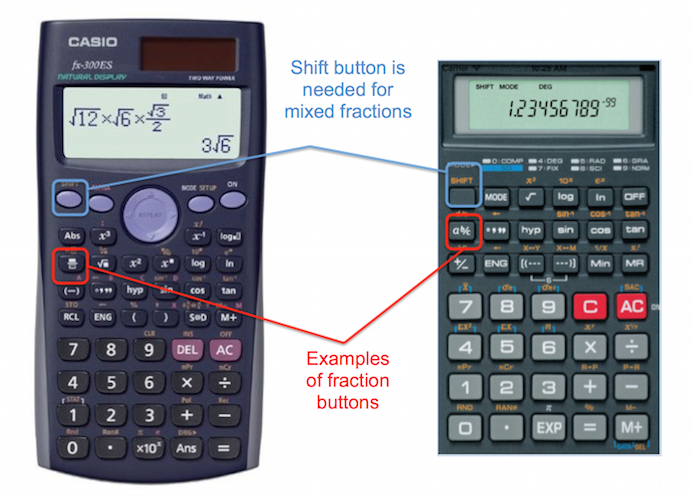
The most common type found in schools and workplaces, basic scientific calculators are engineered to handle a wide array of mathematical functions beyond simple addition and subtraction. Many models feature a dedicated fraction key, often labeled “a b/c” or similar, which simplifies the input of both proper and mixed fractions. These calculators typically display fractions in a format that resembles written fractions, such as “1┘2” for one-half, or “1┘3┘4” for one and three-quarters. They also usually include a toggle function, often labeled “S<>D” or “F<>D” (Standard to Decimal, or Fraction to Decimal), allowing users to convert fraction results into their decimal equivalents and vice versa. Understanding these specific keys and display modes is paramount for efficient fraction manipulation on these devices. While powerful for their price point, they may have limitations in displaying very complex fractions or performing symbolic calculations.
Graphing Calculators and Advanced Models
Graphing calculators, such as those from Texas Instruments (TI) or Casio, represent a significant leap in computational power and functionality. Designed for advanced mathematics, algebra, calculus, and statistics, these devices offer sophisticated fraction handling. They can often display fractions in a more visually intuitive stacked format, closely mirroring how they appear in textbooks. Beyond simple input, graphing calculators can perform complex operations, simplify fractions automatically, and even solve equations involving fractional coefficients. Their advanced operating systems allow for more flexible input methods, often supporting the use of parentheses and more complex expressions within a single line. Furthermore, many graphing calculators include computer algebra system (CAS) capabilities, which can handle symbolic fractions, meaning they can work with variables alongside numbers, making them indispensable for higher-level mathematics and engineering.
Online Calculators and Mobile Apps
The digital age has brought forth a plethora of online calculators and mobile applications that often provide the most user-friendly interfaces for fractions. Websites like Desmos, Wolfram Alpha, or dedicated fraction calculator apps offer intuitive input methods, often allowing users to type fractions directly using a slash (“/”) or by providing virtual fraction templates. Many of these digital tools excel in clarity, displaying steps for fraction simplification, showing common denominators, and offering visual representations. Their accessibility means you can perform complex fraction calculations anywhere, anytime, using a smartphone, tablet, or computer. However, their reliance on an internet connection or a specific app limits their use in scenarios where standalone hardware is required, such as during exams where external devices are prohibited. Each platform may have its own unique input syntax and display preferences, requiring a brief learning curve for optimal utilization.
Inputting Fractions: Methods and Best Practices
The most common hurdle in using fractions on a calculator is the input process itself. Depending on the calculator type and the nature of the fraction (proper, improper, or mixed), different strategies are employed to ensure accurate data entry.
The Dedicated Fraction Key (a b/c)
For scientific calculators, the dedicated fraction key (often labeled “a b/c”, “x y/z”, or simply a fraction symbol) is your primary tool.
-
Proper/Improper Fractions: To input a proper fraction like 3/4, you typically press
3, then the fraction key, then4. The display might show3┘4. -
Mixed Numbers: To input a mixed number like 2 and 1/3, you usually press
2, then the fraction key, then1, then the fraction key again, then3. The display might show2┘1┘3. Some calculators only require the fraction key once for mixed numbers:2(a b/c)1(a b/c)3. It’s essential to consult your calculator’s manual or experiment with your specific model to ascertain the correct sequence. This key is designed to keep the number in fractional form throughout the calculation, preventing premature rounding that can occur with decimal conversions.
Using the Division Symbol (/)
For calculators without a dedicated fraction key, or for situations where you prefer decimal results, the division symbol (/) is the alternative. To input 3/4, you simply type 3 / 4. The calculator will immediately convert this to its decimal equivalent (0.75). While this method is straightforward, it inherently performs a division, meaning the number is treated as a decimal from that point onward, which can be problematic if you need the result in fractional form or if precision is critical in intermediate steps. For mixed numbers, you would convert them to improper fractions first (e.g., 2 and 1/3 becomes 7/3) and then input as 7 / 3. This method requires careful management of parentheses for complex expressions to maintain the correct order of operations.
Parentheses for Clarity and Order of Operations
Regardless of whether you use the fraction key or the division symbol, mastering the use of parentheses is paramount when dealing with fractions in complex expressions. Parentheses ensure that fractions are treated as single entities before other operations are applied. For example, if you want to calculate (1/2) + (1/3), you must enclose each fraction in parentheses, especially if using the division symbol: (1 / 2) + (1 / 3). Without them, a calculator might interpret 1 / 2 + 1 / 3 as (1/2) + (1/3) if it follows standard order of operations, but it’s always safer to be explicit. With a fraction key, inputting fractions often inherently groups them, but parentheses are still vital for operations involving sums or differences within a numerator or denominator, such as (2+3)/(4-1).
Performing Operations with Fractions
Once you’ve mastered input, the next step is to perform various mathematical operations using fractions on your calculator. Most calculators are designed to handle these operations intuitively once the fractions are correctly entered.
Addition and Subtraction
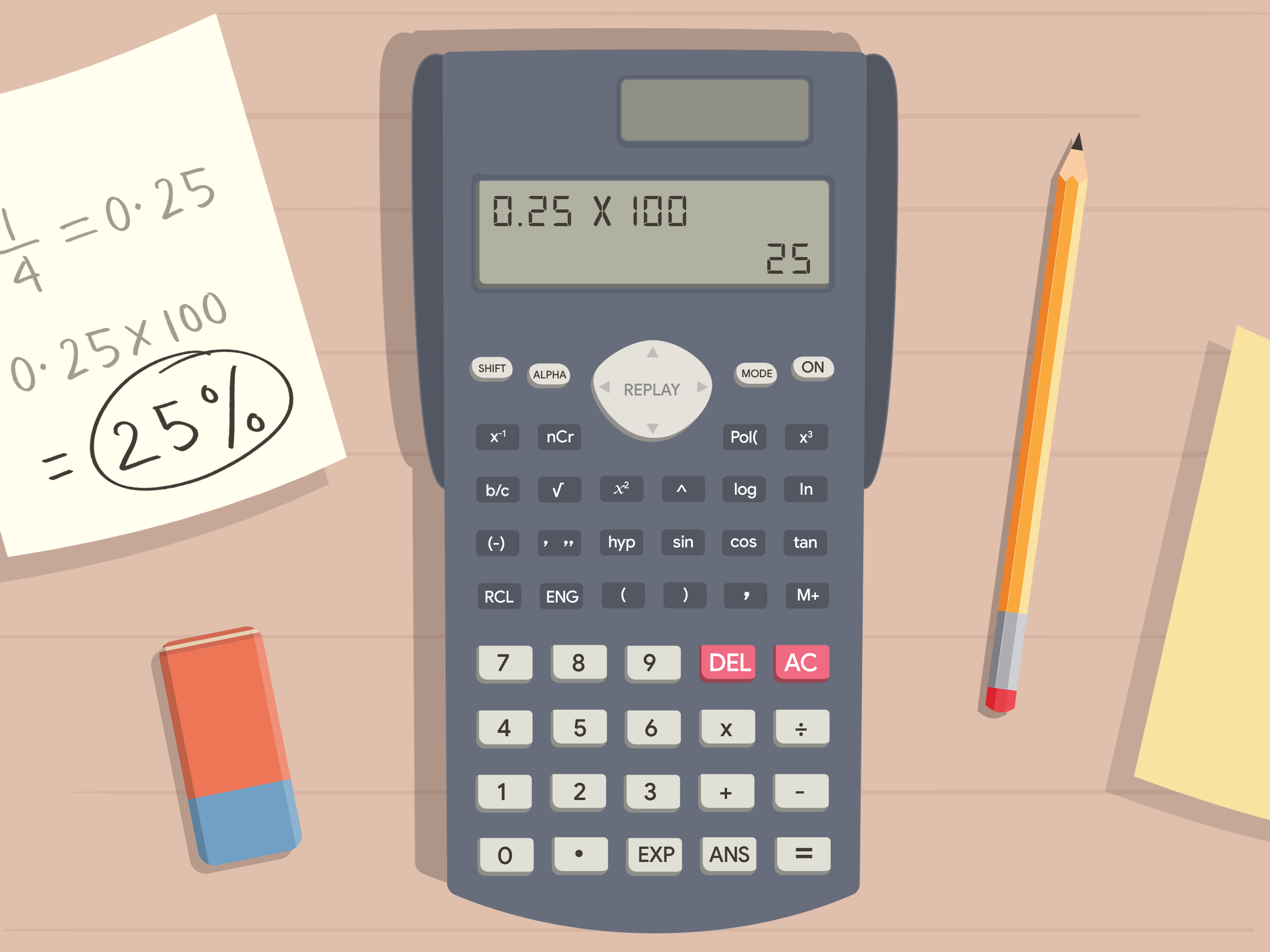
Adding and subtracting fractions often requires finding a common denominator in manual calculations. Calculators, however, automate this process. If you’ve used the fraction key to input your numbers, the calculator will perform the addition or subtraction and present the result in its simplest fractional form, or as a mixed number if applicable. For example, 1 (a b/c) 2 + 1 (a b/c) 3 would typically yield 5┘6 (5/6). If the result is an improper fraction, many calculators will allow you to convert it to a mixed number using a dedicated function (often SHIFT + a b/c). When using the division symbol, the calculator will sum or subtract the decimal equivalents. (1 / 2) + (1 / 3) would result in 0.8333....
Multiplication and Division
Multiplication and division of fractions are often more straightforward on a calculator. Simply input the fractions using your chosen method, then apply the multiplication (x) or division (÷) operator.
-
Multiplication:
(1(a b/c)2)x(3(a b/c)4)will result in3┘8(3/8). -
Division:
(1(a b/c)2)÷(1(a b/c)4)will yield2(or2┘1if showing as a fraction).
Again, if you use the division symbol for input, the calculator will perform operations on the decimal equivalents. The key advantage of the fraction key in these operations is the preservation of the exact fractional form, avoiding any potential rounding errors inherent in decimal conversions during intermediate steps.
Powers and Roots of Fractions
Calculators can also handle more complex operations like raising a fraction to a power or finding its root.
-
Powers: To calculate
(1/2)^3, you would input(1(a b/c)2)^3. The result should be1┘8. Most scientific and graphing calculators have an exponent key (often^orx^y). -
Roots: For square roots, use the square root symbol
√. For example,√(1(a b/c)4)would yield1┘2. For nth roots, you might use a function likex√yorSHIFT+^. The correct use of parentheses is even more critical here to ensure the entire fraction is subjected to the power or root operation, rather than just the numerator or denominator.
Interpreting and Converting Fraction Results
Getting a result is only half the battle; understanding how your calculator displays it and knowing how to convert it into a desired format is equally important. Calculators offer various options for presenting fractional outcomes.
Displaying Fractions vs. Decimals
A common feature on scientific and graphing calculators is the ability to toggle between fraction and decimal displays. This is usually achieved with a dedicated button, often labeled S<>D, F<>D, or a similar symbol. If your calculation results in a fraction (e.g., 1┘2), pressing this button will convert it to its decimal equivalent (0.5). Pressing it again will revert it to fractional form. This function is invaluable when a problem requires an answer in a specific format or when comparing fractional values with their decimal counterparts. Graphing calculators may offer more elaborate display settings, allowing users to choose between exact fractional answers, rounded decimals, or even mixed number forms.
Simplifying Fractions
Many modern calculators, especially scientific and graphing models, automatically simplify fractions to their lowest terms. If you perform an operation that results in 2┘4, the calculator will likely display 1┘2. This automatic simplification saves time and reduces the chance of errors. However, some basic models may present the unsimplified fraction, requiring you to manually simplify it or use a specific function for simplification if available. Understanding whether your calculator auto-simplifies is key to verifying your answers. If it doesn’t, you might need to find the greatest common divisor (GCD) of the numerator and denominator yourself.
Converting Decimals to Fractions
Converting a decimal back into a fraction can be particularly useful when you’re dealing with repeating decimals or when a problem explicitly requires a fractional answer. Most scientific and graphing calculators have a function for this, often accessible via the S<>D key (pressing it after a decimal result) or a dedicated Fraction or ->F function. For instance, if you input 0.75 and then activate the decimal-to-fraction conversion, the calculator will display 3┘4.
It’s important to note the limitations:
-
Terminating Decimals: Calculators are excellent at converting terminating decimals (like 0.25, 0.75) into their exact fractional forms.
-
Repeating Decimals: For repeating decimals (e.g., 0.333…), the calculator might provide an approximation if it cannot represent the exact fraction (1/3). More advanced calculators can sometimes identify and convert simple repeating decimals.
-
Floating Point Precision: Calculators use floating-point arithmetic, which can introduce tiny inaccuracies for very long decimals, potentially affecting the accuracy of decimal-to-fraction conversions for complex numbers. Always be mindful of the calculator’s display precision and context.
Troubleshooting Common Fraction Calculator Issues
Even with the right knowledge, users can encounter issues. Understanding common problems and their solutions can save time and prevent frustration.
Syntax and Input Errors
One of the most frequent issues is incorrect input syntax. This often manifests as an “Error” message on the calculator screen.
-
Missing Parentheses: For complex fraction expressions or operations where the order matters, forgetting parentheses is a common culprit. For example,
1 / 2 + 3 / 4vs.(1 / 2) + (3 / 4). -
Incorrect Key Sequence: When using the
a b/ckey, pressing it too many or too few times for mixed numbers can lead to errors. Always follow the specific sequence for your calculator model. -
Incorrect Operator Use: Using
xfor multiplication when*(asterisk, if available) is expected, or vice-versa, can cause issues, although most calculators are forgiving with standard operators.
Display Limitations and Rounding
Calculators, especially older or simpler models, have limitations in their display capabilities.
-
Overlapping Fractions: If a fraction has a very long numerator or denominator, or if the result is an improper fraction that’s very large, the calculator’s display might not show the entire fraction clearly, or it might switch to scientific notation or decimal approximation.
-
Premature Rounding (Decimal Mode): If you’ve implicitly or explicitly set your calculator to decimal mode, or if you use the division symbol for every fraction, any intermediate results might be rounded, leading to inaccuracies in the final answer. Always aim to keep calculations in fractional form using the fraction key until the final step if precision is paramount.
Understanding Calculator Logic (PEMDAS/BODMAS)
Calculators strictly adhere to the order of operations (Parentheses/Brackets, Exponents/Orders, Multiplication and Division, Addition and Subtraction – PEMDAS/BODMAS). When an expression involves multiple operations with fractions, if you don’t explicitly group terms with parentheses, the calculator will apply PEMDAS/BODMAS, which might not align with your intended calculation. For example, 1/2 + 3/4 * 2/3 will be calculated as 1/2 + ((3/4) * (2/3)), not (1/2 + 3/4) * 2/3. A clear understanding and consistent application of parentheses are the most effective ways to avoid these logical errors.

Conclusion
Mastering the use of fractions on a calculator is an indispensable skill in today’s technologically driven educational and professional landscapes. Whether you’re navigating a basic scientific model, an advanced graphing calculator, or a user-friendly online app, understanding the specific functionalities of your device is key. From correctly inputting proper, improper, and mixed fractions using dedicated keys or the division symbol, to performing complex operations like powers and roots, and finally, accurately interpreting and converting results between fractional and decimal forms, each step contributes to computational fluency. By familiarizing yourself with these techniques and troubleshooting common issues, you unlock the full potential of your calculator as a powerful mathematical tool. As technology continues to evolve, so too will our interfaces with mathematical concepts, but the foundational principles of accuracy, precision, and logical input will always remain at the core of effective computational practice.
aViewFromTheCave is a participant in the Amazon Services LLC Associates Program, an affiliate advertising program designed to provide a means for sites to earn advertising fees by advertising and linking to Amazon.com. Amazon, the Amazon logo, AmazonSupply, and the AmazonSupply logo are trademarks of Amazon.com, Inc. or its affiliates. As an Amazon Associate we earn affiliate commissions from qualifying purchases.