
In an increasingly digital world, cloud storage has become an indispensable tool for managing our ever-growing trove of data. Among the myriad options available, Apple’s iCloud stands out as a seamlessly integrated solution for iPhone, iPad, and Mac users, offering a convenient way to store photos, documents, backups, and more. Yet, despite its omnipresence, many users find themselves in a quandary: “How do I actually see what is stored in iCloud?” This question isn’t just about curiosity; it’s fundamental to effective data management, privacy, security, and even financial planning related to digital assets.

Understanding how to access and audit your iCloud data is critical. It’s not merely a tech tutorial; it’s an exploration of digital literacy that impacts your productivity, your personal brand through organized data, and even your financial considerations regarding storage costs and the value of your information. This comprehensive guide will demystify the process, walking you through the various methods of viewing your iCloud content across different devices and platforms, and then delving into the broader implications of effective cloud data management.
The Multi-Faceted Nature of iCloud Storage and Why Visibility Matters
At its core, iCloud is more than just a place to dump files; it’s an ecosystem designed to sync, back up, and share data across all your Apple devices and beyond. It underpins much of the seamless experience Apple users enjoy, from shared photos to synchronized notes and effortlessly restored device backups. However, this very integration can make it feel like a black box, a mystical cloud where data resides without a clear visual representation.
The need to see what’s stored in iCloud stems from several critical aspects:
- Storage Management: Every iCloud account comes with a standard 5GB of free storage. While seemingly generous, this quickly fills up, especially with high-resolution photos and multiple device backups. Knowing what’s consuming space is the first step towards freeing it up or deciding if an upgrade is necessary.
- Data Organization and Productivity: Disorganized data can be a significant drag on productivity. If you can’t easily locate a document or a specific photo, your workflow suffers. Visualizing your iCloud content allows for better categorization, deletion of redundant files, and ensuring that crucial information is readily accessible.
- Digital Security and Privacy: In an era of heightened awareness around data privacy, knowing exactly what personal information, documents, and media are stored in the cloud is paramount. This enables you to make informed decisions about what you share, what you keep, and what you might want to delete to protect your digital footprint.
- Cost Efficiency: While 5GB is free, upgrading iCloud storage incurs a monthly fee. Understanding your actual storage needs, based on what you see is stored, helps you choose the most cost-effective plan, aligning with the principles of smart personal finance.
- Personal and Professional Brand: For many, their digital data contributes significantly to their personal or even professional brand. A clean, organized, and secure digital presence reflects professionalism and attention to detail. Conversely, a cluttered, unsecured cloud storage can pose risks to reputation.
Therefore, the ability to clearly see and understand your iCloud contents is not a mere convenience; it’s a foundational skill for navigating the modern digital landscape.
Navigating Your iCloud Data Across Devices and Platforms
Apple has designed several pathways to access and view your iCloud data, catering to the diverse ecosystem of devices its users operate. Whether you’re on an iPhone, Mac, Windows PC, or just a web browser, there’s a method to peer into your personal cloud.
On Your iPhone or iPad
The most common way to interact with iCloud data is directly from your iOS or iPadOS device.
- Accessing Overall iCloud Storage:
- Open the Settings app.
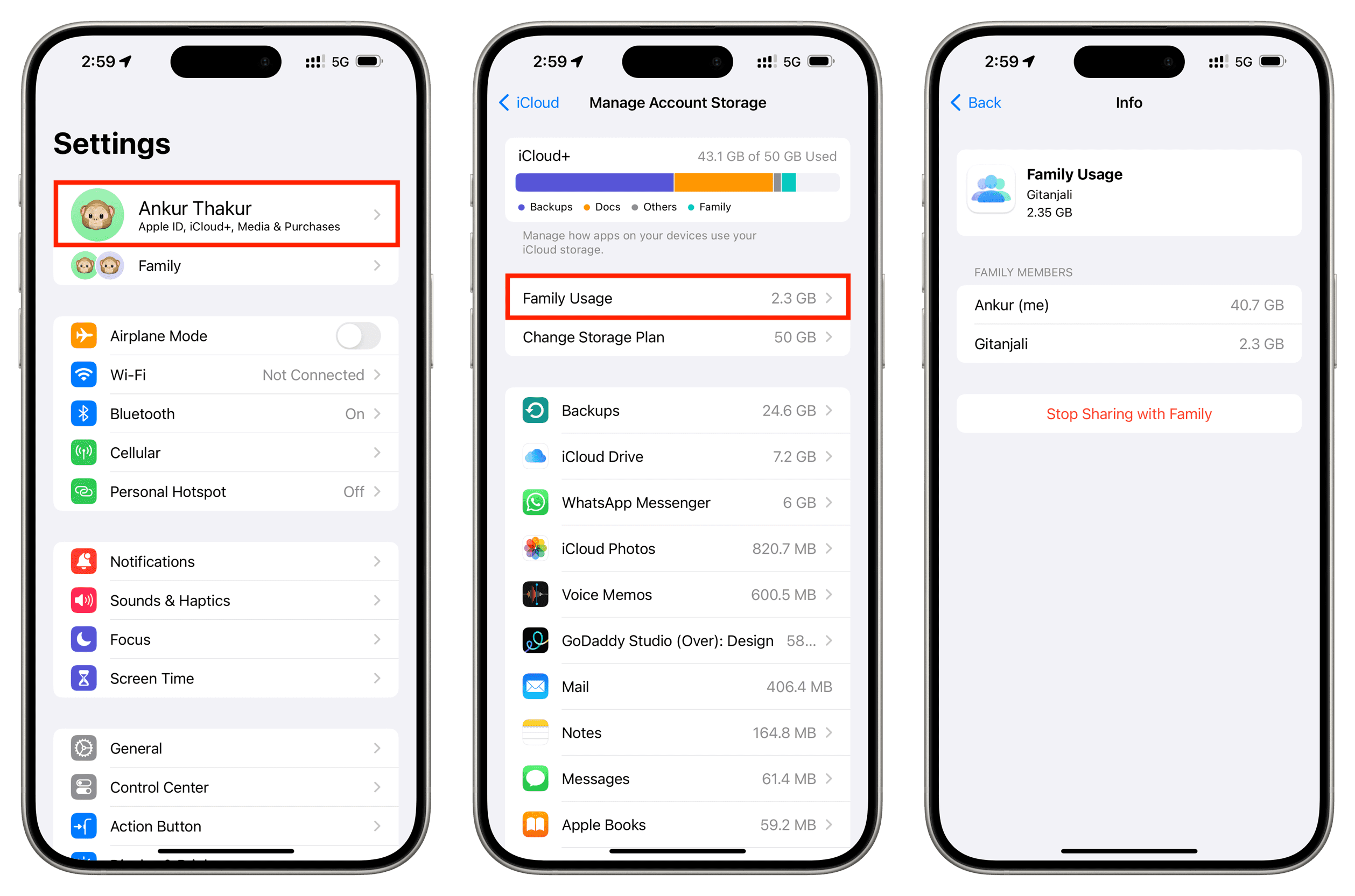
- Tap on your Apple ID banner at the very top (your name and picture).
- Tap iCloud.
- Here, you’ll see a visual bar indicating your storage usage, often broken down into categories like Photos, Backups, Documents, and Mail.
- Tap Manage Account Storage (or Manage Storage on older iOS versions). This section provides a detailed breakdown of how your iCloud storage is being used by different apps and data types. You can see specific device backups, large documents in iCloud Drive, and data from third-party apps. From here, you can also delete old backups or turn off sync for apps you no longer need to back up.
- Viewing Specific App Data:
- Photos: The Photos app automatically syncs with iCloud Photos if enabled. All your photos and videos stored in iCloud Photos will appear directly in your Photos app.
- Files App: This is your gateway to iCloud Drive. Open the Files app, and under “Locations,” you’ll see iCloud Drive. Tapping on it reveals all the folders and documents you’ve saved to iCloud Drive from any device. This is where you’ll find PDFs, documents created in Pages, Numbers, Keynote, and files from other apps that integrate with iCloud Drive.
- Other Apps: Many Apple apps like Notes, Reminders, Contacts, Calendars, and Mail store their data directly in iCloud if enabled. You simply open these respective apps, and the data you see is typically synchronized with iCloud. For instance, new notes created in the Notes app will appear on all your devices connected to the same iCloud account.
- Messages in iCloud: If enabled, your entire iMessage and SMS history is stored in iCloud. You can view this within the Messages app, and it will sync across devices. While you can’t typically view individual message files in a list, the fact that your entire conversation history is preserved and accessible across devices indicates its iCloud storage.
On Your Mac
For Mac users, iCloud is deeply embedded into the operating system, offering a similar level of access and management as iOS.
- Accessing Overall iCloud Storage:
- Click the Apple menu in the top-left corner and select System Settings (or System Preferences on older macOS versions).
- Click on your Apple ID (your name) in the sidebar.
- Select iCloud.
- Similar to iOS, you’ll see a storage bar. Click Manage (or iCloud Drive > Manage) to get a detailed breakdown of storage usage by app, device backups, and documents. This interface allows you to delete items to free up space, manage third-party app data, and modify backup settings.
- Viewing Specific App Data:
- Finder: Your primary access point for iCloud Drive on Mac. Open Finder, and in the sidebar, click iCloud Drive. Here, you’ll find all your files and folders that are stored in iCloud Drive, just as you would any other folder on your Mac. You can drag and drop files, organize them, and view their contents directly.
- Photos App: If iCloud Photos is enabled, all your iCloud-synced photos and videos are accessible and viewable within the Photos app on your Mac.
- Native Apple Apps: Just like on iOS, apps like Mail, Contacts, Calendars, Reminders, and Notes on your Mac display content synchronized through iCloud. Open these apps, and you’re directly viewing your iCloud data.
- Desktop & Documents Folders: A powerful iCloud feature on macOS is the ability to sync your Desktop and Documents folders to iCloud Drive. If this is enabled, the files you save to these locations on your Mac are automatically uploaded to iCloud and accessible from other devices via iCloud Drive.
On a Windows PC
Apple hasn’t left Windows users out in the cold. You can still access a significant portion of your iCloud data.
- iCloud for Windows Application:
- Download and install iCloud for Windows from the Microsoft Store.
- Sign in with your Apple ID.
- This application allows you to sync iCloud Photos (creating a dedicated folder for them), iCloud Drive (integrating it as a folder in File Explorer), and sync Mail, Contacts, Calendars, and Reminders with Outlook.
- Once installed, you can open File Explorer and see “iCloud Photos” and “iCloud Drive” listed, allowing you to browse and manage these files directly as if they were local folders.
- iCloud.com Web Interface: This is arguably the most universal way to view your iCloud data, regardless of your operating system.
Via the Web Browser (iCloud.com)
The web-based portal, iCloud.com, offers a comprehensive overview of much of your iCloud data and is accessible from any web browser on any device.
- Accessing iCloud.com:
- Open your preferred web browser (Safari, Chrome, Firefox, Edge, etc.).
- Go to www.icloud.com.
- Sign in with your Apple ID and password. You may need to enter a two-factor authentication code if you have it enabled.
- Exploring Your Data:
- Once logged in, you’ll see a dashboard with icons for various iCloud services:
- Photos: View and download all your photos and videos stored in iCloud Photos.
- iCloud Drive: Browse, upload, download, and organize files and folders stored in iCloud Drive. This is an excellent way to see documents from your Mac’s Desktop & Documents folders, or files from the Files app on iOS.
- Mail: Access your iCloud Mail inbox.
- Contacts, Calendar, Notes, Reminders, Pages, Numbers, Keynote: View and edit data for these respective apps directly in the browser.
- Find My: Locate your Apple devices.
- Settings: Access your account settings, including a breakdown of your iCloud storage usage, similar to what you see on your devices. You can also manage your family sharing settings and devices linked to your account.
- Once logged in, you’ll see a dashboard with icons for various iCloud services:
iCloud.com is particularly useful for quickly checking content when you don’t have your primary Apple device handy or when you want a consolidated view of different data types in one place.
Understanding and Managing Your iCloud Storage

Once you know how to see your data, the next logical step is to understand what’s consuming space and how to manage it effectively. This is where strategic data hygiene comes into play, impacting your digital productivity and potentially your wallet.
Identifying What Consumes Space
iCloud storage is typically consumed by several key categories:
- Photos & Videos (iCloud Photos): Often the biggest culprit. High-resolution images and 4K videos can quickly fill up gigabytes.
- iCloud Drive Documents: All files you manually save to iCloud Drive, or those synced from your Mac’s Desktop and Documents folders, and data from apps that integrate with iCloud Drive.
- Device Backups: Backups of your iPhone, iPad, and Apple Watch. Each device generates its own backup, and these can be quite large, especially if you have multiple devices or haven’t deleted older backups.
- Messages in iCloud: Your entire iMessage and SMS history. While individual messages are small, an extensive history with many attachments can accumulate.
- Mail (iCloud Mail): Emails, especially those with large attachments, contribute to your storage.
- Other App Data: Many third-party apps utilize iCloud to store their data, ensuring seamless sync across devices. For example, some note-taking apps, drawing apps, or productivity tools might save their data here.
Strategies for Effective Data Management
Seeing your data is useful, but managing it is empowering. Here are strategies to maintain a lean and efficient iCloud:
- Audit Photos & Videos: Regularly review your photo library. Delete duplicates, blurry shots, and unwanted videos. Consider optimizing storage (Settings > Photos > Optimize iPhone/Mac Storage) which keeps full-resolution versions in iCloud and smaller, device-optimized versions on your device. For truly massive libraries, consider offloading older content to external drives or alternative cloud services if you don’t need immediate access on all devices.
- Declutter iCloud Drive: Go through your iCloud Drive (via Files app, Finder, or iCloud.com) and delete old, unused, or duplicate documents. Organize files into logical folders for easier access and to prevent clutter.
- Manage Device Backups:
- On iOS/iPadOS:
Settings > Apple ID > iCloud > Manage Account Storage > Backups. - On macOS:
System Settings/Preferences > Apple ID > iCloud > Manage > Device Backups. - Delete backups of old devices you no longer own or use. Ensure you only have backups for your current primary devices.
- On iOS/iPadOS:
- Review Messages in iCloud: If your Messages history is significant, you can set it to auto-delete old messages (though this is a device setting, not iCloud storage setting primarily for retaining history). For general storage reduction, manually deleting conversations with large attachments can help.
- Clear iCloud Mail: Delete old emails, especially those with large attachments, from your iCloud Mail account.
- Disable Unnecessary App Syncs: In
Settings > Apple ID > iCloud, you’ll see a list of apps that use iCloud. If an app is syncing data to iCloud that you don’t need to be backed up or synced (e.g., an old game’s save data), toggle it off. You can also delete existing app data from theManage Account Storagesection. - Upgrade Storage Plan Strategically: If, after thorough management, you still consistently exceed the free 5GB, it’s time to consider a paid iCloud+ plan. Compare the pricing tiers (50GB, 200GB, 2TB, etc.) against your actual usage and projected needs. This links directly to personal finance – view it as an investment in data security, accessibility, and productivity. The cost of storage is often a small price to pay for peace of mind and efficient workflow, especially if your data has significant personal or professional value.
Beyond Basic Viewing: Security, Privacy, and Business Implications
While the primary focus is on “how to see,” the act of regularly auditing your iCloud data extends into crucial areas of digital security, personal branding, and even financial implications.
Digital Security and Your iCloud Data
Having clear visibility into your iCloud content is a critical component of your overall digital security posture.
- Strong Authentication: Always use a strong, unique password for your Apple ID and, crucially, enable Two-Factor Authentication (2FA). This prevents unauthorized access even if someone knows your password. Seeing what’s in your iCloud can reveal highly sensitive information, so protecting that access point is non-negotiable.
- Awareness of Contents: By regularly reviewing your stored data, you become aware of what sensitive information might be present (e.g., financial documents, personal IDs, health records). This awareness empowers you to decide if certain items should be removed from the cloud or encrypted if they must remain.
- Recognizing Phishing: Knowledge of your iCloud contents makes you less susceptible to phishing scams. If an email claims to be from Apple asking you to verify certain data, you can cross-reference it with what you know is actually in your iCloud before clicking suspicious links.
- Data Recovery and Resilience: Understanding what’s backed up and synced means you know what you stand to lose or recover in case of device failure or loss. This contributes to your digital resilience strategy.
The ‘Brand’ and ‘Money’ Angles of iCloud Data
Connecting back to the website’s main topics, effective iCloud data management intertwines directly with personal branding and financial acumen.
Personal Branding and Productivity
Your digital footprint, which includes your cloud storage, is an extension of your personal brand.
- Organization Reflects Professionalism: A well-organized iCloud Drive with neatly categorized files, easy-to-find documents, and a clear photo library projects an image of competence and efficiency. This is particularly true if you share documents or collaborate using iCloud.
- Digital Hygiene: Regularly cleaning out old, irrelevant, or sensitive data from iCloud is a form of digital hygiene. It reduces clutter, improves searchability (productivity), and minimizes the risk of outdated or inappropriate content resurfacing, which could impact your brand.
- Seamless Workflow: When your iCloud data is well-managed and easily accessible, it contributes to a seamless workflow across devices. This boost in productivity allows you to focus on high-value tasks, enhancing your professional output and potentially your career trajectory.
Money: Personal Finance, Investing, and Data Value
Cloud storage, particularly iCloud, has direct and indirect financial implications.
- Cost-Benefit Analysis of Storage: The decision to pay for more iCloud storage is a financial one. By seeing what’s stored, you can perform a cost-benefit analysis. Is the convenience and security of storing an extra 100GB of photos worth $X per month? For many, the value of memories or critical documents far outweighs the nominal cost.
- Protecting Financial Data: Many users store sensitive financial documents (tax returns, bank statements, investment reports) in iCloud Drive. Knowing these are stored and backed up, and ensuring they are secured with strong authentication, protects against potential financial fraud or loss. It’s a form of digital asset protection.
- Business Finance and Operational Efficiency: While iCloud is primarily personal, the principles extend to business. Businesses rely on cloud storage (e.g., Google Drive, SharePoint, dedicated enterprise solutions). The ability to see and manage what’s stored is crucial for compliance, data governance, and operational efficiency. For a small business owner using iCloud for personal and professional files, efficient management translates directly to time saved and reduced operational friction, which has a monetary value.
- Online Income & Side Hustles: For those engaged in online income generation or side hustles, iCloud might house project files, client communications, or business records. Visibility ensures these critical assets are organized, secure, and accessible, directly supporting income-generating activities. The loss of such data due to mismanagement could lead to financial setbacks.
By viewing your iCloud data not just as bytes and files, but through the lens of technology, personal brand, and financial stewardship, you transform a mundane task into a strategic act of digital empowerment.
Conclusion
Understanding “how do you see what is stored in iCloud” is far more than a simple tech query; it’s a foundational step towards mastering your digital life. Whether you’re peering into your photo library on an iPhone, navigating iCloud Drive via Finder on a Mac, or reviewing documents on iCloud.com from a Windows PC, the tools are readily available to grant you full visibility.
This visibility empowers you to manage your storage effectively, enhance your digital security, protect your privacy, and ultimately make more informed decisions about your digital footprint. In a world where data is often considered the new currency, knowing where your data resides and how to access it is an invaluable skill. It contributes to your productivity, strengthens your personal brand by showcasing digital competence, and directly impacts your financial choices regarding digital asset protection and storage costs. Embrace the power of seeing and managing your iCloud content, and take full control of your cloud-based world.
aViewFromTheCave is a participant in the Amazon Services LLC Associates Program, an affiliate advertising program designed to provide a means for sites to earn advertising fees by advertising and linking to Amazon.com. Amazon, the Amazon logo, AmazonSupply, and the AmazonSupply logo are trademarks of Amazon.com, Inc. or its affiliates. As an Amazon Associate we earn affiliate commissions from qualifying purchases.