
The landscape of television consumption has undergone a radical transformation over the last decade. As cord-cutting becomes the standard rather than the exception, streaming services have had to innovate to replace the hardware-heavy experiences of traditional cable. One of the most significant technical hurdles for these services was the Digital Video Recorder (DVR). YouTube TV, Google’s premium live TV streaming service, addressed this by pioneering a robust Cloud DVR system. Unlike the clunky set-top boxes of the past, YouTube TV’s recording functionality lives entirely in the digital ether, offering unparalleled flexibility and storage capacity. Understanding how to record on YouTube TV is not just about clicking a button; it is about mastering a sophisticated software ecosystem designed for the modern viewer.
Understanding the Cloud DVR Infrastructure
At the heart of the YouTube TV experience is its Cloud DVR. To appreciate how recording works on this platform, one must first understand the technical departure it takes from traditional recording methods. In the era of cable, a physical hard drive inside your box limited how much you could record. If the drive was full, you had to delete old episodes of your favorite show to make room for new ones.
No Storage Limits: A Technical Edge
YouTube TV’s primary differentiator is its “unlimited” storage capacity. From a technical standpoint, this means users are not restricted by gigabytes or hours. You can “record” every single show, movie, and sporting event aired across the platform’s 100+ channels simultaneously. The “recording” isn’t actually saved to your local device; instead, YouTube TV creates a pointer in your personal library to the digital file hosted on Google’s massive server farms. This infrastructure allows for a seamless transition between devices, as your library remains synced across the cloud regardless of where you log in.
Simultaneous Recordings and Performance
A common pain point with traditional DVRs was the “tuner” limit. If your box had two tuners, you could only record two shows at once. YouTube TV eliminates this bottleneck. Because the recording happens server-side, there is no limit to the number of programs you can record at the exact same time. Whether five major sporting events are happening on a Saturday afternoon or ten sitcoms are debuting on a Tuesday night, the software handles the ingestion of all these streams without any degradation in performance or video quality for the end user.
Step-by-Step: How to Record Content on YouTube TV
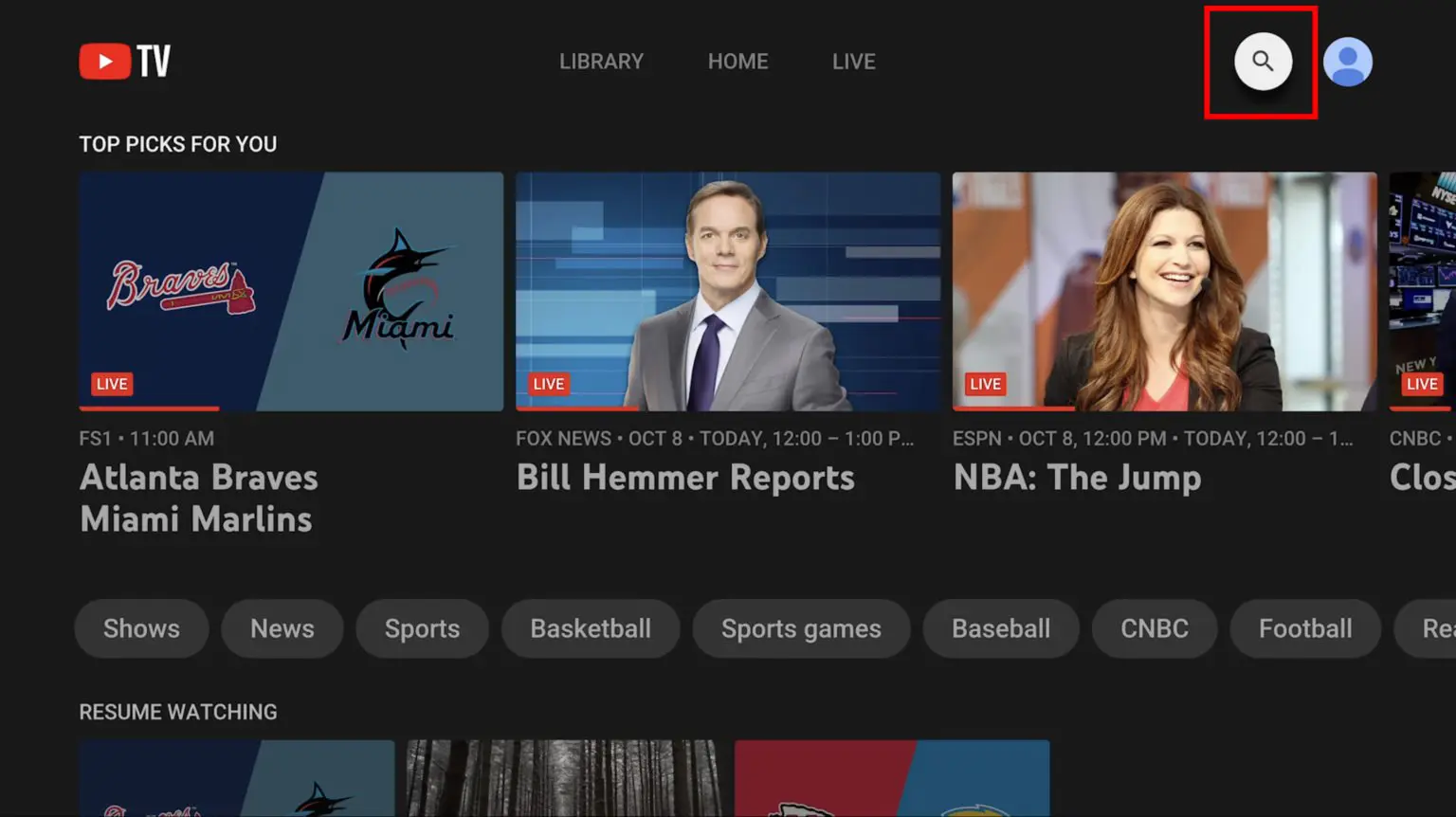
The user interface (UI) of YouTube TV is designed with a “search-first” mentality, echoing Google’s broader software philosophy. Recording content—referred to in the app as “Adding to Library”—is a streamlined process across all supported hardware.
Recording Live TV and Future Airings
When you are watching a live broadcast and realize you want to save the program for later, the process is instantaneous. By navigating to the program’s info page (usually by pressing “down” or “select” on your remote), you will see a plus sign (+) labeled “Add to Library.”
Selecting this button triggers the Cloud DVR to begin saving the current broadcast. More importantly, YouTube TV’s logic is built around “entities” rather than individual time slots. If you add a show like The Voice to your library, the system intelligently schedules every future episode, including reruns and new broadcasts, across all channels that carry the program. This automation reduces the cognitive load on the user, as there is no need to manually schedule every recurring instance of a series.
Recording via Smart TVs and Streaming Devices
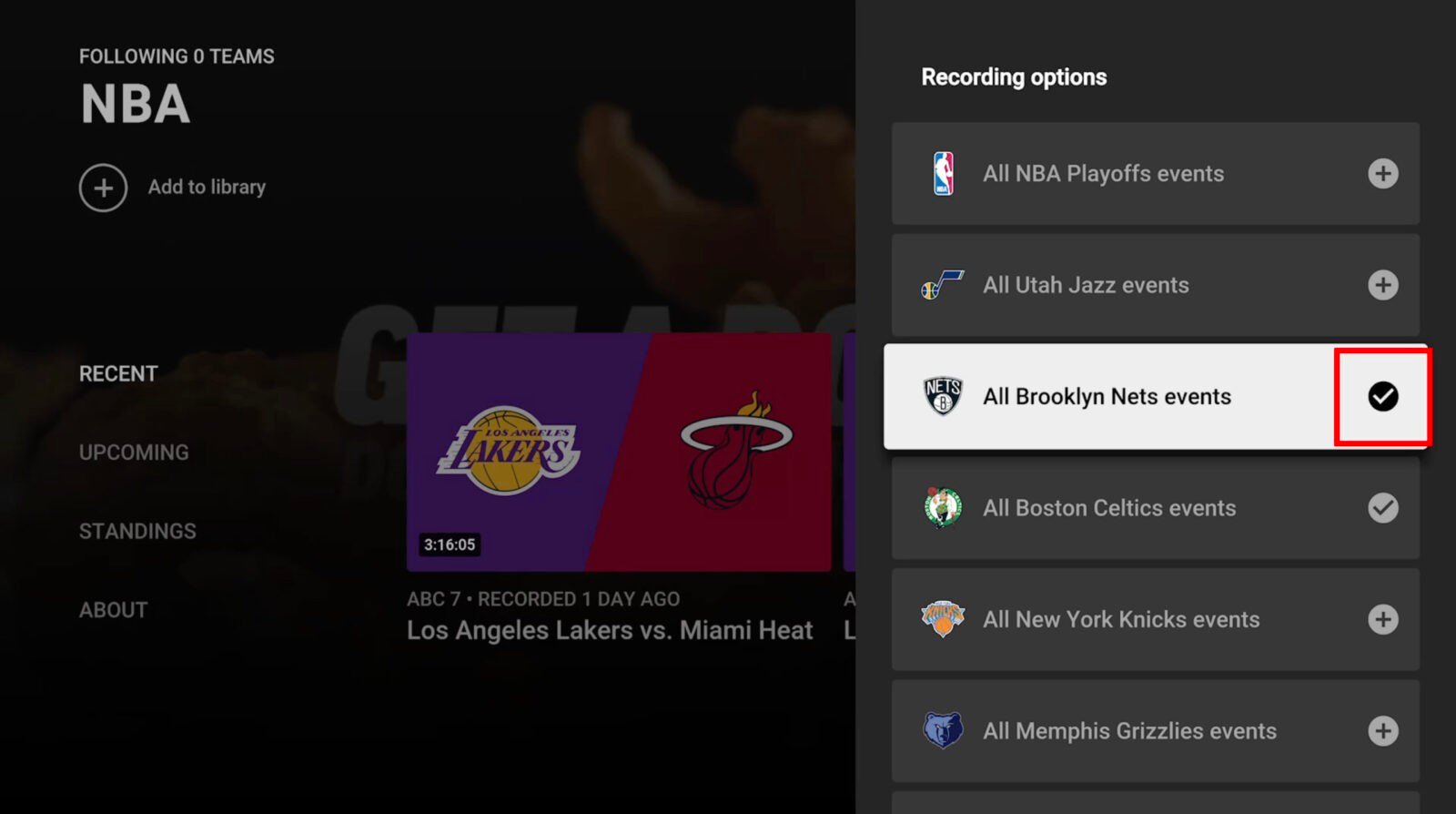
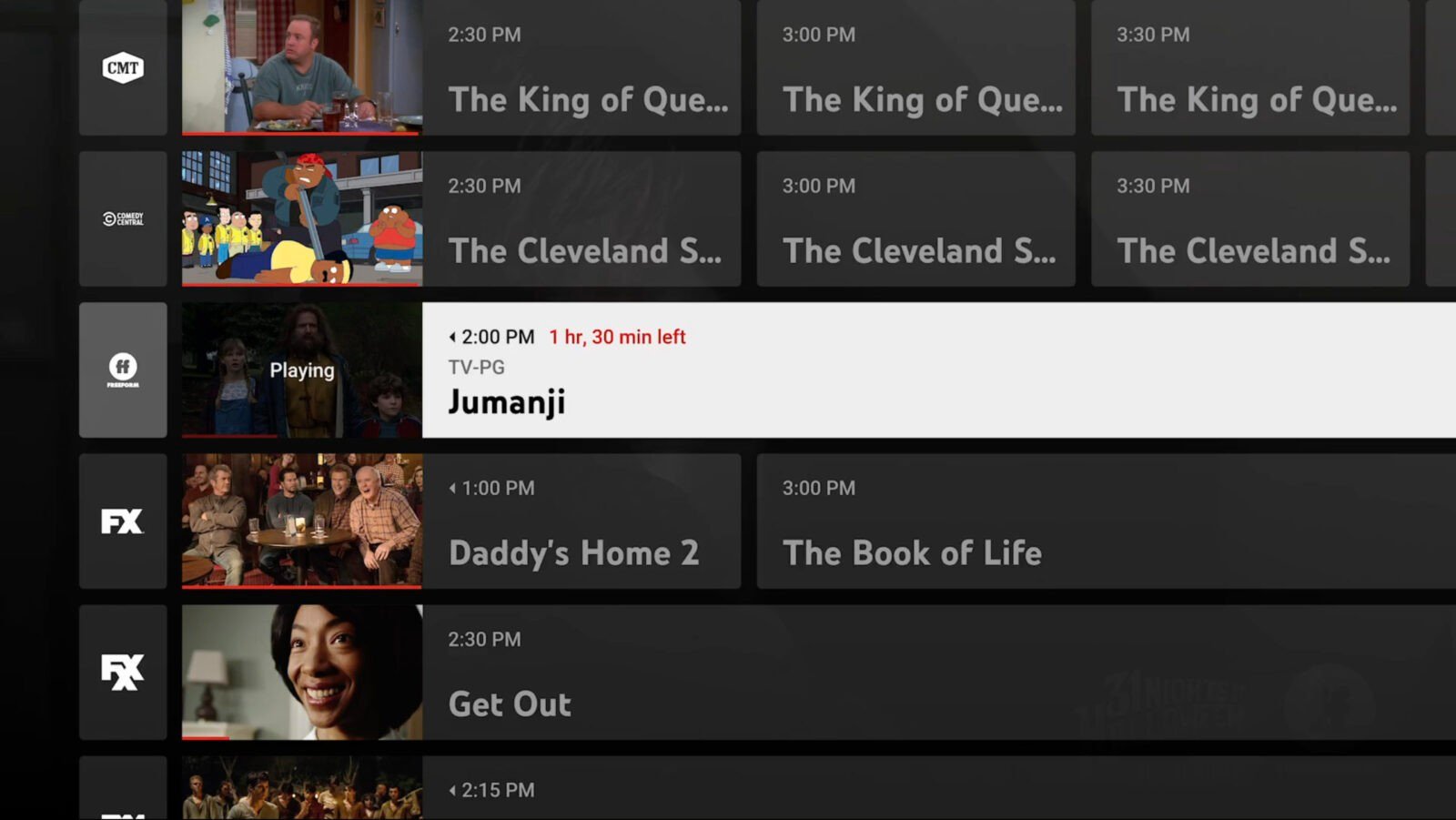
For those using Roku, Amazon Fire Stick, Apple TV, or integrated Smart TV apps, the recording process is optimized for a 10-foot UI (an interface designed to be read from across a room). Users can navigate to the “Live” guide, highlight a program scheduled for the future, and click the “Add” button. The software immediately updates the visual indicator to a checkmark, signifying that the recording instruction has been sent to the cloud.
Recording on Mobile and Desktop Platforms
The mobile app (iOS and Android) and the desktop browser version (tv.youtube.com) offer the most efficient way to manage a library. On these platforms, the search bar becomes the primary tool. Users can type in the name of a film or a specific sports team—such as the “Golden State Warriors”—and click the plus icon on the team’s page. The technical brilliance here is that YouTube TV will then record every game featuring that team, regardless of which network is broadcasting it (ESPN, TNT, or local affiliates).
Managing Your Library and Playback Features
Once content is recorded, the “Library” tab becomes the central hub for consumption. This section of the app is governed by algorithms that prioritize new content and frequently watched series.
Navigating the “Library” Tab
The Library is divided into several sub-sections: New to Library, Most Recent, Scheduled, and Series/Movies/Sports. From a software perspective, this organization is crucial for managing the “unlimited” nature of the service. Without a well-organized UI, an unlimited DVR would quickly become a digital junk drawer. The “Scheduled” tab is particularly useful for tech-savvy users who want to verify that upcoming events—especially live sports with fluctuating start times—are correctly flagged for capture.
How Long Do Recordings Last?
While the storage is unlimited in volume, it is not infinite in duration. YouTube TV maintains a 9-month retention policy. Every recording is kept for nine months from the date of its last airing. If a show airs a rerun, the nine-month clock resets for that specific episode. This technical limitation is a compromise between providing a robust archive and managing the massive data storage requirements of millions of users. For the average viewer, nine months is more than enough time to consume content before it is cycled out.
Skipping Commercials and Playback Controls
One of the most frequent questions regarding YouTube TV recordings is the ability to skip advertisements. For programs recorded via the DVR (labeled as “DVR” in the library), users have full “trick-play” capabilities—the ability to fast-forward, rewind, and pause. However, users must distinguish between “DVR” recordings and “Video on Demand” (VOD) content. VOD versions of shows are provided by the networks themselves and often contain unskippable ads. YouTube TV’s software typically prioritizes the DVR version if both are available, allowing you to use the fast-forward function to breeze through commercial breaks.
Troubleshooting and Optimization for the Best Recording Experience
Even with a cloud-based system, technical variables can impact the quality of your recordings. Ensuring a stable digital environment is key to a frustration-free experience.
Internet Bandwidth Requirements for Seamless Capture
Since the recording happens in the cloud, your home internet speed does not actually affect the quality of the recording itself. However, it significantly impacts the playback. To stream your recorded DVR content in 1080p or 4K (if you have the 4K Plus add-on), a stable connection of at least 25 Mbps is recommended. If your network experiences high latency or packet loss, you may notice buffering during playback, even though the recording stored on Google’s servers is perfect.
Dealing with Recording Glitches and Sports Overruns
One of the historical “tech fails” of DVRs was missing the end of a game that went into overtime. YouTube TV utilizes real-time data feeds to combat this. The software is designed to recognize when a live sporting event is running long and will automatically extend the recording window. If a recording is truncated, users can use the “Report Recording Issue” feature within the app. This alerts Google’s engineers to adjust the timestamps for that specific broadcast, often fixing the recording for all users retroactively.
Comparing YouTube TV DVR to Traditional Cable DVRs
To understand the value of the YouTube TV recording system, one must look at the technical evolution it represents compared to legacy hardware.
The Cost-Benefit Analysis of Hardware vs. Software
Traditional cable providers often charge a monthly “DVR fee” (sometimes upwards of $20) in addition to the cost of the box itself. Because YouTube TV’s recording feature is a software-defined service, it is included in the base subscription price. There is no hardware to fail, no cables to plug in, and no risk of losing your library if a physical box breaks during a power surge. The reliability of the cloud architecture ensures a nearly 100% “uptime” for your recordings.
Multi-User Profiles and Individual Recording Libraries
A standout feature of YouTube TV’s tech stack is the ability to create up to six individual profiles per household. Each profile has its own unique Library and “Add to Library” preferences. This is achieved through account-level partitioning. When User A adds a show to their library, it does not clutter the library of User B. In a traditional cable environment, everyone shares one hard drive and one list of recordings. YouTube TV’s approach treats each family member as a distinct digital entity, providing a personalized experience that hardware-based systems simply cannot match.
Conclusion
Recording on YouTube TV represents the pinnacle of current-gen cloud streaming technology. By removing the physical constraints of local storage and tuners, Google has created a system that is both immensely powerful and deceptively simple. Whether you are leveraging the automated series capture, managing your library across multiple devices, or relying on the software’s intelligent sports extensions, the experience is a testament to how far television technology has progressed. As we continue to move toward an all-digital media landscape, the Cloud DVR remains the gold standard for how we capture, store, and enjoy the infinite stream of modern content.
aViewFromTheCave is a participant in the Amazon Services LLC Associates Program, an affiliate advertising program designed to provide a means for sites to earn advertising fees by advertising and linking to Amazon.com. Amazon, the Amazon logo, AmazonSupply, and the AmazonSupply logo are trademarks of Amazon.com, Inc. or its affiliates. As an Amazon Associate we earn affiliate commissions from qualifying purchases.