
In an increasingly interconnected world, communication applications like WhatsApp have become indispensable tools for personal and professional interactions. With over two billion users worldwide, WhatsApp dominates the instant messaging landscape, offering end-to-end encryption, group chats, voice and video calls, and file sharing. However, a common frustration for many Apple users is the absence of a dedicated, native WhatsApp application for the iPad. Despite the iPad’s growing capabilities as a powerful computing device, WhatsApp’s official stance has historically tethered the service primarily to smartphones.
This guide will delve into the intricacies of integrating WhatsApp into your iPad workflow, navigating the current limitations, exploring effective workarounds, and offering insights into optimizing your experience. Whether you’re a casual user wanting to keep up with family chats or a professional seeking to streamline client communications on a larger screen, understanding the best practices for installing and using WhatsApp on your iPad is crucial. We’ll cover the official workaround, discuss the nuances of unofficial methods, and provide a glimpse into the future possibilities, all while emphasizing digital security and user productivity.
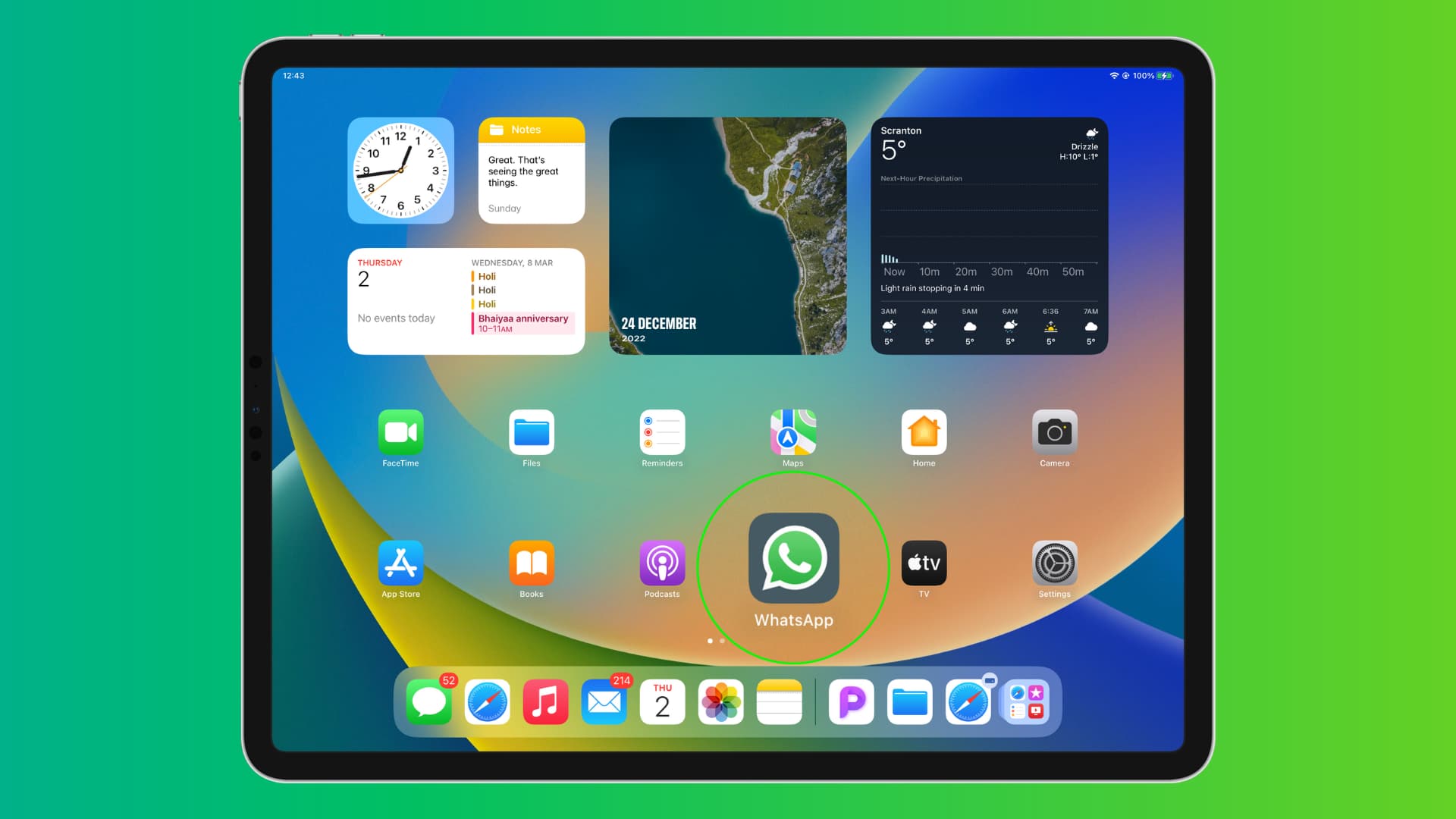
Understanding the WhatsApp-iPad Conundrum: Why a Native App is Elusive
The primary reason for the absence of a native WhatsApp iPad app stems from WhatsApp’s foundational design philosophy. Historically, WhatsApp was built around the premise of a single phone number linked to a single device. This phone-centric model meant that your WhatsApp account was inherently tied to the SIM card in your smartphone. While this ensured a straightforward setup process and robust security through device-specific encryption, it created a significant hurdle for multi-device usage, particularly for tablets like the iPad that often lack a dedicated phone number or SIM card slot.
This design choice, while initially practical, has slowly evolved. WhatsApp introduced “multi-device support” in late 2021, allowing users to link up to four companion devices (computers or other phones, through the web or desktop app) to their primary smartphone, even if the primary phone is offline. However, this feature, while a monumental step forward, still doesn’t manifest as a standalone iPad app. The iPad’s operating system, iPadOS, is robust enough to handle complex applications, yet WhatsApp has not yet released an optimized version that truly leverages the tablet’s capabilities independently. This creates a disparity in user experience compared to other messaging apps like Telegram or Signal, which offer native iPad applications that function seamlessly without a primary phone connection. The demand for a native iPad app is immense, reflecting users’ desire for a unified communication experience across all their devices, especially given the iPad’s increasing role in both personal productivity and business operations. The continued reliance on a phone for initial setup and, in some cases, for persistent linking, remains the core of the “iPad conundrum.”
The Official Workaround: Using WhatsApp Web for iPad
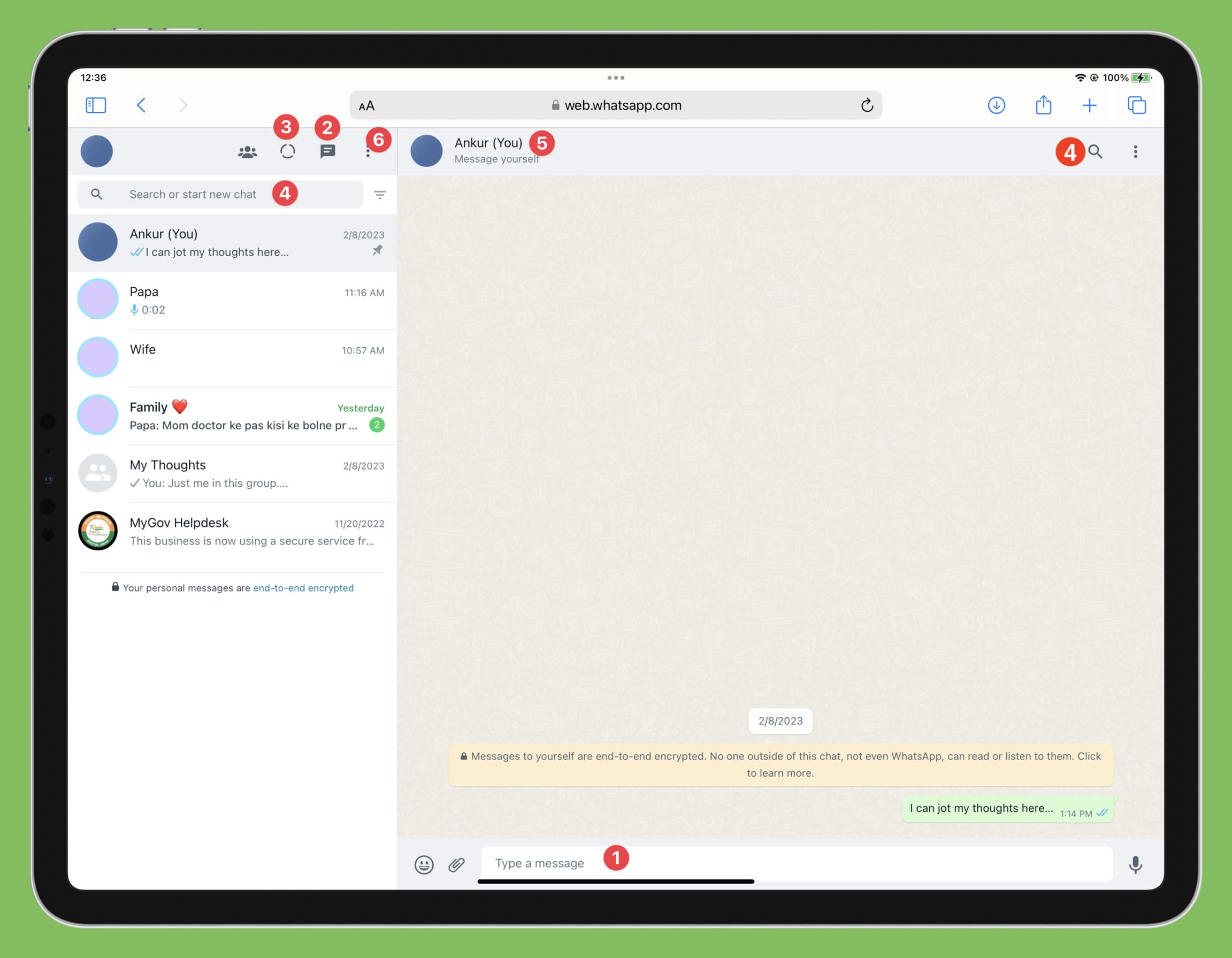
Given the lack of a dedicated app, the most reliable, secure, and officially supported method to use WhatsApp on your iPad is through WhatsApp Web. This browser-based version mirrors your conversations and functionalities from your primary WhatsApp-enabled smartphone directly onto your iPad’s web browser. It’s essentially a web client that displays your phone’s WhatsApp interface, offering a relatively seamless experience without compromising security or data integrity, which is paramount for any tech-savvy user.
Step-by-Step Guide to Accessing WhatsApp Web
Accessing WhatsApp Web on your iPad is a straightforward process, though it requires a few specific steps to ensure an optimal experience:
- Ensure Your Smartphone is Connected: Your primary smartphone (the one with your WhatsApp account) must be powered on and connected to a stable internet connection (Wi-Fi or cellular data). WhatsApp Web acts as a mirror, so it needs a constant link to your phone, at least for the initial connection and occasional syncing, although recent multi-device updates have reduced the strict dependency for continuous phone connectivity.
- Open Safari (or Chrome) on Your iPad: Launch your preferred web browser on your iPad. While any modern browser will work, Safari is deeply integrated with iPadOS, offering a smooth experience.
- Navigate to WhatsApp Web: In the browser’s address bar, type
web.whatsapp.comand press Enter. - Request Desktop Website: This is a crucial step for iPads. By default, your iPad browser might try to load a mobile-optimized version of WhatsApp Web or redirect you to download the app (which doesn’t exist for iPad). To ensure you get the full WhatsApp Web interface, you need to request the desktop site:
- For Safari: Tap the “aA” icon in the address bar. From the dropdown menu, select “Request Desktop Website.”
- For Chrome: Tap the three-dot menu icon in the top-right or bottom-right corner. Scroll down and select “Request Desktop Site.”
- Scan the QR Code: Once the desktop version of WhatsApp Web loads, you will see a QR code displayed on your iPad’s screen.
- Link Your Phone to Your iPad:
- Open WhatsApp on your primary smartphone.
- For iOS: Go to
Settings(bottom right) >Linked Devices>Link a Device. - For Android: Tap the three vertical dots (top right) >
Linked Devices>Link a Device. - Your phone’s camera will activate. Point your phone’s camera at the QR code displayed on your iPad.
- Synchronization: After successfully scanning the QR code, your WhatsApp chats and data will begin to synchronize from your phone to your iPad browser. This process might take a moment, depending on the volume of your chat history. Once synchronized, you can start using WhatsApp directly on your iPad.
Enhancing Your WhatsApp Web Experience on iPad
While WhatsApp Web functions effectively, there are several tricks to make the experience feel more like a native app:
- Add to Home Screen: To quickly access WhatsApp Web without repeatedly typing the URL or requesting the desktop site, you can add a shortcut to your iPad’s home screen.
- For Safari: With
web.whatsapp.comopen in desktop mode, tap the Share icon (square with an arrow pointing up) in the Safari toolbar. Scroll down and select “Add to Home Screen.” You can rename the shortcut icon if you wish. - For Chrome: Similar functionality exists, though it might prompt you for installation directly or be within the browser’s menu options.
This creates an icon on your home screen that, when tapped, directly opens WhatsApp Web in a full-screen, app-like interface, bypassing the browser’s address bar and controls. This significantly enhances the user experience, bridging the gap between a web application and a dedicated app.
- For Safari: With
- Enable Notifications (Browser-Dependent): While push notifications are limited for web apps on iPadOS, some browsers (like Safari in certain contexts) might offer rudimentary notifications. Keep your browser open or in the background for potential alerts. For critical messages, rely on your primary phone.
- Keep Your Phone Online (Mostly): While WhatsApp’s multi-device feature allows some functionality when your phone is offline, a consistent and reliable experience, especially for media sharing and real-time updates, still benefits from your phone being connected to the internet.
Advantages and Limitations of WhatsApp Web
Advantages:
- Official and Secure: This is the only officially sanctioned method, ensuring end-to-end encryption and protecting your data according to WhatsApp’s security protocols. This aligns perfectly with the “Digital Security” aspect of our website’s Tech focus.
- No Installation Required: As a web-based service, it doesn’t consume storage space on your iPad and requires no app downloads from the App Store.
- Cross-Browser Compatibility: Works on Safari, Chrome, Firefox, or any modern web browser.
- Larger Screen Experience: Enjoy typing, reading, and viewing media on the iPad’s expansive display, enhancing productivity. This is a significant boon for professionals who manage client communications or team chats, making it a “Tech” feature with “Money” implications through efficiency gains.
Limitations:
- Dependent on Browser: WhatsApp Web functions within your browser, meaning it won’t run in the background like a native app. If you close the browser tab or switch to another app frequently, you might lose connection or miss real-time updates.
- Notification Issues: Native push notifications are largely absent, making it easy to miss new messages unless you’re actively looking at the browser tab.
- Camera and Microphone Access: Direct access to the iPad’s camera and microphone for photo/video capture or voice messages within WhatsApp Web can be clunky or non-existent, often defaulting to file uploads.
- Performance: Performance can sometimes be slower than a native app, particularly with large media files or extensive chat histories.
- Phone Connection Requirement: Although multi-device support has lessened the continuous need for the phone to be online, the initial linking and occasional background sync still rely on your primary smartphone.
Exploring Alternative Approaches (with Caution)
Beyond WhatsApp Web, users often explore other avenues, particularly third-party applications. However, it’s crucial to approach these with extreme caution, prioritizing digital security and privacy above all else.
Third-Party Wrapper Apps: A Word of Warning
The App Store contains various third-party applications that claim to provide a WhatsApp experience on iPad. These apps, often branded as “Chats for WhatsApp,” “Messenger for WhatsApp,” or similar, are essentially “wrapper” applications. They function by embedding the WhatsApp Web interface within their own app framework.

How They Work: These apps typically provide a dedicated browser environment that automatically loads web.whatsapp.com and usually includes a “Request Desktop Site” function. They might offer minor conveniences, such as attempting to integrate with iPad notifications or providing a more app-like interface.
The Major Risks (Digital Security Alert):
- Security Vulnerabilities: WhatsApp itself explicitly warns against using unofficial clients. These apps are not developed or endorsed by WhatsApp/Meta. Their security practices are unknown and can be highly questionable. They might not adhere to the same robust encryption standards as official WhatsApp.
- Privacy Concerns: By routing your WhatsApp traffic through a third-party application, you risk exposing your messages, contacts, and personal data to unknown entities. These apps could potentially log your activities, access your contacts, or inject ads, thereby violating your privacy. This is a significant breach of the “Digital Security” aspect our website champions.
- Account Bans: Using unofficial clients violates WhatsApp’s Terms of Service. WhatsApp actively detects and bans accounts that use such applications. A permanent ban means losing access to your chat history and contacts, which can be detrimental for both personal and professional “Brand” reputation and “Money” implications if business communications are lost.
- Lack of Support: If you encounter issues, neither WhatsApp nor Apple (beyond basic app functionality) will provide support for these unofficial applications.
Recommendation: Given the severe security and privacy risks, it is strongly advised to avoid using third-party wrapper apps for WhatsApp on your iPad. The potential convenience does not outweigh the significant dangers to your personal data and account security. Sticking to WhatsApp Web is the only secure and reliable non-native option.
The WhatsApp Desktop App: Not for iPad, but a Key Context
While not an option for iPadOS directly, it’s worth understanding the WhatsApp Desktop application for macOS and Windows, as it offers a glimpse into what a native iPad app could be. The Desktop app, like WhatsApp Web, connects to your primary smartphone. However, it’s a standalone program that runs natively on your computer, often providing better integration with system notifications, background functionality, and direct access to system resources (like camera and microphone for calls).
The existence and continuous improvement of the WhatsApp Desktop app (and the multi-device feature it leverages) fuel the hope and expectation that a similar native experience will eventually arrive for the iPad. It demonstrates WhatsApp’s capability to build a more robust, non-browser-dependent client that can seamlessly sync across devices. For now, it serves as a benchmark for the kind of dedicated app experience iPad users are eagerly anticipating.
Optimizing Your WhatsApp Experience on iPad: Tips for Productivity and Security
Leveraging WhatsApp on your iPad, even through a web browser, can significantly boost productivity and enhance your digital life, provided you implement smart strategies for usage and security. This ties directly into the “Tech” and “Money” categories, focusing on how technology can lead to efficiency and safeguard your digital assets.
Maximizing Productivity with WhatsApp on a Larger Screen
The iPad’s larger display and versatile input options (keyboard, Apple Pencil) offer distinct advantages for WhatsApp users, especially professionals and businesses.
- Enhanced Messaging: Typing long messages, responding to multiple queries, or participating in active group chats becomes much more comfortable and efficient with a physical keyboard or the iPad’s spacious on-screen keyboard. This speed translates directly into time saved, a crucial aspect for business operations (linking to “Money”).
- Multitasking Prowess: iPadOS excels at multitasking. You can use Split View or Slide Over to have WhatsApp Web open alongside another application – perhaps a document editor for drafting replies, an email client, or a CRM system for customer details. This seamless integration allows for quick referencing and improved workflow, directly impacting “Productivity” within the “Tech” realm.
- Media Management: Viewing images and videos shared on WhatsApp is far more enjoyable on the iPad’s vibrant screen. Sharing media from your iPad’s photo library or files is also simpler, making it ideal for visual communication or content sharing.
- Business Communication: For small businesses or individuals involved in personal branding (“Brand” category), the iPad offers a semi-professional setup for managing client inquiries, support, or team coordination via WhatsApp. The larger display facilitates tracking multiple conversations without constantly switching tabs. This can lead to better customer engagement and ultimately, revenue.
- Digital Notetaking and Collaboration: Combine WhatsApp on iPad with an Apple Pencil to quickly sketch diagrams or annotate documents received through chats, then reshare them. This transforms the iPad into a dynamic collaboration tool.
Navigating Notifications and Battery Life
The limitations of WhatsApp Web on iPadOS primarily revolve around notifications and power consumption.
- Notification Strategies: Since direct push notifications for WhatsApp Web are unreliable, consider these alternatives:
- Primary Phone as Notification Hub: Keep your primary smartphone nearby. It will reliably deliver all WhatsApp notifications. Glance at it for alerts, then switch to your iPad for detailed replies.
- Keep WhatsApp Web Open: For critical periods, keep the WhatsApp Web tab open and in the foreground on your iPad. If you’re working on the iPad, this often means checking the tab periodically.
- Sound Alerts: Ensure your iPad’s browser allows sound notifications for
web.whatsapp.comto get audible alerts for new messages, even if visual banners are absent.
- Battery Life Management: Running a web app like WhatsApp Web in the foreground or even background can consume more battery than a native app.
- Close Tabs When Not Needed: If you’re not actively using WhatsApp, close the browser tab to conserve battery.
- Optimize iPad Settings: Ensure your iPad’s brightness is appropriate, and other background app refresh settings are optimized to maximize battery life.
Essential Digital Security Practices
Using WhatsApp on any device, especially via workarounds, necessitates a strong focus on digital security. This is a core offering of our “Tech” website.
- Always Use Official Methods: As reiterated, WhatsApp Web is the only officially supported and secure method for iPad. Avoid any third-party apps or unofficial clients that claim to offer a better experience. The risk of data compromise, account hijacking, or privacy breaches is too high.
- Keep Software Updated: Ensure your iPadOS and browser are always updated to the latest versions. Updates often include critical security patches that protect against vulnerabilities.
- Strong Passwords and Two-Factor Authentication: While WhatsApp accounts are tied to phone numbers, enable Two-Step Verification within WhatsApp settings (
Settings > Account > Two-Step Verification). This adds an extra layer of security, requiring a PIN in addition to the verification code when registering your phone number again. This is vital for protecting your “Brand” and “Money” from potential account compromise. - Be Wary of Phishing Attempts: Never scan QR codes from suspicious sources or click on unsolicited links related to WhatsApp. Always verify the source.
- Log Out When Not in Use: For shared iPads or when using public Wi-Fi, it’s a good practice to log out of WhatsApp Web after each session. On your phone, go to
Linked Devicesand review active sessions; you can log out from there remotely. - Secure Your iPad: Use a strong passcode, Face ID, or Touch ID to protect your iPad itself. If your iPad falls into the wrong hands, you don’t want unauthorized access to your WhatsApp conversations.
The Future of WhatsApp on iPad: What to Expect
The persistent demand for a native WhatsApp iPad app is undeniable. Users continually voice their desire for a truly optimized experience that takes full advantage of the iPad’s hardware and iPadOS capabilities, without the current limitations of a browser-based solution.
With WhatsApp’s rollout of full multi-device support, the technical hurdles for a standalone iPad app have significantly diminished. The ability to link companion devices without the primary phone needing to be constantly online removes the biggest architectural barrier. Now, it’s primarily a strategic and development decision for Meta.
A native iPad app would bring several advantages:
- Seamless Notifications: Proper push notifications would integrate directly with iPadOS, ensuring users never miss a message.
- Optimized Interface: An app designed specifically for the iPad’s screen real estate and touch interface would offer a more intuitive and visually appealing experience, leveraging features like drag-and-drop, richer media previews, and potentially Apple Pencil integration for enhanced creativity.
- Background Operation: The app would run in the background, maintaining connectivity and syncing messages efficiently, similar to how Telegram or Signal function.
- Direct Hardware Access: Better integration with the iPad’s cameras, microphones, and speakers would enable more reliable voice and video calls directly from the tablet, making the iPad a more complete communication hub.
- Enhanced Productivity: For professionals and businesses, a native app would elevate the iPad’s utility, allowing for a more robust and reliable platform for client communication, team collaboration, and digital work management. This directly benefits “Money” by enhancing operational efficiency and potentially improving customer relations, which are vital for “Brand” building.
While Meta has not officially announced a timeline for a native iPad app, the technological groundwork is largely in place. User demand, coupled with the ongoing evolution of multi-device experiences across other Meta platforms (like Messenger), makes its eventual arrival a strong possibility. Until then, WhatsApp Web remains the go-to, secure, and officially supported method for bringing your WhatsApp conversations to the versatile screen of your iPad. Users should stay updated with official announcements from WhatsApp and maintain vigilance regarding digital security best practices.
aViewFromTheCave is a participant in the Amazon Services LLC Associates Program, an affiliate advertising program designed to provide a means for sites to earn advertising fees by advertising and linking to Amazon.com. Amazon, the Amazon logo, AmazonSupply, and the AmazonSupply logo are trademarks of Amazon.com, Inc. or its affiliates. As an Amazon Associate we earn affiliate commissions from qualifying purchases.