
In the rapidly evolving landscape of digital entertainment, convenience and customization reign supreme. Amazon’s Firestick has emerged as a powerhouse device, transforming any television into a smart TV capable of streaming a vast array of content. However, for those seeking to unlock its full potential, a single application stands out: Kodi. An award-winning, open-source media center, Kodi allows users to organize and play their own media files, stream content from various sources, and personalize their viewing experience like never before. Combining Kodi with the Firestick creates an unparalleled, portable entertainment system that goes beyond the default apps.
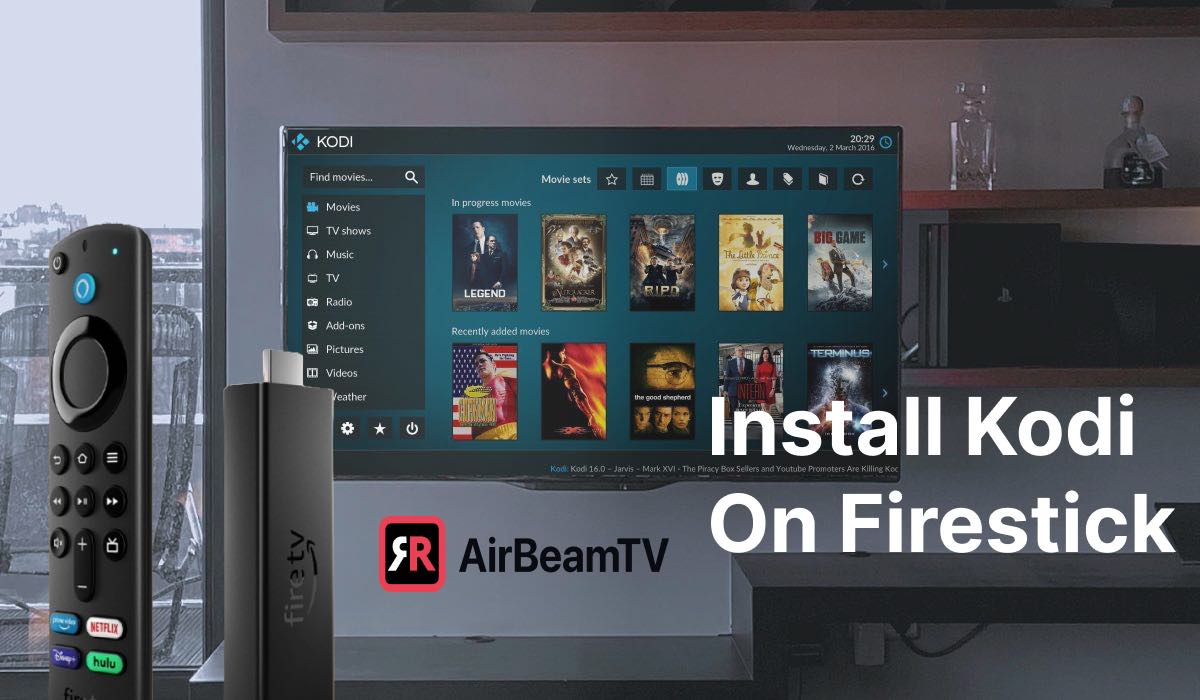
This guide will walk you through every step of the process, from preparing your Firestick to installing Kodi and even troubleshooting common issues. By the end, you’ll be well-equipped to transform your Firestick into a truly versatile and personalized media hub, tapping into a world of digital content that extends far beyond standard streaming services. Get ready to take control of your entertainment and discover why Kodi on Firestick is a game-changer for tech-savvy users and casual viewers alike.
Understanding Kodi and Why It Belongs on Your Firestick
Before diving into the installation process, it’s crucial to understand what Kodi is and why pairing it with your Amazon Firestick is such an intelligent move for enhancing your digital life.
What is Kodi?
Kodi is a free, open-source media player software application developed by the XBMC Foundation. Available for multiple operating systems and hardware platforms, it allows users to play and view most streaming media, such as videos, music, podcasts, and videos from the internet, as well as all common digital media files from local and network storage media. Essentially, Kodi transforms your device into a powerful home theater PC (HTPC) or media center.
Unlike proprietary streaming platforms, Kodi doesn’t offer content itself. Instead, it provides a highly customizable interface for you to access and manage your own media libraries (movies, TV shows, music stored on your network or external drives) and, more popularly, to install various add-ons that provide access to content from the internet. These add-ons range from official services like YouTube and Twitch to community-developed options that scrape content from diverse online sources. Its flexibility, extensive customization options, and vibrant community support make it a beloved choice for millions seeking a unified media experience.
The Synergistic Duo: Firestick and Kodi
The Amazon Firestick, with its compact design, affordable price point, and user-friendly interface, is already a popular device for streaming services like Netflix, Prime Video, Hulu, and Disney+. However, its true power is unleashed when sideloading applications like Kodi.
Here’s why the Firestick and Kodi make such a synergistic pair:
- Portability and Convenience: The Firestick’s small form factor makes it incredibly portable. You can take your entire Kodi-powered media center with you wherever you go, plugging it into any HDMI-enabled TV.
- Cost-Effectiveness: Compared to building a dedicated HTPC, the Firestick offers an incredibly economical way to get Kodi up and running on your TV.
- Android-Based System: The Firestick runs on a customized version of Android, making it compatible with Kodi’s Android application. This means a wide range of Kodi versions can be easily installed and run.
- Dedicated Remote: The Firestick’s remote is perfectly suited for navigating Kodi’s intuitive interface, providing a seamless user experience that feels native.
- Unlocking Potential: While Amazon curates its App Store, Kodi allows users to break free from these confines, opening up possibilities for accessing a much broader spectrum of content and personal media libraries.
By combining these two technologies, you create a powerful, flexible, and personalized entertainment hub that transcends the limitations of standard streaming devices, putting you in complete control of your media consumption.
Preparing Your Firestick for Kodi Installation
Installing Kodi on a Firestick isn’t as straightforward as downloading an app from the Amazon Appstore, but it’s far from complicated. The process, often referred to as “sideloading,” requires a couple of preliminary steps to enable your Firestick to install applications from outside its official marketplace.
Enabling Apps from Unknown Sources
The first and most critical step is to grant your Firestick permission to install applications from third-party developers. This is a standard security measure on Android-based devices, preventing accidental or malicious installations.
Here’s how to do it:
- Navigate to the Home Screen: From your Firestick’s home screen, go to the top menu and select “Settings” (the gear icon).
- Access My Fire TV: Scroll right and select “My Fire TV.” This menu contains various device-related settings.
- Open Developer Options: Within the “My Fire TV” menu, select “Developer Options.” Note: If you don’t see “Developer Options,” you may need to enable it. Go to “About” > “Fire TV Stick 4K” (or your specific model) and click on it repeatedly (7 times) until a message appears saying, “You are now a developer.” Then, go back to “My Fire TV” and “Developer Options” will appear.
- Turn On ADB Debugging: Inside “Developer Options,” toggle “ADB Debugging” to “ON.” This is necessary for some sideloading methods, though primarily for more advanced interactions.
- Turn On Apps from Unknown Sources: Immediately below “ADB Debugging,” you’ll find “Apps from Unknown Sources.” Toggle this to “ON.” A warning message will appear, explaining the potential risks of installing apps from untrusted sources. Since we’ll be downloading Kodi from its official website, you can safely proceed by selecting “Turn On.”
With “Apps from Unknown Sources” enabled, your Firestick is now ready to accept installations from external sources. Remember to exercise caution when installing other apps using this setting, always ensuring they come from reputable origins.
Installing the Downloader App
Since Firesticks don’t have a web browser pre-installed that allows direct downloading of APK files (Android application packages), we need a utility app that can perform this function. The “Downloader” app is a free, popular, and highly effective tool specifically designed for this purpose.
Follow these steps to install it:
- Return to the Home Screen: Press the Home button on your Firestick remote.
- Use the Search Function: Navigate to the “Find” menu option (magnifying glass icon) on your home screen.
- Search for Downloader: Type “Downloader” into the search bar. As you type, suggestions will appear. Select “Downloader” when it pops up.
- Select and Install: The “Downloader” app icon (a downward arrow on an orange background) will appear in the search results under the “Apps & Games” category. Select it.
- Download and Install: Click the “Download” or “Get” button. The app will download and install automatically.
- Open Downloader: Once installed, you’ll see an “Open” button. Click it to launch the Downloader app.
- Grant Permissions: The first time you open Downloader, it will ask for permission to access photos, media, and files on your device. Select “Allow.” This permission is necessary for the app to download and store files.
- Dismiss Update Notes (Optional): You might also see a quick start guide or update notes. You can dismiss these to get to the main interface.
You now have the Downloader app installed and ready to fetch the Kodi APK file. This app acts as your Firestick’s internet browser for directly downloading files, bypassing the restrictive official app store and making the sideloading process incredibly simple.
The Installation Process: Bringing Kodi to Life
With your Firestick prepared, the next phase involves actually downloading the Kodi APK file and installing it. This is where the Downloader app truly shines, making what could be a cumbersome process surprisingly straightforward.
Downloading Kodi
The key to a successful Kodi installation is to always download the official APK file directly from Kodi’s reputable website. This ensures you’re getting the latest stable version and avoiding any modified or potentially malicious builds.
Here’s how to download Kodi using the Downloader app:
- Launch Downloader: If you’re not already in the Downloader app, navigate back to your Firestick’s home screen, go to “Apps & Games,” and launch “Downloader.”
- Enter the Kodi Download URL: On the Downloader app’s home screen, you’ll see a field where you can enter a URL. Using the Firestick remote, type the following URL exactly into the address bar:
kodi.tv/download- Tip: You can use the virtual keyboard or, if you have the Amazon Fire TV Remote app on your phone, you can type much faster using your phone’s keyboard.
- Go to Kodi’s Download Page: Click “Go.” Downloader will now navigate to the official Kodi download page.
- Select the Correct Android Version: Once the page loads in the Downloader’s browser, you’ll need to scroll down to find the “Android” section.
- Important: Firestick devices run on ARM processors. Therefore, under the Android section, you need to select the “ARMV7A (32BIT)” option. Do not choose x86, x64, or any other variant, as these are for different processor architectures and will not work on your Firestick.
- Start the Download: Click on the “ARMV7A (32BIT)” link. The download of the Kodi APK file will begin. You’ll see a progress bar indicating the download status. This might take a few moments depending on your internet speed.
Once the download is complete, the Downloader app will automatically prompt you to install the application.
Installing Kodi on Your Firestick
After the APK file has been successfully downloaded, the installation process is just a couple of clicks away.
- Installation Prompt: Immediately after the download finishes, Downloader will display an installation window. Click “Install.”
- Kodi Installation: The Firestick’s Android operating system will now begin installing Kodi. You’ll see a progress bar. This typically takes less than a minute.
- App Installed Confirmation: Once the installation is complete, you’ll see an “App installed” message. You’ll be presented with two options:
- “Done”: Selecting “Done” will close the installation window and return you to the Downloader app. This is generally recommended, as you’ll want to delete the APK file to save space.
- “Open”: Selecting “Open” will launch Kodi immediately.
- Delete the APK File: If you clicked “Done,” you’ll be back in the Downloader app. It’s good practice to delete the APK file after installation to free up storage space on your Firestick. Downloader will usually ask if you want to delete the file. Select “Delete” and then “Delete” again to confirm. This removes the downloaded installer package, but Kodi itself remains installed.
Congratulations! Kodi is now successfully installed on your Amazon Firestick. You can find it by going to your Firestick’s home screen, then navigating to “Apps & Games.” If it’s not immediately visible, scroll to the bottom and select “See All.” You can then move Kodi to the front of your app list for easier access by highlighting it, pressing the menu button on your remote (three horizontal lines), and selecting “Move.”
Post-Installation: What to Do Next
With Kodi successfully installed on your Firestick, the real fun begins. You’ve unlocked a powerful media center, but a few initial steps and considerations will help you get the most out of your new entertainment hub.
Initial Setup and Navigating Kodi
When you launch Kodi for the first time, you’ll be greeted by its clean, intuitive interface. Here’s a brief overview of what to expect and how to get started:
- First Launch: The initial launch might take a moment as Kodi sets up its core directories and components. Be patient.
- Grant Permissions: Kodi will likely ask for permission to access files on your device. Select “Allow.” This is essential for Kodi to function correctly, allowing it to store settings, add-ons, and access local media (if you ever connect external storage).
- Interface Overview: Kodi’s main screen typically features categories like “Movies,” “TV Shows,” “Music,” “Videos,” “Add-ons,” “Pictures,” and “System” (or “Settings”).
- Settings: Your first stop might be “System” (or the gear icon) to dive into settings. Here you can change language, region, set up network access, configure display settings, and much more. Don’t be overwhelmed; many settings are fine by default, but exploring them allows for deep customization.
- Adding Media Sources: If you have your own digital media collection on a network drive (NAS) or an external hard drive (connected via an OTG cable and hub to your Firestick), you would go into “Videos” -> “Files” -> “Add Videos” to point Kodi to your media sources. Kodi will then scan your files and organize them with metadata, cover art, and more.
Navigating Kodi is straightforward using your Firestick remote. The directional pad moves through menus, the center button selects, and the back button takes you to the previous screen or the home menu.
Exploring Add-ons (Brief Overview)
The true power and popularity of Kodi often come from its add-ons. These small programs extend Kodi’s functionality, allowing you to access a vast array of content from the internet.
- Official Add-ons: Kodi has an official add-on repository that includes legal and sanctioned add-ons for services like YouTube, Twitch, SoundCloud, PBS Kids, and many others. These are generally reliable and safe. To access them, go to “Add-ons” on the main menu, then select the “open box” icon (package installer) to “Install from repository.”
- Third-Party Add-ons: Beyond the official repository, a thriving community develops numerous third-party add-ons. These often provide access to a much wider variety of content, including movies, TV shows, and live TV streams.
- A Word of Caution: While these add-ons can seem appealing, their legality and safety can vary significantly. Some third-party add-ons might scrape content from dubious sources, potentially infringing on copyright. Furthermore, the quality and reliability can be inconsistent, and they might sometimes expose users to security risks. Always exercise extreme caution and research any third-party add-on thoroughly before installing it. Our focus is on the legitimate use of Kodi for personal media and official services.
Enhancing Security and Privacy with a VPN
Given the open-source nature of Kodi and the potential for accessing various content sources (especially if you choose to explore third-party add-ons, despite the warnings), privacy and security become paramount. A Virtual Private Network (VPN) is an indispensable tool for Kodi users.
What is a VPN?
A VPN creates a secure, encrypted connection over a less secure network, like the internet. It masks your IP address, making your online activities virtually untraceable to your Internet Service Provider (ISP), government agencies, or potential snoopers. Your traffic is routed through a server operated by the VPN provider, effectively making it appear as if you are browsing from the VPN server’s location.
Why is a VPN Crucial for Kodi on Firestick?
- Privacy Protection: Your ISP can see your online activities, including what you stream. A VPN encrypts your traffic, making it unreadable to your ISP, thus protecting your privacy. This is especially important if you stream from sources they might deem questionable.
- Bypassing Geo-restrictions: Some official Kodi add-ons or streaming services might be geo-restricted, meaning they are only available in certain countries. A VPN allows you to virtually change your location, granting you access to content that might otherwise be unavailable.
- Avoiding ISP Throttling: Some ISPs might intentionally slow down (throttle) your internet speed when they detect high-bandwidth activities like streaming. By encrypting your traffic, a VPN prevents your ISP from knowing what you’re doing, thereby helping to mitigate throttling and ensure a smoother streaming experience.
- Security: While Kodi itself is generally safe, connecting to various unknown online sources through add-ons can expose you to potential threats. A VPN adds an extra layer of security, protecting your data from interception.
How to Get a VPN for Your Firestick:
Many reputable VPN providers offer dedicated apps for Amazon Fire devices. You can usually find these by searching directly in the Amazon Appstore.
- Subscribe to a reputable VPN service (e.g., ExpressVPN, NordVPN, Surfshark, CyberGhost).
- Search for their app on your Firestick’s Amazon Appstore.
- Download and install the VPN app.
- Log in with your credentials.
- Connect to a server of your choice before launching Kodi.
Investing in a good VPN is a small price to pay for peace of mind, enhanced security, and an optimized streaming experience when using Kodi on your Firestick.
Troubleshooting Common Issues
While installing Kodi on a Firestick is generally straightforward, you might encounter a few hiccups along the way. Here are some common issues and their solutions to help you get back to enjoying your entertainment.
Installation Errors
- “App Not Installed” Error: This is one of the most common issues.
- Cause 1: Insufficient Storage. Your Firestick needs adequate free space to download and install Kodi.
- Solution: Go to Settings > My Fire TV > About > Storage. Check your available space. If it’s low, go to Settings > Applications > Manage Installed Applications. Review the list, select apps you don’t use, and choose “Uninstall.” Also, clear cache for apps by selecting them and choosing “Clear cache.” Remember to delete the Kodi APK file after installation as instructed earlier.
- Cause 2: Corrupted Download. The APK file might have been corrupted during download.
- Solution: Delete the downloaded APK file (if you still have it in Downloader’s files), clear Downloader’s cache, and try downloading Kodi again from
kodi.tv/download. Ensure a stable internet connection during the download.
- Solution: Delete the downloaded APK file (if you still have it in Downloader’s files), clear Downloader’s cache, and try downloading Kodi again from
- Cause 3: Incorrect Kodi Version. You might have downloaded the wrong architecture (e.g., x86 instead of ARMV7A).
- Solution: Double-check that you selected the “ARMV7A (32BIT)” version from the Kodi download page.
- Cause 1: Insufficient Storage. Your Firestick needs adequate free space to download and install Kodi.
- Downloader App Not Working: If Downloader itself isn’t able to download files.
- Solution: Ensure you’ve granted it necessary permissions (Settings > Applications > Manage Installed Applications > Downloader > Permissions). Also, try clearing its cache and data, then restarting the app.
Buffering and Performance
Once Kodi is installed, performance issues like buffering or slow navigation can be frustrating.
- Slow Internet Connection: The most common cause of buffering.
- Solution: Check your internet speed using a speed test app on your Firestick or another device on your network. If your speed is low, try restarting your router and modem. Consider connecting your Firestick to the 5GHz band of your Wi-Fi (if available) for better speed, or use an Ethernet adapter for a wired connection.
- Low Firestick Resources: The Firestick has limited RAM and processor power. Running too many background apps can slow it down.
- Solution: Force close unused apps. Go to Settings > Applications > Manage Installed Applications. Select any running app you don’t need, and choose “Force Stop.” Regularly clear the cache for Kodi and other frequently used apps. Restart your Firestick regularly (Settings > My Fire TV > Restart) to clear its RAM.
- Kodi Cache Settings: Kodi itself has internal caching.
- Solution: For advanced users, adjusting Kodi’s advancedsettings.xml file can help with buffering by allocating more memory to the cache. However, this is for experienced users and requires careful modification. Simpler solutions usually suffice for most.
- VPN Issues: If you’re using a VPN, it can sometimes introduce buffering.
- Solution: Try connecting to a different server location through your VPN app. Choose a server physically closer to you or one known for better streaming performance. Ensure your VPN client itself is up-to-date. Occasionally, try streaming without the VPN temporarily (though not recommended for long-term use) to diagnose if the VPN is the bottleneck.
By methodically addressing these potential issues, you can usually resolve most problems and get back to enjoying a smooth Kodi experience on your Firestick.

Final Thoughts and Legal Considerations
Installing Kodi on your Amazon Firestick is a fantastic way to unlock a personalized and powerful media center, giving you unparalleled control over your entertainment experience. From managing your personal media library to exploring a vast array of content through official add-ons, the Firestick-Kodi combination truly elevates home viewing.
We’ve covered every essential step: preparing your Firestick by enabling unknown sources, installing the crucial Downloader app, meticulously downloading the correct Kodi APK, and finally, getting it installed and ready for action. We also emphasized the importance of a VPN for safeguarding your privacy and ensuring a smooth, secure streaming experience, a critical component for any user venturing beyond the curated app stores.
Remember, Kodi is a tool. Its legality and ethical use largely depend on how you utilize it. When exploring add-ons, always prioritize those from official repositories and reputable sources to ensure you’re accessing content legally and securely. Steer clear of add-ons that facilitate access to copyrighted material without proper authorization, as this can lead to legal complications and expose your device to security risks.
By following this guide, you’ve not only installed a remarkable piece of software but also empowered yourself to tailor your digital entertainment landscape precisely to your preferences. Embrace the power of customization, enjoy the world of content at your fingertips, and stream responsibly and securely with your newly optimized Firestick. The possibilities are vast, and your ultimate media hub is now at your command.
aViewFromTheCave is a participant in the Amazon Services LLC Associates Program, an affiliate advertising program designed to provide a means for sites to earn advertising fees by advertising and linking to Amazon.com. Amazon, the Amazon logo, AmazonSupply, and the AmazonSupply logo are trademarks of Amazon.com, Inc. or its affiliates. As an Amazon Associate we earn affiliate commissions from qualifying purchases.