
Fortnite, developed by Epic Games, stands as a titan in the gaming world, captivating millions with its unique blend of battle royale action, creative building mechanics, and constant innovation. From its vibrant art style to its epic live events and an ever-evolving metaverse, Fortnite has transcended being just a game to become a cultural phenomenon. Whether you’re a seasoned gamer looking to jump into the latest season, a curious newcomer drawn by its massive appeal, or someone returning after a hiatus, getting Fortnite installed and ready to play is your first step into this dynamic digital playground.
This comprehensive guide will walk you through every aspect of installing Fortnite across various platforms. We’ll cover essential system requirements, provide detailed step-by-step instructions for PC, consoles, and mobile devices, offer solutions for common installation issues, and even touch upon the broader appeal that keeps Fortnite at the forefront of the gaming industry. As a leading voice in Tech, focusing on software tutorials and digital security, and offering insights into Brand strategies and the Money aspects of gaming, we aim to equip you with all the knowledge needed to ensure a smooth, secure, and enjoyable setup.
Preparing for Battle: System Requirements and Pre-Installation Checks
Before you dive into the installation process, it’s crucial to ensure your device meets Fortnite’s system requirements. Meeting these specifications will guarantee a smoother installation, better performance, and a more enjoyable gaming experience. Ignoring them can lead to frustrating lags, crashes, or an inability to play altogether.
PC System Specifications
For Windows and macOS users, hardware compatibility is paramount. Fortnite is a graphically intensive game, and while Epic Games has done an excellent job optimizing it for a wide range of systems, knowing your machine’s capabilities is key.
Minimum System Requirements (for basic functionality):
- Operating System: Windows 7/8/10/11 64-bit or macOS Mojave 10.14.6
- Processor (CPU): Intel Core i3-3225 3.3 GHz or equivalent
- Memory (RAM): 8 GB RAM
- Graphics Card (GPU): Intel HD 4000 on PC; Mac equivalent
- Storage: At least 26 GB (this can fluctuate with updates)
- DirectX: Version 11 or 12
Recommended System Requirements (for optimal experience):
- Operating System: Windows 10/11 64-bit
- Processor (CPU): Intel Core i5-7300U 3.5 GHz or AMD Ryzen 3 3300U or equivalent
- Memory (RAM): 16 GB RAM or higher
- Graphics Card (GPU): NVIDIA GeForce GTX 960, AMD R9 280, or equivalent DX11 GPU; or AMD Radeon RX 580 equivalent DX12 GPU
- Graphics Memory: 2 GB VRAM
- Storage: SSD recommended for faster loading times
- DirectX: Version 12
Before beginning the download, free up sufficient disk space. A solid-state drive (SSD) is highly recommended for faster loading times and overall smoother gameplay. Ensure your graphics drivers are up to date, as outdated drivers are a common cause of performance issues and crashes. You can typically find the latest drivers on the NVIDIA, AMD, or Intel websites.
Console and Mobile Considerations
For console gamers (PlayStation, Xbox, Nintendo Switch), system compatibility is generally less of a concern as the hardware is standardized. However, storage space is still a critical factor. Fortnite and its updates can take up significant storage, so regularly check your console’s available space. Most consoles handle software updates automatically, but manually checking for system software updates before installing a new game is always a good practice.
For mobile devices, specifically Android, compatibility hinges on the operating system version and available RAM. Fortnite generally requires Android 8.0 or higher with 4GB of RAM or more. Performance will, of course, vary significantly based on the processor and GPU of your specific device.
Internet Connection
Regardless of your platform, a stable and reasonably fast internet connection is crucial. Fortnite’s installation files are large, and a slow connection can turn the download process into an arduous wait. Moreover, a consistent internet connection is essential for smooth online gameplay once installed. We recommend a broadband connection with at least 10-20 Mbps download speed for comfortable gaming and faster downloads.
Step-by-Step Installation Across Platforms
Now that your device is prepared, let’s walk through the installation process for each major platform.
Installing Fortnite on PC (Windows & macOS)
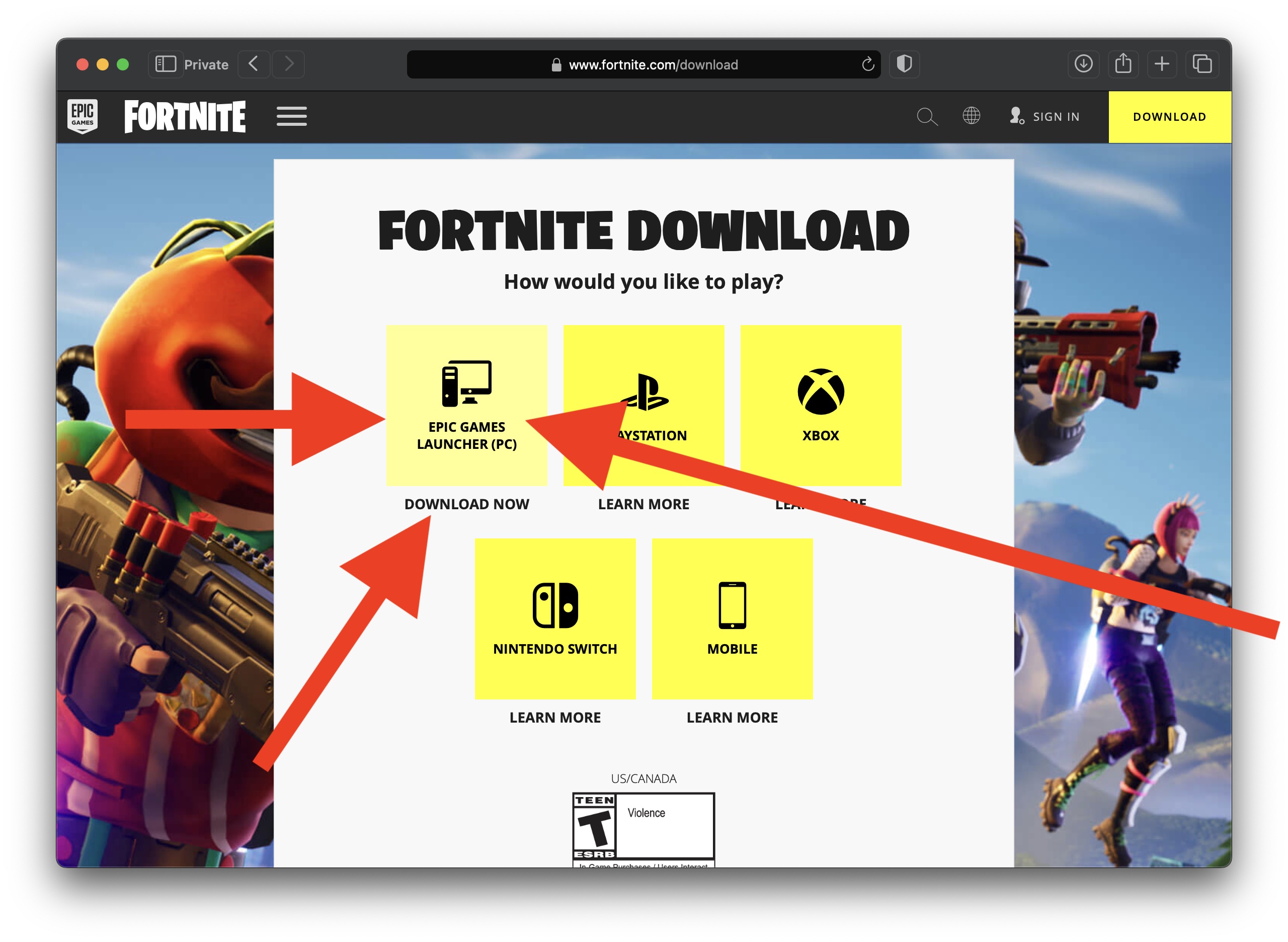
For PC users, Fortnite is exclusively available through the Epic Games Launcher. This application serves as your gateway not only to Fortnite but also to other games from Epic Games and a host of free titles often given away by the company.
- Download the Epic Games Launcher:
- Open your web browser and navigate to the official Epic Games website:
www.epicgames.com/fortnite/download. - Click the “Download” button, which will typically detect your operating system (Windows or macOS) and provide the correct installer.
- Open your web browser and navigate to the official Epic Games website:
- Install the Epic Games Launcher:
- Locate the downloaded installer file (usually
EpicInstaller-<version>.msion Windows orEpic Games Launcher.dmgon macOS) and run it. - Follow the on-screen prompts to complete the installation. You may need to grant administrative permissions.
- Once installed, the launcher will typically open automatically.
- Locate the downloaded installer file (usually
- Create or Log into Your Epic Games Account:
- If you’re a new user, you’ll need to create an Epic Games account. You can do this using your email, or by linking an existing account from Google, Facebook, PlayStation, Xbox, Nintendo, or Steam. Creating an account is free and essential for playing Fortnite and other Epic Games titles.
- If you already have an account, simply log in with your credentials.
- Digital Security Tip: Always enable Two-Factor Authentication (2FA) for your Epic Games account. This adds an extra layer of security, protecting your account and any associated purchases from unauthorized access. This aligns with our focus on Digital Security within the Tech category.
- Find Fortnite in the Launcher:
- Once logged in, you’ll see the Epic Games Launcher’s main interface. On the left sidebar, click on “Store” or navigate to the “Fortnite” section if it’s prominently displayed.
- You can also use the search bar at the top right corner to search for “Fortnite.”
- Initiate the Download and Installation:
- On the Fortnite game page, click the “Get” or “Install” button. Since Fortnite is a free-to-play title, there will be no charge.
- The launcher will then ask you to choose an installation directory. By default, it will suggest a location; you can change this if you wish. Ensure the selected drive has enough free space.
- Click “Install” to begin the download.
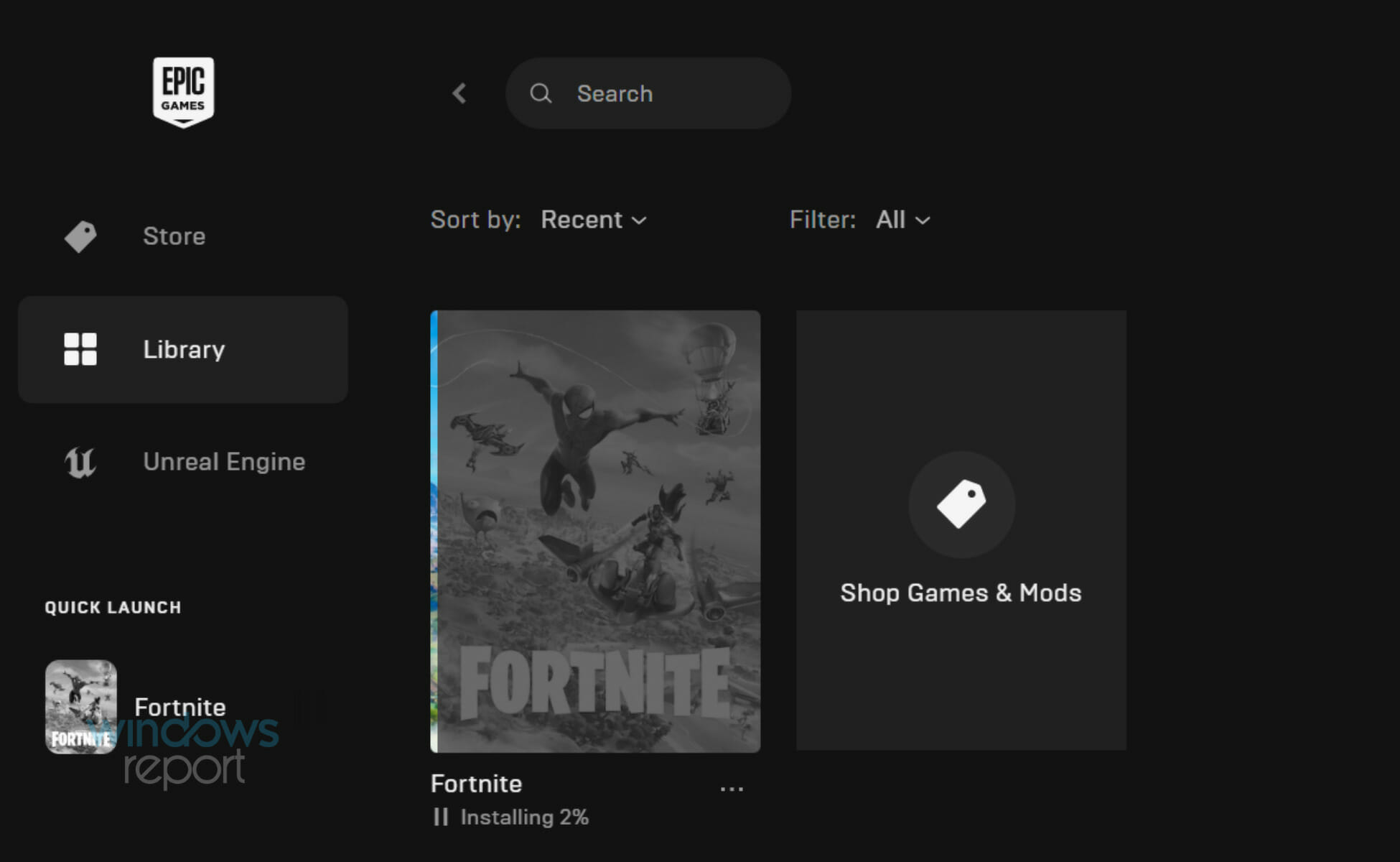
- The download size can be substantial (tens of gigabytes), so it might take some time depending on your internet speed. You can monitor the progress in the “Downloads” section of the launcher.
- First Launch and Initial Setup:
- Once the download and installation are complete, the “Install” button will change to “Launch.”
- Click “Launch” to start Fortnite. The game may perform a final update or optimization process on its first run.
- You’ll be prompted to accept the End User License Agreement (EULA) and possibly adjust some initial settings like display resolution.
Installing Fortnite on Consoles (PlayStation, Xbox, Nintendo Switch)
Installing Fortnite on consoles is generally a more streamlined process due to the integrated digital storefronts and standardized hardware.
- Access the Digital Storefront:
- PlayStation: Navigate to the PlayStation Store.
- Xbox: Go to the Xbox Store.
- Nintendo Switch: Open the Nintendo eShop.
- Search for Fortnite:
- Use the search function within the respective store and type “Fortnite.”
- Select the official Fortnite game from the search results.
- Download and Install:
- On the game’s product page, select the “Download” or “Get” option. Fortnite is a free-to-play game, so you won’t be charged.
- The console will then begin downloading and automatically installing the game. You can usually monitor the download progress from your console’s home screen or download manager.
- Launch and Link Epic Games Account:
- Once installed, find the Fortnite icon on your console’s dashboard and launch the game.
- The first time you launch, you may be prompted to link or create an Epic Games account. While you can often play initially without linking, linking your Epic account allows for cross-platform progression and friends lists, a key feature that has bolstered Fortnite’s Brand appeal and cross-play Tech.
Installing Fortnite on Android Devices
The installation process for Fortnite on Android is unique due to its absence from the Google Play Store, a result of a past dispute between Epic Games and Google (and Apple). This highlights how Brand Strategy and financial disagreements can impact software distribution.
- Method 1: Direct Download from Epic Games Website:
- On your Android device, open a web browser (like Chrome).
- Go to
fortnite.com/android. - Tap the “Download” button. This will download the Epic Games App installer (
.apkfile) directly to your device. - Security Note: Because you’re installing an app from outside the Google Play Store, your device will likely prompt you to allow installation from “unknown sources” or grant permission to your browser for app installation. This is a crucial Digital Security point. Only enable this permission for trusted sources like the official Epic Games website, and consider revoking it after installation if you’re concerned.
- Method 2: Samsung Galaxy Store (for Samsung devices):
- If you have a Samsung Galaxy device, you can bypass the “unknown sources” prompt by using the pre-installed Samsung Galaxy Store.
- Open the Galaxy Store app.
- Search for “Fortnite.”
- Download and install the Epic Games App, which will then allow you to install Fortnite.
- Install the Epic Games App and Fortnite:
- Once the Epic Games App
.apkis downloaded (or installed via Galaxy Store), open it. - Inside the Epic Games App, you will find Fortnite. Select it and tap “Install.”
- The app will download the full Fortnite game data. Ensure you are on Wi-Fi due to the large file size.
- Once the Epic Games App
- Launch and Play:
- After installation, you can launch Fortnite directly from the Epic Games App or find its icon on your device’s home screen or app drawer.
- Log in with your Epic Games account or create a new one.
Accessing Fortnite on iOS and Other Platforms (Cloud Gaming)
Due to ongoing legal disputes between Epic Games and Apple, Fortnite is not directly available on the iOS App Store. However, Tech innovation has provided workarounds through cloud gaming services. This demonstrates how advancements in Technology Trends can circumvent platform restrictions.
- Xbox Cloud Gaming: If you have an Xbox Game Pass Ultimate subscription, you can access Fortnite through Xbox Cloud Gaming on iOS, iPadOS, Android, and PC browsers. No installation is required; the game streams directly to your device. This allows iOS users to play Fortnite on their devices without any direct installation.
- NVIDIA GeForce NOW: This cloud gaming service also allows you to stream Fortnite to various devices, including iOS (via Safari browser), Android, PC, macOS, and even specific Smart TVs. A free tier is available, but paid subscriptions offer longer session times and better performance.
- Amazon Luna: Similar to the above, Amazon Luna offers Fortnite streaming, available on a range of devices through its cloud gaming platform.
These services represent a significant shift in how games are accessed, transforming gaming into a subscription-based, device-agnostic experience, highlighting a critical Tech trend.
Post-Installation: Optimizing Your Fortnite Experience
Once Fortnite is successfully installed, there are a few steps you can take to ensure the best possible gameplay experience and maintain your account securely. This falls squarely under Productivity and Digital Security within our Tech focus.

Initial Game Setup and Account Management
Upon your first launch, Fortnite may guide you through some initial settings. Beyond that, take a moment to review your Epic Games account settings online.
- Link Accounts: If you play on multiple platforms, ensure all your console accounts (PlayStation, Xbox, Switch) are linked to your single Epic Games account. This enables cross-platform progression, allowing you to access your V-Bucks, skins, and battle pass progress across all linked devices.
- Two-Factor Authentication (2FA): As mentioned, enable 2FA on your Epic Games account immediately. Not only does this enhance security, but it also often grants you free in-game items, like the “Boogie Down” emote, making it a win-win for Digital Security and in-game rewards.
Graphics and Performance Settings
Optimizing in-game settings is crucial for maximizing performance and visual fidelity, especially on PC.
- Access Settings: From the Fortnite lobby, click the menu icon (usually three lines) and select “Settings.”
- Video Settings:
- Display: Ensure your Resolution matches your monitor’s native resolution.
- Frame Rate Limit: Set this to your monitor’s refresh rate (e.g., 60 FPS, 144 FPS) or slightly higher if your system can handle it.
- Graphics Quality: This is where you’ll make the biggest impact.
- Epic/High: For powerful gaming PCs.
- Medium: A good balance of visuals and performance.
- Low/Performance Mode: For older systems or competitive play where frame rate is king over visual flair. Performance Mode (available on PC) drastically simplifies graphics for maximum FPS.
- Advanced Graphics: Experiment with settings like View Distance, Shadows, Anti-Aliasing, Textures, and Effects. Reducing these can significantly boost FPS.
- DirectX Version: On Windows, you can switch between DirectX 11 and DirectX 12, or even Performance Mode. DirectX 12 might offer better performance on newer hardware, while Performance Mode is for older or less powerful systems.
Experiment with these settings, making small changes and testing in-game until you find the sweet spot between visuals and a smooth frame rate.
Customizing Controls and Keybinds
Fortnite’s unique building mechanics mean that personalized controls can give you a significant advantage. Spend time in the settings menu:
- Keyboard & Mouse (PC): Customize keybinds for building, weapons, and actions to suit your playstyle. Many professional players have highly optimized keybinds.
- Controller (Consoles/PC): Explore different controller layouts (Builder Pro is highly recommended for building) and adjust stick sensitivities to find what feels most comfortable.
Staying Updated
Fortnite is a living game, constantly receiving updates with new content, bug fixes, and performance improvements.
- Automatic Updates: The Epic Games Launcher (PC) and console systems usually handle updates automatically. Ensure these features are enabled.
- Manual Checks: Occasionally, it’s good practice to manually check for updates, especially if you experience issues. On PC, you can usually verify game files through the Epic Games Launcher, which will also prompt for updates.
Troubleshooting Common Installation and Launch Issues
Even with the best preparation, you might encounter hiccups during installation or when launching Fortnite. Here are common issues and their solutions, leveraging our Tech expertise in software troubleshooting.
Download and Installation Errors
- “Installation Failed” or Specific Error Codes:
- Check Disk Space: Ensure you have more than enough free space (at least 50GB recommended for smooth installation and future updates).
- Internet Connection: Verify your connection is stable. Try restarting your router.
- Antivirus/Firewall: Temporarily disable your antivirus or firewall to see if it’s blocking the download or installation. Remember to re-enable it afterwards.
- Run as Administrator: For PC, right-click the Epic Games Launcher and select “Run as administrator.”
- Corrupted Files: If a download is stuck, try pausing and resuming, or cancelling and restarting.
- Slow Download Speeds:
- Pause Other Downloads: Ensure no other applications are consuming bandwidth.
- Server Status: Check the Epic Games Server Status page (search online for “Epic Games Server Status”) to see if there are ongoing issues.
- Change Download Region: In the Epic Games Launcher settings, you might be able to change your download region to a less congested server.
- Wired Connection: If possible, use an Ethernet cable instead of Wi-Fi for more stable and faster downloads.
Game Won’t Launch or Crashes
- Verify Game Files (PC): In the Epic Games Launcher, go to your Library, find Fortnite, click the three dots below its icon, and select “Verify.” This will check for and repair any corrupted game files.
- Update Drivers (PC): Ensure your graphics card drivers are completely up to date. Outdated drivers are a primary cause of crashes.
- Meet System Requirements: Double-check that your PC meets Fortnite’s minimum and recommended specifications. If not, consider playing on lower settings or upgrading hardware.
- Close Background Applications: Other resource-intensive programs can interfere with Fortnite. Close unnecessary applications before launching.
- Reinstall: As a last resort, uninstalling and reinstalling the game (and potentially the Epic Games Launcher) can resolve deeply rooted issues.
Epic Games Launcher Issues
- Launcher Not Opening/Responding:
- Restart PC: A simple restart can often resolve minor software glitches.
- Clear Launcher Cache: Navigate to
%localappdata%EpicGamesLauncherSavedwebcache_4147(Windows) and delete its contents. This can fix display or loading issues within the launcher. - Reinstall Launcher: If all else fails, uninstall the Epic Games Launcher (this won’t remove your games) and reinstall it from the Epic Games website.
For persistent issues, Epic Games’ official support website and community forums are invaluable resources.
Beyond Installation: Why Fortnite Continues to Dominate
Successfully installing Fortnite is just the beginning of your journey. The game’s enduring popularity and relevance are a testament to Epic Games’ innovative approach, touching upon aspects of Brand Strategy, Money (via its monetization model), and continuous Tech development.
The Free-to-Play Model and V-Bucks
Fortnite’s core offering is free-to-play, making it incredibly accessible. Its monetization strategy revolves around “V-Bucks,” an in-game currency used to purchase cosmetic items like skins, emotes, pickaxes, and gliders, as well as the Battle Pass. This ingenious approach allows players to enjoy the full gameplay experience without spending a dime, while offering optional purchases for personalization. This Money model has proven incredibly successful, generating billions in revenue while fostering a massive player base. The Battle Pass, a seasonal subscription-like offering, provides a clear progression path with exclusive rewards, driving player engagement and retention.
Cross-Platform Play and Social Hub
One of Fortnite’s most groundbreaking Tech features is its robust cross-platform play. Players on PC, consoles, and mobile devices can all play together seamlessly, fostering a truly global community. This feature not only expands the player base but also positions Fortnite as a social hub where friends can connect and play regardless of their preferred gaming hardware. This emphasis on connectivity and inclusivity has significantly strengthened the Brand of Fortnite as a unified gaming experience.
Constant Innovation and Live Events
Epic Games’ commitment to constantly evolving Fortnite is unparalleled. The game receives frequent updates that introduce new weapons, items, game modes, and map changes. Furthermore, Fortnite is famous for its elaborate in-game live events, which have included virtual concerts, cinematic narrative experiences, and collaborative events with major franchises like Marvel and Star Wars. These events aren’t just spectacles; they often drive the game’s overarching storyline, creating shared experiences that draw millions of concurrent viewers and generate immense buzz, further solidifying its Brand as a dynamic entertainment platform.
The Creator Economy
Beyond playing, Fortnite also offers avenues for creativity and even income generation through the Unreal Editor for Fortnite (UEFN) and the “Creator Economy.” UEFN, a powerful set of tools, allows players to design and publish their own islands and game modes within Fortnite, potentially earning money based on player engagement. This unique integration of user-generated content and revenue sharing empowers players to become creators, fostering a vibrant ecosystem that touches upon Side Hustles and Online Income within our Money category.
Conclusion
Installing Fortnite is your gateway to an ever-expanding universe of fun, competition, and creativity. By following this comprehensive guide, you should now be equipped to navigate the installation process on your chosen platform, optimize your game settings, and troubleshoot any common issues. From understanding system requirements to leveraging cloud gaming solutions, we’ve covered the crucial Tech aspects. We’ve also touched upon how Fortnite’s clever Brand strategies and innovative Money models keep it at the apex of the gaming world.
So, whether you’re ready to master building, dominate in battle royale, explore user-created worlds, or simply enjoy the latest live event, you’re now prepared to drop into the action. Welcome to the world of Fortnite – enjoy the journey!
aViewFromTheCave is a participant in the Amazon Services LLC Associates Program, an affiliate advertising program designed to provide a means for sites to earn advertising fees by advertising and linking to Amazon.com. Amazon, the Amazon logo, AmazonSupply, and the AmazonSupply logo are trademarks of Amazon.com, Inc. or its affiliates. As an Amazon Associate we earn affiliate commissions from qualifying purchases.