
In the intricate world of computing, where hardware and software dance in a complex ballet, drivers serve as the unsung heroes, the crucial translators that allow every component to communicate effectively with your operating system. From the high-fidelity graphics card that renders breathtaking virtual worlds to the humble USB mouse that glides across your desk, each piece of hardware relies on a specific driver to function correctly. Without these vital pieces of software, your cutting-edge gaming rig might struggle to display even a simple image, or your brand-new printer could remain an expensive paperweight.
Understanding how to properly install and manage drivers is not merely a technical chore; it’s a fundamental skill for anyone looking to maximize their device’s performance, ensure system stability, and safeguard against frustrating compatibility issues. In an era where technology constantly evolves, mastering driver installation empowers you to troubleshoot problems, unlock new features, and maintain your digital tools at peak efficiency. This comprehensive guide will demystify the process, exploring various methods, best practices, and troubleshooting tips, ensuring you can confidently manage the backbone of your computer’s operation.
Why Drivers Matter: The Unseen Foundation of Your Digital Experience
The importance of drivers extends far beyond mere functionality; they are instrumental in dictating the overall user experience, system performance, and even the security posture of your device. Often overlooked until something goes wrong, a well-managed driver ecosystem is key to a seamless and productive digital life.
The Foundation of Your PC’s Performance and Stability
At its core, a driver is a piece of software that tells your operating system (like Windows, macOS, or Linux) how to interact with a specific hardware component. Think of it as a specialized instruction manual. When you click a mouse, type on a keyboard, or launch a graphically intensive application, the operating system doesn’t inherently understand how to talk to those devices. The driver acts as the interpreter, translating the OS’s commands into language the hardware understands, and vice versa.
Without the correct driver, your hardware either won’t work at all, or it will function sub-optimally. An outdated graphics driver, for example, can lead to lower frame rates in games, visual glitches, or even system crashes. A missing network adapter driver will leave you disconnected from the internet. In essence, drivers are the silent orchestrators that allow your computer to unlock the full potential of its components, delivering the performance and stability you expect. For businesses and individuals relying on technology for productivity, stable drivers translate directly into uninterrupted workflow and reduced downtime, subtly impacting the “Money” aspect by avoiding costly disruptions.
Preventing Glitches, Unlocking Features, and Enhancing Security
Beyond basic functionality, drivers are frequently updated to introduce new features, improve existing performance, and fix bugs. Graphics card manufacturers, for instance, regularly release new drivers that optimize performance for the latest game titles or introduce support for new display technologies. Similarly, peripheral drivers might add customizable button assignments or advanced audio processing capabilities. Staying current with these updates ensures you’re getting the most out of your hardware investment.
Crucially, drivers also play a significant role in system security. Vulnerabilities can sometimes be discovered in older driver versions, which malicious actors could exploit to gain unauthorized access to your system or cause damage. Manufacturers patch these vulnerabilities with new driver releases. Therefore, keeping drivers updated isn’t just about performance; it’s a critical component of your digital security strategy, safeguarding your data and privacy. Neglecting these updates can turn a minor oversight into a significant financial and reputational risk, highlighting its connection to both “Tech” and “Brand” security.
Diverse Methods for Installing and Updating Drivers
Fortunately, installing and updating drivers has become significantly more user-friendly over the years, thanks to advancements in operating systems and manufacturer support. While the general principle remains the same, there are several distinct methods you can employ, each suited for different scenarios and levels of user comfort.
Method 1: Automatic Updates via Windows Update
For the vast majority of users, and for a significant portion of their hardware, Windows Update serves as the primary and most convenient method for driver management. Windows is designed to automatically detect new hardware and often install generic or specific drivers for it without any user intervention. Furthermore, Microsoft frequently pushes driver updates through Windows Update, especially for critical system components, security patches, and broad hardware compatibility.
How it works:
- Automatic Detection: When you connect new hardware, Windows often identifies it and attempts to find a compatible driver from its vast online repository.
- Scheduled Updates: Windows Update regularly checks for available driver updates alongside operating system updates.
- Optional Updates: Sometimes, less critical or more specialized driver updates are listed under “Optional updates” in Windows Update settings, allowing users to choose whether to install them.
Advantages: Simplicity, reliability for general hardware, good for maintaining system stability, and often includes digitally signed drivers for security.
Limitations: May not always provide the absolute latest drivers for high-performance components (like graphics cards), or specialized drivers for niche peripherals.
Method 2: Using the Device Manager
The Device Manager is a powerful built-in Windows utility that provides a centralized view of all the hardware connected to your computer. It allows you to inspect device status, identify hardware conflicts, and directly manage drivers. This method is particularly useful when you need to update a specific driver, roll back to an older version, or manually install a driver that Windows Update couldn’t find.
How to update a driver via Device Manager:
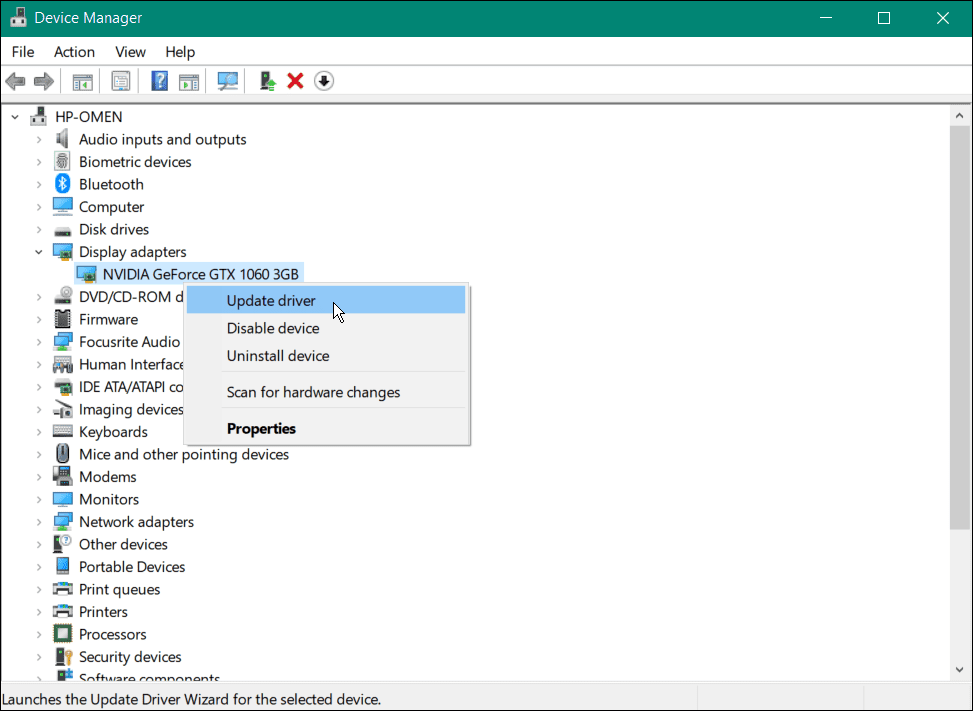
- Open Device Manager: Right-click the Start button and select “Device Manager.”
- Locate the Device: Expand the categories (e.g., “Display adapters,” “Sound, video and game controllers”) to find the specific hardware component.
- Update Driver: Right-click on the device and select “Update driver.”
- Choose Search Method:
- “Search automatically for updated driver software”: Windows will search your computer and the internet for the best available driver.
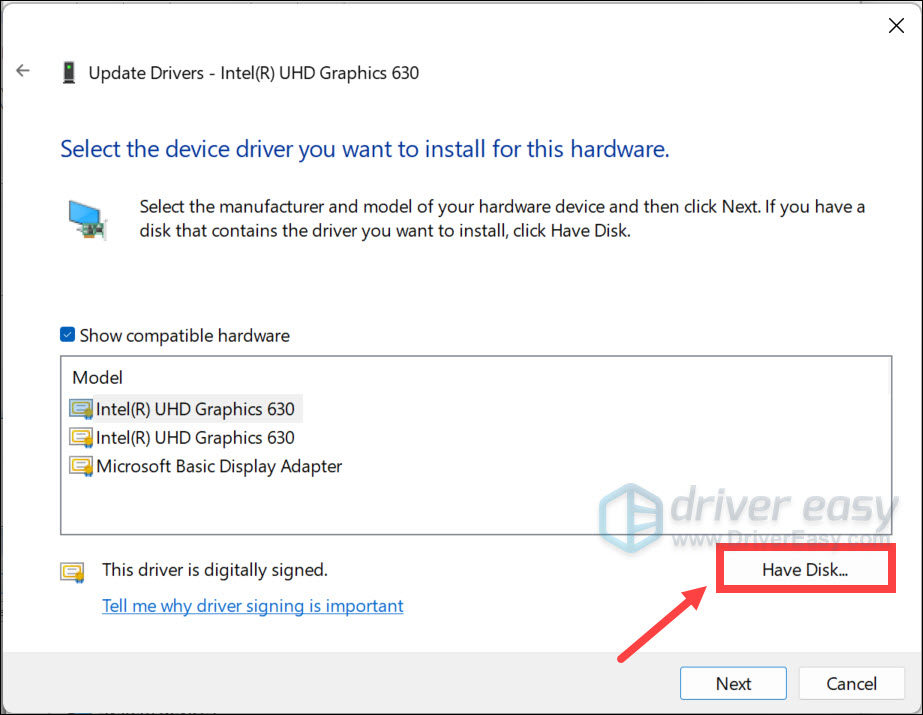
- “Browse my computer for driver software”: This option is used when you have downloaded a driver file (usually an
.inffile) from a manufacturer’s website. You’ll point Device Manager to the folder containing the driver.
- Follow Prompts: Complete the installation process.
Advantages: Granular control, useful for troubleshooting specific hardware, and allows for manual installation from downloaded files.
Limitations: Requires some knowledge of which device needs attention and where to find the correct driver files if not searching automatically.
Method 3: Downloading Directly from the Manufacturer’s Website
For critical components like graphics cards (NVIDIA, AMD, Intel), motherboards (BIOS, chipset drivers), network adapters, and high-end peripherals, downloading drivers directly from the original equipment manufacturer’s (OEM) website is often the most recommended and effective method. This ensures you get the latest, most optimized, and most stable drivers specifically tailored for your hardware. This method is especially vital for performance-critical systems or when troubleshooting persistent issues.
Steps for manufacturer download:
- Identify Your Hardware: Accurately determine the make and model of your component. For graphics cards, use System Information or Device Manager. For motherboards, check your PC’s documentation or use a system information tool.
- Visit Manufacturer’s Support Page: Go to the official website of the hardware manufacturer (e.g., nvidia.com, amd.com, intel.com, asus.com, dell.com).
- Navigate to Drivers/Support Section: Look for sections like “Support,” “Downloads,” “Drivers,” or “Customer Service.”
- Enter Product Details: Use search bars or navigation menus to input your product’s model number, series, or part number.
- Select Operating System: Ensure you select the correct version and architecture (32-bit or 64-bit) of your operating system.
- Download and Install: Download the executable driver file (often an
.exe) and run it. Follow the on-screen instructions, which typically include an uninstaller for old versions and a clean installation option.
Advantages: Access to the latest features and optimizations, highest stability, direct support from the OEM, and often includes additional utility software. Crucial for gamers, content creators, and professionals demanding peak performance.
Limitations: Requires accurate hardware identification and some manual effort.
Method 4: Utilizing Manufacturer-Specific Software
Many major hardware manufacturers provide their own dedicated software utilities designed to manage and update drivers for their products. These tools often streamline the update process and offer additional features.
Examples:
- NVIDIA GeForce Experience: For NVIDIA graphics cards, this software not only updates drivers but also optimizes game settings and offers features like ShadowPlay.
- AMD Radeon Software: Similar to NVIDIA’s offering, it manages AMD graphics drivers, offers performance tuning, and includes features like Radeon ReLive.
- Intel Driver & Support Assistant: Scans your Intel hardware (processors, graphics, Wi-Fi, Ethernet) and recommends specific Intel driver updates.
- Dell SupportAssist, HP Support Assistant, Lenovo Vantage: These OEM tools are designed for pre-built systems and can scan for, download, and install not just drivers but also BIOS updates and other system utilities specific to that brand.
Advantages: Extremely convenient for users of that brand’s ecosystem, often provides a user-friendly interface, and ensures compatibility.
Limitations: Specific to a single manufacturer or brand of hardware.
Method 5: Third-Party Driver Updaters (Use with Extreme Caution)
There exist numerous third-party applications claiming to automatically scan your system, identify outdated drivers, and install the latest versions. While some may appear convenient, exercise extreme caution when considering these tools.
Risks and Disadvantages:
- Malware and Adware: Many free or even paid third-party driver updaters bundle unwanted software, adware, or even malicious programs.
- Incorrect Drivers: They might install generic, incompatible, or incorrect drivers, leading to system instability, crashes, or reduced performance.
- Unnecessary Updates: They might suggest updating drivers that are perfectly functional or that are better managed by Windows Update, creating potential conflicts.
- Security Vulnerabilities: Relying on unverified sources for critical system components introduces significant security risks.
Recommendation: For the vast majority of users, it is strongly advised to avoid third-party driver update utilities and stick to the official methods outlined above. The minimal convenience they offer is rarely worth the significant risks to your system’s stability and security, tying back into the “Brand” and “Tech” themes of trust and reliability.

Best Practices and Key Considerations for Driver Management
Effective driver management isn’t just about knowing how to install them; it’s about adopting smart practices that ensure your system remains robust, secure, and performs optimally over time. Adhering to these guidelines can save you significant time, money, and frustration in the long run.
Always Prioritize Official Sources and Verify Your Hardware
The golden rule of driver installation is to always obtain drivers from official, reputable sources. This primarily means the hardware manufacturer’s dedicated support website or, for general components, through Windows Update. Official drivers are rigorously tested by the manufacturer for compatibility, stability, and security, carrying digital signatures that verify their authenticity.
Why this matters:
- Security: Unofficial sources are prime vectors for distributing malware, viruses, and trojans disguised as legitimate drivers. Installing such software can compromise your entire system, leading to data theft or system damage, a clear “Digital Security” concern.
- Stability: Generic or incorrect drivers can lead to system crashes, blue screens of death (BSODs), or erratic hardware behavior.
- Performance: Official drivers are optimized for specific hardware, ensuring you get the best possible performance and access to all features.
Before downloading any driver, double-check that you have accurately identified your hardware’s make and precise model number. Tools like Device Manager, System Information (msinfo32), or third-party utilities like CPU-Z can help. A slight variation in model number could lead to downloading an incompatible driver.
Backup Before Updating, Read Release Notes, and Reboot
While updating drivers is generally a safe process, there’s always a small chance of unforeseen compatibility issues or conflicts. Implementing a backup strategy can be a lifesaver.
- Create a System Restore Point: Before installing major driver updates (especially for graphics cards or chipsets), create a system restore point. This allows you to revert your system to a previous stable state if the new driver causes problems. Search for “Create a restore point” in Windows search.
- Read Release Notes/Changelogs: Official driver downloads often come with release notes or a changelog. These documents detail what’s new in the driver, any known issues, compatibility requirements, and specific installation instructions. Reading them can prevent surprises and help you decide if an update is truly necessary or if it might introduce a bug that affects your workflow.
- Reboot After Installation: Many driver installations require a system reboot to finalize the changes and ensure the new driver is correctly loaded and initialized by the operating system. Neglecting to reboot can sometimes lead to the driver not functioning properly, leading to confusion and unnecessary troubleshooting.
These practices, while seemingly minor, contribute significantly to maintaining system integrity and avoiding disruptions, reinforcing the “Productivity” aspect of the website’s themes.
Troubleshooting Common Driver Issues
Even with the best practices, driver-related problems can occasionally arise. Knowing how to troubleshoot these common issues can save you hours of frustration and potentially costly repair bills.
Diagnosing Device Manager Errors and Performance Problems
Windows Device Manager uses specific “Error Codes” to indicate problems with a device. Understanding these can guide your troubleshooting:
- Code 10 (This device cannot start): A very common error indicating the device is failing to start. This often points to a corrupted, missing, or incompatible driver.
- Code 31 (This device is not working properly because Windows cannot load the drivers required for this device): Similar to Code 10, often driver-related.
- Code 43 (Windows has stopped this device because it has reported problems): Usually related to a hardware failure or a critical driver issue, particularly common with USB devices or graphics cards.
General Troubleshooting Steps for Device Manager Errors:
- Reinstall the Driver: Uninstall the problematic driver from Device Manager (right-click, “Uninstall device,” and check “Delete the driver software for this device” if available). Then, restart your PC and let Windows try to reinstall a fresh driver, or manually install the latest official driver from the manufacturer’s website.
- Roll Back Driver: If a newly installed driver caused issues, right-click the device in Device Manager, go to “Properties,” then the “Driver” tab, and select “Roll Back Driver.”
- Check for Hardware Conflicts: Sometimes, two devices might try to use the same resources. Device Manager usually flags these with a yellow exclamation mark or red X.
- Run System File Checker (SFC): Corrupted system files can sometimes interfere with drivers. Open Command Prompt as administrator and type
sfc /scannow. - Check for Windows Updates: Ensure your OS is fully updated, as some driver fixes are delivered via Windows Update.
Performance Problems and Instability:
If your computer experiences frequent crashes, freezes, graphical anomalies, or significantly reduced performance, especially after a recent update or new hardware installation, an outdated or corrupted driver is a prime suspect. Focus on drivers for graphics cards, chipset, and network adapters. Using a clean installation option when updating graphics drivers can often resolve lingering issues.
Dealing with Unsigned Drivers and Compatibility
Windows, by default, enforces Driver Signature Enforcement, meaning it will only install drivers that have been digitally signed by a trusted authority (like Microsoft). This is a crucial security feature designed to prevent malicious or improperly developed drivers from compromising your system.
Why it’s important: Signed drivers assure you that the driver hasn’t been tampered with and comes from a verified source. Unsigned drivers pose a security risk.
When you might encounter unsigned drivers:
- Very old hardware for which manufacturers no longer provide signed drivers.
- Niche, specialized hardware with custom drivers.
- Drivers still under development or from less reputable sources (which should generally be avoided).
How to temporarily disable Driver Signature Enforcement (Use with Extreme Caution):
This should only be done if you absolutely trust the source of the unsigned driver and understand the risks.
- Restart your computer.
- During boot, access the Advanced Boot Options (usually by pressing F8 or Shift + Restart from Windows).
- Select “Troubleshoot” > “Advanced options” > “Startup Settings” > “Restart.”
- After rebooting, you’ll see a list of startup options. Select option 7: “Disable driver signature enforcement.”
- Install your unsigned driver.
The enforcement will be re-enabled on the next normal restart. This is a temporary measure and not recommended for everyday use.
The Long-Term View: Driver Maintenance and Digital Well-being
Maintaining your drivers is not a one-time task; it’s an ongoing process that contributes significantly to the longevity, security, and overall “Tech” health of your computer system. Proactive driver management can prevent minor annoyances from escalating into major problems, directly impacting your “Productivity” and even your “Personal Finance” by avoiding costly repairs or premature hardware replacements.
Regular Checks, Updates, and the Impact on Productivity
Just as you update your operating system and applications, drivers also require periodic attention. While Windows Update handles many background drivers, it’s a good practice to manually check for updates for key components, especially:
- Graphics Card Drivers: Update these frequently (monthly or quarterly), particularly if you’re a gamer or use graphically intensive software. These updates often bring performance improvements, bug fixes, and support for new games/applications.
- Chipset Drivers: Update these less frequently (biannually or annually), usually when major motherboard updates are released, or if you’re experiencing system instability.
- Network Adapter Drivers: Update if you’re experiencing connectivity issues or when new Wi-Fi standards are adopted.
- Major Peripherals: For specialized keyboards, mice, audio interfaces, or external storage devices, check their manufacturer’s website periodically.
Impact on Productivity: A system with well-maintained, up-to-date drivers runs smoother, experiences fewer crashes, and leverages hardware to its full potential. This translates directly into higher productivity for work, more fluid gaming experiences, and reliable performance for creative tasks. Conversely, a system riddled with outdated or problematic drivers can lead to constant interruptions, data loss, and wasted time, ultimately affecting your bottom line.
Security Implications and Brand Reputation
Outdated drivers are not just a performance bottleneck; they can also represent significant security vulnerabilities. Malicious actors are constantly looking for exploits in software, and drivers, being low-level pieces of software, can be prime targets. A vulnerability in an old network driver, for instance, could potentially allow an attacker to gain access to your system. Manufacturers release new driver versions to patch these security holes. Regularly updating your drivers is therefore an essential layer in your overall cybersecurity defense strategy, akin to regularly updating your antivirus software.
Furthermore, for businesses and individuals who brand themselves on efficiency and reliability, a system plagued by driver issues reflects poorly. Imagine a graphic designer whose machine frequently crashes during client presentations due to an outdated display driver, or a streamer whose broadcasts are marred by audio glitches. These technical failures can tarnish a professional’s “Brand” and reputation. Conversely, a smoothly running, well-maintained system enhances credibility and demonstrates a commitment to quality and professionalism.
Conclusion
Drivers, though often invisible, are the lifeblood of your computer’s hardware. Understanding their role and knowing how to effectively install and manage them is an indispensable skill in today’s technology-driven world. From the automated convenience of Windows Update to the precision of a direct manufacturer download, you now possess a robust toolkit for ensuring your system’s optimal performance, unwavering stability, and ironclad security.
By prioritizing official sources, adopting diligent maintenance practices, and understanding basic troubleshooting, you not only prevent frustrating technical glitches but also unlock the full potential of your hardware, extend its lifespan, and protect your digital assets. Embrace driver management not as a chore, but as a proactive step towards a more efficient, secure, and enjoyable computing experience. In doing so, you’re not just installing software; you’re investing in the reliable operation of your technology, bolstering your productivity, and safeguarding your digital well-being—a true testament to mastering the “Tech” that empowers us all.
aViewFromTheCave is a participant in the Amazon Services LLC Associates Program, an affiliate advertising program designed to provide a means for sites to earn advertising fees by advertising and linking to Amazon.com. Amazon, the Amazon logo, AmazonSupply, and the AmazonSupply logo are trademarks of Amazon.com, Inc. or its affiliates. As an Amazon Associate we earn affiliate commissions from qualifying purchases.