
Introduction: Understanding Printer Drivers – The Digital Bridge
In the intricate world of modern technology, where devices of all shapes and sizes seamlessly communicate, there exists a crucial piece of software that often goes unnoticed until something goes wrong: the device driver. For printers, this is particularly true. A printer driver isn’t just a simple piece of code; it’s the indispensable digital bridge that allows your computer to speak the same language as your printer. Without it, your sophisticated multi-function device is little more than an inert box, unable to translate your digital documents into tangible prints.
Why Drivers Are Indispensable
Imagine trying to communicate with someone who speaks a completely different language. You might point, gesture, or use rudimentary signs, but a truly nuanced conversation would be impossible without a translator. In the realm of computing, your operating system (OS) – be it Windows, macOS, or Linux – is fluent in its own internal language. Your printer, a marvel of mechanical and electronic engineering, also has its unique operational language, dictating how it heats toner, moves paper, and lays down ink.
The printer driver acts as this vital translator. It takes the print commands generated by your applications (like Microsoft Word or Adobe Photoshop) and your operating system, converts them into a format the specific printer model understands, and then sends them down the USB cable or across the network. This translation ensures that your document’s fonts, colors, layout, and paper size preferences are accurately rendered on paper, preventing garbled prints, missing elements, or complete communication breakdowns. For any tech enthusiast or professional aiming for peak productivity, understanding and properly installing this fundamental software is non-negotiable.
The Role of the Printer Driver in Your Tech Ecosystem
Beyond mere translation, printer drivers play several critical roles in your overall tech ecosystem:
- Enabling Functionality: Modern printers often come with a plethora of features: duplex printing, specific paper tray selections, advanced color management, scanning, faxing, and more. The driver is what exposes these functionalities to your operating system and applications, allowing you to access and configure them.
- Optimizing Performance: Manufacturers continuously refine their drivers to improve printing speed, enhance print quality, reduce ink/toner consumption, and optimize the printer’s overall efficiency. An outdated or incorrect driver can lead to slow printing, blurry images, or excessive resource usage.
- Ensuring Compatibility and Stability: As operating systems evolve and new printer models are released, drivers are updated to maintain compatibility and stability. A well-installed and updated driver minimizes system crashes, print spooler errors, and other frustrating issues that can disrupt your workflow and productivity.
- Security Updates: Less commonly understood, but equally important, are the security updates sometimes bundled with driver releases. These can patch vulnerabilities that might otherwise be exploited, contributing to the digital security of your entire network, especially in shared or corporate environments.
For a website focused on Technology Trends, Software, and Productivity, mastering printer driver installation is a foundational skill. It directly impacts your ability to utilize your hardware effectively, maintain digital security, and ensure an uninterrupted workflow. This comprehensive guide will walk you through everything you need to know to confidently install a printer driver, troubleshoot common issues, and keep your printing setup running smoothly.
Essential Preparations Before You Begin
Before diving into the actual installation process, a little foresight and preparation can save you a great deal of time and potential frustration. Think of it as laying a solid foundation for your printing infrastructure. Skipping these preliminary steps often leads to compatibility issues, incomplete installations, or a frantic search for missing information mid-process.
Gathering Your Arsenal: What You’ll Need
Having the right information and tools at hand makes the driver installation process significantly smoother.
- Physical Setup: Unboxing and Connection:
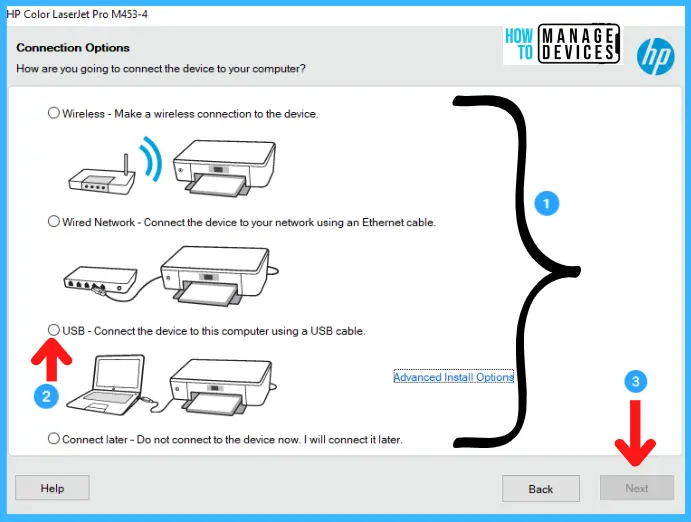
Ensure your printer is properly unboxed, cartridges/toner installed (if applicable), and physically connected to your computer (via USB) or your network (via Ethernet or Wi-Fi). Power it on. For network printers, make sure it’s connected to the same network as your computer. A common mistake is to try installing drivers before the printer is even physically ready. - Identifying Your Printer Model:
This is paramount. Printer models often have slight variations (e.g., “HP LaserJet Pro MFP M227fdw” versus “HP LaserJet Pro M203dw”). The exact model number is usually found on a sticker on the printer itself, on its packaging, or in the printer’s user manual. Jot it down, as you’ll need it to find the correct driver. - Operating System Information:
You need to know your operating system (Windows 10, macOS Ventura, etc.) and, crucially, whether it’s 32-bit or 64-bit. Most modern computers run 64-bit versions, but older systems might be 32-bit.- Windows: Right-click “This PC” or “My Computer,” select “Properties.” Look under “System type.”
- macOS: Click the Apple menu, select “About This Mac.” The version will be displayed. macOS doesn’t typically require 32-bit/64-bit distinction for drivers as Windows does.
- Internet Connection (Crucial for Modern Installations):
A stable internet connection is almost always required. Modern operating systems often download drivers automatically, and even manual installations frequently involve downloading the latest software package from the manufacturer’s website. If you anticipate network issues, download the driver on another device and transfer it via USB. - Admin Privileges:
You will likely need administrator rights on your computer to install software and make system changes. Ensure you are logged in with an administrator account or have the password ready.
Driver Compatibility: A Key to Seamless Operation
Driver compatibility is the bedrock of a functional printer. A mismatch here is a guaranteed source of headaches.
- Matching Driver to OS and Printer Model:
Every driver is specifically engineered for a particular printer model and a specific operating system version. Installing a driver for an HP printer on a Canon printer, or a Windows 10 driver on a Windows 7 machine (or vice-versa), will inevitably lead to failure. Similarly, a driver designed for a color inkjet will not work for a monochrome laser printer. Always double-check that the driver you download or use matches your exact printer model and OS version. - 32-bit vs. 64-bit Architecture:
This distinction is vital for Windows users. A 32-bit operating system requires 32-bit drivers, and a 64-bit operating system requires 64-bit drivers. Attempting to install the wrong architecture driver will result in an error message or an unstable installation. Modern systems predominantly use 64-bit architecture, which offers better performance and the ability to utilize more RAM, but it’s always good to verify. Manufacturers typically provide separate downloads for each architecture.
By meticulously completing these preparatory steps, you significantly increase the likelihood of a swift, successful, and frustration-free driver installation, setting the stage for optimized printing and enhanced productivity.
Step-by-Step Guide: Installing Your Printer Driver
With your preparations complete, it’s time to delve into the various methods of installing your printer driver. While the ultimate goal is the same, the path you take can vary depending on your printer, operating system, and personal preference. We’ll explore the most common and effective approaches.
Method 1: The Automatic (Plug & Play) Approach
This is often the easiest and most preferred method, as it requires minimal user intervention. Modern operating systems are designed to detect new hardware and, whenever possible, install the necessary drivers automatically.
-
For Windows: Windows Update and Automatic Detection:
- Connect the Printer: Power on your printer and connect it to your PC via a USB cable. For network printers, ensure it’s connected to your Wi-Fi or Ethernet.
- Wait for Detection: Windows typically detects new hardware almost immediately. You might see a notification bubble indicating that “Device driver software is being installed.”
- Check Windows Update: If Windows doesn’t automatically find the driver, navigate to
Settings > Update & Security > Windows Updateand click “Check for updates.” Many printer manufacturers distribute their basic drivers through Microsoft’s update catalog, allowing Windows Update to fetch and install them automatically. This method ensures you get a compatible driver, often the most stable version vetted by Microsoft. - Add a Printer (If not auto-detected): If still unsuccessful, go to
Settings > Devices > Printers & scannersand click “Add a printer or scanner.” Windows will search for available devices and guide you through adding it, often finding a suitable driver in the process.
-
For macOS: System Preferences and AirPrint:
- Connect the Printer: Power on your printer and connect it via USB, or ensure it’s on the same Wi-Fi network.
- Automatic Recognition: macOS is excellent at automatically recognizing compatible printers, especially those supporting Apple’s AirPrint technology. For AirPrint-enabled printers, no driver installation is typically required – they just work.
- Add Printer Manually (If needed): If your printer isn’t automatically recognized or doesn’t support AirPrint, go to
System Settings (or System Preferences) > Printers & Scanners. Click the+button to add a new printer. macOS will scan for available devices. Select your printer from the list and, if prompted, choose the appropriate driver or let macOS download it.
Method 2: Leveraging the Manufacturer’s Resources
When automatic methods fall short, or if you need the full suite of software and features that come with your printer, turning to the manufacturer is the next logical step.
-
Using the Installation CD/DVD (Less Common Now):
- Insert the CD: If your printer came with an installation CD and your computer still has an optical drive, insert the disc.
- Run Setup: An installation wizard should automatically launch. If not, open “This PC” or “Finder,” locate the CD drive, and double-click the “Setup.exe” (Windows) or “Installer.app” (macOS) file.
- Follow On-Screen Prompts: The wizard will guide you through the installation process, which typically includes accepting terms, selecting components (drivers, utilities, scanning software), and connecting the printer when prompted. While convenient, these CDs often contain older driver versions.
-
Downloading from the Official Website: The Preferred Manual Method:
This is arguably the most reliable method for obtaining the latest drivers and full software packages, ensuring optimal performance and compatibility.- Open Your Web Browser: Go to the official support website for your printer’s manufacturer (e.g., HP.com/support, Epson.com/support, Canon.com/support). Always use the official website to avoid malware or outdated drivers from third-party sites, which can compromise your digital security.
- Locate Driver & Support Section: Look for sections like “Support,” “Drivers,” “Downloads,” or “Software.”
- Enter Your Printer Model: Use the exact printer model number you identified earlier. The website will then display drivers specific to that model.
- Select Your Operating System: Crucially, select your operating system (Windows 11, macOS Sonoma) and the correct architecture (32-bit or 64-bit for Windows).
- Download the Latest Driver/Software Package: Download the recommended driver or the full software package. The full package often includes utility software, scanning applications, and other tools that enhance your printer’s functionality.
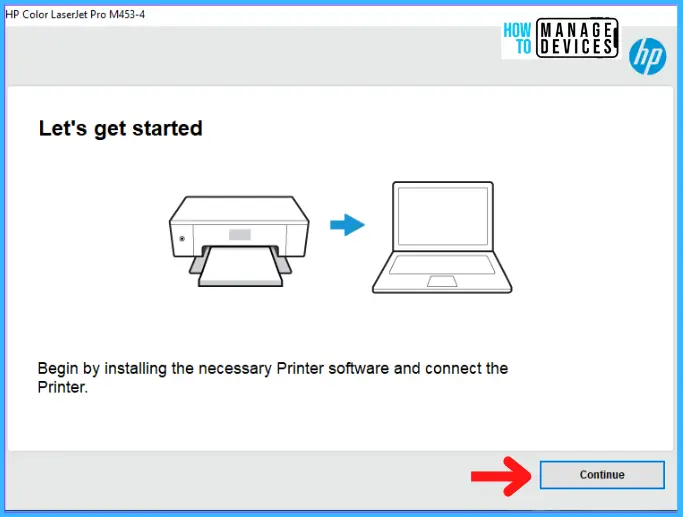
- Run the Installer: Once downloaded, locate the file (usually in your “Downloads” folder) and double-click it to start the installation wizard. Follow the on-screen instructions, connecting your printer when prompted.
Method 3: Utilizing Your Operating System’s Built-in Tools
Even if automatic detection fails, your OS often provides tools to manually add a printer and guide you toward a driver.
-
Windows: The “Add a Printer” Wizard:
- Go to
Settings > Devices > Printers & scanners. - Click “Add a printer or scanner.”
- If your printer isn’t immediately found, click “The printer that I want isn’t listed.”
- This opens the “Add Printer” wizard. You’ll have several options:
- “My printer is a little older. Help me find it.”
- “Add a local printer or network printer with manual settings.” (This is often the best choice if you have a downloaded driver file or know the printer’s IP address).
- “Add a printer using a TCP/IP address or hostname.” (For network printers).
- “Add a Bluetooth, wireless or network discoverable printer.”
- Choose the appropriate option. If you have downloaded the driver, select “Have Disk…” when prompted to install from a specific location and browse to the folder where you extracted the driver files.
- Follow the prompts to complete the installation.
- Go to
-
macOS: Adding Printers via System Settings:
- Go to
System Settings (or System Preferences) > Printers & Scanners. - Click the
+button. - If your printer doesn’t appear in the default browser, you can try selecting “IP” to add a network printer by its IP address or hostname, or “Default” to re-scan for local/network printers.
- macOS will usually suggest a driver. If not, or if you have a specific PPD (PostScript Printer Description) file, you can manually select it.
- Go to
By following these detailed steps, you should be able to successfully install your printer driver, regardless of your printer model or operating system. Remember, patience and attention to detail are key to a smooth process.

Post-Installation: Verifying and Optimizing Your Printer
Successfully installing a printer driver is a major step, but the process isn’t truly complete until you’ve verified its functionality and configured it for optimal use. This post-installation phase ensures your printer is ready for action and maximizes your productivity.
Testing Your Printer: The First Print
The most straightforward way to confirm your driver installation was successful is to send a test print. This helps confirm that your computer can communicate with the printer, the driver is correctly interpreting commands, and the printer itself is physically ready to operate.
- Windows:
- Go to
Settings > Devices > Printers & scanners. - Click on your newly installed printer.
- Select “Manage” then “Print a test page.”
- Alternatively, open any document (e.g., in Notepad or Word), go to
File > Print, select your printer, and click “Print.”
- Go to
- macOS:
- Go to
System Settings (or System Preferences) > Printers & Scanners. - Select your printer from the list.
- Click “Open Print Queue…” (or “Options & Supplies…”).
- Within the queue window or options, you might find a “Print Test Page” option.
- As with Windows, opening any document and sending a print job is also a reliable test.
- Go to
If the test page prints correctly, congratulations! Your driver is installed and working. If it doesn’t, revisit the installation steps or proceed to the troubleshooting section.
Setting as Default and Advanced Settings
Once your printer is working, you’ll want to configure it for convenience and to access its full range of features.
-
Setting as Default Printer:
If you have multiple printers, designating one as the default means it will automatically be selected every time you initiate a print job, saving you an extra click.- Windows:
Settings > Devices > Printers & scanners. Select your preferred printer and click “Manage,” then “Set as default.” Make sure “Let Windows manage my default printer” is unchecked if you want to manually set it. - macOS:
System Settings (or System Preferences) > Printers & Scanners. From the “Default printer” dropdown menu, select your chosen printer.
- Windows:
-
Accessing Advanced Settings and Preferences:
Modern printer drivers come with a wealth of options that can significantly impact print quality, speed, and cost-effectiveness.- Print Quality: Adjust settings for drafts, standard quality, or high-resolution photo prints. Lower quality settings can save ink/toner and speed up printing for non-critical documents.
- Paper Type and Size: Specify the type of paper (plain, photo, glossy) and size (Letter, A4, Legal) you’re using. This ensures correct feed and optimal output.
- Duplex Printing: Enable or disable automatic double-sided printing, a great feature for saving paper and enhancing productivity.
- Color Management: Calibrate colors, adjust saturation, and fine-tune other color settings, especially useful for graphic designers or photographers.
- Maintenance: Access tools for cleaning print heads, checking ink levels, or performing other routine maintenance tasks directly from your computer.
These settings are typically found by going to Settings/Preferences for your printer (via Printers & scanners in Windows or Printers & Scanners in macOS), and looking for “Printing Preferences,” “Printer Properties,” “Options & Supplies,” or similar entries. Familiarizing yourself with these options allows you to get the most out of your printing device.
Keeping Your Drivers Updated: A Digital Security and Performance Must
Just like any other software, printer drivers receive updates. These updates are crucial for several reasons:
- Bug Fixes: Resolving issues that might cause crashes, errors, or unexpected behavior.
- Performance Improvements: Optimizing printing speed, reducing resource consumption, and enhancing efficiency.
- New Features: Adding support for new paper types, software functionalities, or operating system updates.
- Digital Security Patches: Addressing potential vulnerabilities that could be exploited. This is particularly important for network printers in an era of increasing cyber threats.
Make it a habit to periodically check the manufacturer’s website for updated drivers, especially after a major operating system update. Many manufacturers also offer utility software that can automatically check for and install driver updates. Regularly updating your drivers is a simple yet effective way to ensure smooth operation, maximum productivity, and enhanced digital security for your printing environment.
Troubleshooting Common Printer Driver Issues
Even with the most careful installation, you might occasionally encounter problems. Printer driver issues can be frustrating, but many common problems have straightforward solutions. This section will guide you through diagnosing and resolving some of the most frequent hurdles.
“Driver Not Found” or Installation Failure
This is a common frustration, often indicating a compatibility issue or a corrupted download.
- Double-Check Compatibility: Reconfirm your exact printer model and your operating system (including 32-bit/64-bit for Windows). A slight mismatch can lead to this error.
- Download from Official Source: Ensure you downloaded the driver from the manufacturer’s official support website. Third-party driver sites are notorious for providing outdated, incorrect, or even malicious software. This is a critical digital security consideration.
- Re-download the Driver: The downloaded file might be corrupted. Delete the existing installer and download it again.
- Run as Administrator: Right-click the installer file and select “Run as administrator” (Windows) or enter your admin credentials when prompted (macOS).
- Temporarily Disable Antivirus/Firewall: Occasionally, security software can interfere with driver installation. Temporarily disable it (just during installation) and remember to re-enable it immediately afterward.
- Check Printer Connection: Ensure the USB cable is firmly connected or the printer is properly connected to your network. A loose connection can prevent detection and driver installation.
- Windows “Add Printer” Wizard: Utilize the “Add a printer” wizard in Windows (as described in Method 3) to guide the process, sometimes it can bypass issues with standalone installers.
Printer Not Responding or Offline Errors
Your printer is installed, but it just won’t print, or your computer reports it’s “offline.”
- Check Power and Cables: Is the printer powered on? Are all cables securely connected? Is there paper in the tray?
- Restart Everything: The classic tech solution: restart your printer, your computer, and your Wi-Fi router (if it’s a network printer). This often resolves temporary communication glitches.
- Clear Print Queue: A stuck print job can halt all subsequent prints.
- Windows: Go to
Settings > Devices > Printers & scanners, click your printer, select “Open queue,” then “Printer” menu, and “Cancel All Documents.” - macOS:
System Settings > Printers & Scanners, select printer, “Open Print Queue,” then cancel any pending jobs.
- Windows: Go to
- Check Printer Status:
- Windows: In the print queue window, make sure “Pause Printing” and “Use Printer Offline” are unchecked under the “Printer” menu.
- macOS: Ensure the printer isn’t paused in the print queue.
- Reinstall the Driver: As a last resort, completely uninstall the existing printer driver and then reinstall it following the steps in this guide. This clears out any corrupted driver files.
- Windows:
Settings > Apps > Apps & features, find printer software, uninstall. Also, go toDevices > Printers & scanners, remove the printer. Then restart. - macOS:
System Settings > Printers & Scanners, select printer, click “-” to remove.
- Windows:
Resolving Printing Quality Problems
If your printer is working but producing poor quality prints (streaks, faded colors, blurry text), the driver might not be the direct cause, but it’s part of the solution.
- Check Ink/Toner Levels: Low ink or toner is the most common cause of quality issues. Most drivers include utilities to check levels.
- Run Printer Maintenance Utilities: Use the software that came with your printer (often installed with the driver) to perform head cleaning, nozzle checks, or alignment.
- Adjust Print Settings: Ensure you’re using the correct print quality settings and paper type in your application’s print dialogue or the printer’s preferences. High-quality prints require appropriate settings.
- Update Driver: An outdated driver might not be optimized for your OS or specific print tasks. Check for the latest driver from the manufacturer’s website.
The Importance of Official Sources and Digital Security
Throughout this troubleshooting section, the emphasis on downloading drivers from official manufacturer websites cannot be overstated. Relying on unofficial sources or generic “driver update” software carries significant risks:
- Malware and Viruses: Unofficial sites are breeding grounds for malicious software bundled with what appears to be a legitimate driver.
- Incorrect/Outdated Drivers: These can lead to system instability, printer malfunctions, and security vulnerabilities.
- Privacy Risks: Some rogue software might collect your personal data without consent.
Always prioritize digital security by sourcing drivers directly from the printer manufacturer’s official support page. This practice protects your system, your data, and ensures the best possible performance from your printer.
Conclusion: Seamless Printing, Enhanced Productivity
In today’s fast-paced digital landscape, an efficient and reliable printing setup is fundamental to productivity, whether you’re managing a bustling home office, a small business, or simply handling personal documents. The printer driver, though often overlooked, is the unsung hero that enables this vital function. It’s the essential software that bridges the gap between your sophisticated computer and your capable printing hardware, translating complex digital data into tangible results.
By understanding what printer drivers are, meticulously preparing for installation, confidently navigating the various installation methods – from automatic Plug & Play to leveraging manufacturer websites – and knowing how to troubleshoot common issues, you empower yourself to maintain a seamless printing experience. Regularly verifying your printer’s functionality, optimizing its settings, and, most importantly, keeping your drivers updated are not just best practices; they are critical steps towards ensuring peak performance, safeguarding your digital security, and maximizing your overall productivity.
Remember, a well-maintained printer, powered by its correct and up-to-date driver, is more than just a peripheral; it’s an integral part of your technology ecosystem, ready to deliver crisp, clear prints whenever you need them. Embrace these insights, and take control of your printing destiny, turning potential frustrations into effortless efficiency.
aViewFromTheCave is a participant in the Amazon Services LLC Associates Program, an affiliate advertising program designed to provide a means for sites to earn advertising fees by advertising and linking to Amazon.com. Amazon, the Amazon logo, AmazonSupply, and the AmazonSupply logo are trademarks of Amazon.com, Inc. or its affiliates. As an Amazon Associate we earn affiliate commissions from qualifying purchases.