
In an increasingly digital world, the humble calculator remains an indispensable tool, evolving far beyond simple arithmetic. For many, its primary use might be confined to whole numbers or decimals, yet modern calculators are sophisticated devices capable of handling complex mathematical expressions, including fractions. Understanding how to leverage this functionality can demystify mathematics, streamline problem-solving, and unlock a deeper appreciation for the technology we often take for granted. This comprehensive guide will navigate the intricacies of fraction input and manipulation across various calculator types, offering insights into their design and practical application.
The Ubiquitous Calculator: More Than Just Whole Numbers
Calculators have come a long way since their mechanical origins. From the abacus to the slide rule, the human quest for computational aids has been relentless. The electronic calculator, first appearing in the 1960s, revolutionized the field, bringing rapid calculations to the masses. However, early models were largely restricted to basic operations on integers and decimals. The advent of scientific and later graphing calculators marked a significant paradigm shift, integrating functions previously reserved for advanced mathematical tables or tedious manual computations.
A Brief History of Computational Devices and Their Limitations
Historically, fractions posed a significant hurdle for computational devices. Before electronic calculators, working with fractions involved manual methods of finding common denominators, simplifying, and converting between mixed numbers and improper fractions. This was a time-consuming and error-prone process, often leading to a reluctance to engage with fractional arithmetic unless absolutely necessary. Early electronic calculators, while fast, did not offer direct fraction input or output, forcing users to convert fractions to decimals before performing operations, then often converting back manually—a process that introduced rounding errors and additional steps.
The Evolution of Calculator Capabilities
The demand for more versatile tools, particularly in educational and scientific fields, spurred the development of calculators capable of handling fractions directly. Engineers, mathematicians, and educators recognized the importance of maintaining fractional precision, especially in scenarios where decimal approximations were insufficient. This led to the integration of dedicated fraction keys and sophisticated algorithms that allowed calculators to display, manipulate, and simplify fractions, often in both improper and mixed number forms. This technological leap significantly enhanced the utility of calculators, transforming them from mere decimal crunchers into powerful mathematical assistants.
Understanding Your Calculator’s Fraction Functionality
Modern calculators employ various methods to represent and process fractions. The specific keys and procedures can differ between brands and models, but the underlying principles often remain consistent. Recognizing these commonalities is key to mastering your device.
Standard Scientific Calculators: The a b/c Key
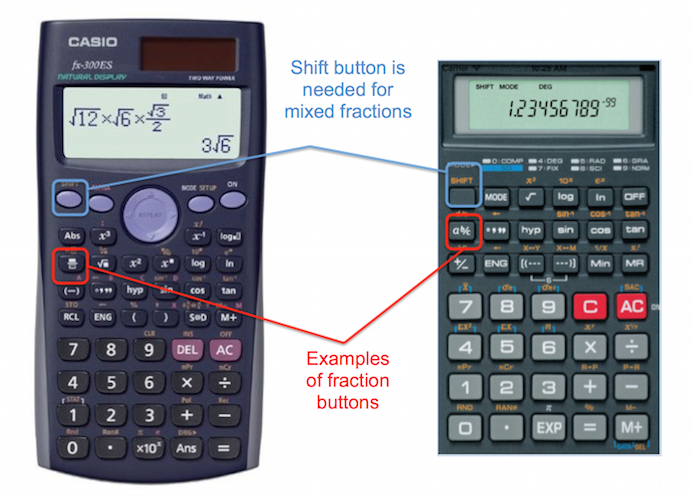
For most scientific calculators (e.g., Casio fx series, Texas Instruments TI-30XS), the primary method for entering and working with fractions involves a dedicated “fraction” key, often labeled a b/c, d/c, or a similar symbol. This key serves multiple purposes:
- Entering a mixed number: You typically input the whole number, then press the
a b/ckey, then the numerator, thena b/cagain, then the denominator. For example, to enter 2 and 1/3, you’d press2 [a b/c] 1 [a b/c] 3. - Entering an improper fraction: For a simple fraction like 3/4, you would press
3 [a b/c] 4. - Converting between mixed numbers and improper fractions: After calculating a result that is a mixed number, pressing
SHIFTand then thea b/ckey (which often has ad/cor similar function above it) will convert it to an improper fraction, and vice-versa. - Converting between fractions and decimals: There’s usually a dedicated
F↔DorS↔D(Standard to Decimal) key to toggle the display between fractional and decimal forms.
Graphing Calculators: Inputting and Converting Fractions
Graphing calculators (e.g., TI-84 Plus, Casio fx-CG50) offer even greater flexibility. While they may also have an a b/c key or similar, they often provide more intuitive input methods, such as a template for fractions that resembles how they’re written on paper.
- TI-83/84 Plus: To enter a fraction, you can often use the
ALPHA F1shortcut to access a fraction template, or navigate through theMATHmenu (usually option 1:Fracto convert a decimal to a fraction). To perform operations directly in fraction form, you’d input numbers and use the division symbol/, then convert the answer usingMATH > Frac. Newer TI models (like the TI-84 Plus CE) often feature “MathPrint” mode, allowing direct visual input of fractions asnumerator/denominator. - Casio fx-CG50 (and similar): These calculators typically have a dedicated fraction button that brings up a visual template, making input very straightforward. You simply type the numerator, navigate down, type the denominator, and then move out of the fraction template to continue your expression.
Online Calculators and Software: Beyond Physical Devices
The digital realm offers a plethora of online calculators and software (e.g., Desmos, Wolfram Alpha, various math apps) that simplify fraction operations. These tools often feature user-friendly interfaces with visual fraction input, automatic simplification, and step-by-step solutions. While they don’t involve physical keys, the underlying principles of entering numerators and denominators remain the same. Many smartphone calculator apps also replicate the functionality of scientific or graphing calculators, often with an intuitive touch interface for fraction input.
Different Fraction Representations: Mixed vs. Improper
A key aspect of working with fractions on a calculator is understanding the different ways they can be represented:
- Improper Fractions: The numerator is greater than or equal to the denominator (e.g., 7/4).
- Mixed Numbers: A whole number combined with a proper fraction (e.g., 1 ¾).
Calculators typically allow you to switch between these forms using a dedicated function (often SHIFT + a b/c or similar). This flexibility is crucial for both performing calculations and presenting answers in the required format.
Step-by-Step Guides for Common Calculator Types
While exact button presses vary, here are general guidelines for popular calculator brands:
Casio Scientific Calculators (e.g., fx-991EX, fx-300ES Plus)
- To enter a simple fraction (e.g., 3/4): Press the
[fraction template button](often a box over a box symbol) and type3, then use the down arrow to type4. Press[ENTER]or[=]. - To enter a mixed number (e.g., 2 ½): Press
[SHIFT]then the[fraction template button](to access the mixed number template, which often has three boxes). Type2for the whole number, right arrow,1for the numerator, down arrow,2for the denominator. Press[ENTER]or[=]. - To convert between improper/mixed fractions and decimals: After a calculation, if the result is a fraction, press the
[S↔D]button to toggle between fractional and decimal form. To convert an improper fraction to a mixed number or vice versa, press[SHIFT]then[S↔D](which often hasa b/c ↔ d/cabove it).
Texas Instruments Scientific Calculators (e.g., TI-30XS Multiview)
- To enter a fraction (e.g., 2/3): Press the
[n/d]button. Type2for the numerator, use the down arrow to type3for the denominator. Press[ENTER]. - To enter a mixed number (e.g., 1 ¼): Press
[2nd]then[n/d](to access theunit n/dtemplate). Type1for the whole number, right arrow,1for the numerator, down arrow,4for the denominator. Press[ENTER]. - To convert between fractions and decimals: Press the
[F↔D]button. - To convert between improper and mixed fractions: Press
[2nd]then[F↔D](which often hasn/d↔Un/dabove it).
Graphing Calculators (e.g., TI-84 Plus, Casio fx-CG50)
- TI-84 Plus (with MathPrint ON):
- Enter fraction: Press
[ALPHA]then[Y=](which brings up theFRACmenu), select1: n/d. Type numerator, down arrow, type denominator. - Convert decimal to fraction: Type your decimal, then press
[MATH], select1: ▶Frac, then[ENTER].
- Enter fraction: Press
- Casio fx-CG50:
- Enter fraction: Use the dedicated
[fraction template button](box over box). - Convert between improper/mixed/decimal: Use the
[S↔D]button for fraction-decimal conversion. For improper/mixed, you might need to use[SHIFT]+[S↔D]or specific commands within theMATHorOPTNmenus.
- Enter fraction: Use the dedicated
Smartphone Calculator Apps and Web Tools
These typically offer a more visual and intuitive interface. Look for a dedicated fraction button or template. Often, typing 1 / 2 will be interpreted as a fraction, and the app will provide options to convert or simplify. For web tools like Desmos, you can simply type 1/2 and it will display it as a fraction, allowing for further operations.
Advanced Fraction Operations and Troubleshooting
Beyond basic input, calculators excel at performing various operations and conversions with fractions, though users might encounter specific challenges.
Simplifying Fractions and Finding Common Denominators
Most scientific and graphing calculators automatically simplify fractions after operations. If you input 2/4, the calculator will often display 1/2 as the result. When performing addition or subtraction, the calculator handles the common denominator implicitly, presenting the simplified result directly. This feature is immensely valuable, saving considerable time and reducing errors compared to manual calculation.
Operations with Fractions: Addition, Subtraction, Multiplication, Division
The process for performing operations with fractions is straightforward once you’ve mastered input. Simply enter the first fraction, then the operation symbol (+, -, ×, ÷), then the second fraction, and finally press [=] or [ENTER]. The calculator will output the result, usually in simplified fractional form. For example, to calculate 1/2 + 1/3:
- Enter
1/2(using your calculator’s fraction input method). - Press
[+]. - Enter
1/3. - Press
[=]or[ENTER]. The result should be5/6.
Converting Decimals to Fractions and Vice Versa
This is one of the most frequently used fraction functionalities. As mentioned, the [F↔D] or [S↔D] key is crucial. If your calculator displays 0.75, pressing this key will convert it to 3/4. Conversely, if it displays 3/4, pressing the key will show 0.75. It’s important to note that not all decimals can be perfectly converted to simple fractions (e.g., 0.3333... will be approximated or the calculator will indicate it cannot be converted exactly).
Common Pitfalls and How to Avoid Them
- Order of Operations: Always be mindful of the order of operations (PEMDAS/BODMAS). Use parentheses
()liberally when dealing with complex fractional expressions to ensure the calculator interprets your input correctly. For example,1 / 2 + 3is different from1 / (2 + 3). - Display Limits: Some older or simpler scientific calculators might struggle with extremely large numerators or denominators, or display a decimal approximation instead of an exact fraction if the fraction is too complex for its display memory.
- Incorrect Key Press: Double-check that you’re pressing the correct fraction key for your calculator model and ensuring you’re differentiating between improper and mixed number input if needed.
- “Math Error”: If you divide by zero or enter an invalid expression, the calculator will display an error. Recheck your input carefully.
The Pedagogical Importance of Calculator Fraction Functions
The ability of calculators to handle fractions directly is not merely a convenience; it plays a vital role in education and practical application.
Enhancing Mathematical Understanding
For students, this functionality allows them to focus on the conceptual understanding of fraction operations rather than getting bogged down in the mechanics of finding common denominators or simplifying. They can explore patterns, test hypotheses, and verify manual calculations, fostering a deeper intuitive grasp of fractional arithmetic. It bridges the gap between abstract mathematical concepts and concrete numerical results.
Bridging the Gap Between Conceptual and Applied Math
In fields like engineering, physics, and finance, precise fractional values are often critical. Calculators that maintain fraction fidelity allow professionals to work with exact values until the final step, where decimal approximations might be necessary for practical measurements. This ensures accuracy in complex calculations where rounding too early could lead to significant errors. For example, in material science, exact ratios are often paramount, and decimal truncations could compromise the integrity of design or experimental results.

Preparing for Higher-Level STEM Fields
Proficiency with a scientific or graphing calculator, including its fraction capabilities, is a fundamental skill for anyone pursuing STEM (Science, Technology, Engineering, Mathematics) disciplines. These tools are standard in high school and university mathematics courses, and mastering them early on provides a solid foundation for tackling more advanced topics that involve rational expressions, complex numbers, and intricate formulas where fractions are commonplace.
In conclusion, understanding how to effectively use the fraction capabilities of your calculator transforms it from a basic number cruncher into a powerful mathematical ally. Whether you’re a student grappling with algebra, a professional needing precise calculations, or simply someone looking to conquer everyday math challenges, mastering fraction input and manipulation on your device is an invaluable technical skill in the digital age. Embrace your calculator’s full potential, and unlock a world of precision and efficiency in your mathematical endeavors.
aViewFromTheCave is a participant in the Amazon Services LLC Associates Program, an affiliate advertising program designed to provide a means for sites to earn advertising fees by advertising and linking to Amazon.com. Amazon, the Amazon logo, AmazonSupply, and the AmazonSupply logo are trademarks of Amazon.com, Inc. or its affiliates. As an Amazon Associate we earn affiliate commissions from qualifying purchases.