
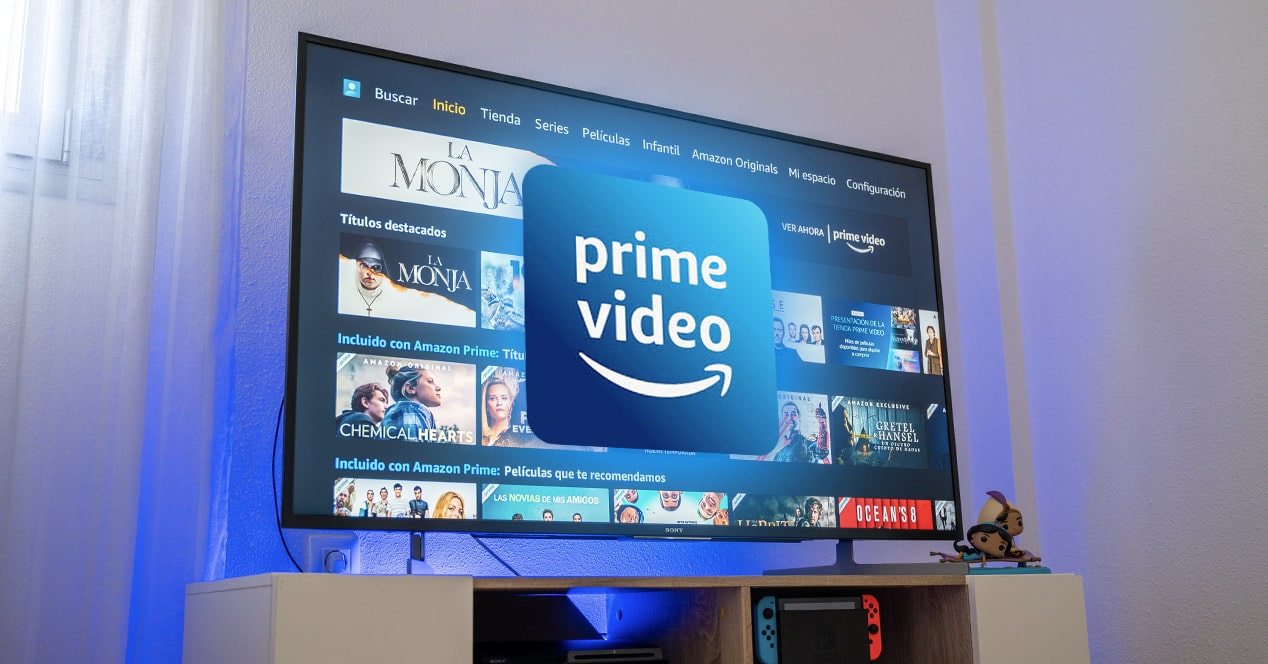
The transition from traditional linear broadcasting to digital streaming has fundamentally redefined the home entertainment landscape. At the center of this revolution is Amazon Prime Video, a sophisticated software platform that delivers a massive library of high-definition and ultra-high-definition content. For many users, moving the viewing experience from a mobile device or laptop to the “big screen” of a television is the ultimate goal. However, achieving this requires an understanding of hardware compatibility, software ecosystems, and network configurations.
This guide provides a deep technical dive into integrating Amazon Prime Video into your home theater setup, covering various hardware architectures and optimization strategies to ensure a seamless, high-fidelity experience.

Understanding the Hardware Landscape: Smart TVs and External Devices
Before initiating the software installation, it is critical to evaluate the hardware environment of your living room. The method used to access Amazon Prime Video depends heavily on the native operating system of your television or the external peripherals connected to it.
Integrated Smart TV Platforms
Most modern televisions manufactured within the last decade are “Smart TVs,” meaning they possess an onboard processor, internal storage, and a proprietary or licensed operating system. These platforms are designed to host applications directly without the need for external hardware.
-
Samsung (Tizen OS): Samsung’s proprietary Linux-based platform has supported Prime Video for several generations. The app is typically pre-installed or available via the “Smart Hub.”
-
LG (webOS): Known for its fluid “Magic Remote” interface, LG’s webOS features a dedicated content store where the Prime Video application is a staple.
-
Sony and Philips (Android TV / Google TV): These manufacturers utilize Google’s ecosystem, providing access to the Google Play Store, which hosts the most up-to-date versions of the Prime Video app.
-
Vizio (SmartCast): Vizio uses a web-based application delivery system where Prime Video is usually integrated directly into the home screen logic.
External Streaming Media Players
If your television lacks “smart” capabilities or if its internal software has become sluggish over time due to hardware aging, an external streaming device is the superior technical solution. These devices connect via HDMI and handle all the processing locally.
-
Amazon Fire TV Family: Naturally, Amazon’s own hardware—including the Fire TV Stick 4K Max and the Fire TV Cube—offers the most seamless integration. These devices run Fire OS, a fork of Android, which prioritizes the Prime Video interface.
-
Roku: Known for its agnostic approach to content, Roku devices support Prime Video across all their models, from the Express to the Ultra.
-
Apple TV (tvOS): The Apple TV 4K provides a high-performance environment for the Prime Video app, often supporting advanced features like frame rate matching and dynamic range switching.
-
Chromecast with Google TV: This device utilizes the Google TV interface to aggregate content, allowing Prime Video titles to appear directly on the main dashboard.
Gaming Consoles
For many users, the gaming console serves as the primary media hub. The Amazon Prime Video application is available on the PlayStation 4, PlayStation 5, Xbox One, and Xbox Series X/S. These machines offer significant processing power, which often results in faster menu navigation and snappier loading times compared to built-in TV apps.
The Installation and Activation Process
Once the hardware is identified and connected to the internet, the next phase involves software deployment and account synchronization. This process creates a secure handshake between your television and Amazon’s cloud servers.
Downloading the Application
On most devices, you will need to navigate to the respective “App Store” or “Channel Store.” Using the search function, type “Prime Video.” Once the application appears, select “Install” or “Get.” The device will download the software package and allocate the necessary local storage. It is important to ensure your device has sufficient flash memory; if storage is nearly full, the app may fail to install or exhibit performance issues.
The Authentication Protocol
Amazon utilizes a simplified “Code-Based Activation” system to avoid the frustration of typing long email addresses and passwords using a television remote.
-
Launch the App: Open the Prime Video app on your TV.
-
Select “Sign In”: You will be presented with a unique 5-to-6-character registration code on the screen.
-
Secondary Device Authentication: Using a smartphone or computer, navigate to
amazon.com/mytv. -
Verification: Log in to your Amazon account on that device and enter the code displayed on your TV.
-
Synchronization: Within seconds, the TV app will refresh, automatically signing you in and syncing your “Watchlist,” “Purchase History,” and “User Profiles.”
Managing User Profiles
Amazon Prime Video supports multiple user profiles per account. This is a crucial feature for households, as it allows the algorithm to provide personalized recommendations based on individual viewing habits. Upon opening the app, you will be prompted to select your profile. From a technical standpoint, this ensures that data telemetry and “continue watching” markers are accurately assigned to the correct user metadata.
Optimizing Video and Audio Performance
Getting the app on your TV is only the first step; optimizing the stream for your specific technical environment ensures you are getting the full value of your hardware, particularly if you own a 4K HDR display.
Bandwidth and Connectivity Requirements
Streaming high-bitrate video is data-intensive. To achieve Ultra High Definition (UHD/4K) resolution, Amazon recommends a stable download speed of at least 15 Mbps.
-
Ethernet vs. Wi-Fi: While Wi-Fi 6 (802.11ax) offers high speeds, a wired Ethernet connection is always preferred for streaming. Ethernet eliminates “jitter” and reduces latency, leading to fewer instances of buffering.
-
Quality Settings: Within the Prime Video app settings, users can often find a “Data Usage” or “Streaming Quality” section. For the best experience on a TV, this should be set to “Best” or “Highest.”
Understanding HDR and Frame Rates
Prime Video utilizes advanced video codecs to deliver HDR10, HDR10+, and Dolby Vision metadata. To ensure these work:
-
HDMI 2.1: Ensure your external streaming device is connected to an HDMI port that supports at least HDMI 2.0 (or 2.1 for high-frame-rate features).
-
System Settings: Check your TV’s “Input Settings” to ensure that “Enhanced Format” or “HDMI Ultra HD Deep Color” is enabled for the specific port you are using. Without this software toggle enabled on the TV side, the Prime Video app may default to standard Dynamic Range (SDR).
Audio Pass-through and Surround Sound
For users with a soundbar or an A/V receiver, achieving Dolby Atmos or 5.1 Surround Sound is essential. Ensure that your TV’s audio output is set to “Bitstream” or “Pass-through” rather than “PCM.” This allows the Prime Video app to send the raw audio data directly to your sound system for decoding, preserving the spatial integrity of the soundstage.
Troubleshooting Technical Obstacles
Even with the most advanced setups, technical glitches can occur. Understanding the root cause of these issues allows for rapid resolution.
App Crashes and Freezing
If the Prime Video app becomes unresponsive, it is usually due to a memory leak or a corrupted cache.
-
Power Cycling: Unplug your TV or streaming device from the power source for 60 seconds. This flushes the volatile memory (RAM) and forces a cold boot of the operating system.
-
Cache Clearing: On Android-based devices (Fire TV, Sony, etc.), you can navigate to Settings > Applications > Manage Installed Applications > Prime Video and select “Clear Cache.” This removes temporary files that may be causing conflicts.
Connectivity Errors (Error Code 1060, 8056)
These errors typically point to network congestion or DNS issues.
-
DNS Configuration: Sometimes, the default DNS provided by your ISP (Internet Service Provider) can be slow to resolve Amazon’s content delivery network (CDN) addresses. Switching your TV’s network settings to use Google’s Public DNS (8.8.8.8) or Cloudflare (1.1.1.1) can often improve connection stability.
-
Firmware Updates: Ensure both the Prime Video app and your TV’s system software are up to date. Manufacturers frequently release patches to fix bugs related to HDCP (High-bandwidth Digital Content Protection) handshakes, which can prevent video from playing.
HDCP Issues
If you see a black screen but hear audio, or receive an error about “Content Protection,” the issue is likely HDCP-related. This is a digital handshake between the player and the display to prevent piracy. Try switching to a different HDMI cable (preferably one labeled “High Speed” or “48Gbps”) or moving the device to a different HDMI port on the TV.

The Future of Integrated Home Entertainment
The integration of Amazon Prime Video on televisions is moving toward a more holistic smart home experience. With the inclusion of Alexa Voice Remote technology and “Far-Field” voice control, the TV is no longer a passive display but a central node in the IoT (Internet of Things) ecosystem.
Users can now use their TV to view Ring doorbell cameras or control smart lighting without exiting the Prime Video interface. Furthermore, as AI-driven upscaling becomes more prevalent in TV processors, even older Prime Video content is being dynamically enhanced to match the pixel density of 4K and 8K panels.
By understanding the hardware requirements, mastering the activation protocol, and fine-tuning the network settings, you can transform your television into a powerful gateway for global cinema and original programming. The synergy between high-performance hardware and robust streaming software ensures that the “theatre at home” experience is more accessible and high-quality than ever before.
aViewFromTheCave is a participant in the Amazon Services LLC Associates Program, an affiliate advertising program designed to provide a means for sites to earn advertising fees by advertising and linking to Amazon.com. Amazon, the Amazon logo, AmazonSupply, and the AmazonSupply logo are trademarks of Amazon.com, Inc. or its affiliates. As an Amazon Associate we earn affiliate commissions from qualifying purchases.